
Overview
Hapana allows businesses to manage tax requirements by configuring and applying tax rates to specific products, services, memberships, and packages. This feature helps clubs stay compliant with regional tax laws—like applying taxes to memberships or products while exempting personal training sessions.
By using tax types effectively, you can ensure accurate tax collection, proper invoicing, and seamless financial reporting.
Prerequisites
- Access to the Hapana Core Dashboard
- Team member role with Edit Profile and Retail Configuration permissions
- Knowledge of applicable local tax requirements for your business
Tip: Before configuring tax rates, review your local tax laws to determine which products or services require tax collection.
How to Create New Tax Types
- Log in to your Core account at core.hapana.com.
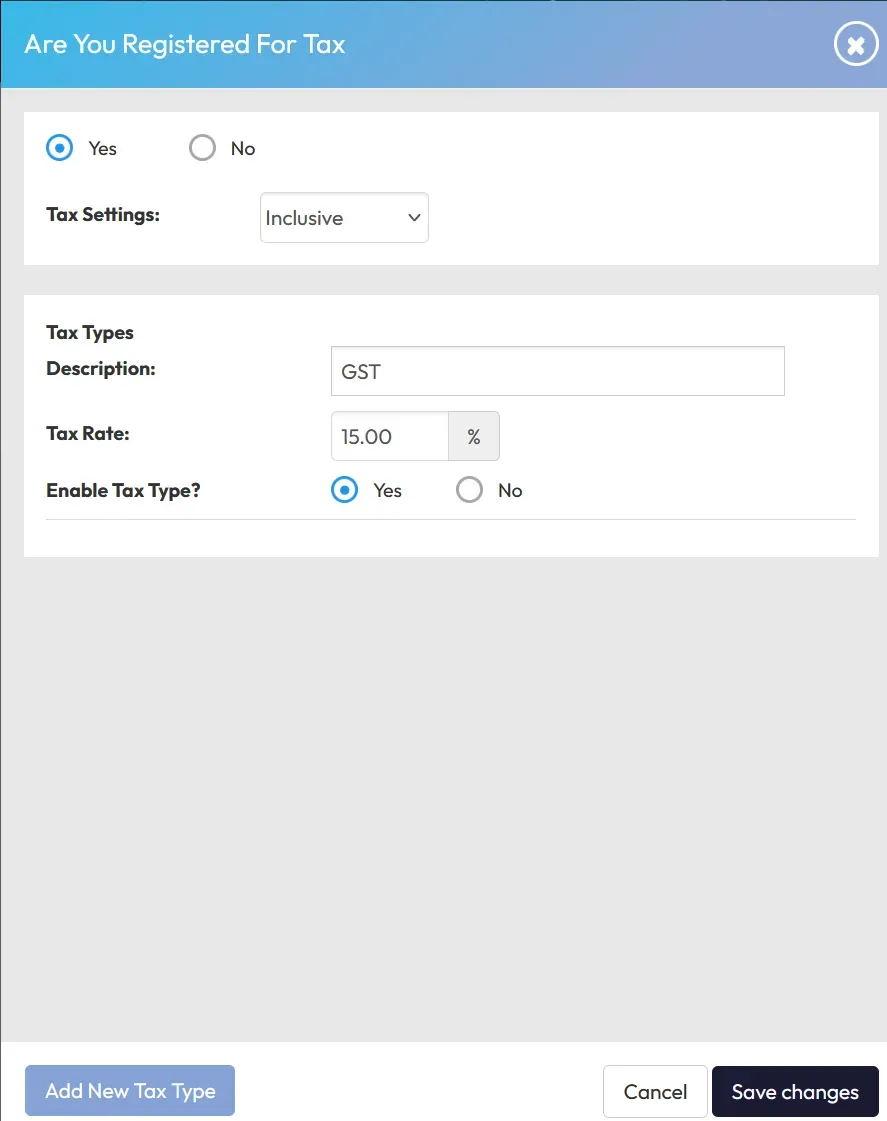
- Go to Payments > Retail Configuration > Retail Settings.
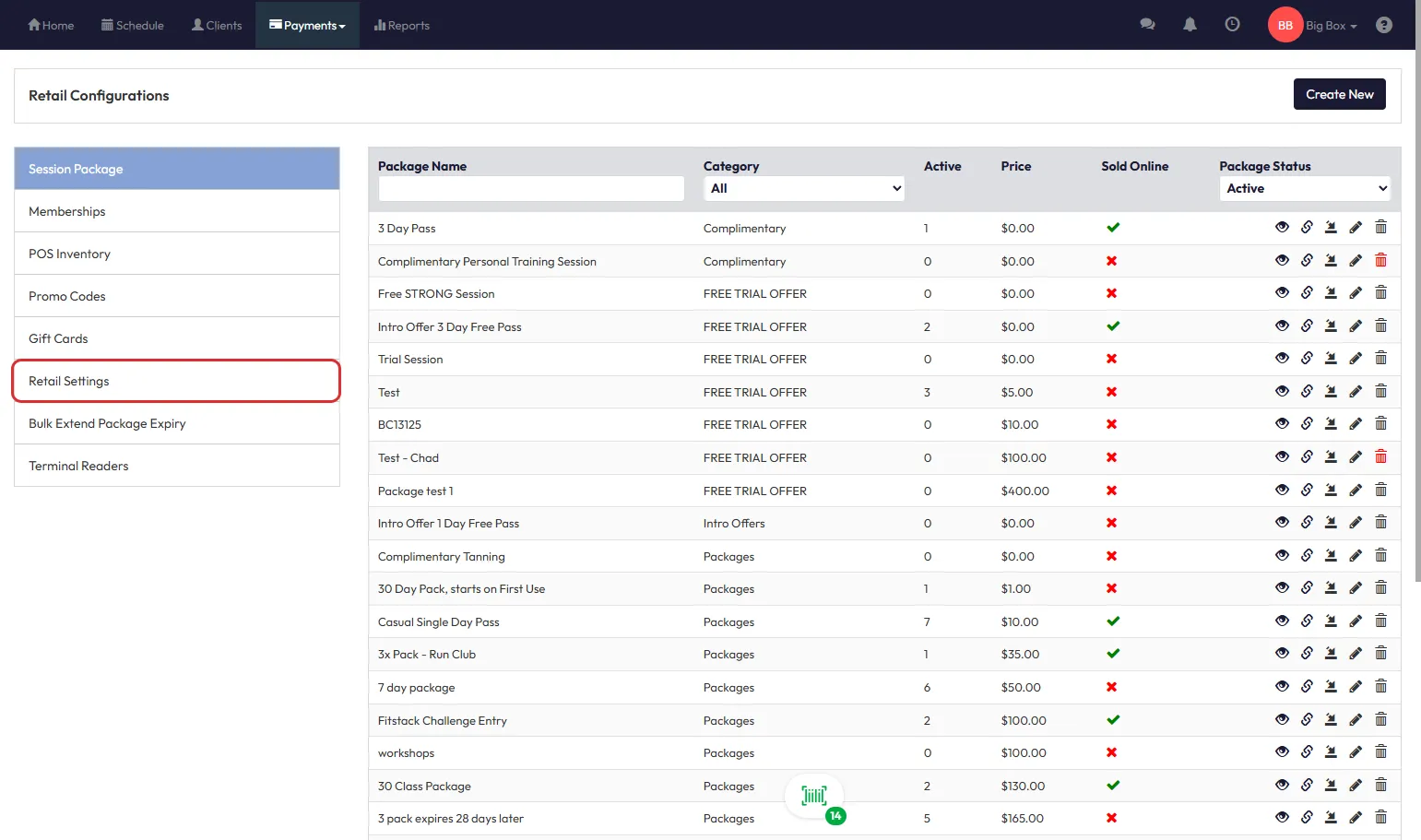
- Locate Are you registered for tax? and click the pencil icon.
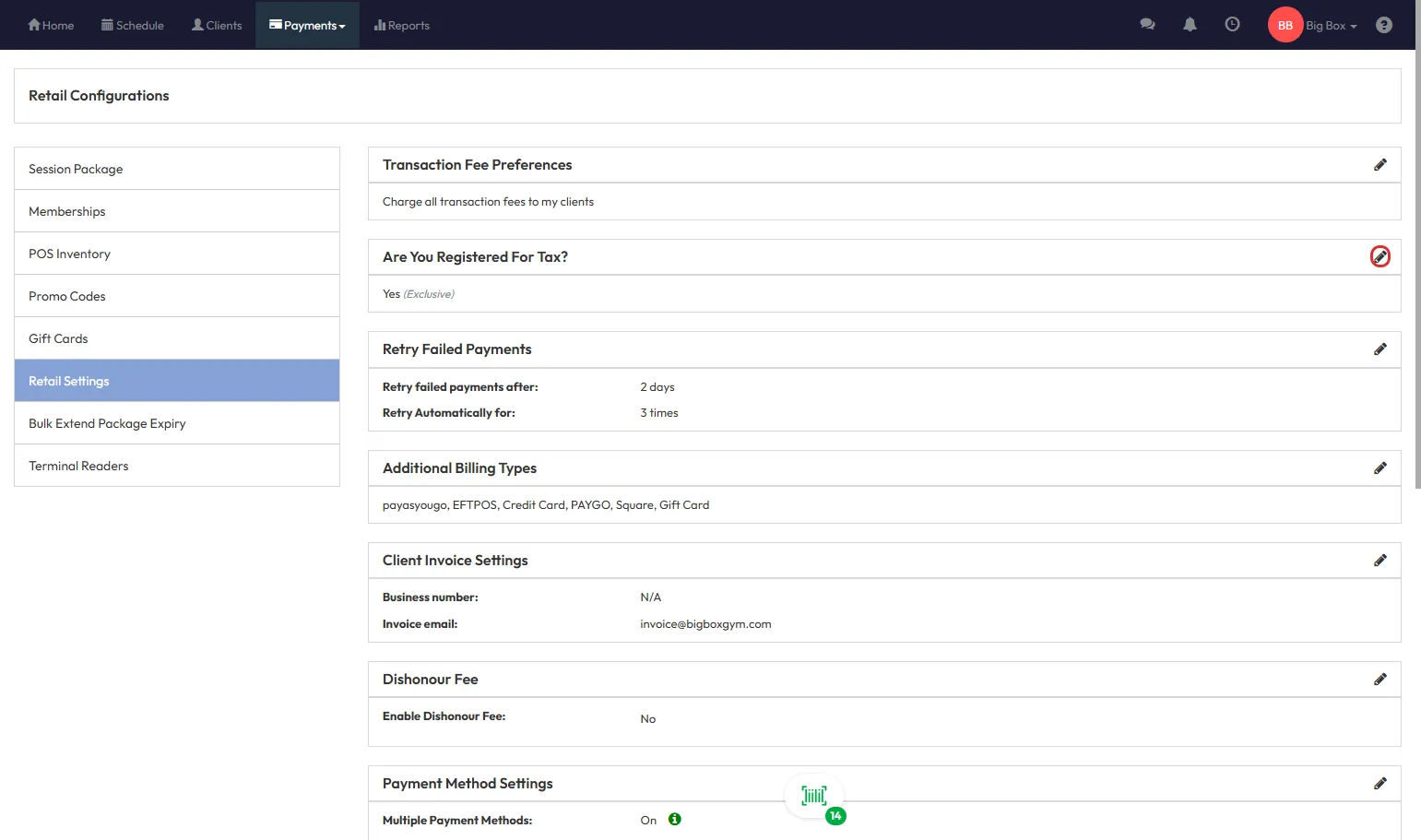
- Click Add New Tax Type.
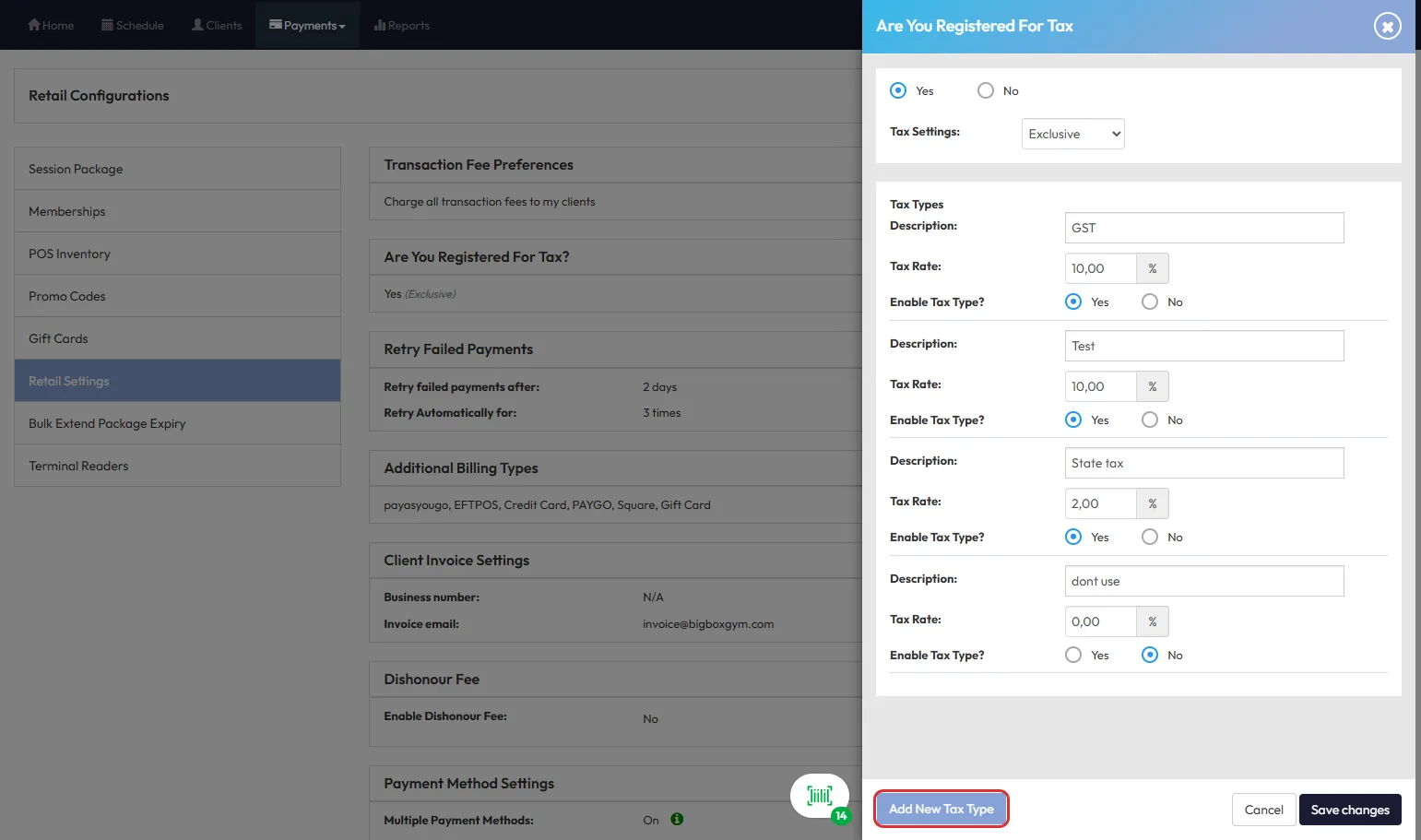
- Fill in the required fields, such as Tax Name, Percentage, and Label (e.g., “Ohio Sales Tax 7%”).
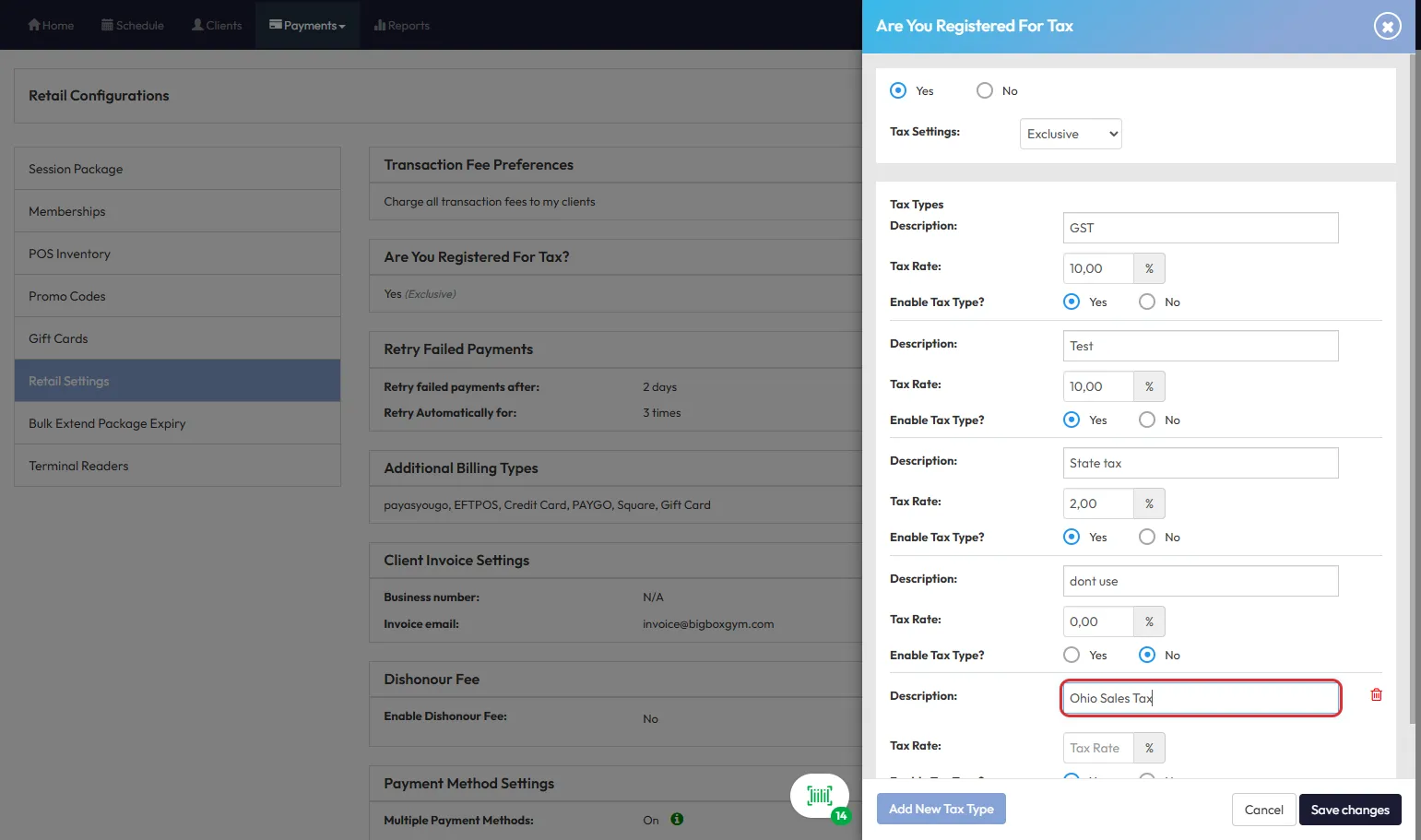
- Click Save Changes to activate the tax type.
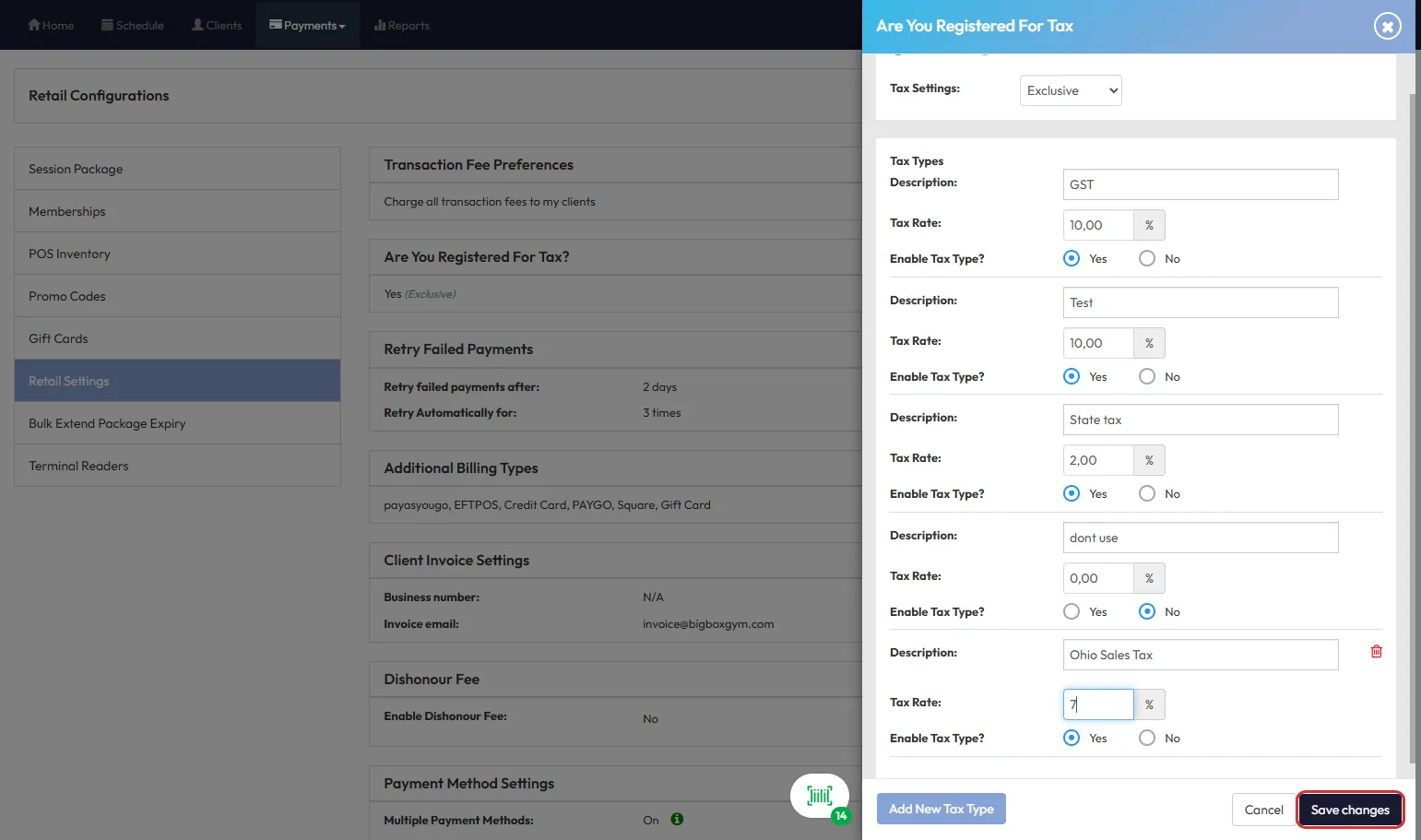
Tip: Creating a tax type alone won’t apply it—be sure to assign tax types to services, memberships, and products as needed!
How to Assign Tax Types
Assign Tax Types to Memberships and Packages
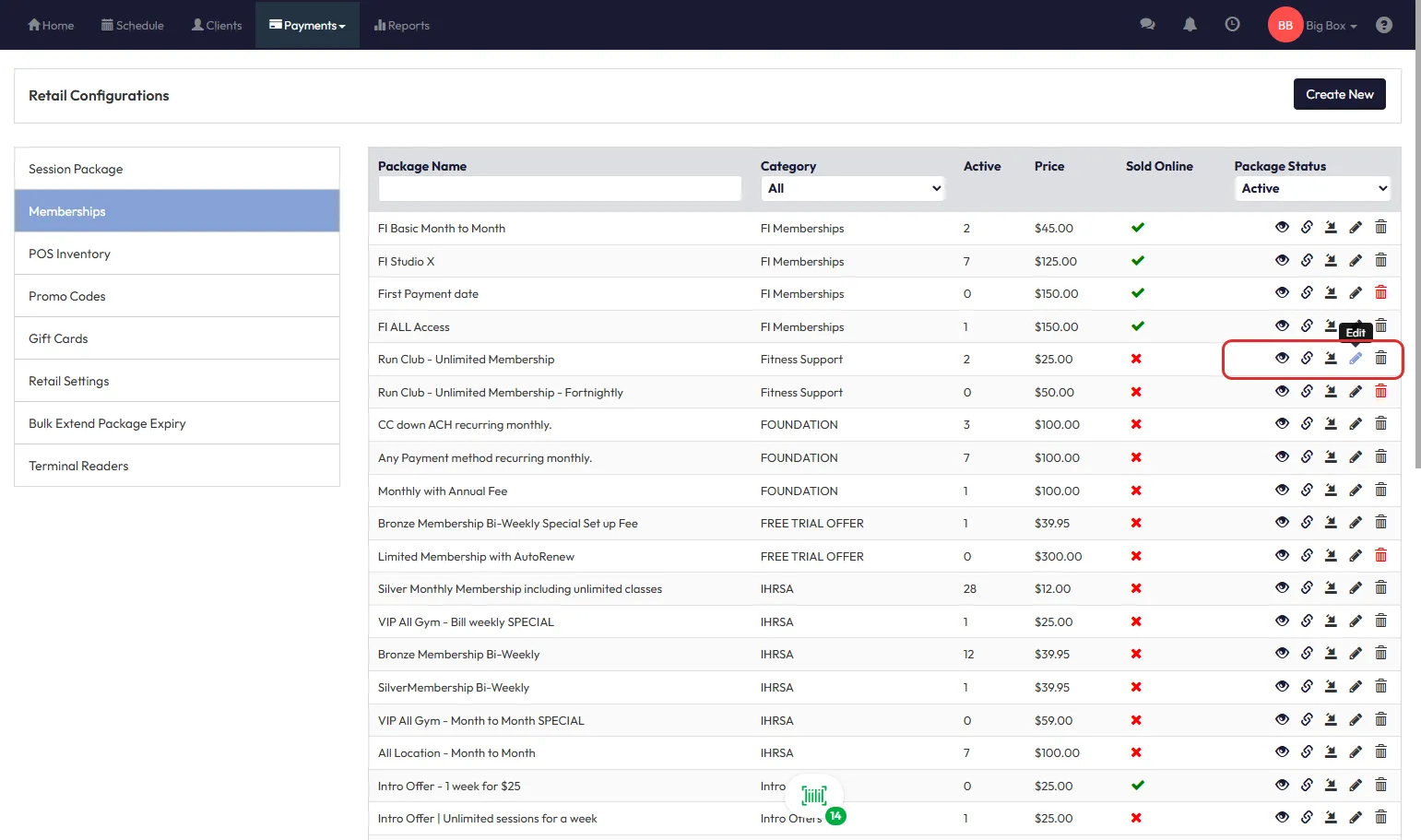
- Navigate to Payments > Retail Configuration > Memberships (or Session Packages).
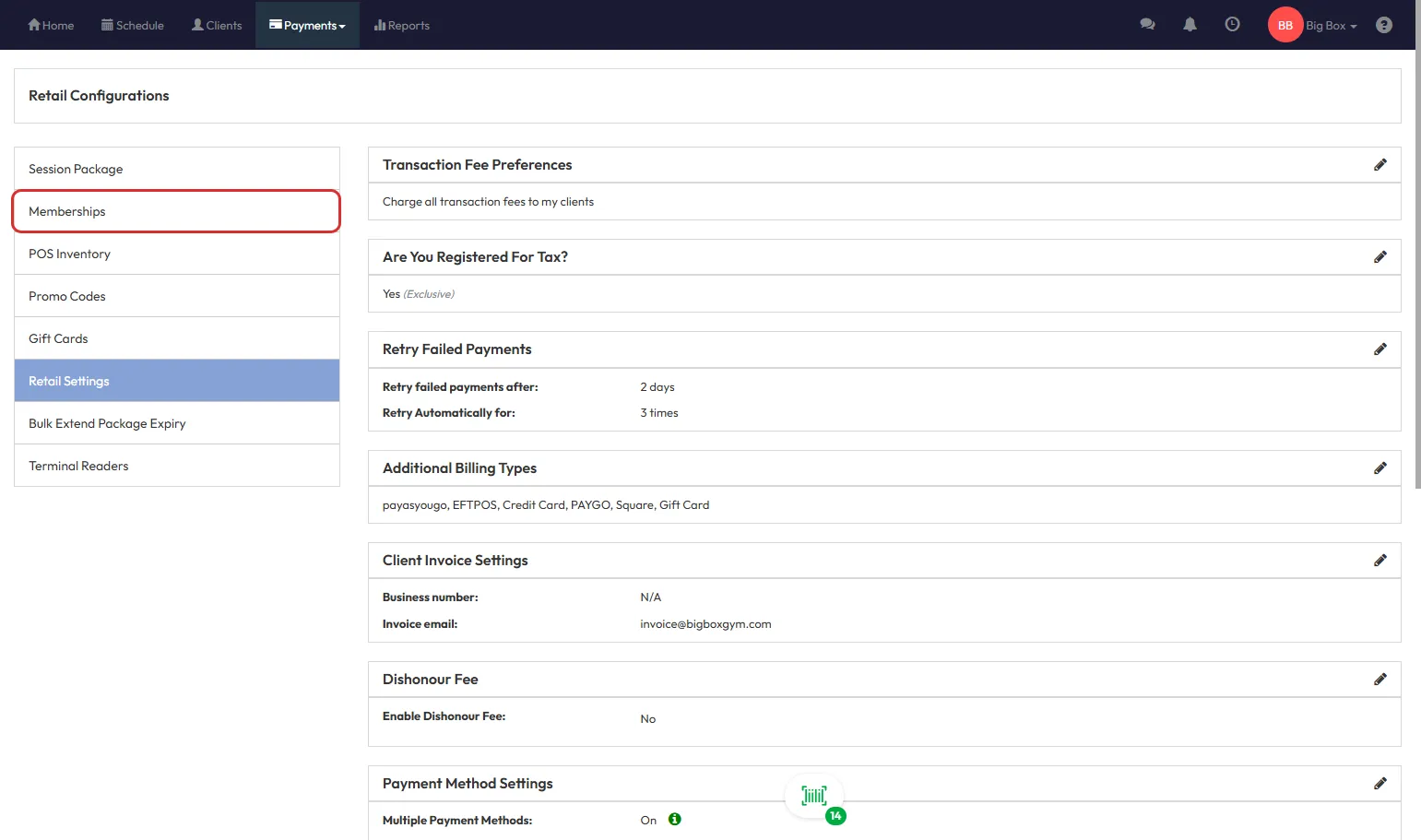
- Click the pencil icon to edit a membership or package, or click Create New.
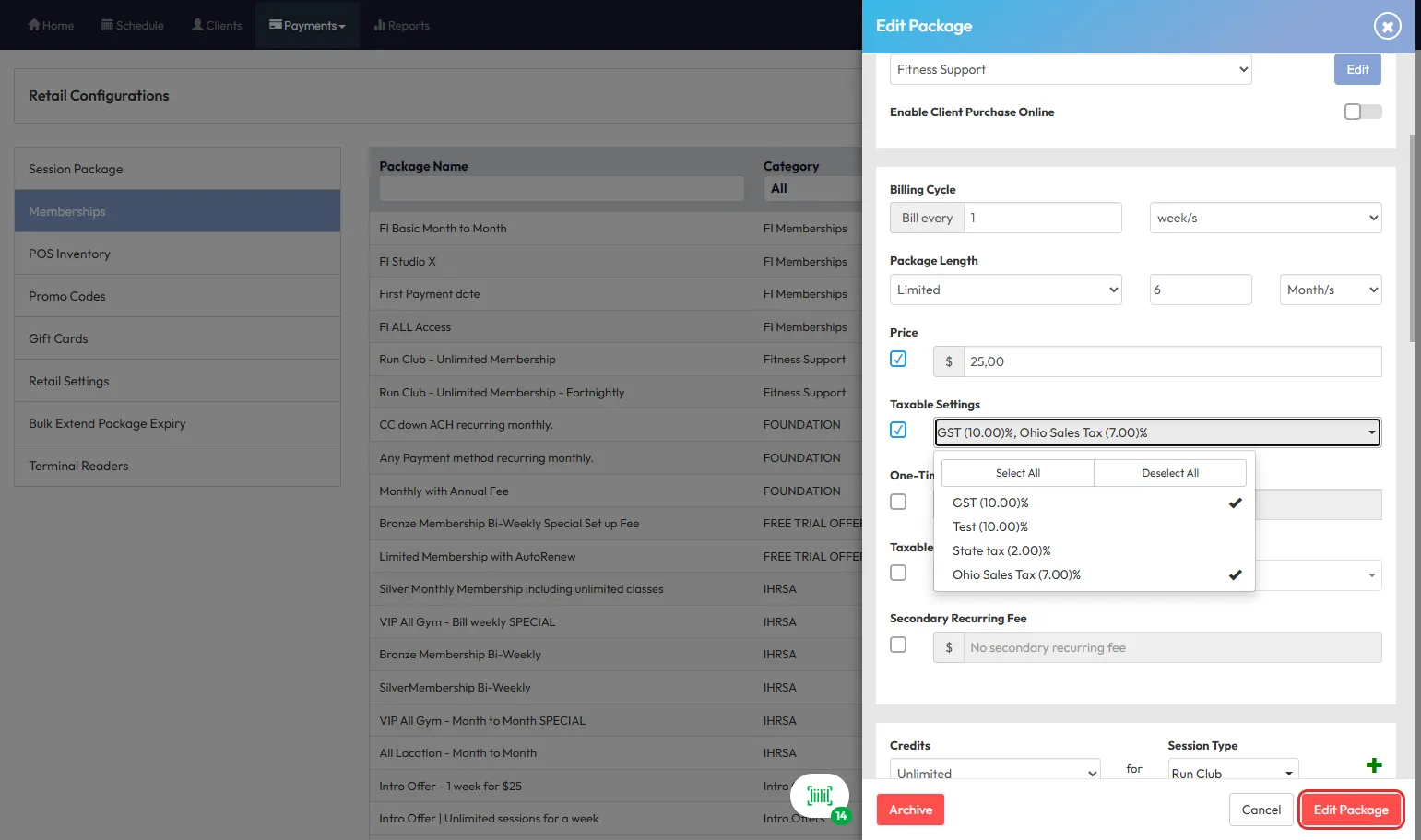
- Under the Price field, check Taxable Setting.
- Use the dropdown to select the tax type(s) you want to apply.
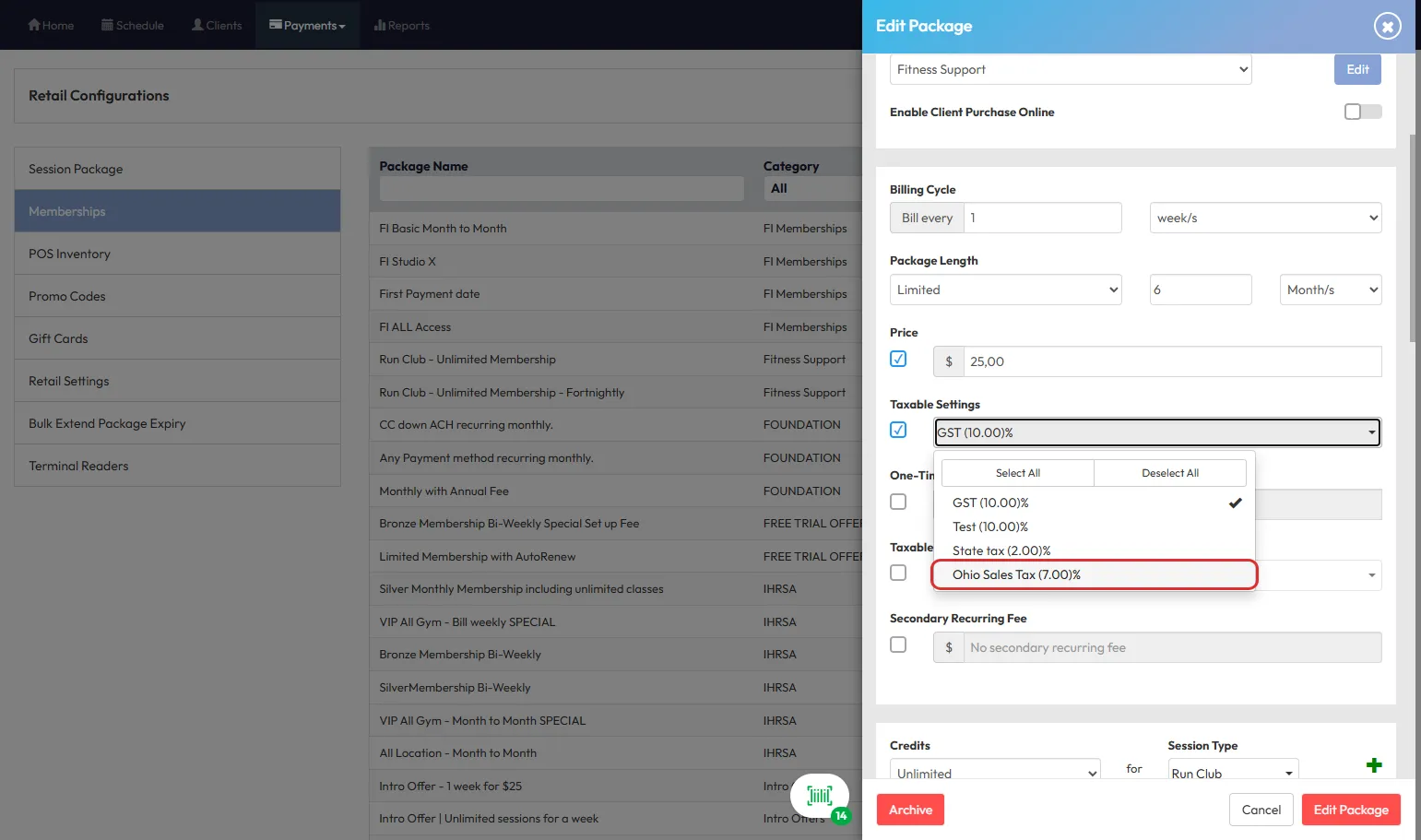
- Click Edit Package.
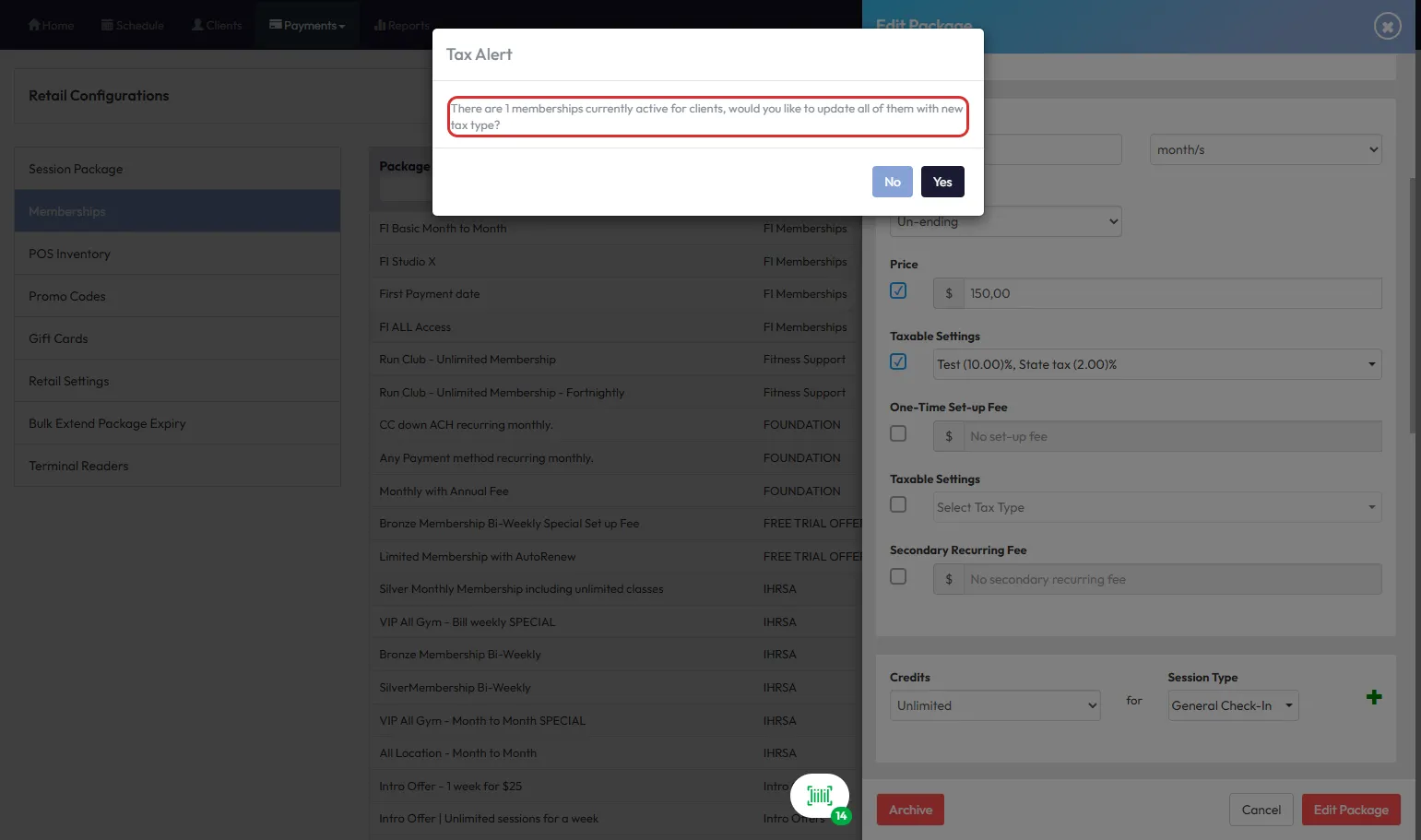
- In case it’s an edited package or membership, confirm if you’d like to apply the taxes to the current members.
Assign Tax Types to POS Products
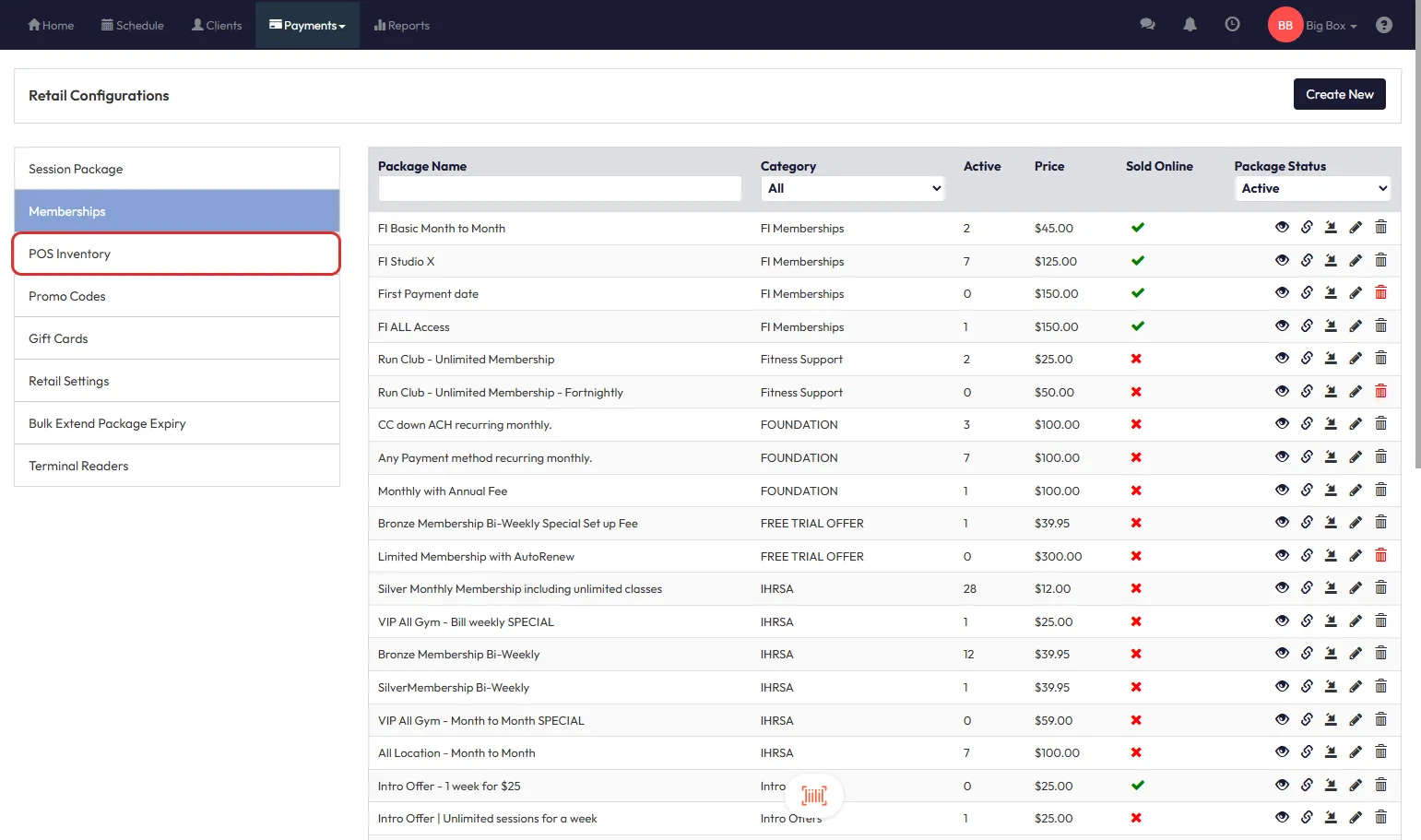
- Go to Payments > Retail Settings > POS Inventory.
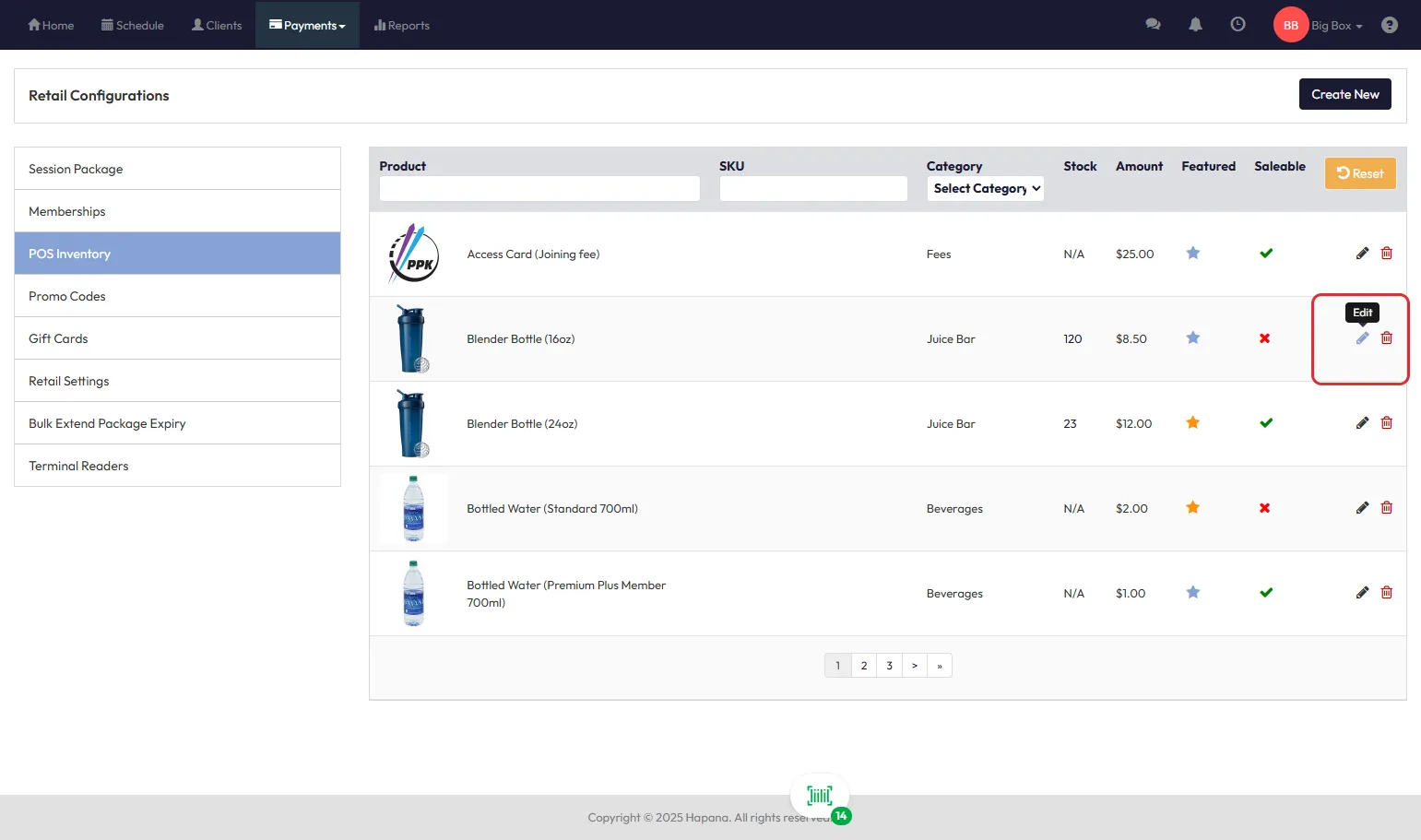
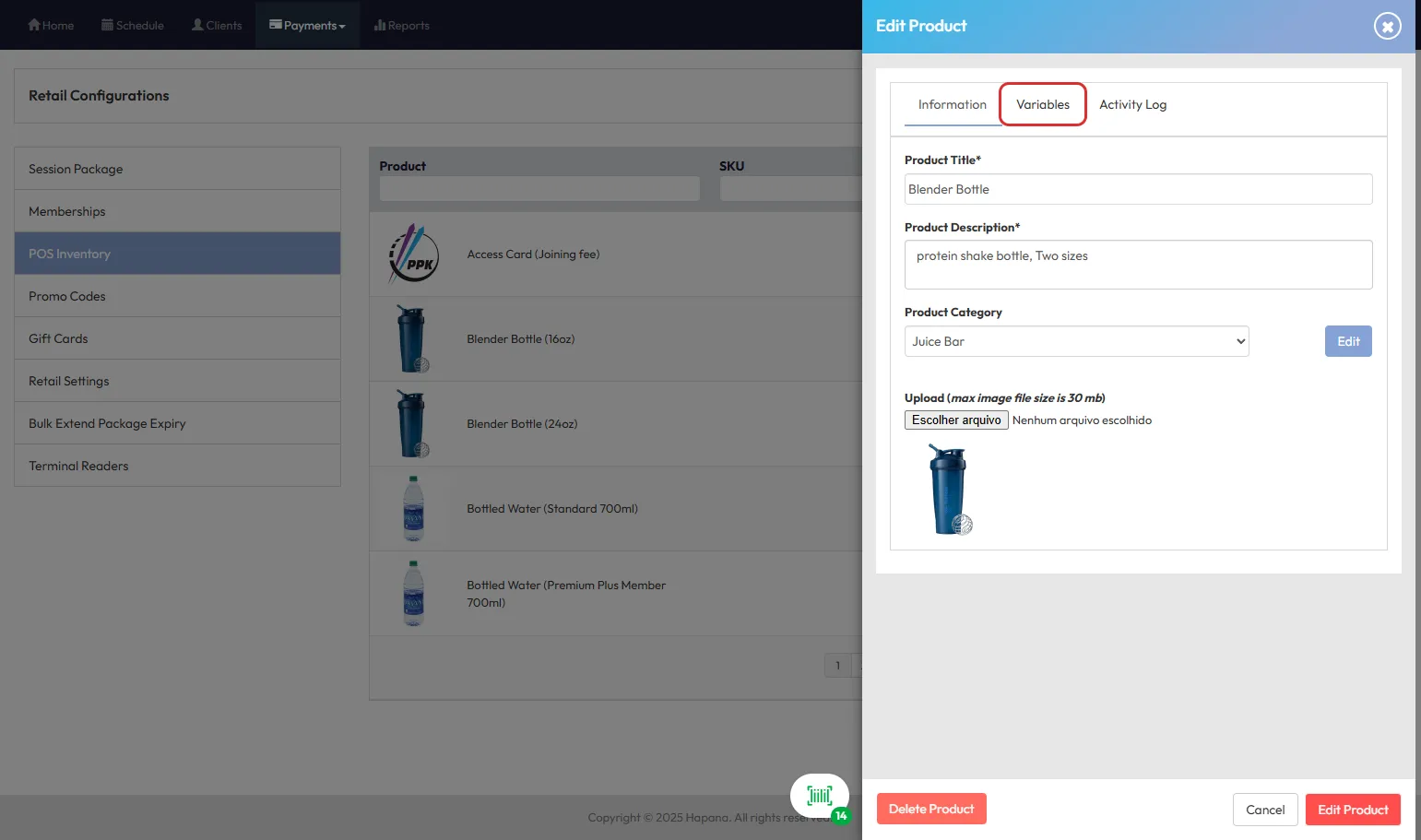
- Select the product you wish to edit.
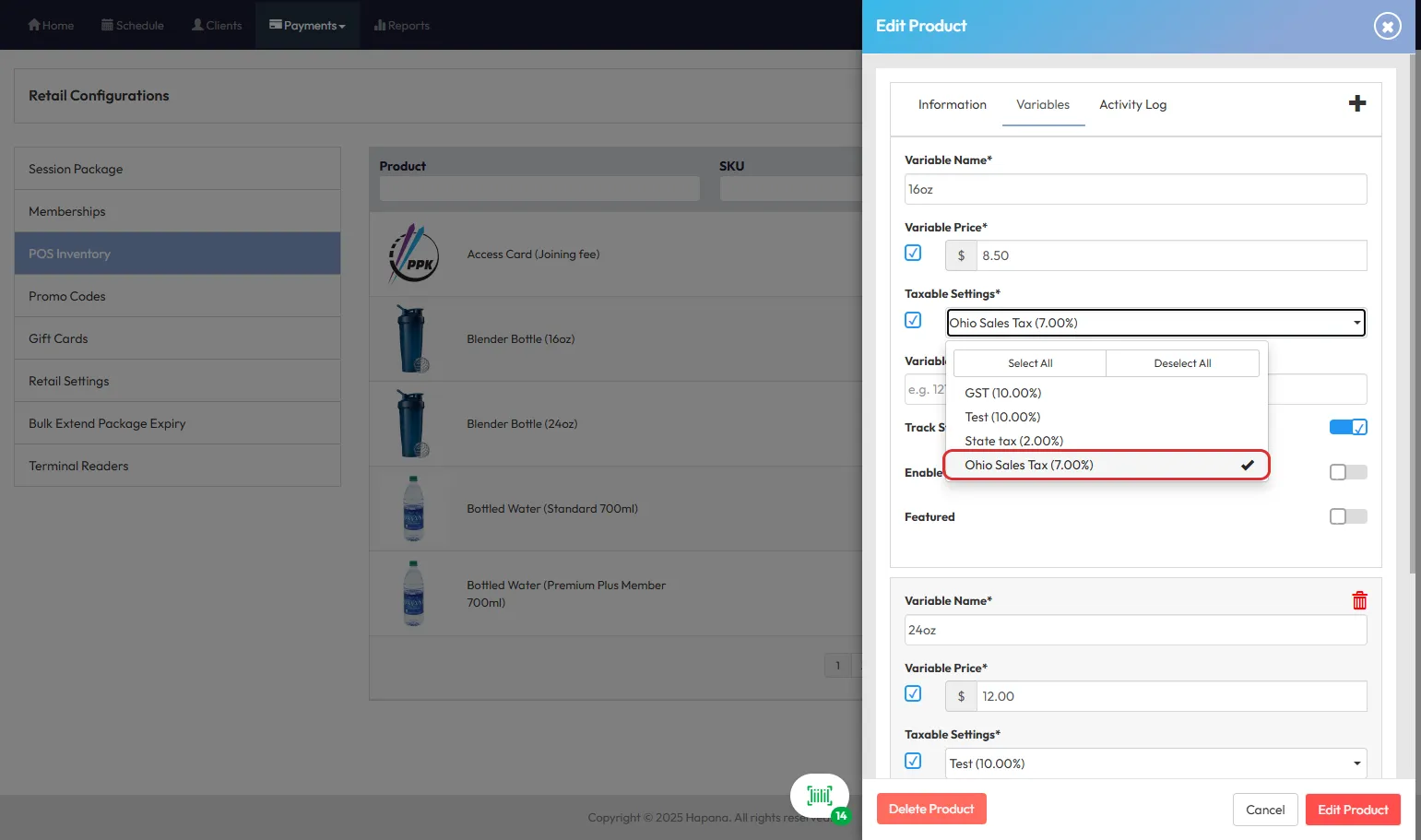
- In the Variable tab, check the Taxable Setting box.
- Select one or more tax types.
- Repeat for each variable if the product has multiple options.
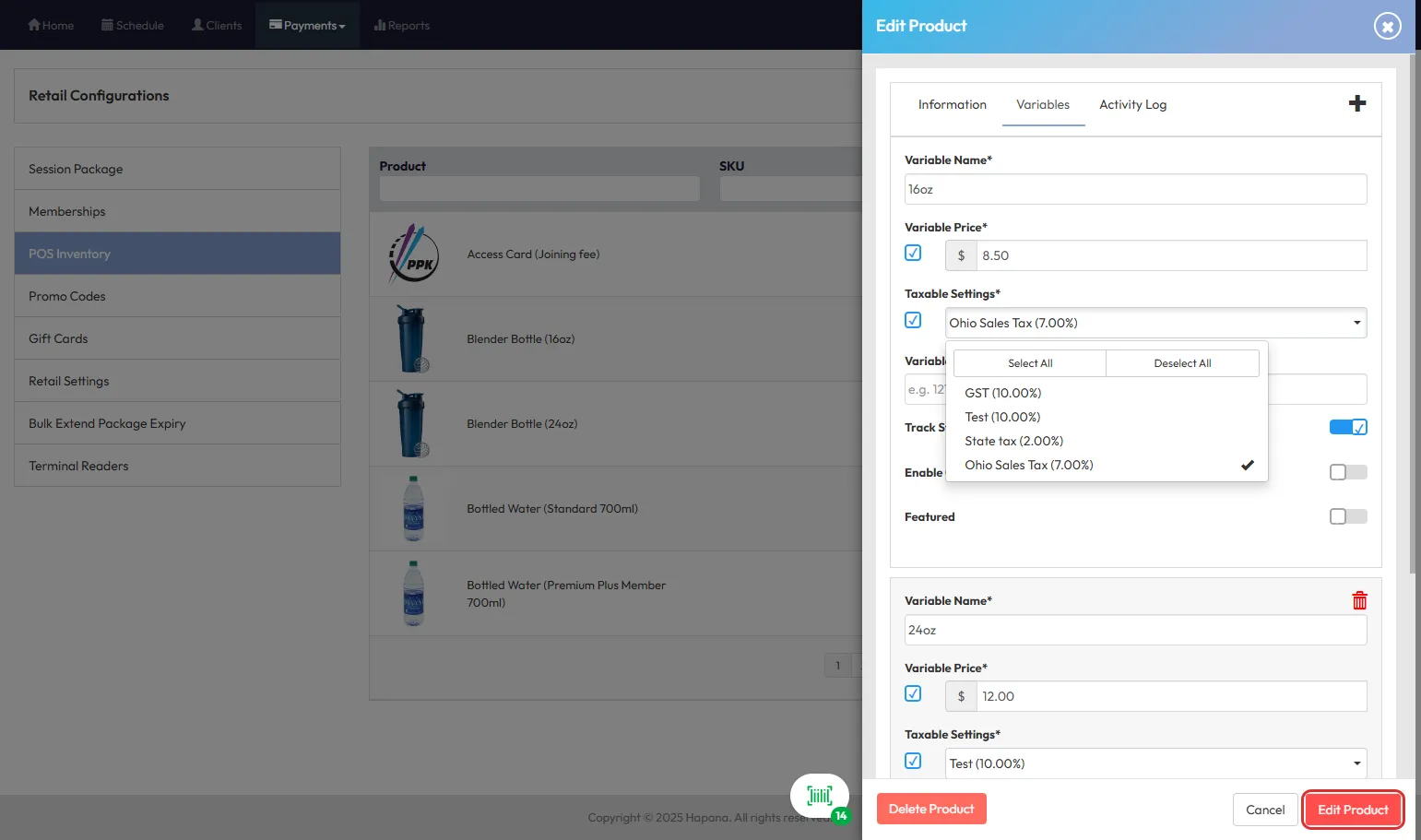
Tip: Tax must be set individually for each product variable—be sure to review all variants!
Assign Tax Types to Fees and Other Services
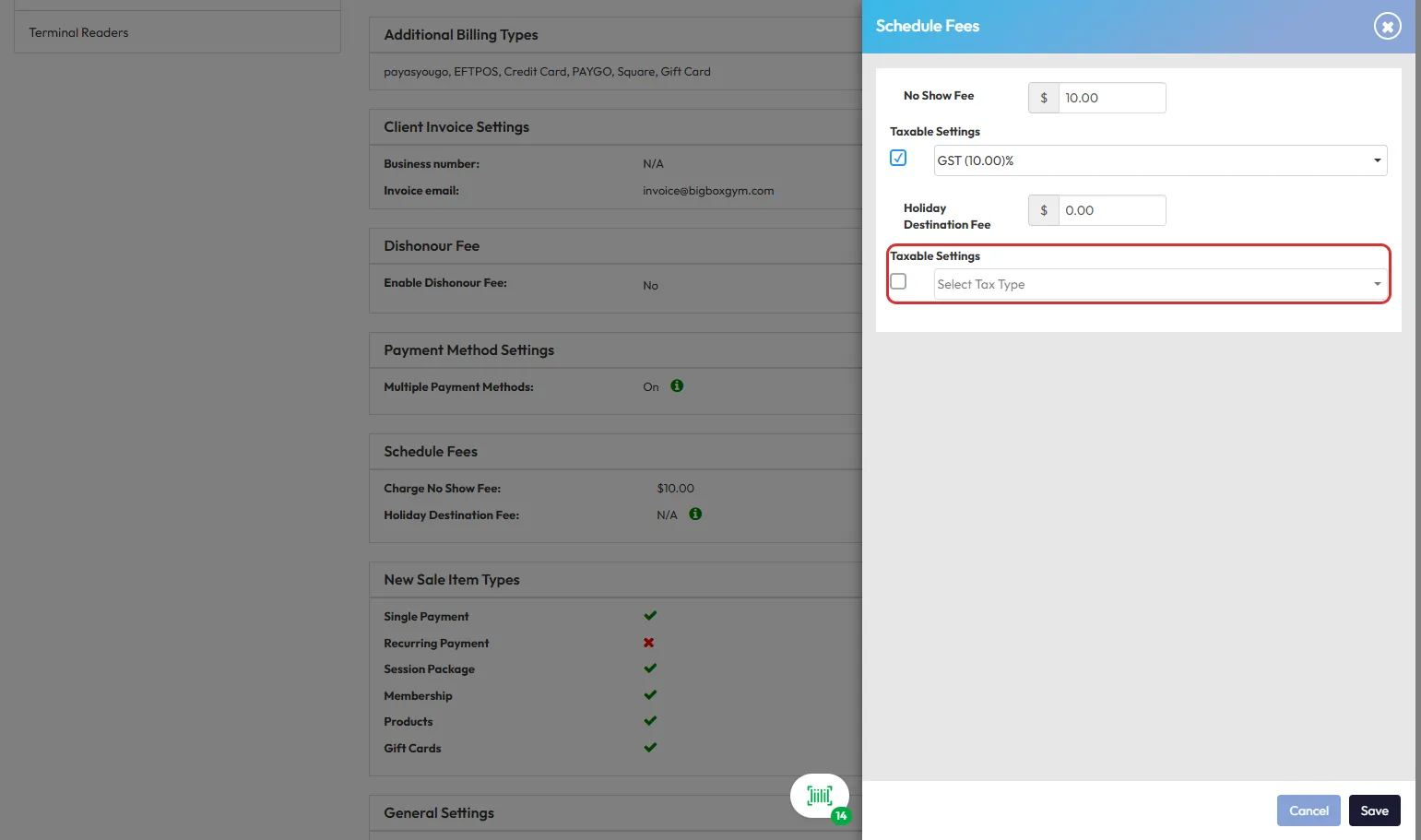
Schedule Fees
- Go to Payments > Retail Configuration > Retail Settings > Schedule Fees.
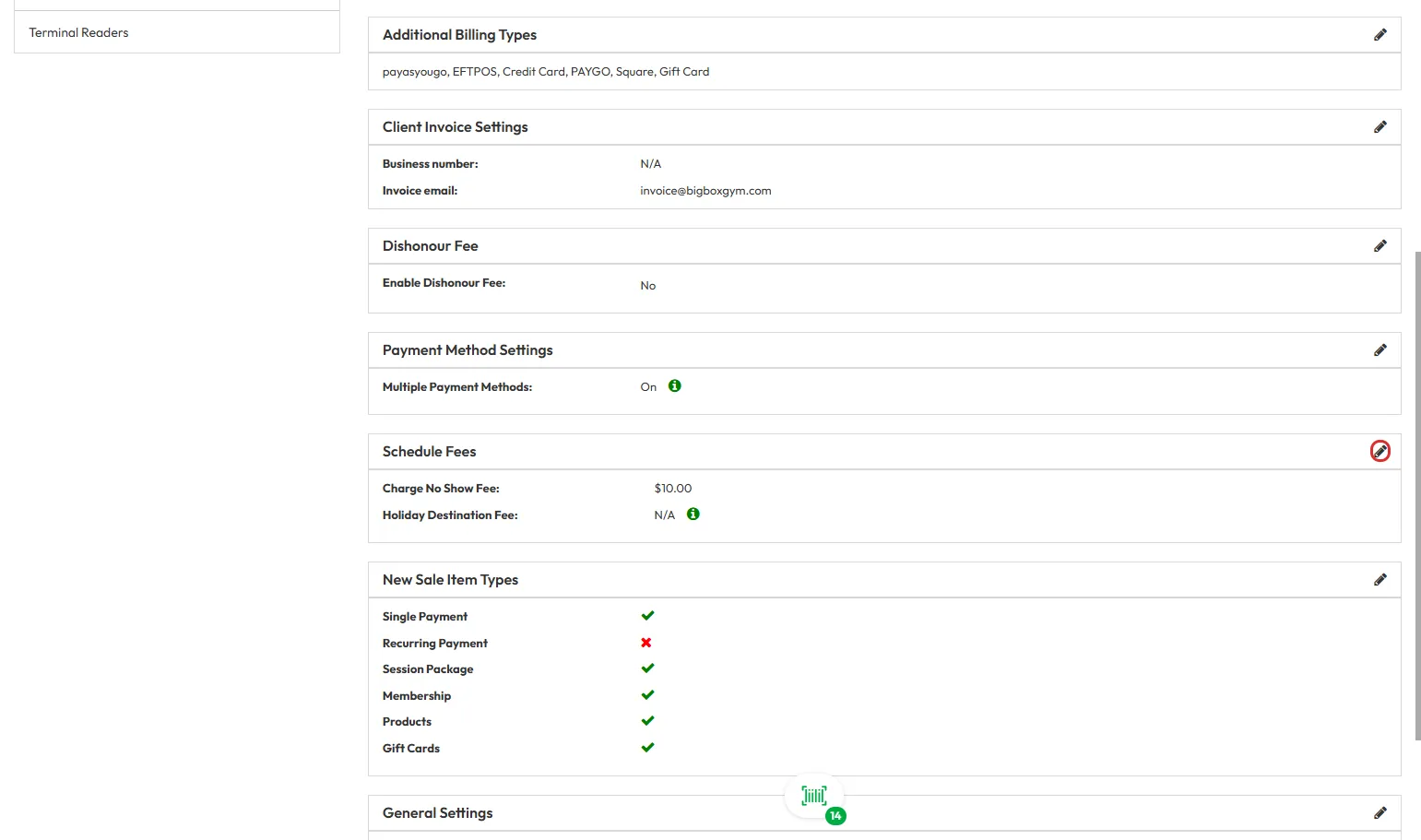
- Check the Taxable Setting box and select applicable tax types.
Session Drop-in Rates
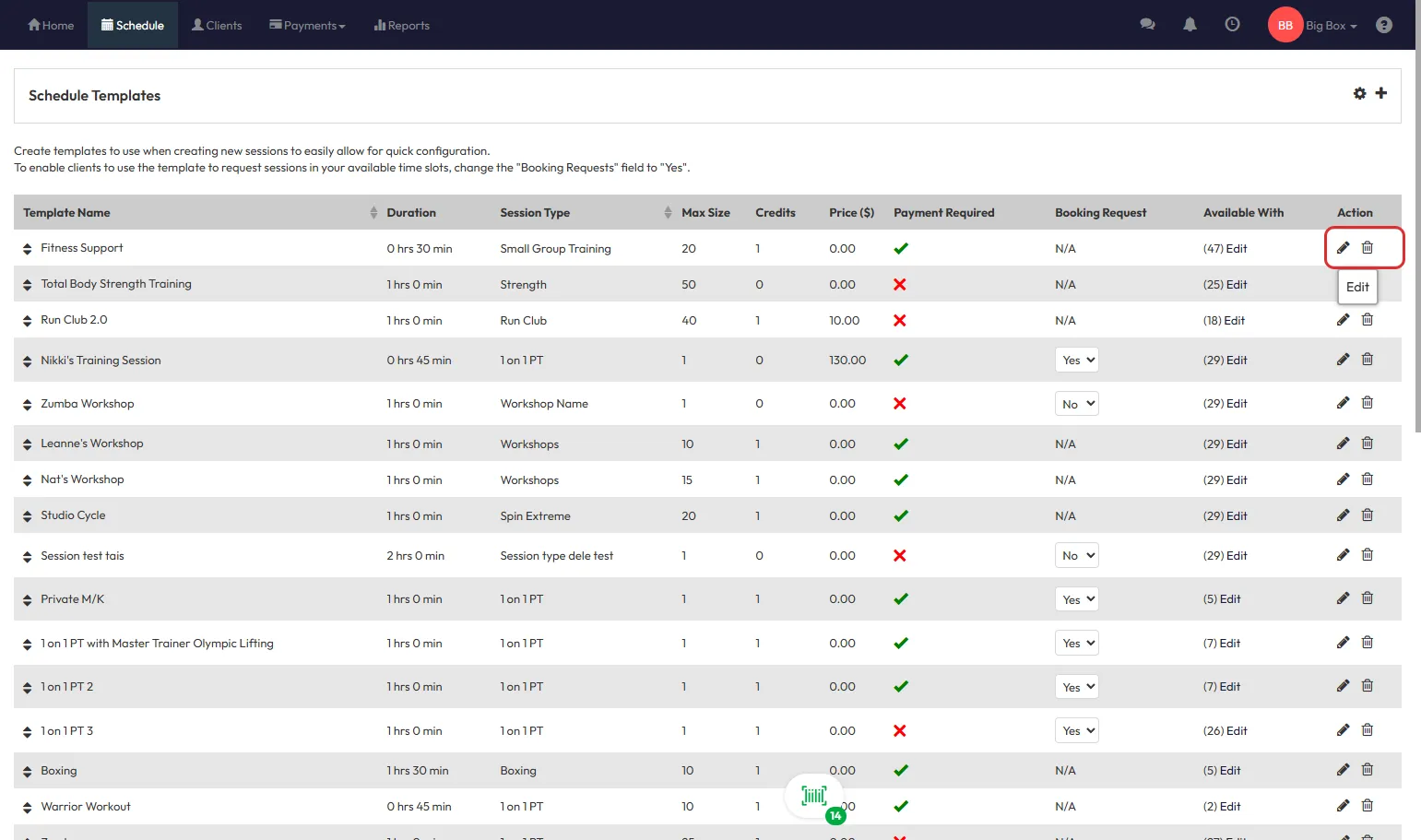
- Go to Schedule > Cog Icon (Schedule Settings) > Schedule Templates.

- Click the pencil icon to edit a template.
-
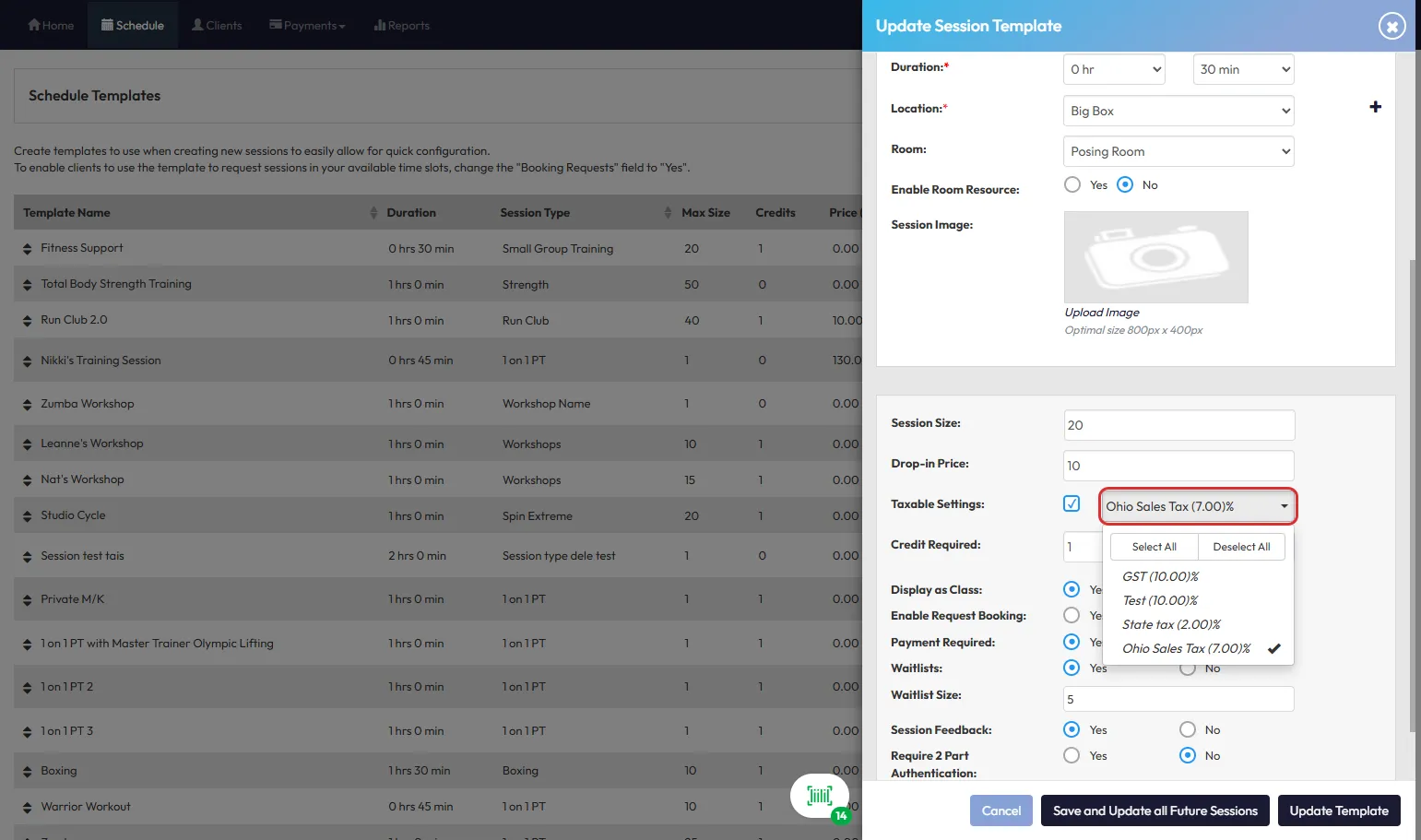
Check Taxable Setting under the Drop-in Price section and select the tax type(s).
Tip: Taxable Settings will only appear if the Drop-in Price is above zero.
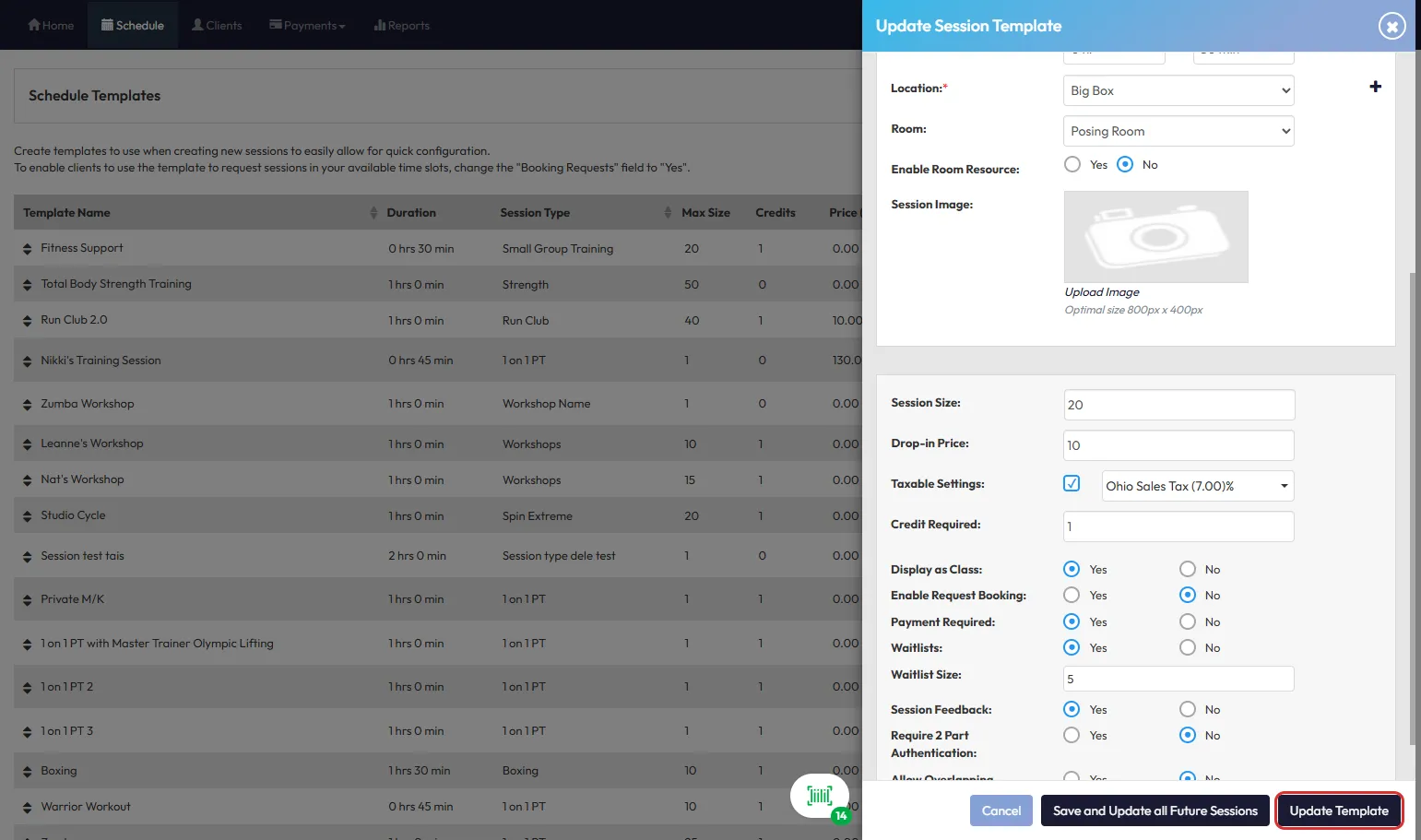
- Choose whether to apply this change to the current template only or all future sessions.
New Sale > Single Payments
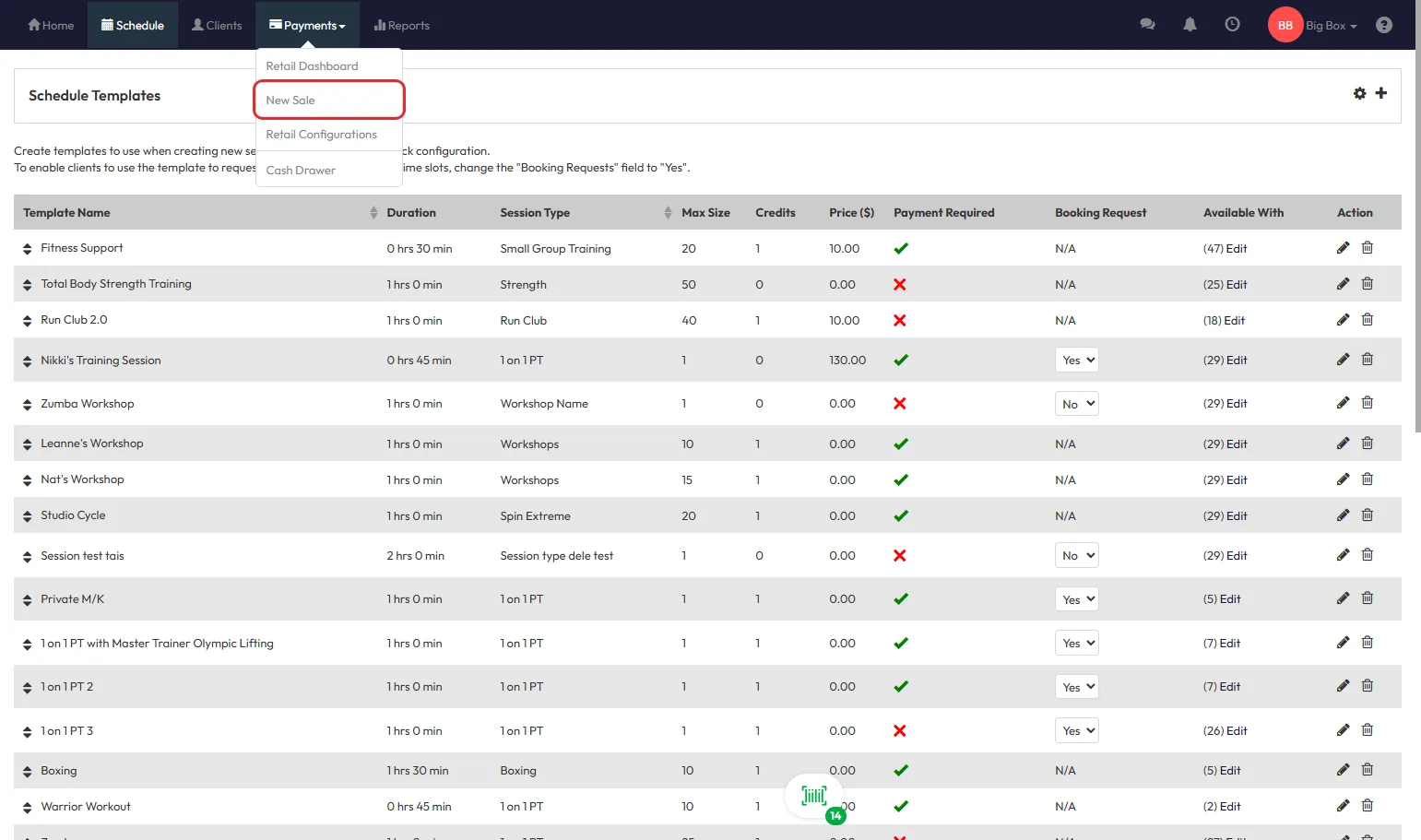
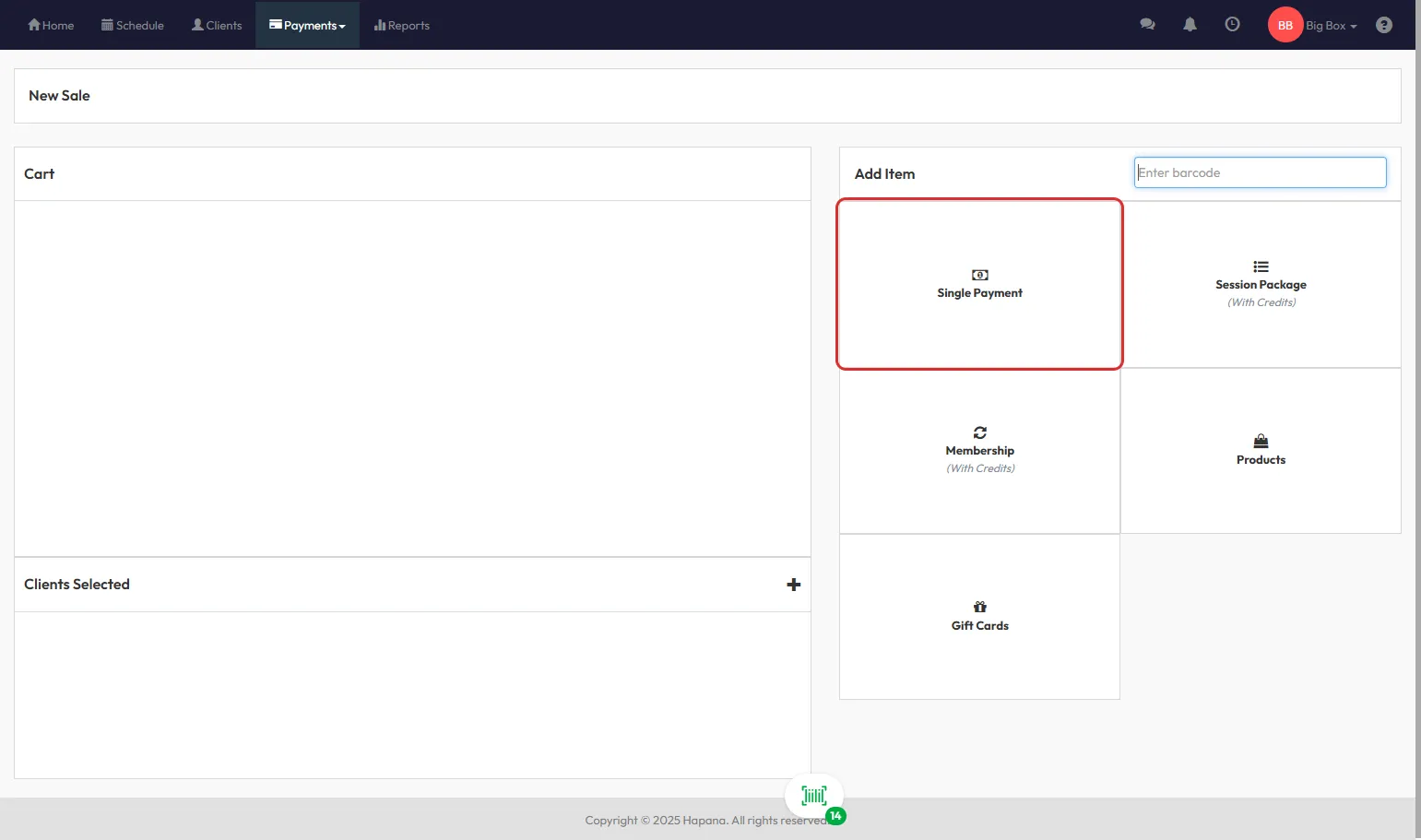
- Go to Payments > New Sale > Single or Recurring Payments.
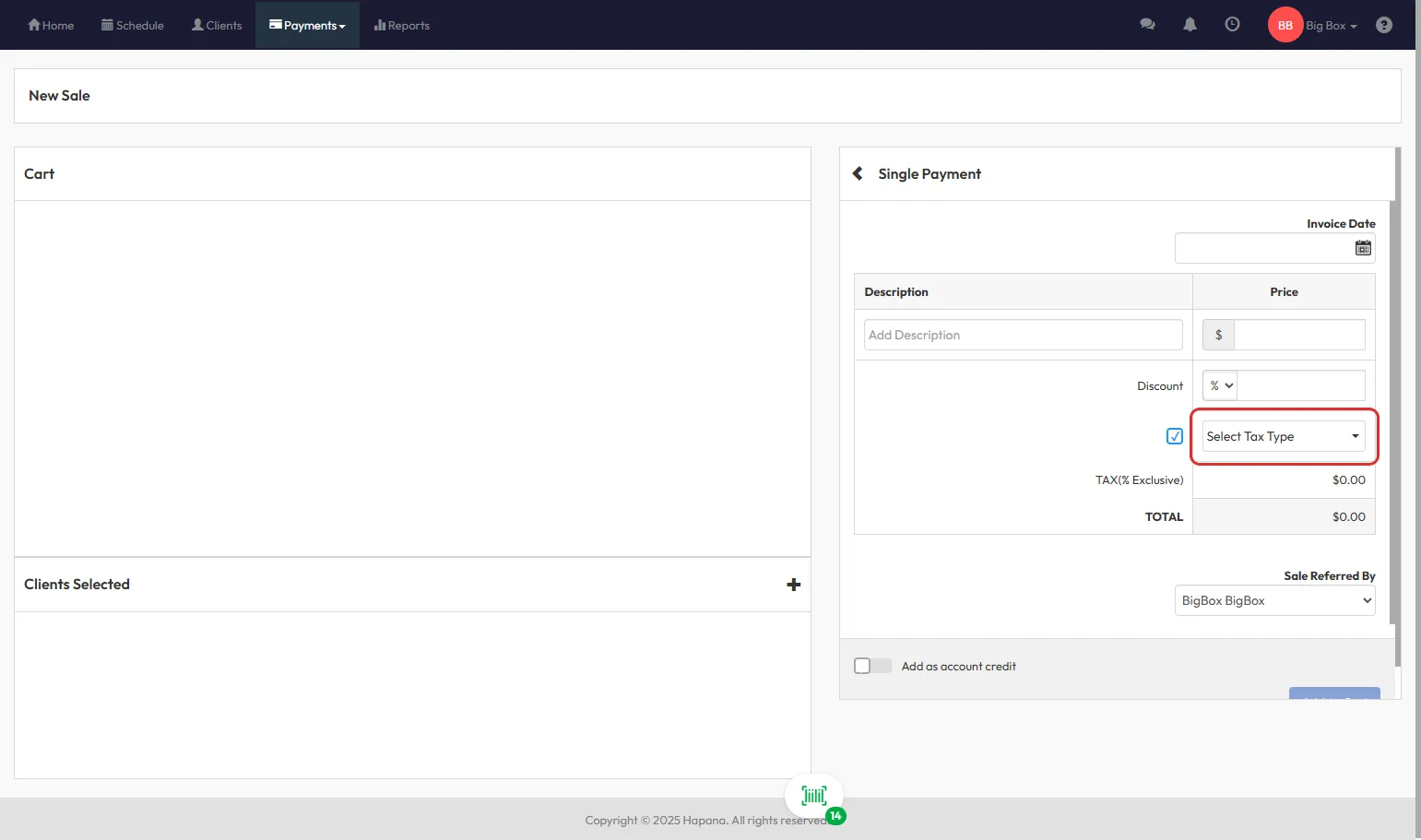
- Check the box to apply tax types to the sale item.
Suspension Fees
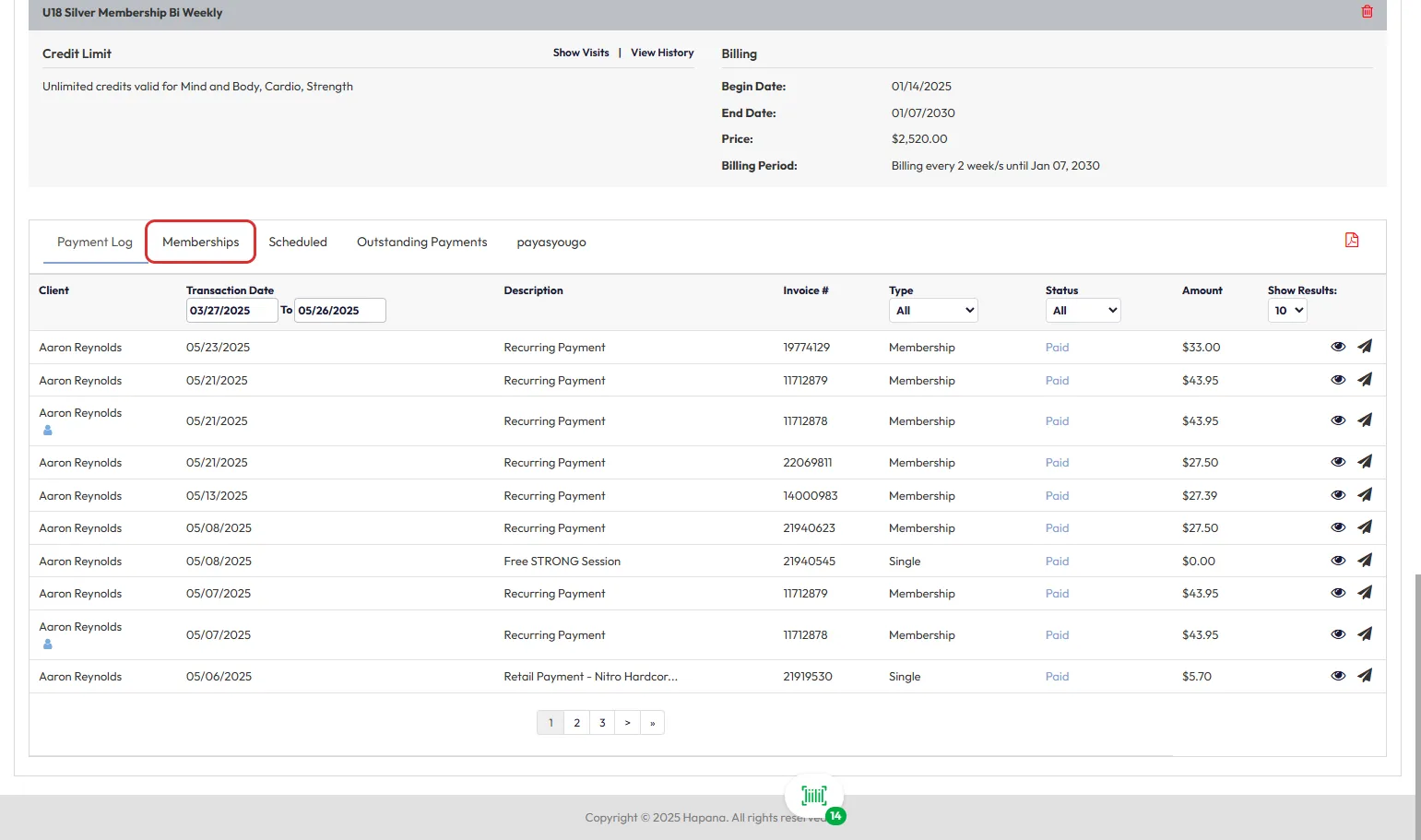
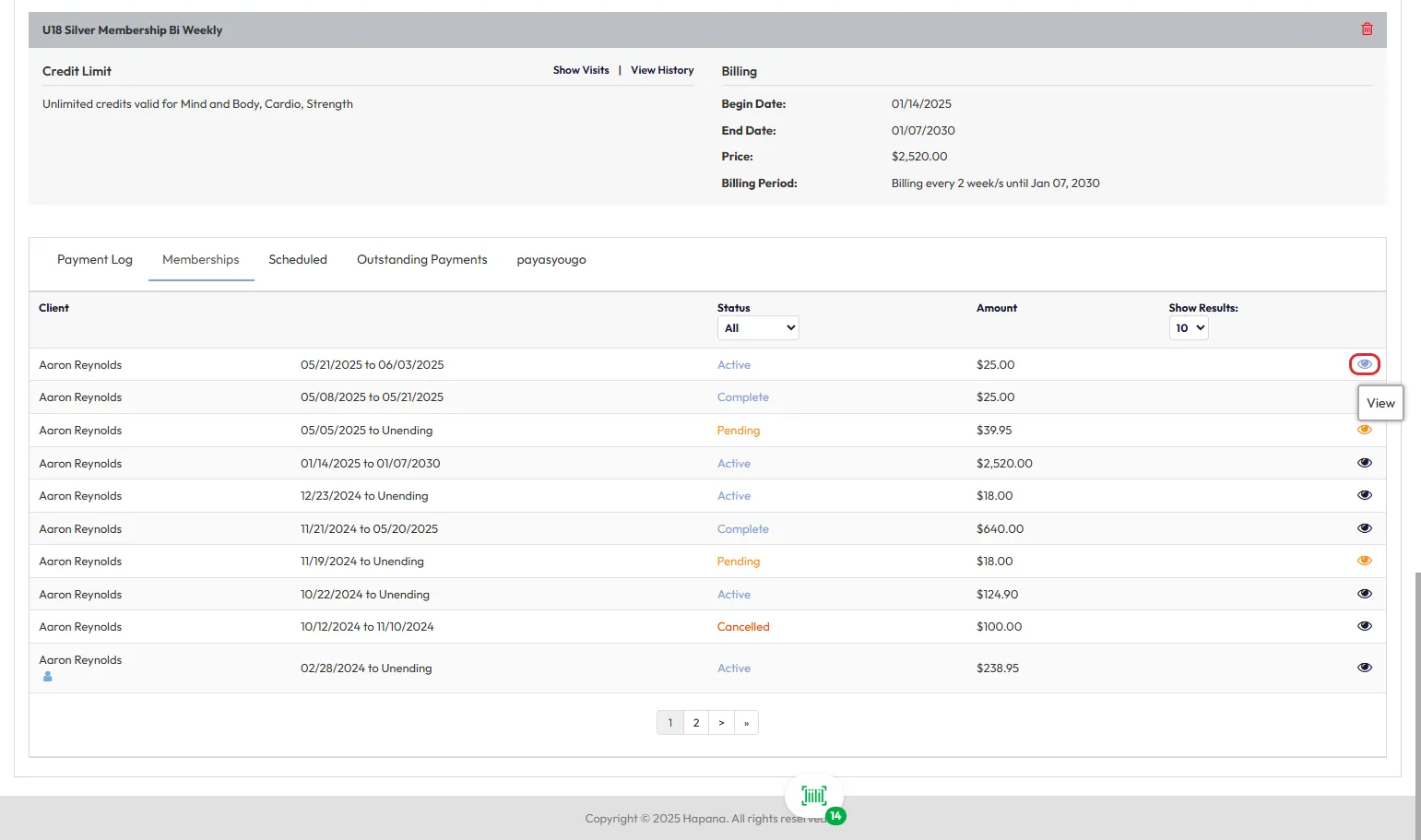
- Go to Clients > Select a Client > Memberships Tab.
- Click the eye icon to view an active membership.
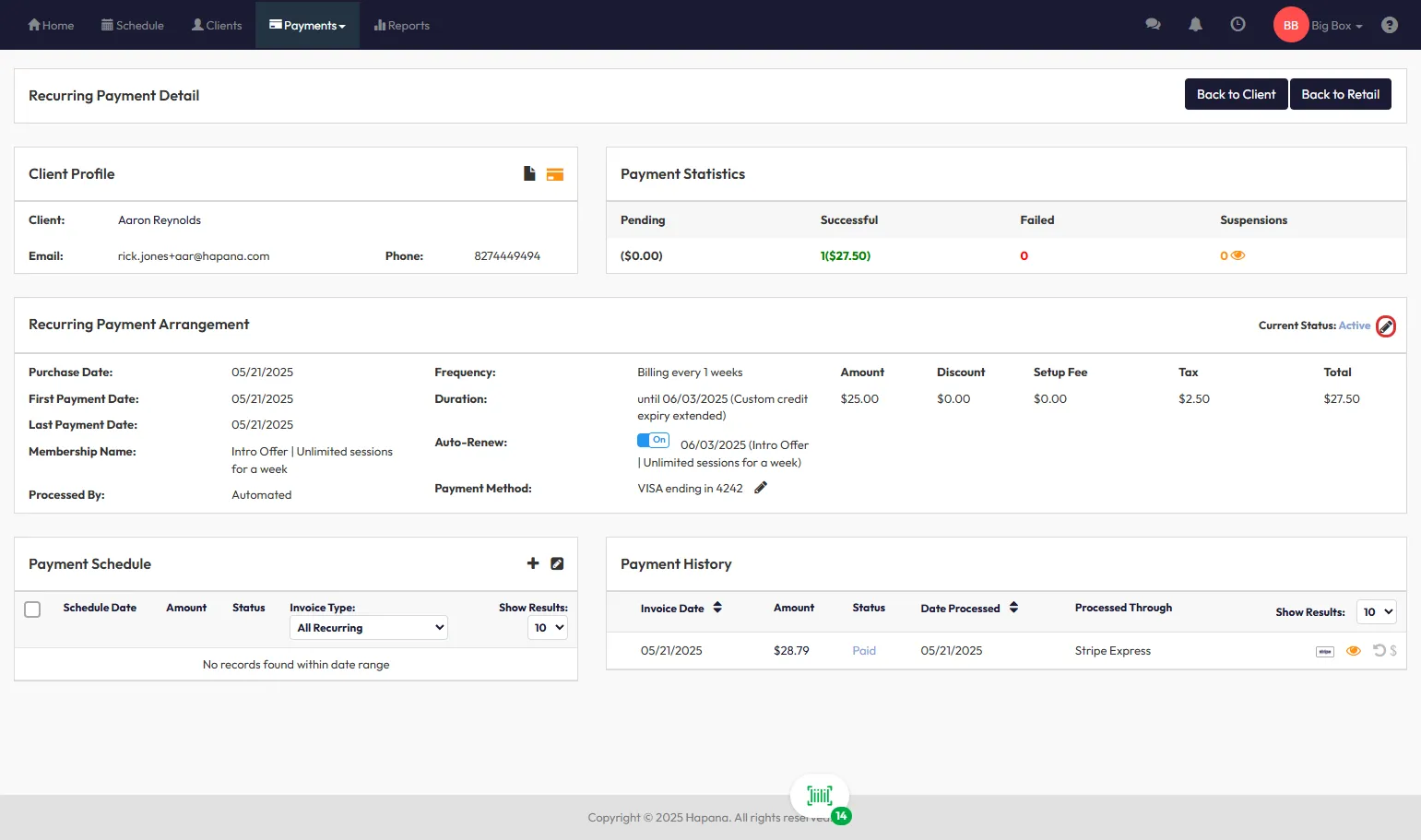
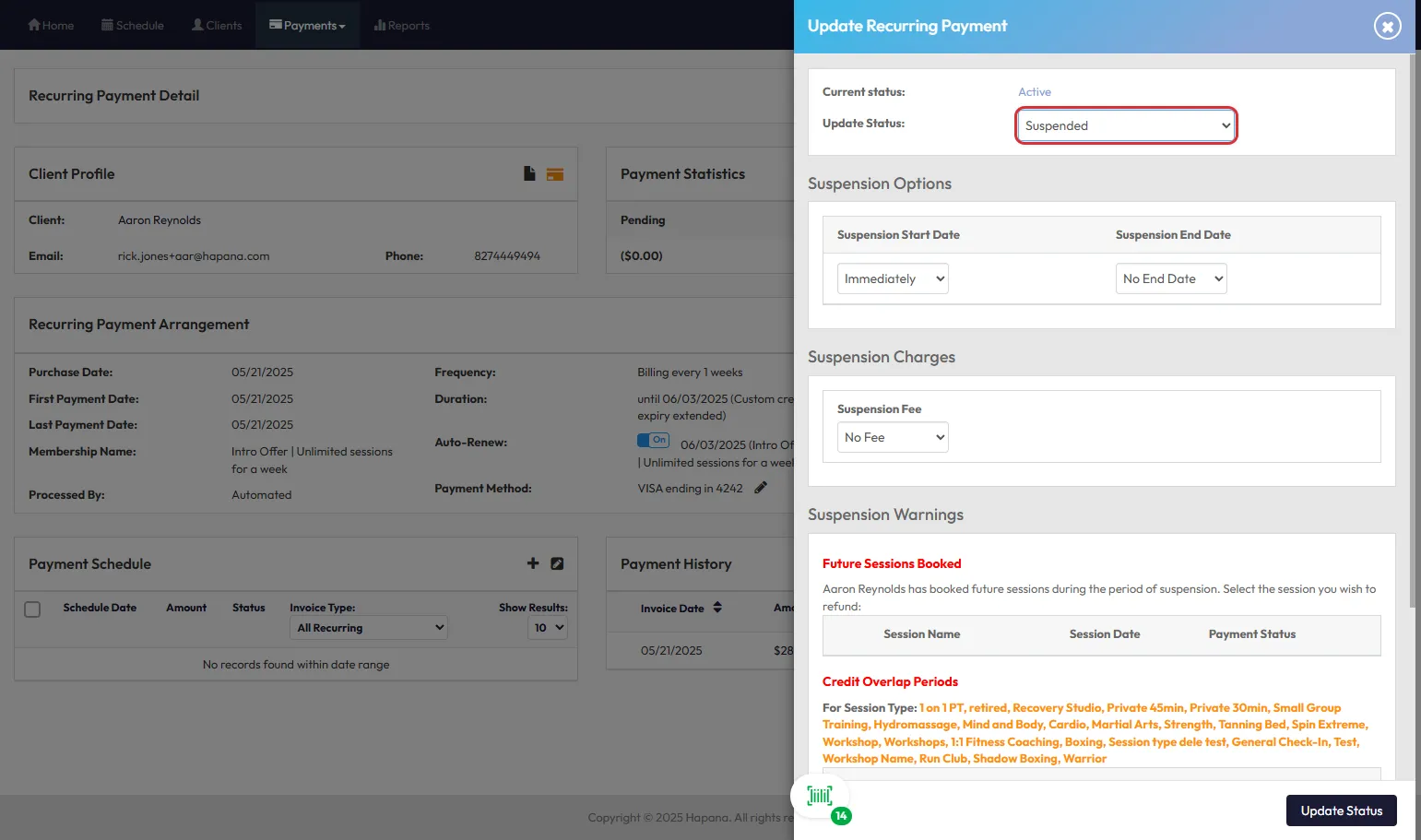
- Set the Status to Suspended.
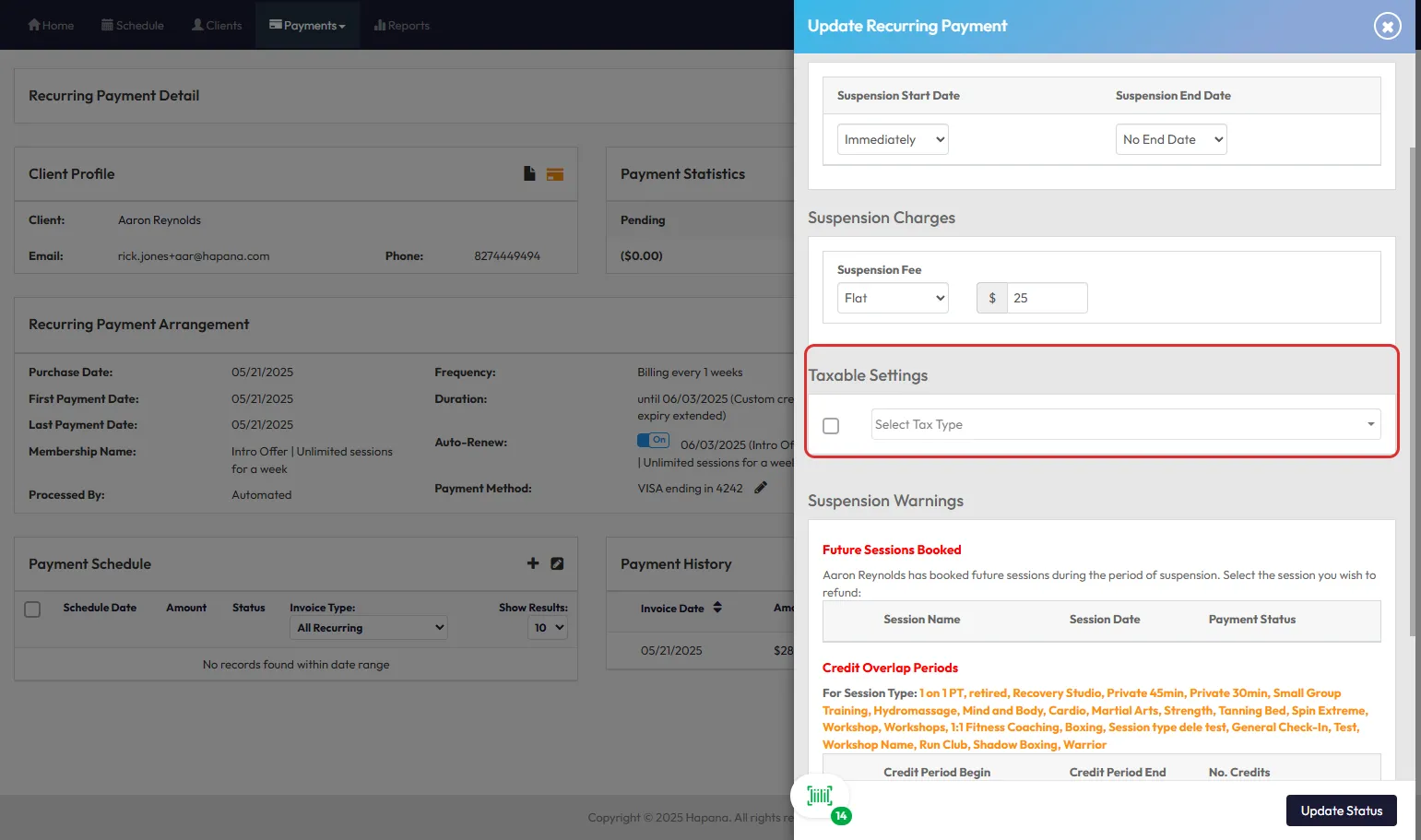
- Choose a flat or recurring Suspension Fee, check the box, and select applicable tax types.
Managing and Editing Tax Types
- You can edit tax rates at any time; the new rate will apply to all future sales (no retroactive changes).
- To disable a tax type, set Enable Tax Type? = NO. This keeps the tax in the system for historical reporting but removes it from new sales.
- You cannot delete a tax type to ensure accurate past reporting.
Tip: If you update a tax type, double-check all related services and products to ensure accuracy.
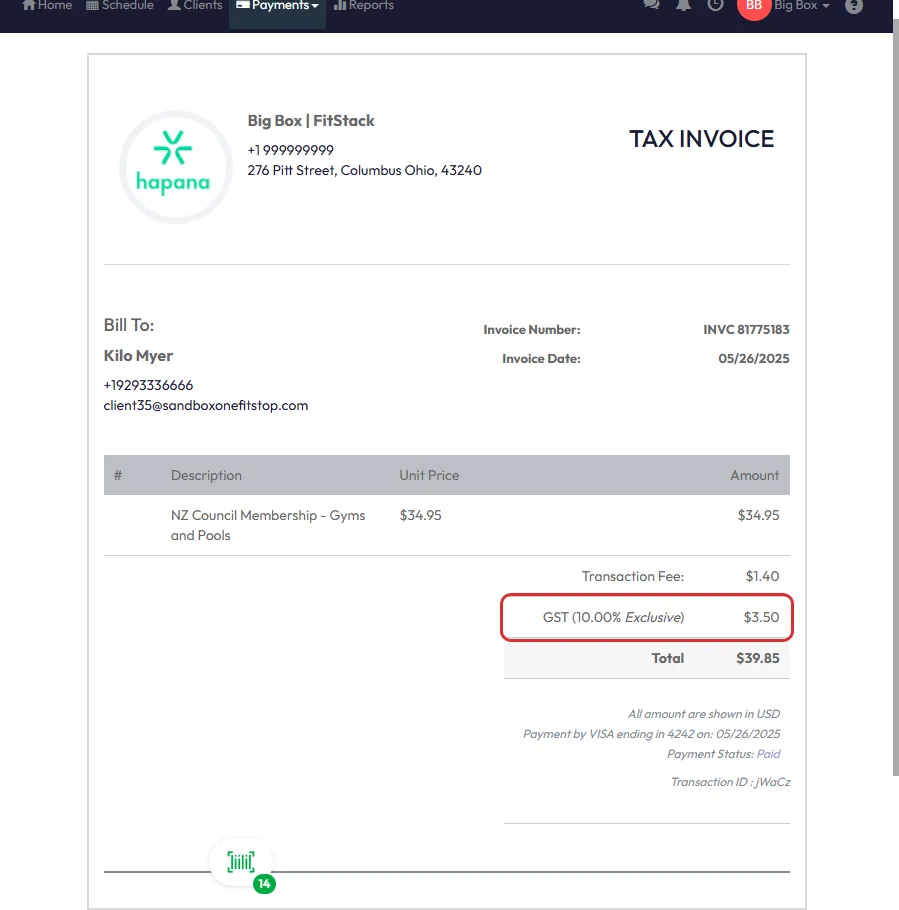
Tax Listed on Invoices
Invoices will display tax types and amounts clearly, ensuring transparency for your clients and your accounting team.
Expected Outcome
By configuring and applying tax types, businesses can:
- Accurately apply required taxes to products and services.
- Ensure compliance with local tax laws.
- Maintain clear records and reporting for accounting purposes.
FAQs
Q: Can I apply multiple tax rates to a single product or service?
Yes, you can apply more than one tax type, such as a state tax and a federal tax (e.g., 7% state tax + 10% tanning tax).
Q: What happens if I edit an existing tax rate?
All future sales will use the updated tax rate. Past transactions remain unchanged for accurate historical reporting.
Q: Can I disable tax for a specific service or product?
Yes, simply uncheck the Taxable Setting or remove the tax type assignment.
Need help?
Reach out to our support team via support@hapana.com