
Overview
In Hapana Core, businesses can calculate instructor payroll based on a percentage of revenue collected from client sessions. This setup offers flexible compensation based on how clients pay—whether with session credits, drop-ins, or unlimited memberships.
Additionally, fixed rates can be set for sessions paid with unlimited credits or via platforms like ClassPass, ensuring instructors are still compensated when per-credit values cannot be determined.
Prerequisites
- Admin access to Edit Profile
- Session types already created in Core (e.g., Group Classes, One-on-One)
- Payroll report access via Reports > Staff > Payroll
Tip: Plan your credit pricing structure ahead of time for better accuracy when assigning percent-based payouts.
Step-by-Step Instructions
Step 1: Open Payroll Settings
- Log into Core.
- Click your profile initials in the upper-right corner.
- Select Edit Profile.
- In the left sidebar, click Payroll.
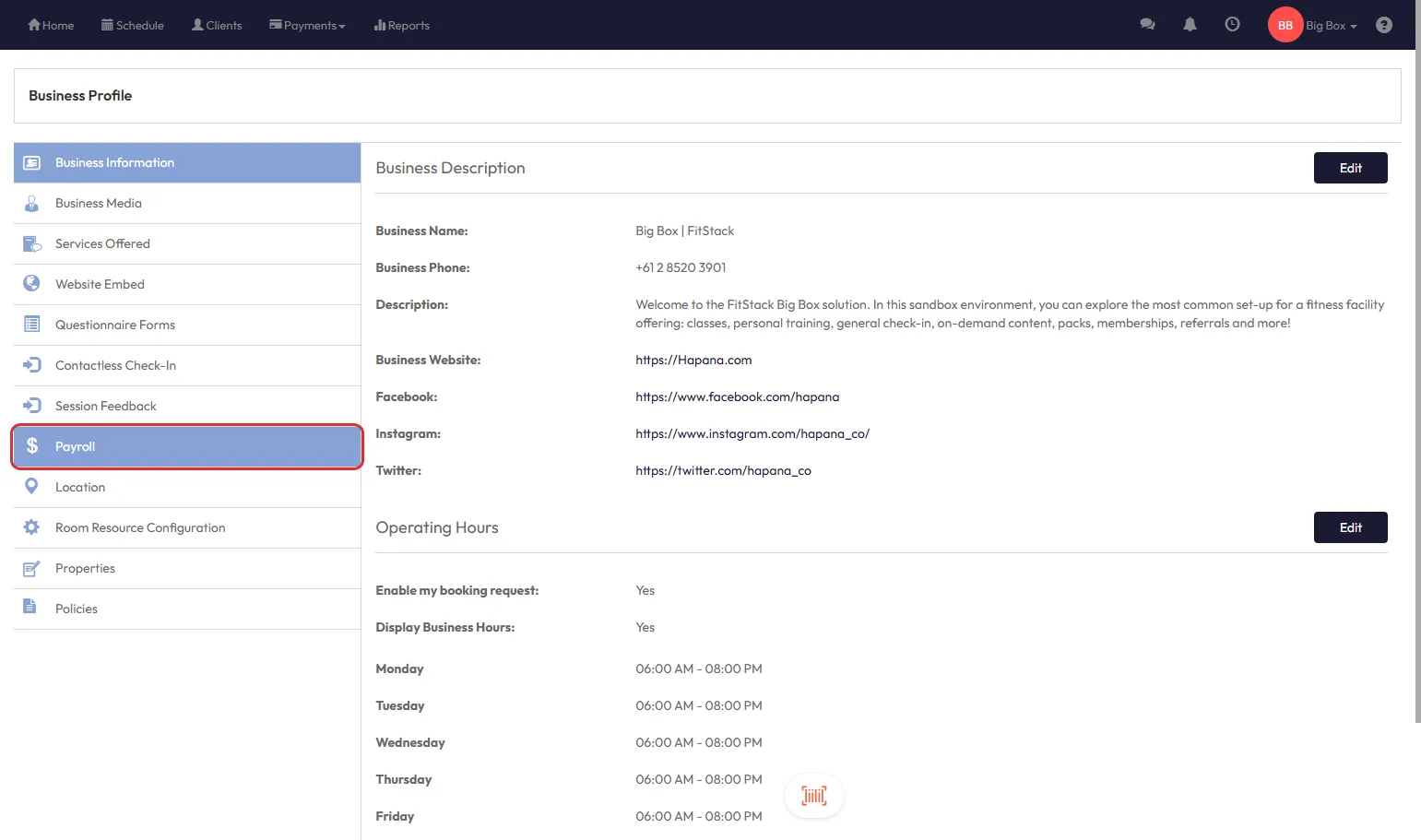
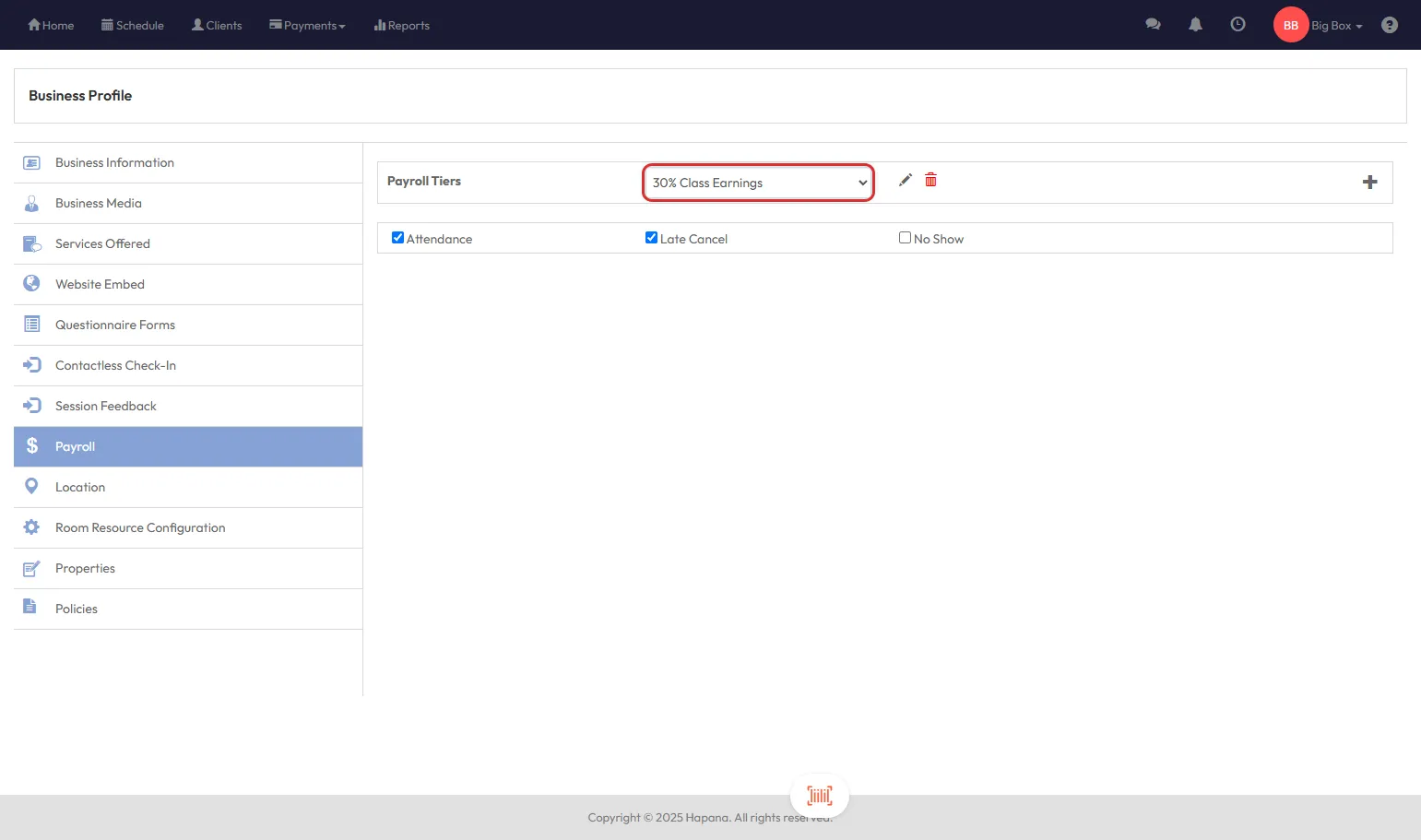
Step 2: Create a New Payroll Tier
- Click the plus icon (+) to add a Payroll Tier.
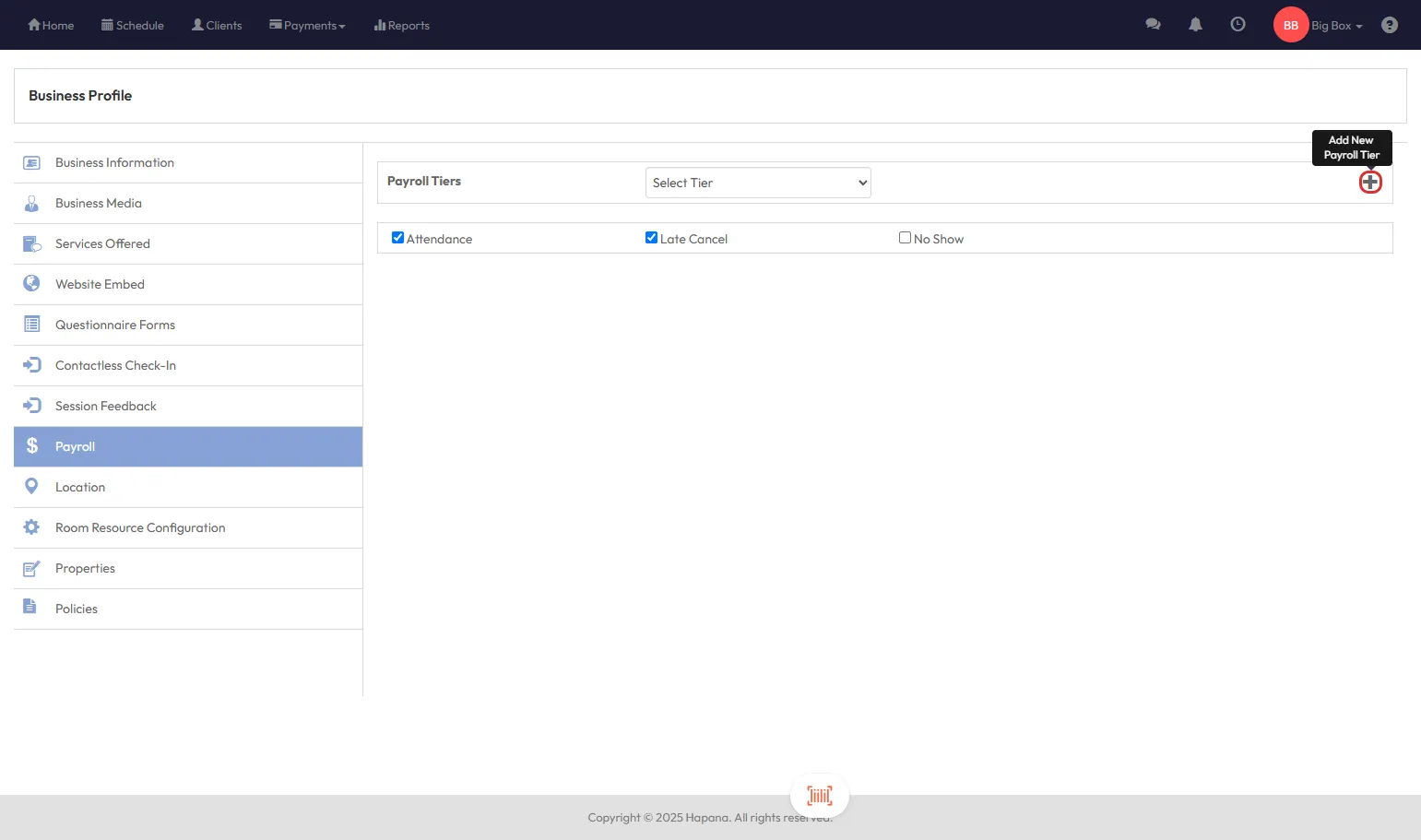
- Name the tier (e.g., “30% Class Earnings”).
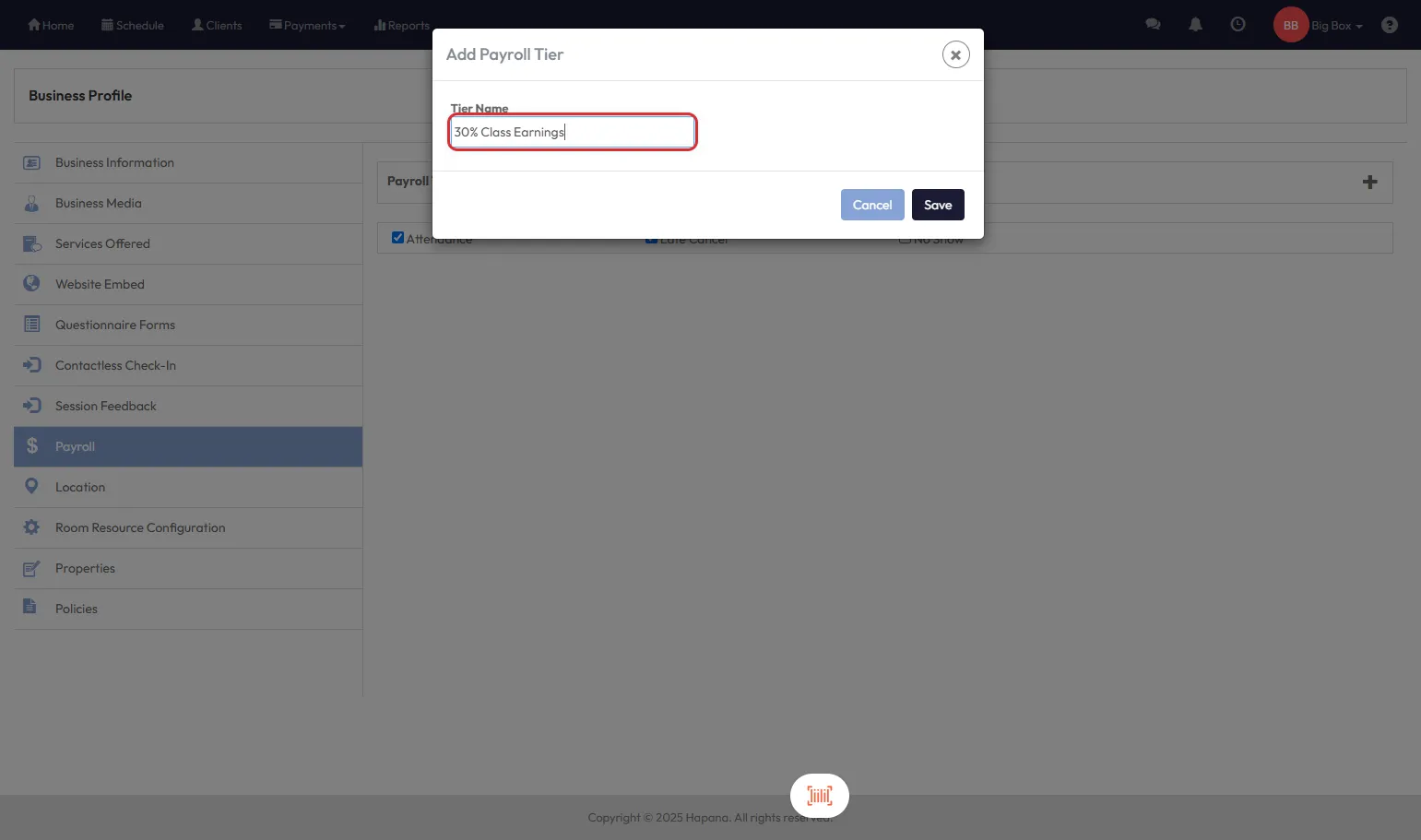
- Save and select the new tier from the dropdown.
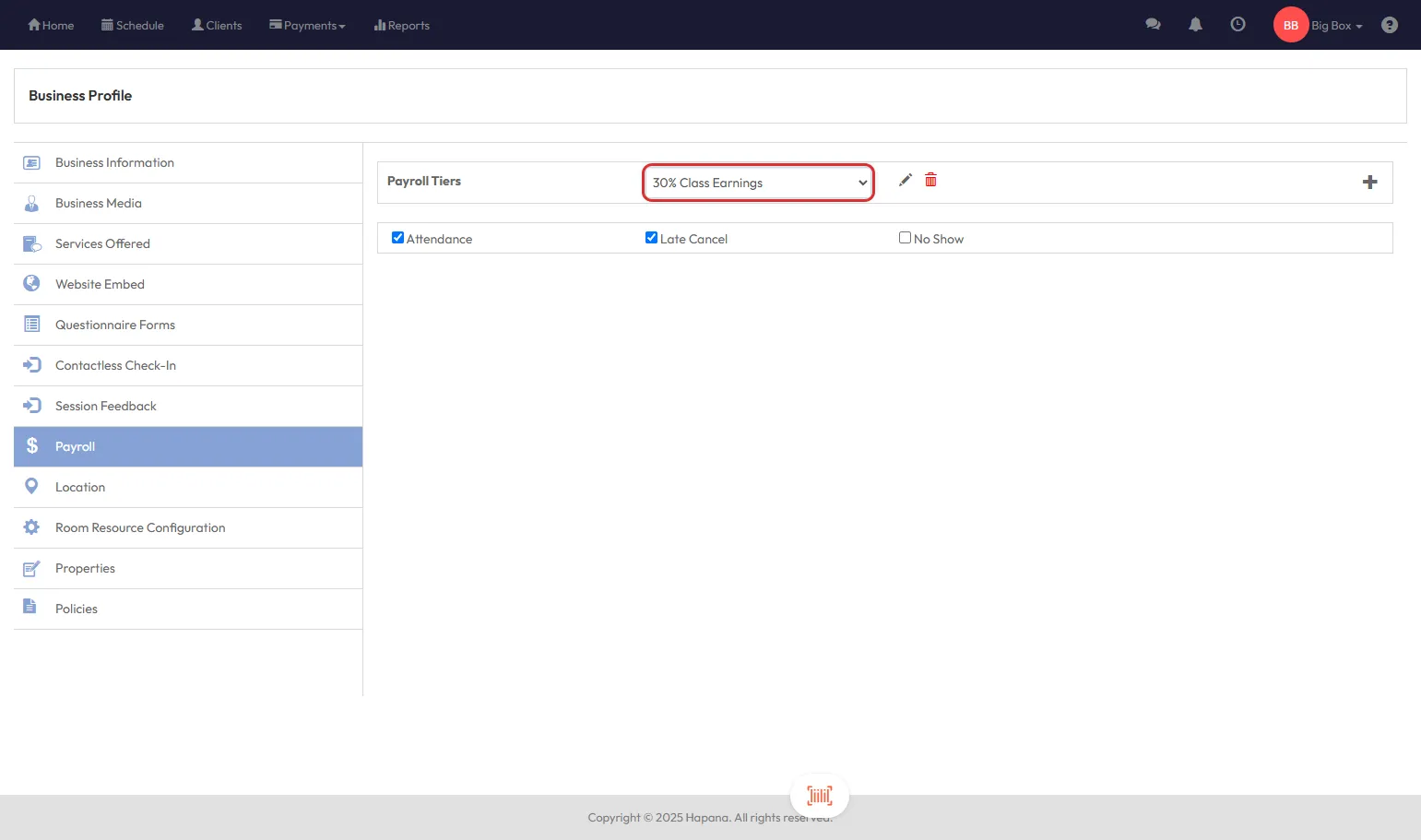
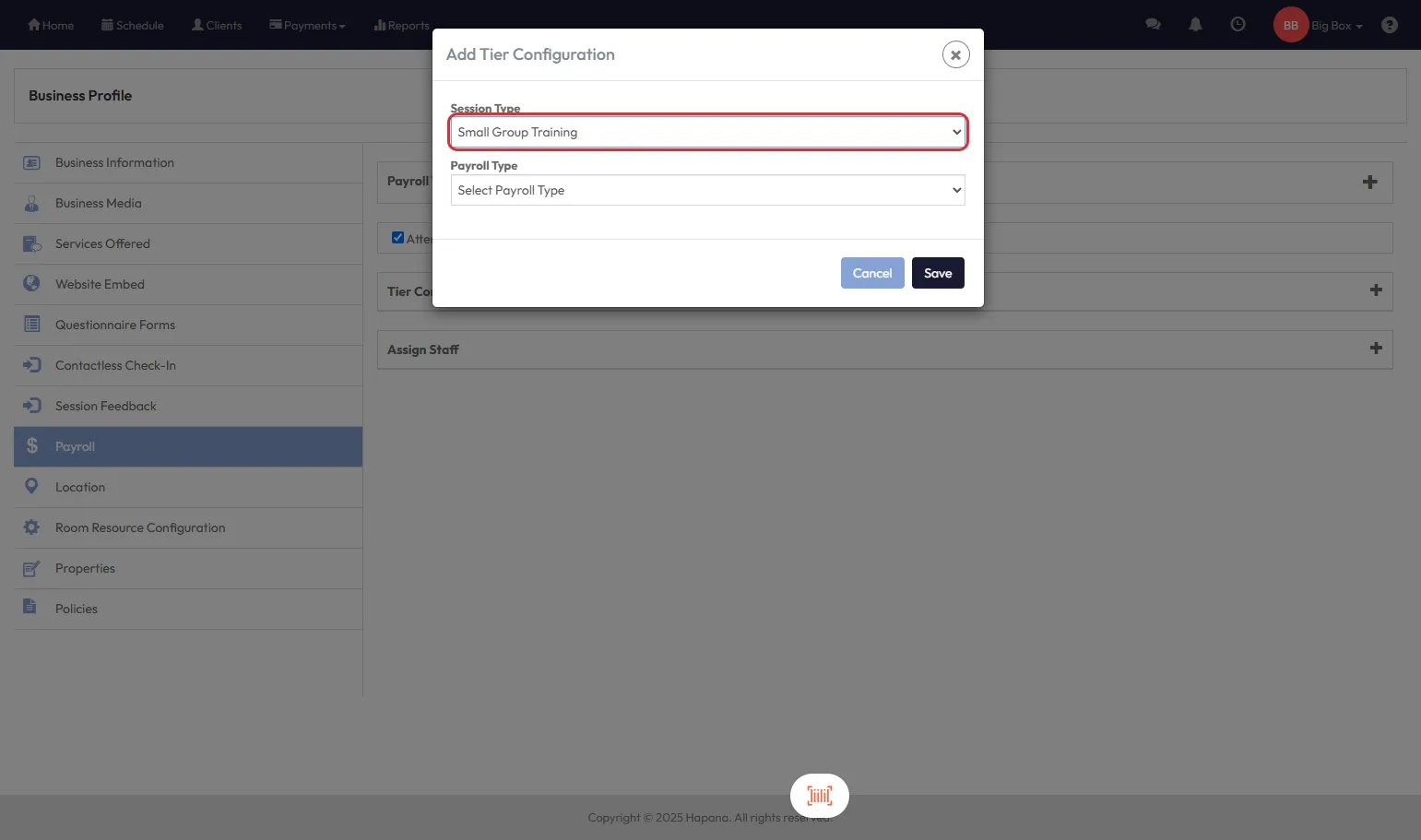
Step 3: Add Tier Configuration
- Click the plus icon (+) next to Tier Configuration.
- Choose the Session Type this tier applies to (e.g., Group Classes).
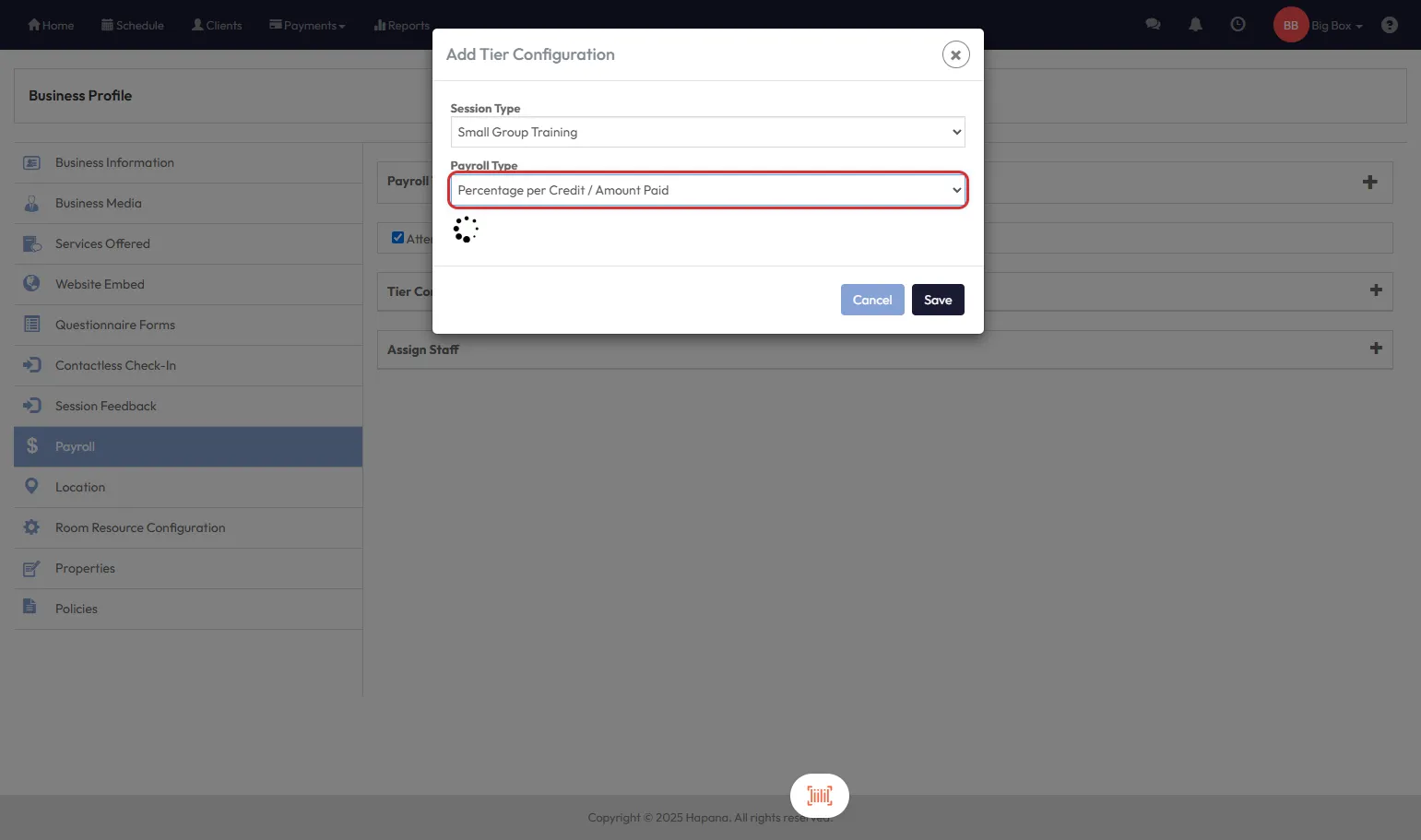
Step 4: Select a Percent-Based Payroll Type
Choose one of the two options:
- Percent per Credit / Amount Paid
- Percent per Credit / Package Rate
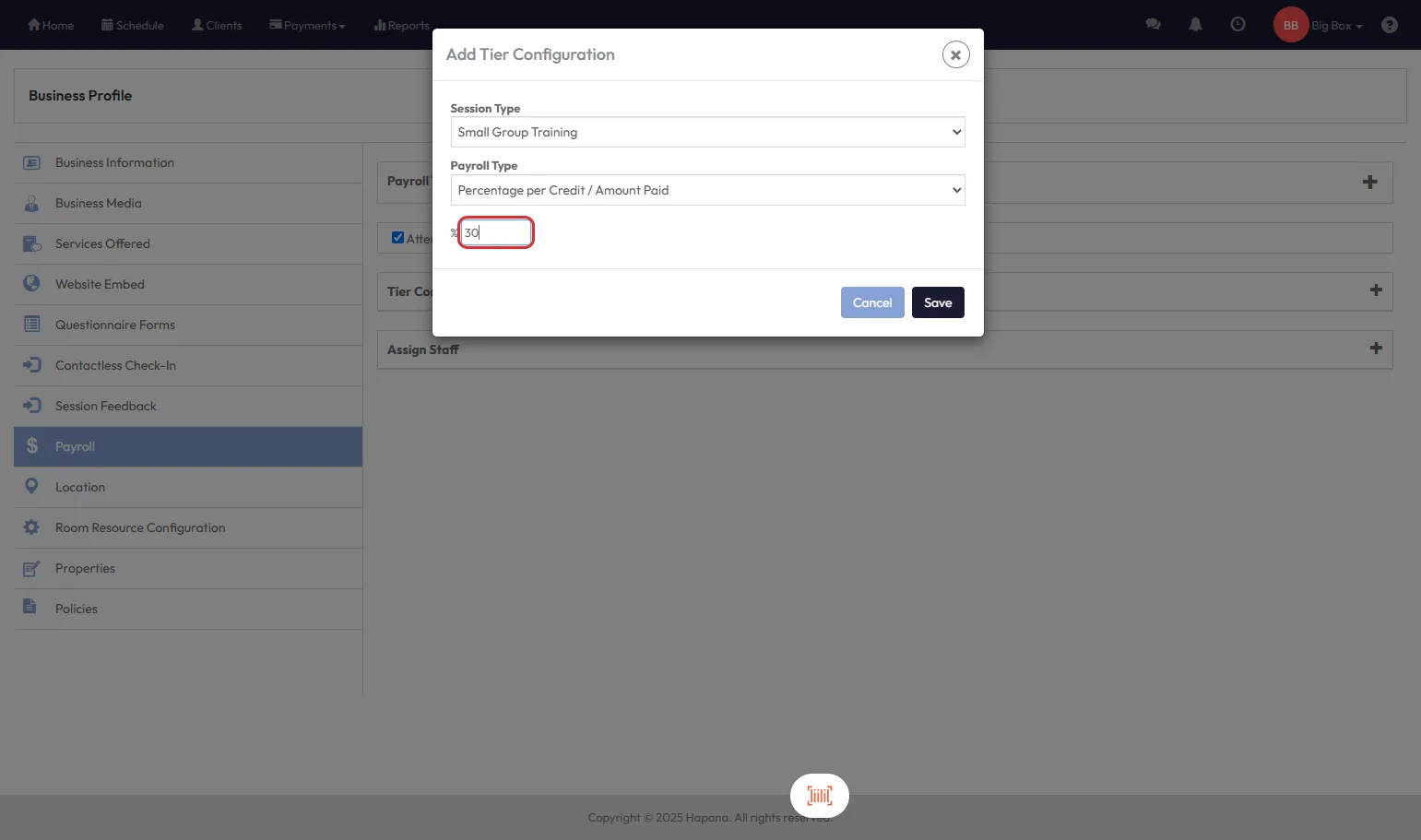
Step 5: Enter the Percentage Value
- For example, enter 50 to calculate 50% of the session’s revenue for payroll.
- Click Save.
Tip: You can assign different percentages for different session types or instructors.
Example Calculation: Known Credit Values
Let’s say 10 clients attend a Group Class, paying as follows:
- 4 clients used $10 credits → $40
- 4 clients used $9 credits → $36
- 2 clients paid $15 drop-in → $30
Total Session Value = $106
Instructor Earnings @ 50% = $53
Handling Unlimited Credits
For unlimited memberships or ClassPass where credit values can’t be calculated:
- Scroll down in the tier configuration.
- Toggle ON “Use Base Rate for Unlimited Packages”.
- Enter a flat value (e.g., $7) to apply per client using unlimited credits.
Example Calculation: With Unlimited Credits
Let’s say 15 clients attend a session:
- 4 clients used $10 credits → $40
- 4 clients used $9 credits → $36
- 2 clients paid $15 drop-in → $30
- 3 clients on unlimited memberships → $7 x 3 = $21
Total Session Value = $127
Instructor Earnings = (40 + 36 + 30) × 50% + 21 = $74
Expected Outcome
Once configured, your instructors will automatically be paid based on:
- The real value of credits or drop-ins used by clients
- A fixed rate for sessions paid via unlimited memberships
- The defined percentage in their assigned Payroll Tier
This improves accuracy, saves admin time, and ensures fair compensation based on actual session value.
FAQs
Q: Can I assign a flat rate for all sessions instead of using percentages?
Yes. You can create separate payroll tiers using fixed rates for specific session types.
Q: What if I don’t assign a value for unlimited credits?
The system won’t be able to calculate a per-credit value, and instructor earnings will not reflect those clients. Always assign a base rate if you use unlimited packages.
Q: Can I use this for 1:1 and workshop sessions too?
Yes. Percent per Credit tiers can be assigned to any session type you configure.
Need help?
Reach out to our support team via support@hapana.com