
Overview
You can capture digital signatures on the spot during the sale of a membership or package—no more waiting for the client to sign via a separate link. This update makes in-person sales smoother and agreements immediate.
To get the best results, we recommend using a touchscreen device (tablet, iPad, or touchscreen laptop). Signatures captured with a mouse are accepted but may appear less natural.
Prerequisites
- A touch-enabled device (recommended)
- The package or membership must have an agreement enabled with saved verbiage
- Admin access to Dashboard > Payments
Step 1 – Start a New Sale
-
Log into your Core account
-
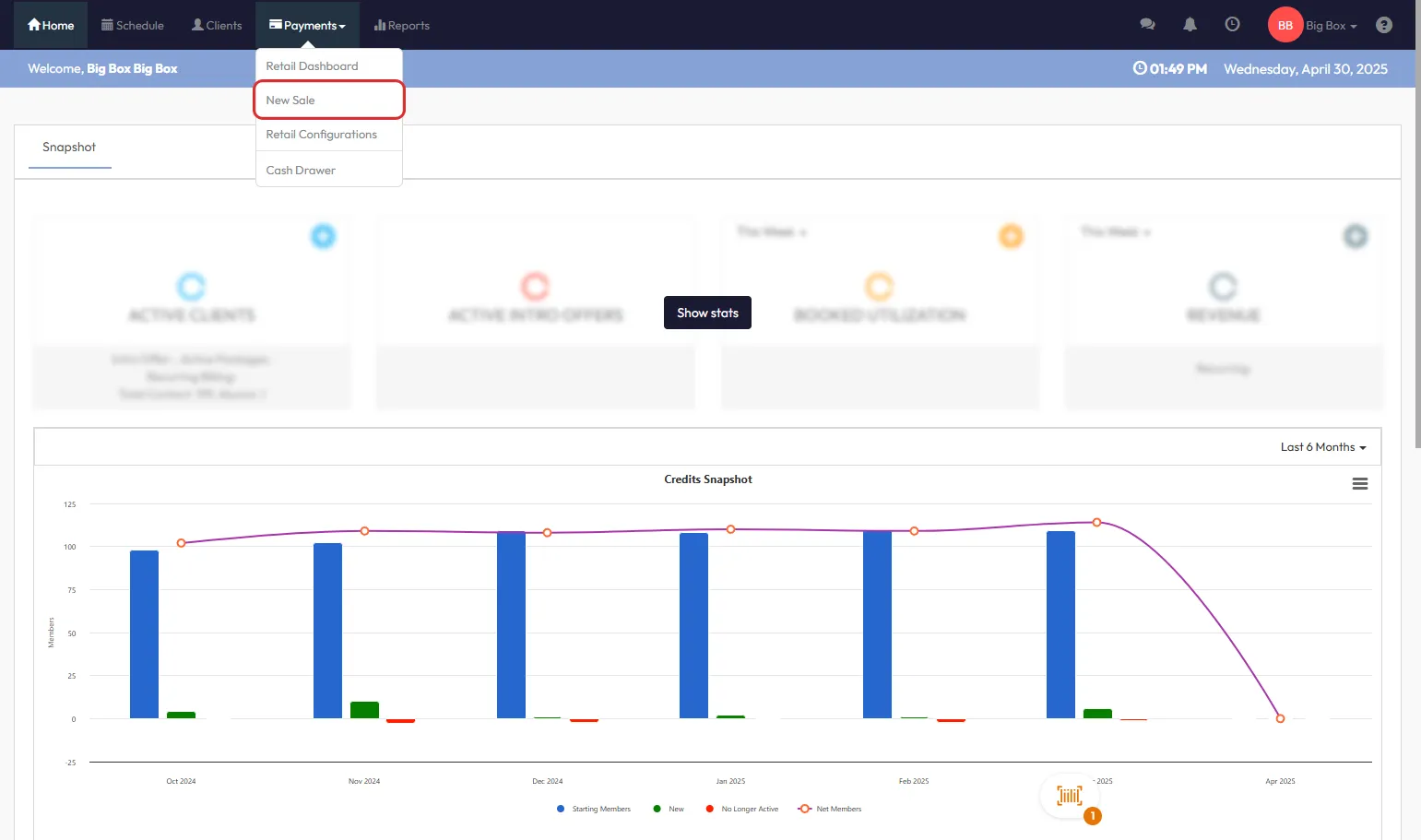
Navigate to Payments > New Sale
-
Select the client for the sale

-
Choose the package or membership you want to sell
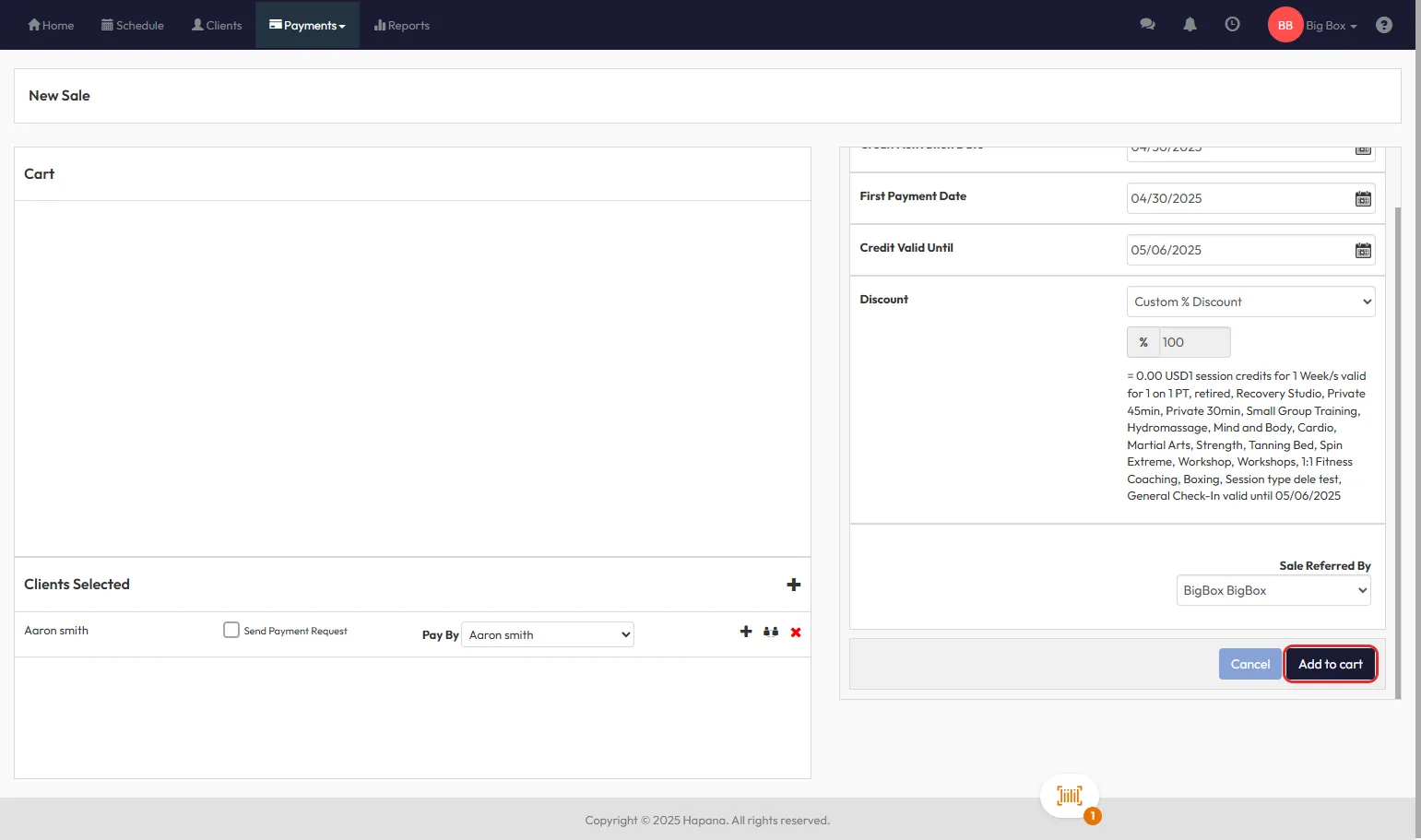
Tip: Ensure the agreement is already set up under Retail Configuration for the selected package or membership.
Step 2 – Proceed to Checkout
-
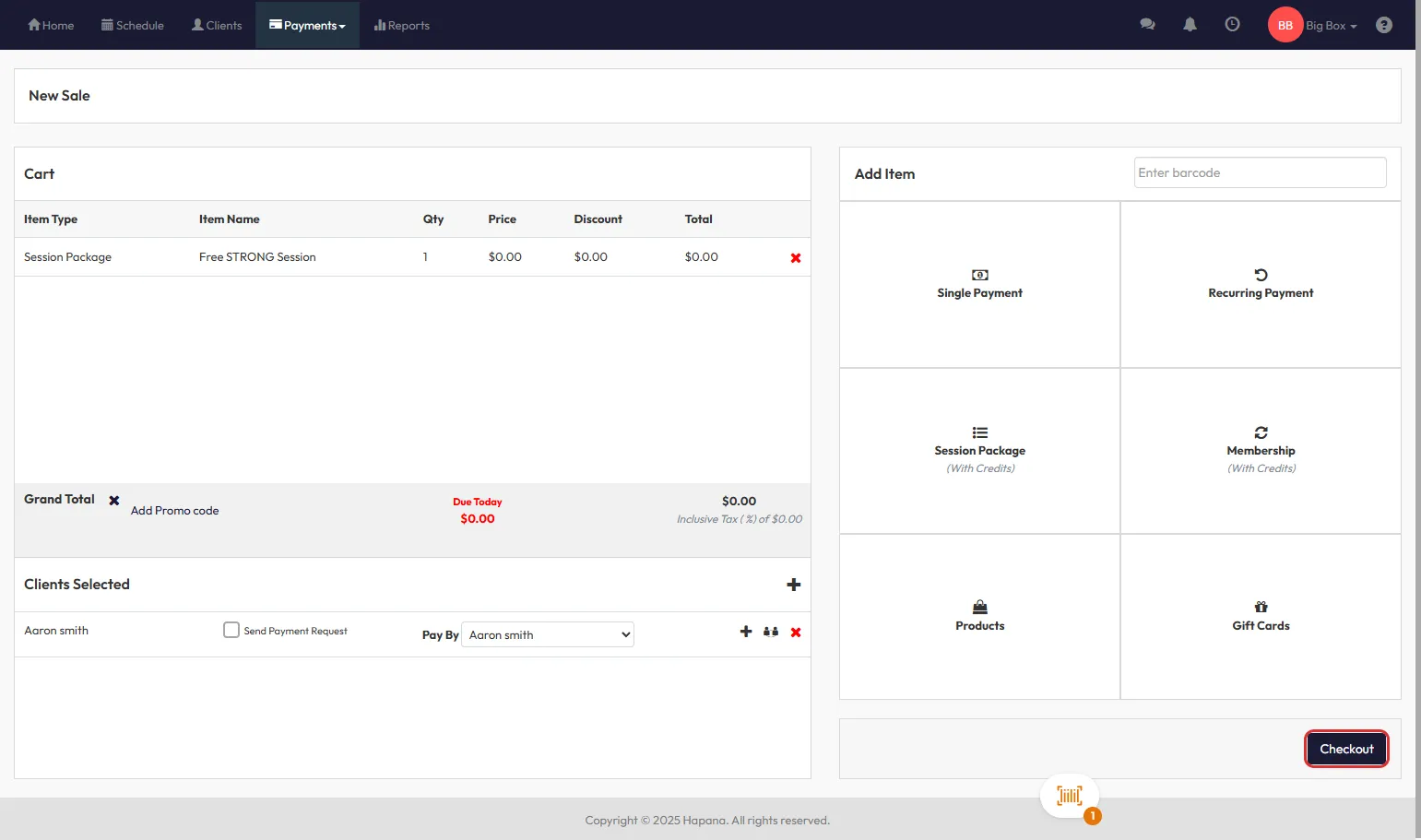
Click the Checkout button
-
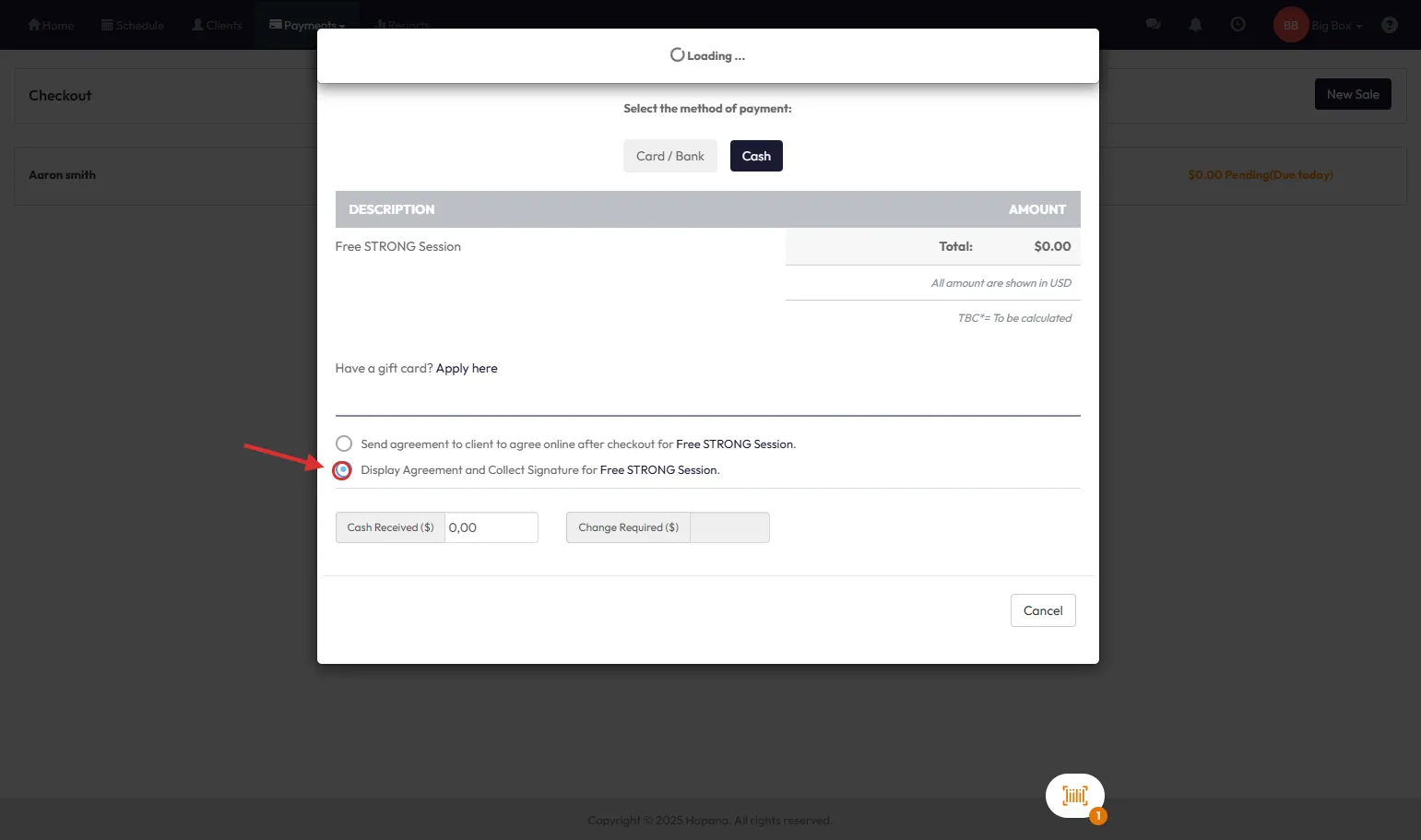
Select the payment method
Step 3 – Display Policy and Capture Signature
-
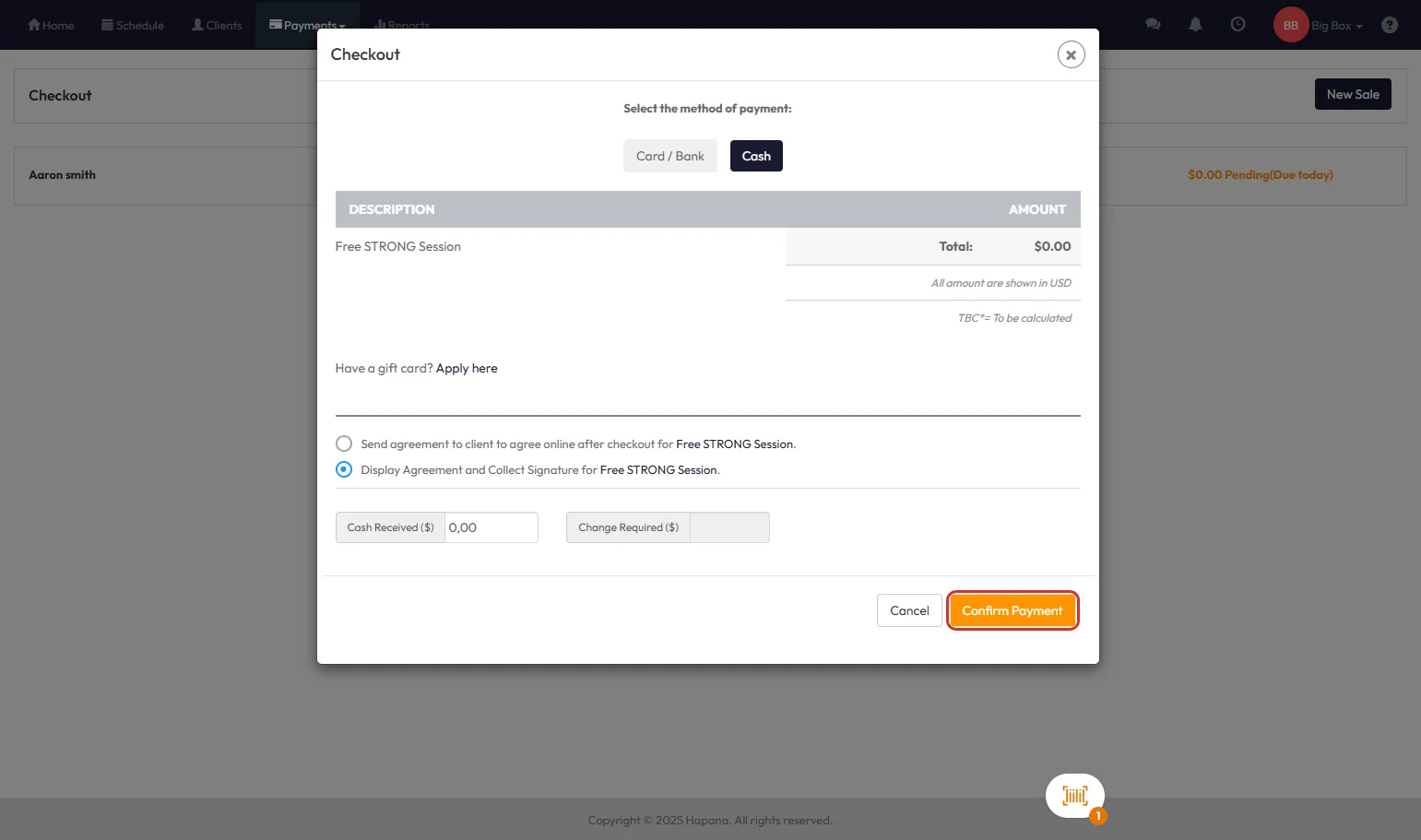
Scroll down and check the Display Policy and Collect Signature box
-
The agreement policy text will appear on-screen
-
A signature box will also appear for the client to sign using:
- Finger
- Stylus
- Mouse
-
The client must sign and then tap I Agree to continue
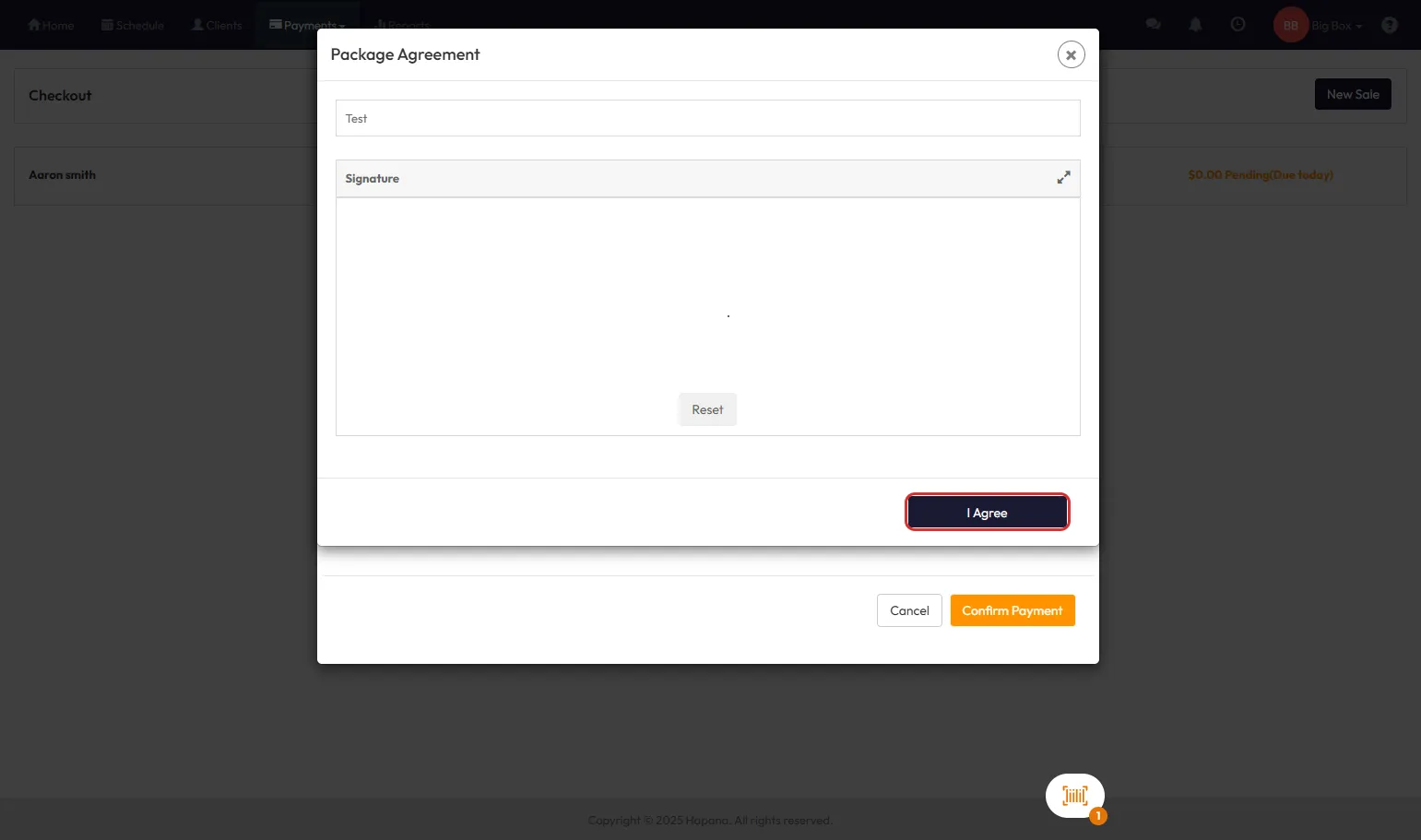
Note: The I Agree button will remain inactive until a signature is provided.
Step 4 – Finalize the Payment
-
Once signed, the Confirm Payment button will become visible
-
Click Confirm Payment to process the payment and complete the sale
Optional – Abort the Process
- If the sale needs to be paused or changed:
- Click the X in the top-right corner to cancel
- You can then choose a different payment method or send the agreement to the client for remote signature
Expected Outcome
The sale is completed and the digital agreement is stored instantly. A copy is:
- Sent to the client (if email is configured)
- Saved under the client’s profile in Core
FAQs
Q: Can I use a desktop computer for this?
A: Yes, but using a mouse for the signature may result in a less accurate representation than a touchscreen device.
Q: What happens if the client refuses to sign on the spot?
A: You can exit the signature flow and choose to send the agreement digitally instead.
Q: Where can I access the signed agreement?
A: It is saved in the client’s profile under their transaction or document history.
Need help? Reach out to our support team via support@hapana.com