
Overview
This guide covers how to manually process a pending payment for a class booking inside the Hapana Core system. Pending payments can occur when clients don't have an active package or the system needs confirmation on which credits to apply. Processing these payments ensures that your client's attendance and your records stay accurate.
Prerequisites
- Access to the Hapana Core Account.
- Permission to manage payments and class bookings.
1. Log in to Hapana Core
- Visit core.hapana.com/login and log in with your credentials.
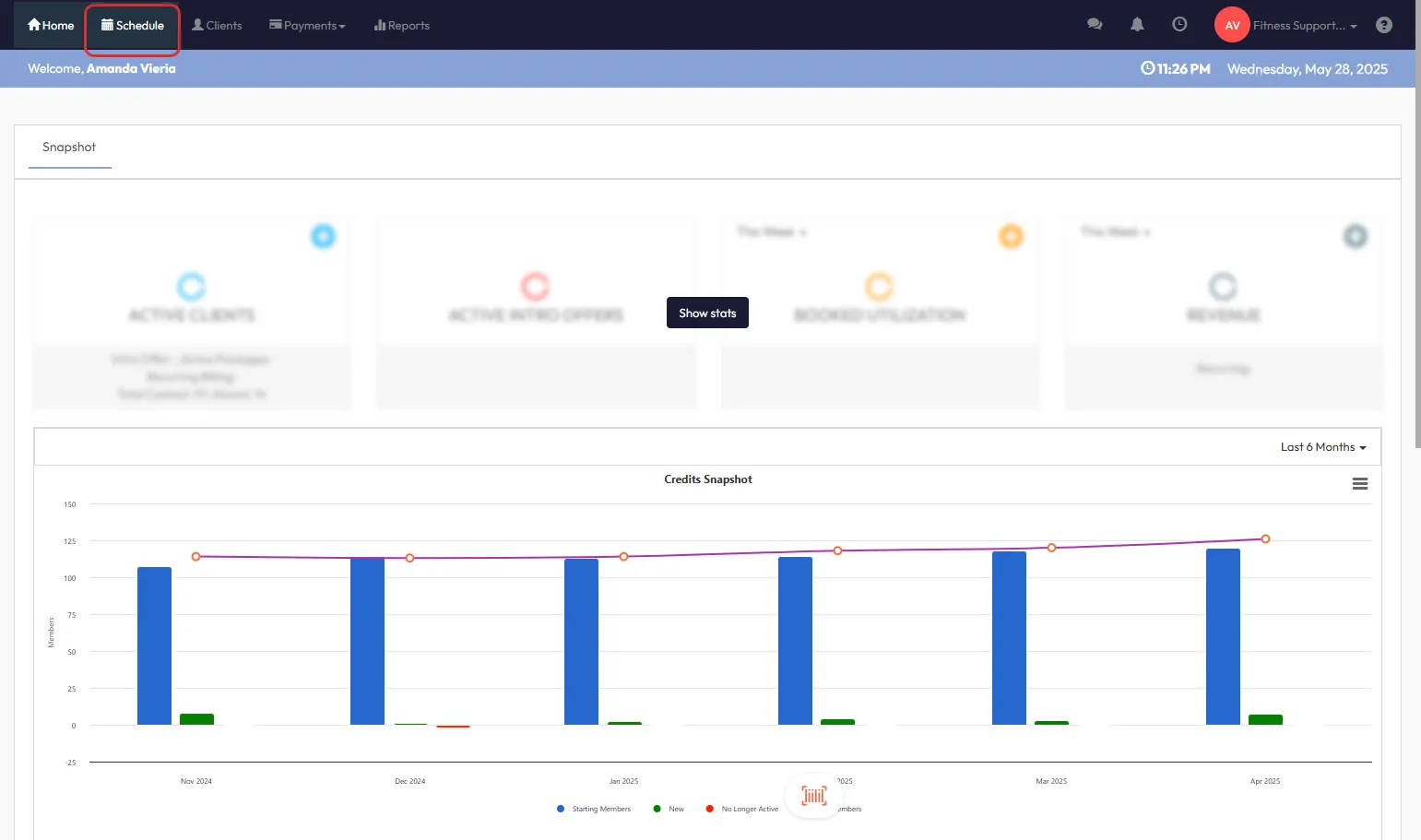
2. Navigate to the Schedule
- Click Schedule from the top navigation bar.
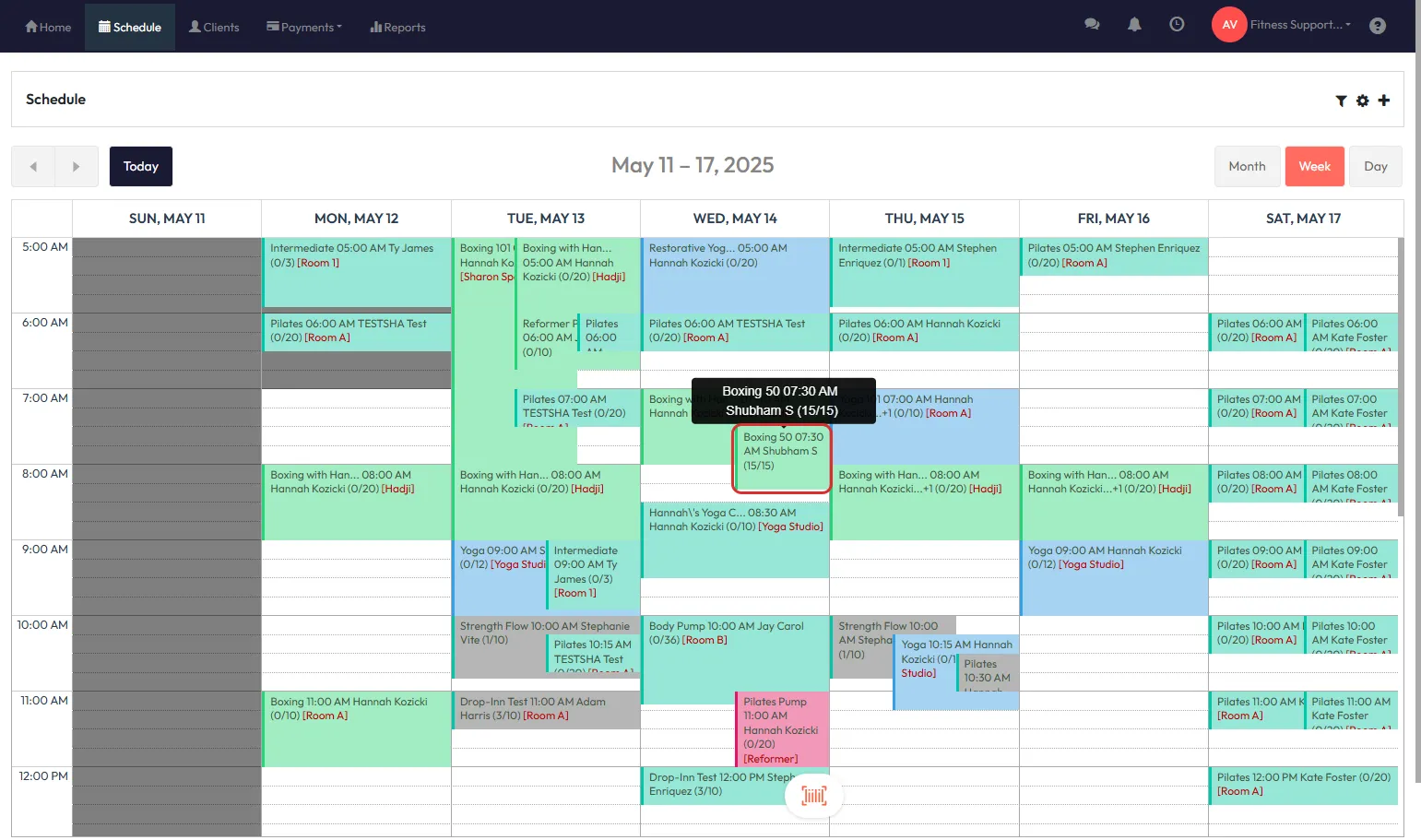
Tip: You can access today's classes quickly by clicking Today in the calendar view.
3. Locate the Class
- Find and click on the class where you would like to process pending bookings.
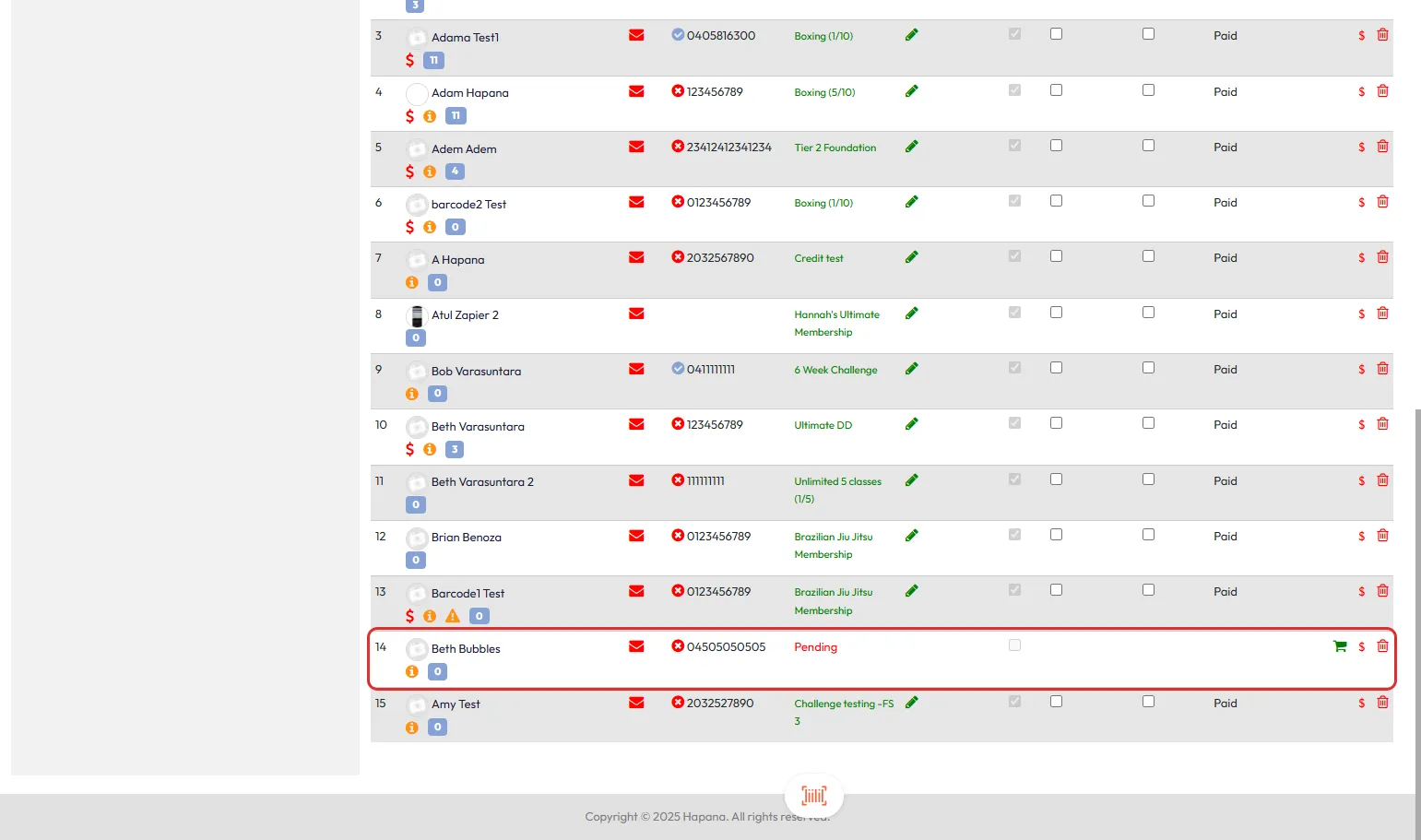
4. Identify Pending Bookings
- In the list of booked clients, check under Payment Type.
- Clients without valid credits will show as Pending.
- If a client has multiple active memberships, they may also appear as Pending until a credit source is chosen.
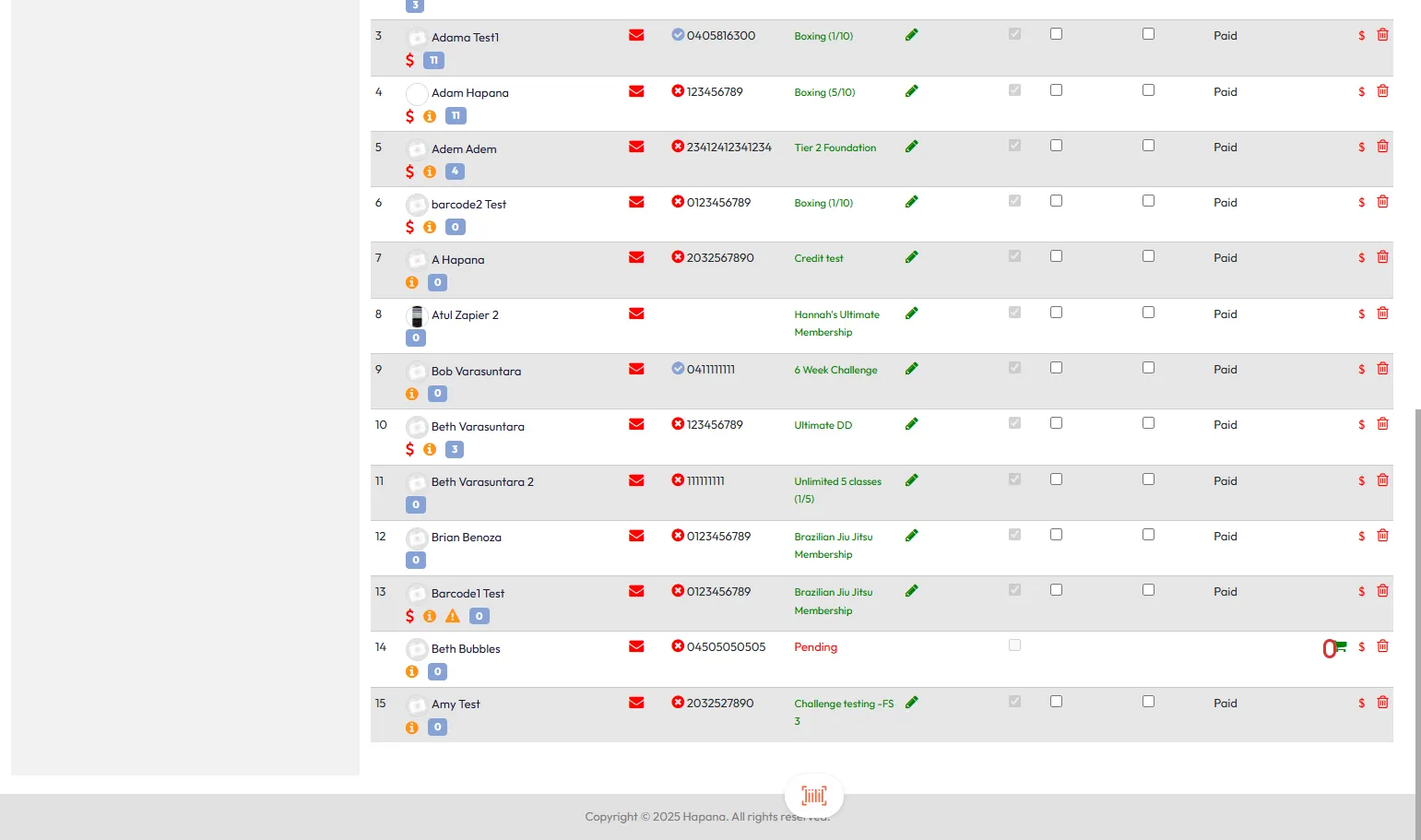
5. Click the Shopping Cart Icon
- Click the shopping cart icon next to the pending client’s name.
6. Select Available Credits
- If the client has active credits:
- Tick the checkbox for the package you want to use.
- If no credits are available:
- Click Buy Package to redirect to POS and complete the transaction.
- Or, click Drop-in Rate to select another payment method.
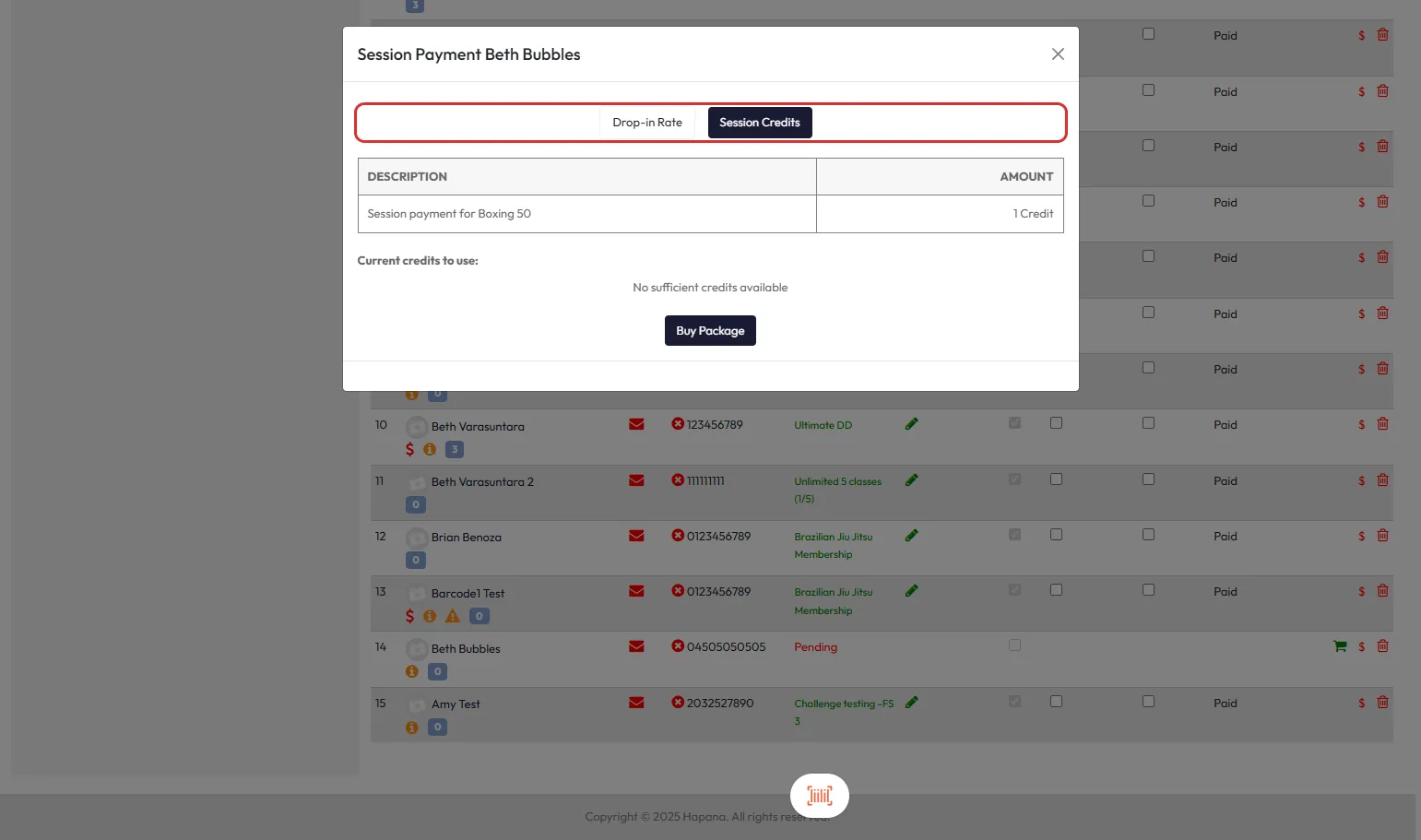
7. Complete the Checkout
- After selecting the payment method, click Checkout.
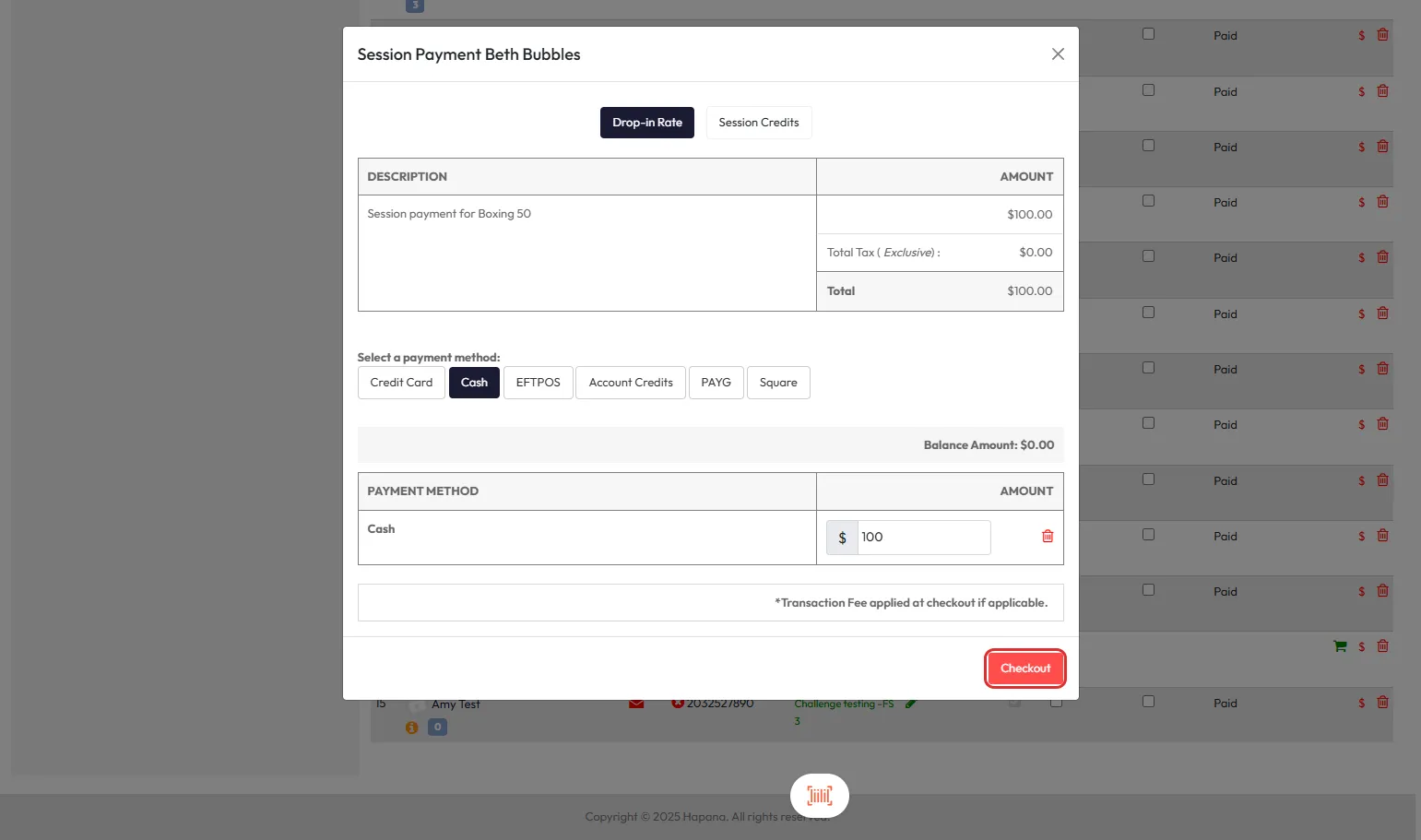
8. Confirmation Message
- A green success message will appear confirming that the payment was processed correctly.
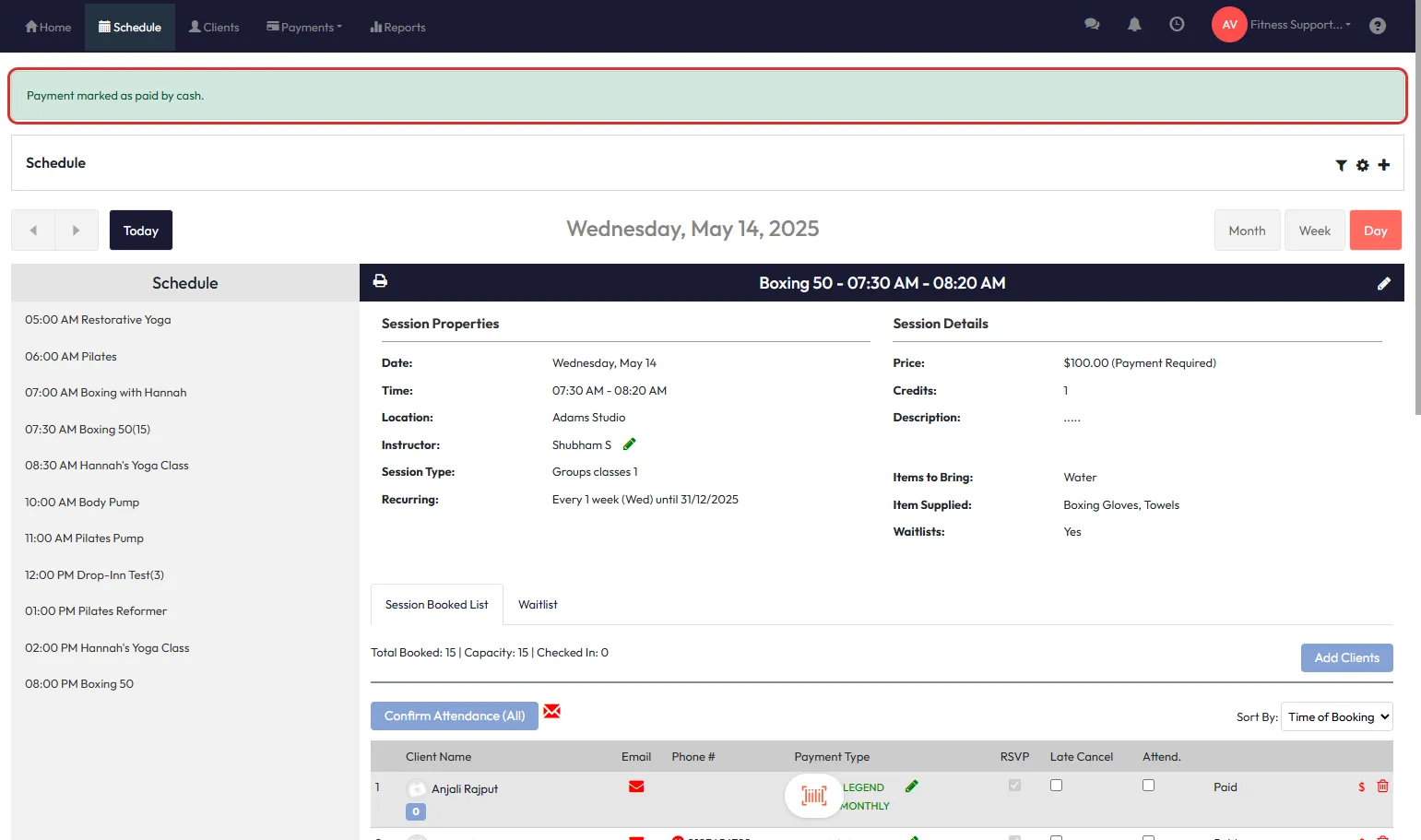
9. Confirm Payment Type Update
- Return to the class session booking list.
- The client's Payment Type will now show the valid package or payment method used.
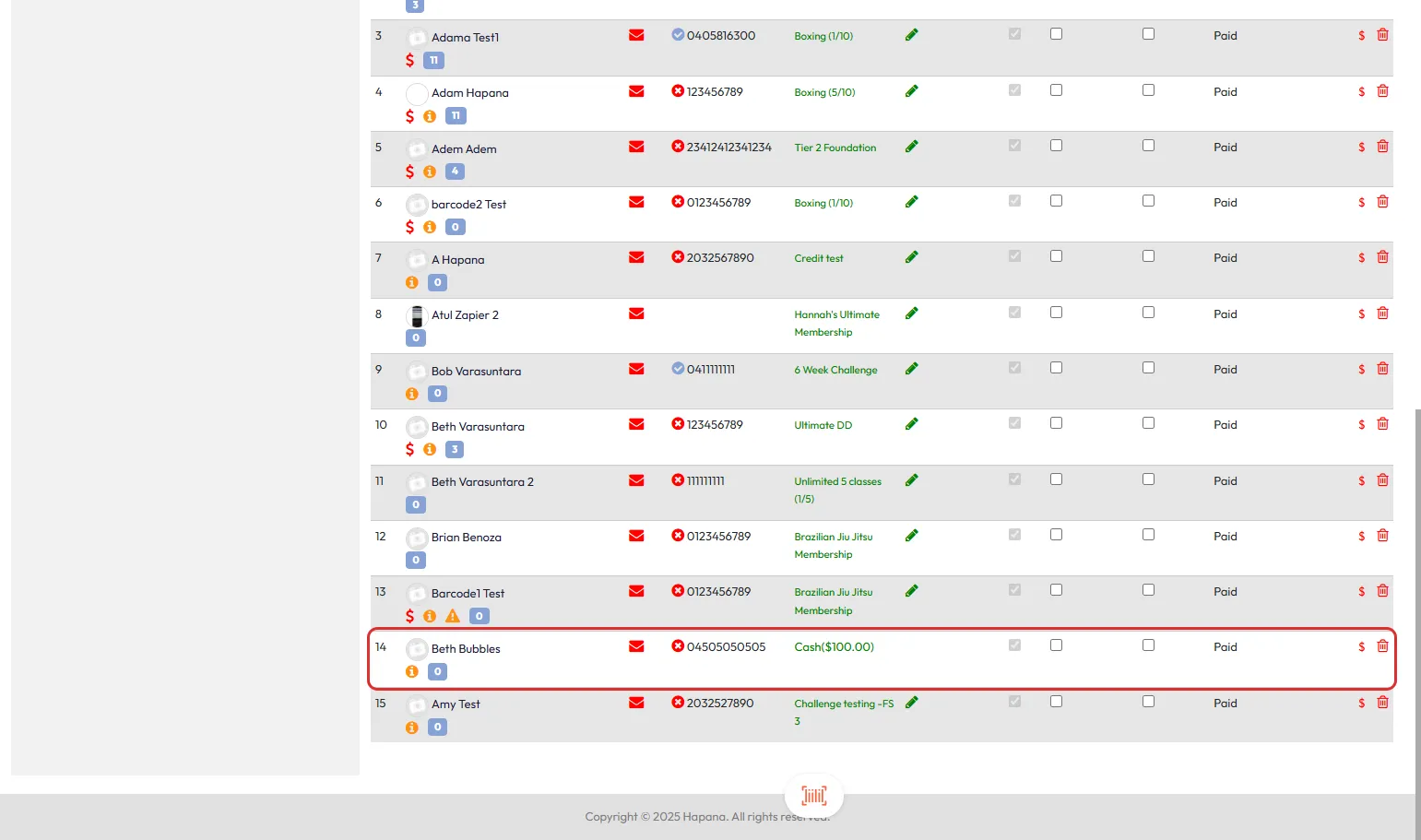
Expected Outcome
The pending payment will be resolved, and the client’s booking will reflect the correct payment or membership package used.
FAQs
Q: What happens if the client has no credits available?
A: The system will prompt you to Purchase Package before proceeding.
Q: Can I manually override pending statuses?
A: No, the system requires you to select valid credits or process payment through POS.
Q: Why is a client showing multiple pending options?
A: They might have multiple memberships active and you need to select which one to use.
Need help? Reach out to our support team via support@hapana.com.