
Overview
This guide walks you through how to manually process late cancel/no show fees in Core. You’ll learn how to adjust system-wide settings if needed or process a one-off fee with a custom description. This is important to ensure your clients are charged appropriately when they miss or cancel sessions late.
Prerequisites
- Access to your Core Hapana Account.
- Permission to manage Retail Configurations and process Payments.
Step 1: Review Manual Fee Processing Instructions
If you intend to manually process all late cancel/no show fees, begin from Step 3.
If processing a single manual fee, skip to Step 10.
Tip: Always confirm if manual adjustments are needed before changing system-wide settings.
Step 2: Log In to Core
- Go to https://core.hapana.com/login.
- Log in using your credentials.
Step 3: Navigate to Payments
- Click Payments from the top navigation bar.
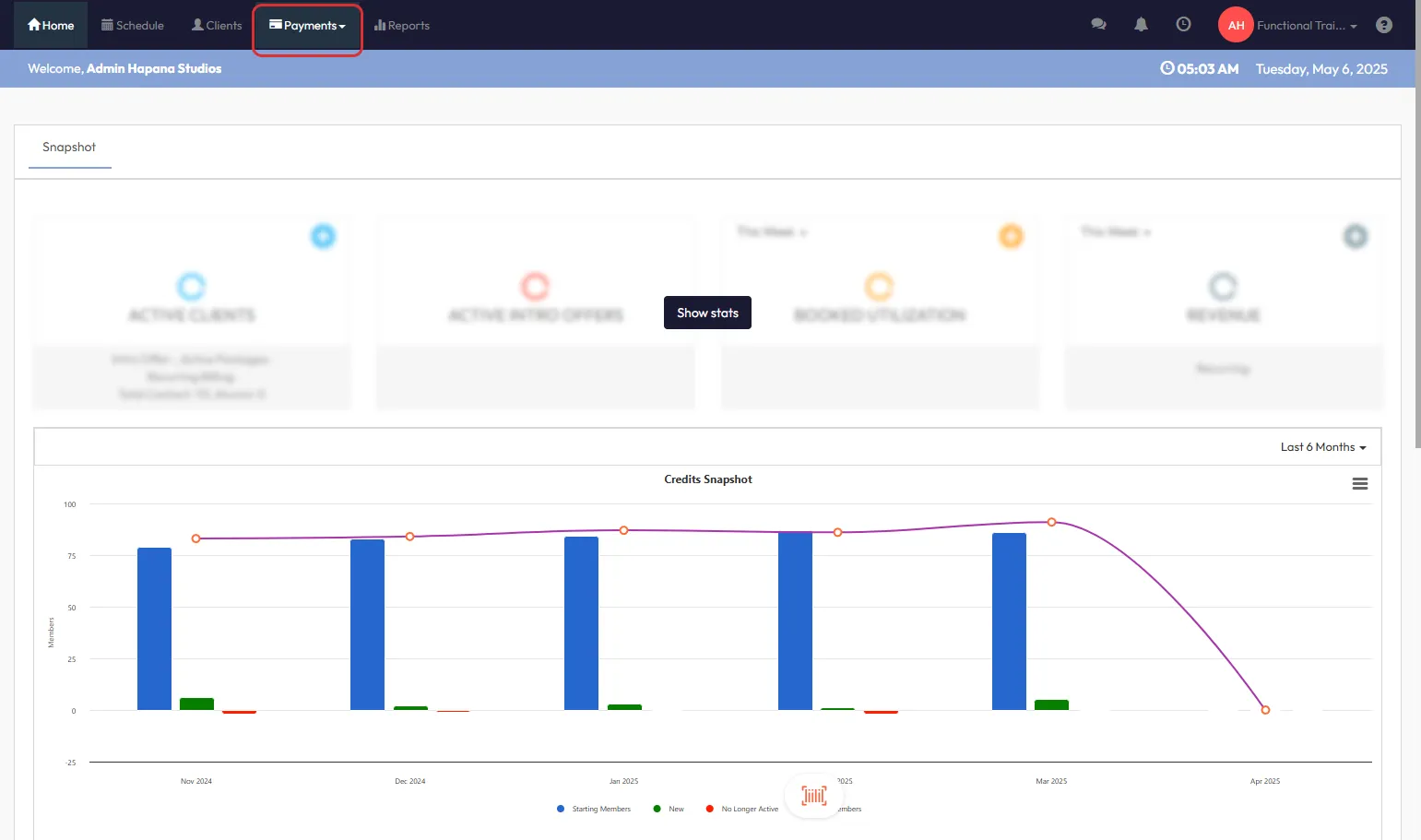
Step 4: Access Retail Configurations
- Select Retail Configurations from the dropdown.
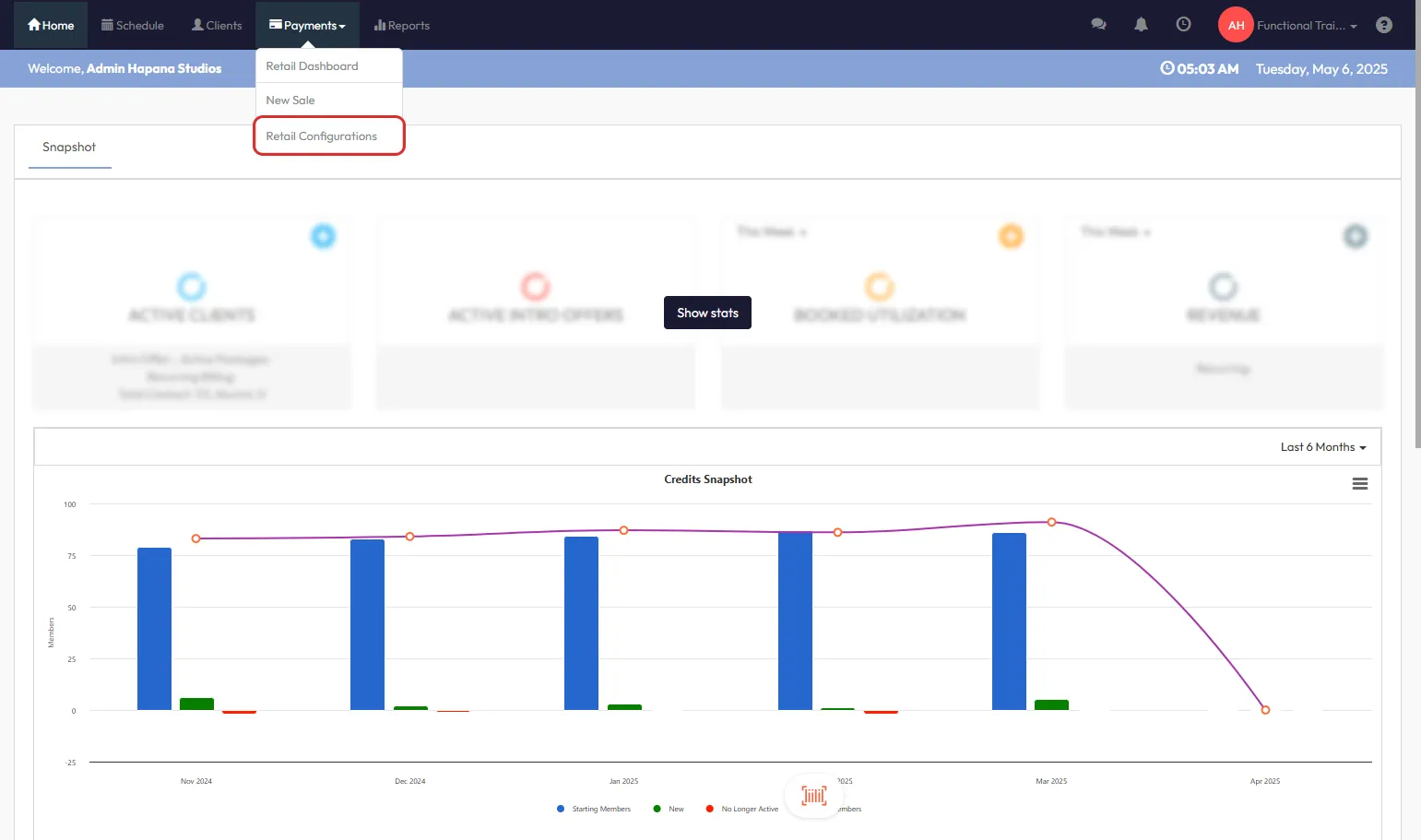
Step 5: Open Retail Settings
- Click Retail Settings on the left-side menu.
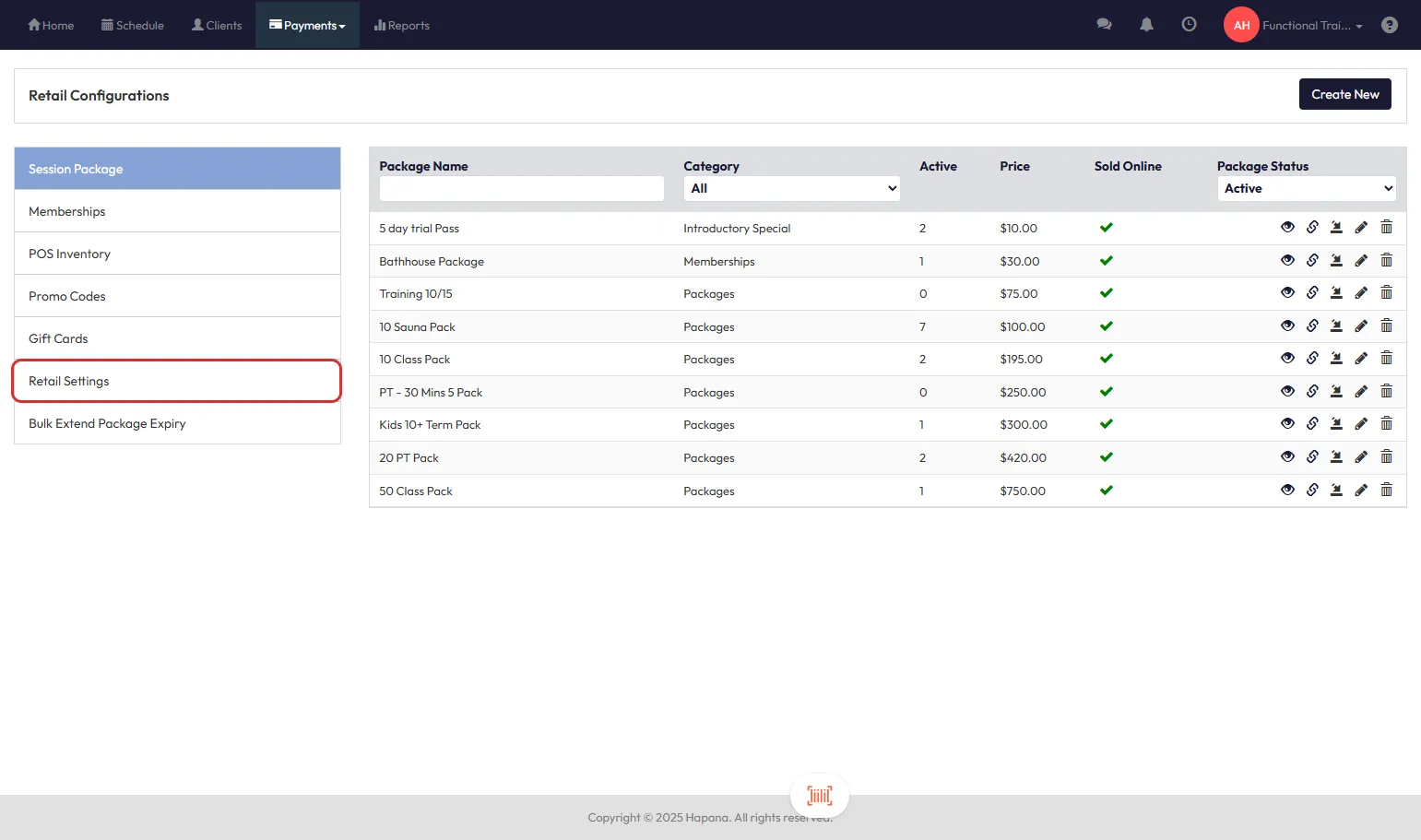
Step 6: Adjust Schedule Fees
- Scroll down to the Schedule Fees section.
- Click the pencil icon next to Schedule Fees.

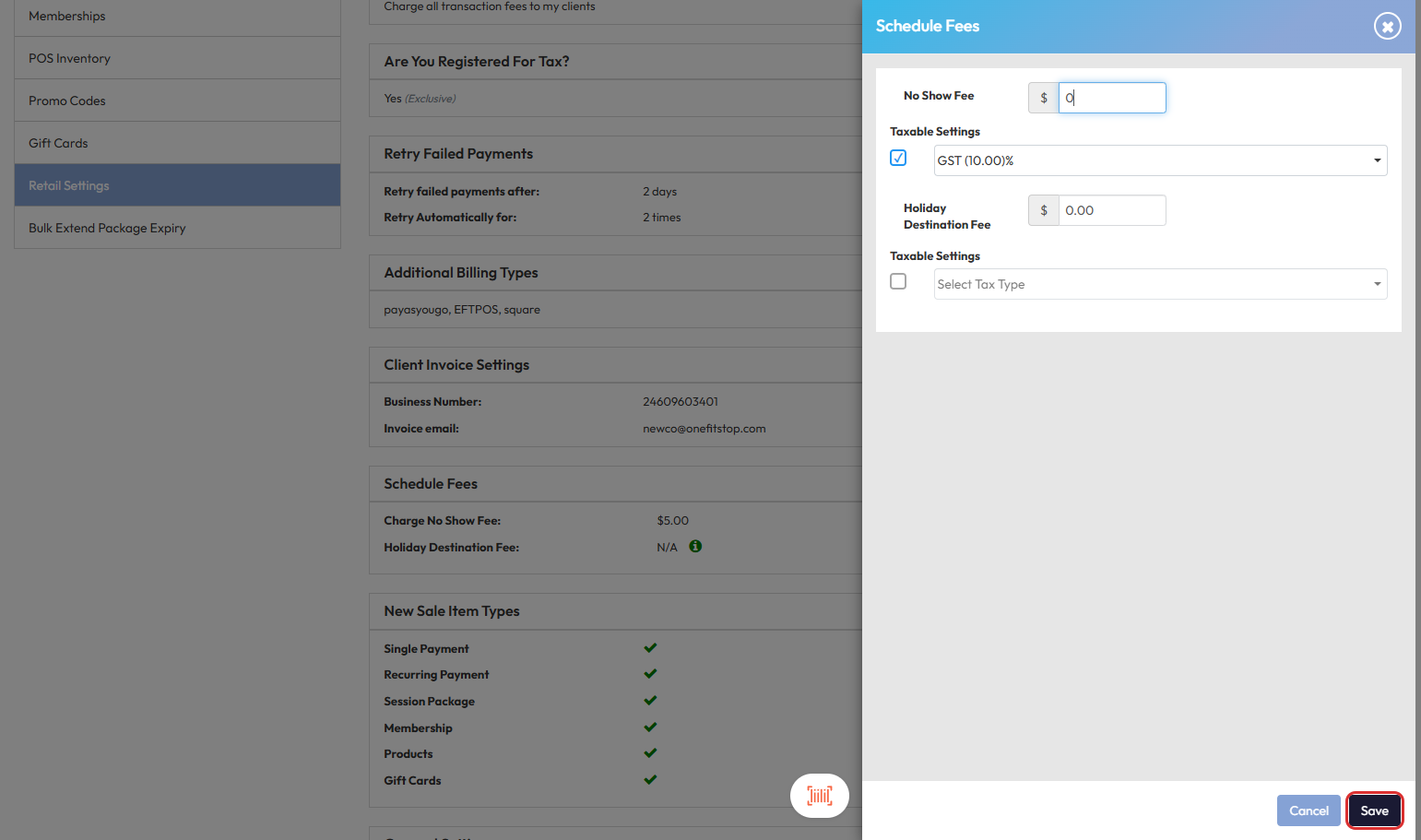
Step 7: Set No Show Fee to 0.00
- In the pop-up window, update the No Show Fee field to $0.00.
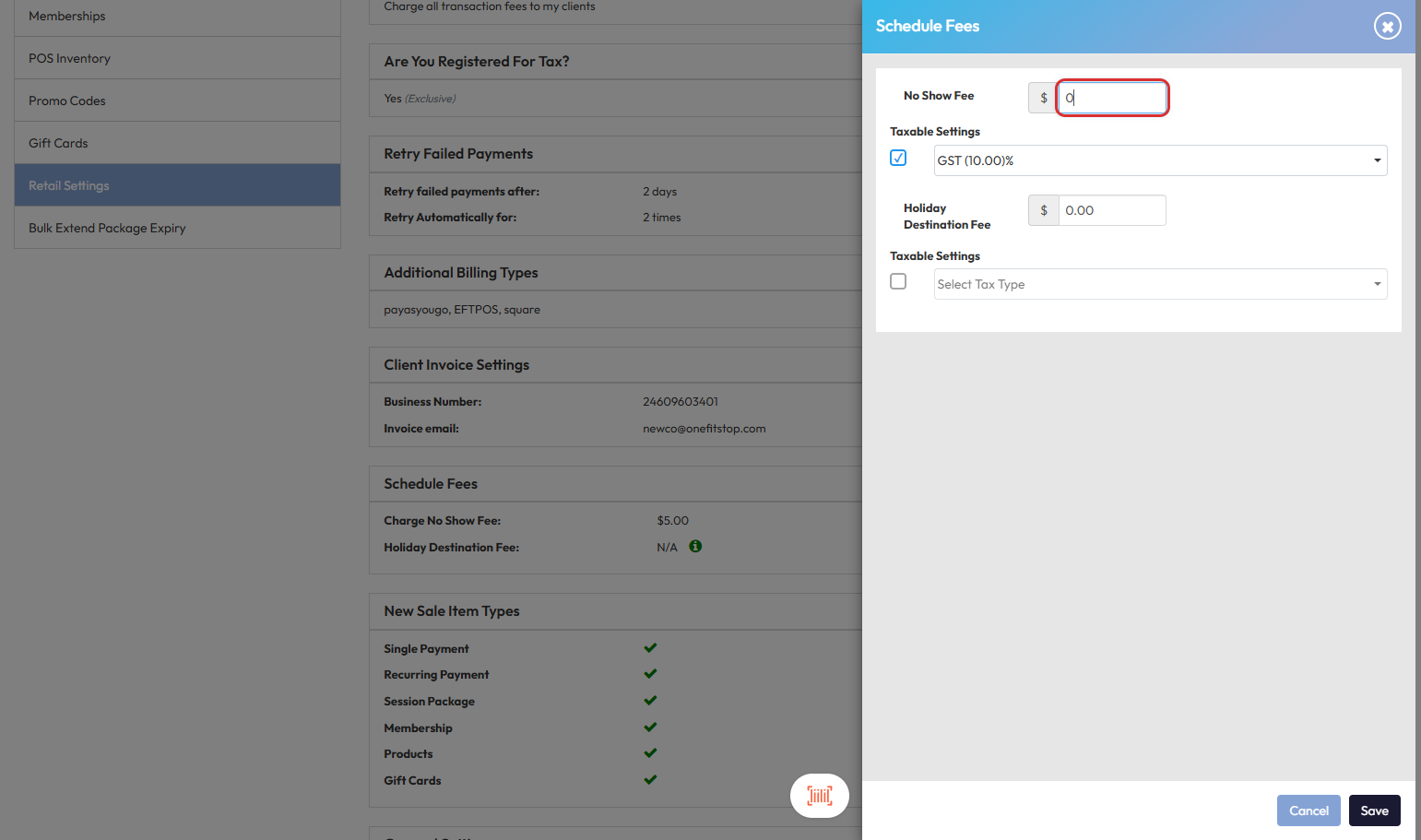
Step 8: Save Changes
- Click Save to apply the updates.
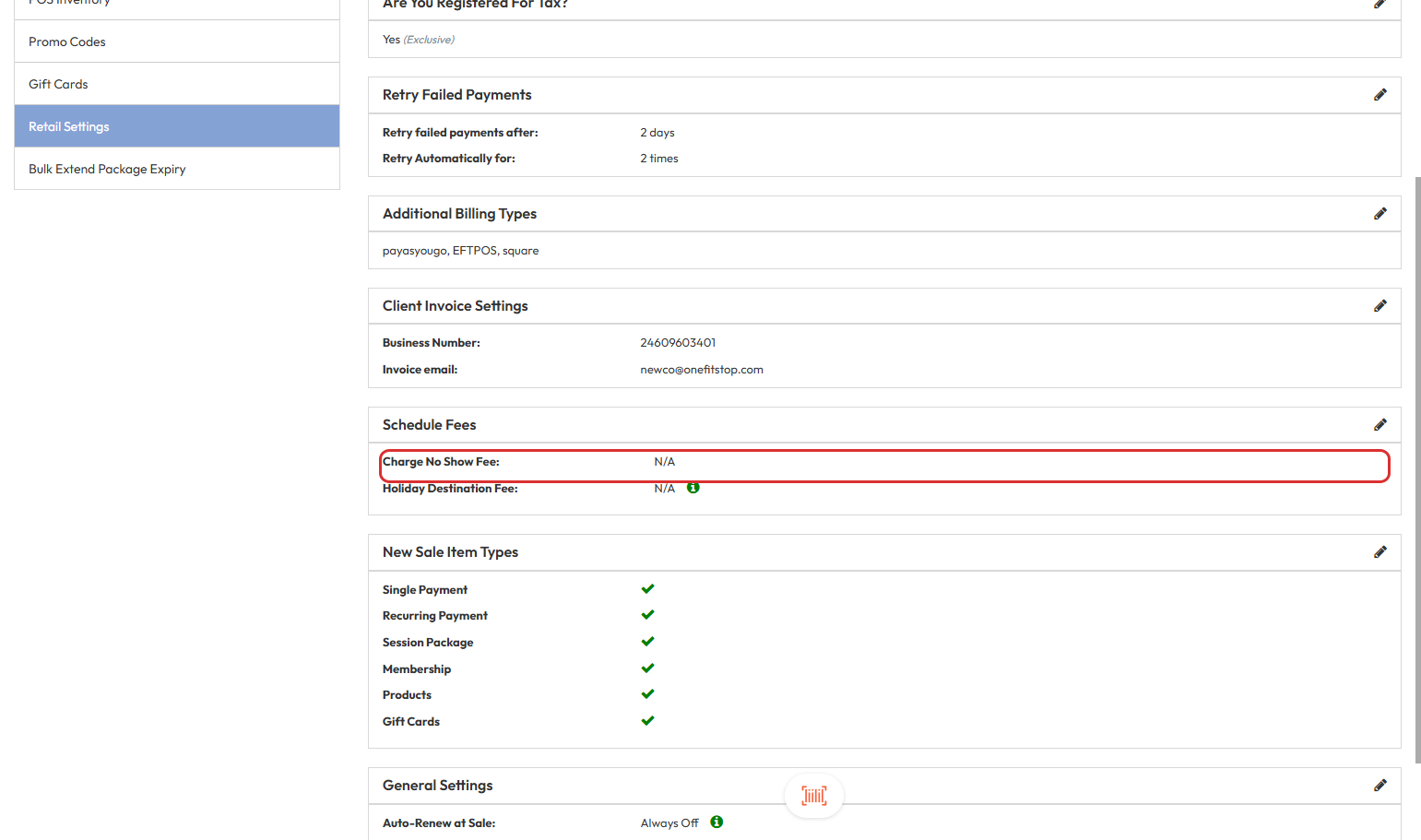
Step 9: Confirm Fee Update
- Back on the Retail Settings main menu, verify the Charge No Show Fee now displays as N/A.
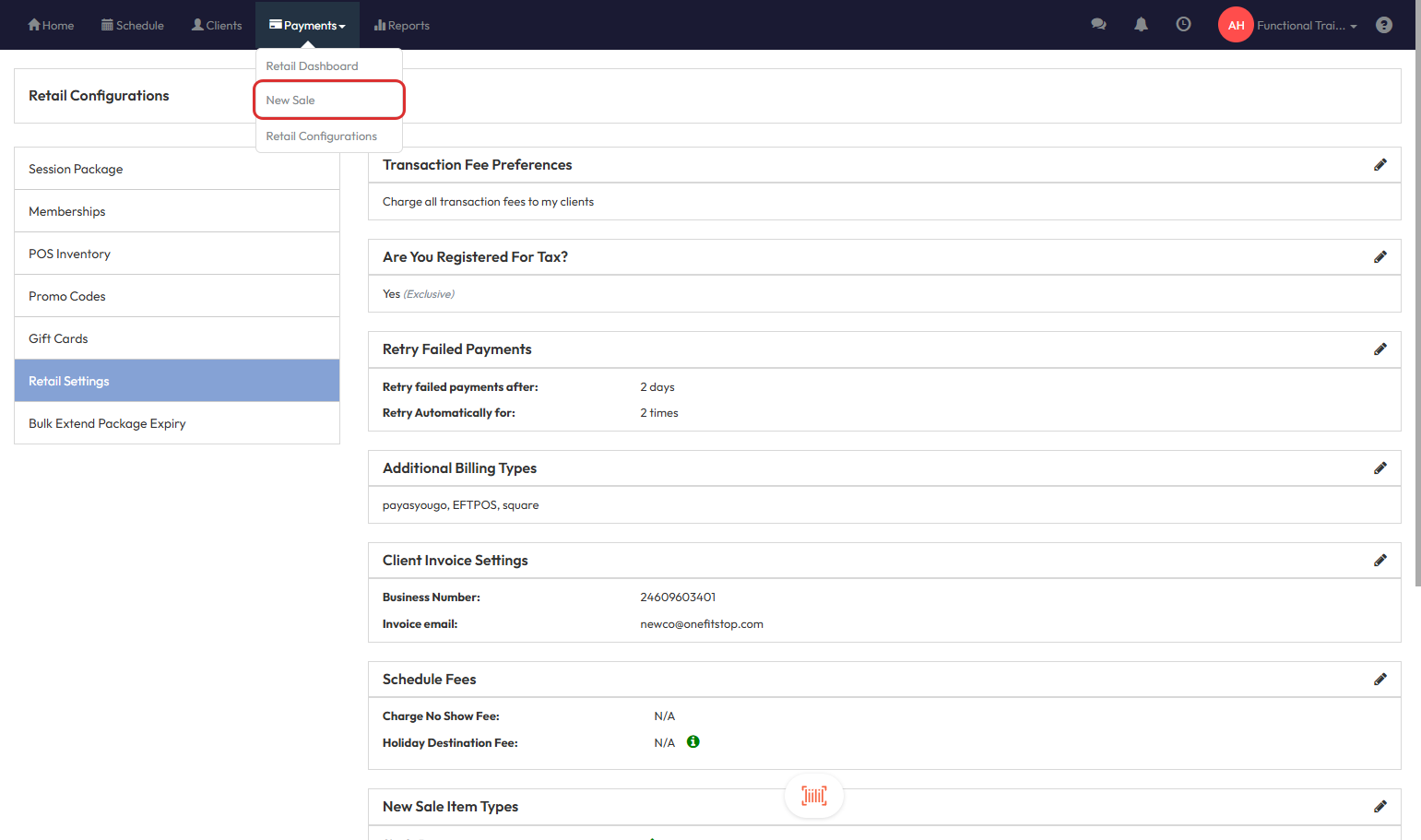
Step 10: Start a New Sale
- Click Payments again.
- Select New Sale from the dropdown.
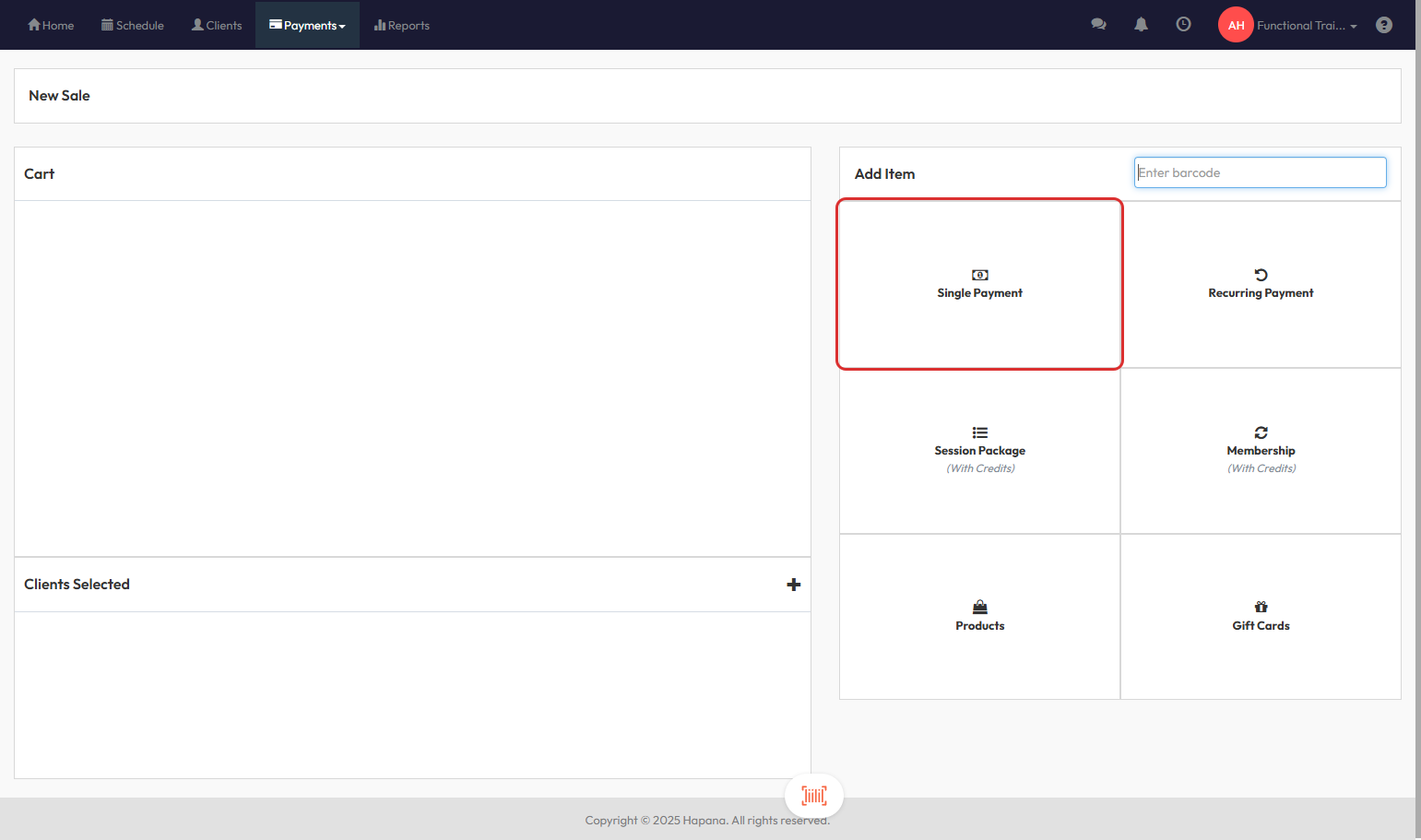
Step 11: Select Single Payment
- In the New Sale screen, click Single Payment.
Step 12: Fill out the sale fields
- Add Invoice Date, Description, Price, and select Tax Type, if applicable.
- In the Description field, add any relevant notes you want visible on the client’s invoice (e.g., "Late cancel fee for 07/15 session").
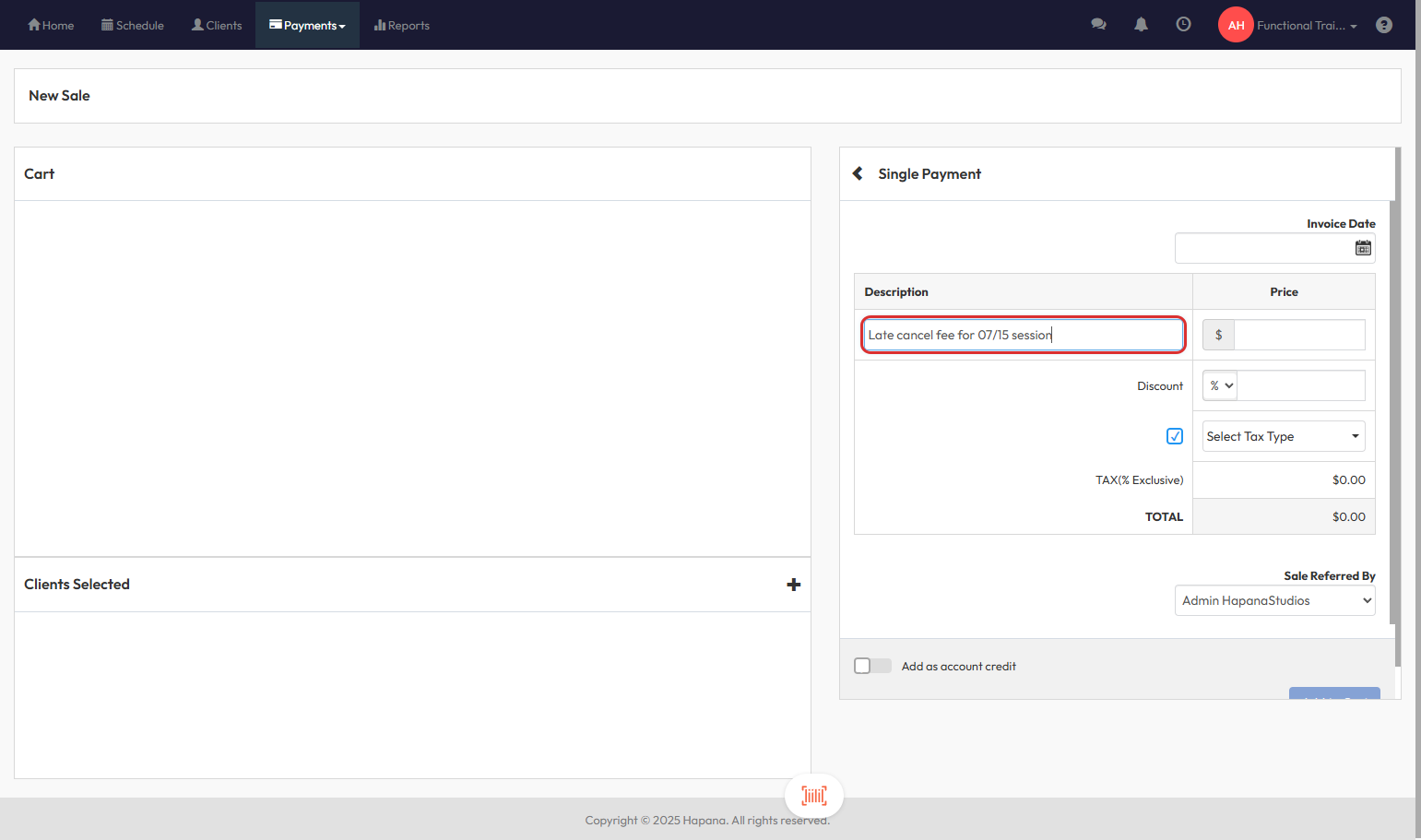
Tip: Clear descriptions help clients understand the fee and minimize disputes.
Step 13: Add to Cart
- Complete all required fields.
- Click Add to Cart.
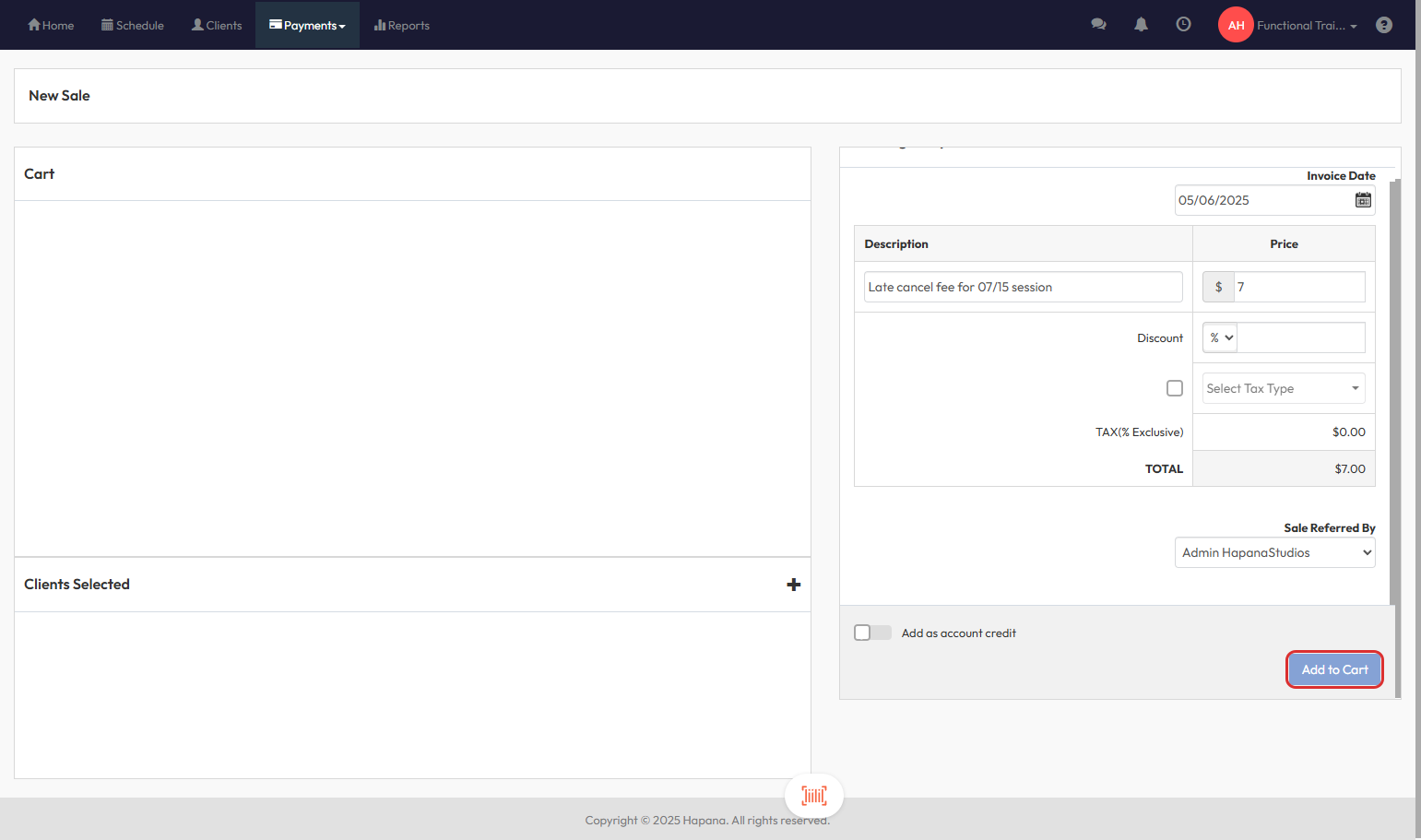
Step 14: Complete the Transaction
- Use the Clients Selected + icon to select the client you wish to charge.
- Click Checkout to finalize the sale.
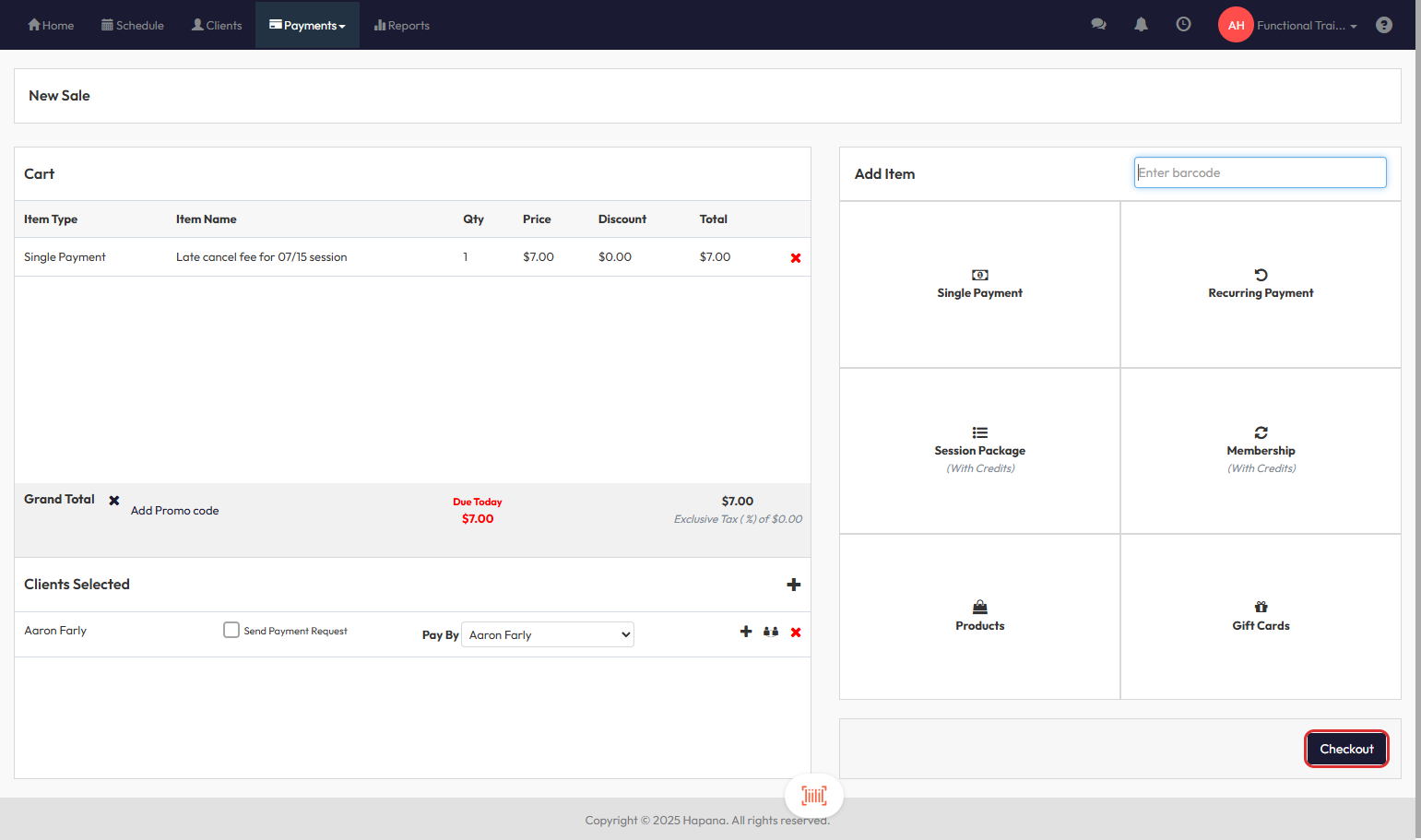
Expected Outcome
You will successfully charge a manual late cancel/no show fee with a detailed description, and the fee will appear clearly in the client’s invoice history.
FAQs
Q: Will manually charged fees appear automatically in client history?
A: Yes, once processed through Checkout.
Q: Can I still automate late fees if needed later?
A: Yes, by updating the Schedule Fees settings again.
Q: What happens if I forget to add a description?
A: A generic fee will be charged; you won’t have visible notes on the invoice unless you manually update it.
Need more help? Reach out to our support team via support@hapana.com.