
Overview
This guide covers how to update a client's payment method in Hapana Core. Whether your client needs to switch from card to bank or update their preferred payment source, this quick process ensures their billing continues without interruption.
Prerequisites
- Access to your Hapana Core Account
- Admin or manager-level permission to update client billing details
1. Log in to your Hapana Core account
- Navigate to core.hapana.com/login and log in with your credentials.
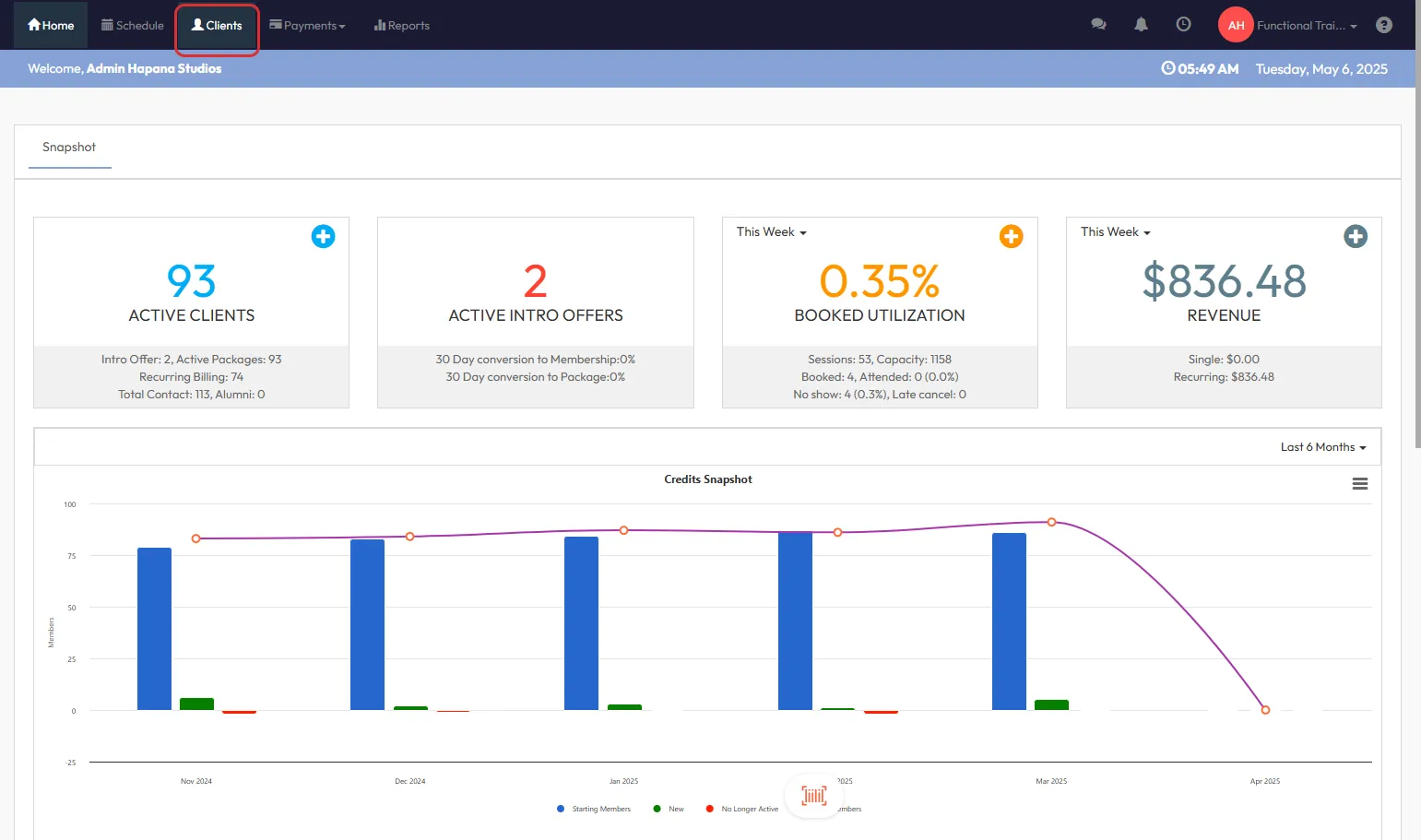
2. Click Clients
- Once logged in, click on the Clients tab from the top navigation menu.
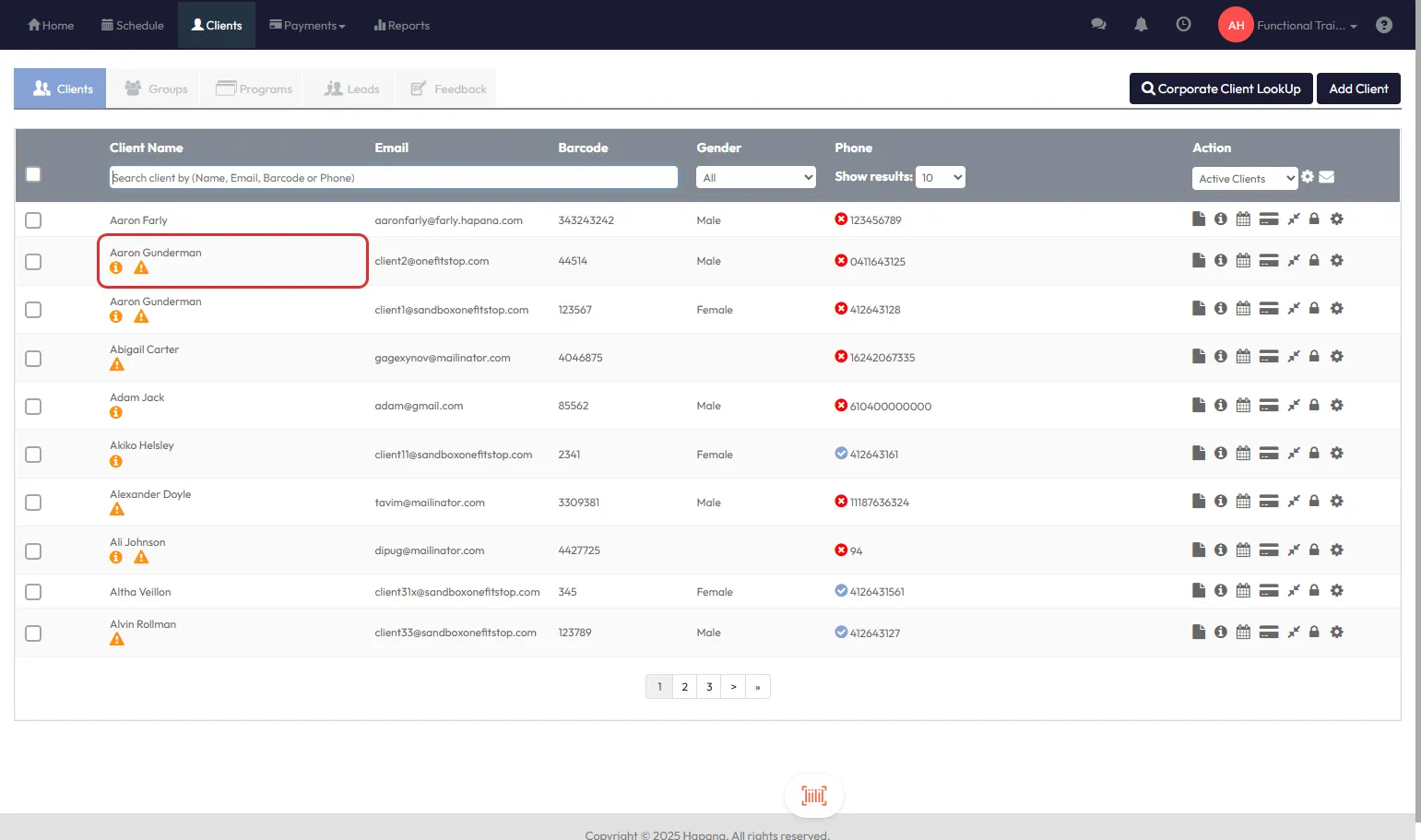
3. Search for the client
- Use the search bar to find the client by their Name, Email Address, or Phone Number.
Tip: If you're unsure of spelling, partial names will still return results!
4. Click the Client’s Name
- From the search results, click directly on the Client’s Name to open their profile.
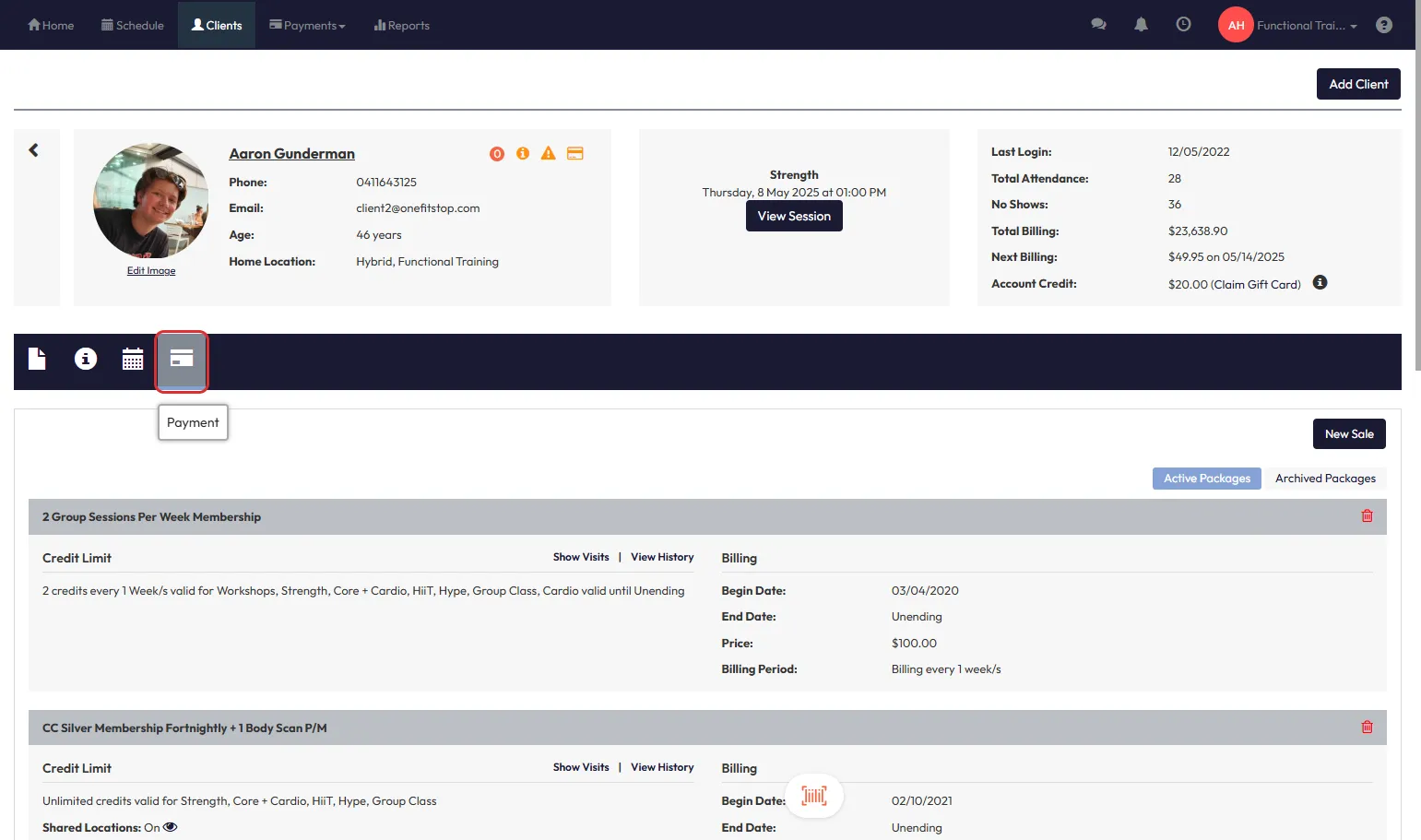
5. Navigate to the Memberships tab
- Inside the client’s profile, click on the Payments tab
- Then on the Memberships tab to view their active memberships.
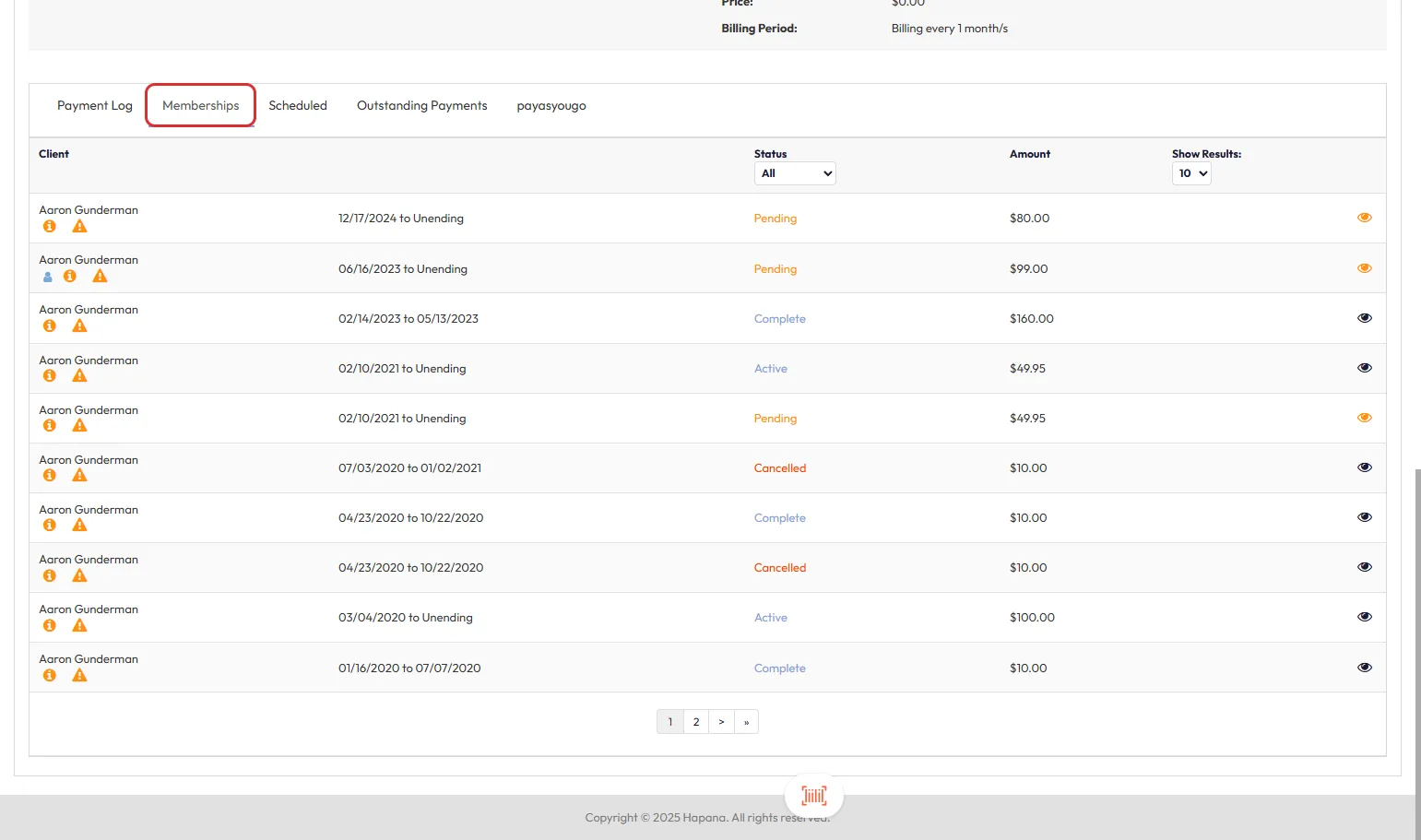
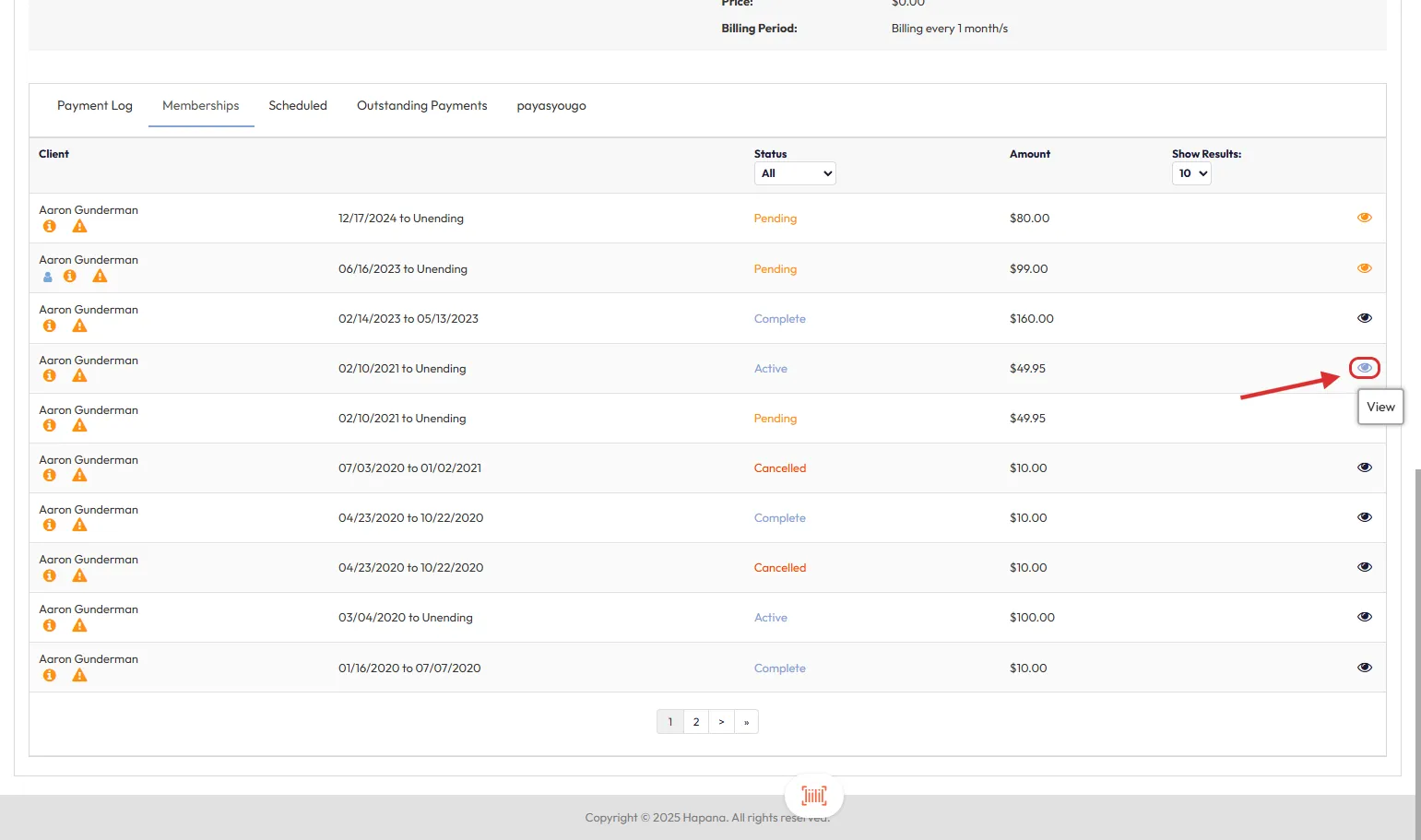
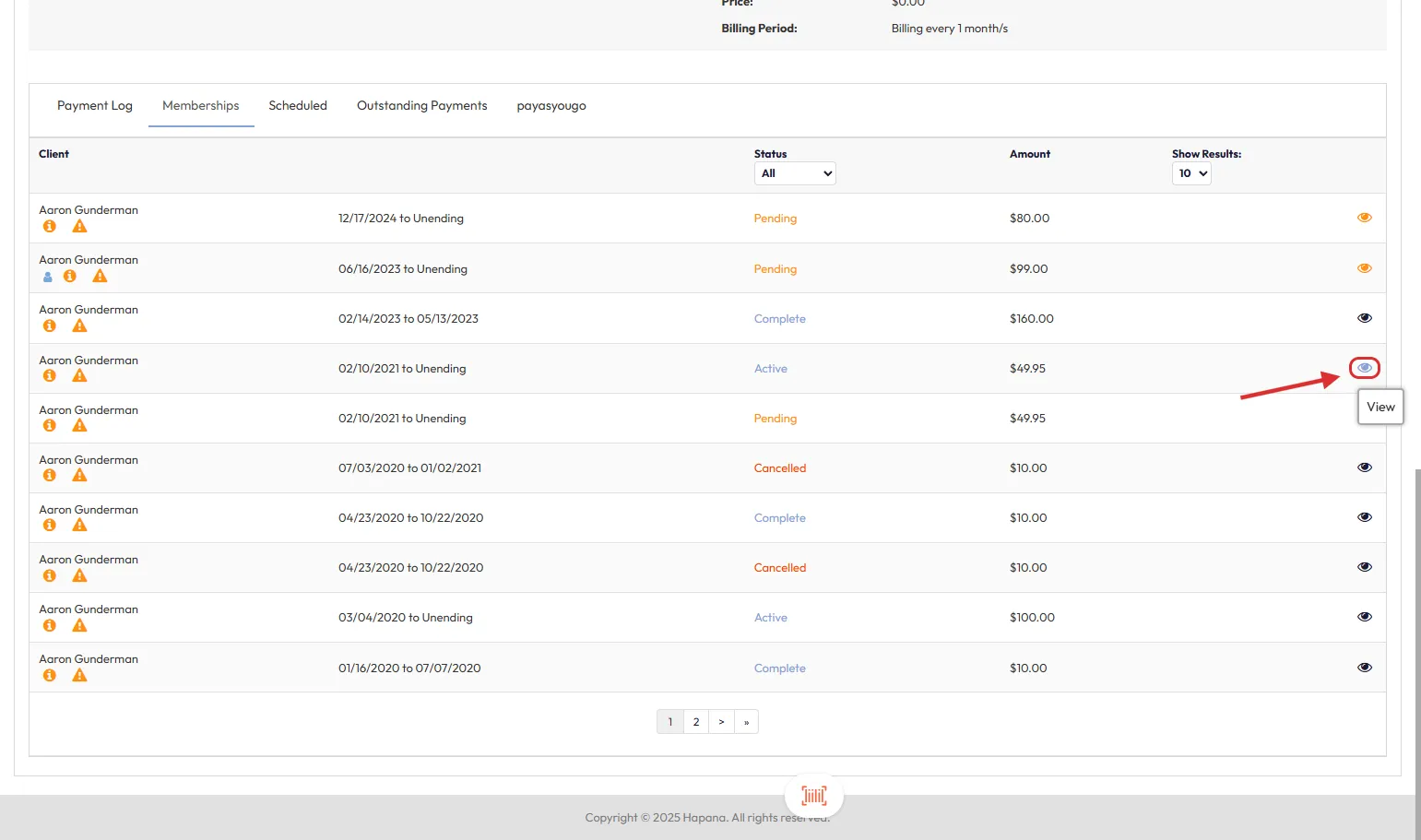
6. Click the eye icon next to the required membership
- Find the correct membership associated with the payment method you want to change.
- Click the eye icon to open the membership details.
7. Click the pencil icon next to Payment Method
- In the Membership section, locate Payment Method.
- Click the pencil icon next to it to begin editing.
8. Use the dropdown menu to select a new Payment Method
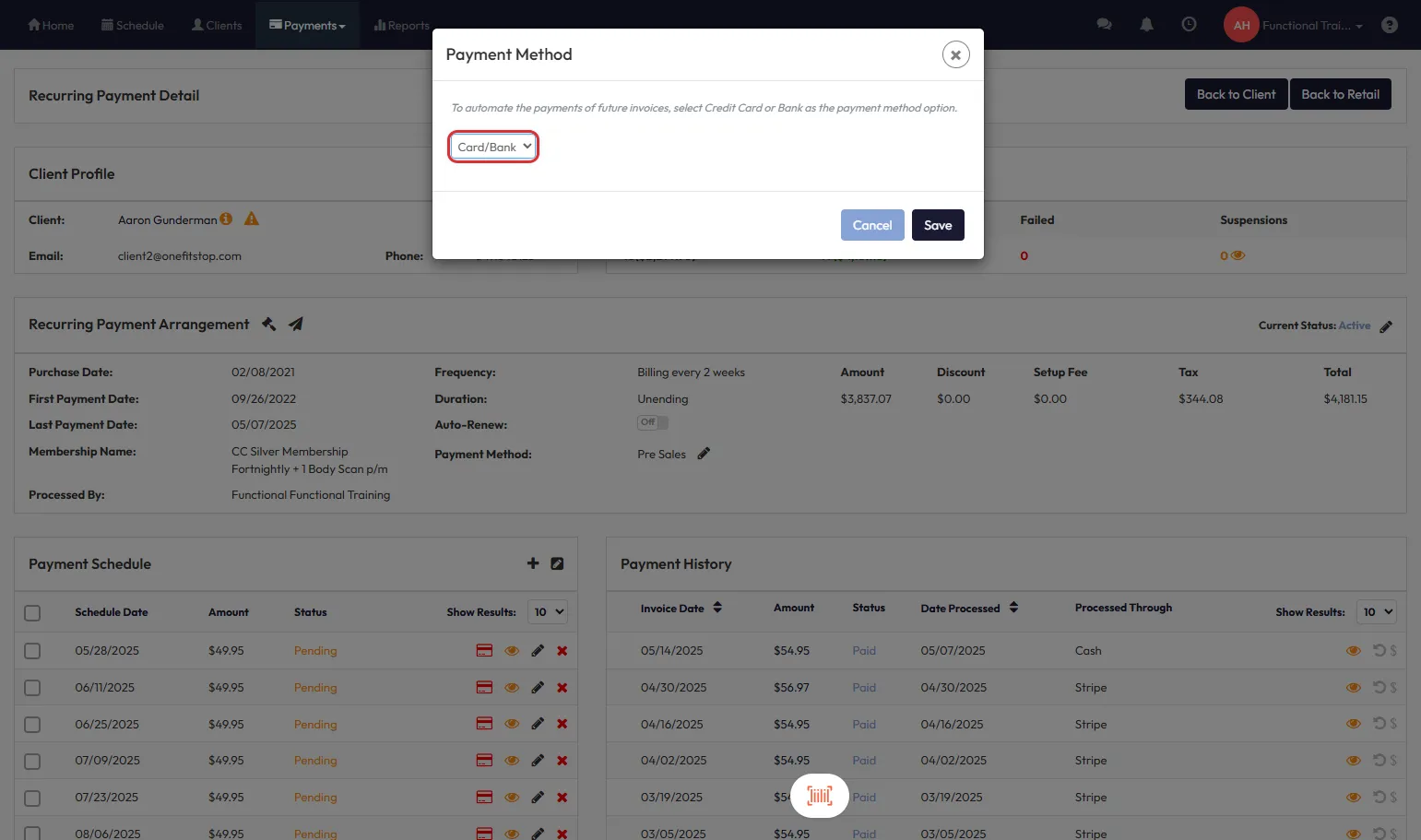
- A popup window will appear.
- Click the dropdown to select the new Payment Method (e.g., Card, Bank).
Tip: Ensure you confirm the client's preferred payment type before proceeding!
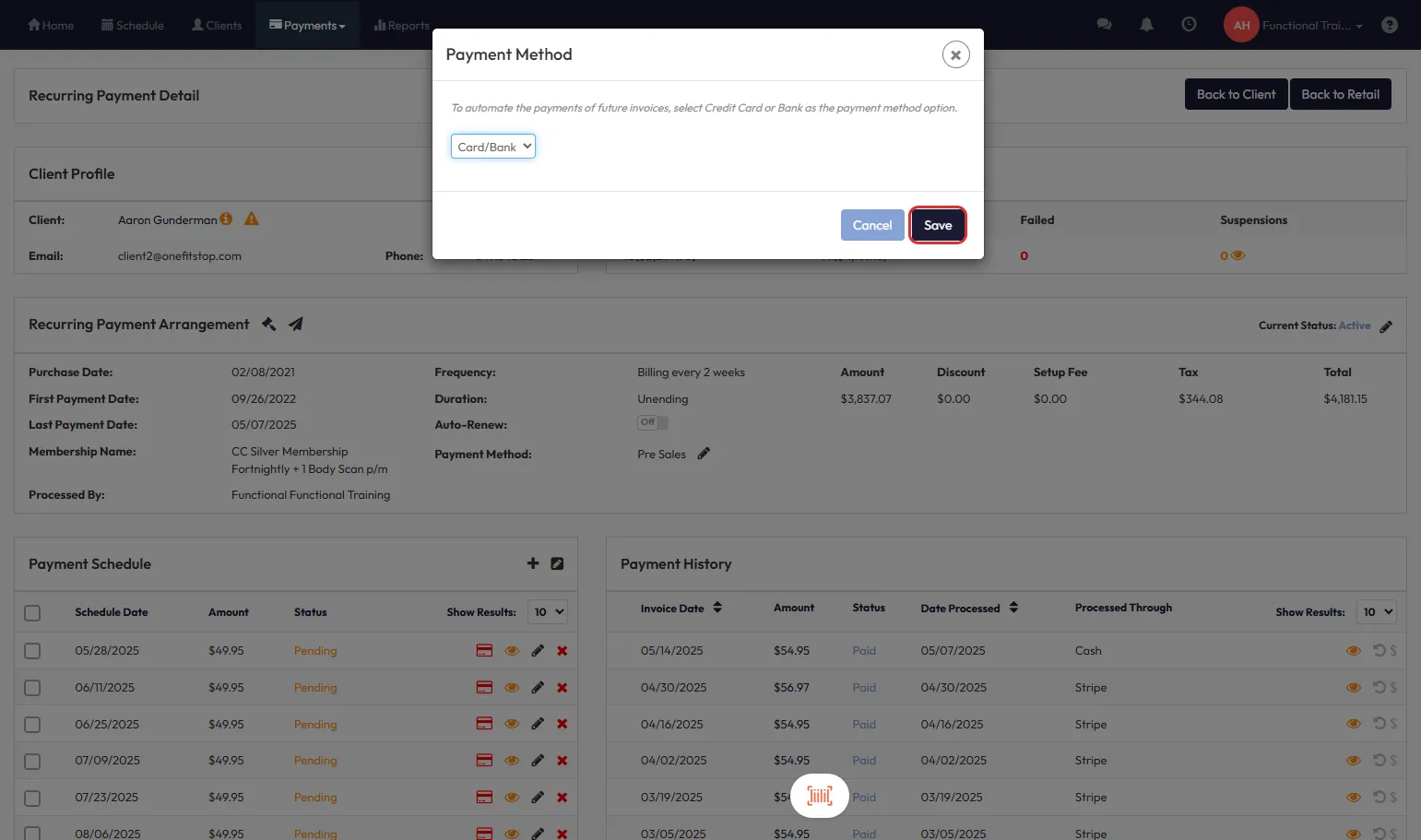
9. Click Save
- After selecting the new payment method, click Save to apply changes.
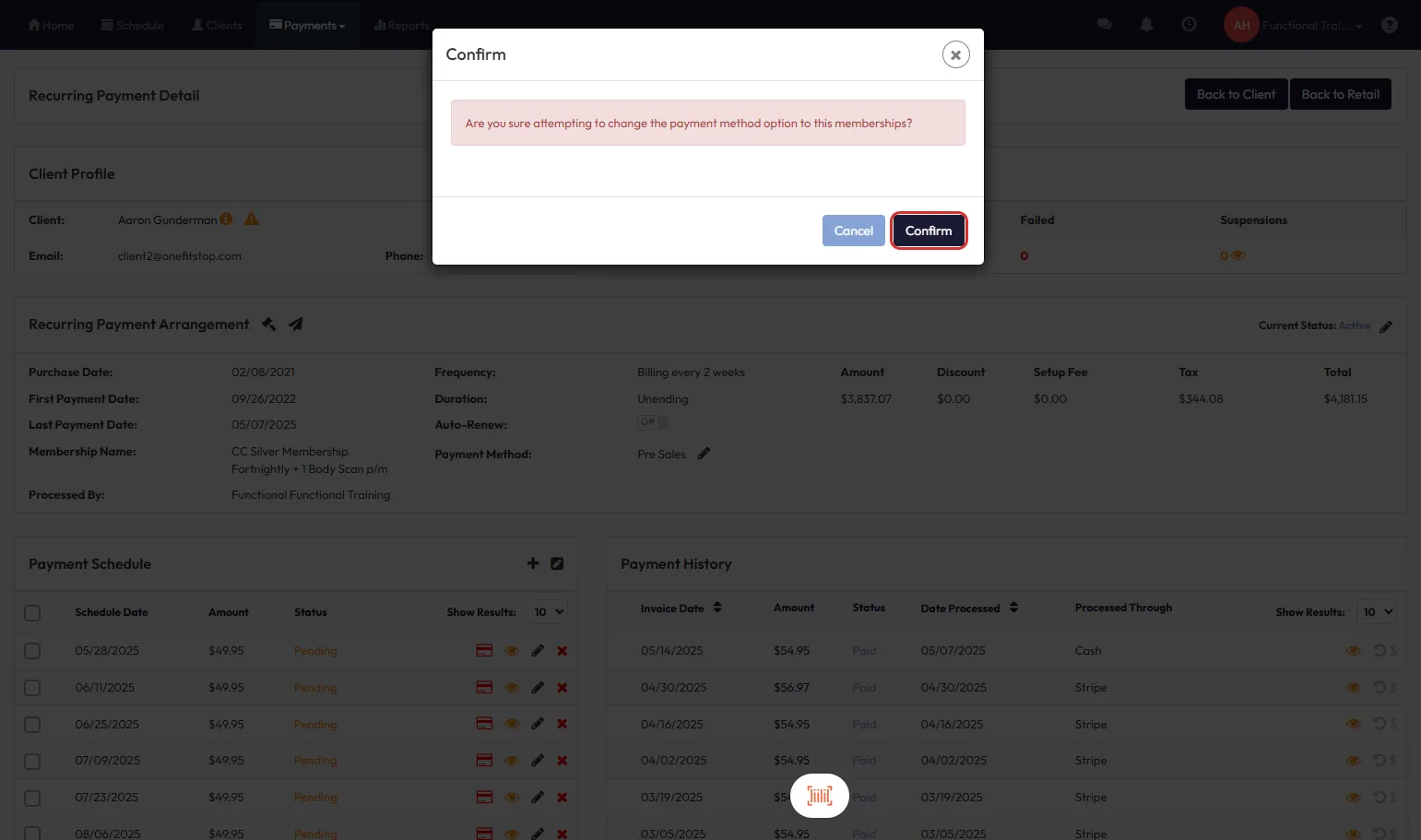
10. Click Confirm to finalize
- A confirmation popup will ask you to verify the change.
- Click Confirm to complete the update.
Expected Outcome
You’ll successfully update the client's payment method, ensuring future invoices process through the newly selected option.
FAQs
Q: Will this change affect already issued invoices?
A: No, it only applies to future invoices after the update.
Q: Can I set different payment methods for different memberships?
A: No, one payment method applies per membership.
Q: What happens if I select the wrong method by mistake?
A: You can immediately repeat this process to correct it.
Need help?
Reach out to our support team via support@hapana.com.