
Overview
If a staff member is unable to see any clients—or can only see a few—it's likely a permissions issue. Client profile visibility in the dashboard is controlled by Team Access Group settings. This article shows you how to adjust those permissions so team members can view all or specific clients.
Prerequisites
- Admin access to Team Settings in the Hapana Core platform
- Understanding of which team members or roles need visibility updates
Scenario
A staff member logs in and sees no clients—or only a few—in the Clients tab.
Solution: Update Team Access Group Settings
Follow these steps to review and configure visibility permissions:
Step 1: Log in to Hapana Core
- Go to core.hapana.com/login
Step 2: Navigate to Team Settings
- Click your Business Name in the top right
- Select Team Settings from the dropdown
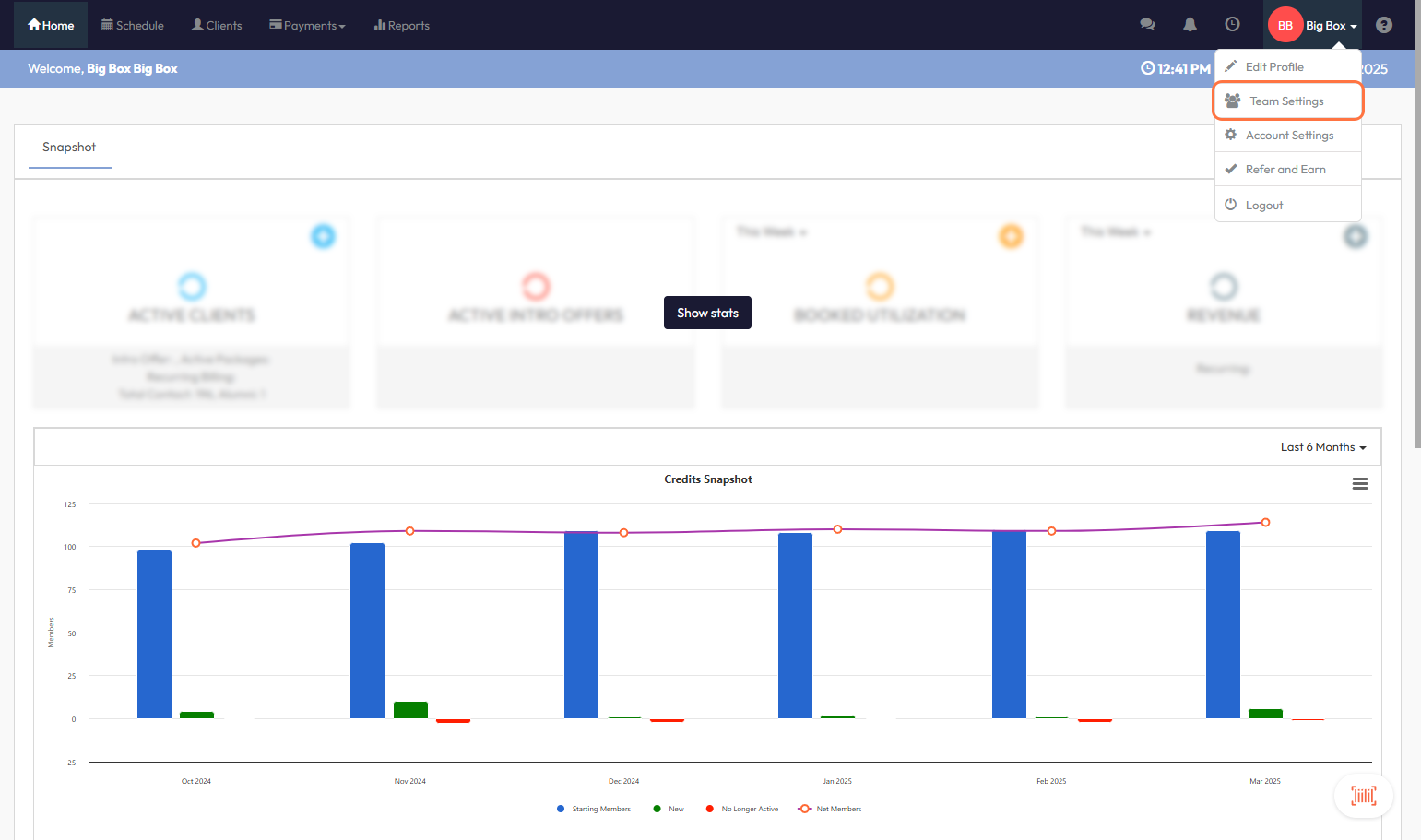
Step 3: Open Team Access Groups
- Click the Team Access Group icon
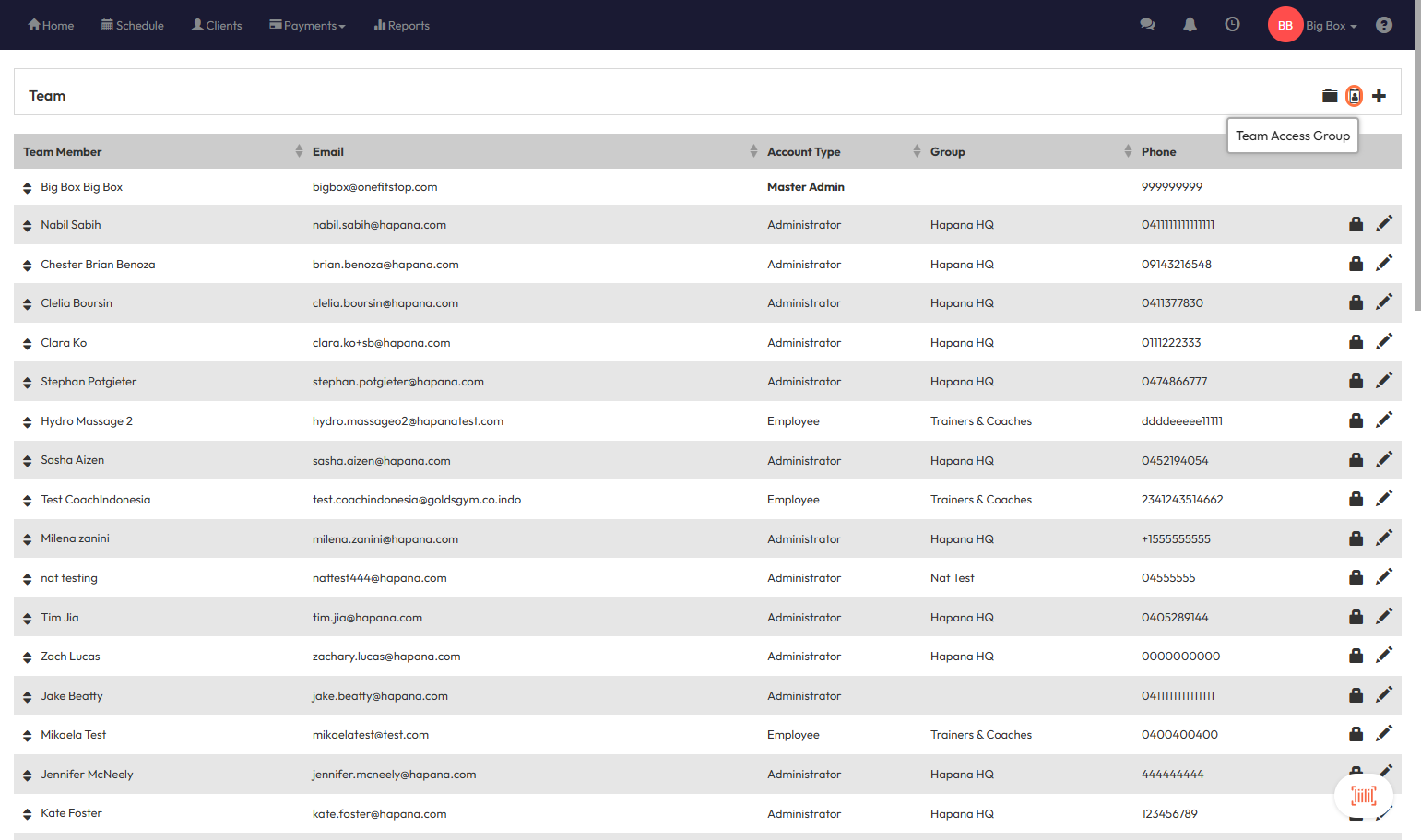
Step 4: Edit the Appropriate Access Group
- Click the pencil icon next to the team group you want to update
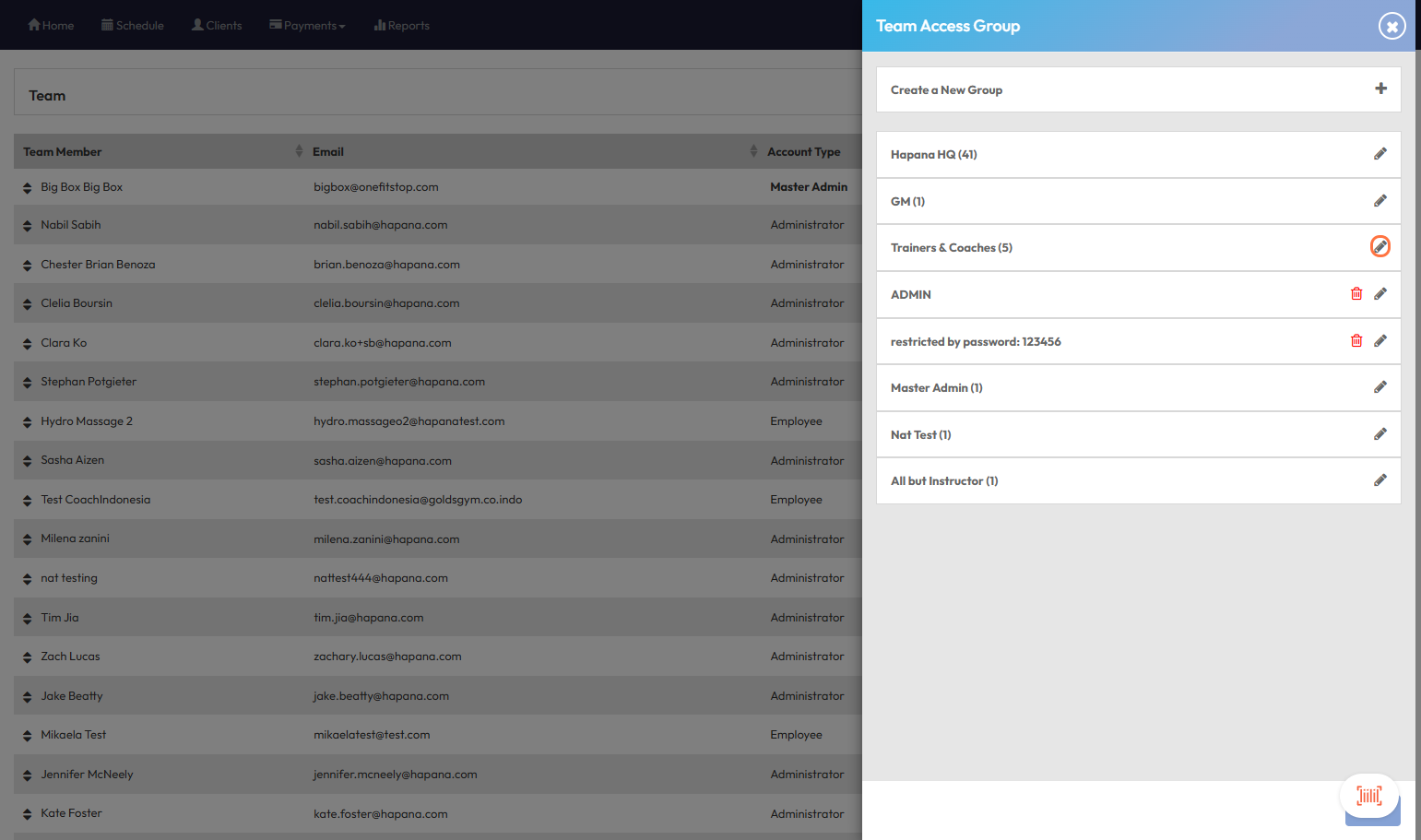
Step 5: Go to Contact Permissions
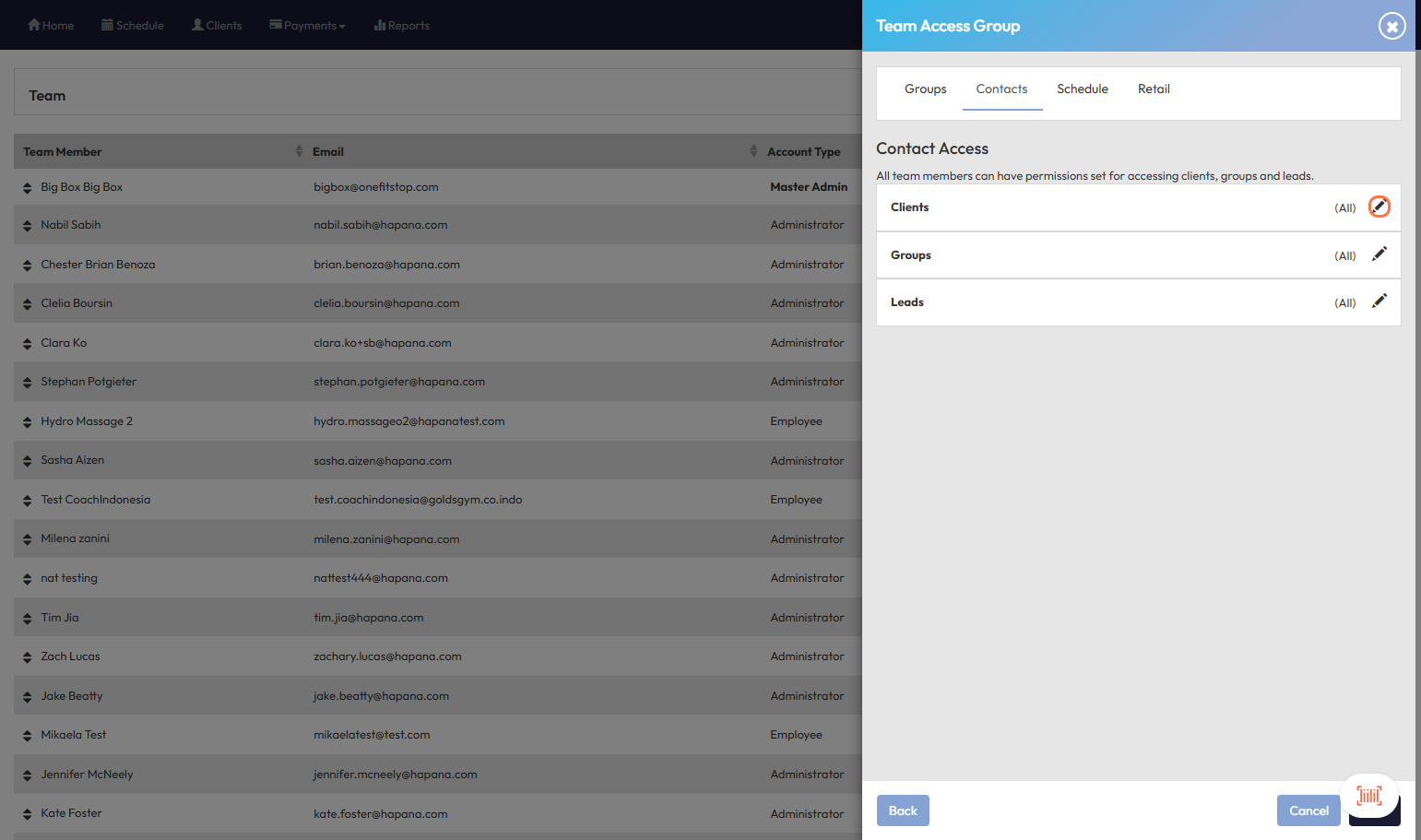
- Click the Contacts tab in the Team Access Group window
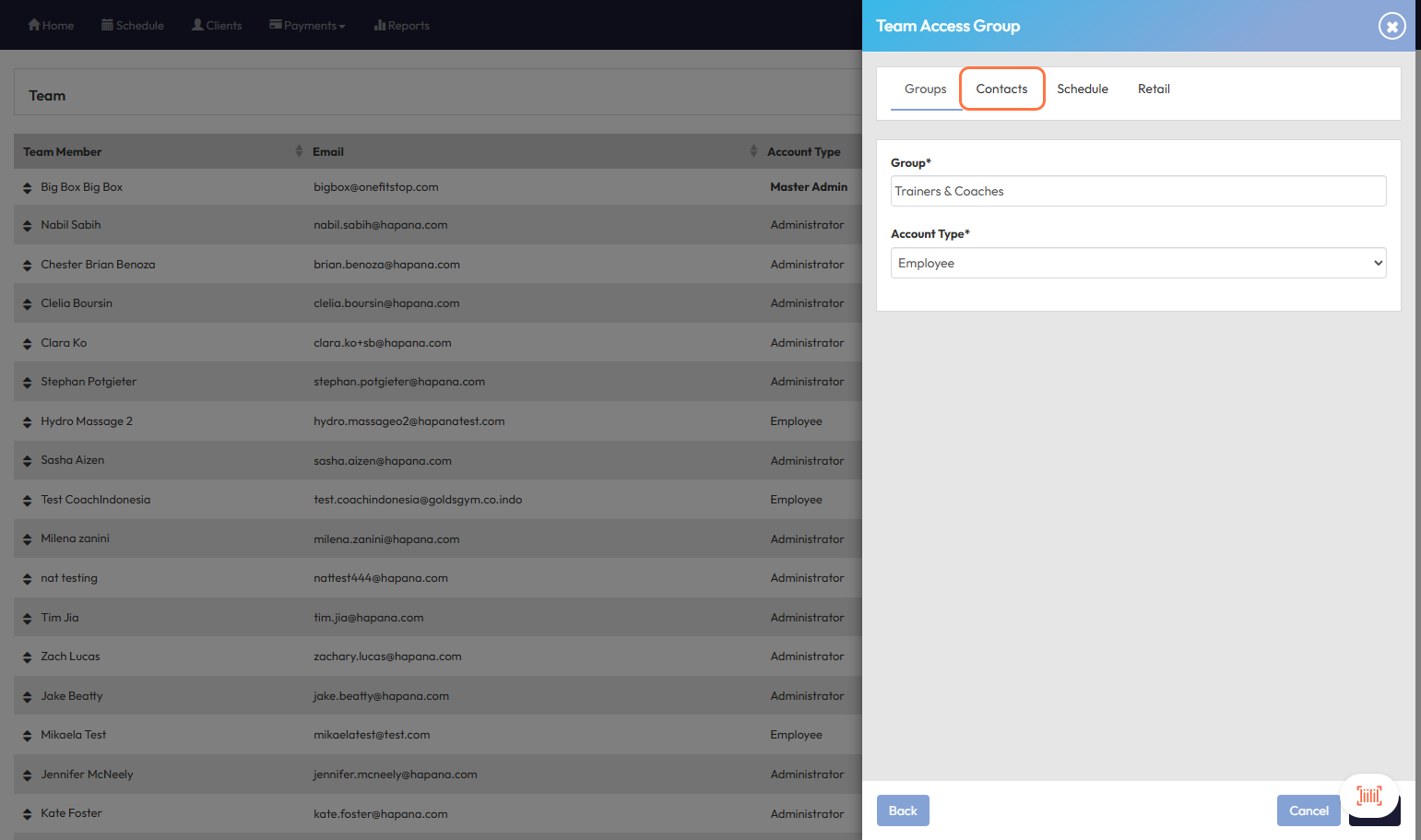
Step 6: Modify Client Visibility
- Click the pencil icon next to Clients under Contact Access
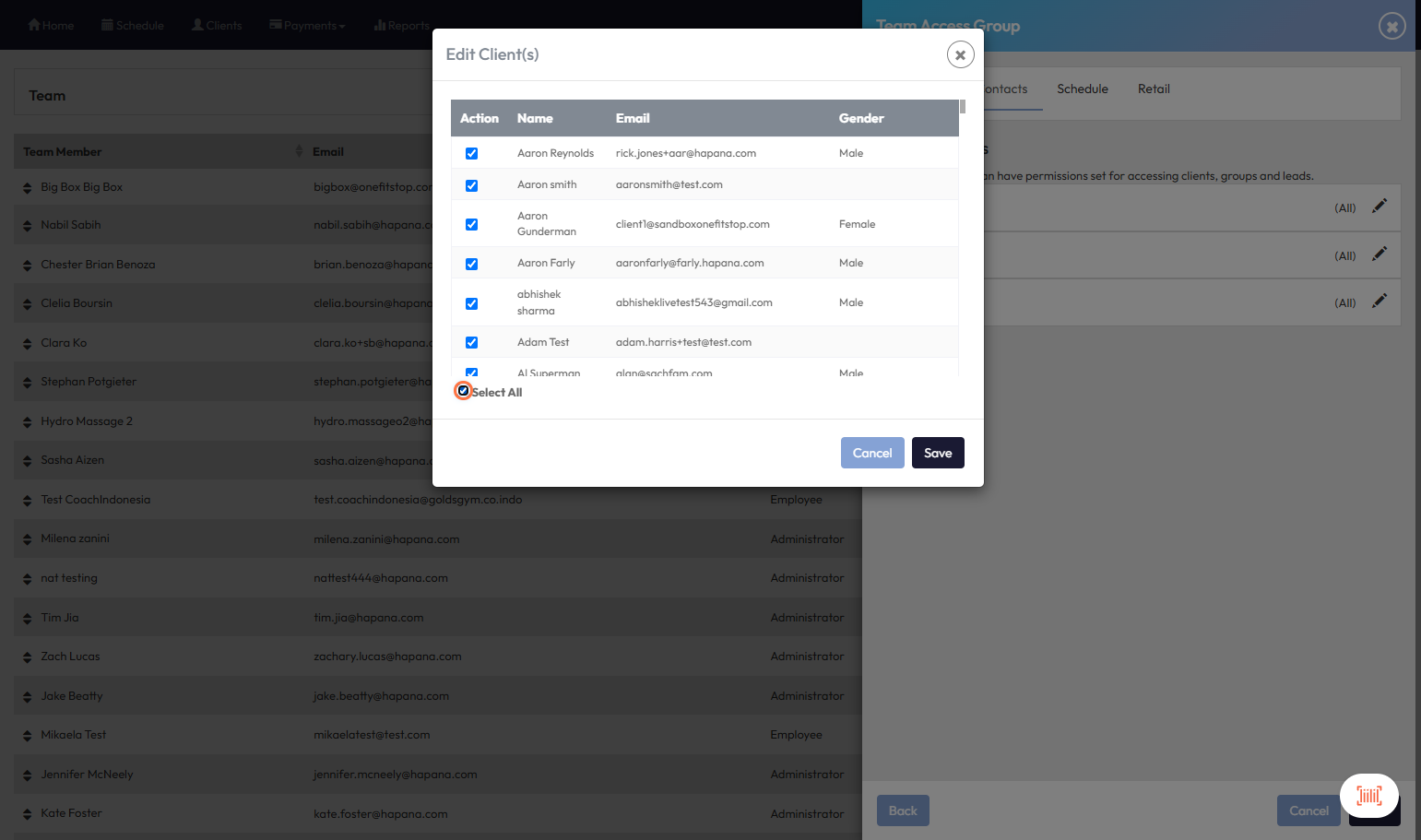
- In the popup:
- Select All clients (recommended), or
- Use checkboxes to allow access to specific clients only
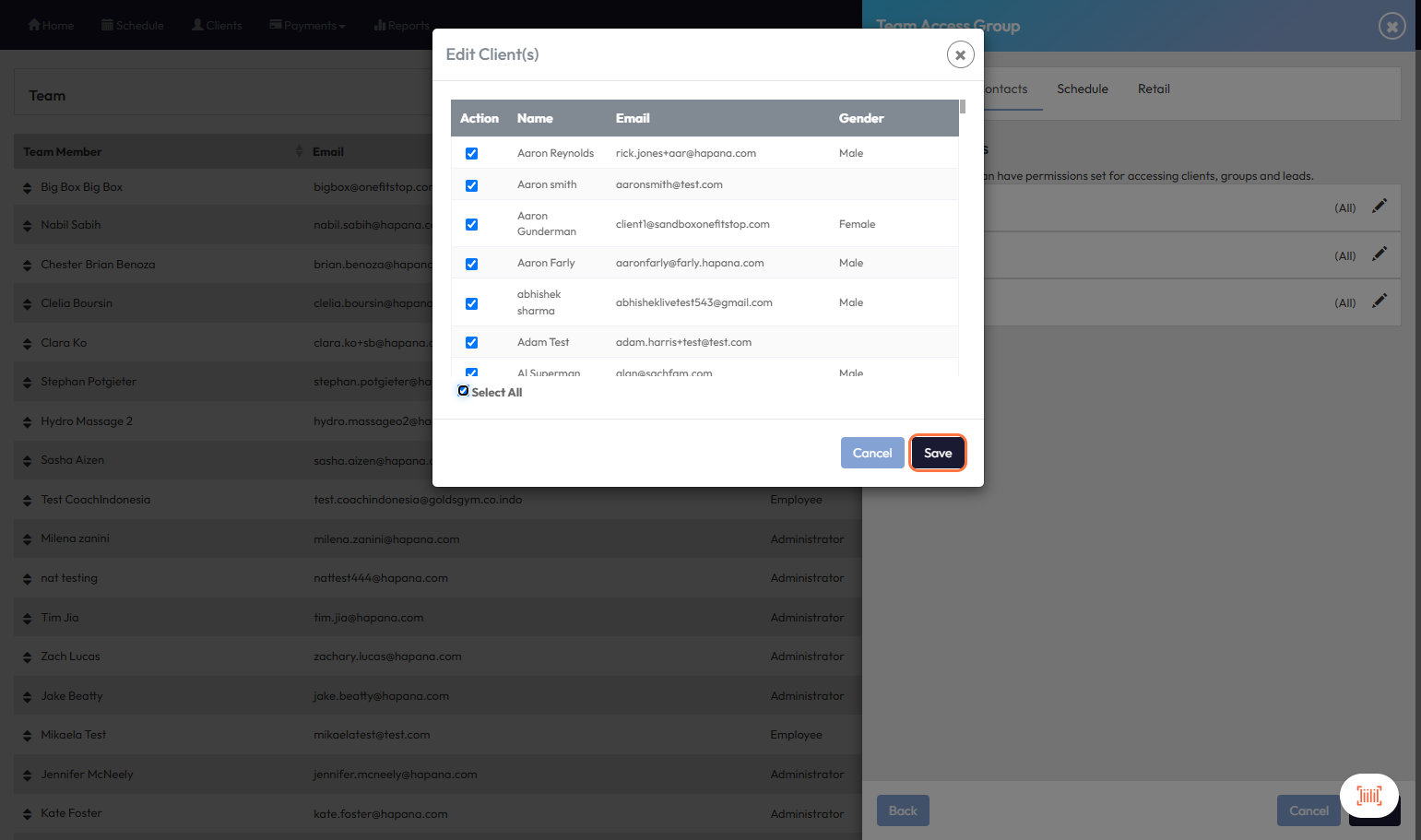
Step 7: Save Your Changes
- Click Save to apply the new visibility settings
Expected Outcome
The selected team members will now be able to view the clients you’ve made visible to their access group. Changes take effect immediately upon saving.
FAQs
Q: Do I need to update this for each team group?
A: Yes, each Team Access Group controls visibility separately.
Q: Will this impact what clients can see?
A: No, this setting only affects internal team visibility, not the client-facing experience.
Q: What happens if I don’t assign any clients to a group?
A: Members of that group won’t be able to see any clients in their dashboard.
Need help? Reach out to our support team via support@hapana.com