
Overview
You can now set custom expiration periods for session credits in memberships, offering greater flexibility and improved member satisfaction. Previously, all credits expired at the next billing cycle, but with this update, you can roll over unused credits across billing periods, letting members get the full value of their membership.
Prerequisites
- Admin access to Core
- A membership with limited session credits (not unlimited)
- The update applies to Memberships only (not Packages)
Tip: This setting will not appear for unlimited credit memberships or packages.
Step 1 – Navigate to Membership Configuration
- Log in to core.hapana.com
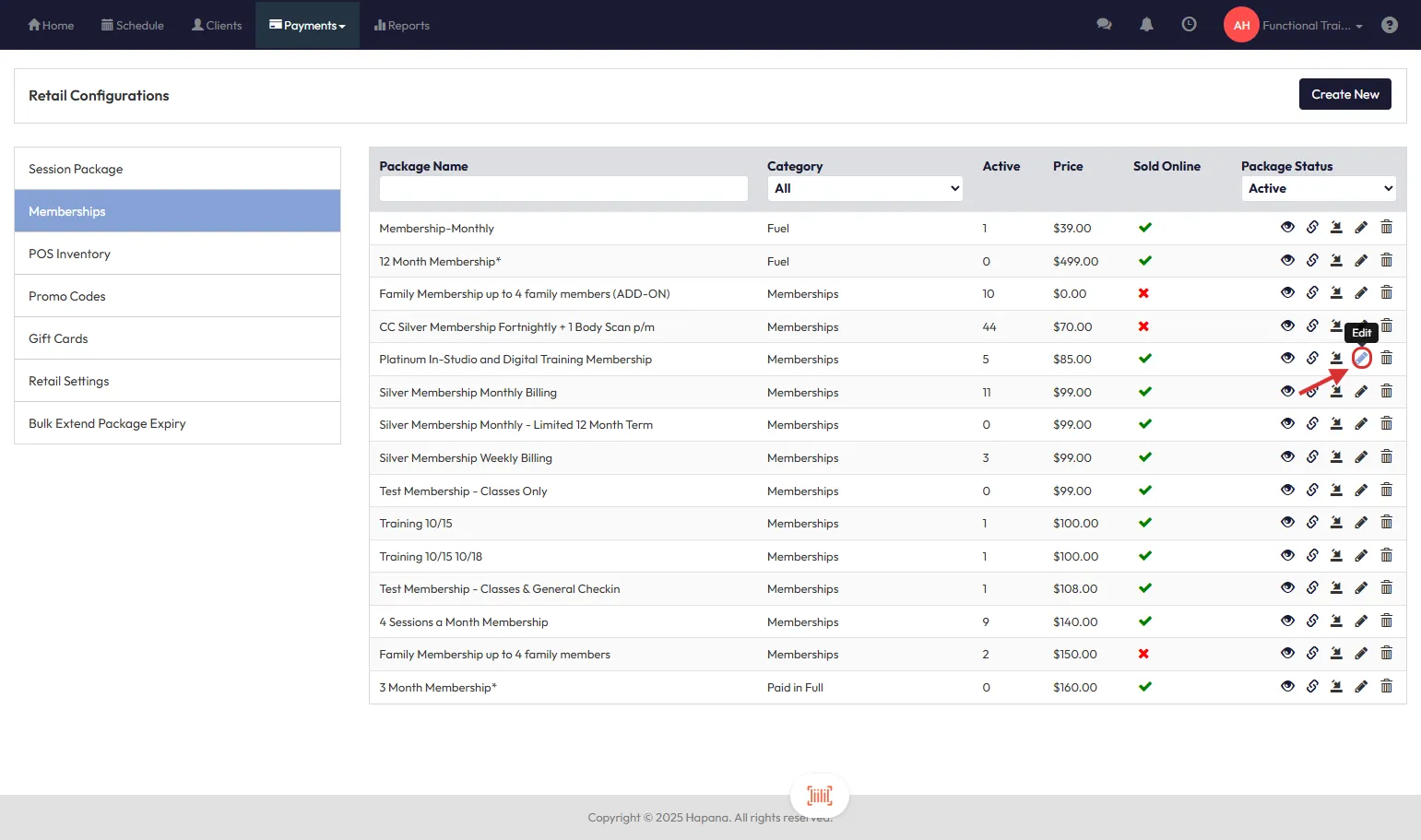
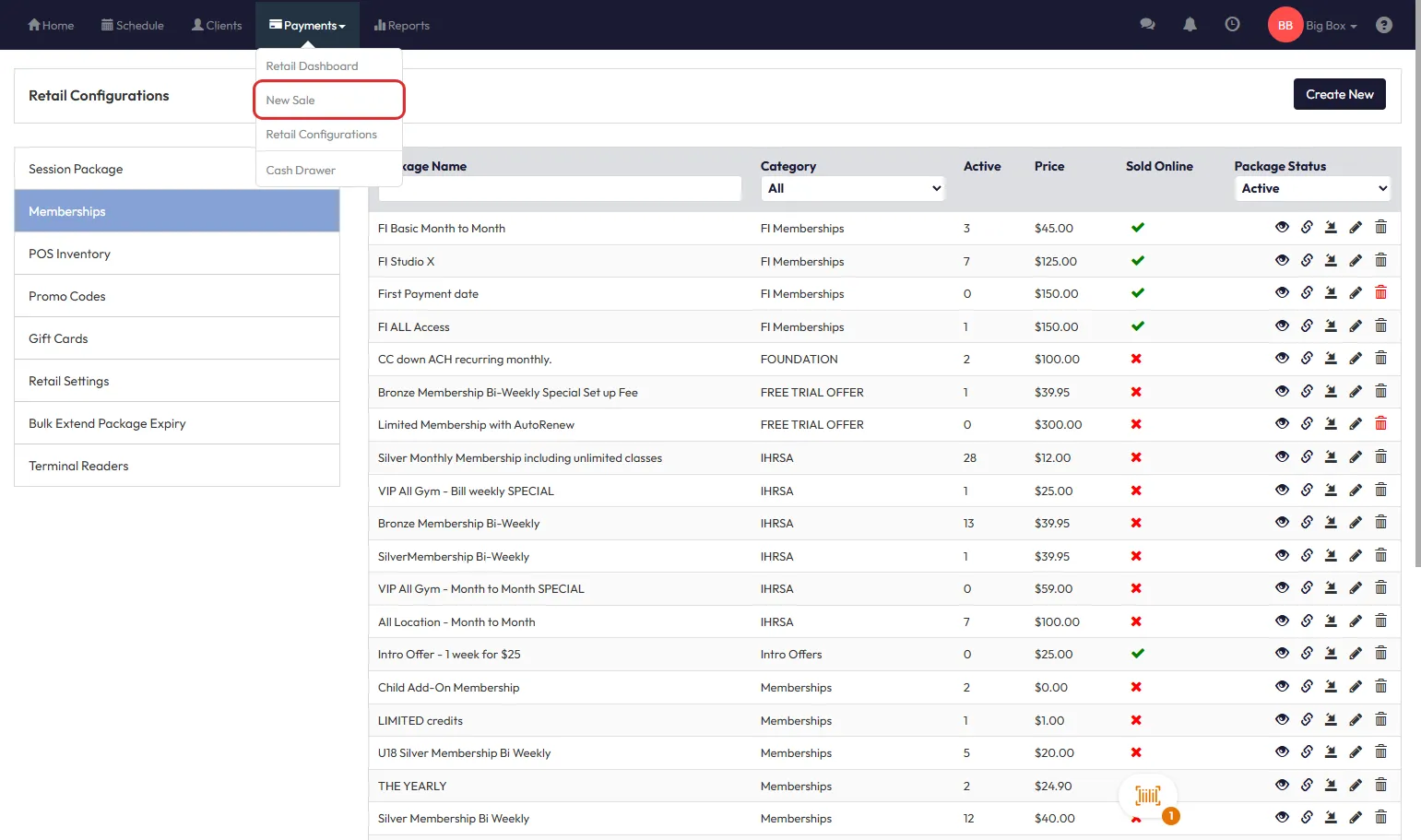
- Go to Payments > Retail Configuration > Memberships
- Click Add to create a new membership or the pencil icon to edit an existing one
Step 2 – Configure the Credit Expiration Option
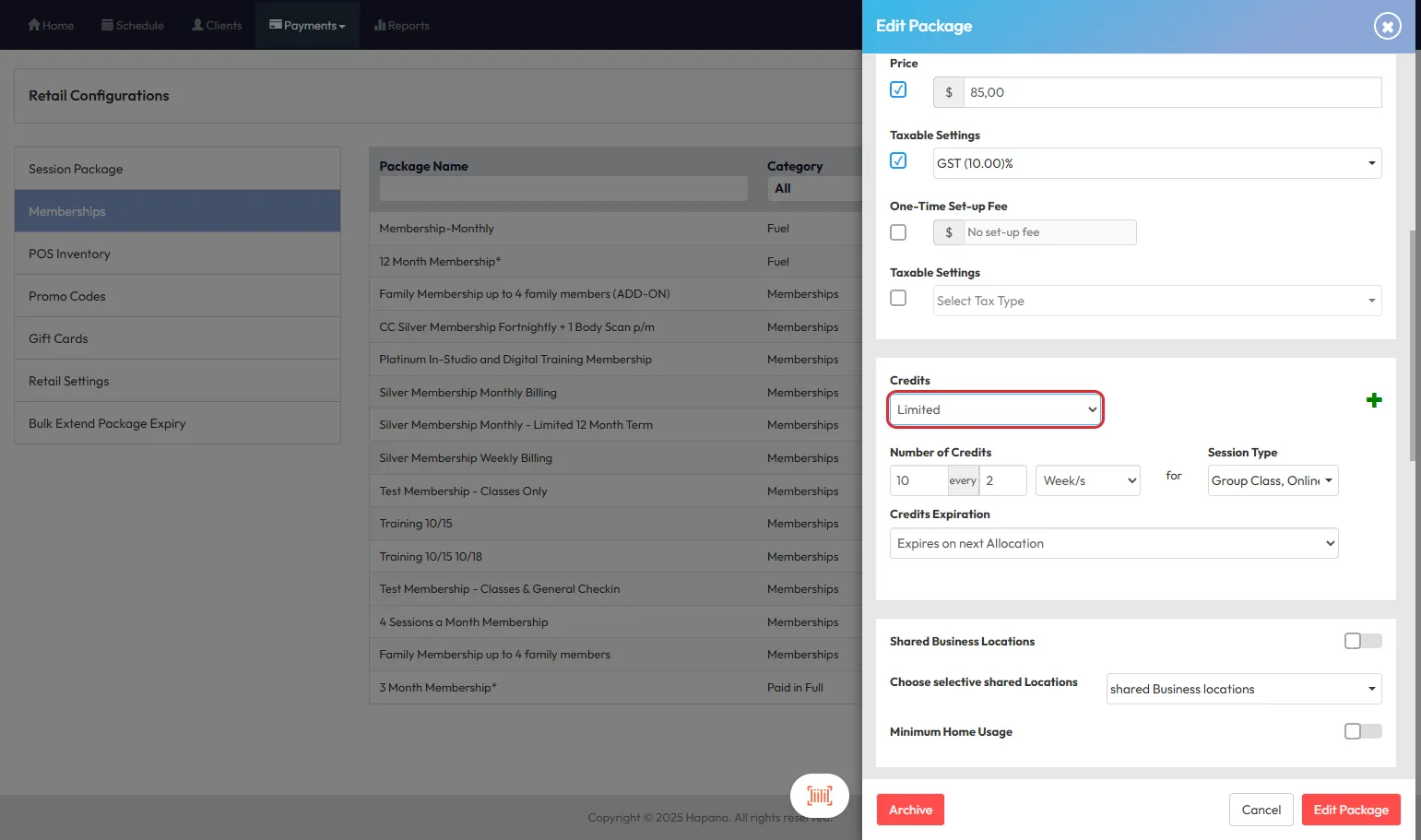
- Scroll to the Credits section and select Limited
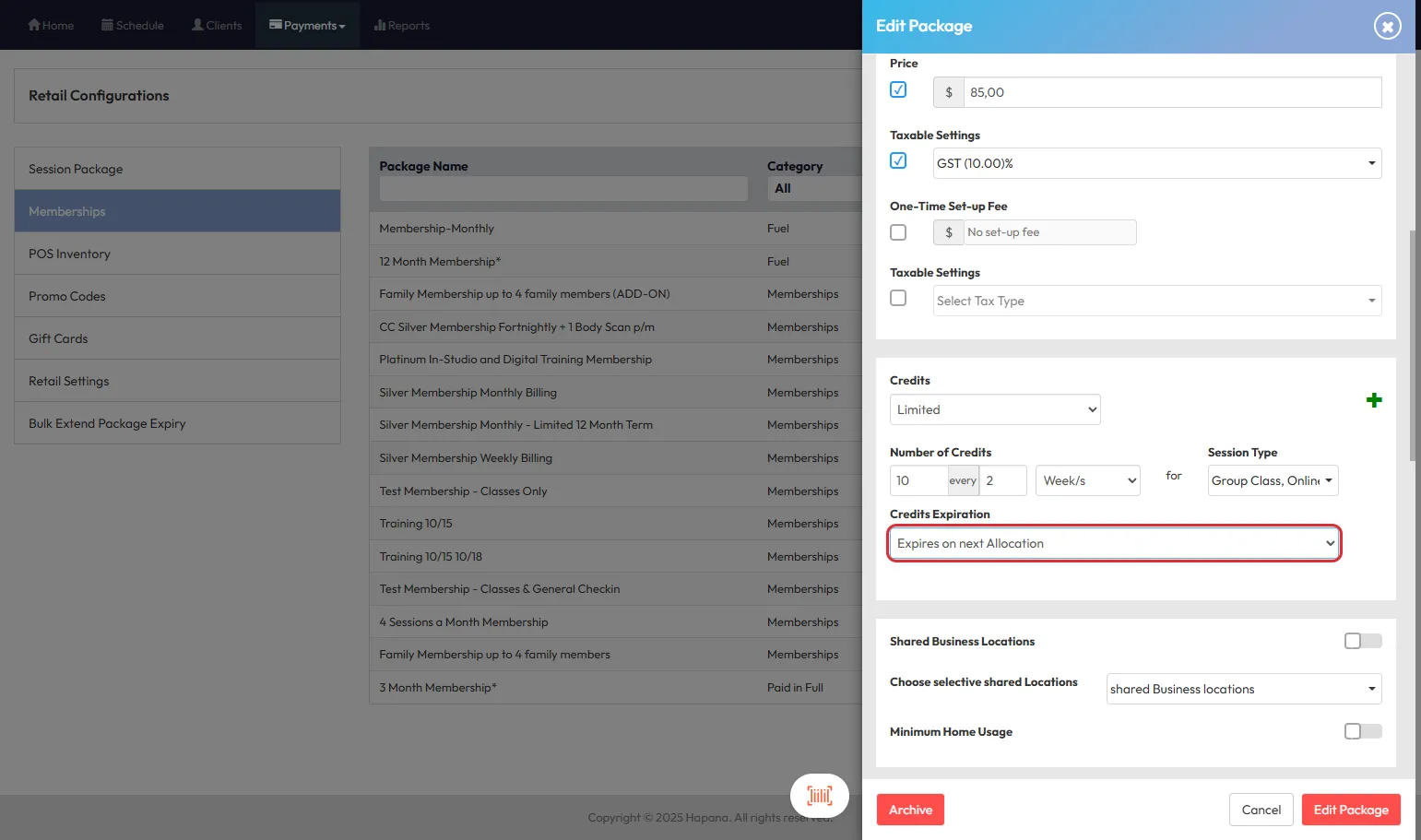
- Under Credit Expiration, choose between:
- Expires on Next Allocation (default)
- Custom Expiration
Step 3 – Set Custom Expiration Period
- If you selected Custom Expiration, enter:
- An integer value (e.g. 2)
- A time unit: days, weeks, or months
- Example: "2 weeks" = Credits valid for 14 days after allocation
Tip: This allows members to use their credits even beyond the next billing cycle.
Step 4 – Save and Apply the Membership
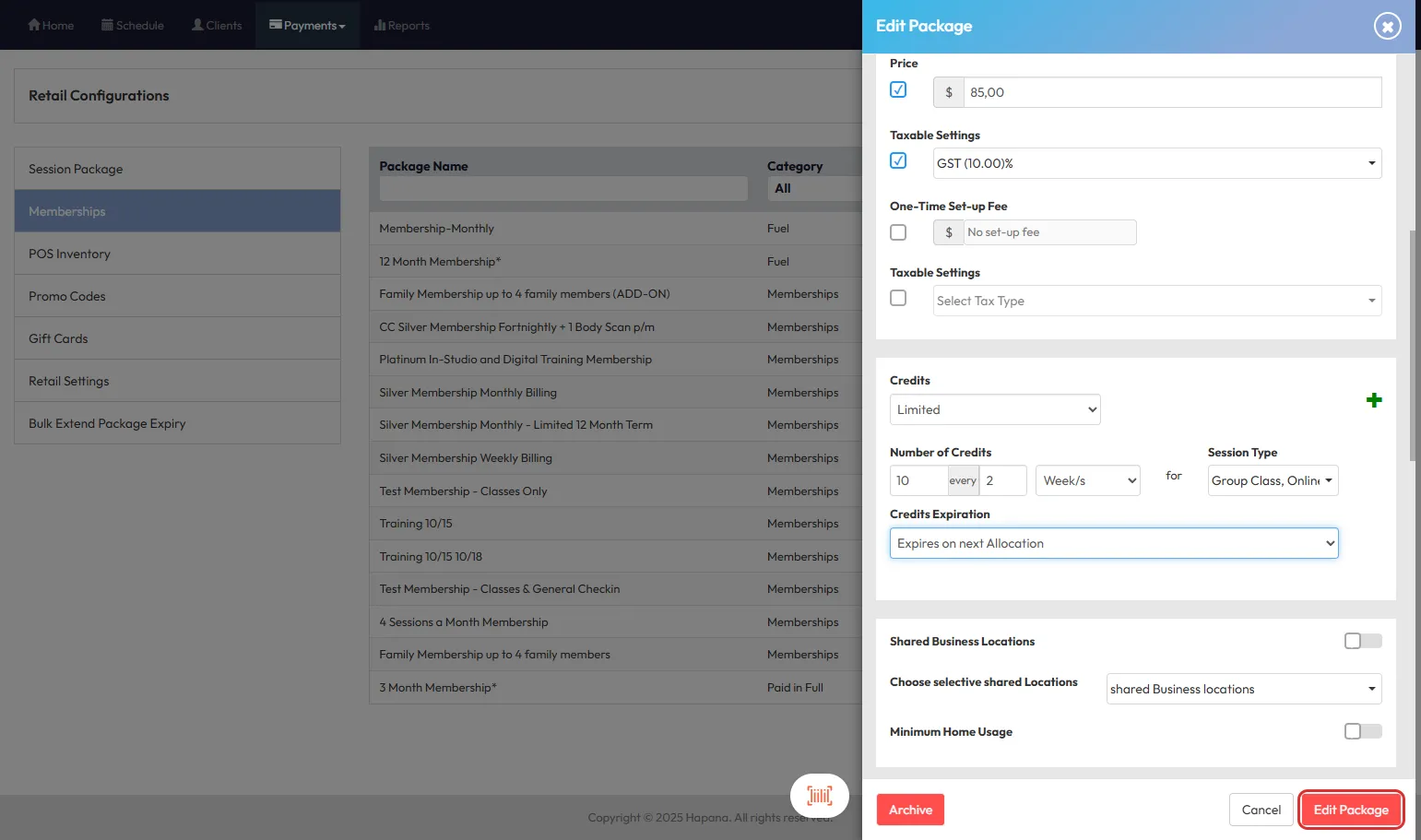
- Click Save to apply the changes
- Proceed to sell the membership via Payments > New Sale
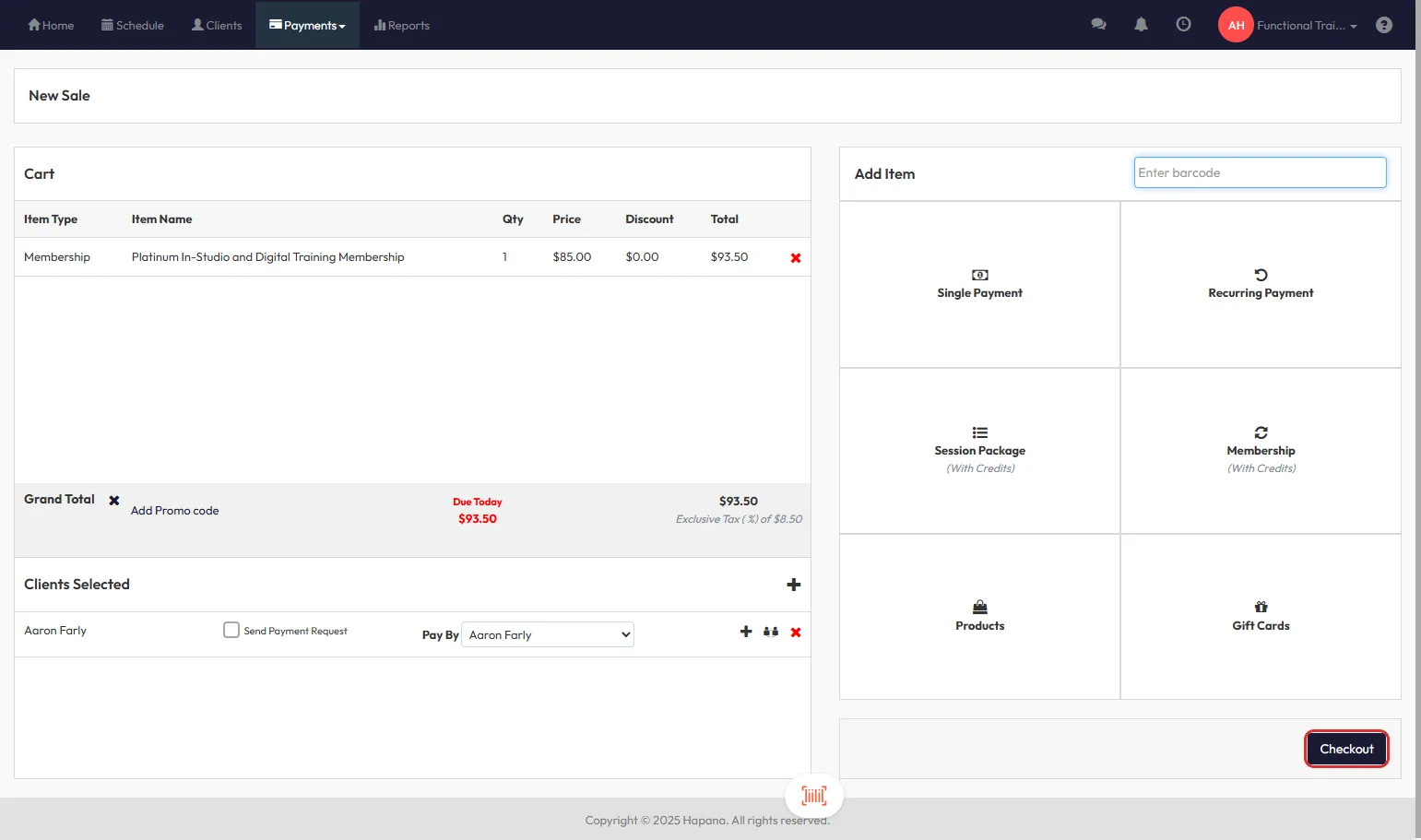
- Select the desired Membership, choose the Client, review the info and proceed to Checkout
Step 5 – Verify Credit Expiration After Sale
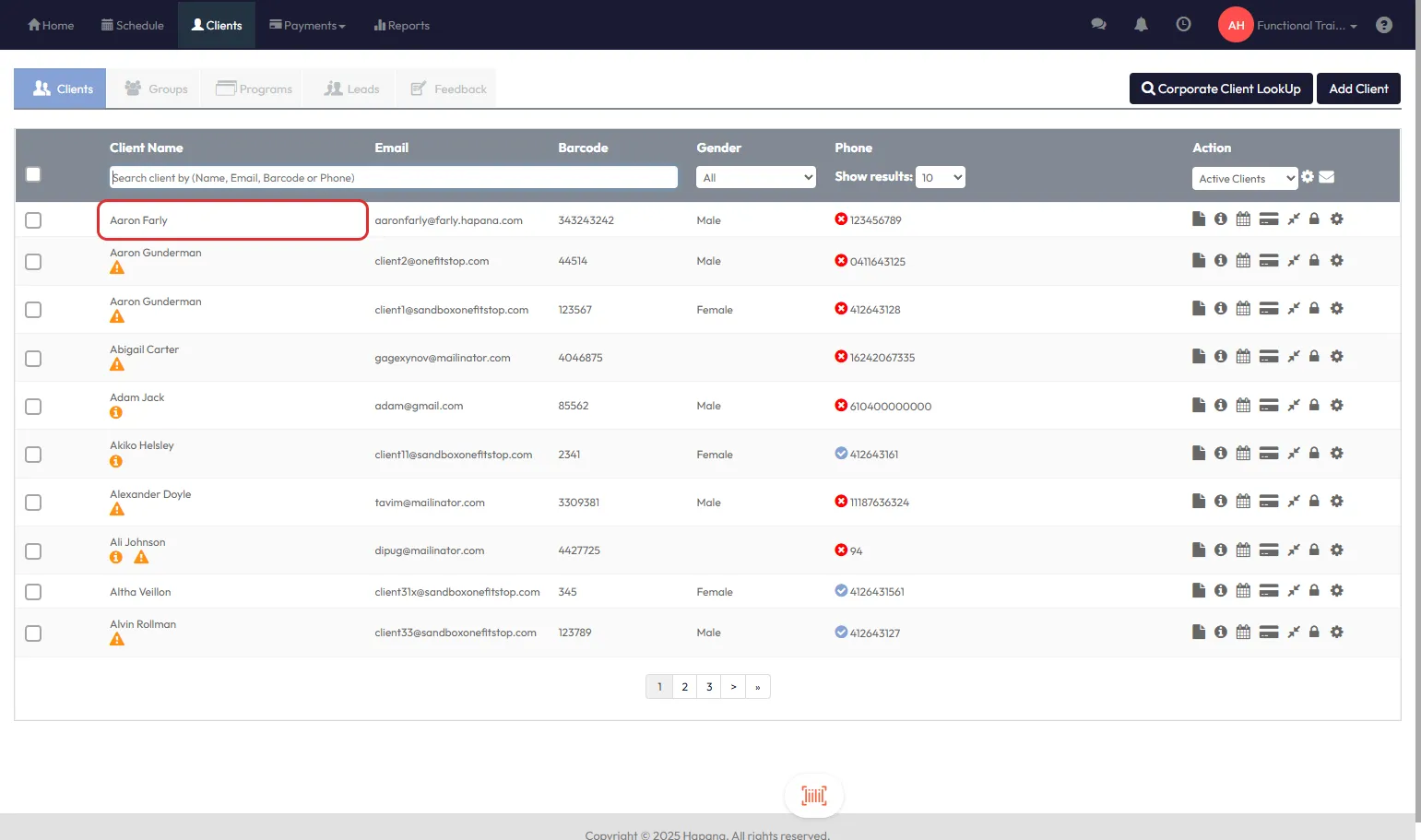
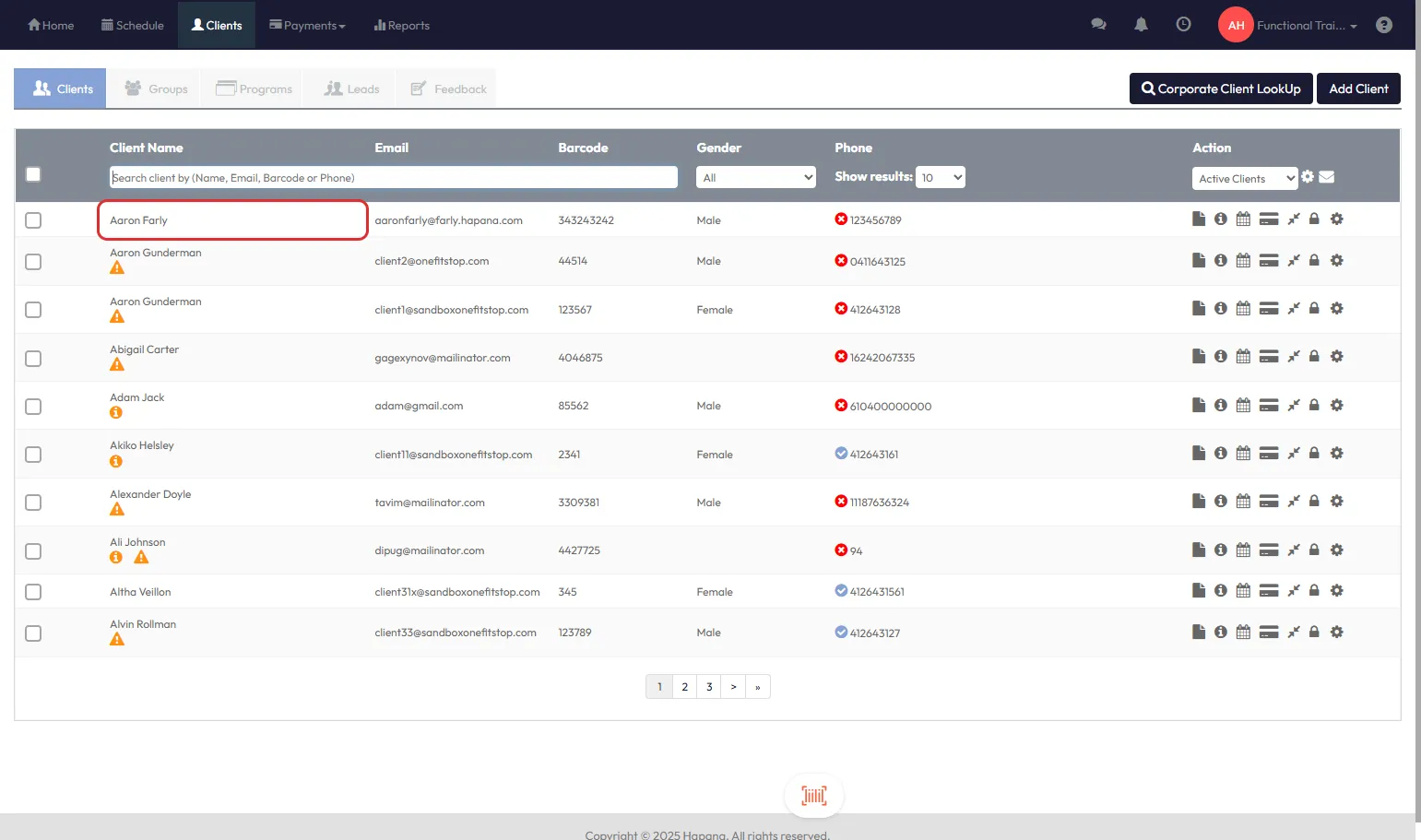
- Once the purchase is made, navigate to Clients > Search for Client
- Click on the Payments tab
- Click View History for the relevant membership
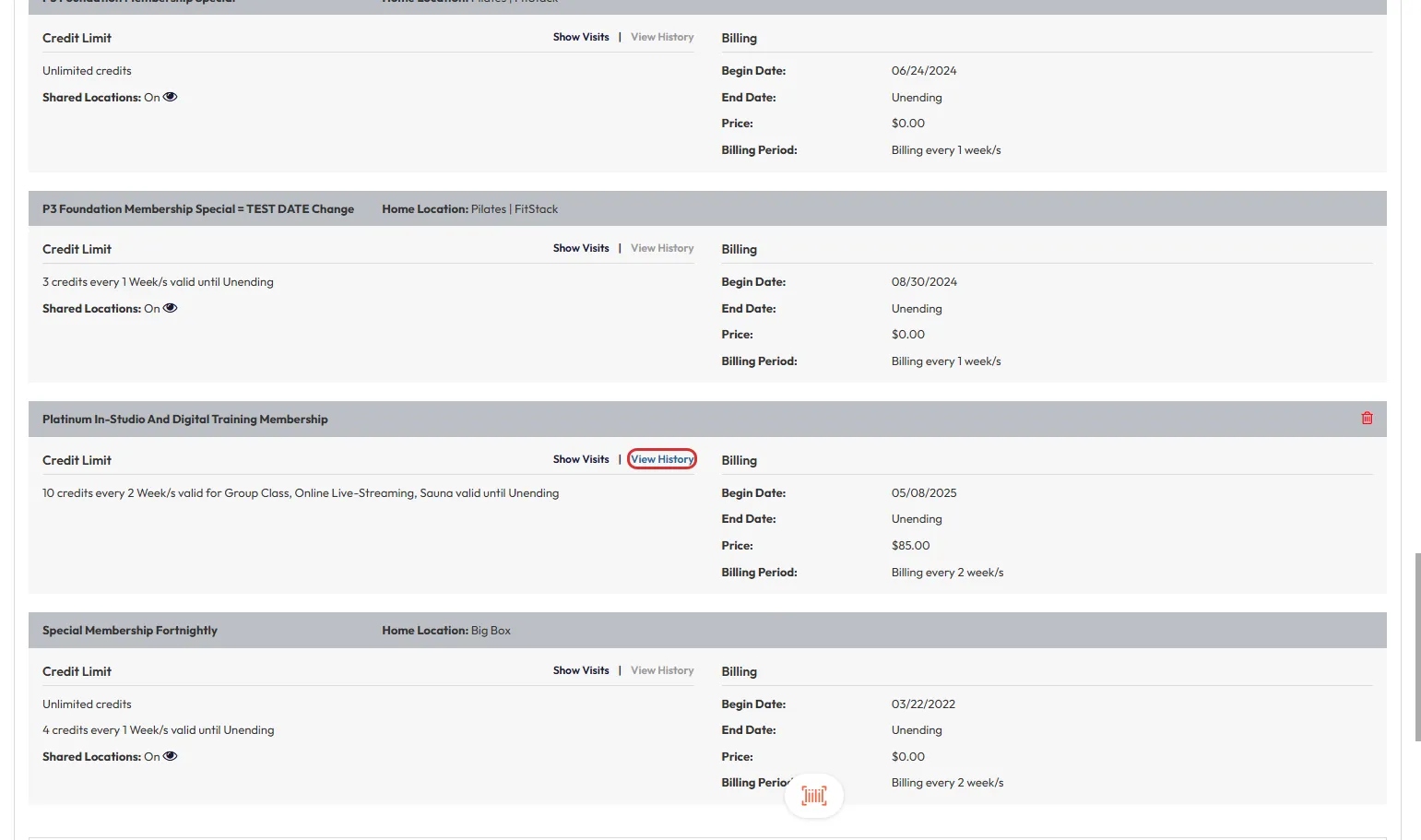
- Confirm that expiration dates are set beyond the next allocation
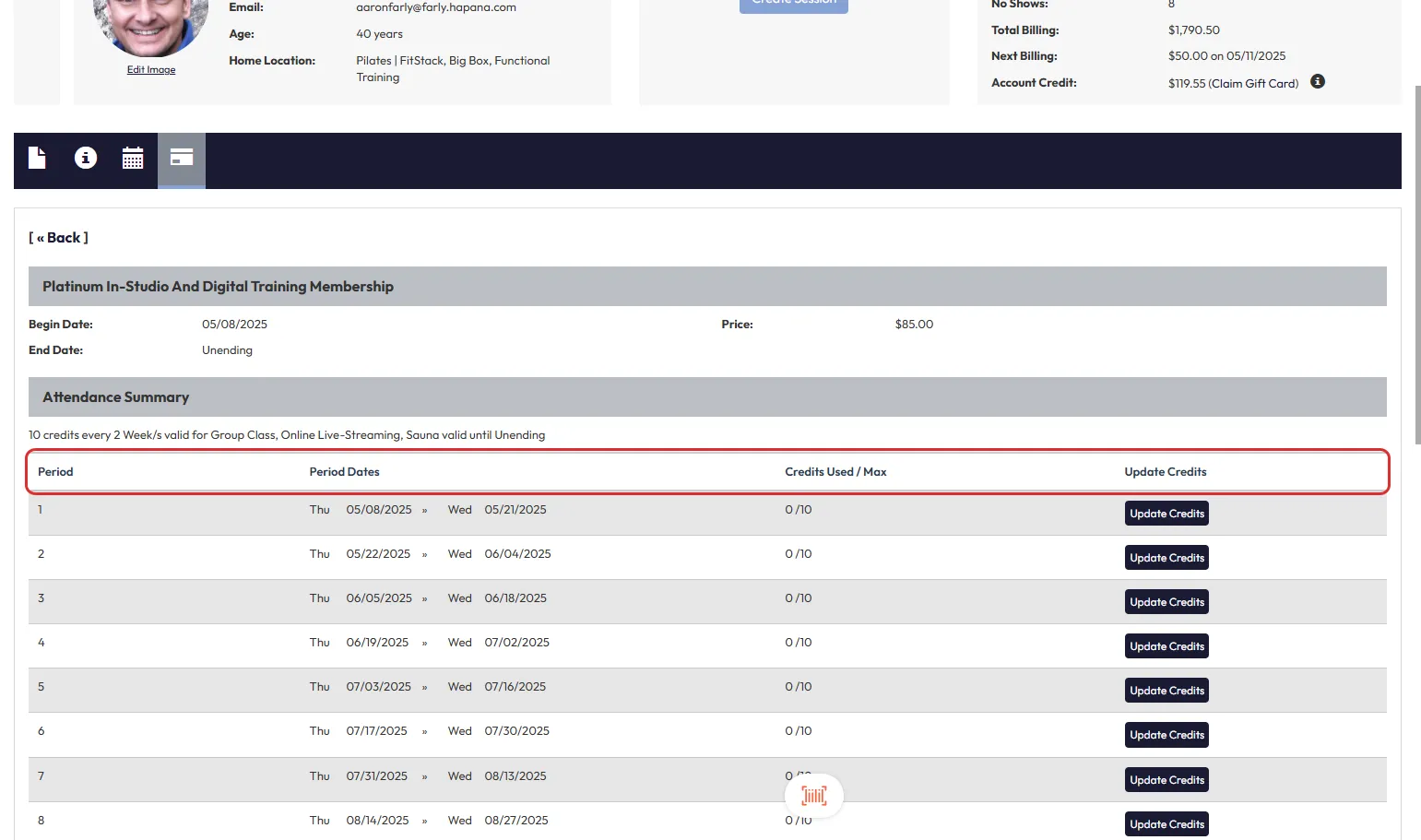
Tip: Expiration data also appears for clients in the branded App under More > My Packages > Details
Expected Outcome
Credits will now have a defined, customized expiration window, making it easier for members to use their visits over longer periods while ensuring billing flexibility.
FAQs
Q: Does this apply to packages or unlimited memberships?
A: No. This feature is exclusive to memberships with limited credits. Packages and unlimited options are unaffected.
Q: What happens if I don’t change anything?
A: All existing memberships will default to Expires on Next Allocation, preserving current behavior.
Q: Can clients see their new expiration dates?
A: Yes! Expiration is shown in their branded app under More > My Packages > Details.
Need help? Reach out to our support team via support@hapana.com