
Overview
In Hapana Core, businesses can enhance custom properties by adding subtext or hyperlinks (up to 256 characters). This feature improves the client sign-up experience by providing additional information, links to terms and conditions, or external policies—directly alongside client fields such as membership numbers, health disclosures, or insurance information.
Adding subtext ensures that clients acknowledge important terms or instructions at the time of profile creation or agreement completion.
Prerequisites
- Admin access to Edit Profile in Core
- Familiarity with setting up Custom Properties
Tip: Subtext is particularly useful when prompting members for optional information, like insurance membership numbers or special disclaimers.
Step-by-Step Instructions
Step 1: Log in to Core
Visit core.hapana.com and sign in using your admin credentials.
Step 2: Navigate to Edit Profile
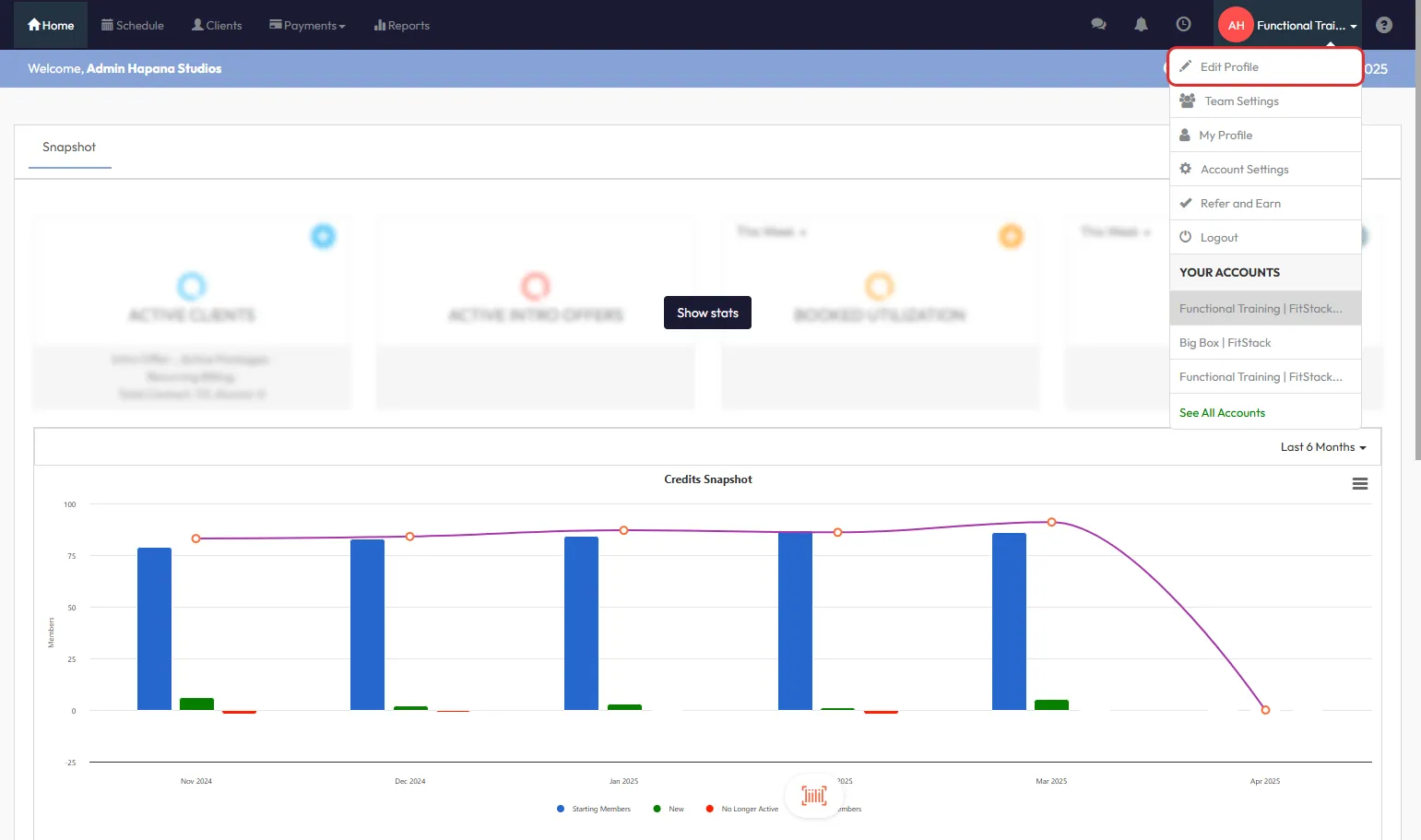
- Click your profile initials in the top-right corner.
- Select Edit Profile from the dropdown.
Step 3: Access Properties
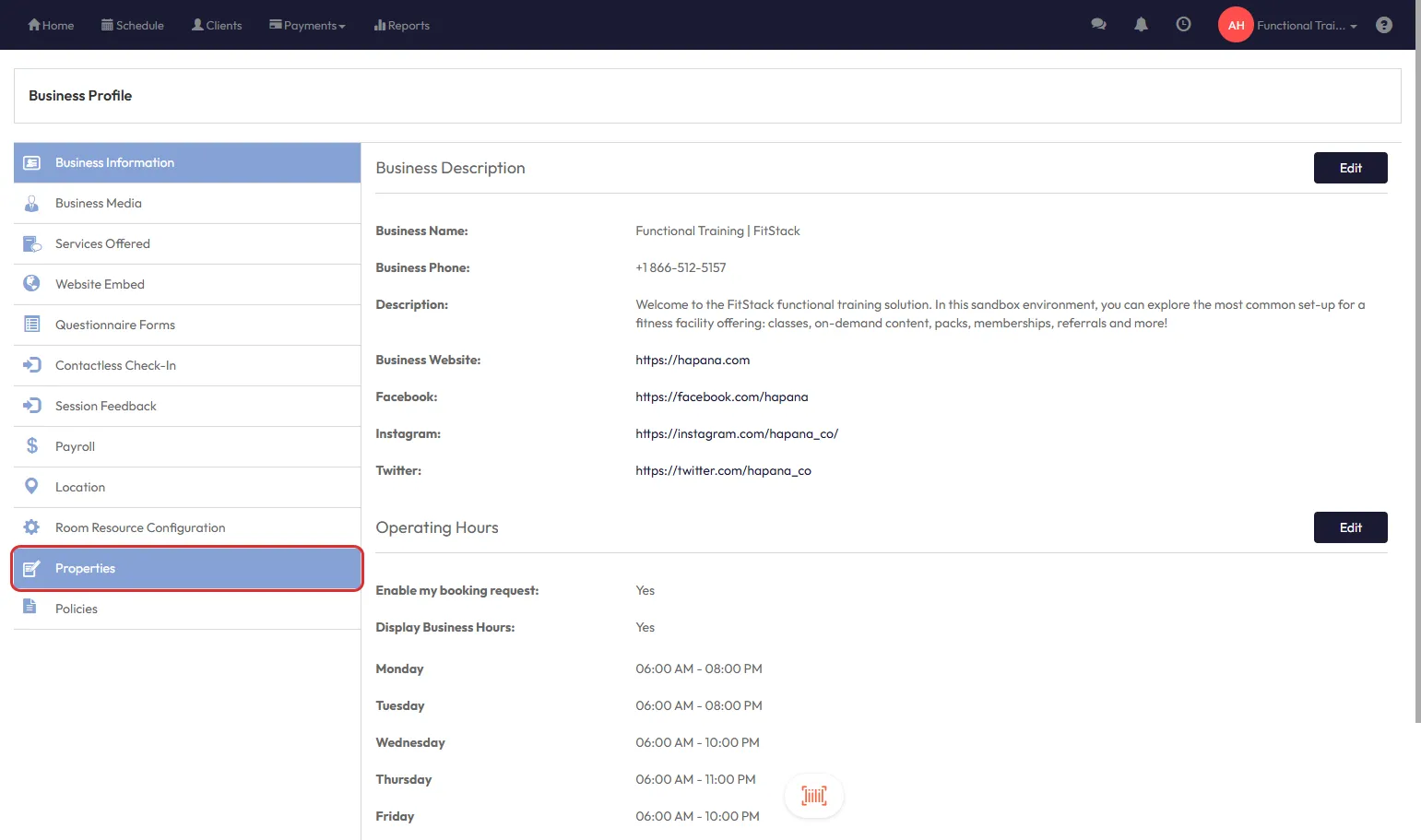
- In the left-hand menu, click Properties.
Step 4: Create or Edit a Custom Property
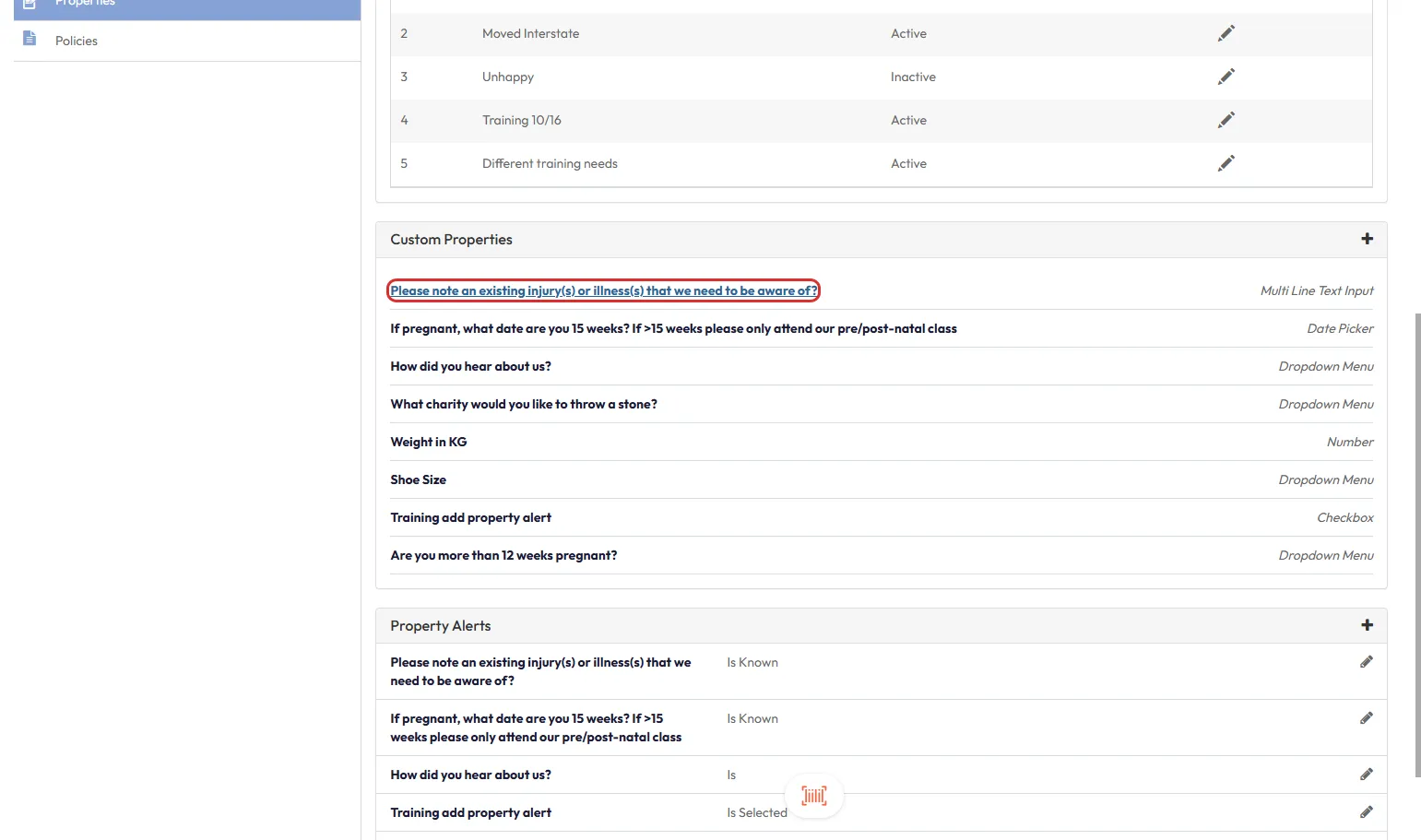
- Click the plus icon (+) to add a new Custom Property, or select an existing property to edit.
Step 5: Enable Subtext for the Property
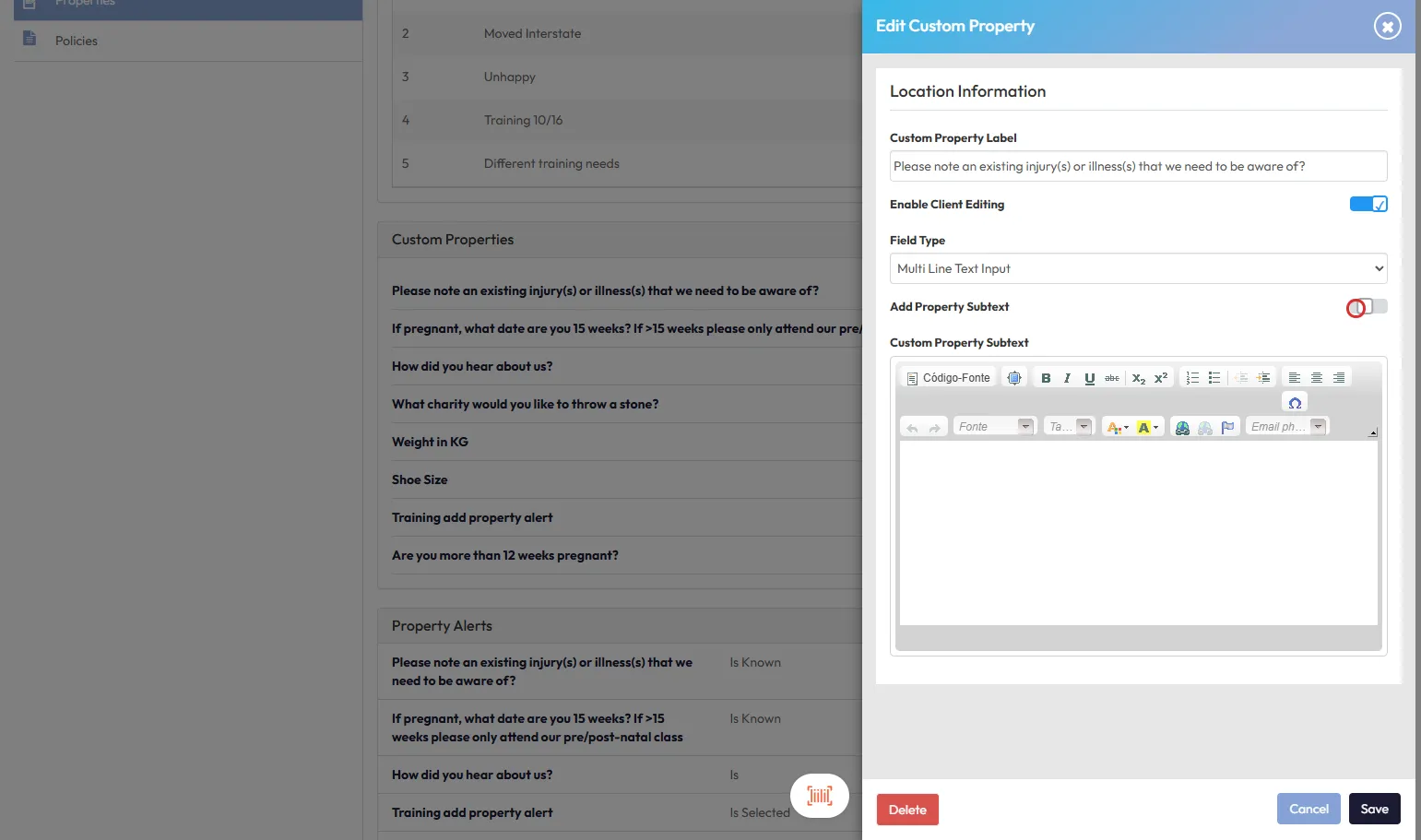
- Toggle ON the Add Property Subtext option.
- Enter your desired subtext, hyperlink, or URL (up to 256 characters).
Tip: Use subtext to provide helpful examples, terms and conditions links, or references to insurance policies like AIA Vitality rebates.
Step 6: Save the Property
- Click Save to finalize the configuration.
- The subtext will now appear next to the custom property during client sign-up or profile updates.
Expected Outcome
Once configured, clients will see additional explanatory text or a link next to the associated custom property during sign-up or profile completion—helping them understand exactly what information is being requested.
This improves data accuracy, ensures clearer communication, and supports client needs such as insurance claims or fitness modifications.
FAQs
Q: Can I add multiple links in the subtext?
You can add multiple links if they fit within the 256-character limit, but keep formatting clear to avoid confusion.
Q: Where will clients see the subtext?
Clients will see the subtext displayed next to the field during sign-up or when editing their profiles within the branded app or kiosk.
Q: Can I edit or remove subtext later?
Yes. You can return to Edit Profile > Properties and update or delete the subtext at any time.
Need help?
Reach out to our support team via support@hapana.com