
Overview
You can configure memberships with custom credit expirations to automatically renew—even when the expiration date goes beyond the original term. This is especially useful for rolling clients from intro offers into paid memberships, offering a seamless transition and uninterrupted booking access.
This guide shows how to apply the updated auto-renew configuration and choose whether to align renewal with the custom credit expiration (default) or the original membership term date.
Prerequisites
- Access to Retail Configurations in Core
- Package Length and Credits must be set to Limited
Step 1: Create a Membership
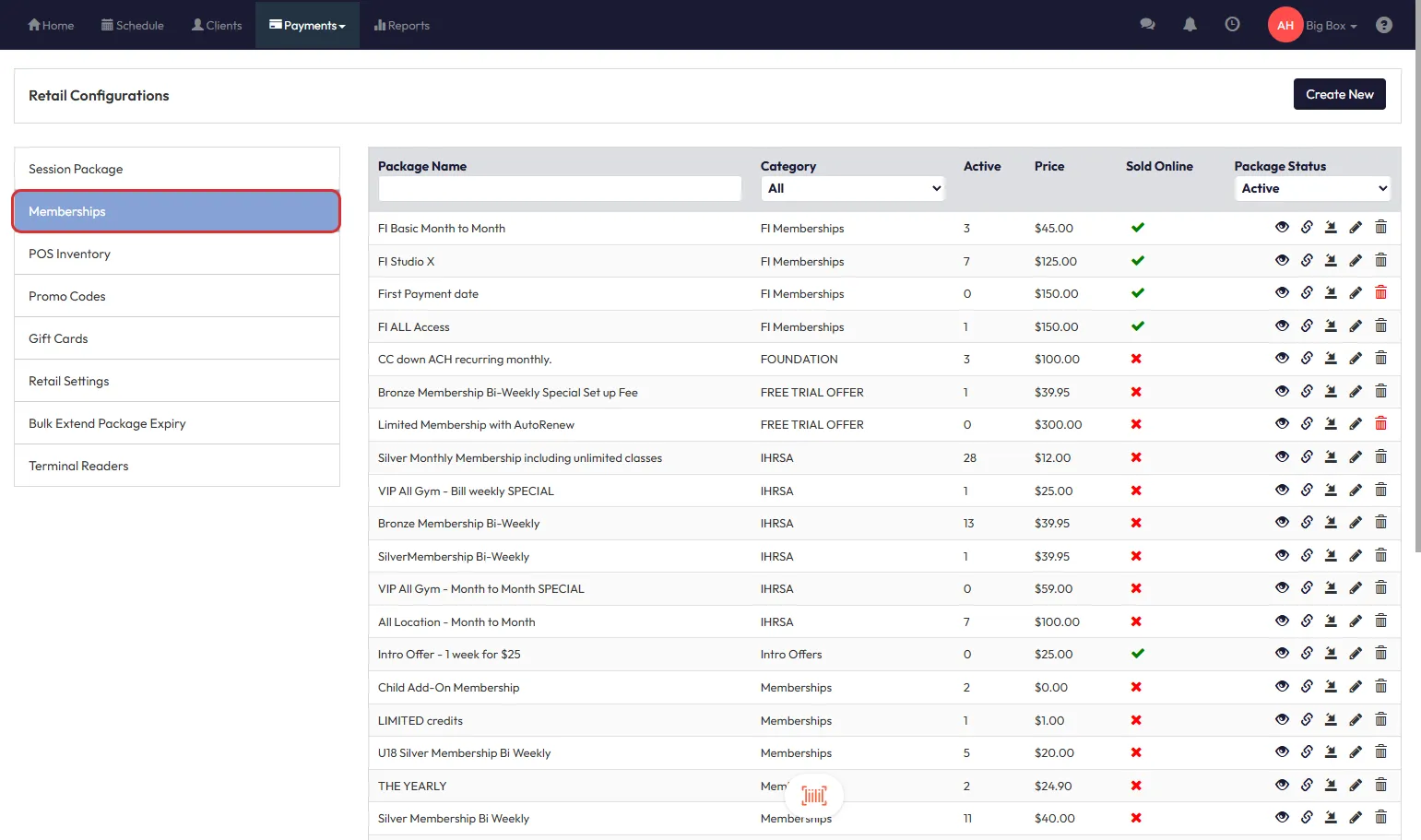
- Navigate to Core > Payments > Retail Configurations > Memberships
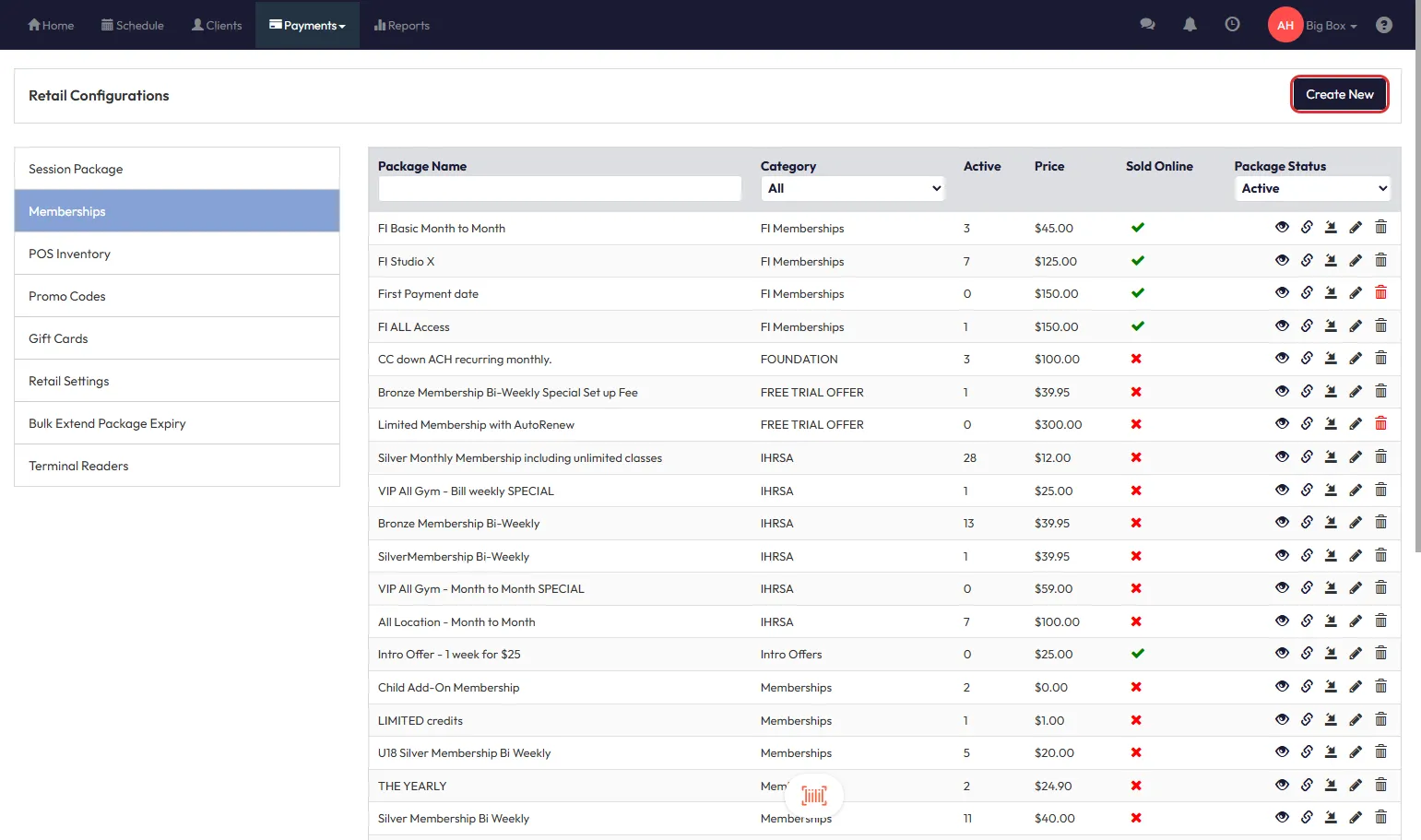
- Click Create New
- Fill out the fields according to your needs, ensuring Package Length and Credits are limited
Tip: This feature only applies to new memberships. Changes won’t apply retroactively.
Step 2: Enable Custom Credit Expiration
- On Credits Expiration, select the option Custom Expiration on the dropdown
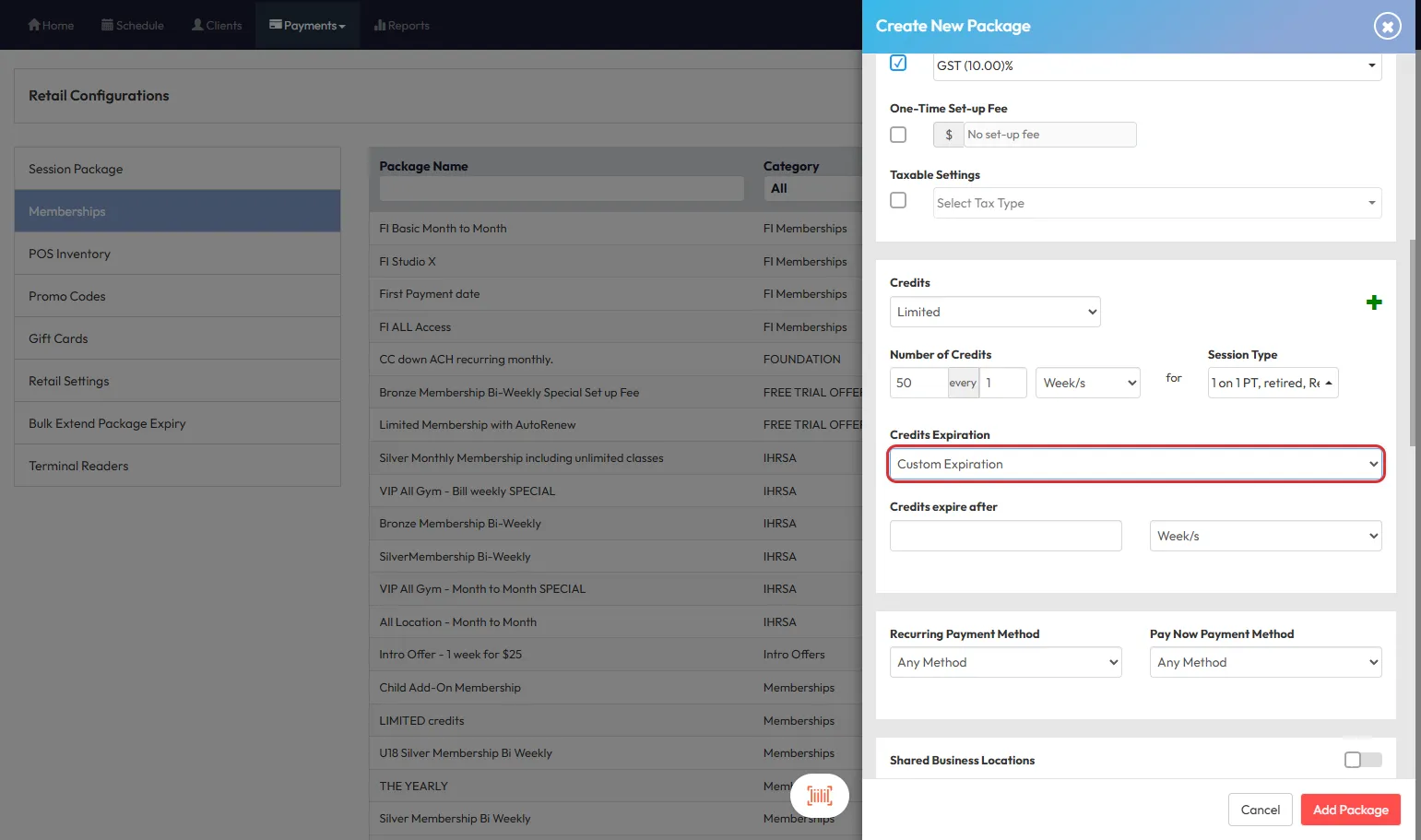
- Choose when the credits should expire
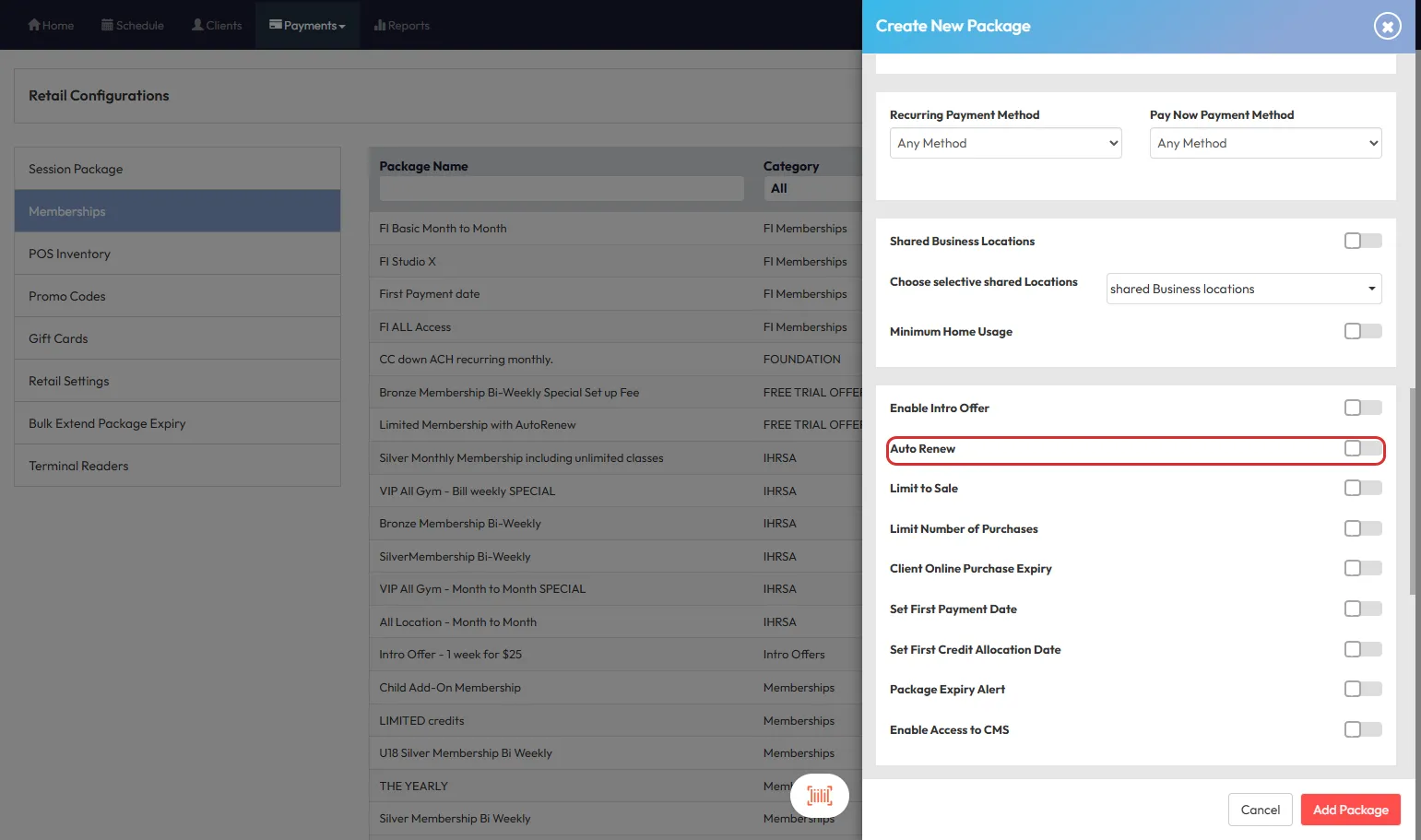
- Once the custom expiration is enabled, you’ll see the auto-renewal toggle appear
Step 3: Enable and Choose an Auto-Renew Option
- Toggle Auto Renew ON
- Option 1 (Default): Auto-renew on the custom credit expiration date
- Option 2: Auto-renew on the membership term date
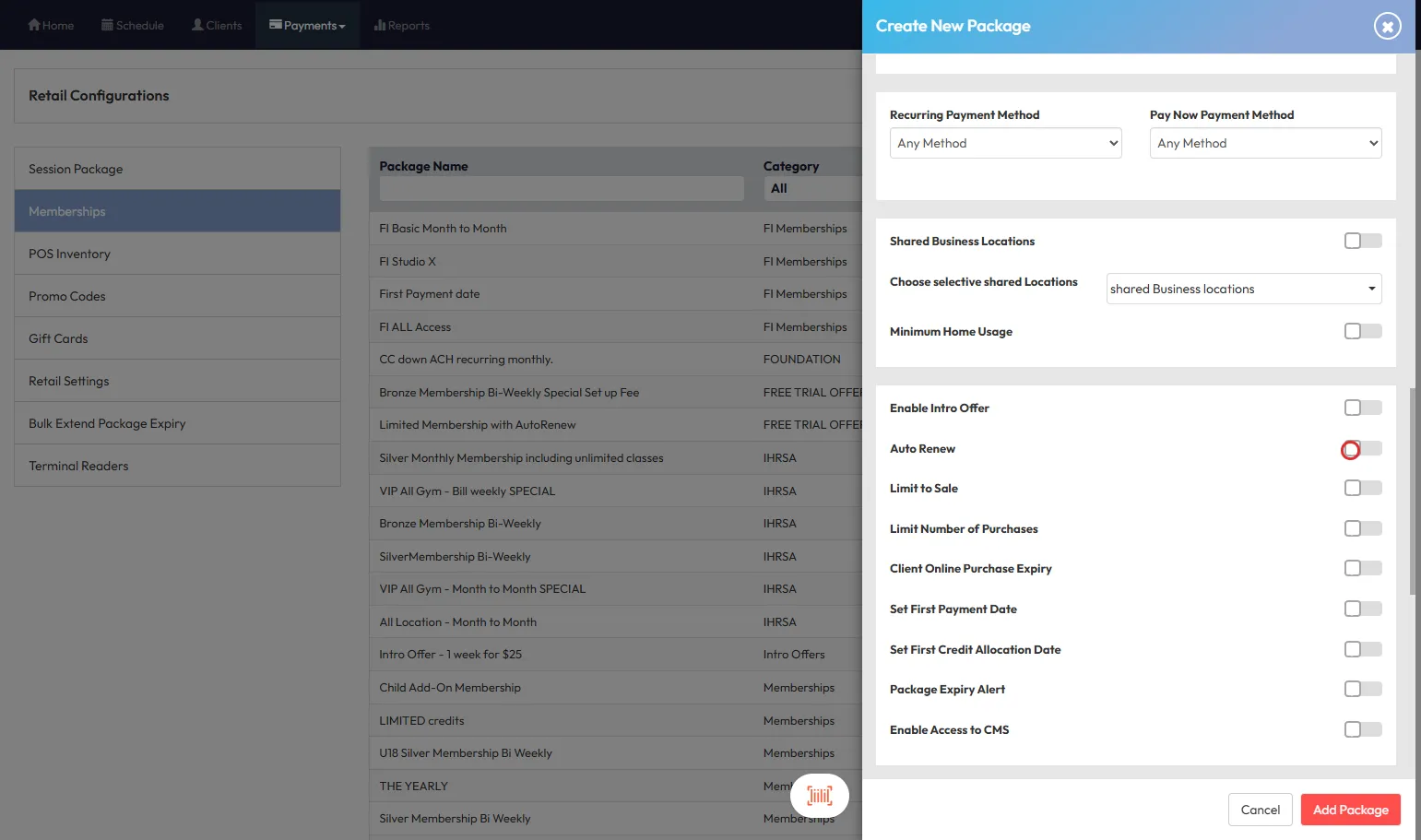
- Ensure that the Auto-Renew to Package field is set (based on whether it should renew to the current package, or your desired Package).
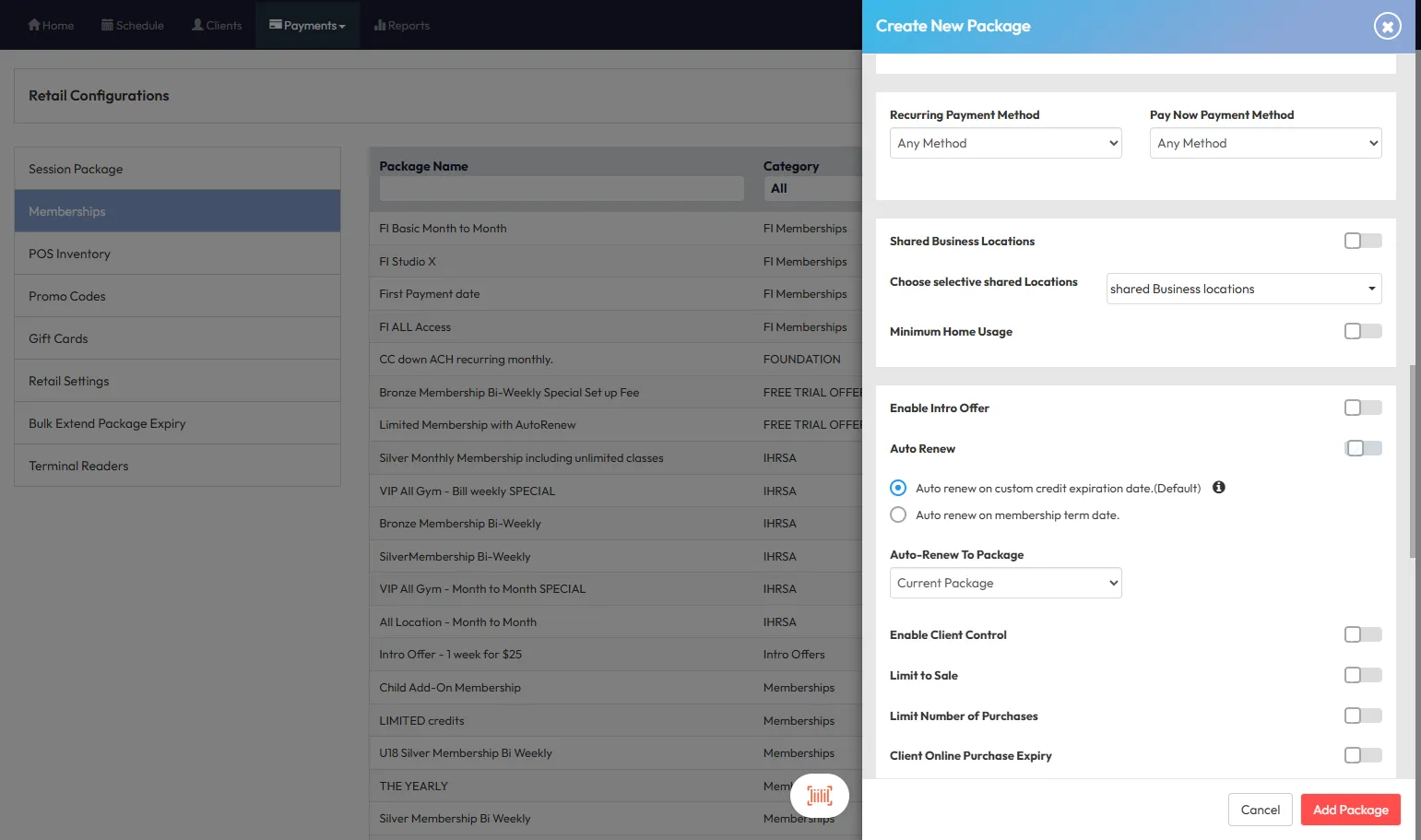
Tip: Use Option 2 to avoid clients receiving overlapping credits when term and credit expiration dates differ.
Step 4: Finalize and Save the Membership
- Review your membership details
- Click Add Package to confirm the new configuration
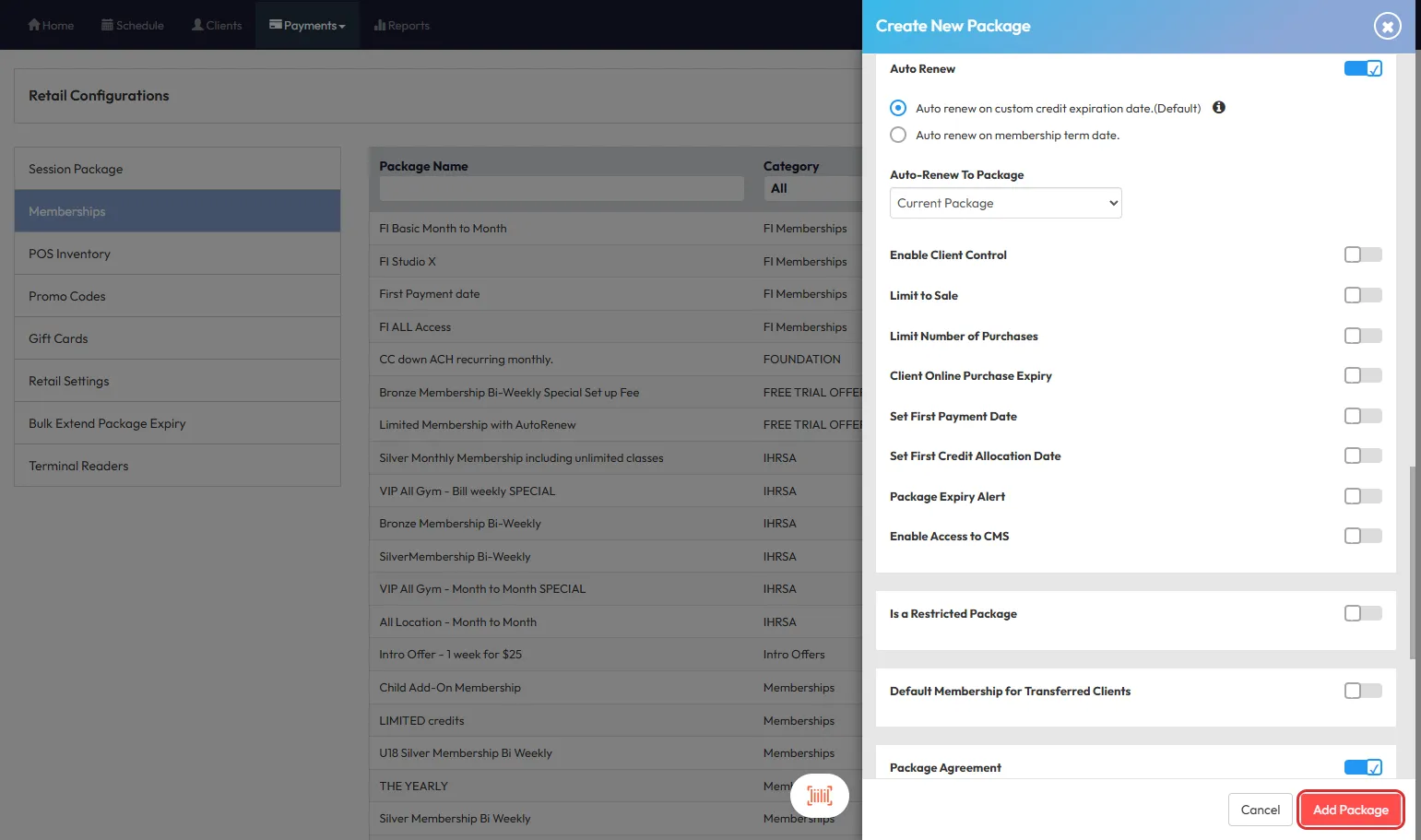
Tip: A warning will appear if your credit expiration exceeds the term date—reminding you to adjust the renewal logic accordingly.
Step 5: View Setup in a Client's Recurring Payment Arrangement
After selling this membership to a client, you can verify its configuration:
- Navigate to Clients and select the client to whom the membership was sold to
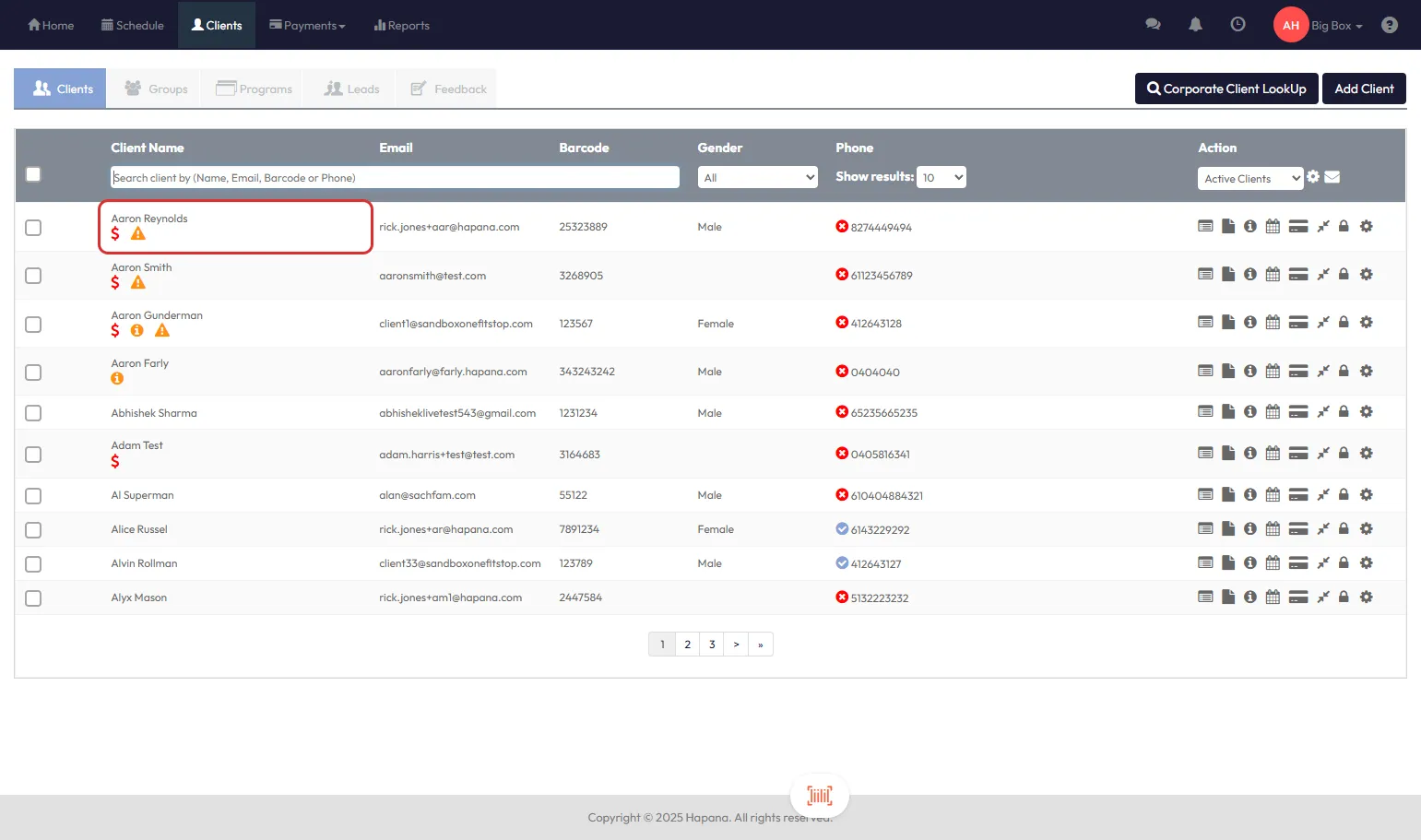
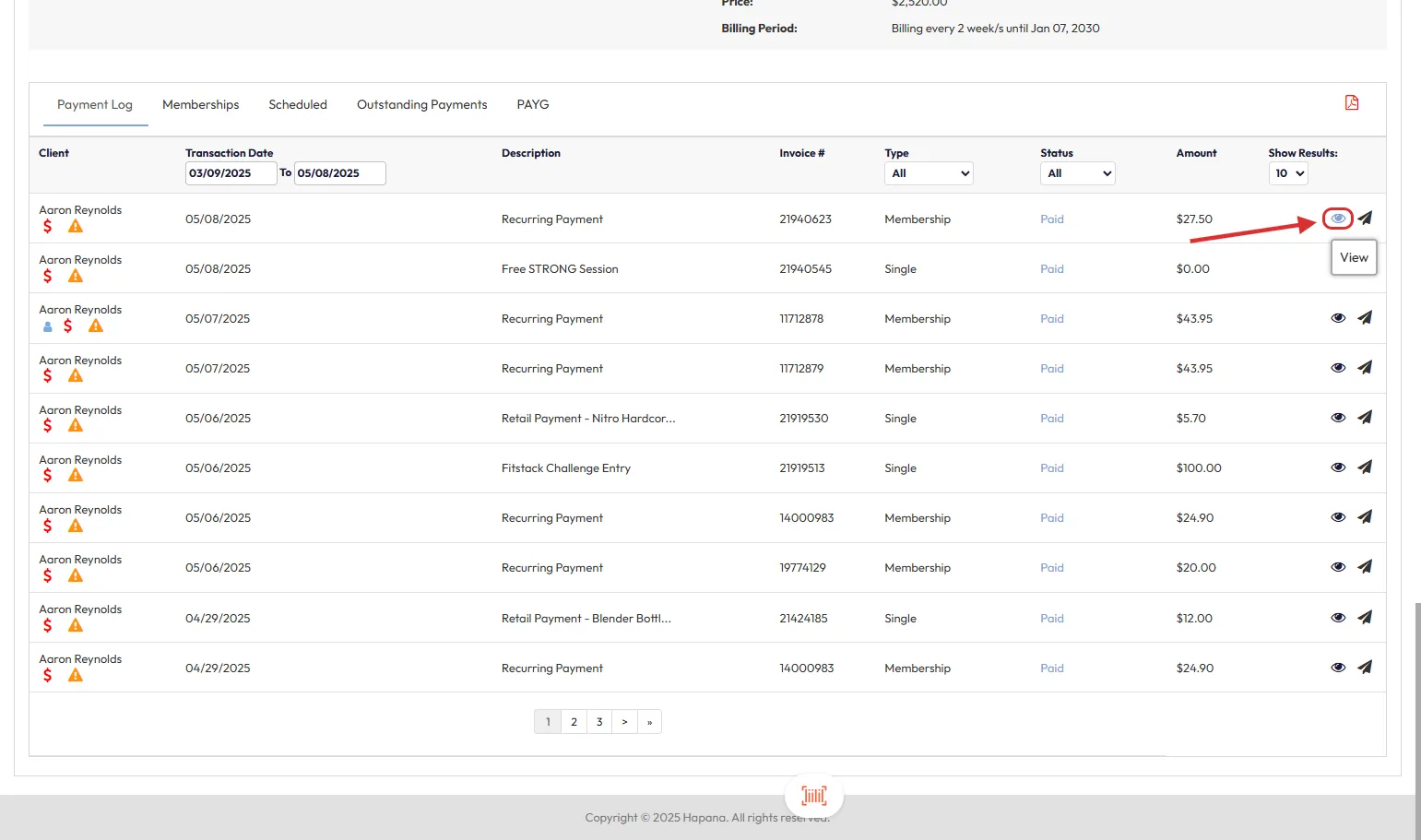
- Open the Payments tab, navigate to Payment Log and click View (eye icon) on the payment related to the membership
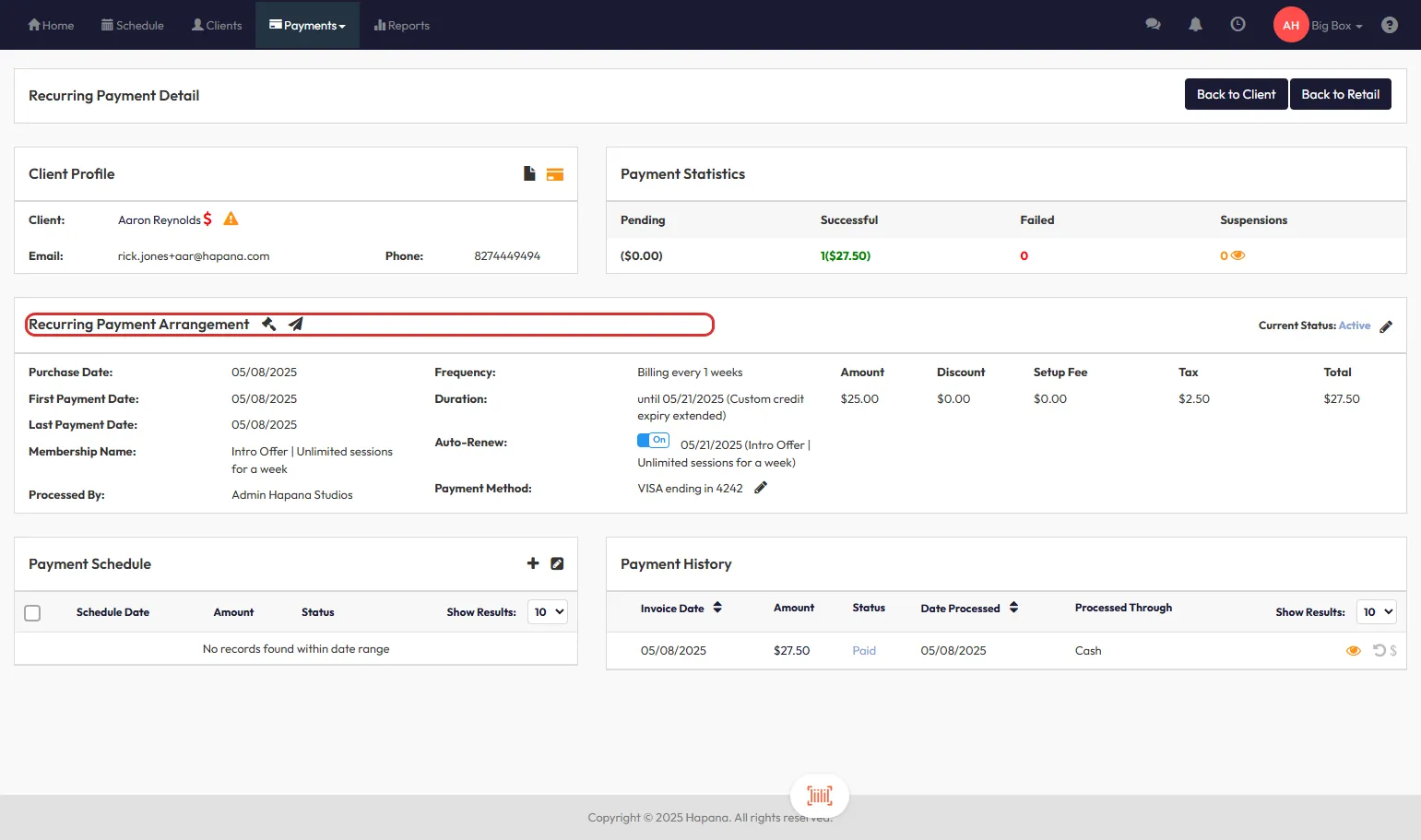
- Confirm that the custom expiry tag and the auto-renew toggle match your selected logic on the section Recurring Payment Arrangement
Expected Outcome
Clients will automatically roll into the next term with no disruptions to their booking ability. The system ensures renewal happens either at the credit expiry or the original membership term date—based on your setup.
FAQs
Q: What happens if I forget to update the auto-renew setting for custom credit expirations?
A: The system will default to renewing on the custom credit expiration date, which may lead to overlapping credits if not adjusted.
Q: Can I apply this to existing memberships?
A: No. This logic only applies to memberships sold from February 2025 onward. Older memberships require a manual update.
Q: What if I need both the credit expiry and term date to match exactly?
A: Set the credit expiration to mirror the term duration, then leave the default auto-renew setting unchanged.
Still have questions? Reach out to our team at support@hapana.com