
Overview
This guide shows how to view, edit, delete, and add FAQs using Brand Controls. FAQs help answer common questions across client-facing platforms and can be customized with links and rich text formatting.
Step-by-Step Instructions
1. Log in to your custom BRANDs URL and click the Controls icon.
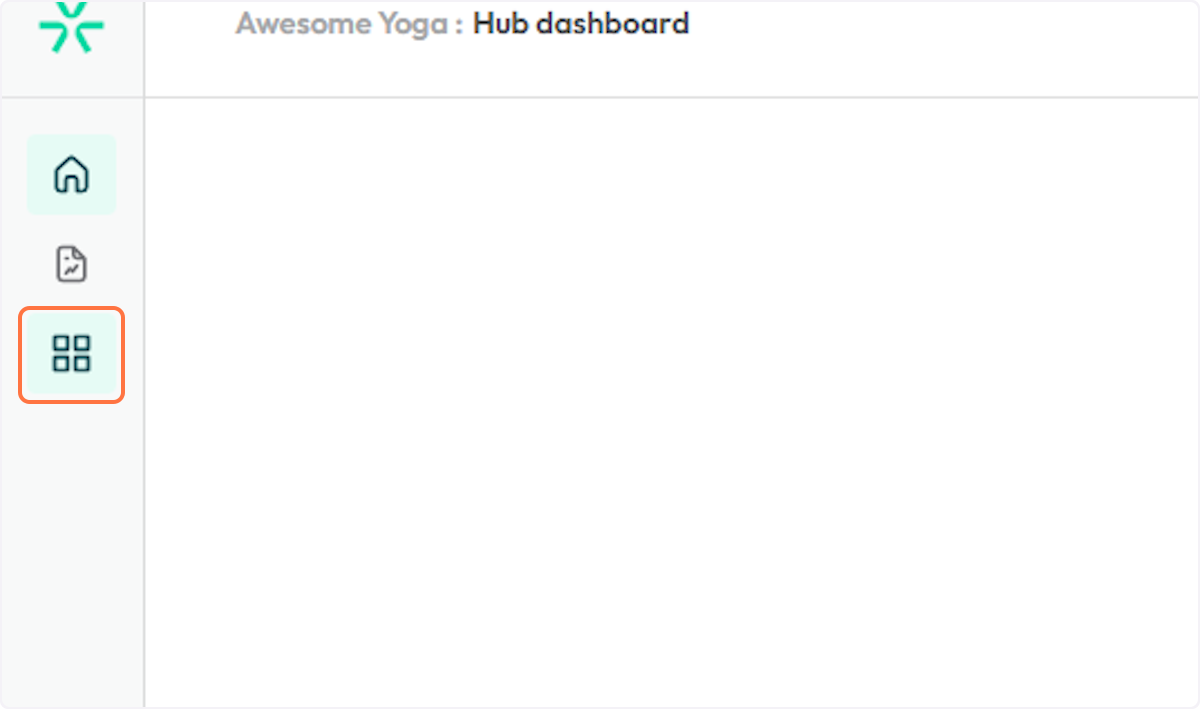
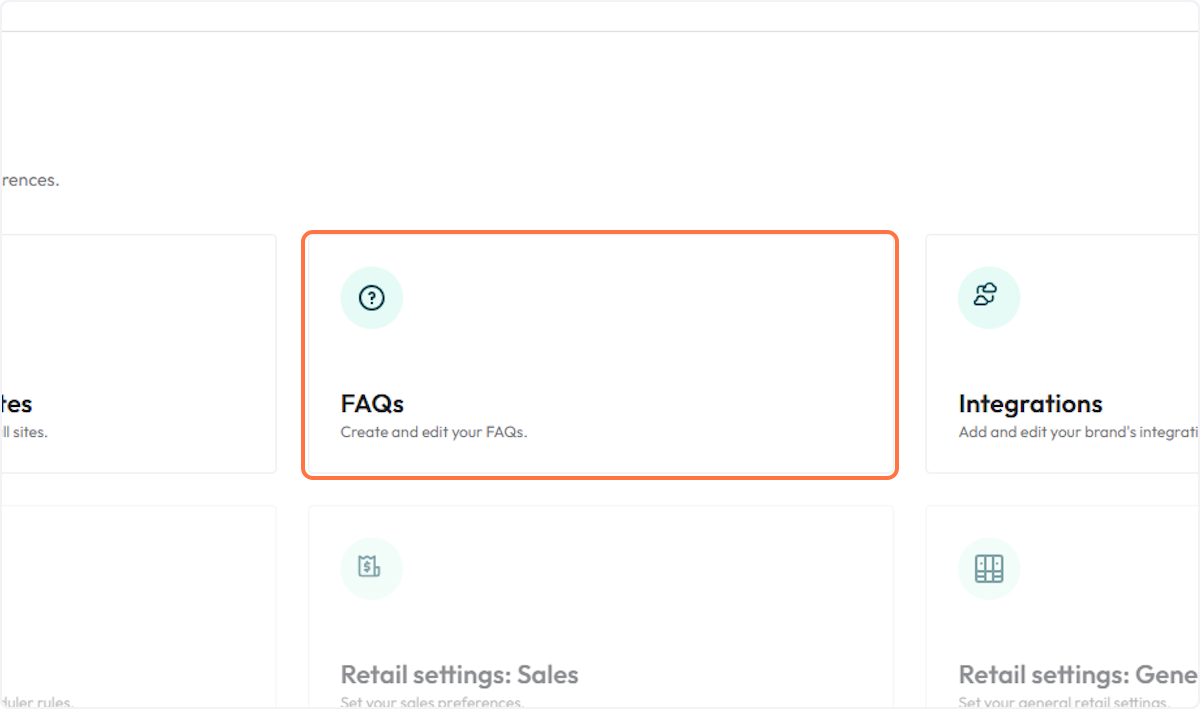
2. Once in the Control Center click on the FAQs card.
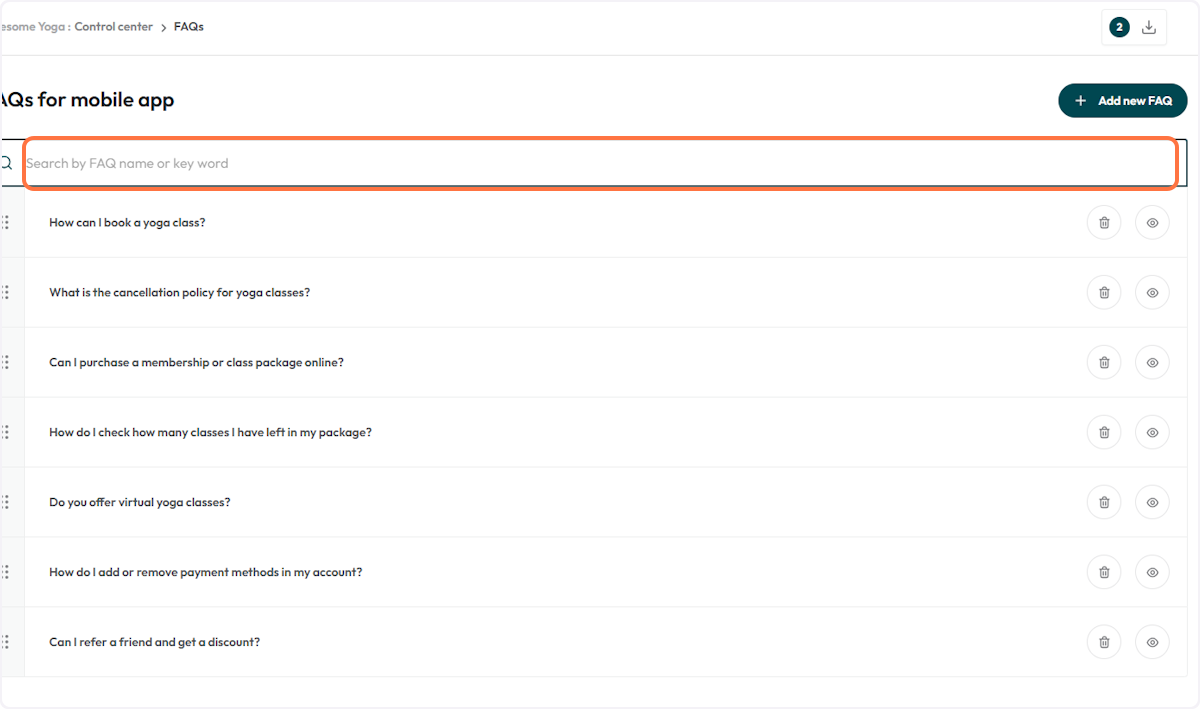
3. Search by a specific FAQ by typing in the name or key word
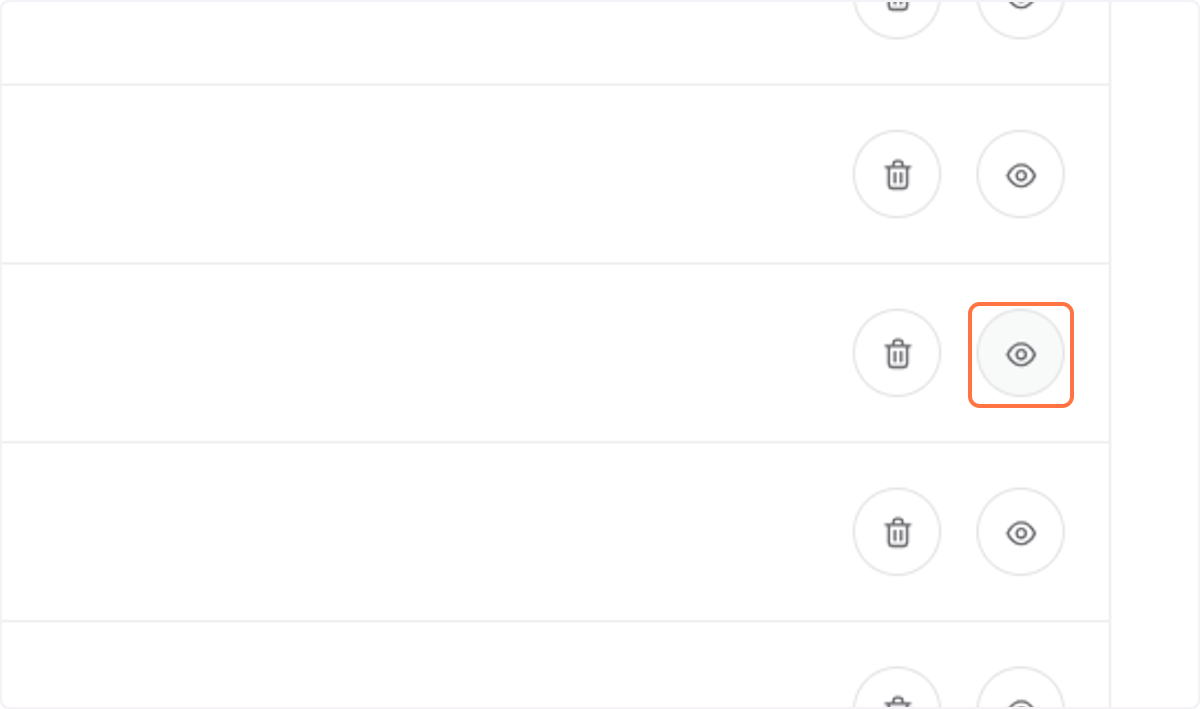
4. To view or edit a FAQ, click on the eye icon
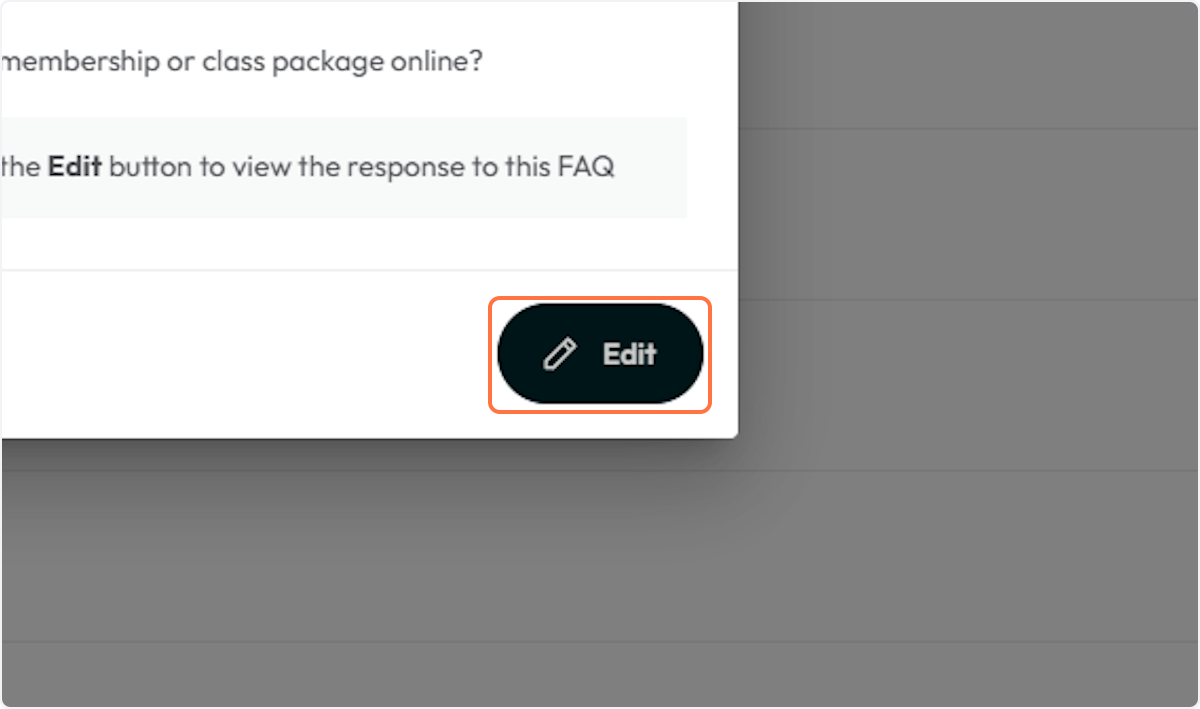
5. Click on Edit to view the full response
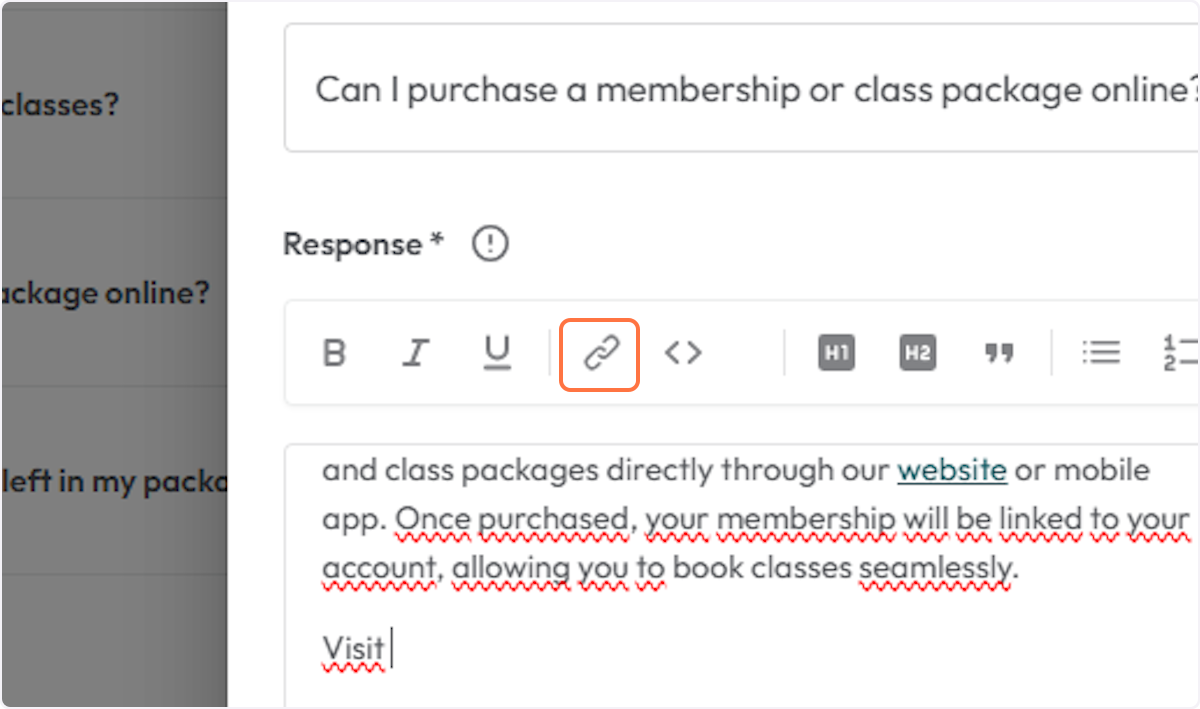
6. The interface now allows you to add links and customize the response of a FAQ
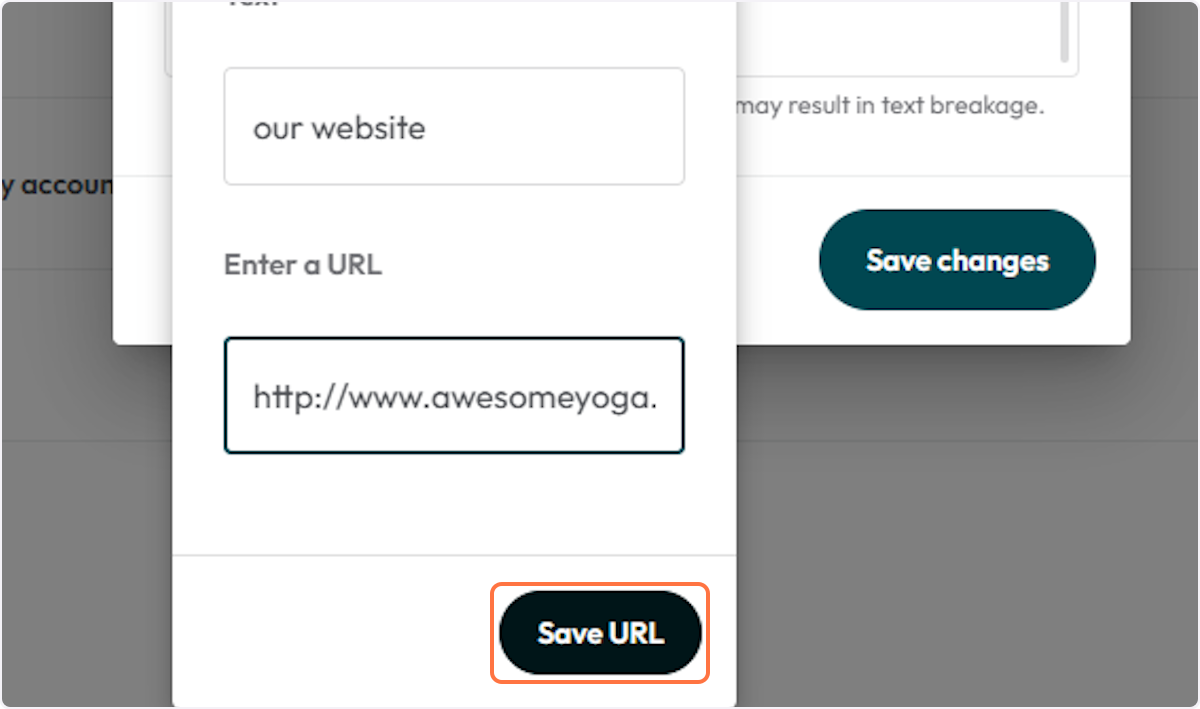
8. Click on Save URL
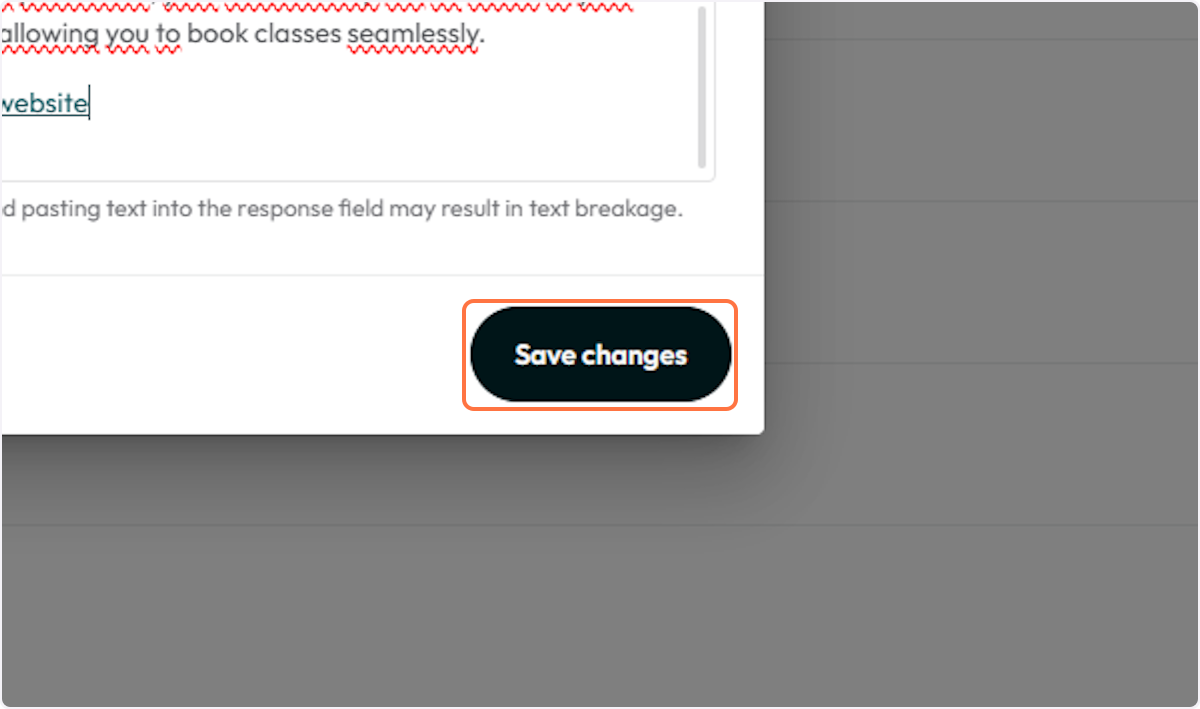
7. Click on Save changes to update the FAQ
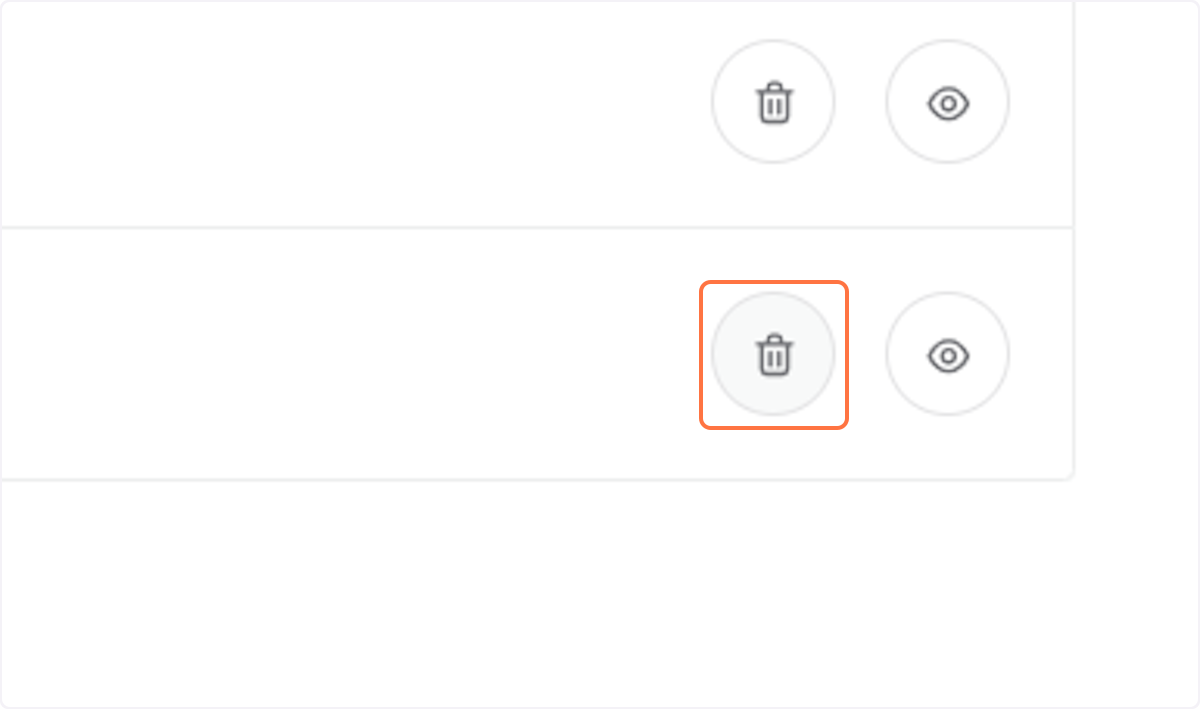
8. On the FAQs table, click on the trash icon to delete a FAQ
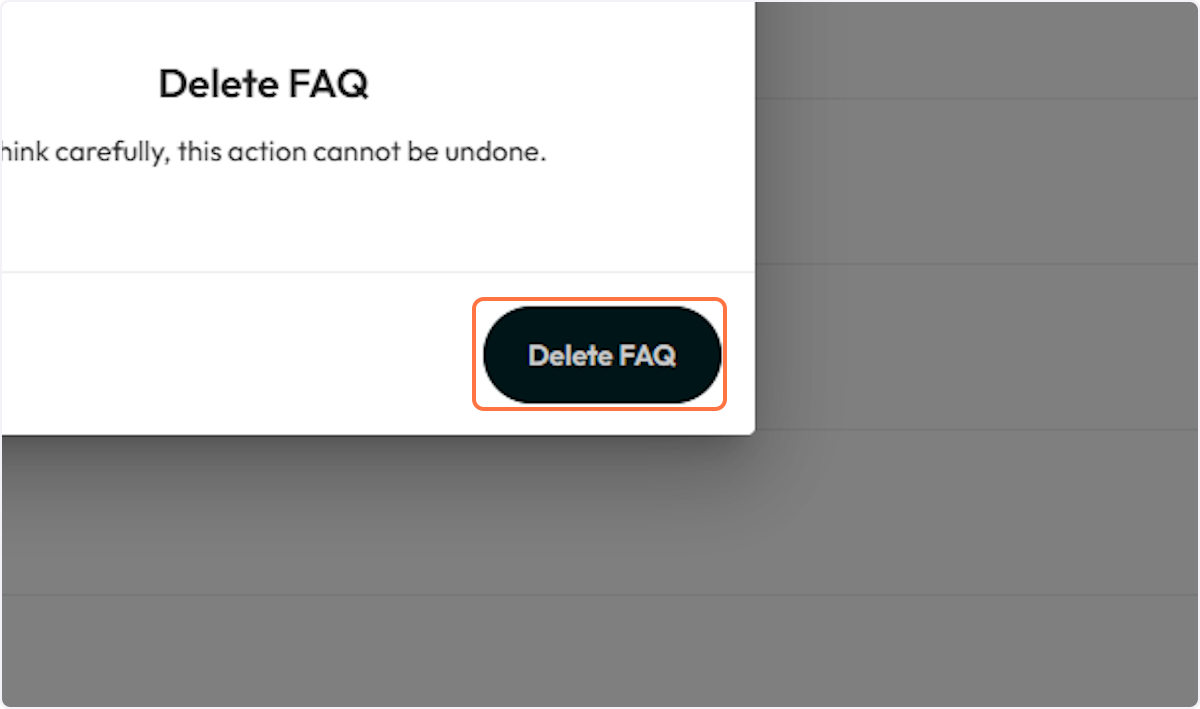
9. Click on Delete FAQ to confirm
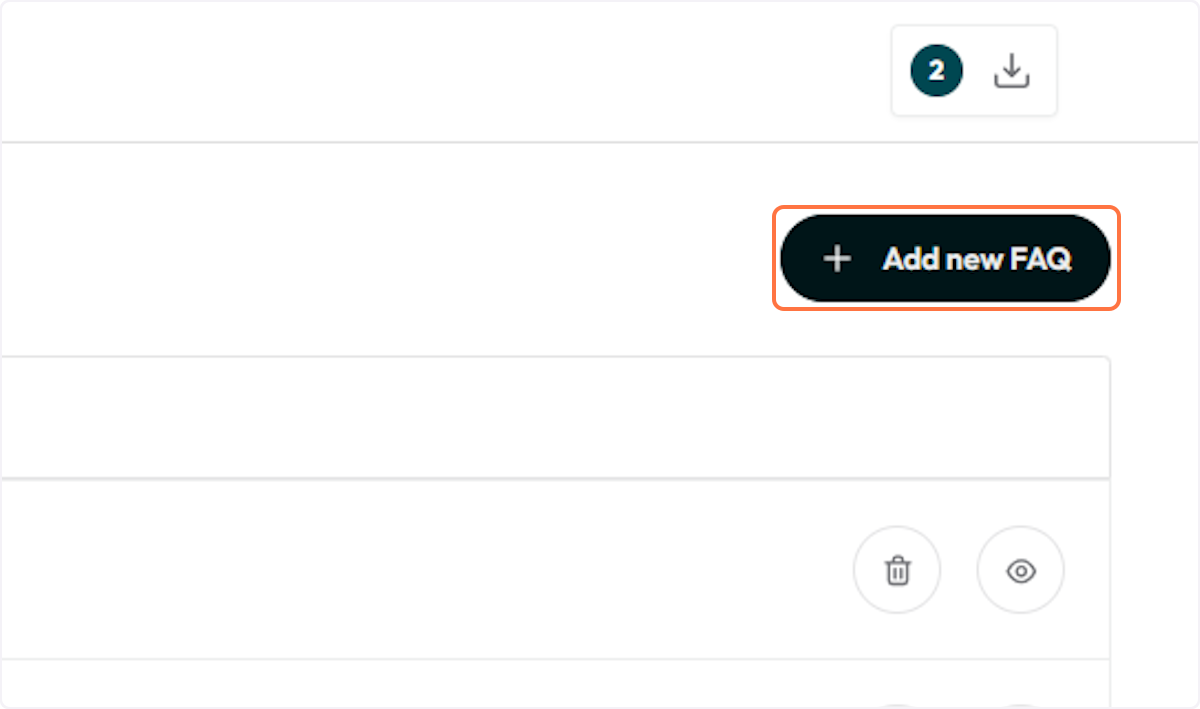
10. To add a new FAQ click on Add new FAQ
11. Type in the header of the question
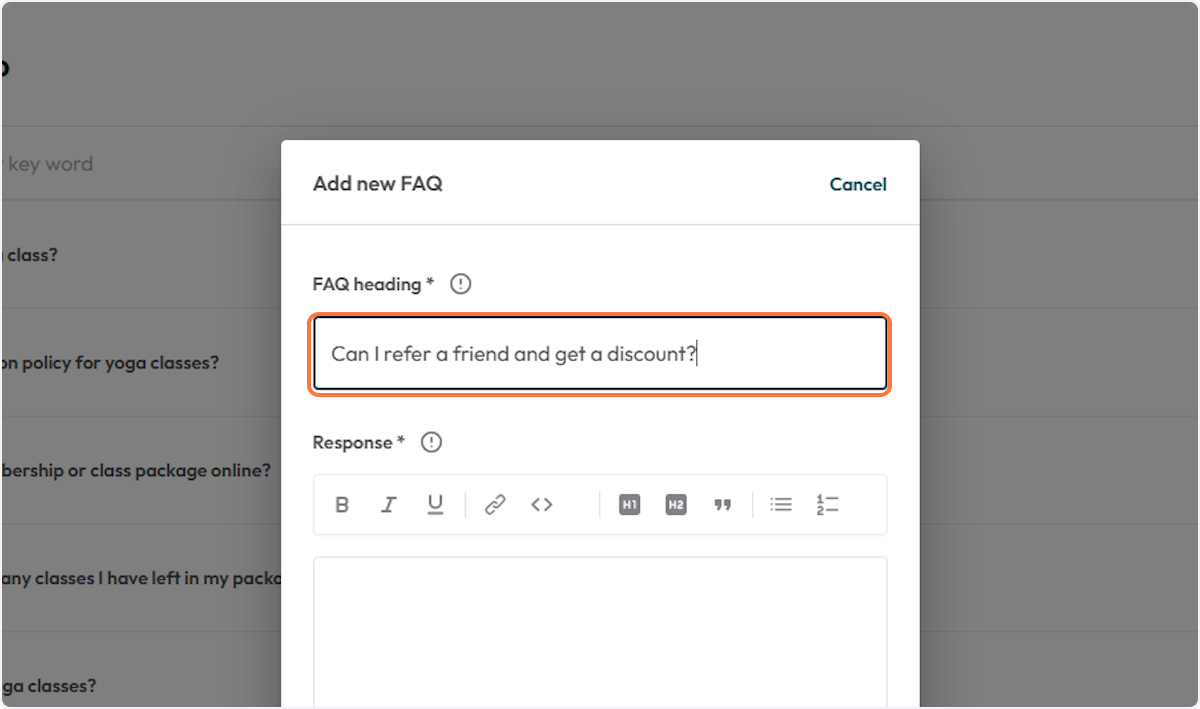
12. Type in the response and user the rich text editor to enhance the message or add an important link
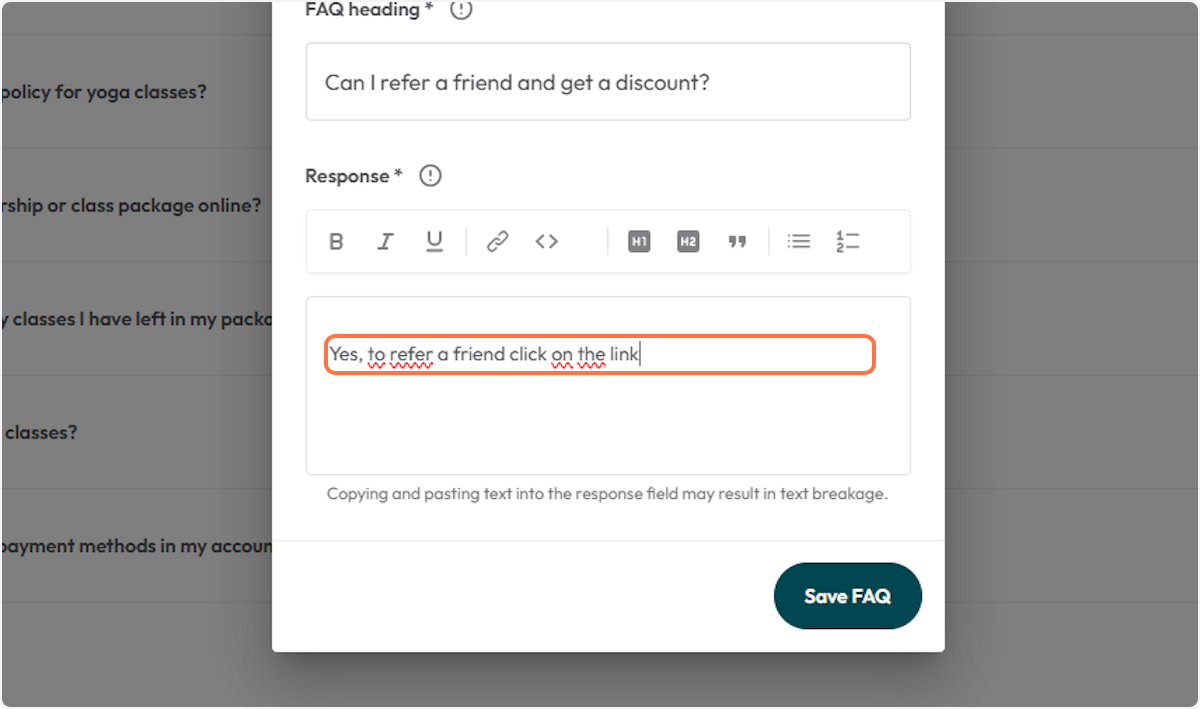
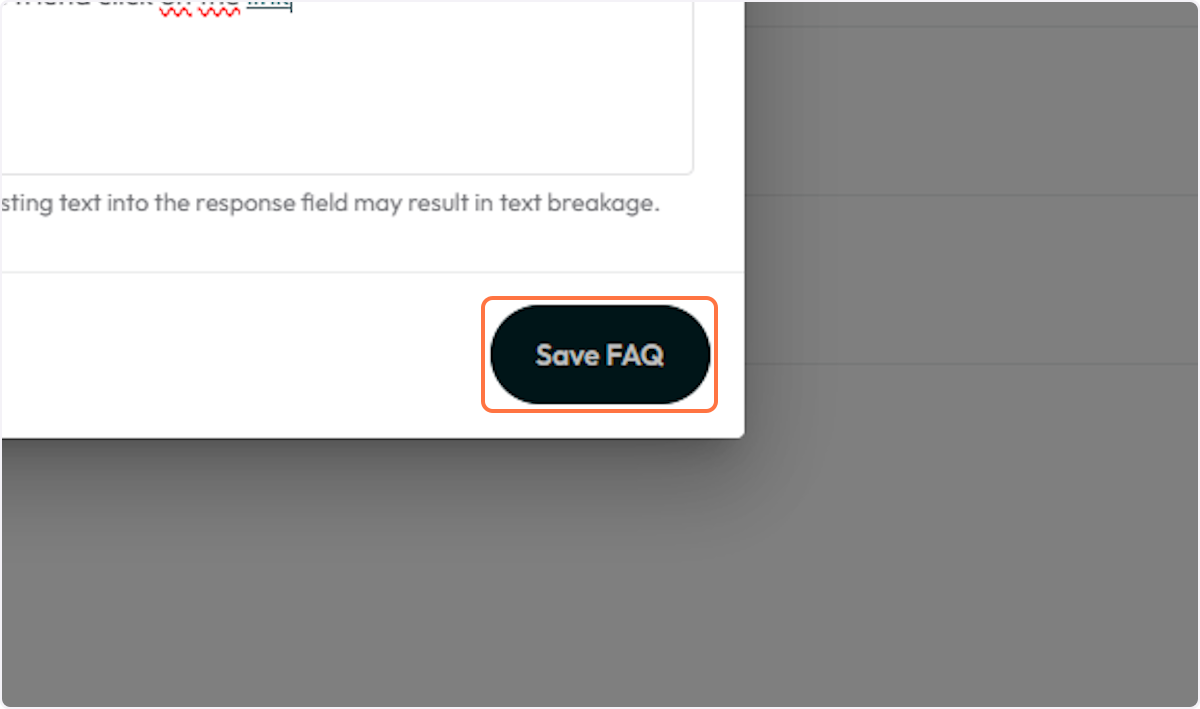
13. Click on Save FAQ to have it show up on the FAQs table and on all relevant client interfaces.
Troubleshooting / FAQs
Q: Can I add clickable links in FAQ responses?
A: Yes! Use the link icon in the editor bar, then click Save URL after entering your link.
Q: Where do these FAQs appear for clients?
A: Anywhere your client-facing FAQ widget is embedded — including the branded app and web interfaces.