
Overview
This guide covers how to set up flexible check-in and re-check-in rules in CORE. It’s for fitness businesses that want better control over when members can check in for sessions, reduce manual overrides at the front desk, and track re-entries for improved security.
Prerequisites
• Access to CORE with admin permissions
Step-by-step instructions
Step 1: Access your Contactless Check-In Settings
- Log into your CORE account
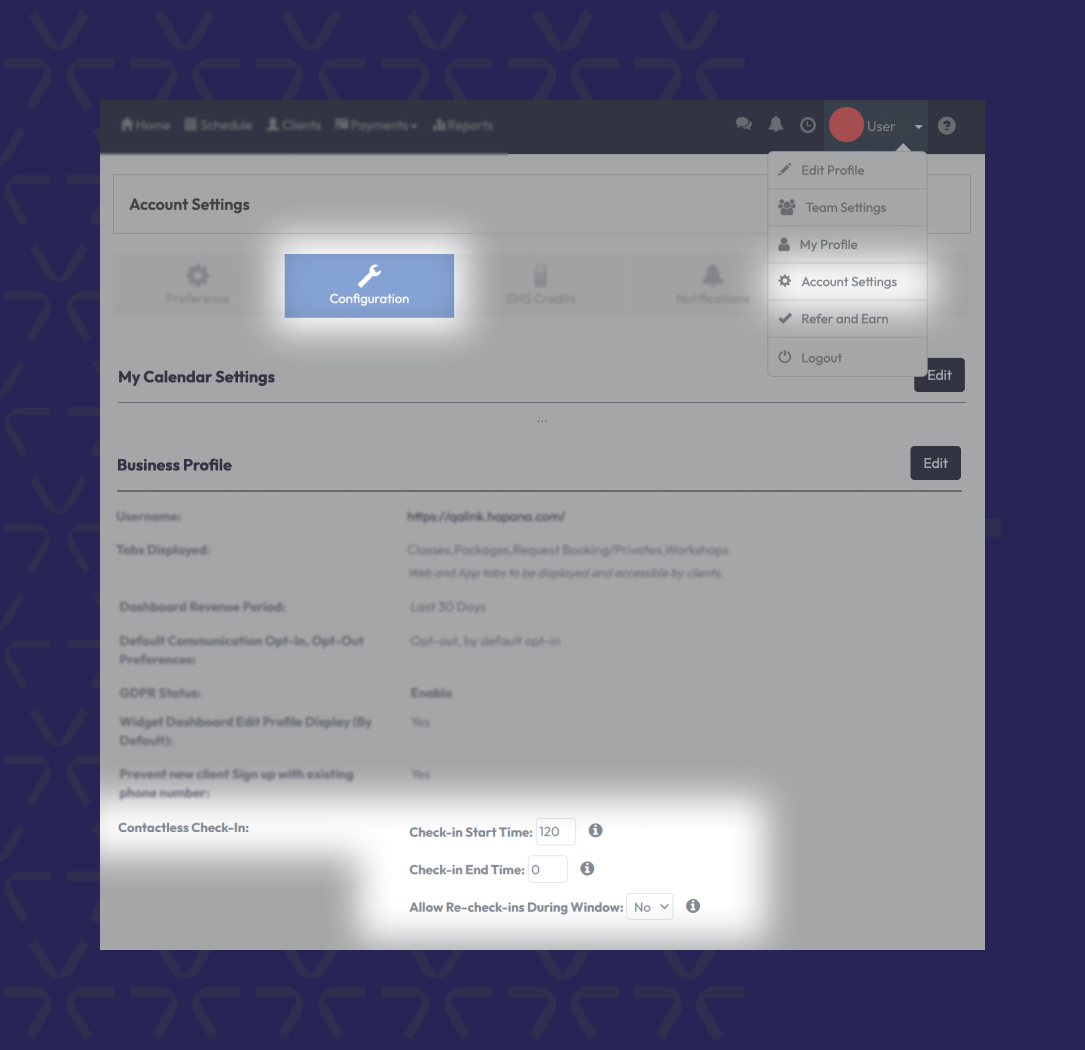
- Navigate to Account Settings in the top right dropdown menu.
- Go to Configuration > Business Profile > Contactless Check-In.
Step 2: Configure Check-In Timing
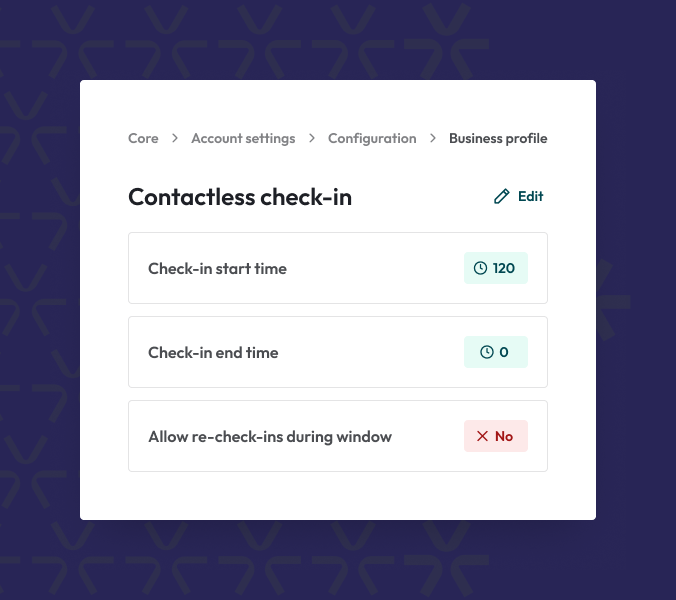
- In the Contactless Check-In settings, find the Check-in Start Time field.
- Enter how many minutes before a session members can start checking in (default is 120 minutes).
- Set the Check-in End Time — how many minutes after a session starts members are still allowed to check in (default is 0 minutes).
Tip: Setting realistic windows (like 30 mins before and 15 mins after) can help manage traffic flow.
Step 3: Enable and Customize Re-Checkins (optional)
- Toggle Allow Re-check-ins During Window to “Yes” if you want to let members check in multiple times during a session.
- Configure:
- Max Re-checkins Allowed (e.g., 3 times)
- Minimum Time Between Re-checkins (e.g., 2 minute gap)
Tip: Tighten security by setting a reasonable minimum time gap to prevent misuse.
Step 4: Understand how the system enforces your rules
- Once saved, the system automatically enforces these rules through the Contactless Check-In API.
- Check-in and re-check-in attempts are validated in real time based on your settings.
- Re-check-ins are logged as Checkin Type = re-entry for easy tracking.
Expected outcome
After setup, members will only be able to check in or re-check in according to the windows and limits you define. Front desk staff will have fewer manual overrides, and you’ll have better visibility into member access behavior.
Troubleshooting / FAQs
Q: What happens if I misconfigure the check-in window?
A: If your Check-in End Time is set earlier than your Start Time, members may be blocked unexpectedly. Always double-check your settings before saving.
Q: What if the CORE settings aren’t retrieved in real-time?
A: If CORE settings can’t be pulled during check-in, the system will fall back to default (hardcoded) behavior to avoid complete check-in failures.
Still need help?
Reach out to our support team via support@hapana.com