
Overview
This guide shows you how to configure waitlist auto-promotion timing in minutes instead of just hours. This gives you more precise control over last-minute class fills, helping you react quickly to cancellations and keep your sessions full.
Prerequisites
• Access to Account Settings in CORE
• Active Waitlist Configuration
• Communication settings properly configured for member notifications
Step-by-Step Instructions
Step 1: Go to Account Settings
- Log in to Core
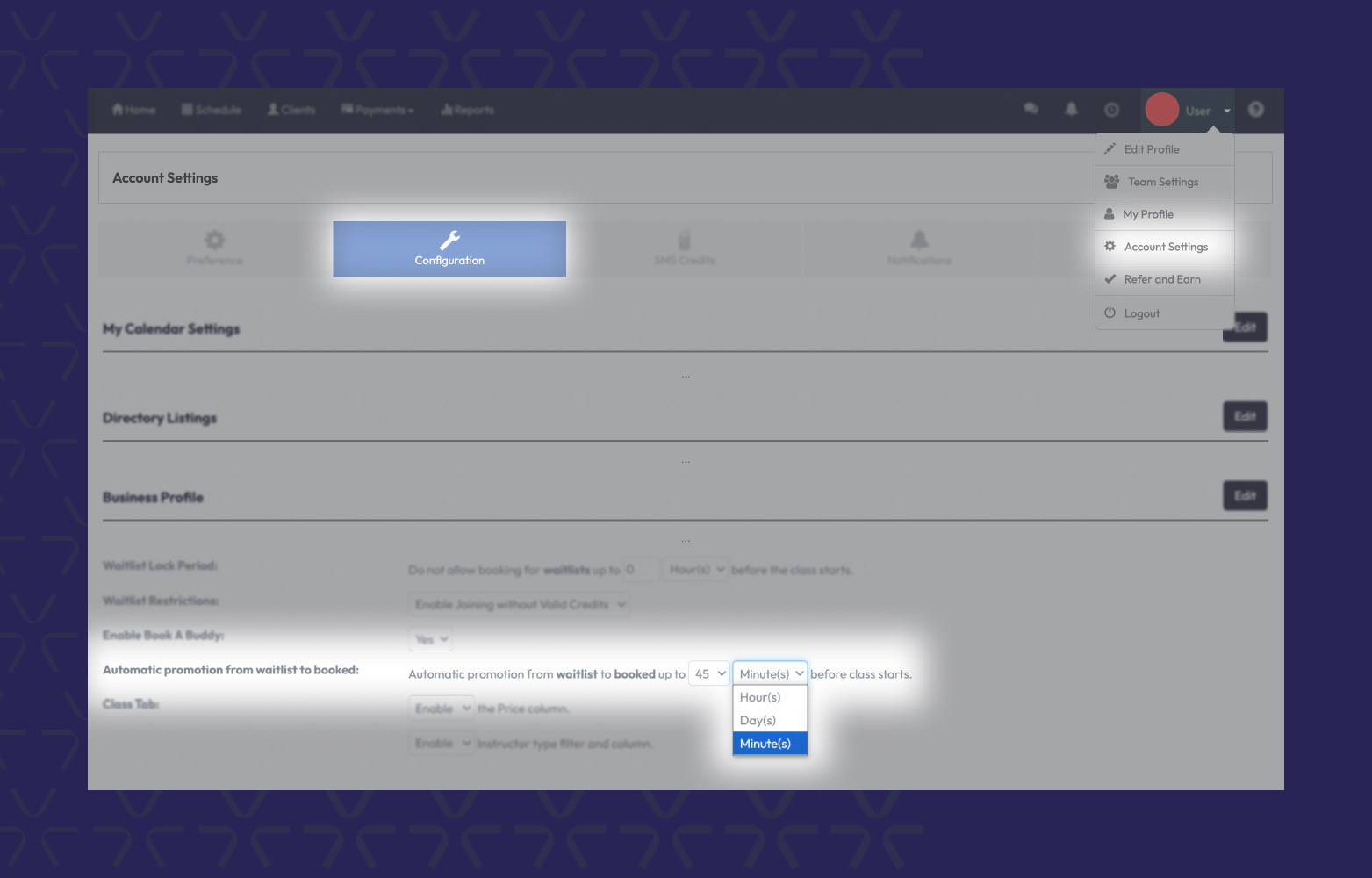
- Navigate to Account Settings > Configurations.
- Scroll down to the Business Profile section and select the Pencil Icon to edit.
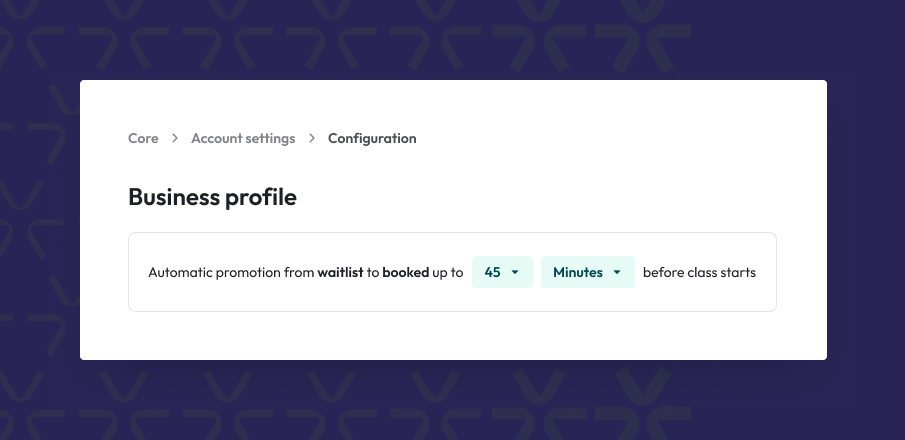
- Locate the Automatic Promotion from Waitlist to Booked.
Step 2: Choose your Time Unit
- You’ll now see options to set the auto-promotion timing in Hours or Minutes
- Select Minutes.
-
Enter the number of minutes you want (e.g., 15, 30, or 45 minutes).
-
Make sure the value is a positive number and does not exceed 1440 (24 hours).
Tip: If you prefer to keep it at hours, hour-based settings are still supported!
Step 3: Save your changes
- Click Save at the top of the Business Profile section to apply the new promotion timing.
- The system will now automatically promote members from the waitlist based on the number of minutes you set before class start time.
- Members will receive promotion notifications according to your communication settings.
Troubleshooting / FAQs
Q: What’s the maximum number of minutes I can set?
A: The maximum value is 1440 minutes (24 hours).
Q: Will this affect how and when members are notified?
A: Yes. Notification timing now follows the new minute-based setting, but still depends on your communication preferences.
Q: Can I still use hours instead of minutes?
A: Absolutely! You can choose either minutes or hours depending on what fits your studio’s scheduling needs.
Still need help?
Reach out to our support team via support@hapana.com