
Overview
This guide shows you how to add Secondary Recurring Fees (SRFs) to membership plans and automatically include those details in your membership agreements using dynamic shortcodes. Whether it’s an annual maintenance fee or a future rate increase, SRFs let you automate extra charges, show them clearly at checkout, and keep your contracts accurate and transparent.
Prerequisites
- Admin access to CORE
- Memberships already created
- Agreement templates ready to edit
Add a Secondary Recurring Fee to a Membership
- Login to Core
- Navigate to Payments > Retail Configuration > Memberships
- Select an existing membership or click Create New
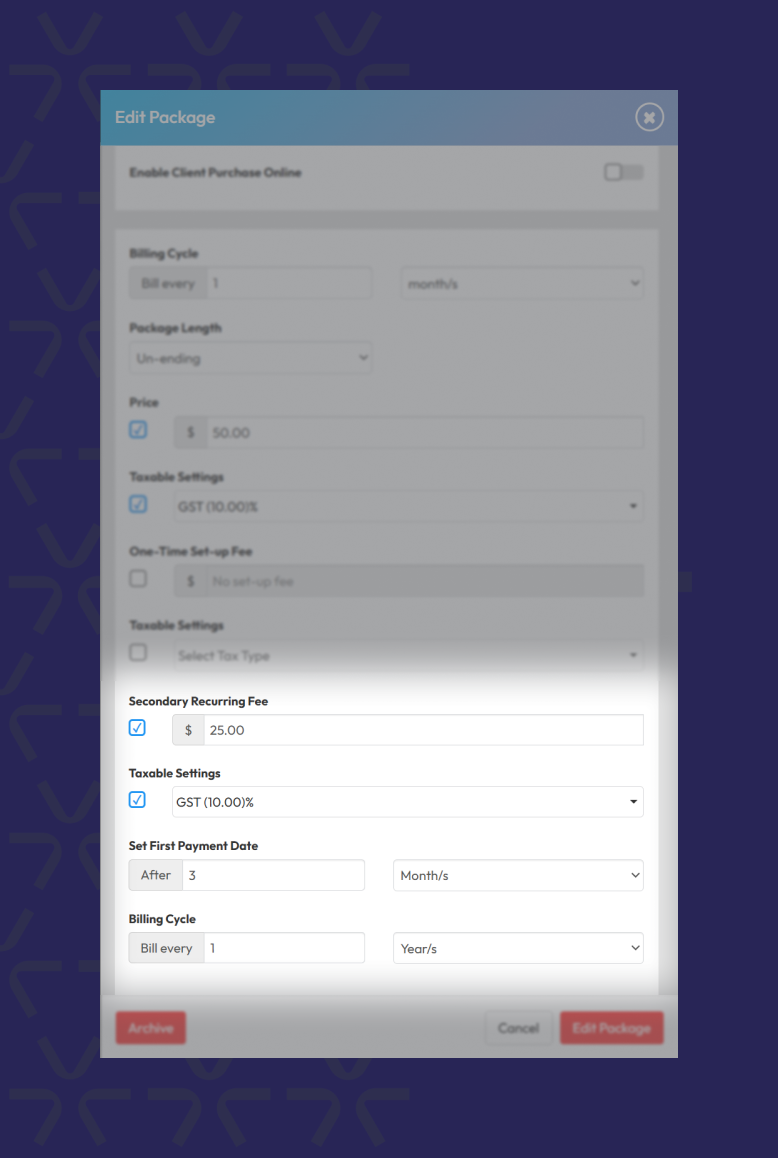
- Scroll to the Secondary Recurring Fee section and select the Checkbox
- Fill in the following:
- Fee Amount
- Tax Settings
- First Billing Date (after X months or on a fixed date)
- Billing Cycle (e.g. every 6 months, every year)
Important Note: This charge applies only to new memberships sold after this setup. It won’t affect current members.
Insert SRF Shortcodes into Membership Agreements
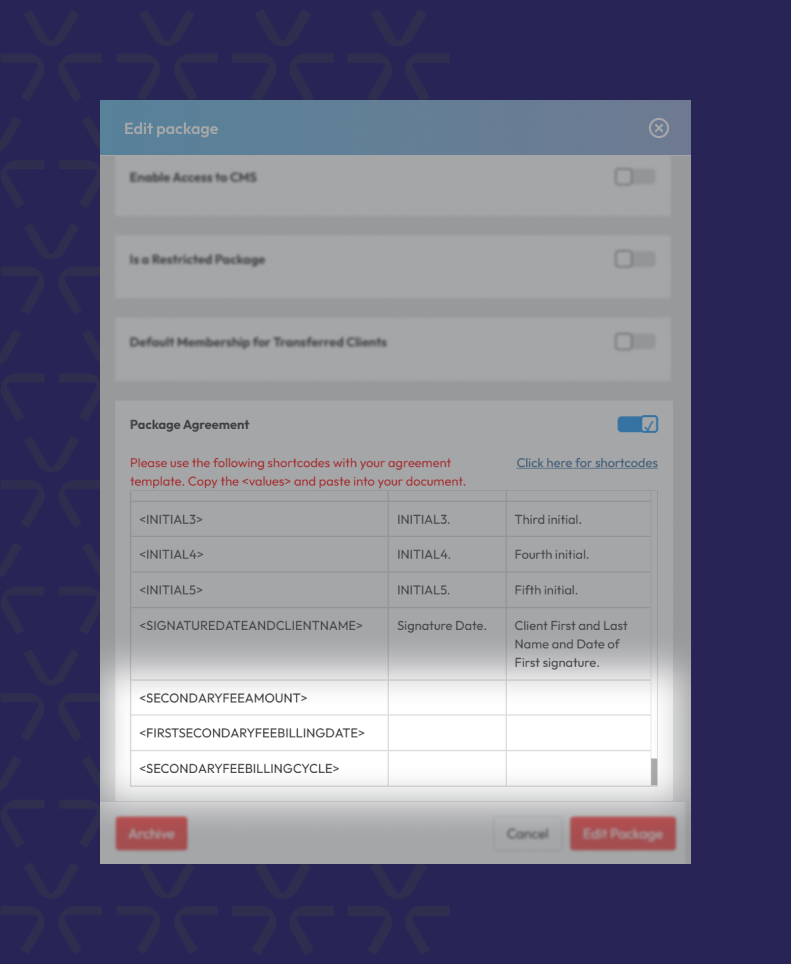
- In the edit window for the Membership scroll down to the Package Agreement
- Copy the below shortcodes and paste them into the relevant sections of the agreement.
- To automatically display SRF Value
- To insert the billing start period or date
- To insert the recurring billing frequency
Example:
“Annual dues of <SECONDARYFEEAMOUNT> will be billed on <FIRSTSECONDARYFEEBILLINGDATE> every <SECONDARYFEEBILLINGCYCLE>.”
This will show to members as:
“Annual dues of $100.00 will be billed after 2 month(s) every 1 year(s).”
Note: Once a member signs, the shortcode values become static and won’t reflect any future SRF changes.
View and track SRFs in the Payment Schedule
- Navigate to Clients and open the profile of a contact that currently has an active membership.
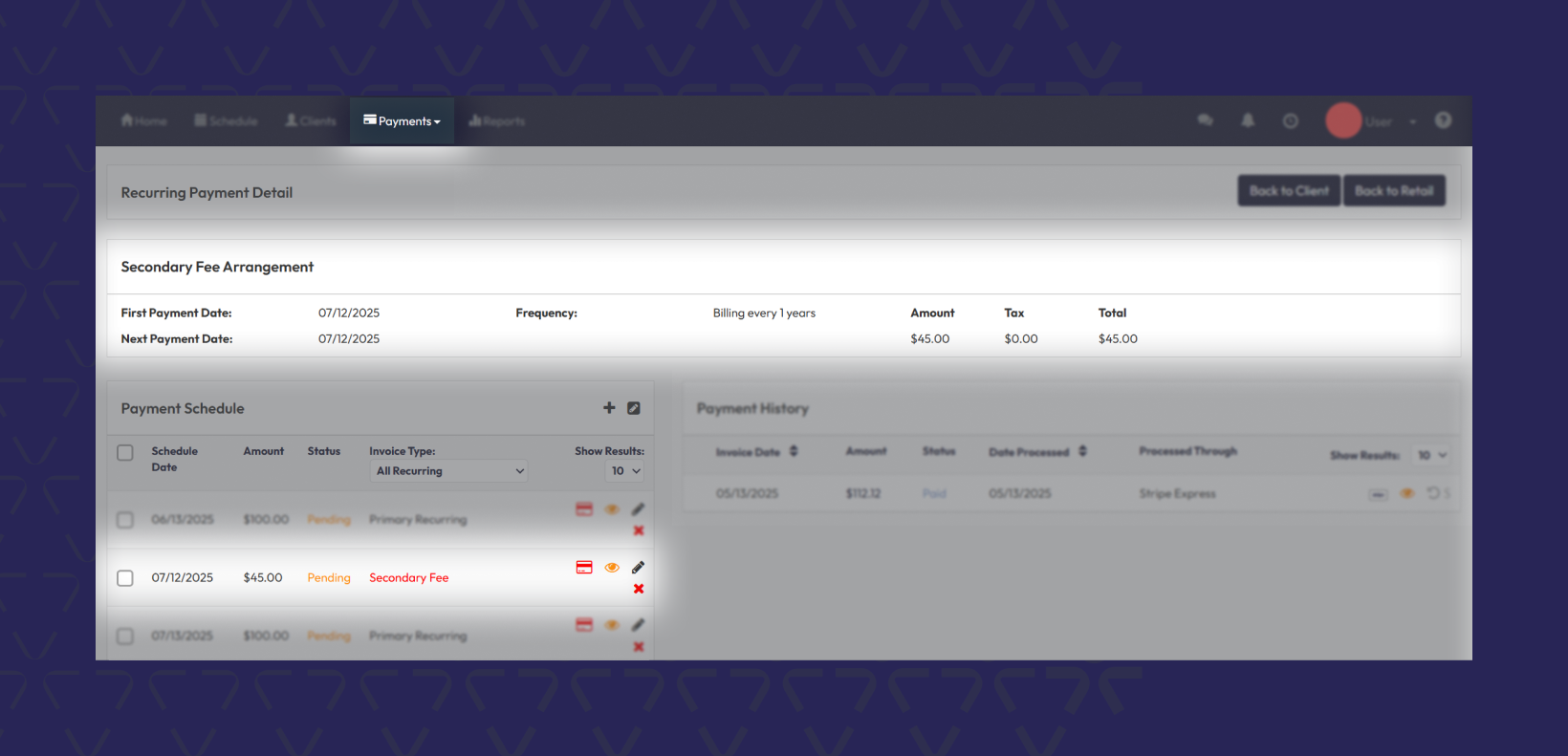
- Click the eye icon alongside the desired membership to open the Recurring Payment Detail Screen.
- In the Payment Schedule look for the red Secondary Fee tag
- Use filters to view Primary, Secondary, or All recurring fee
Manage SRFs during Suspensions or Cancellations
During Membership Suspensions, you can:
• Cancel the SRF (default), or
• Keep it active if you still want to charge during the pause
On Membership Cancellation, SRFs are voided automatically.
Note: If a suspension is reversed before the SRF date, any canceled SRFs are automatically reinstated.
Run reports with SRFs included
Secondary Recurring Fees are reflected across key financial reports.
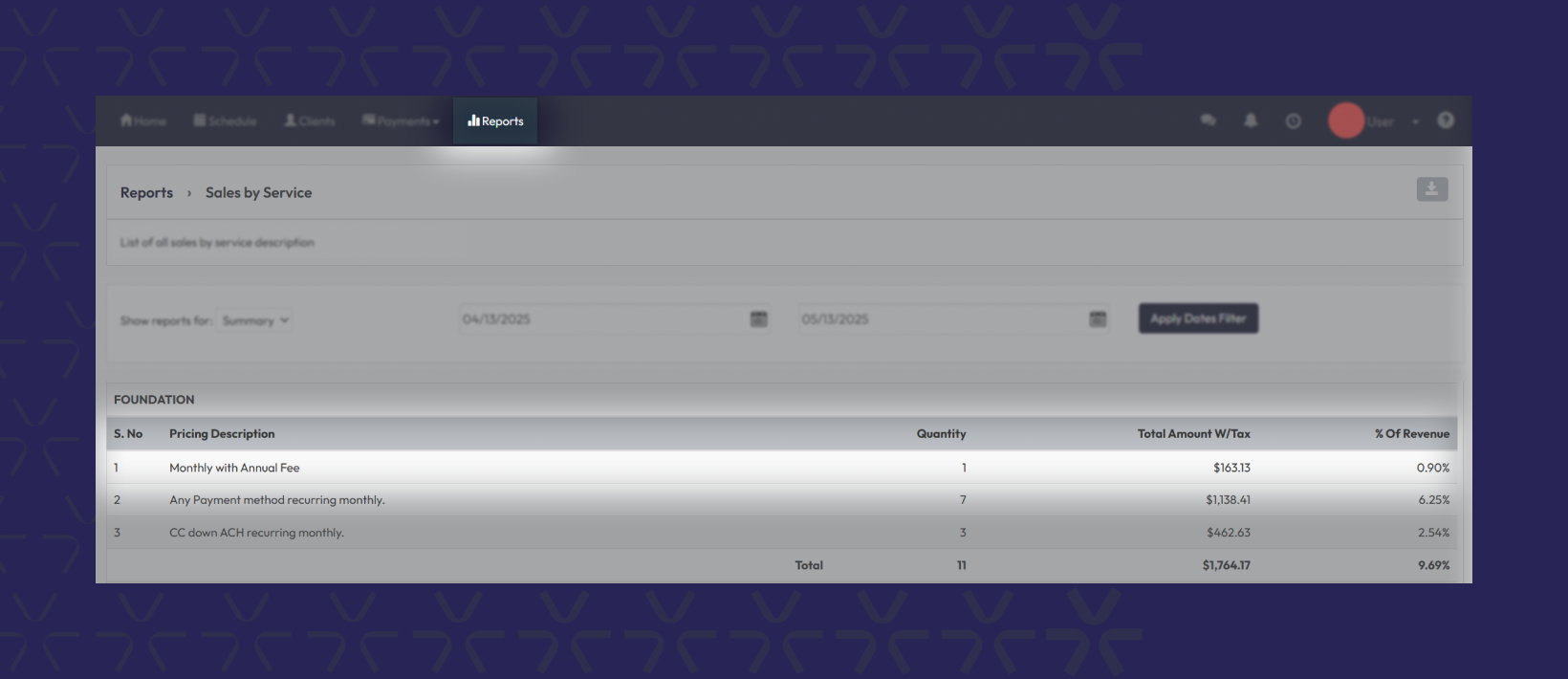
- Sales by Service
- Net Revenue Detail
- Net Revenue Detail + In Processing
- Projected Revenue
These reports show SRFs separately from other charges for cleaner financial reporting.
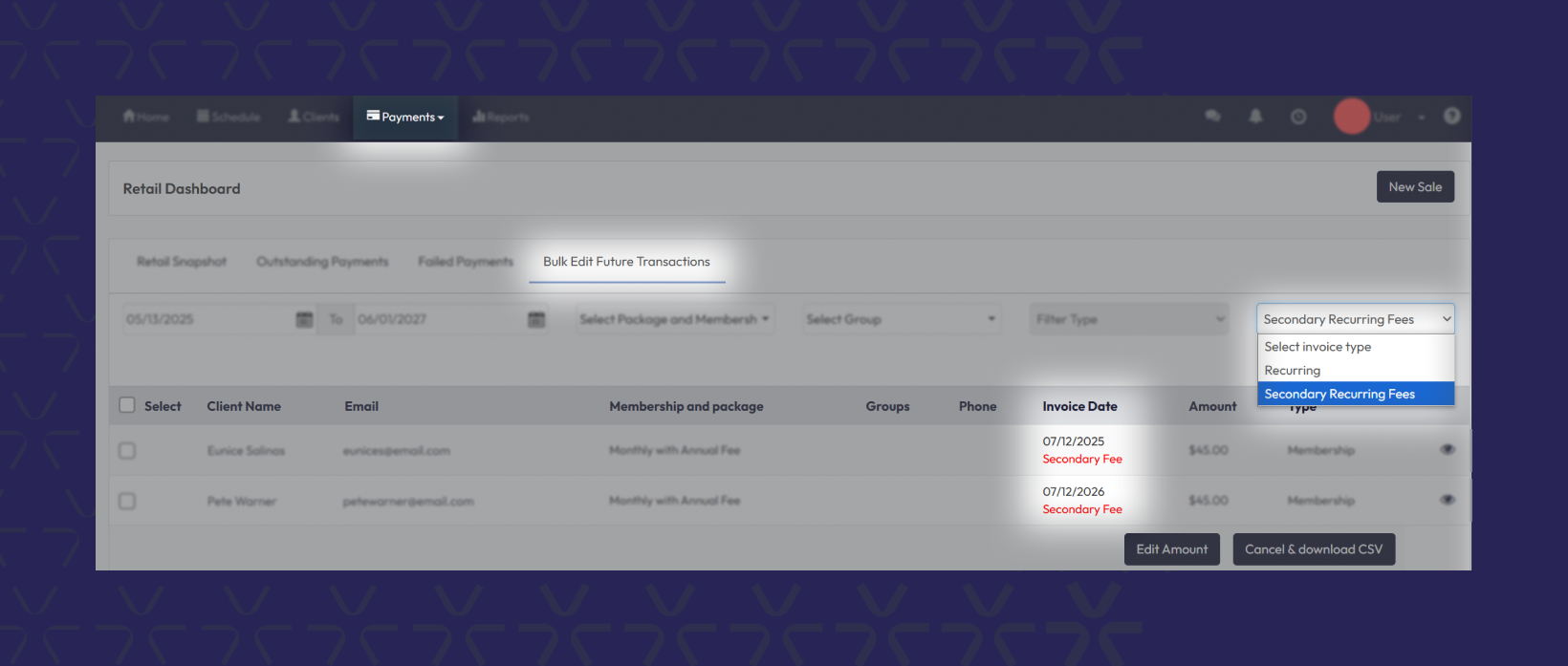
Bulk Edit Secondary Recurring Fees
- Navigate to Retail Dashboard
- Use the new filter: “Select invoice type:" and
- Select either Recurring Invoices or Secondary Recurring Fees
- Click Edit Amount or Cancel
- Export results as a CSV with: Member name & email; old and new SRF amounts and dates.
Troubleshooting / FAQs
Q: What if I change the SRF after someone signs an agreement?
A: It won’t update. The value shown in the agreement stays locked from the moment of signing.
Q: Why don’t I see SRFs on existing memberships?
A: SRFs only apply to new memberships created after you enable the feature.
Still need help?
Reach out to our support team via support@hapana.com