
Overview
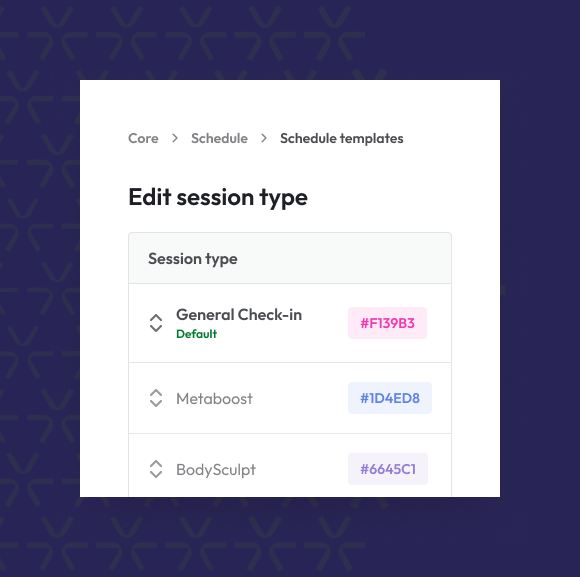
Core auto-creates and protects the “General Check-In” session type when you enable the General Check-In toggle in settings. It’s a simple way to keep your check-in process running smoothly—no setup or maintenance required.
Prerequisites
• Access to Account Settings
• Permission to edit the Business Profile
• Feature toggle for General Check-In available
Step-by-Step Instructions
Enable General Check-In Settings
- Login to Core
- Navigate to Account Settings
- Select Configuration
- Scroll down to the Business Profile section
- Click the Edit Icon in the top right corner
- Ensure Enable General Check-In is set to Yes.
Tip: As soon as it’s enabled, Core will auto-create the “General Check-In” session type if it doesn’t already exist.
What Happens Next
• A session type named “General Check-In” is automatically created
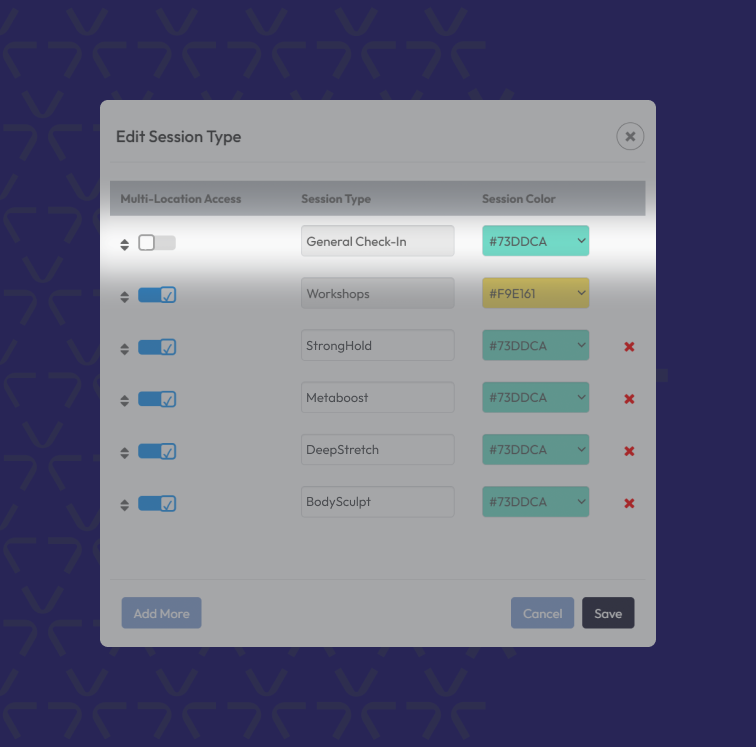
• It’s locked—you can’t rename, edit, or delete it while the toggle is on
• Staff can start checking in clients right away with no setup needed
Tip: This prevents accidental changes and keeps your check-in process consistent.
Need to make changes?
1. Go back to the Business Profile
2. Toggle Enable General Check-In to No
3. The session type is now unlocked—you can edit, rename, or delete it as needed
Troubleshooting / FAQs
Q: I don’t see a “General Check-In” session type—what should I do?
A: Make sure the General Check-In toggle is turned on in Account Settings > Business Profile. The session type will auto-generate.
Q: Can I customize the General Check-In session?
A: Only if you first disable the feature toggle. That unlocks the session type for editing or deletion.
Q: Why can’t I edit or delete the session type?
A: It’s locked while the feature is enabled to avoid check-in disruptions.
Still need help?
Reach out to our support team via support@hapana.com