
Overview
Whether it’s updating subscription settings or turning off marketing messages, this guide walks you through how to view and manage a client's communication preferences in Hapana Core.
Prerequisites
- You must have access to your Hapana Core Account.
- You need permission to view and edit client profiles.
Step 1: Log in to Your Hapana Core Account
- Go to core.hapana.com/login.
- Enter your login credentials and click Login.
Step 2: Go to the Clients Tab
- Click Clients from the top menu bar.

Step 3: Search for the Client
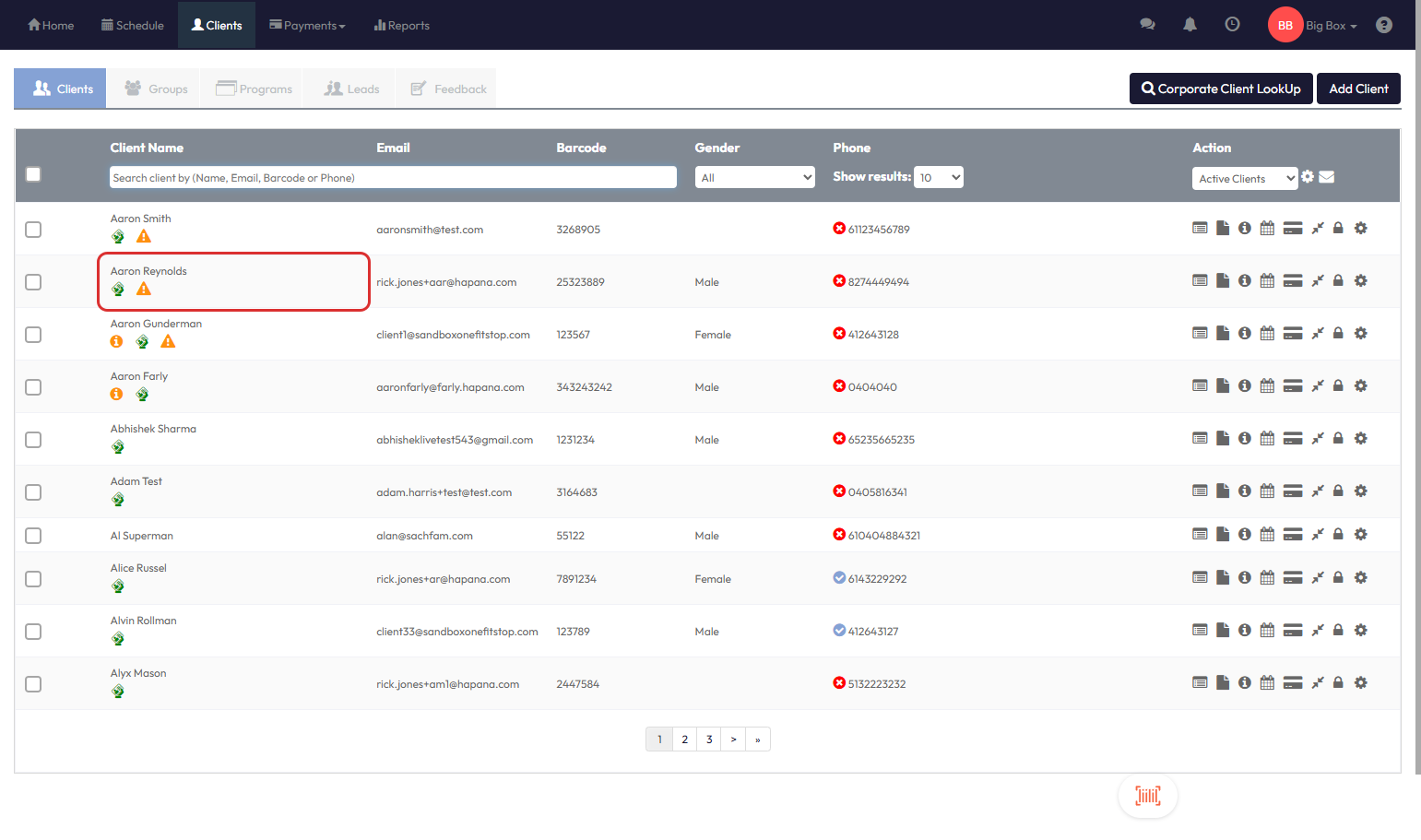
- Use the search bar to find the client by name, email address, barcode, or phone number.
Step 4: Open the Client Profile
- Click on the client’s Name to open their profile details.
Step 5: Access Client Information
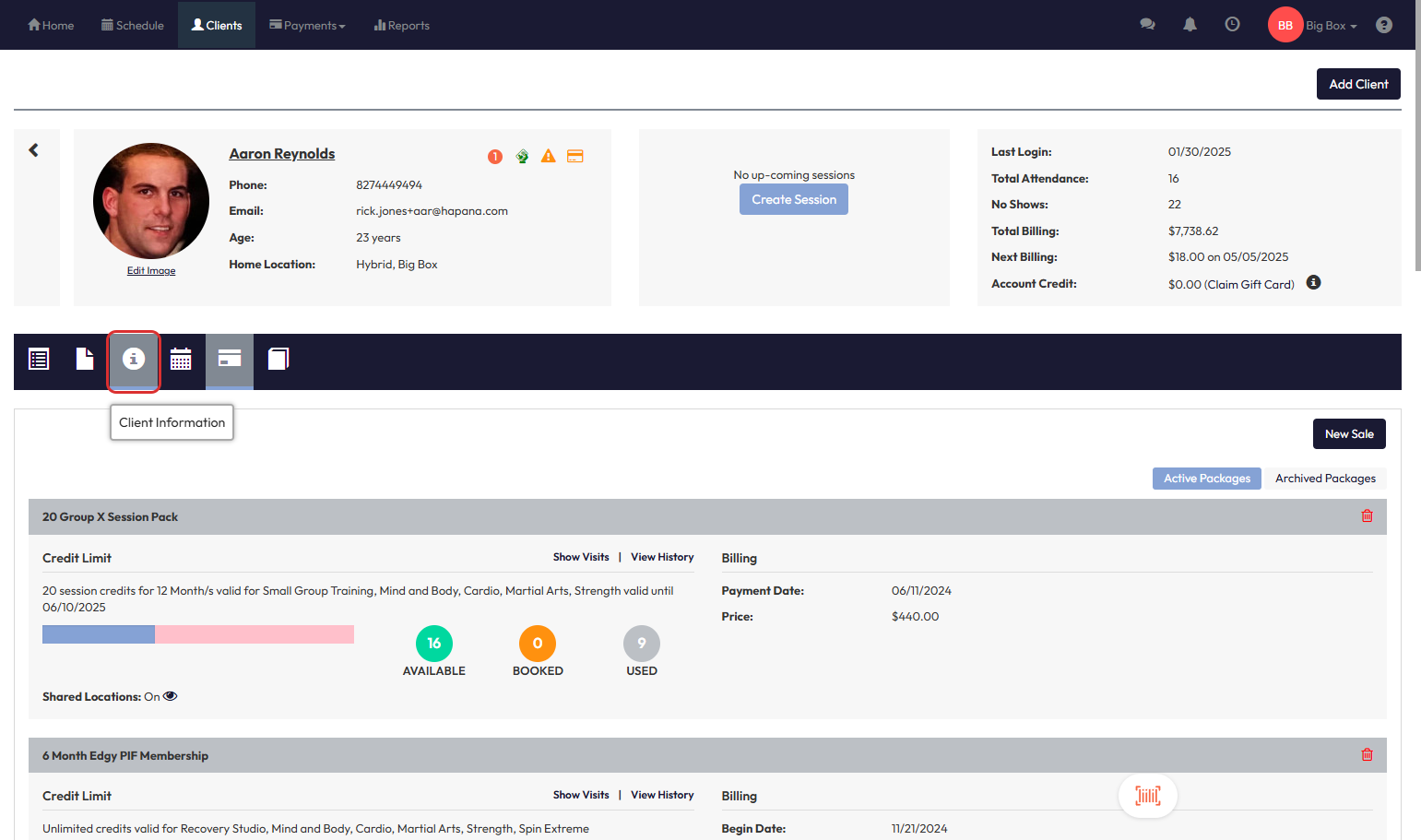
- In the client profile, click the Information icon (clipboard icon) to view client details.
Step 6: Scroll to the Communications Section
- Scroll down the page to find the Communications section.
Step 7: Update Preferences
- Select or unselect the checkboxes for Email or Text communication.
- To completely disable messages, use the Unsubscribe from everything option.
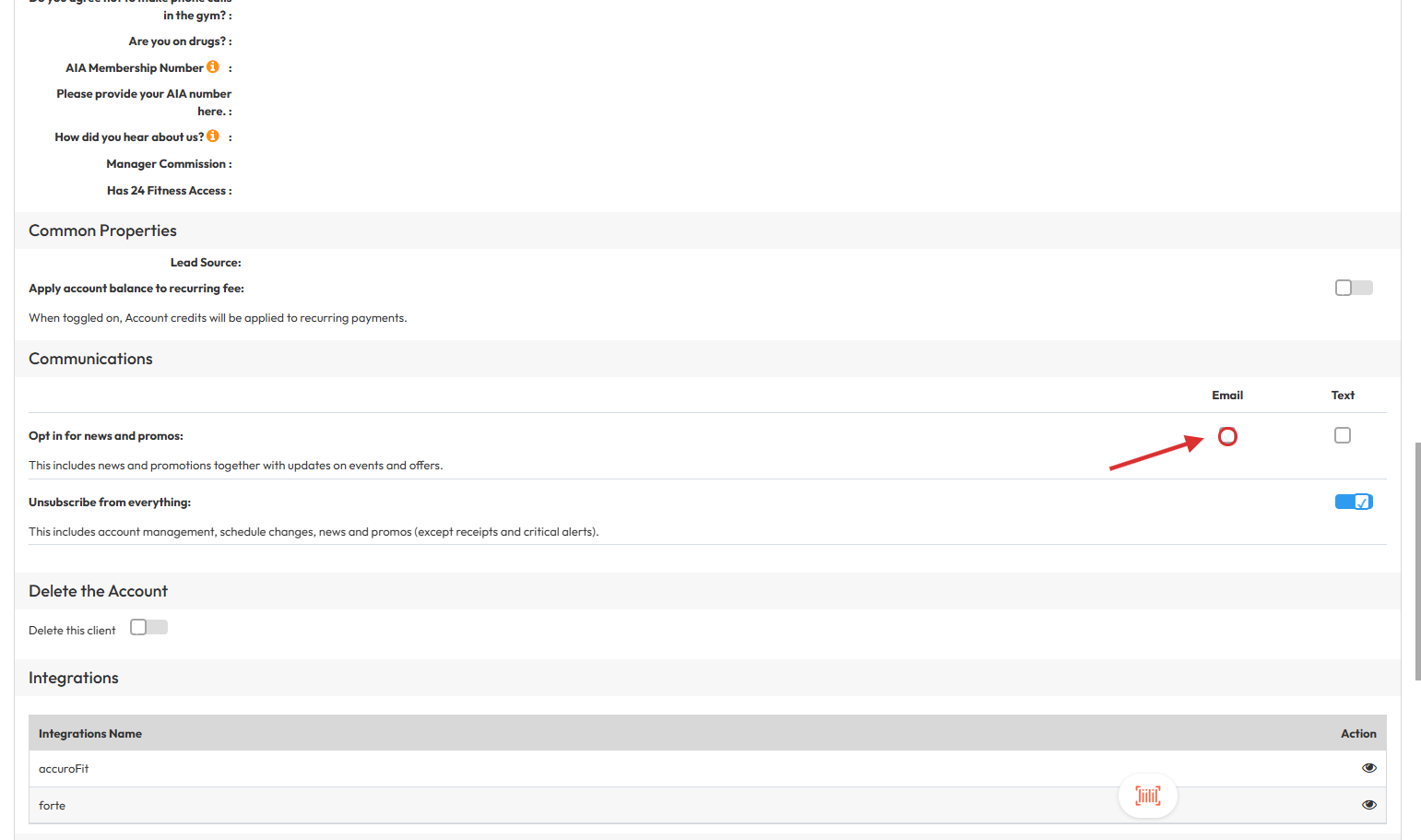
Tip: Preferences are saved automatically. No need to click a Save button.
Expected Outcome
The client’s communication settings will update instantly, ensuring they only receive the messages they want.
Frequently Asked Questions
Q: Will clients be notified when preferences are changed?
No, changes to communication preferences are silent and not communicated to the client.
Q: Can clients update their own preferences?
Yes, clients can also manage their preferences via their online profile or Mobile App if enabled.
Q: What does “Unsubscribe from everything” include?
It blocks all communications except for receipts and urgent alerts like critical account info.
Need help? Reach out to our support team via support@hapana.com.