
Overview
Keeping client profiles up to date with profile images is easy with Hapana Core. You can quickly take and upload a profile photo directly from your webcam without needing to upload a file. This is especially useful for streamlining front desk onboarding and improving client identification across systems.
Prerequisites
- Access to Core
- Device with a functional webcam
- Client record must already exist in the system
Tip: Make sure your browser allows Hapana Core to access your webcam when prompted.
Step-by-Step Instructions
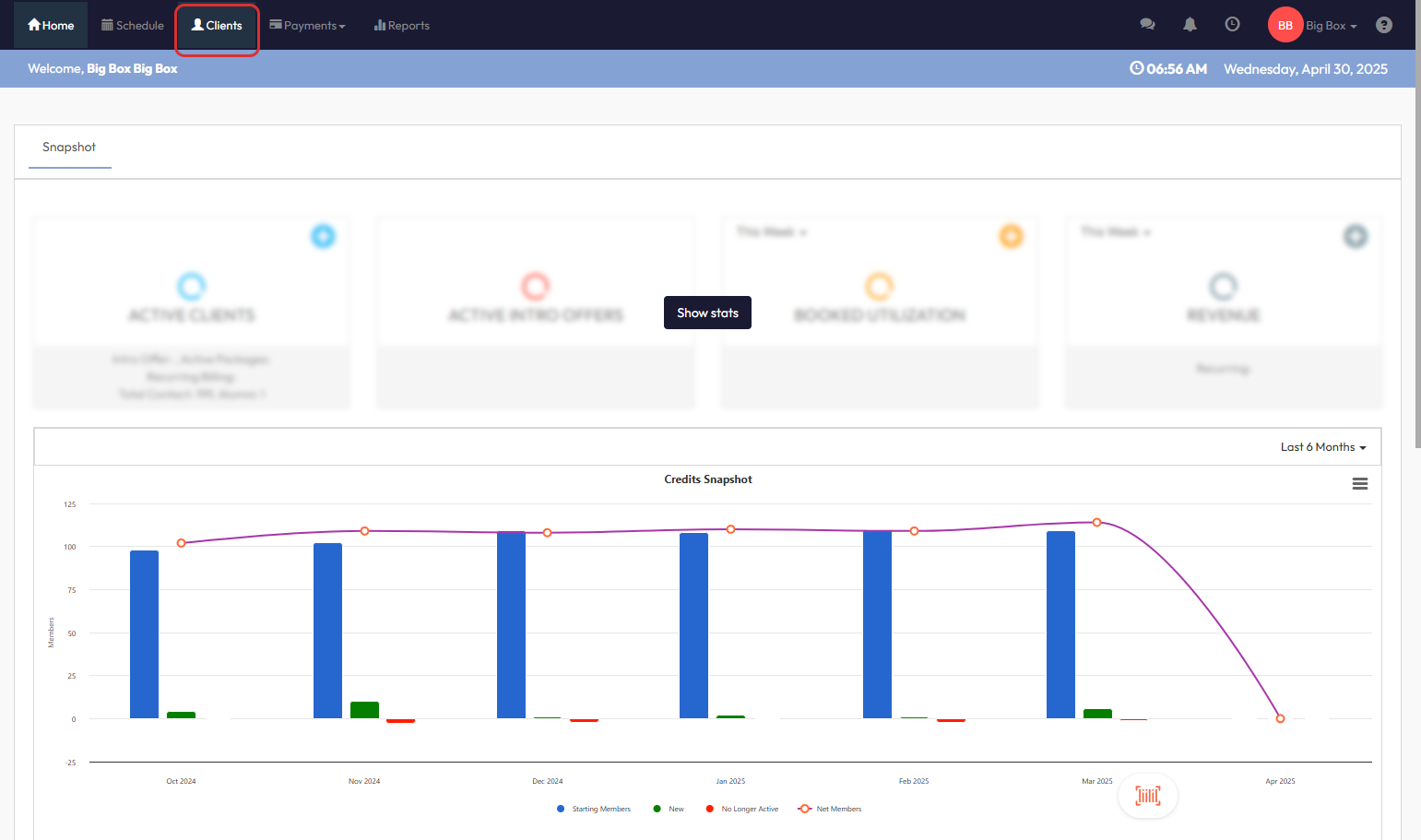
Step 1: Navigate to the Clients tab
From the dashboard, click on the Clients tab to view your client list.
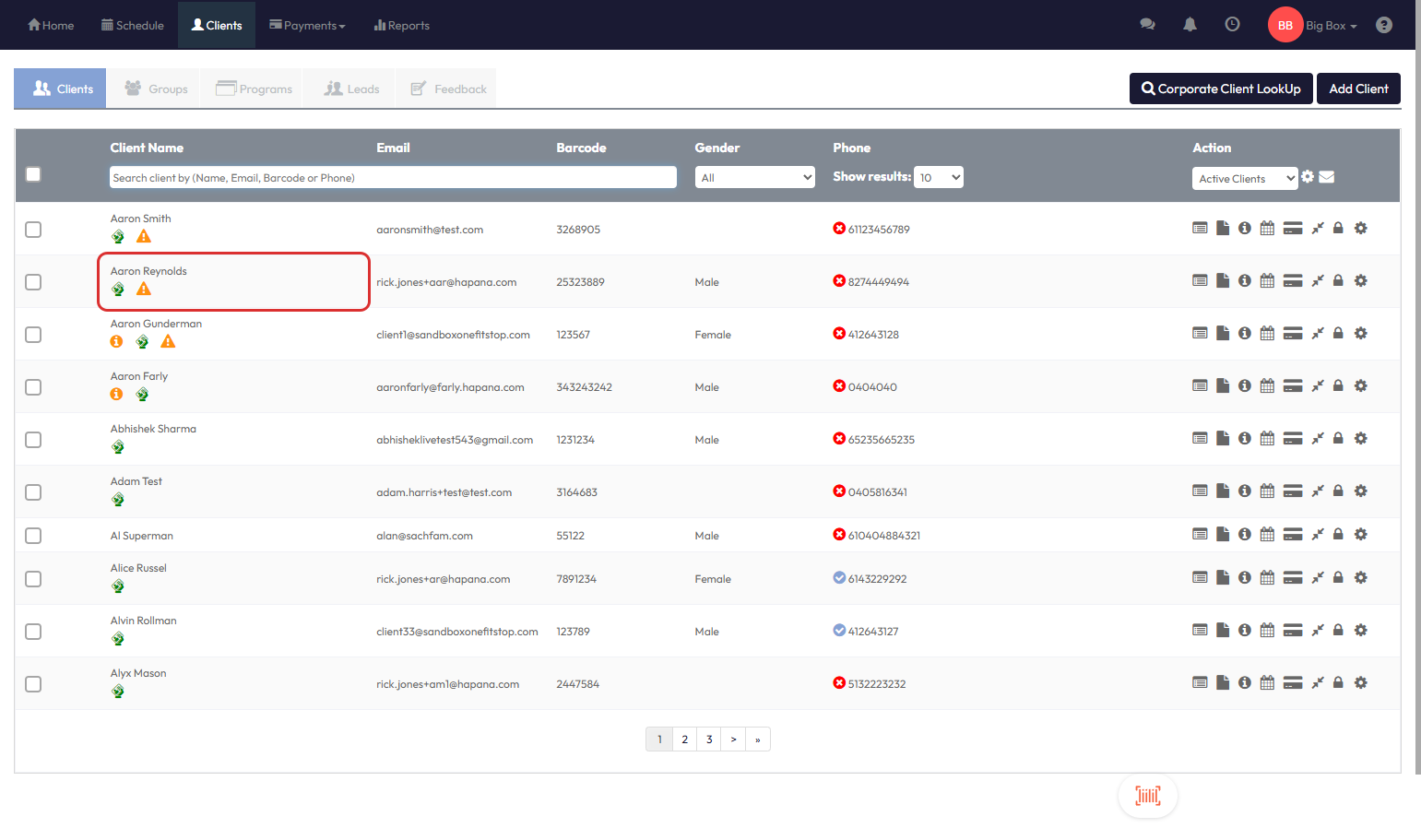
Step 2: Search and select the client
Use the search bar to find the desired client by name, phone, or email, then click their name to open the profile.
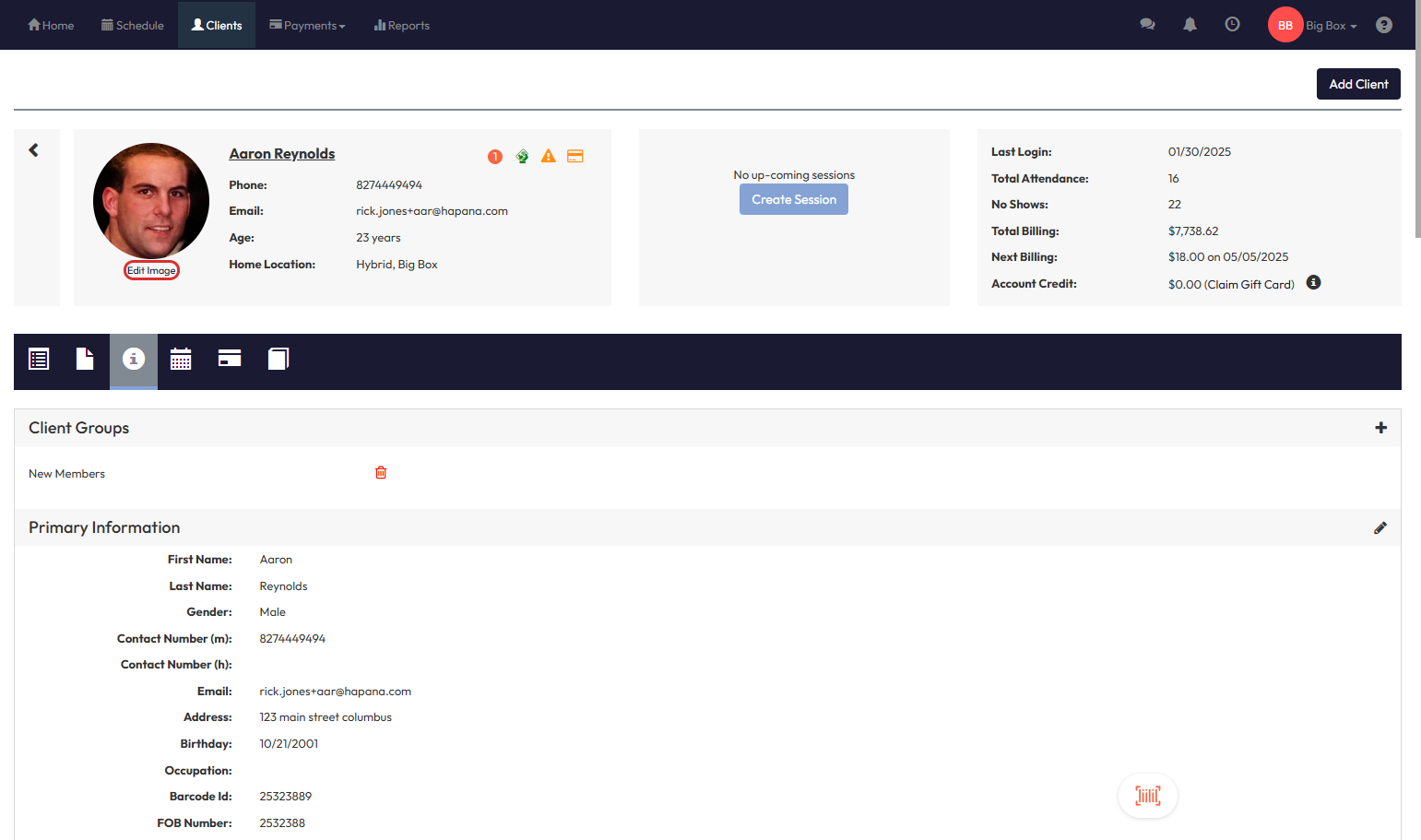
Step 3: Click ‘Edit Image’
On the client profile page, locate the profile image area and click Edit Image.
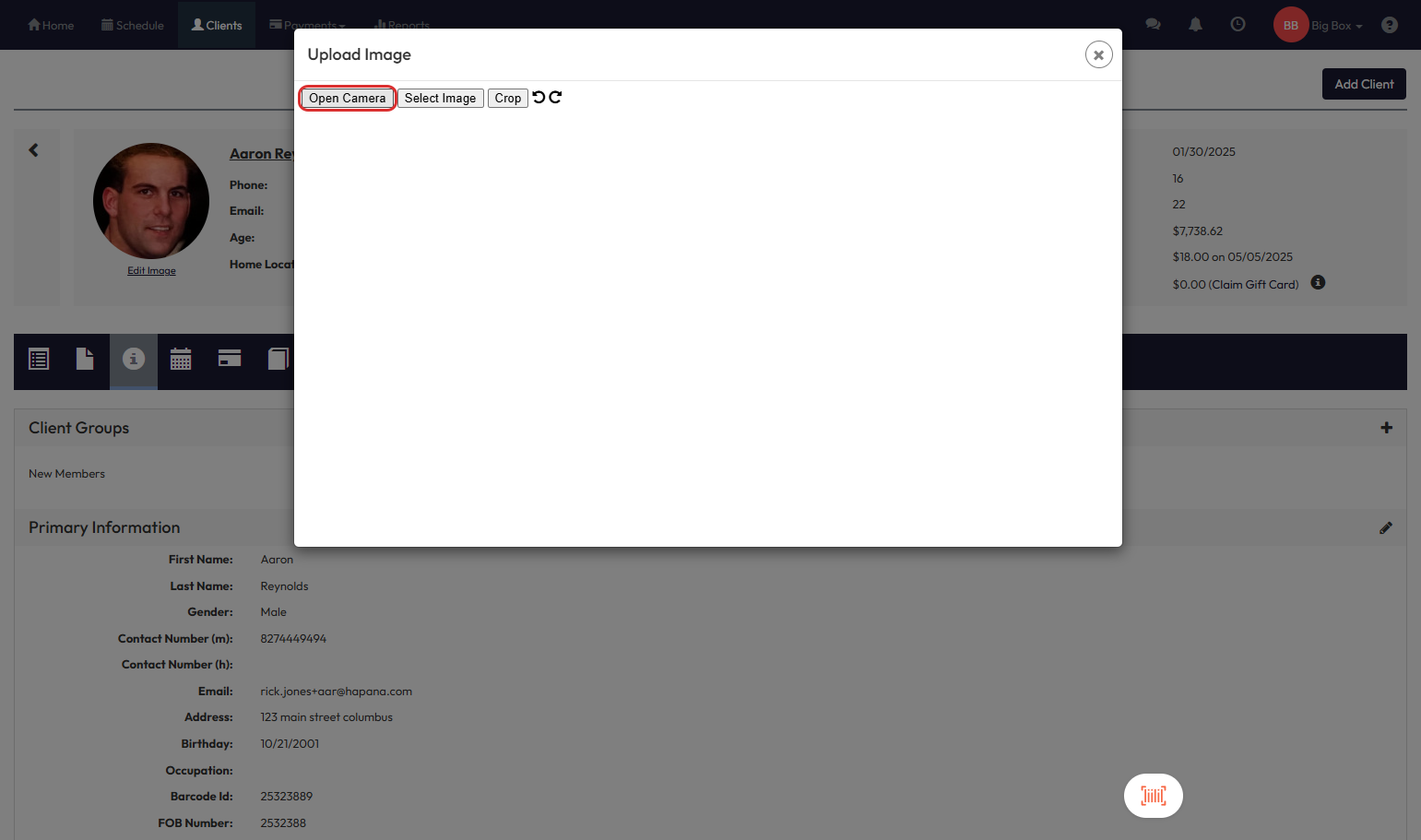
Step 4: Select the Open Camera option
In the pop-up, choose the Open Camera button to activate the webcam.
Step 5: Take the photo
Click the Take Snap button to capture the client's photo using your webcam.
Tip: Make sure the client is centered and well-lit before taking the snapshot.
Step 6: Click Close to save
Once the photo has been taken, click the Close button to confirm and return to the client profile.
Expected Outcome
The client’s new photo will be saved and displayed in their profile, synced across reports, check-ins, and other areas where the client image appears.
FAQs
Q: Can I retake the photo if it doesn’t look right?
Yes! Simply click Camera again and take another snap before clicking Close.
Q: Will the image be available across all locations?
Yes. Once saved, the image is synced across the entire Hapana Core system.
Q: Do I need special hardware?
No. Any standard webcam-enabled device will work.
Need help? Reach out to our support team via support@hapana.com