
Creating professional and symmetric emails can be challenging and time-consuming. This guide will show you how to save design elements and layouts for reuse, helping you maintain symmetry and consistency in your emails.
By following these tips, you can streamline your email creation process and ensure your emails always look polished and well-structured. Let's dive in!
In this Article, find the guide to:
- Save elements / sections or layouts
- Rename these sections for better administration
- Search the items for quick access
Steps to save an element or layout:
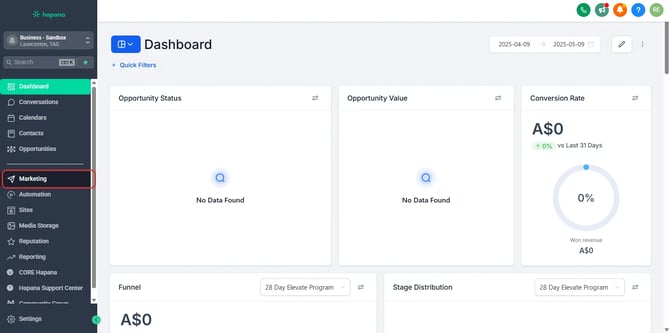
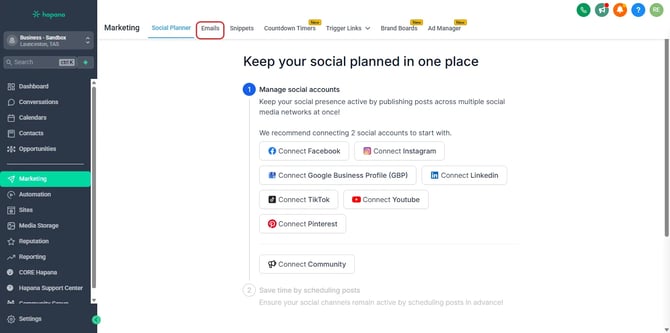
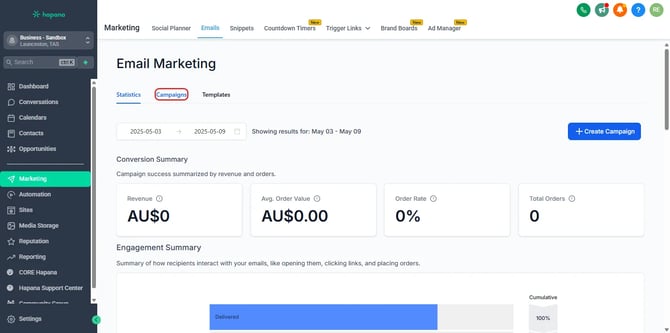
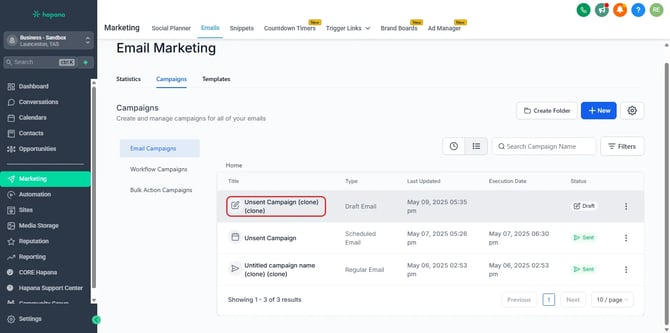
Step 1 | Navigate to Marketing > Email Marketing and open any Campaign or Template
Step 3 | Create the Layout or Element you wish to save & hover over the element or layout and click on the "Save" icon
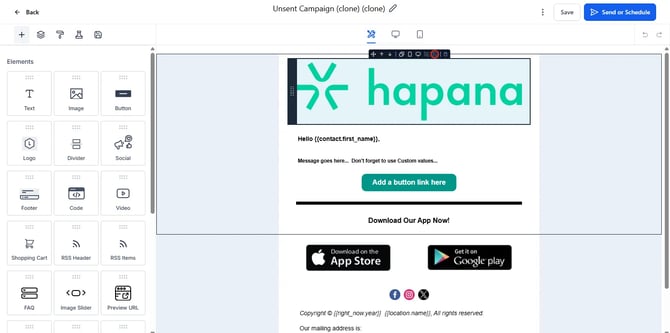
Step 4 | Access the element under the Saved Items section at right-hand top
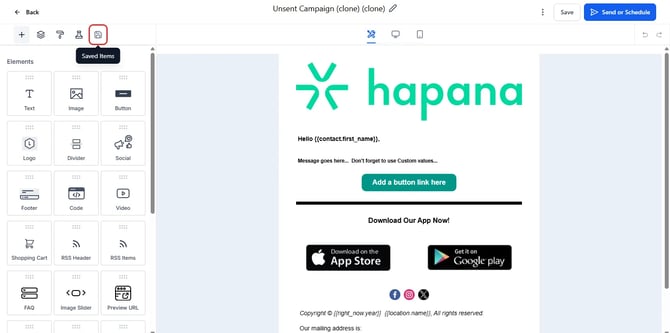
Please Note: This will be stored globally and available in builders for all existing or new email templates/campaigns for quick access for that location.
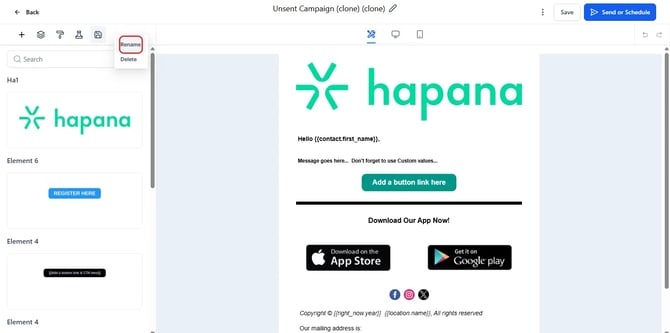
Step 5 | User can now also rename the elements for quick search by clicking on three dots and selecting "Rename"
Click the Rename button to edit the text to desired name.
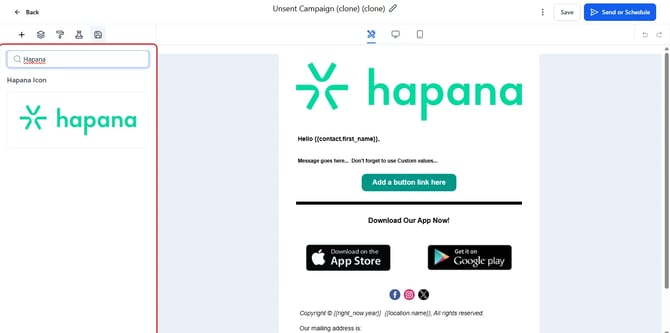
Step 6 | Use the search bar to quickly access the required item
Still need help?
Reach out to our support team via support@hapana.com