
Step 1: Open your email in Email Builder
-
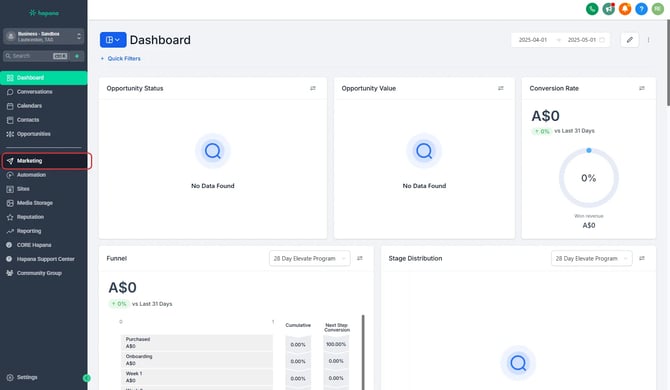
Click Marketing in the left-hand menu
-
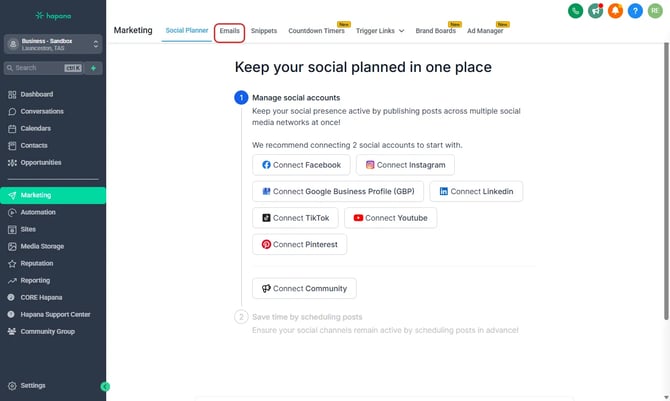
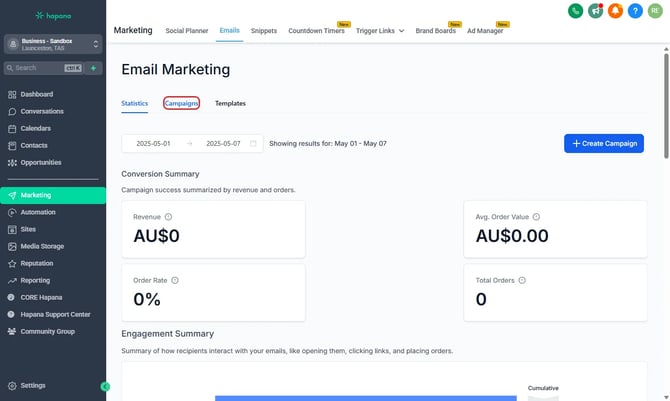
Go to Emails, then either:
-
Create a new Email Template Email Campaign, or
-
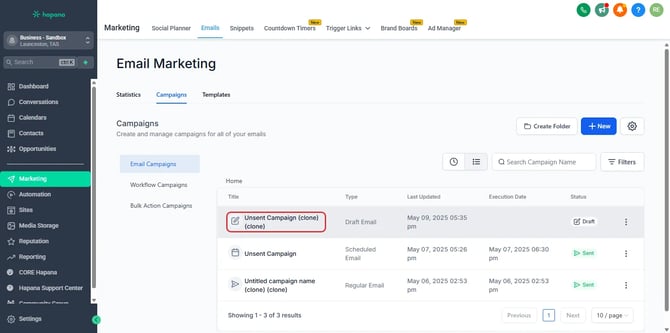
Edit an existing one from your Drafts
-
-
Click either New or the existing email to Edit the email using the Email Builder
Step 2: Add a Google Font
-
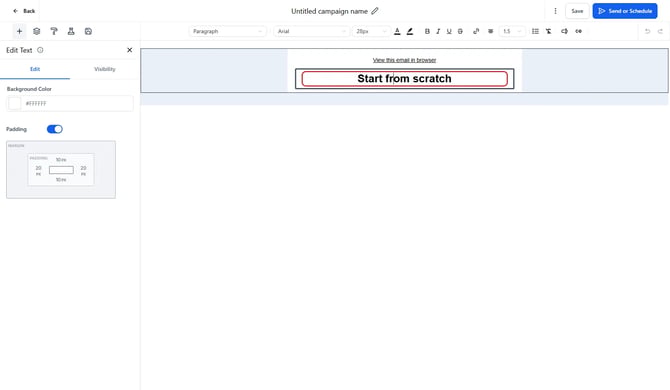
Select a text element within your design
-
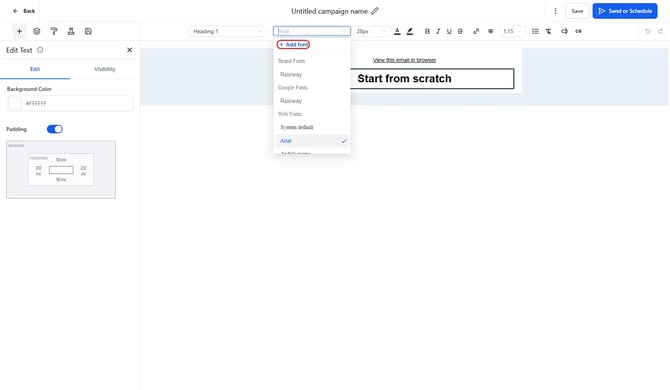
Click +Add Font on the font selector
-
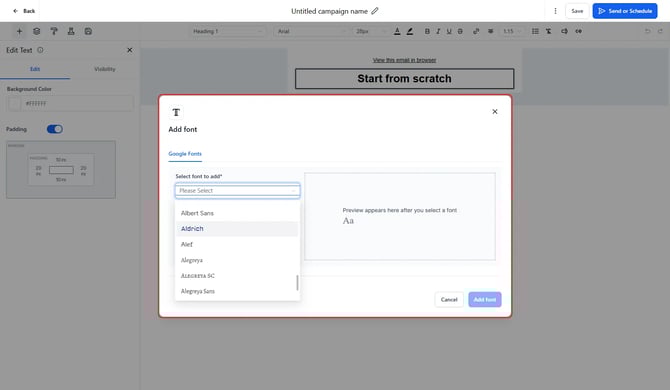
In the pop out, select the desired font from the dropdown
-
Click Add font to save it.
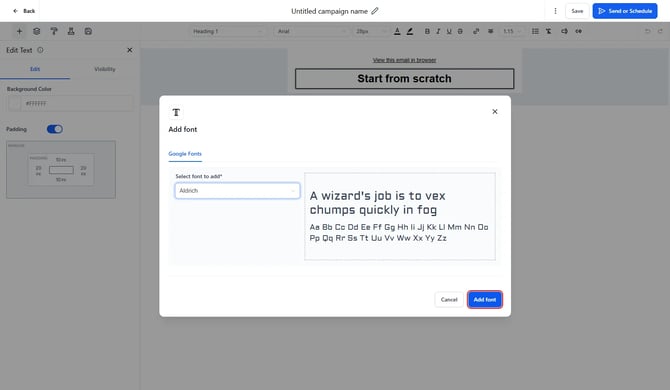
Tip: The font will now be available in the font selector for every builder.
Step 3: Removing custom fonts from settings
-
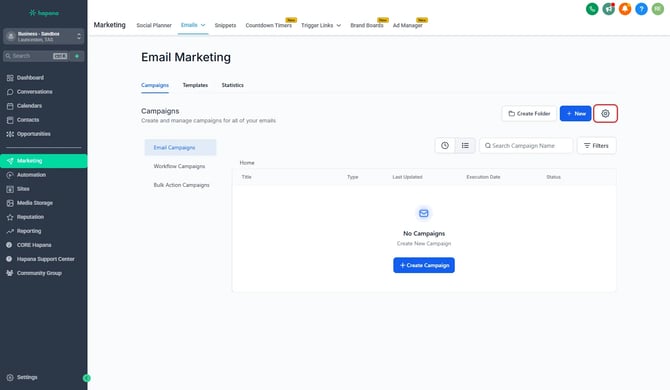
Navigate to Settings in Email Marketing by clicking the cog
-
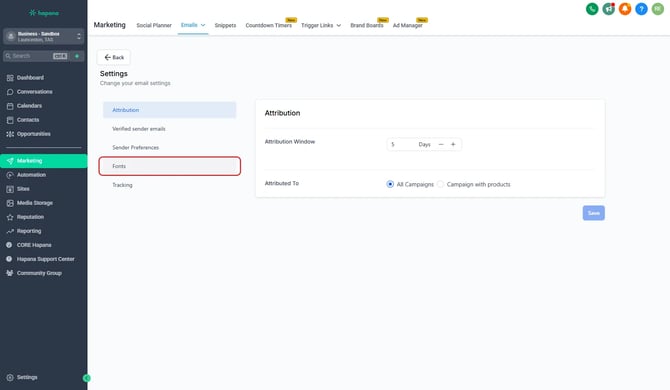
Select Fonts
-
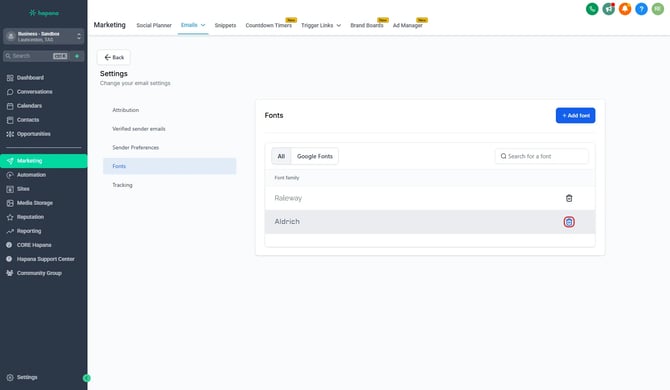
Click the bin the the right of the font
-
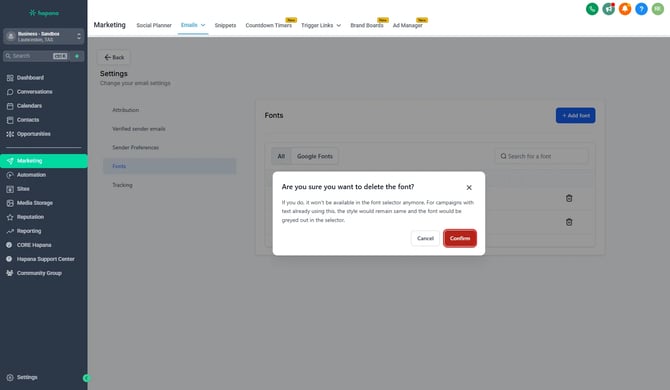
Click Confirm
Expected Outcome
Your selected Google Font will be available in the font selector within the Email Builder, allowing you to apply it to your email templates and campaigns.
Troubleshooting / FAQs
Q: Why doesn’t my Google Font show in the preview?
A: Some Email Service Providers (ESPs) may not render the font if it's not supported. You can sometimes overcome this by manually modifying CSS but ESP permissions always have the final say.
Q: Can I use multiple fonts in one email?
A: Yes, you can add multiple fonts and apply them to different text elements within your email.
Q: Do I need coding experience?
A: Not at all! The Email Builder's font selector allows you to add and apply fonts without any coding.
Still need help?
Reach out to our support team via support@hapana.com