
This guide shows you how to add internal comments and tag teammates inside the Conversations window in a contact in GROW. Internal comments let your team collaborate behind the scenes without sending a message to the client. Mentioning teammates ensures they get notified when you need their input.
Prerequisites
Before you begin:
- You must have access to Contacts tab in GROW
- Your team members must be added as users in the same location
- You must be working inside an active conversation thread
Step 1: Open a Contact
-
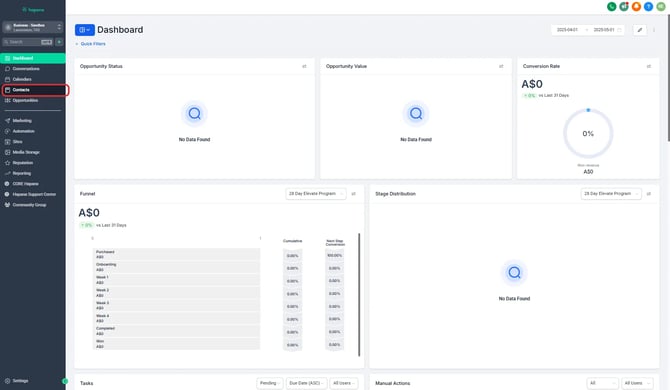
Click Contacts from the left-hand menu.
-
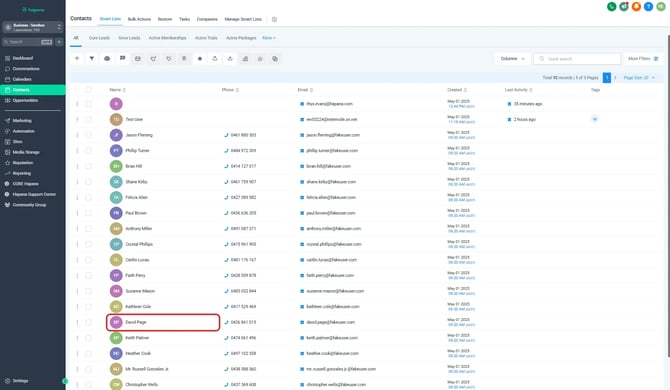
Open a Contact
Step 2: Click the internal comment icon
-
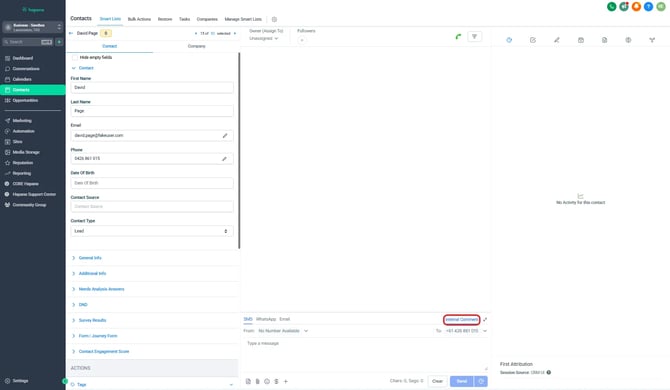
Above the message reply box, click “Internal Comment” to switch into internal comment mode.
-
The background of the input field will change to yellow, indicating you're leaving an internal comment instead of a message to the contact.
Tip: Internal comments are only visible to your team — they will not be sent to the client.
Step 3: Tag a teammate using @mention
-
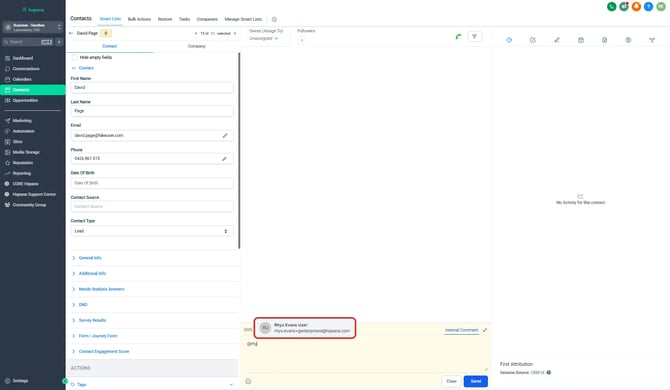
In the comment box, type the @ symbol, followed by the team member’s name.
-
Select their name from the dropdown that appears.
-
Finish your message and click Send.
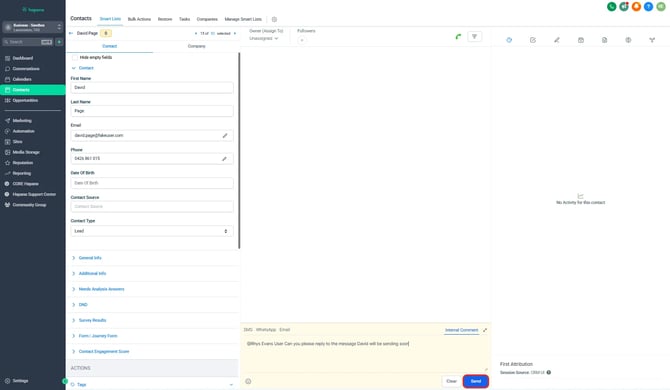
This sends them a notification, so they know to jump into the conversation.
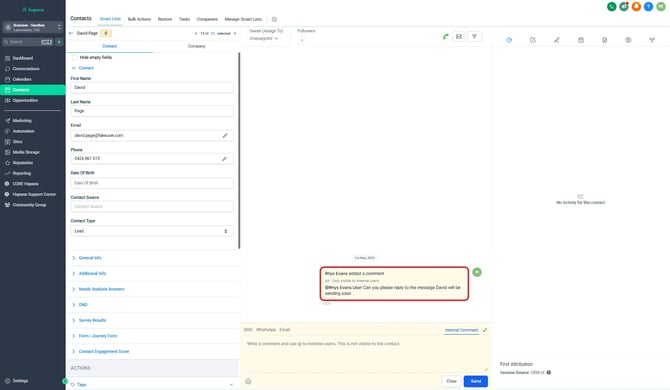
Tip: Use internal comments to assign follow-ups, flag tricky questions, or add client context for your team.
Expected outcome
Your internal note will appear in the thread with a yellow background, clearly marked as a comment. If you tagged a teammate, they’ll get a notification and can reply right inside the conversation.
Troubleshooting / FAQs
Q: Where can the staff member see the internal comment if mentioned?
A: By clicking on the Bell button on the upper right hand corner of the window.
Q: Can clients see internal comments?
A: No. Internal comments are only visible to logged-in users on your team.
Q: Can I edit or delete an internal comment after posting?
A: Not at this time. Once posted, internal comments can’t be edited or deleted.
Q: Why can’t I find a teammate when typing @?
A: Make sure they’re a user in the same location and have access to the Conversations tab.
Still need help?
Reach out to our support team via support@hapana.com