
This guide shows you how to create and use snippets inside the Conversations tab in GROW. Snippets are reusable message templates that help your team respond quickly and consistently — perfect for answering common questions, sending follow-up messages, or confirming appointments.
Prerequisites
Before you begin:
- You must have access to the Conversations or Contacts tab in GROW
- Snippet creation is available to all users
- You should know the typical replies or messages your team sends often
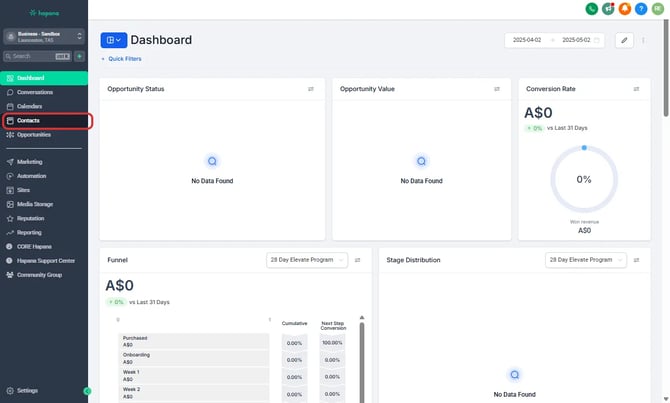
Step 1: Open the Conversations tab
-
From the left-hand menu, click Contacts or Conversations.
-
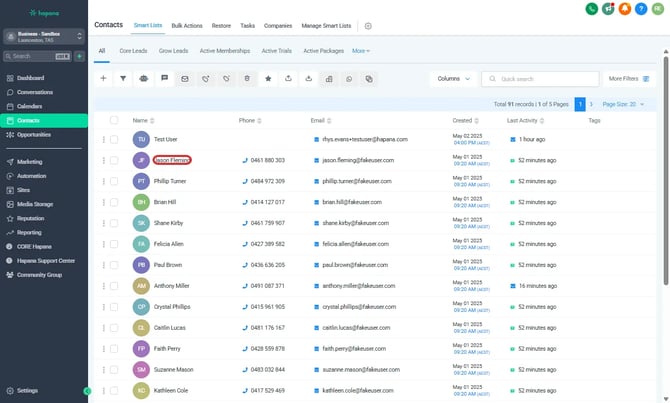
Select Contact you want to start or continue conversation with.
Step 2: Insert a snippet into your reply
-
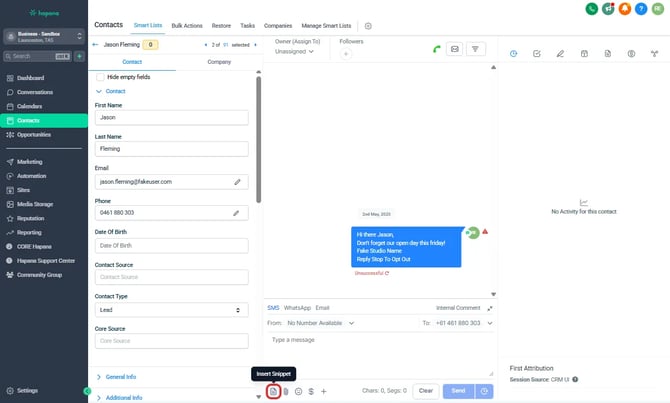
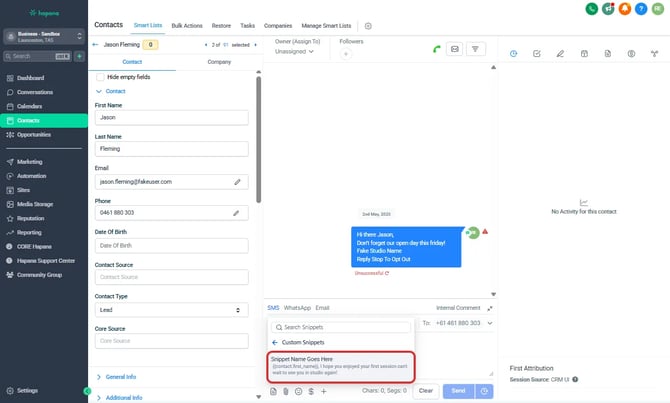
Below the message field, click the page with a folded corner icon to trigger the snippets menu.
-
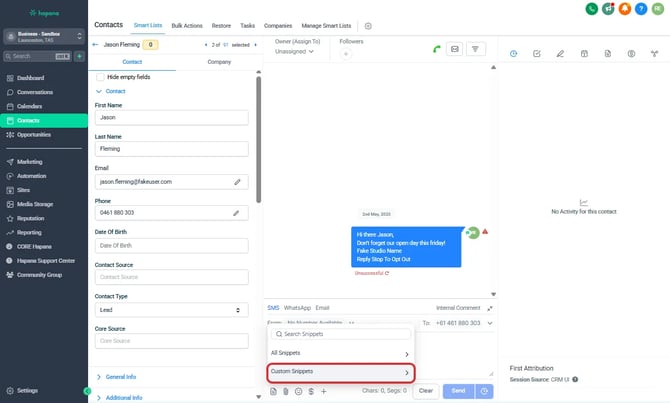
A list of available snippets will appear by folder.
-
Click on the snippet you want to use, or continue typing to search by name.
-
Once selected, the snippet text will populate into the message box.
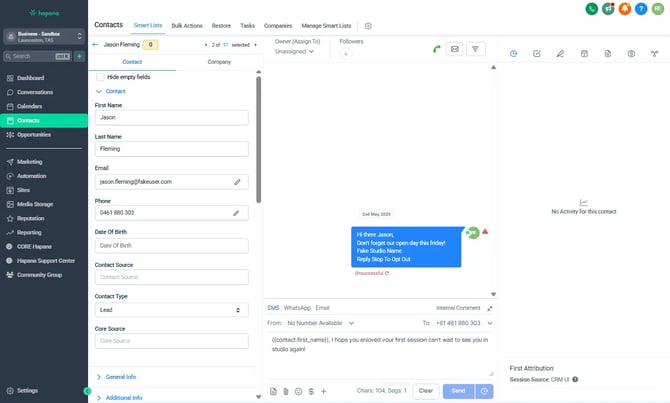
Tip: You can edit the text after inserting it, in case you want to customize your message before sending.
Step 3: Create or manage snippets
- To create a new snippet, open the marketing section from the sidebar.
- Select Snippets from the top menu.
- Click + Add Snippet to create one a new SMS or Email snippet.
- Name your snippet and fill out the text box with the snippet content.
- Once saved click the three dots to the right of the snippet and add it to the correct folder.
- Click Save to finish.
Tip: Keep snippet titles short and clear, like “class-confirmation” or “pricing-info” so they’re easy to find when typing.
Expected outcome
You’ll be able to quickly pull in pre-written replies while chatting with leads or clients — helping your team save time, reduce errors, and stay consistent across conversations.
Troubleshooting / FAQs
Q: Can I use snippets in SMS and email replies?
A: Yes. Snippets can be used across all message types in the Conversations tab or in the contacts’ conversation screen.
Q: Can all team members access the same snippets?
A: Yes. Snippets are shared across the entire location.
Q: Can I edit or delete a snippet later?
A: Yes. Go to Marketing > Snippets to manage existing entries.
Still need help?
Reach out to our support team via support@hapana.com