
Overview
This guide shows you how to send a personalized text message to a group of contacts directly from the Contacts section in GROW. Bulk SMS is great for things like class reminders, promo pushes, or check-ins — and using custom Values, each message can still feel 1:1.
Prerequisites
Make sure you have:
- Access to the Contacts tab in GROW
- An active SMS number connected to your location
- Enough SMS credits available for the send
- Mobile numbers on file for your selected contacts
- Contacts opted in for SMS (to stay compliant)
Step 1: Go to your Contacts list
-
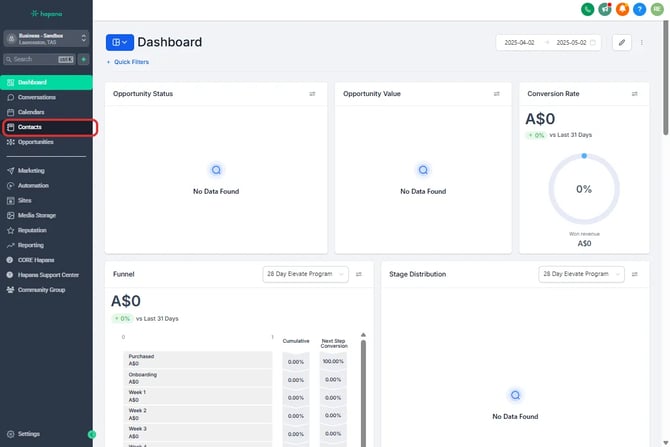
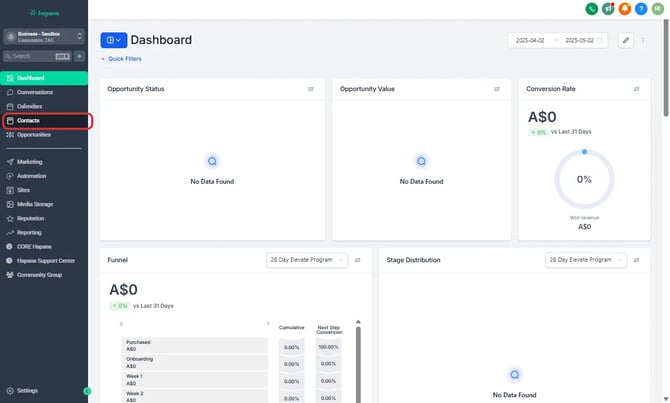
In GROW, click Contacts from the left-hand menu.
-
You’ll land on your full contact list.
Tip: Use a filter or Smart List to narrow down your contacts.
Step 2: Select your contacts
-
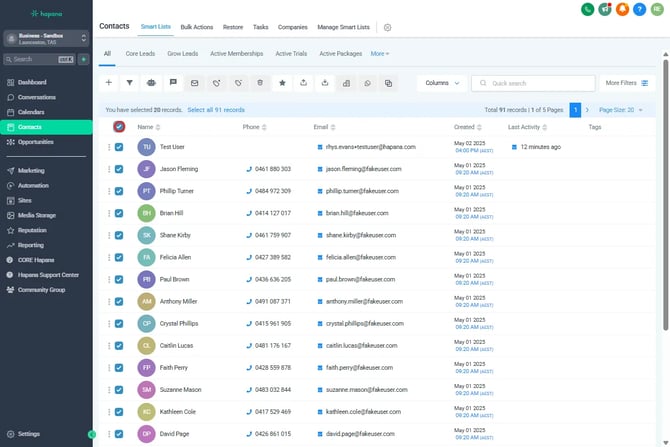
Use the checkboxes on the left to select individual contacts or to select everyone on the page, click the top checkbox.
-
If your filtered list includes more contacts than shown on one page, click the blue “Select all [X] records” link that appears.
Tip: Be sure to click that link to include all records — not just the 20 shown on the page.
Step 3: Start the bulk SMS
-
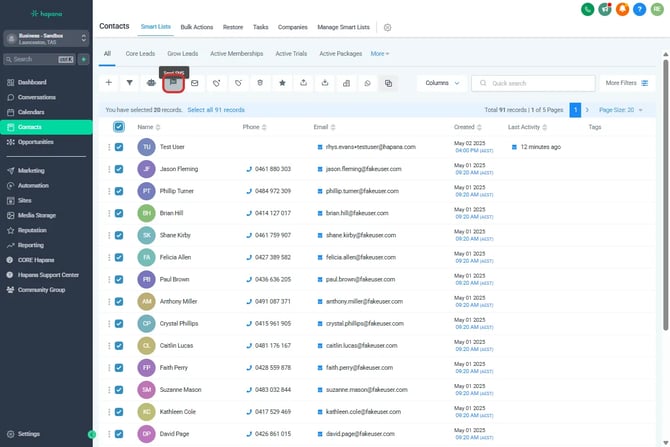
With contacts selected, click the Send SMS button at the top of the list.
-
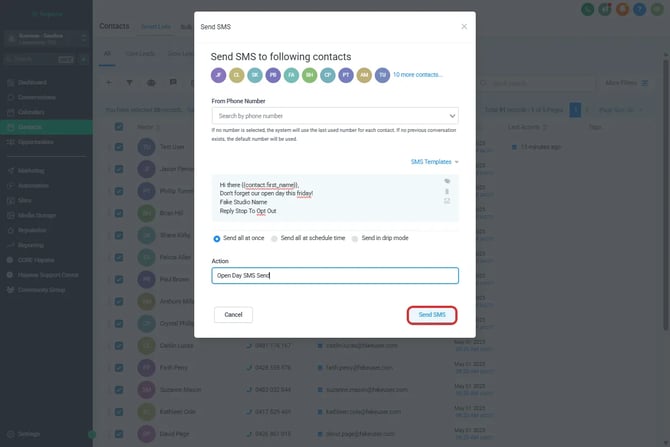
A message editor window will open.
Step 4: Personalize and send your message
-
Write your message in the editor. You can use custom values like
to personalize each message.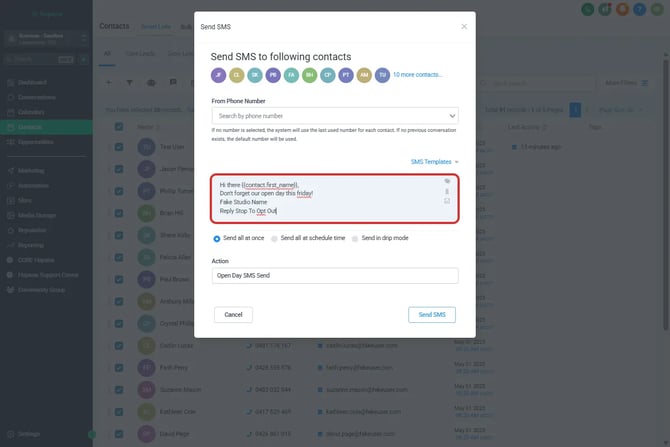
-
Click Send SMS to deliver the message immediately to all selected contacts.
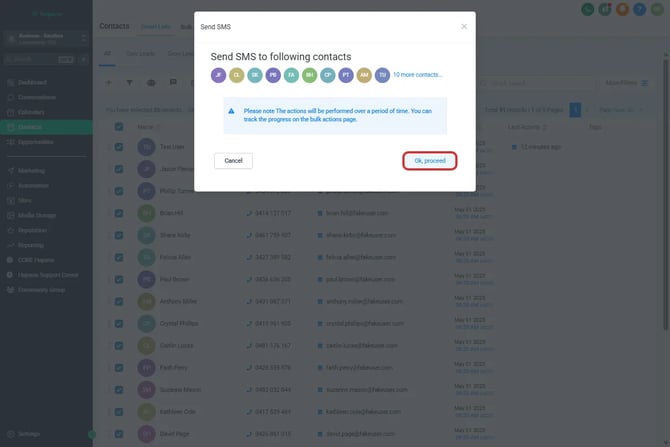
Tip: Custom Values pull directly from each contact’s profile. Double-check that fields like first name are filled in before sending.
Tip: Always run your text message template through a segment counter before sending. SMS messages are billed by the number of segments, not the number of messages. Without emojis, each segment includes up to 160 characters. However, including even a single emoji reduces the limit to 70 characters per segment. Keeping track of your segment count helps manage costs and avoid unexpected charges.
Step 5: Monitor delivery status
- Go to Bulk Actions (found under the main Contacts menu).
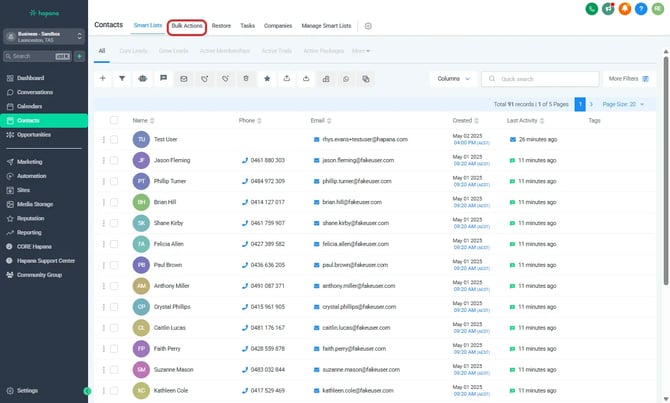
- Locate your recent SMS send to track progress — including delivery status and total sends.
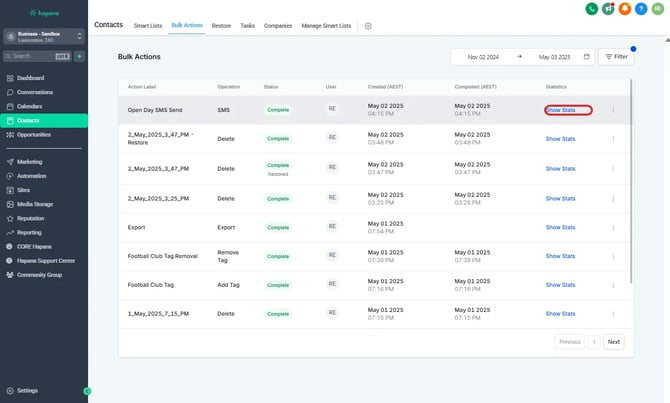
Tip: Use Bulk Actions to confirm delivery, spot failed numbers, or download results for recordkeeping.
Expected outcome
Each selected contact will receive a personalized text message to their mobile number. Replies land in the Conversations tab, and delivery results can be reviewed in Bulk Actions.
Troubleshooting / FAQs
Q: What happens if a contact doesn’t have a mobile number or has DND enabled for SMS?
A: GROW will skip that contact. Only contacts with valid mobile numbers and DND disabled will receive the SMS.
Q: Will this message be saved anywhere?
A: Yes. You can view send details in Bulk Actions and any replies in Conversations.
Q: Can I schedule the SMS for later?
A: Not through this feature. SMS is sent immediately once you click Send SMS.
Still need help?
Reach out to our support team via support@hapana.com