
Overview
Sometimes clients request a copy of a specific payment instead of their full account statement. You can easily print or download an individual payment invoice from their profile in Core. This process is quick and perfect for clients needing proof of payment for a single transaction.
Prerequisites
- Admin or staff access to Hapana Core
- Client profile and payment record must exist
Step-by-Step Instructions
Step 1: Log in to Core
Visit core.hapana.com and sign in.
Step 2: Navigate to the Clients tab
Click on Clients.

Step 3: Find the Client
Search for the client by name, email address, or phone number, and open their profile.

Step 4: Open the Payment Tab
Within the client profile, click the Payments tab.
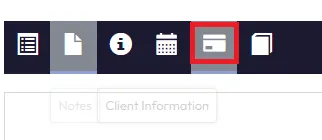
Step 5: Locate the Payment
Scroll to the Payments Table at the bottom of the page to find the specific payment.
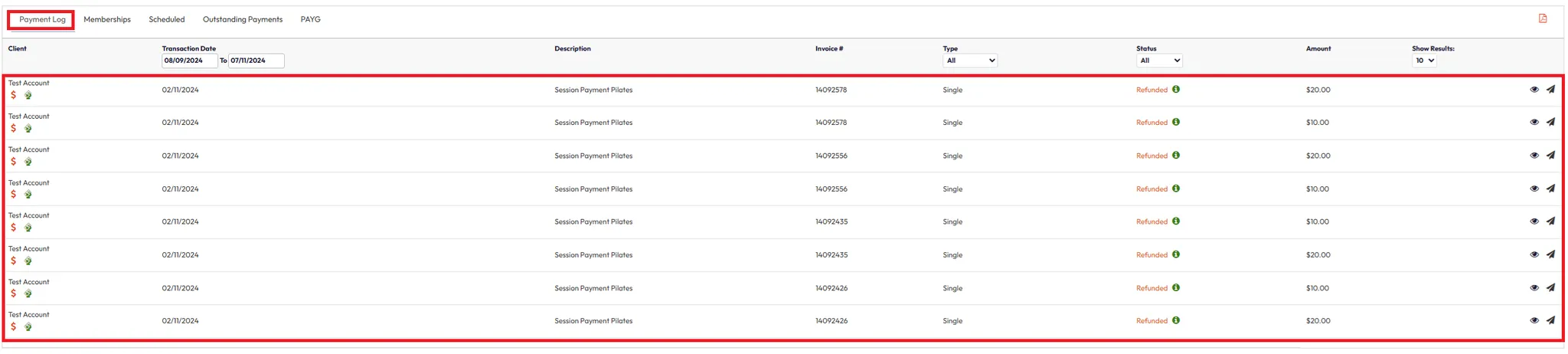
Step 6: View and Print the Invoice
- Click the eye icon beside the payment.
- In Payment History, click the eye icon again for full details.
- Click Print Invoice in the bottom right corner.
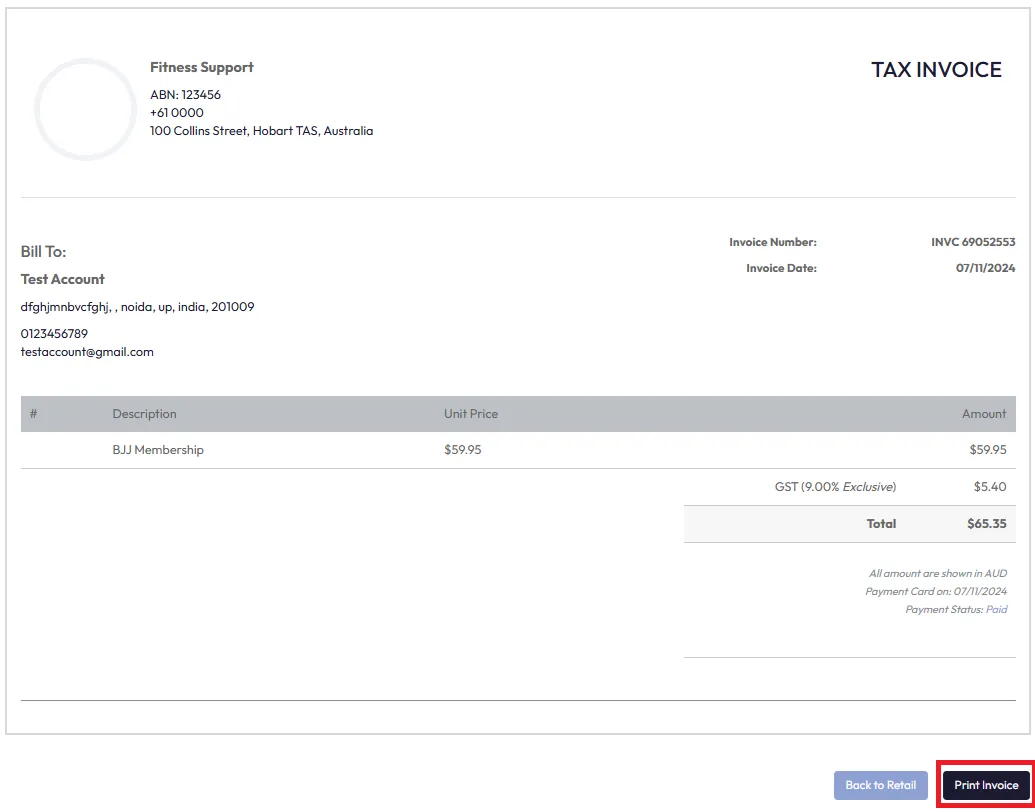
Tip: Save the invoice as a PDF from your print settings if you want to email it later.
Expected Outcome
You’ll have a printable or downloadable invoice for the selected individual payment, ready to share with your client.
FAQs
Q: Can I email the invoice directly from Core?
Invoices must be downloaded and emailed manually.
Q: What if I need an older invoice?
You can view and print any past payment recorded in the client’s Payment History.
Q: Does the invoice include session or package details?
Yes, the invoice itemizes the service or package linked to the payment.
Need help?
Reach out to our support team at support@hapana.com