
Overview
If a client forgets their phone or barcode, no problem — trainers and staff can manually check them in directly from the schedule. This is perfect for busy class times when you need a fast and easy way to track attendance.
This guide shows how to check in members manually from the schedule without needing the scanner or mobile app.
🎥 Watch the walkthrough:
Or preview it below:
Prerequisites
Before you begin:
- You must have access to the Schedule
- The client must already be booked into the class
- Staff must be logged in with permissions to confirm attendance
Step-by-step instructions
Step 1: Open the schedule
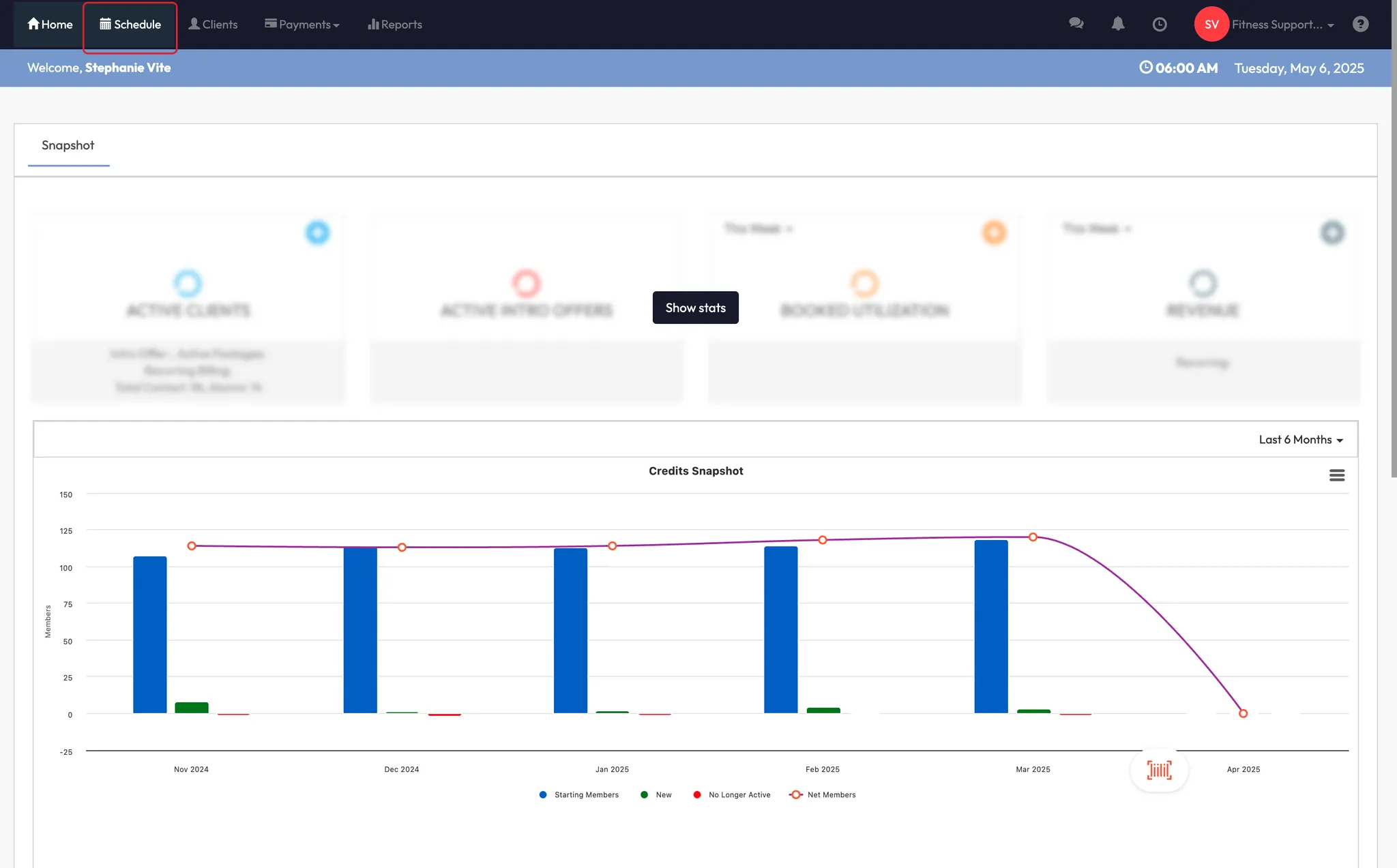
- Click Schedule in the top navigation
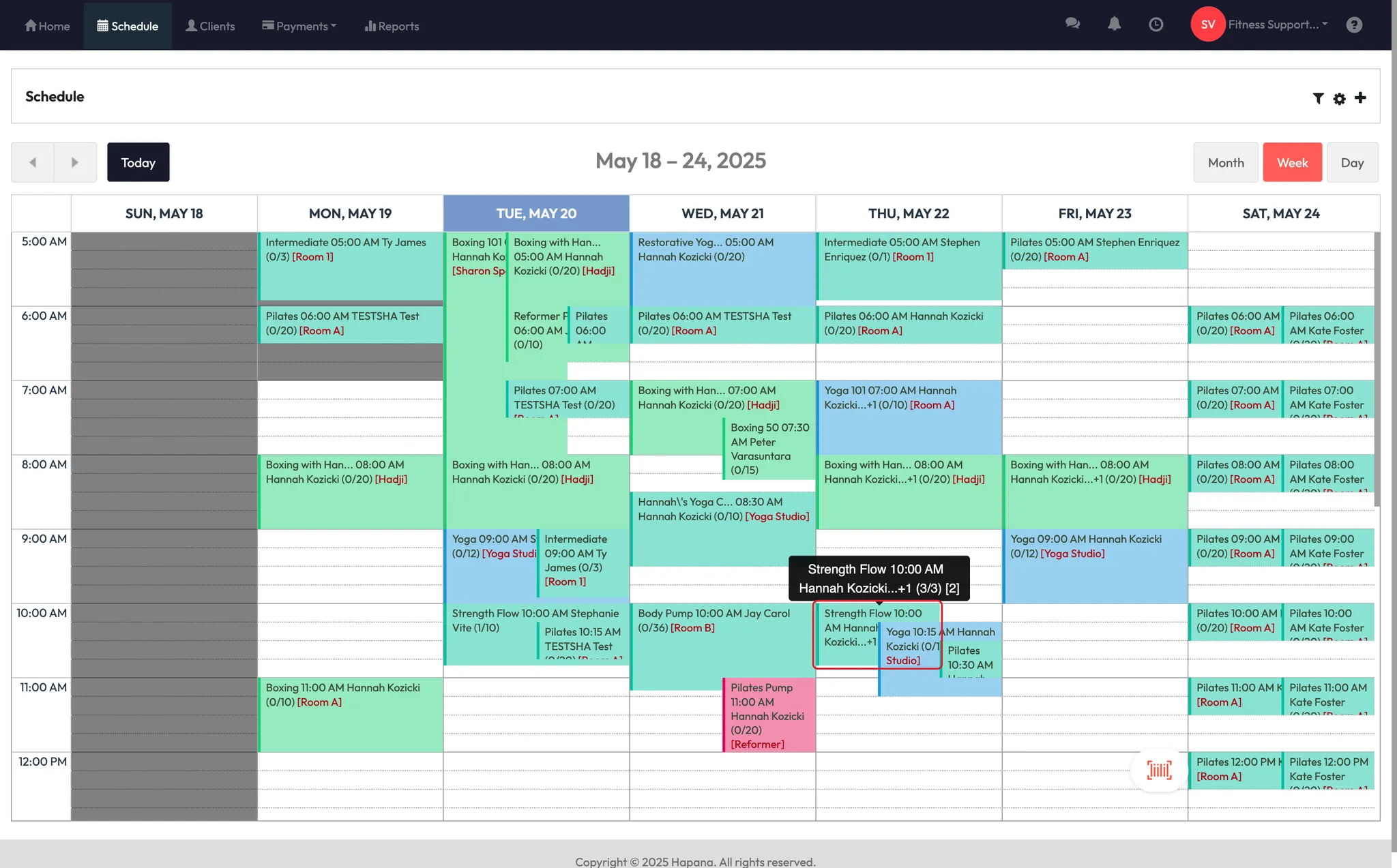
- Use the date picker or arrows to navigate to the day of the class (e.g. June 17)
- Click on the relevant class block to open session details
Step 2: Check in members manually
There are two ways to mark attendance:
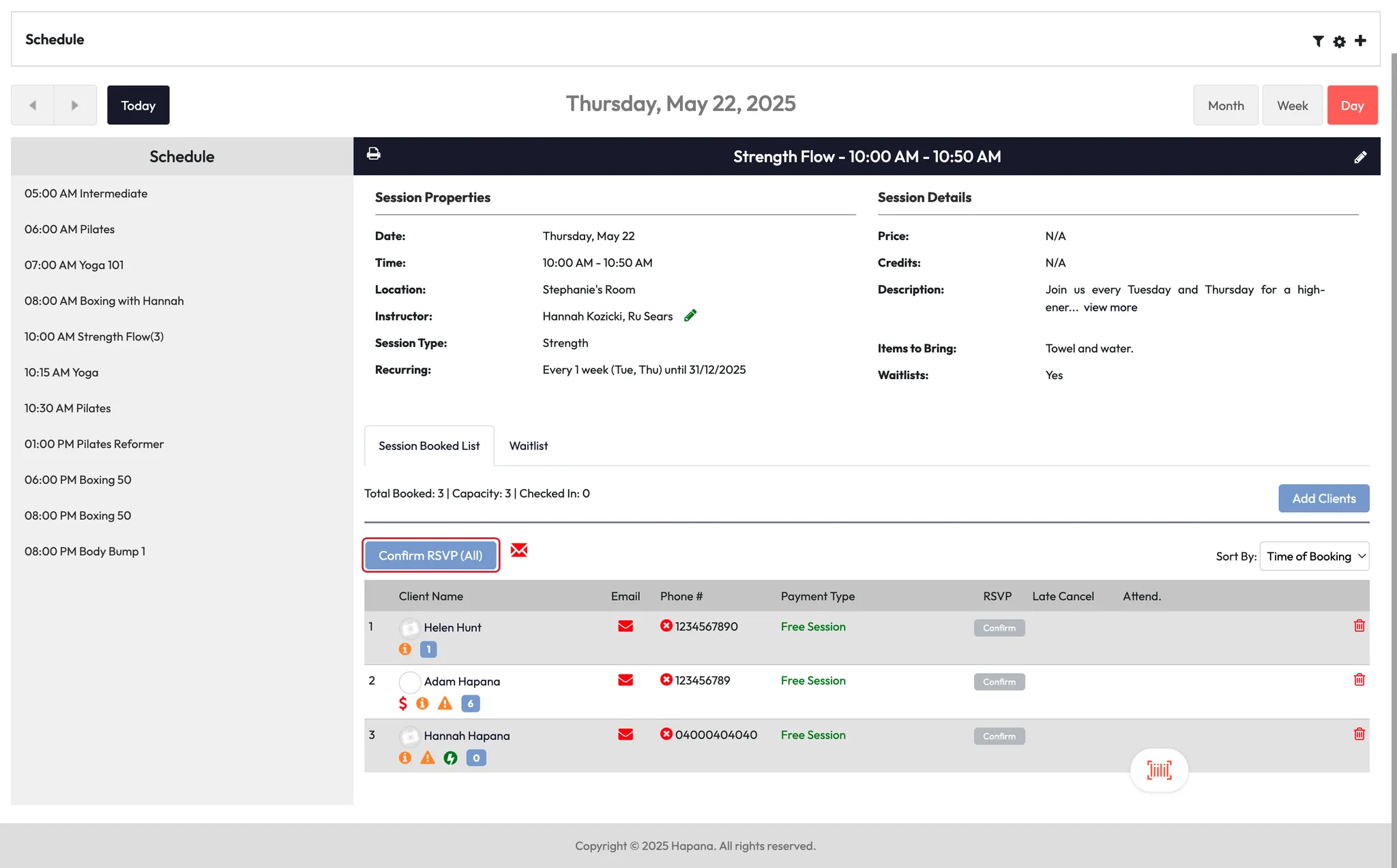
Option A: Confirm All
-
Click Confirm Attendance by All
This will mark all booked members as “attended” in one click
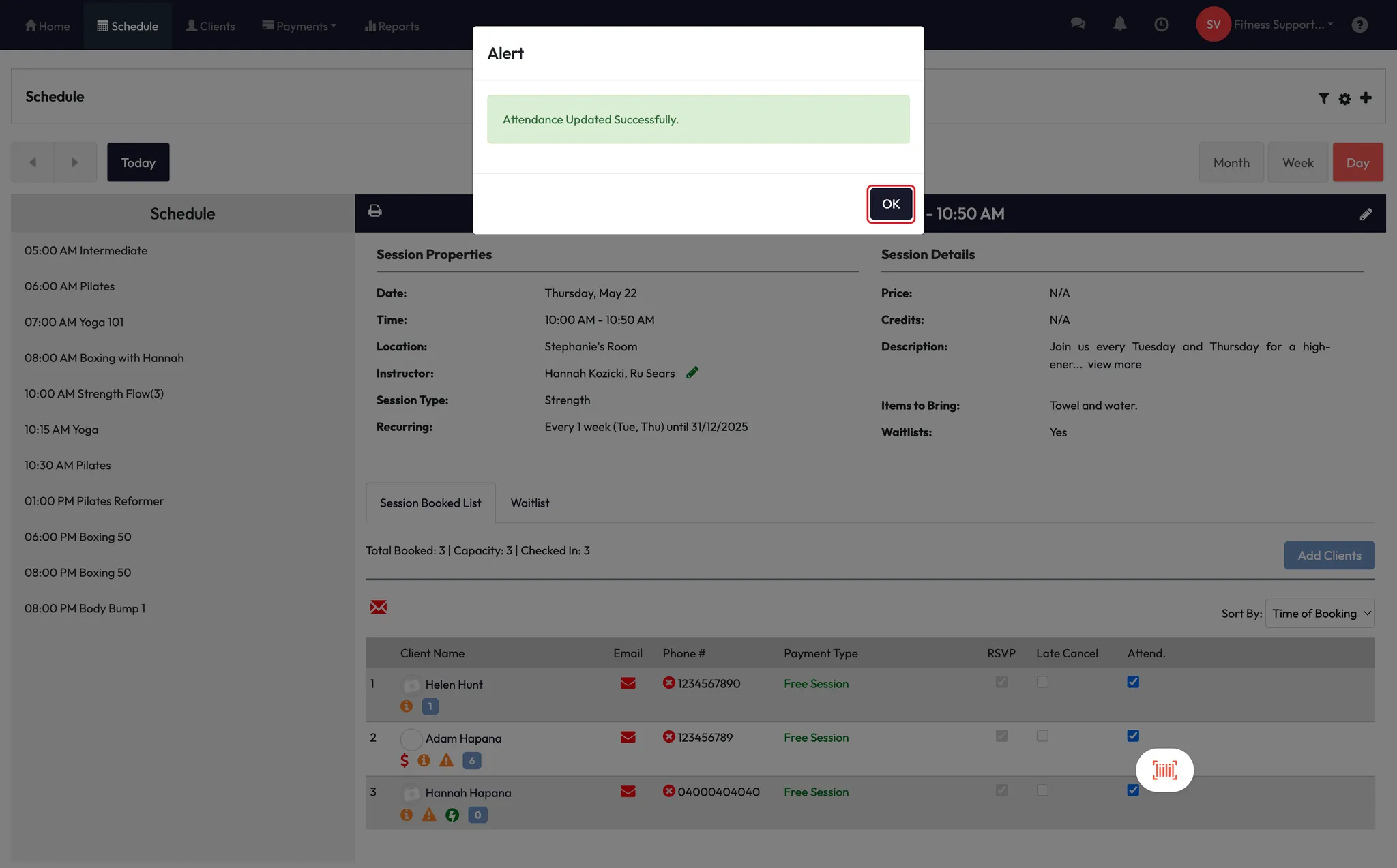
Option B: Check in individually
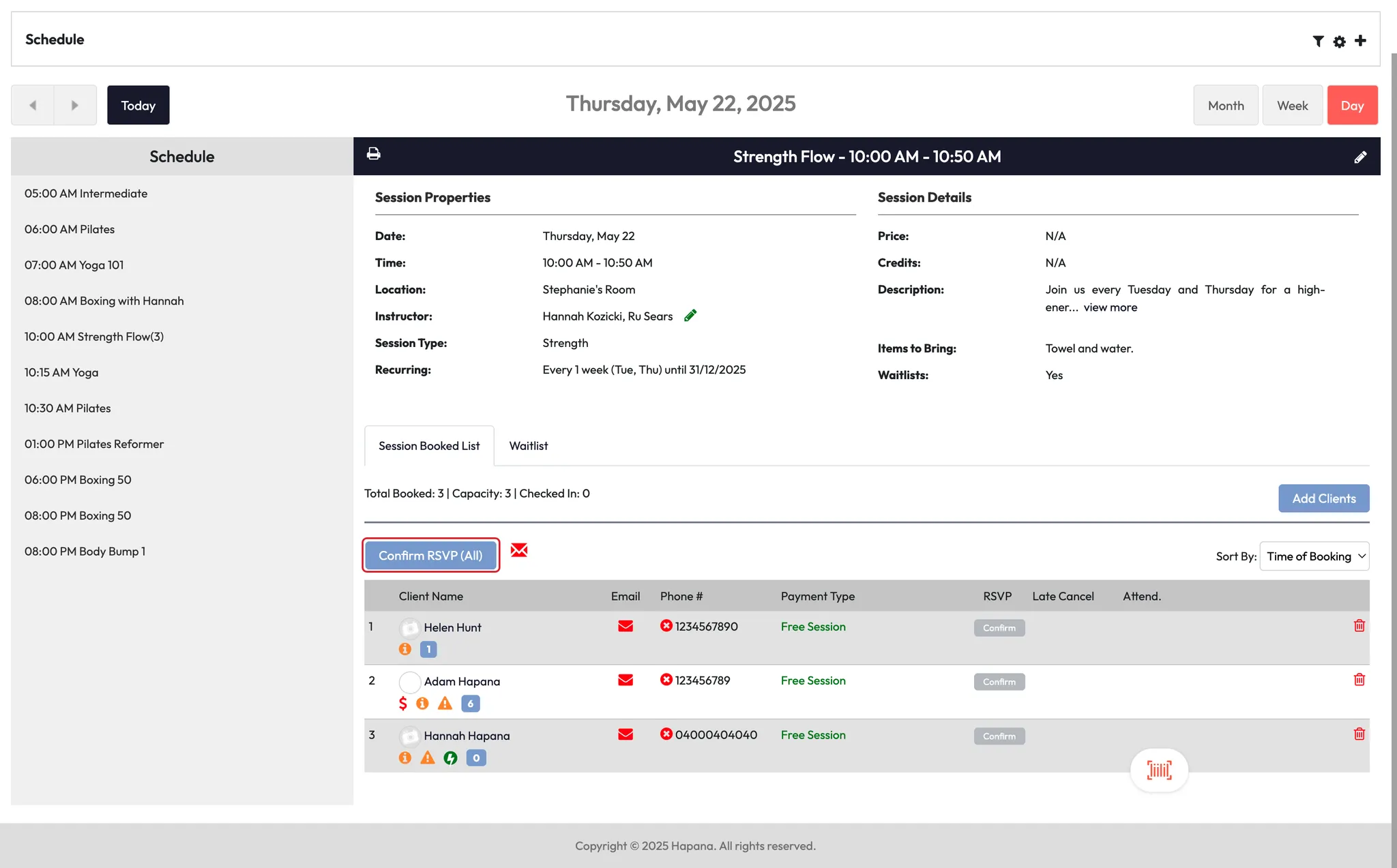
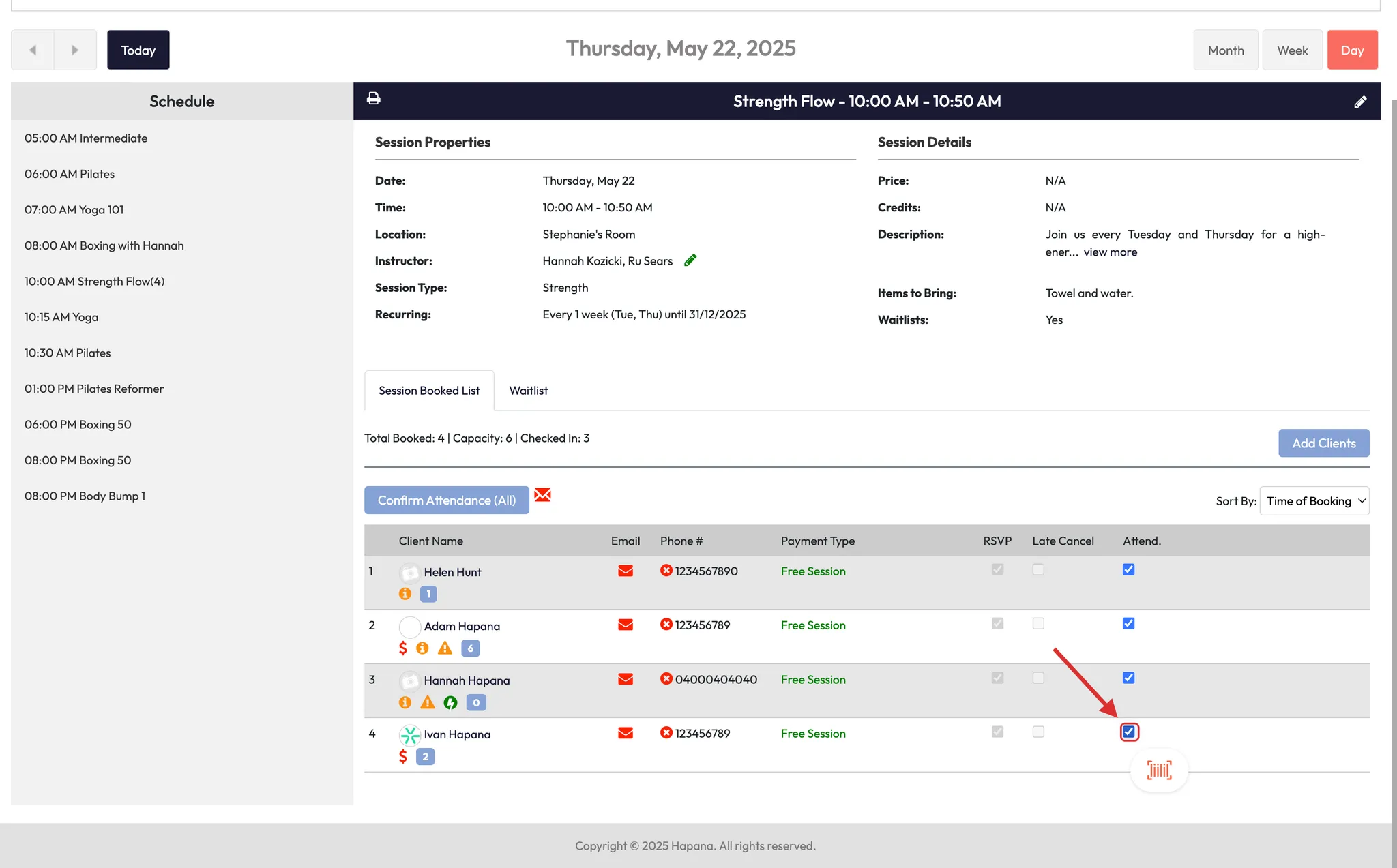
- Click Attend next to each client’s name as they arrive
- Leave anyone unchecked if they are a no-show or haven’t arrived yet
✅ Tip: This is especially useful when scanning devices are unavailable or members arrive without their phones.
Expected Outcome
The client’s attendance will be marked for that session, ensuring their credit is deducted and your reporting stays accurate — no scanner or app required.
FAQs
Q: Does this deduct a credit like normal check-in?
A: Yes — manual attendance still processes credit usage just like a barcode or app check-in.
Q: Can I check someone in who wasn’t booked?
A: Not from this screen. You’ll need to add them to the class first, then mark attendance.
Q: Will the client see this in their app?
A: Yes — their class will show as attended in their history if manually checked in.
Still need help?
Reach out to our support team via support@hapana.com