
Overview
Missed classes cost your business time and money. That’s why CORE lets you charge a no-show fee after a session ends — helping encourage clients to attend or cancel on time.
This article shows you exactly how to apply a no-show fee to a client and where to set it up in your system.
🎥 Watch the walkthrough:
Or preview it below:
Prerequisites
Before you begin:
- The class must be marked as complete
- The client must not have been marked as attending
- Your no-show fee settings must be configured in Retail Settings
- You’ll need access to the Schedule tab and Retail Configurations
Step-by-step instructions
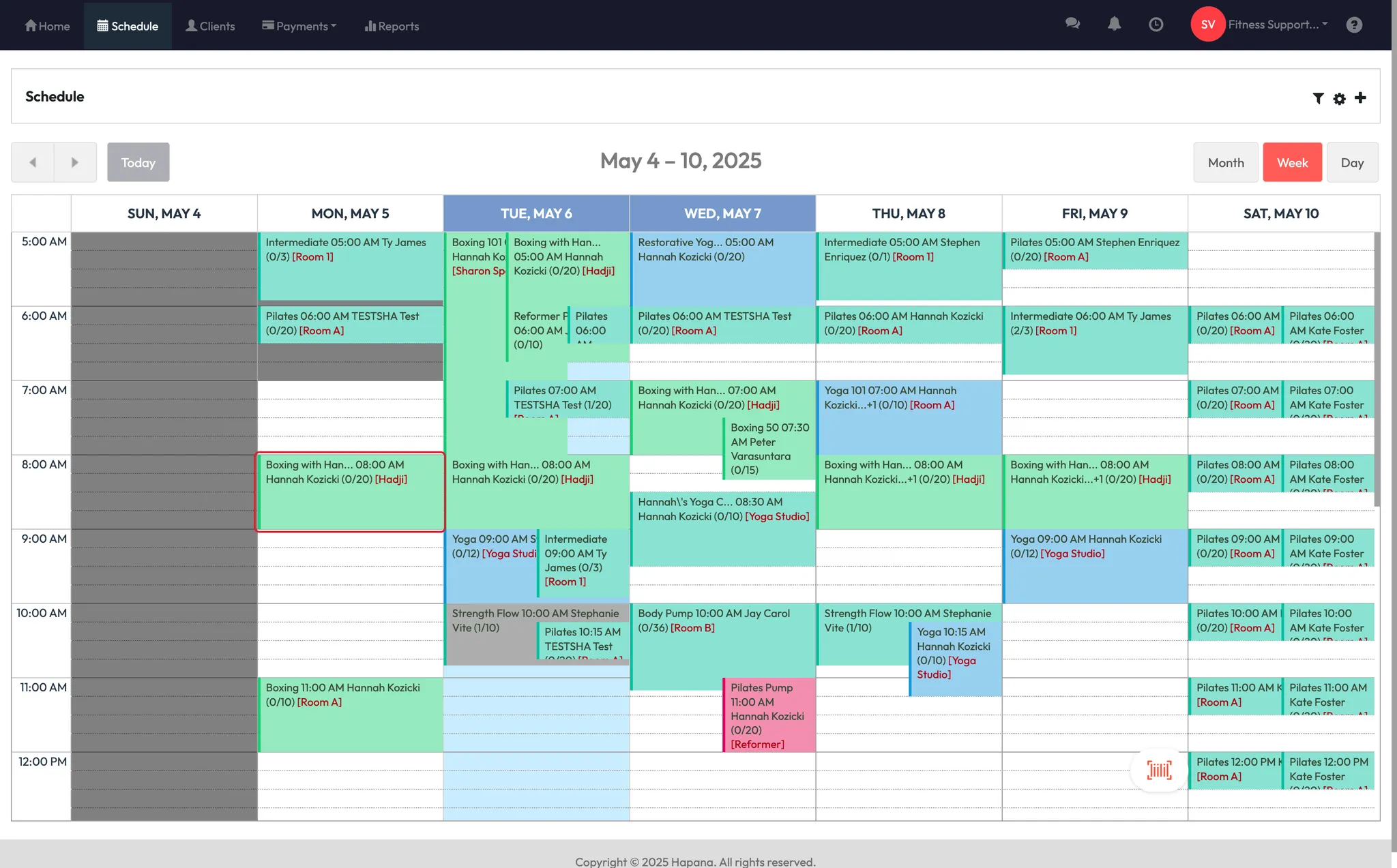
Step 1: Go to the class in the schedule
- Click Schedule in the top navigation
- Find and click the class where the no-show occurred (e.g. “Kickboxing”)
Tip: You can search by date or filter by class name to find it faster.

Step 2: Identify eligible no-shows
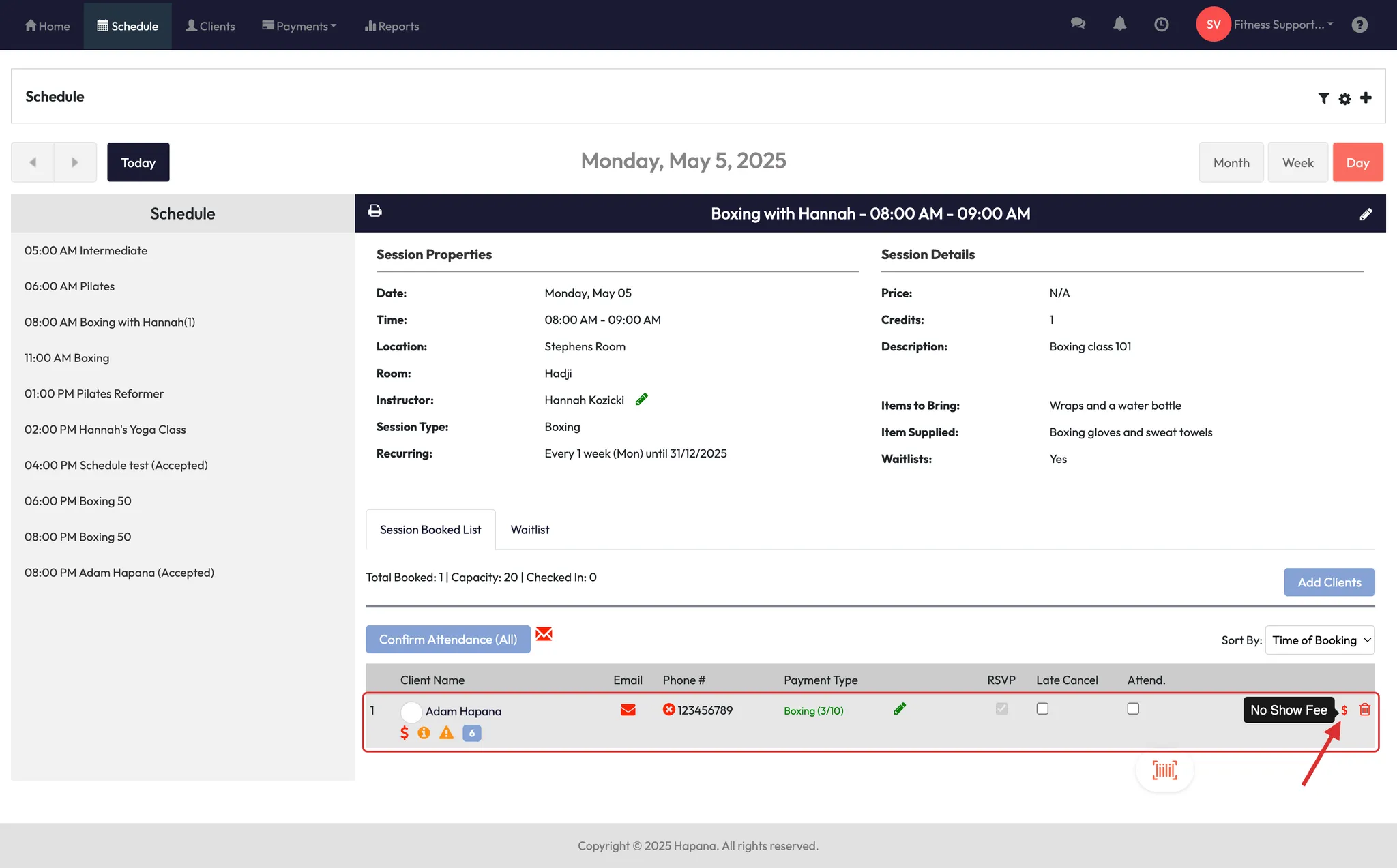
- Once the class has ended, a 💲 dollar sign icon appears next to any clients who:
- Didn’t attend
- Weren’t marked as attending
- Hover over the icon to confirm it’s a no-show fee
Step 3: Charge the no-show fee
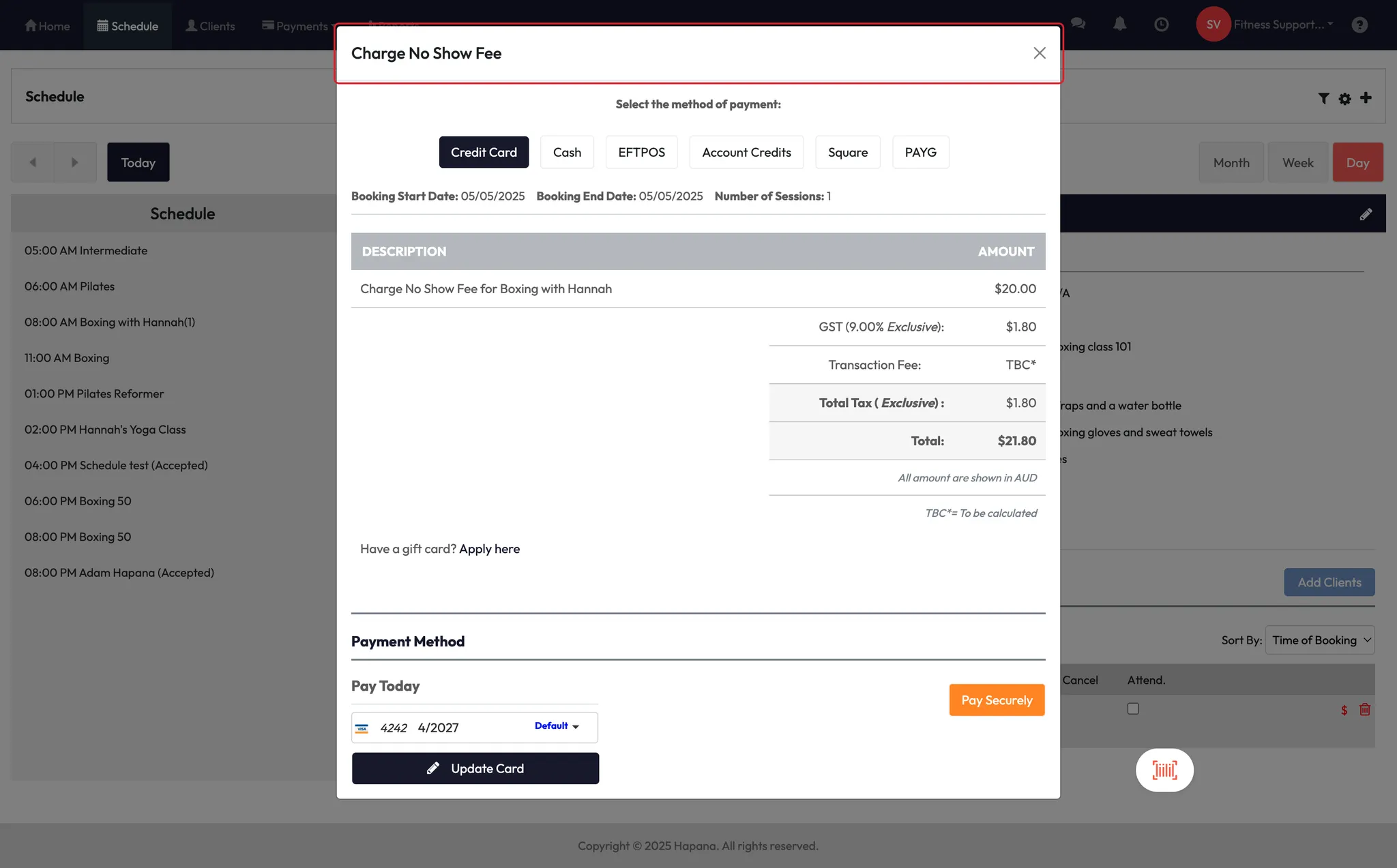
- Click the 💲 icon
- Review the fee amount
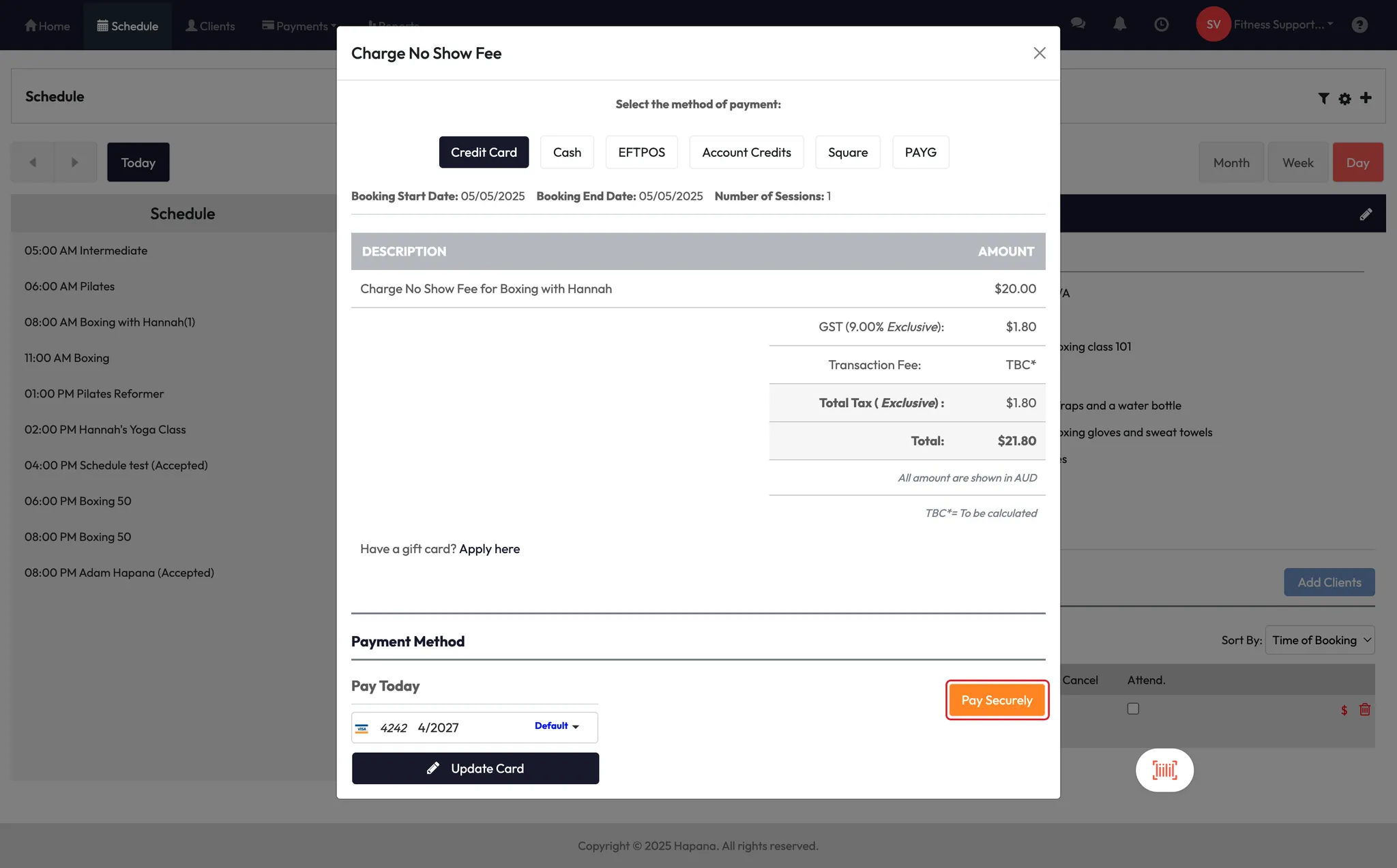
- Click Pay Securely to process the charge
✅ Tip: This can be done for one or multiple clients in the same class.
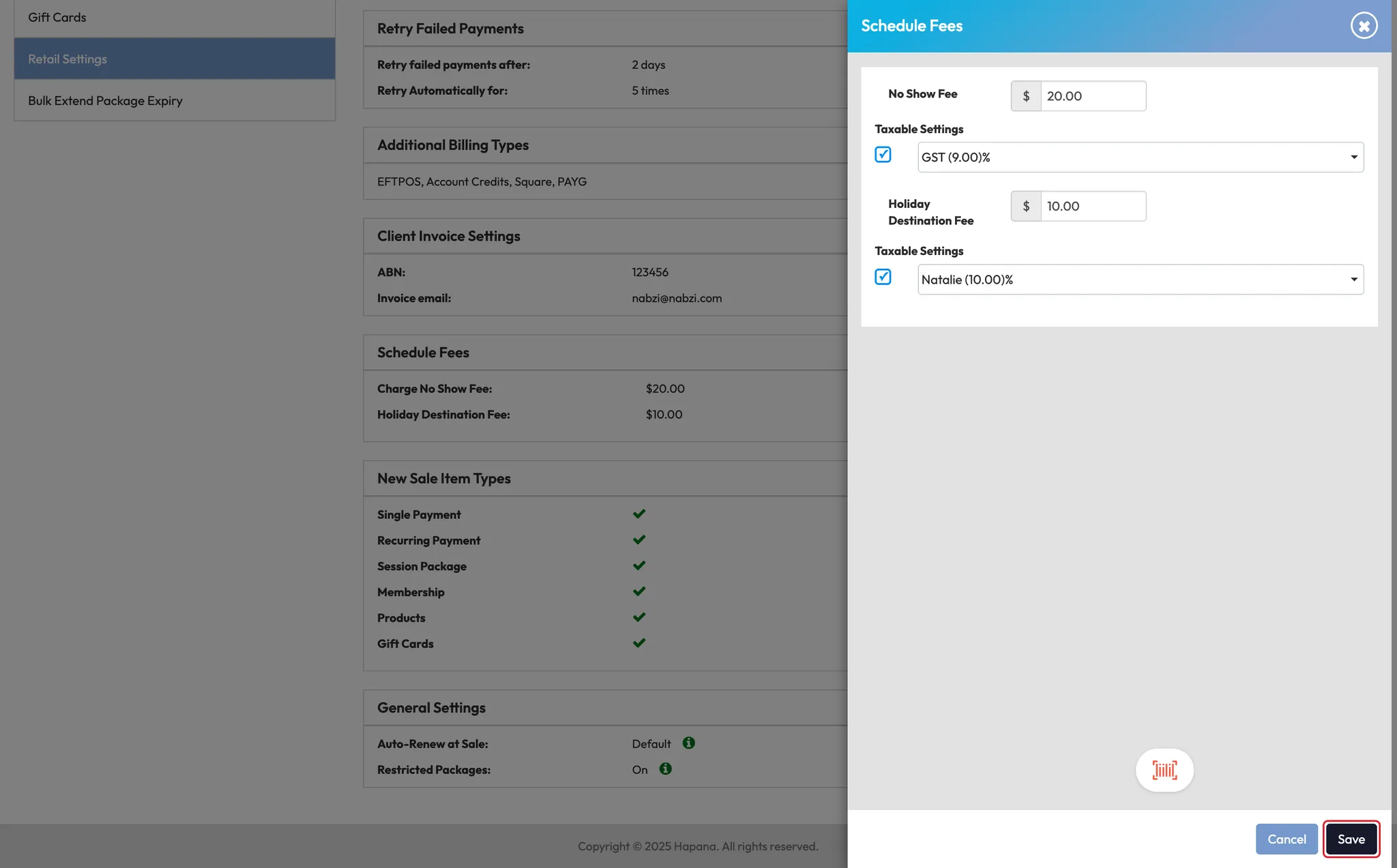
Step 4: Set your no-show fee rules (one-time setup)
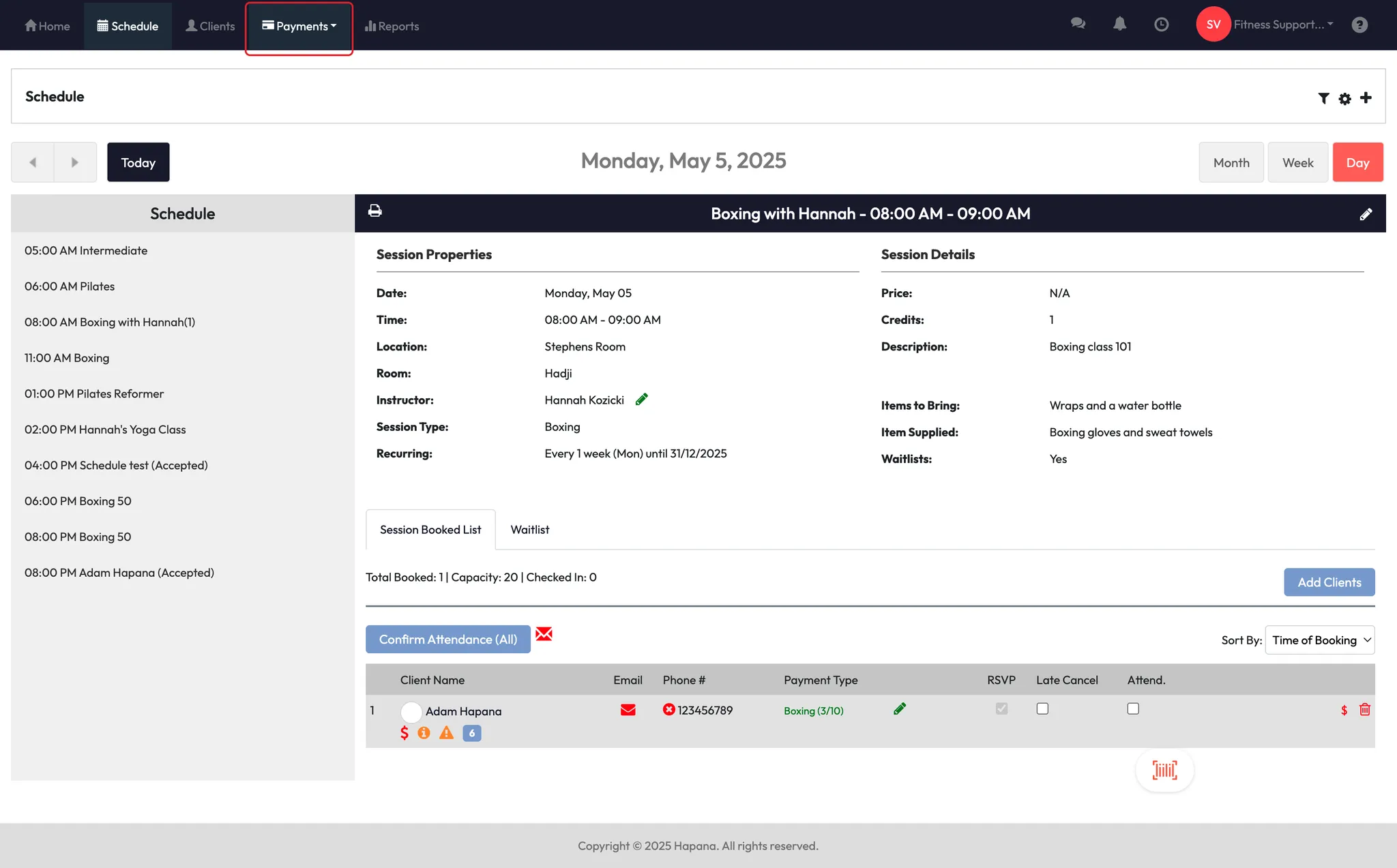
- Click Payments in the top nav
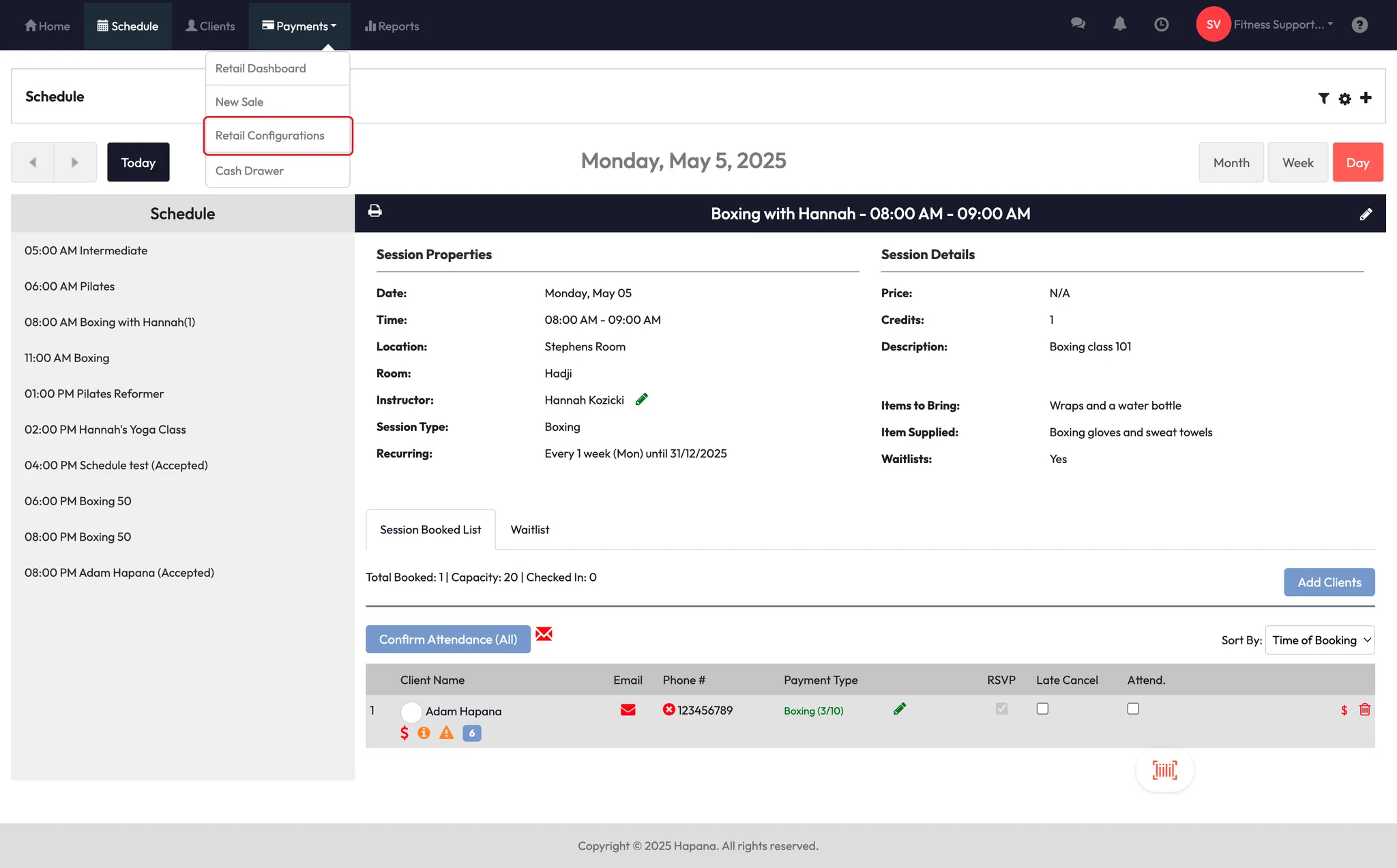
- Select Retail Configurations
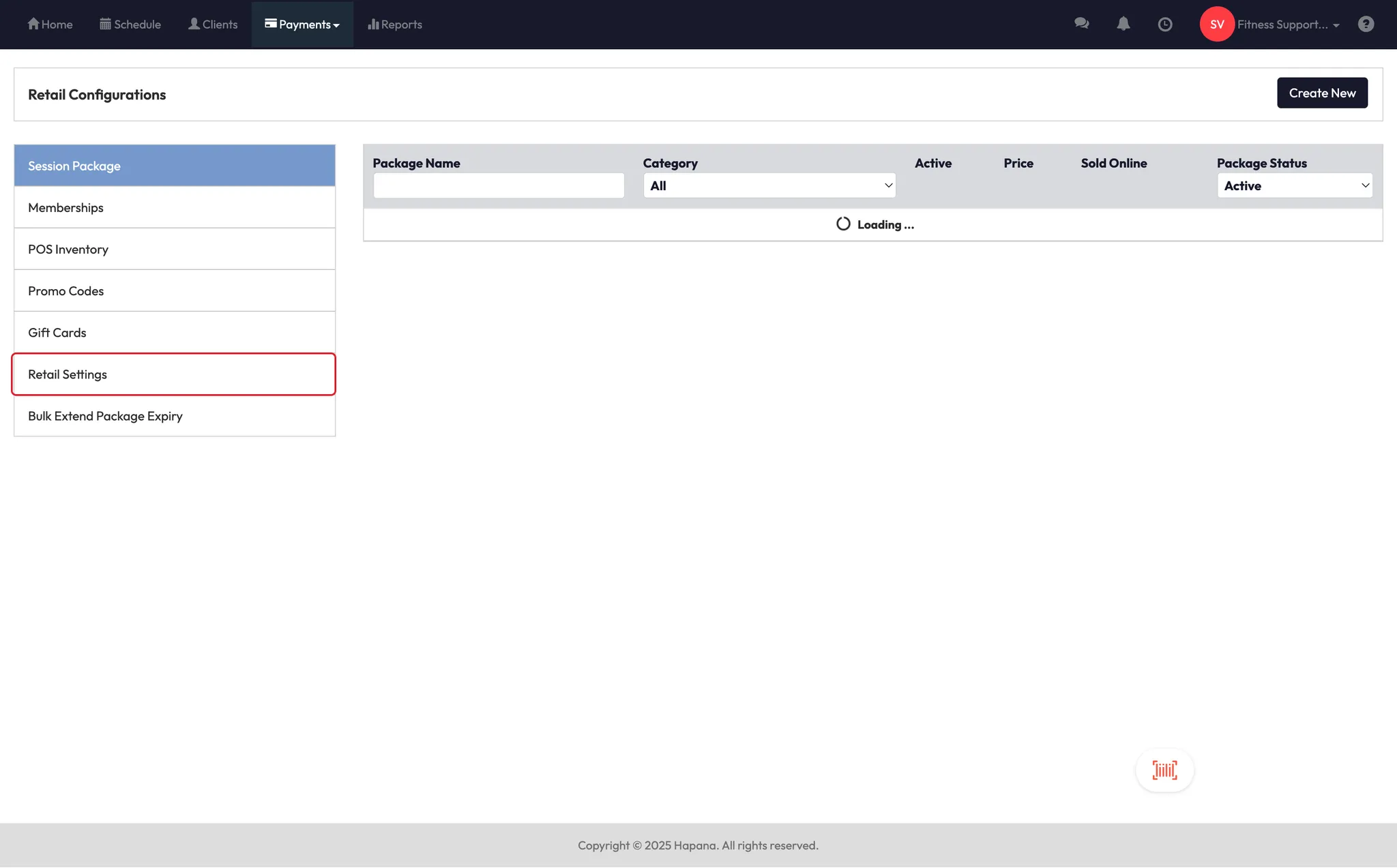
- Go to Retail Settings
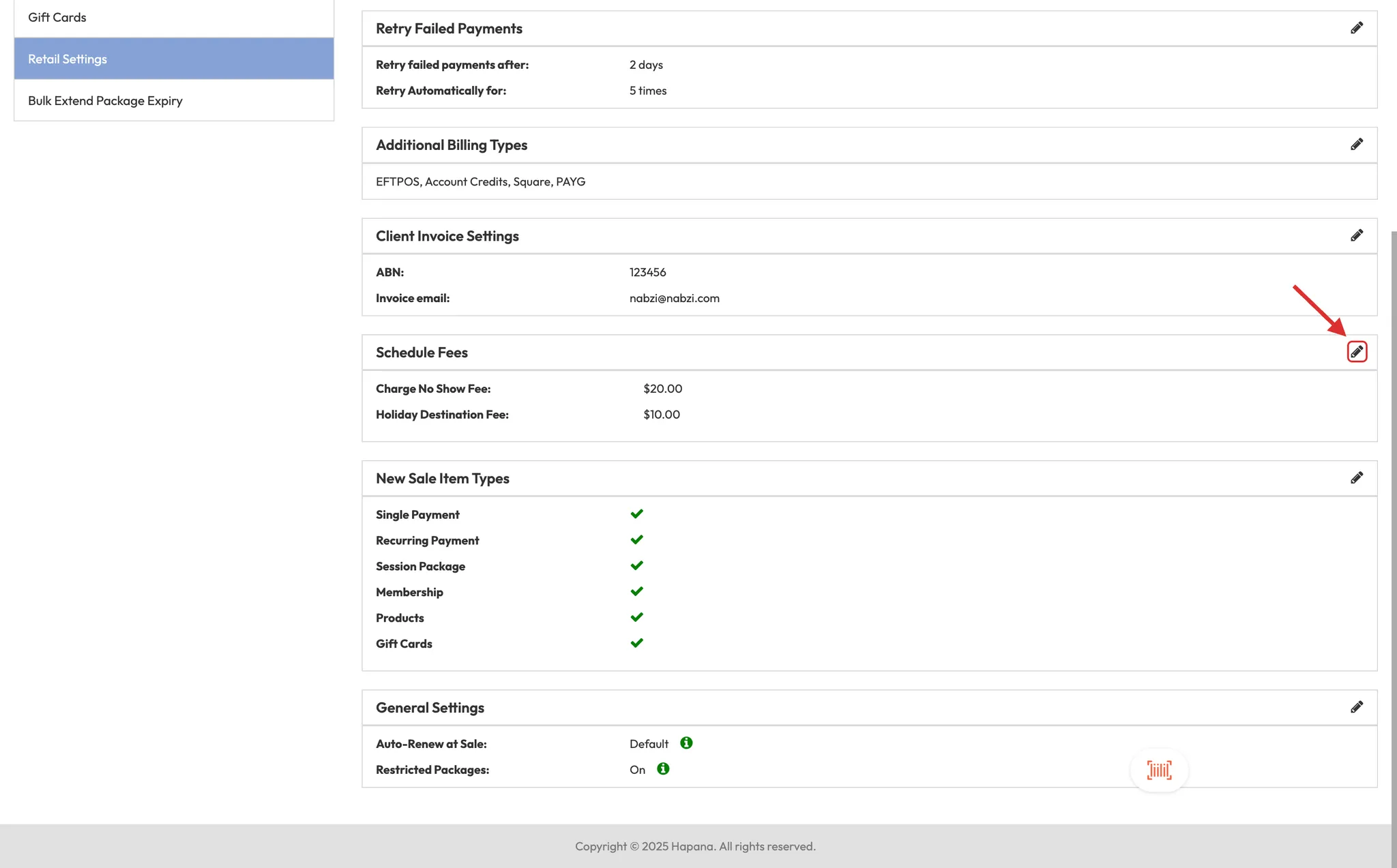
- Find the Charge No-Show Fee field
- Enter your desired fee (e.g. $10)
- Save changes
Tip: You can update this fee anytime. It will apply to future no-show charges.
Expected Outcome
Clients who don’t show up and aren’t marked as attended will be charged the configured no-show fee — helping you protect your studio’s revenue and keep clients accountable.
FAQs
Q: What if I forget to mark someone as attended?
A: You can go back and mark them as attended. This will remove the no-show fee icon.
Q: Can I change the no-show fee amount per class?
A: No — the fee is set globally in Retail Settings, not by class.
Q: What payment method is used?
A: The system uses the client’s stored payment method to process the fee.
Still need help?
Reach out to our support team via support@hapana.com