
This guide walks you through how to use the Membership Details Report in CORE. This report helps you track the status of all memberships — whether they’re active, pending, suspended, canceled, completed, or scheduled — across your studio.
It's helpful for keeping tabs on client engagement, managing follow-ups, and tracking sales performance.
🎥 Watch the walkthrough:
Or preview it below:
Prerequisites
- Access to the Reports module in CORE
- Reporting permissions for financial or membership reports
Step-by-step instructions
1. Access the Membership Details Report
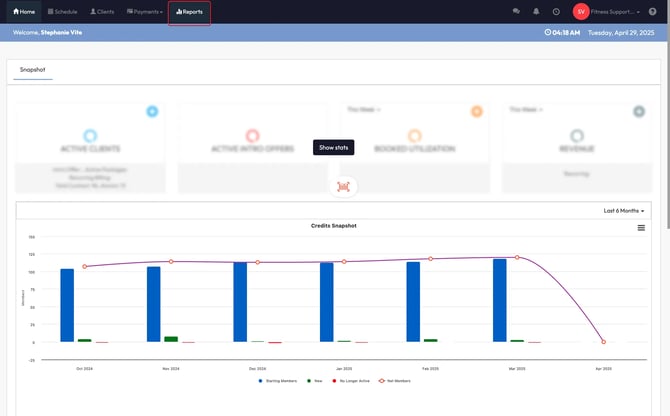
- Click on Reports in the top navigation bar
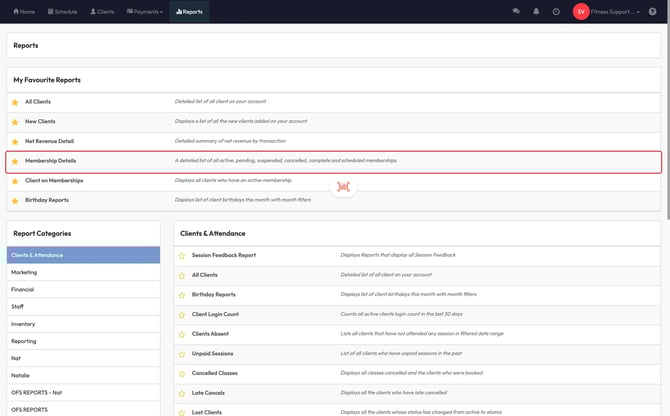
- Locate Membership Details under Favorites or scroll down to the Financial category and click it
2. Understand each membership status
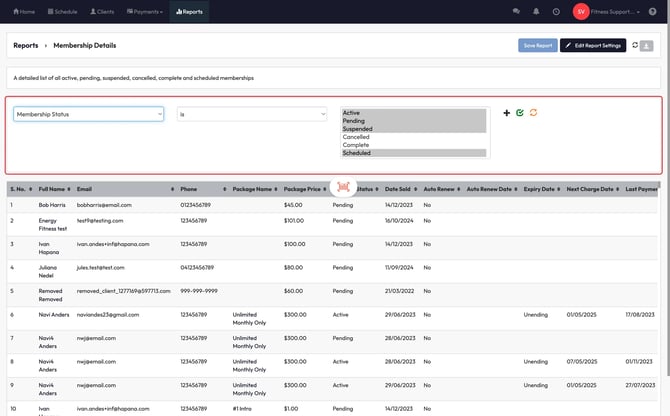
When the report loads, you’ll see every membership in your system — across six possible statuses:
- Active: The client has a live membership with ongoing payments (weekly, fortnightly, or monthly)
- Pending: The membership has been sold but the client hasn’t completed payment or signed the agreement yet
- Suspended: Temporarily paused memberships (e.g., medical leave, travel, etc.)
- Cancelled: Memberships that were ended before their scheduled completion
- Completed: Time-bound memberships that have run their full course (e.g., a 6-month term that has ended)
- Scheduled: Sold memberships that haven’t started yet — e.g., the start date is in the future
Tip: Pending memberships often mean someone hasn’t paid yet or signed their agreement. These are great opportunities for follow-up.
3. Apply filters to narrow results
You can filter by:
- Status (e.g. only Active or Suspended)
- Package or membership name
- Start and end dates
- Other advanced filters like payment type or staff member (optional)
To filter:
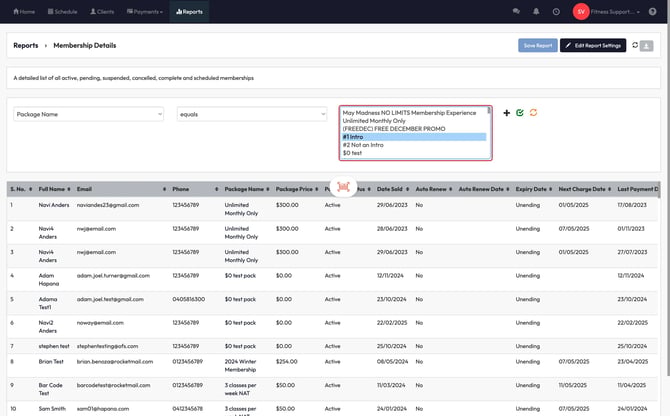
- Click Add Filter
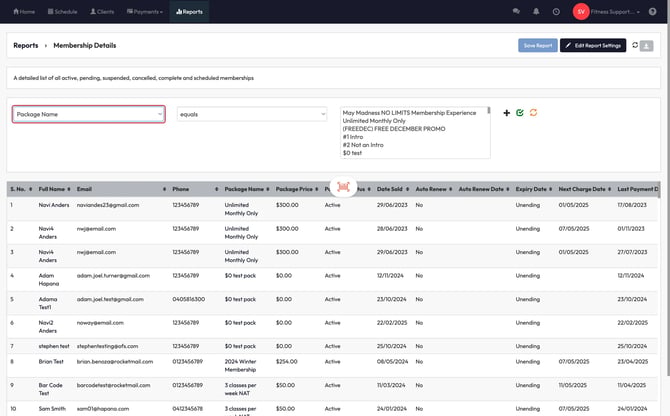
- Choose Package Name
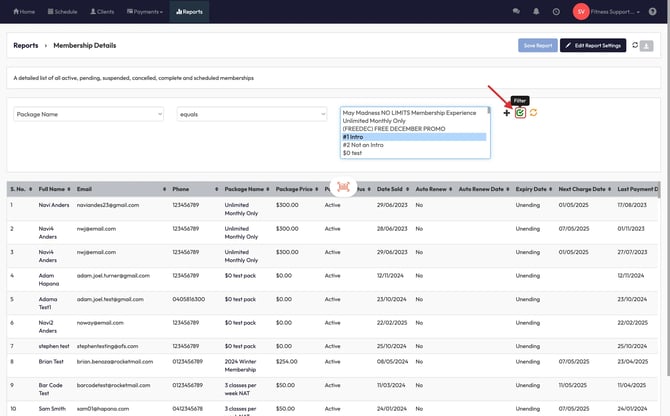
- Select the packages you want to report on
- Click Filter
Tip: Apply multiple filters to drill into specific member segments (e.g. all suspended memberships from one location).
4. Export the report to Excel
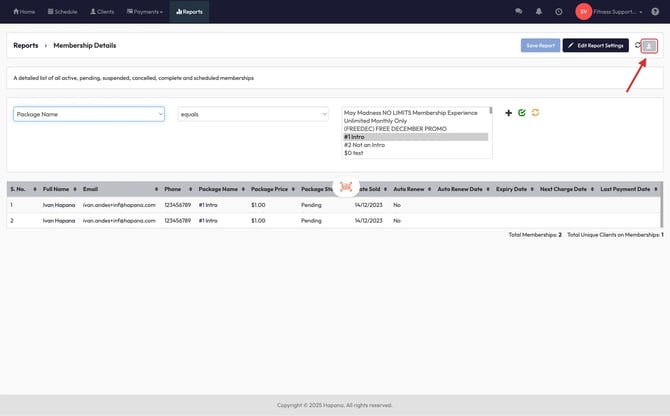
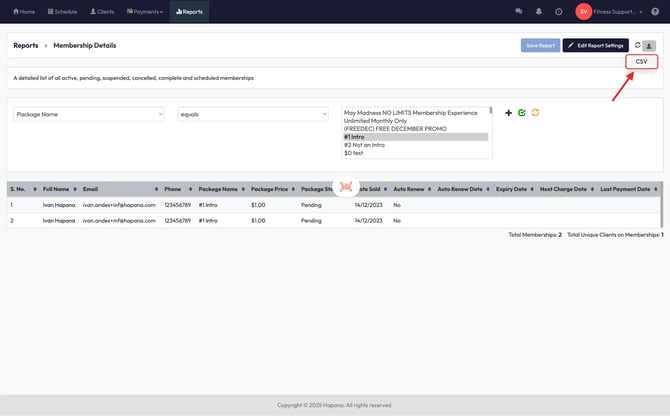
- Click the Download CSV button
- Open the file in Excel or Google Sheets
- Use filters, pivot tables, or sorting to analyze and report externally
Tip: Downloading the CSV is the easiest way to create a snapshot of your active vs. suspended vs. canceled memberships for team meetings.
Expected outcome
You’ll be able to see a detailed list of all membership statuses, sorted and filtered as needed. This lets you monitor engagement, spot retention risks, and identify sales opportunities for upsells or renewals.
FAQs
Q: What’s the difference between ‘Pending’ and ‘Scheduled’ memberships?
A: Pending means the member hasn’t completed payment or signature. Scheduled means the start date is in the future but everything else is completed.
Q: Can I use this report to follow up with clients who haven’t signed their agreement?
A: Yes. Filter for “Pending” status and reach out to those clients to complete their signup.
Q: Can I filter by location or staff?
A: Yes. Use the advanced filters to refine by location, processed by, or package assigned by.
Still need help?
Reach out to our support team via support@hapana.com