
Overview
Want to see who’s checking into your gym or studio in real-time? You can turn on client check-in pop-ups and the check-in widget so every time a member checks in, a notification appears on your screen. It’s a simple way to keep track of member activity at your front desk or staff computer.
🎥 Watch the walkthrough:
Or preview it below:
Prerequisites
Before you begin:
- You must have admin access to your location’s Account Settings
- Make sure you’re working on a device used at the front desk or check-in point
- Confirm that clients have valid memberships or credits for check-in
Step-by-step instructions
Step 1: Open your business profile settings
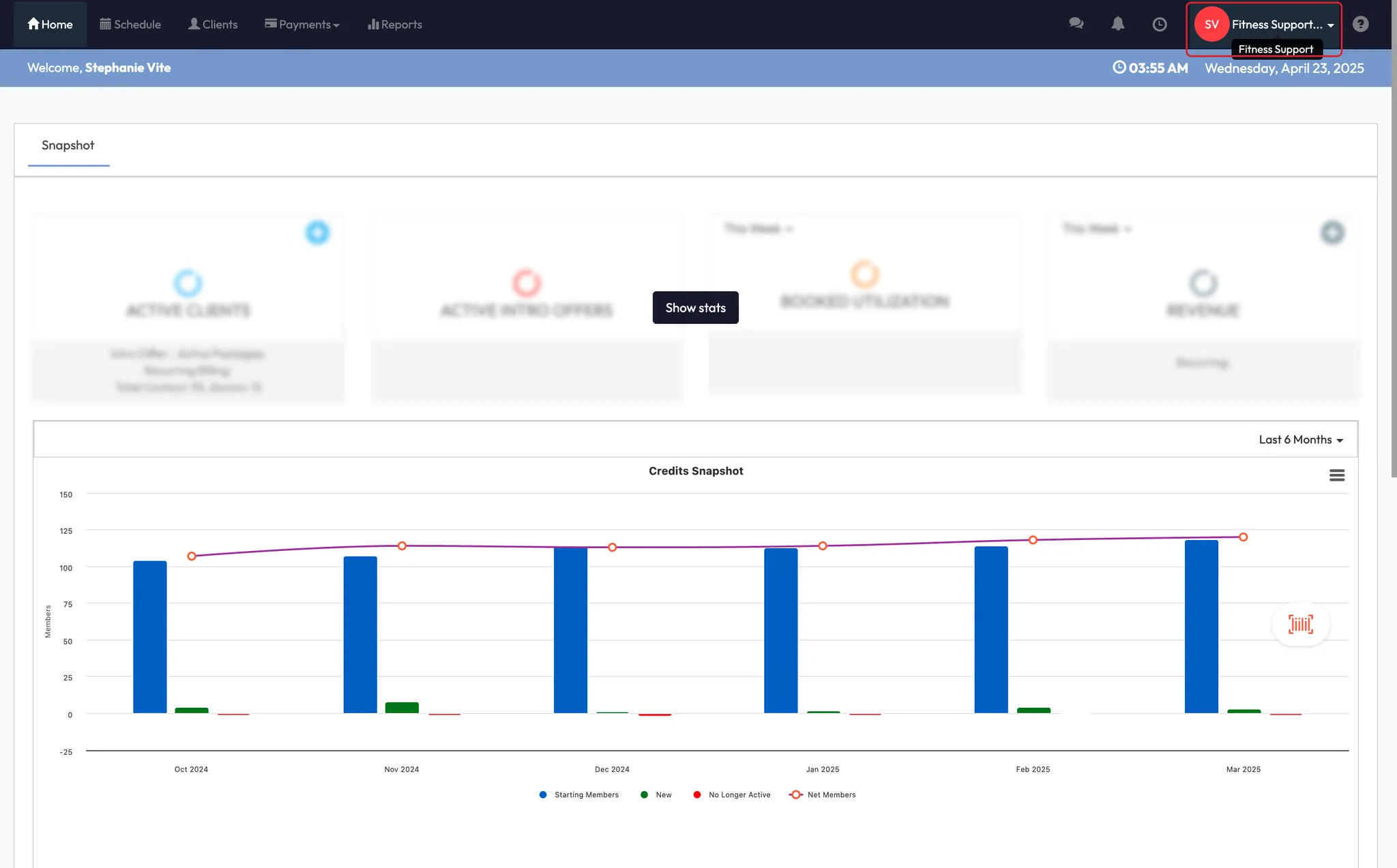
- Click your Location Name at the top of the dashboard
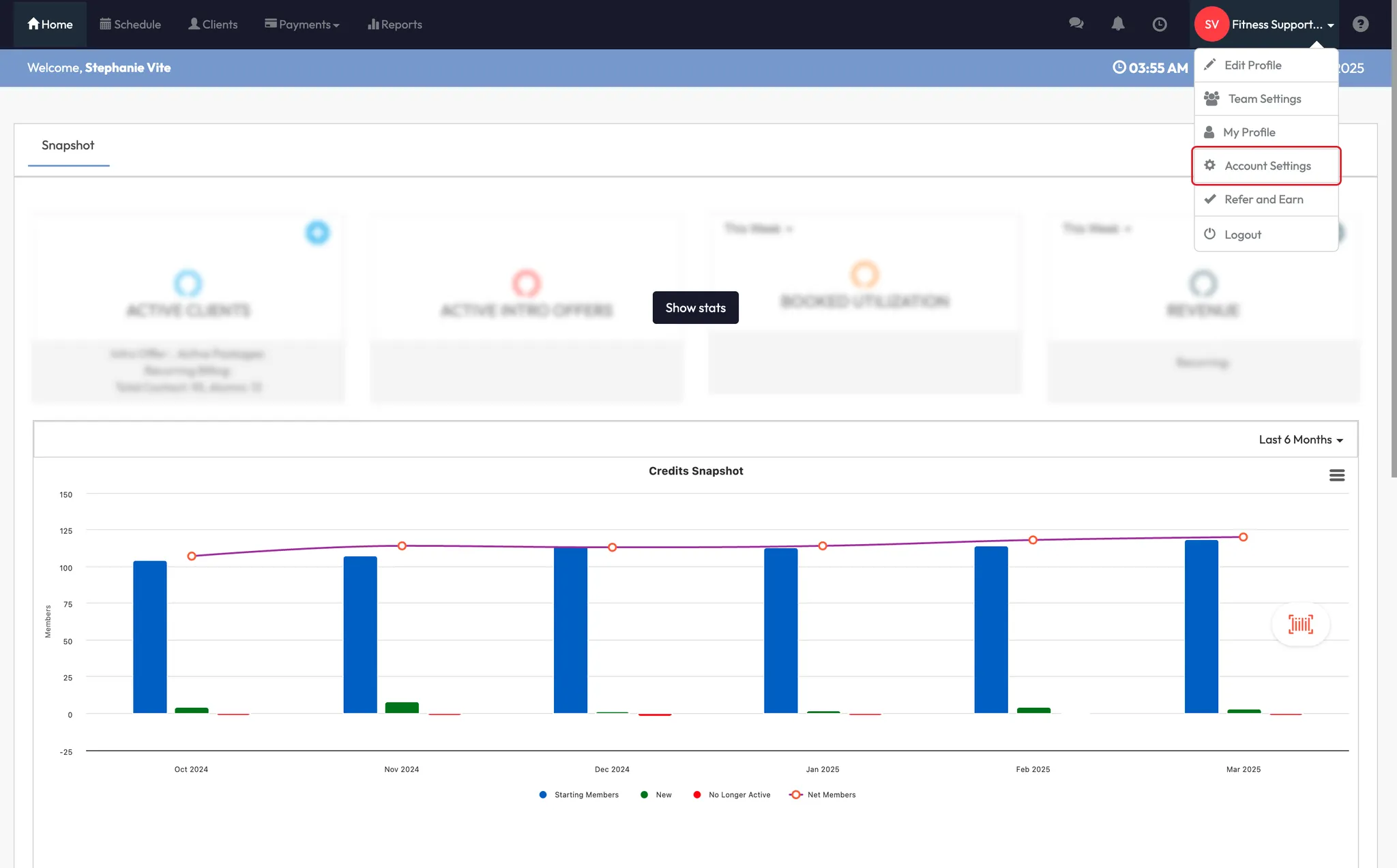
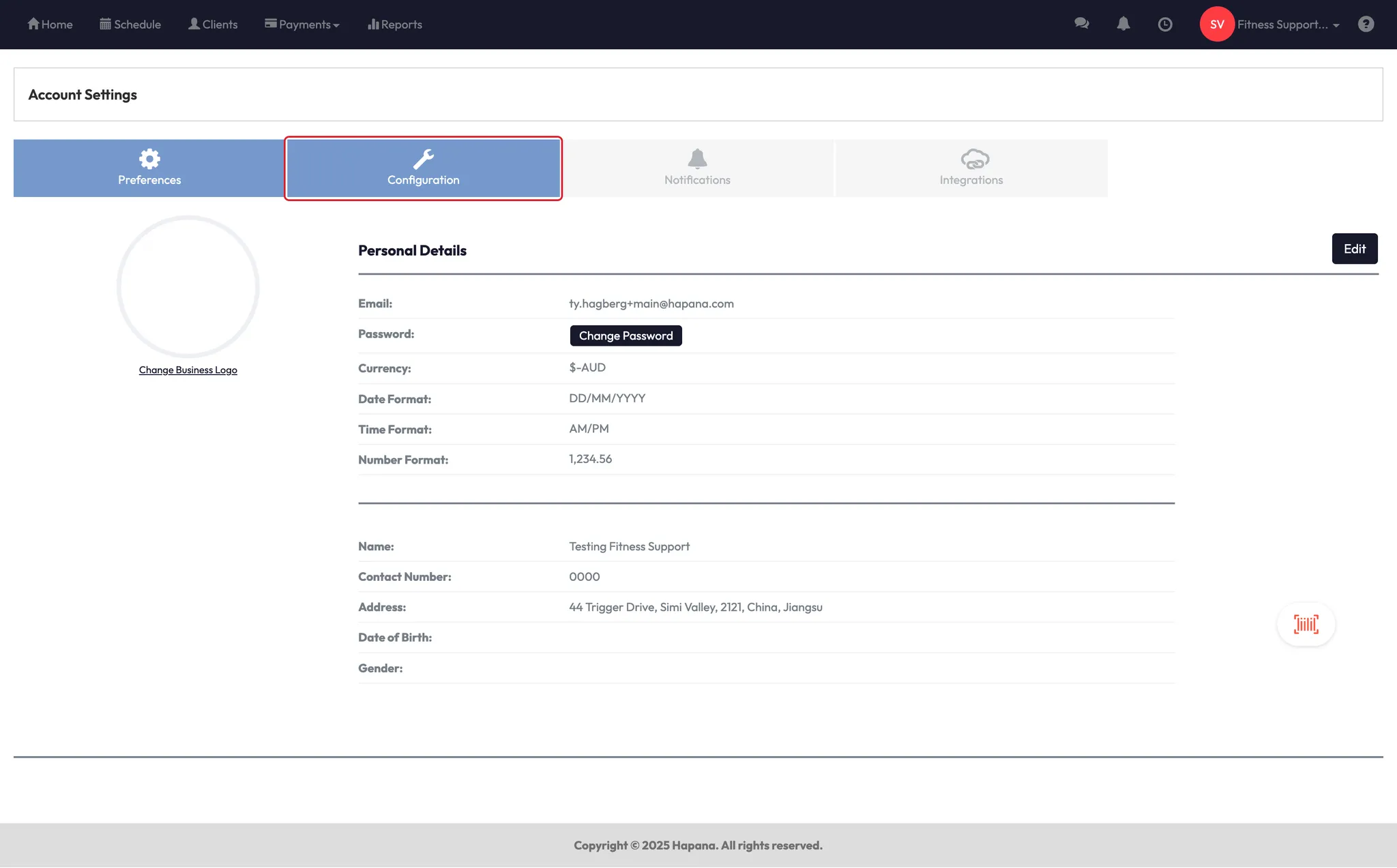
- Go to Account Settings > Configurations
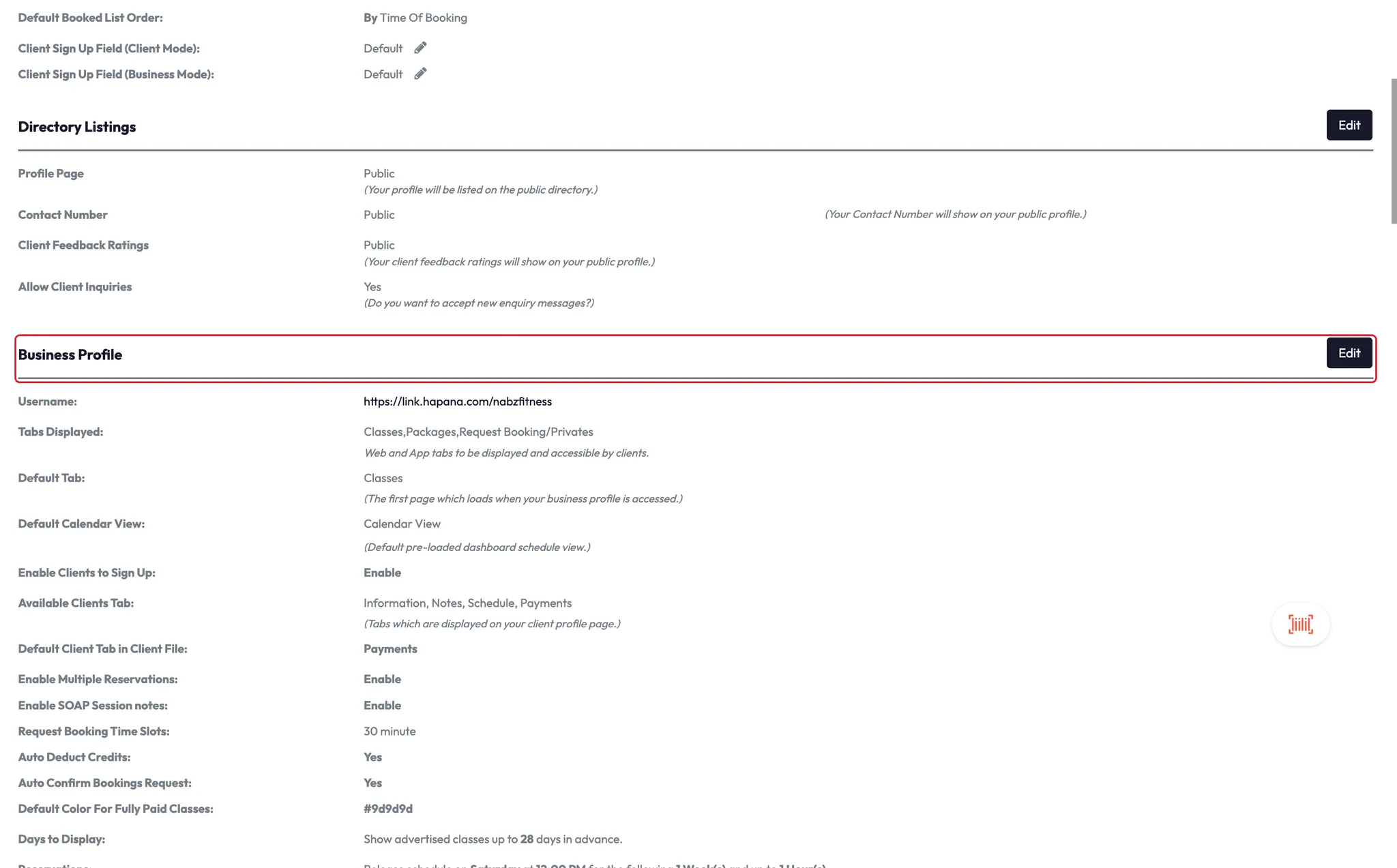
- Scroll down to the Business Profile section
- Click Edit
Step 2: Enable check-in features
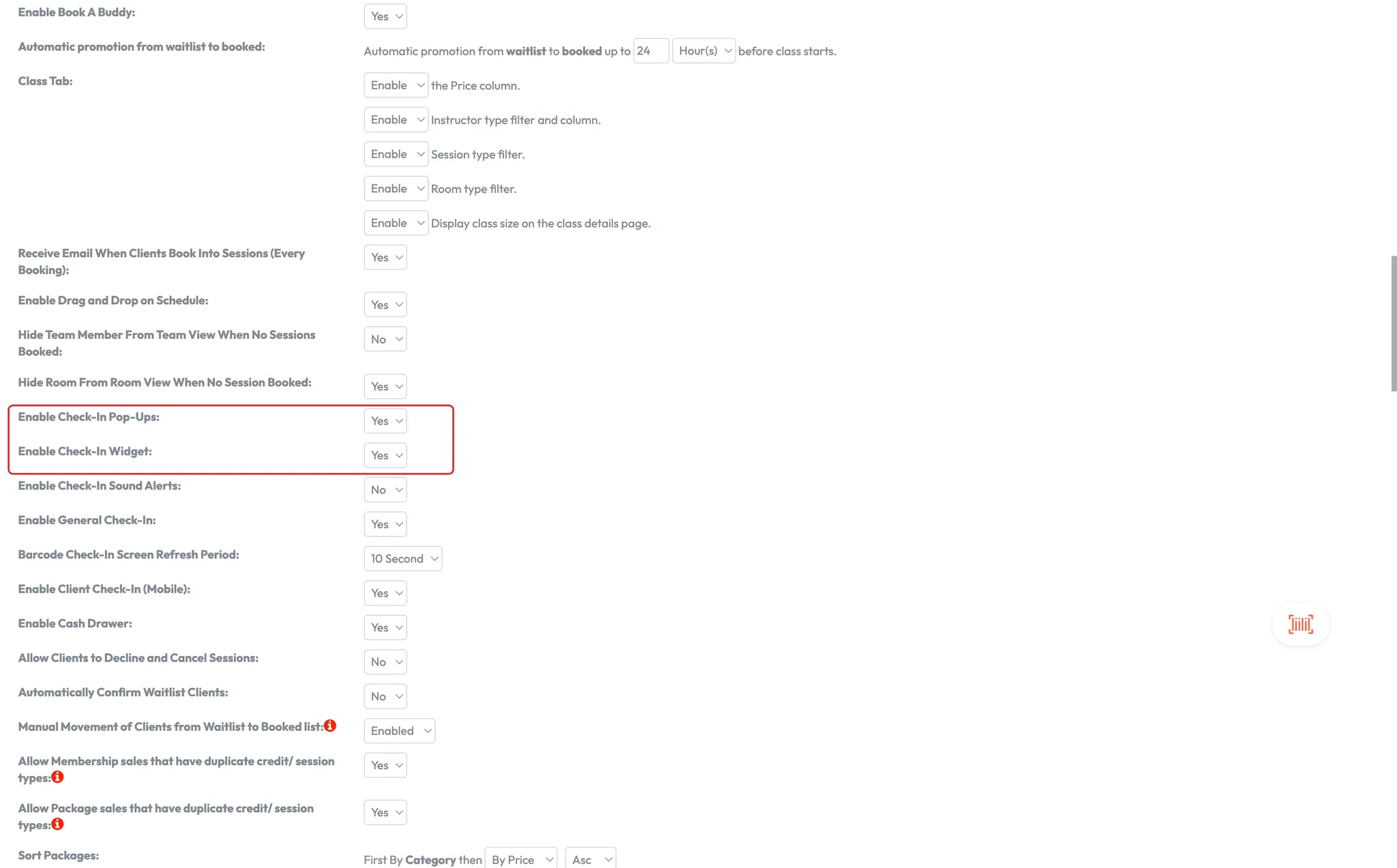
- Scroll down to find the following two settings:
- Enable check-in pop-ups
- Enable check-in widget
- Turn both settings ON by selecting Yes from the dropdown menu
- Scroll back up and click Save at the top right corner
Tip: Once enabled, you’ll start seeing check-in alerts as members scan in or are manually checked in.
Step 3: Use the check-in widget
- After saving, a barcode icon will appear on your screen (usually in the corner)
- You can move this icon to wherever works best on your screen
- When a client checks in, a pop-up will appear with their name (e.g., “Stephen has checked into the gym”)
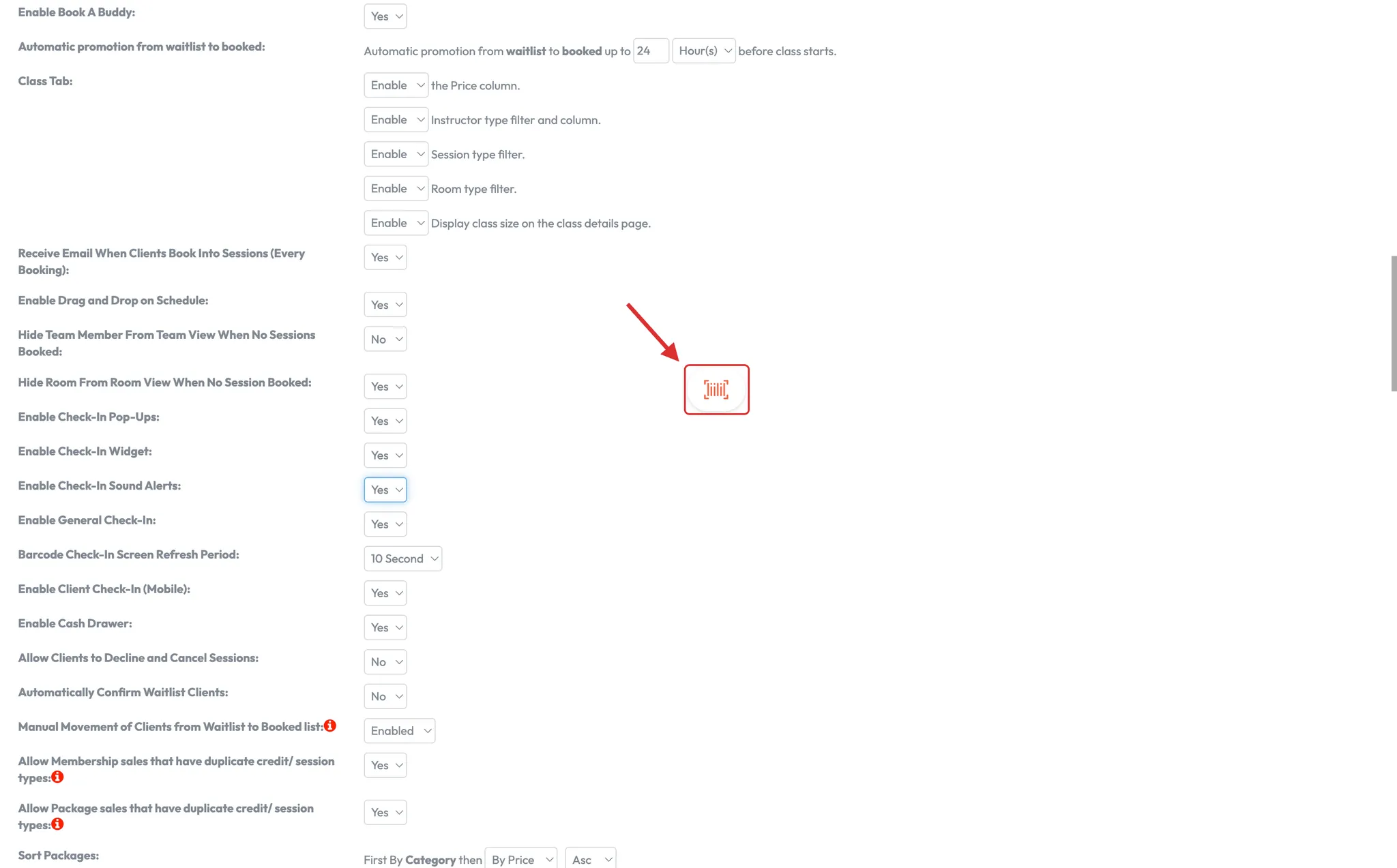
Tip: Click on the barcode icon to view a full list of all recent check-ins.
Step 4: Manually search for a client
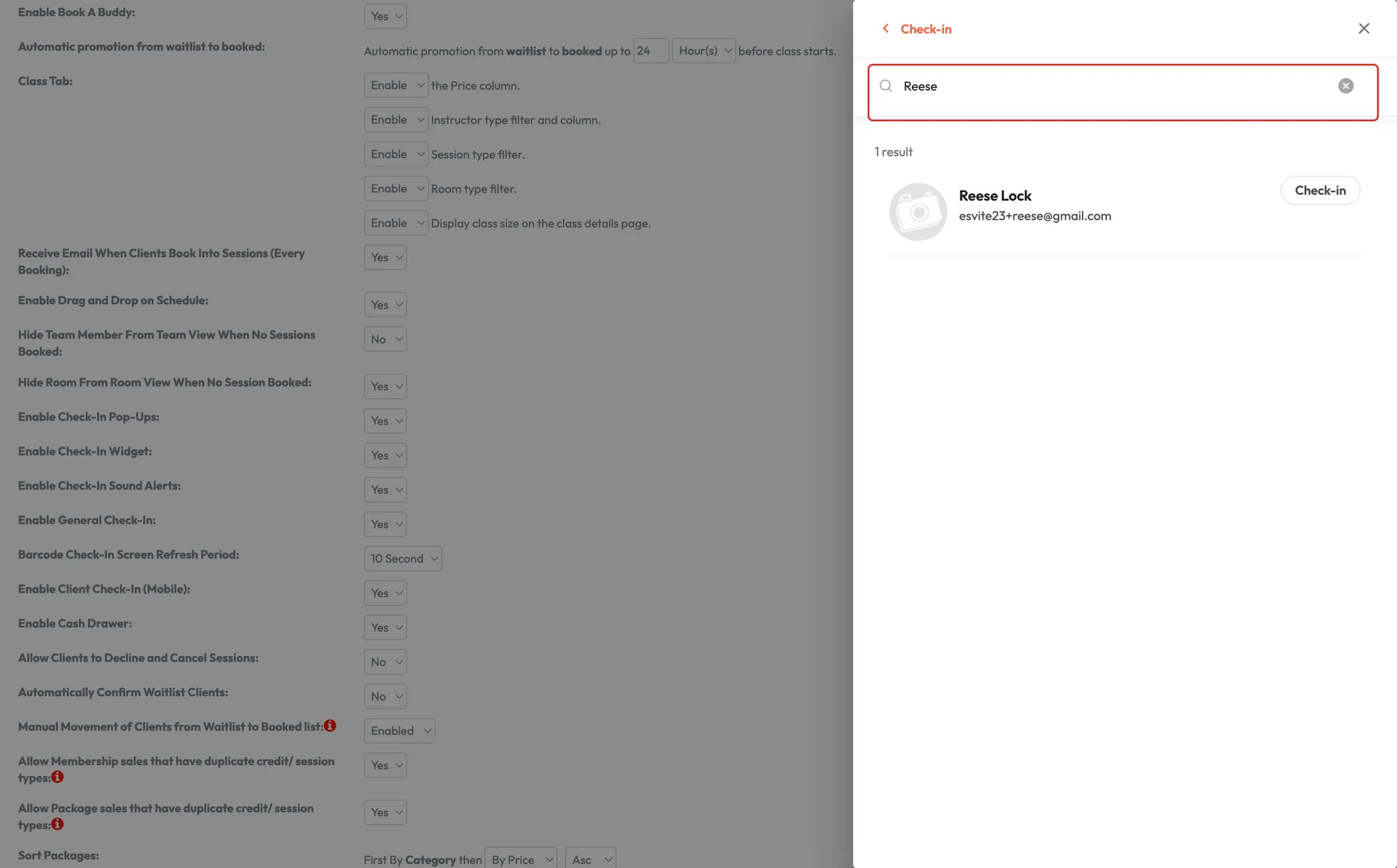
- Click on the barcode icon
- Use the search field to look up a client by:
- First name
- Last name
- Phone number
- The system will display their check-in info once found
Expected outcome
You’ll be able to see real-time check-ins for every client as they arrive, either automatically or by manually searching them in the widget. This helps monitor attendance and front-desk activity more efficiently.
FAQs
Q: Can I use this on multiple staff computers?
A: Yes — as long as the setting is enabled and you're logged into the correct account, the pop-ups and widget will display.
Q: Will this show check-ins from other locations?
A: No — it only displays check-ins at the location you're currently logged into.
Q: What happens if I disable the setting later?
A: The pop-up notifications and widget will disappear until the setting is turned back on.
Still need help?
Reach out to our support team via support@hapana.com