
Overview
This guide walks you through the general layout of CORE so you know where everything lives and how to get around easily. Whether you're managing clients, checking schedules, or reviewing payments, it all starts here.
🎥 Watch the walkthrough:
Or preview it below:
Prerequisites
Before you begin:
- You’ll need access to CORE with appropriate permissions (some sections are admin-only)
- Make sure your user role includes visibility of schedule, clients, and payments
Step-by-step instructions
1. Use the top navigation bar
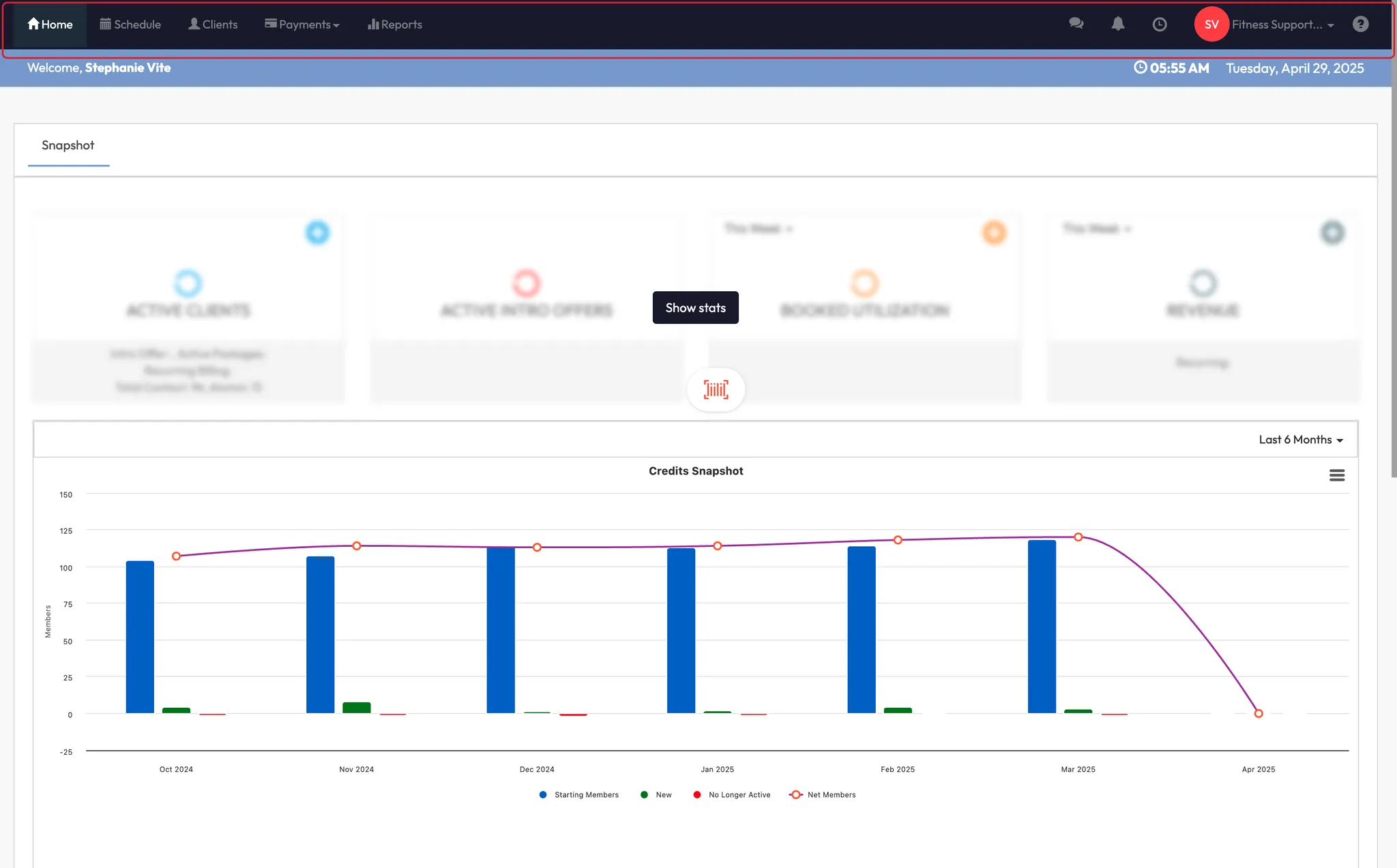
At the very top of CORE is a black navigation banner. From left to right, you'll find:
- Home – a quick summary of key metrics
- Schedule – view, manage, and filter all classes and sessions
- Clients – access all client records, memberships, and details
- Payments – process sales, view transactions, and update payment methods
- Reports – check attendance, revenue, instructor hours, and more
Tip: Hover over each icon to see its label if you're unsure.
2. Use the right-hand icons
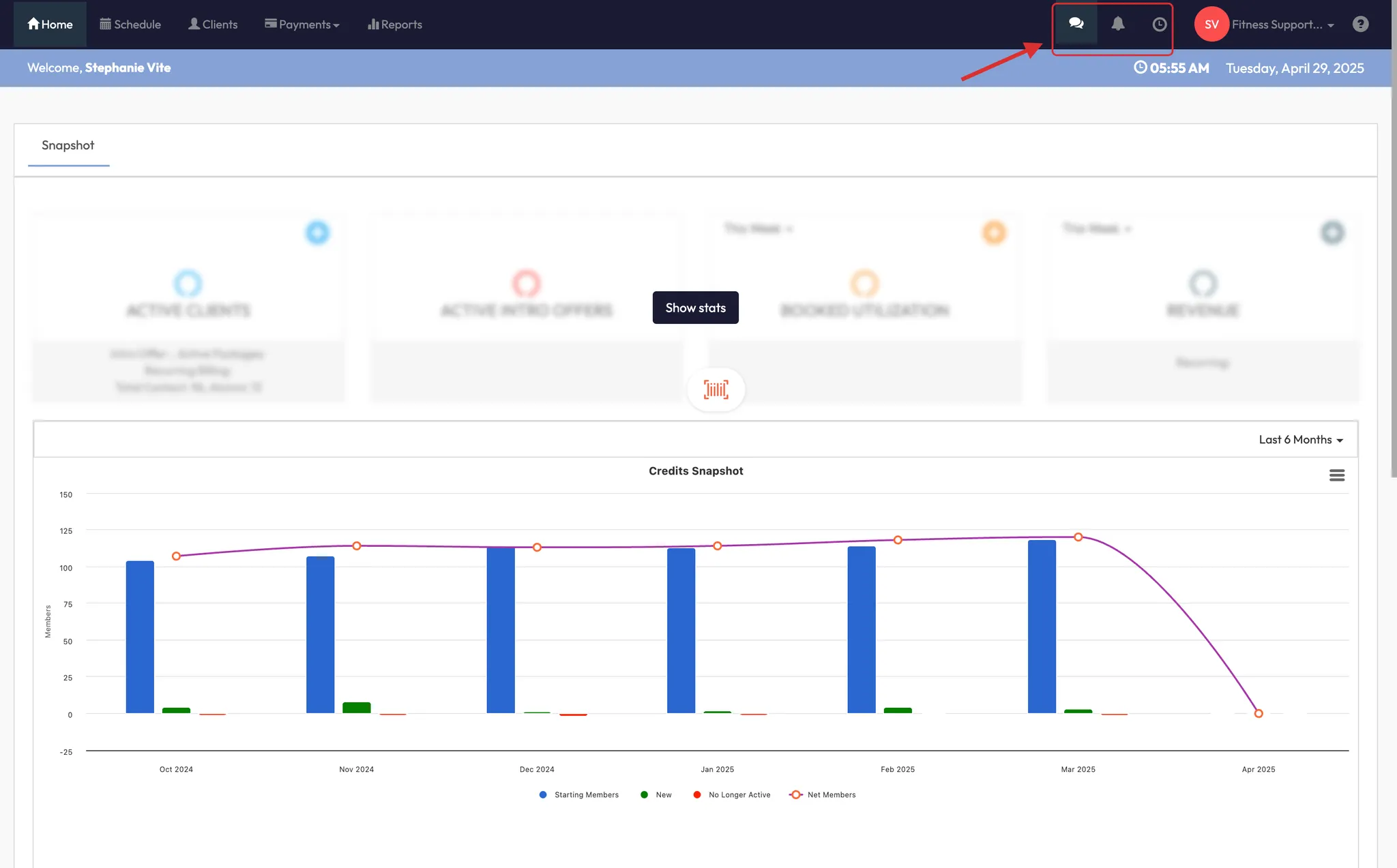
On the top-right corner:
- Messaging icon – send quick messages to clients, groups, or sessions
- Bell icon – view CORE system notifications
- Clock icon – used for hourly staff to clock in and out
These tools are perfect for fast, daily actions.
3. Access backend settings from the dropdown menu
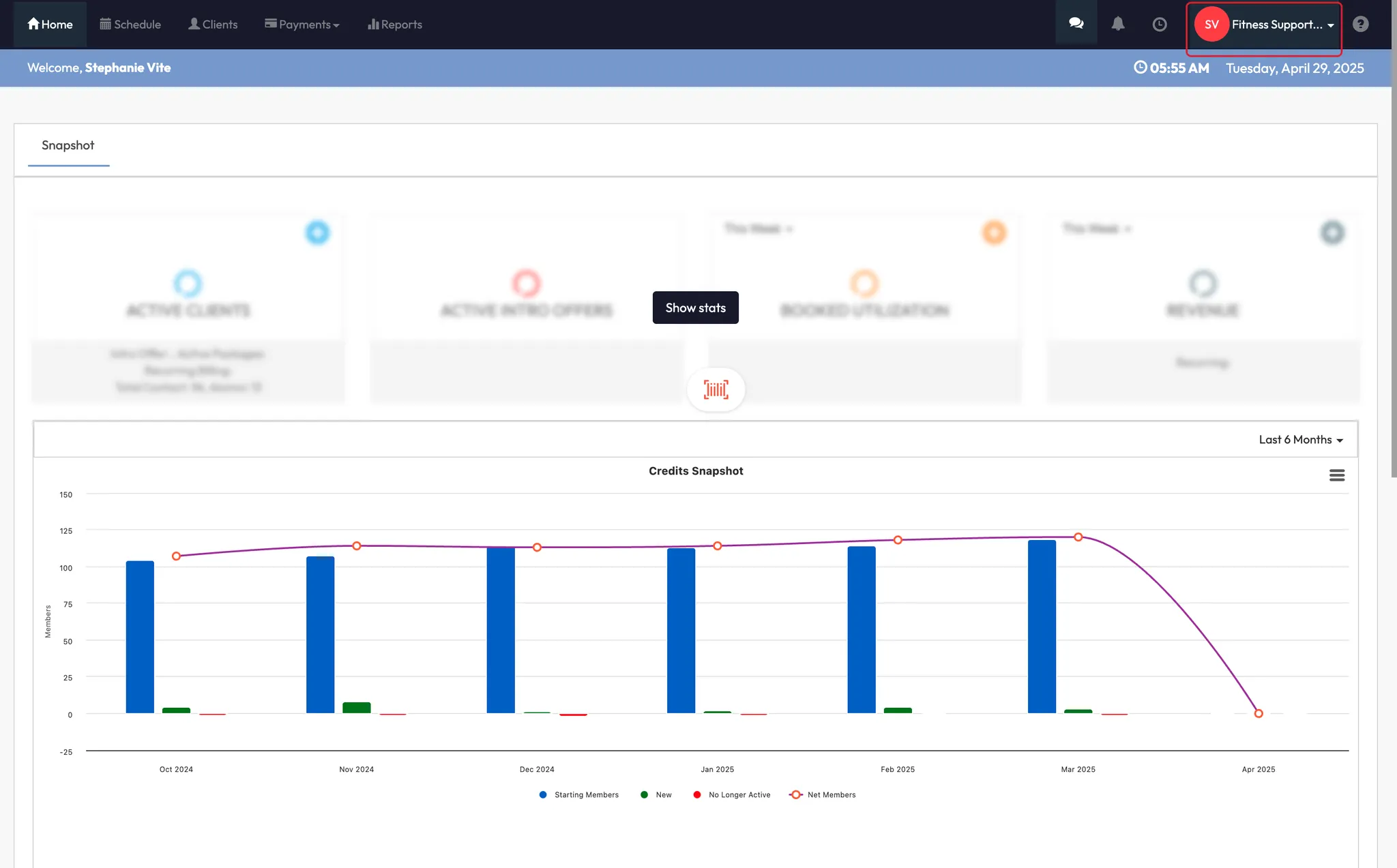
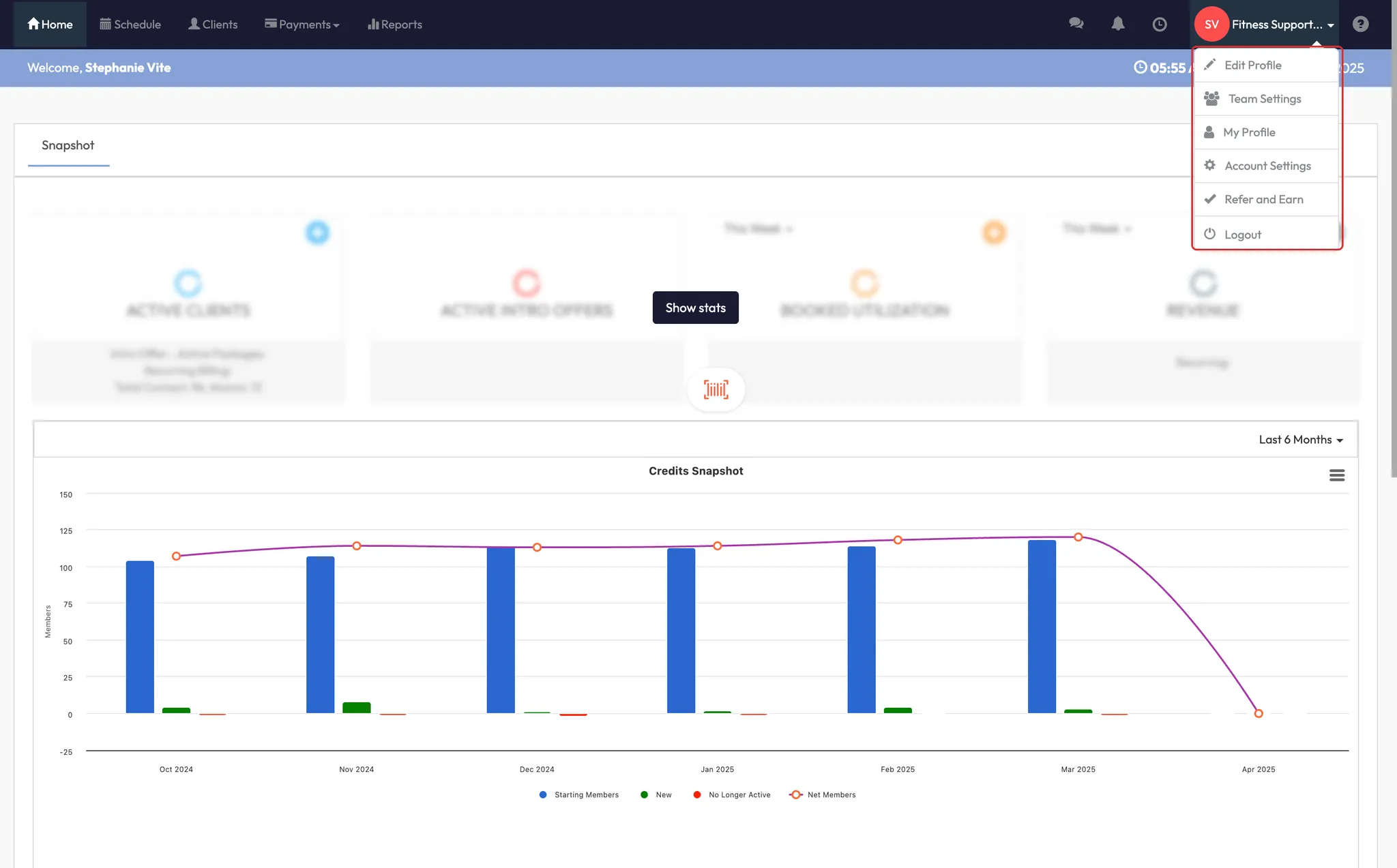
Click your location name in the top right to reveal a dropdown. This is where you’ll find:
- Edit Profile – update business info, policies, packages
- Team Settings – manage roles and staff permissions
- Account Settings – configure client fields, payments, integrations, and more
Tip: Only admins or owners typically need to use this dropdown.
If you're managing multiple locations, you'll also see a list of your other sites here. Click one to switch between them without logging out.
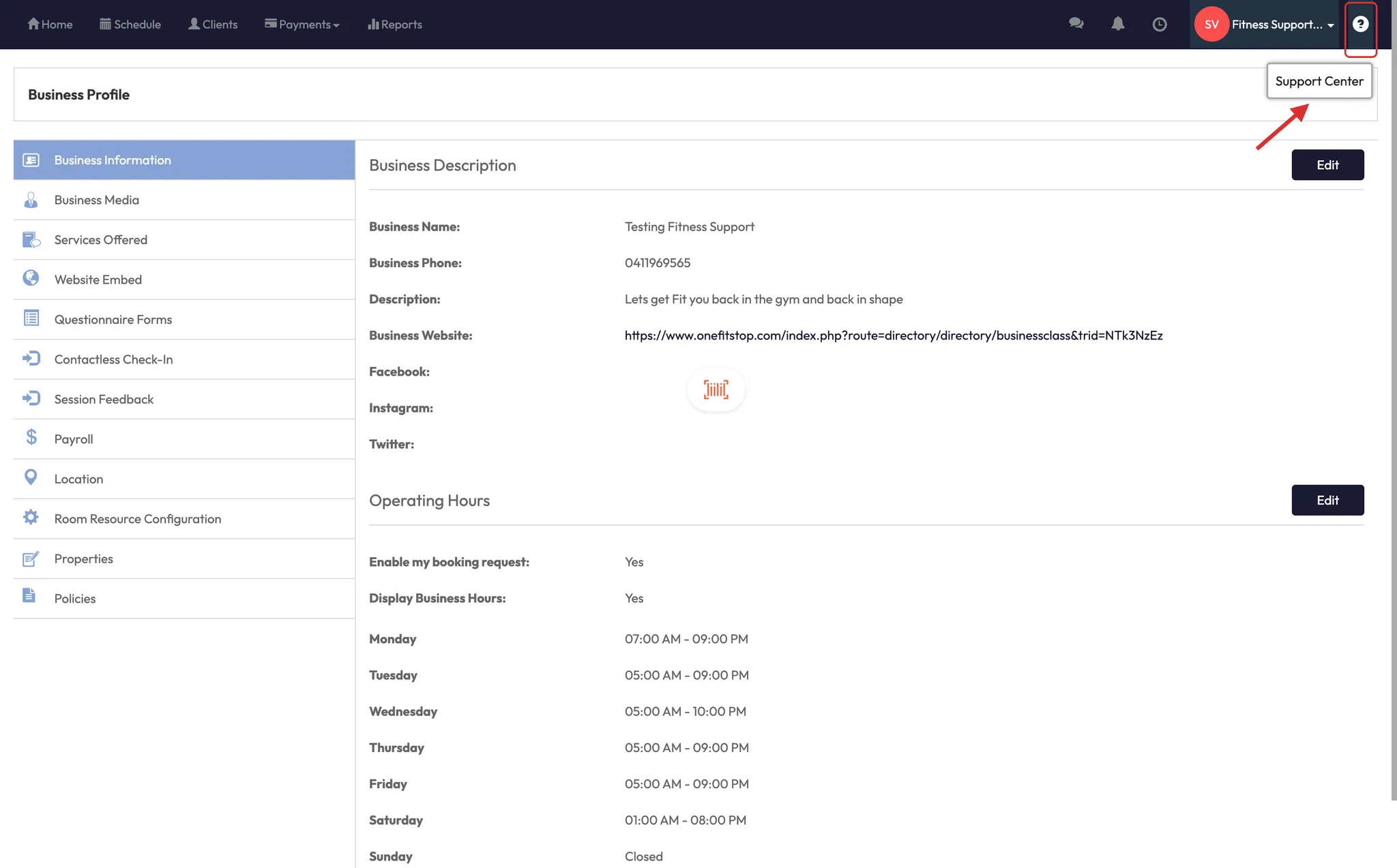
4. Use the Help Center
Click Help Center in the top dropdown to search how-to articles, get support, and find walkthroughs.
5. Understand your homepage dashboard
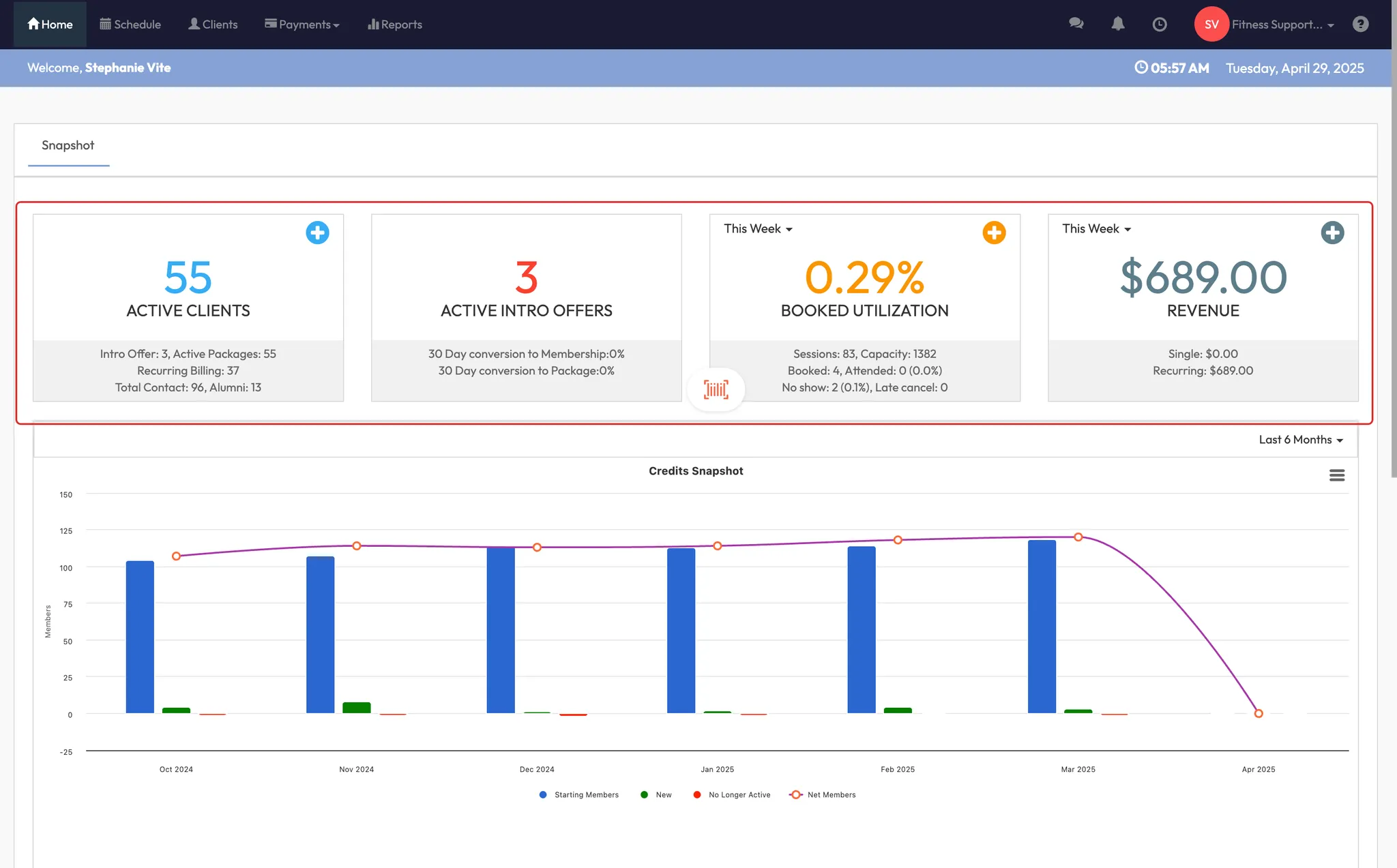
When you land in CORE, the Home tab gives you a snapshot of performance:
- Active clients count
- Intro offers sold
- Booking utilization by day, week, or last 30 days
- Revenue sales (permissions-based)
Note: The revenue tile is only visible to managers or admins with permissions.
Expected outcome
After following this guide, you’ll confidently navigate CORE — jumping between schedules, clients, reports, and back-end settings without getting lost.
FAQs
Q: Why don’t I see the revenue panel on my dashboard?
A: That section is only visible to users with permission to view financial data.
Q: Can I customize which modules I see?
A: Not currently. Modules are standard across CORE but what you can access is based on your role.
Q: How do I switch between locations?
A: Use the dropdown menu in the top-right corner to jump between sites (no logout needed).
Still need help?
Reach out to our support team via support@hapana.com