
Overview
You can customize the information collected when a client signs up — whether they do it themselves or your staff creates the profile at the front desk. This is done by setting up sign-up fields in both Client Mode and Business Mode under your calendar settings.
🎥 Watch the walkthrough:
Or preview it below:
Prerequisites
Before you begin:
- Make sure you have admin access to your location’s configuration
- Decide what client info you want to collect during sign-up (e.g., emergency contacts, waivers, forms)
Step-by-step instructions
Step 1: Go to your calendar settings
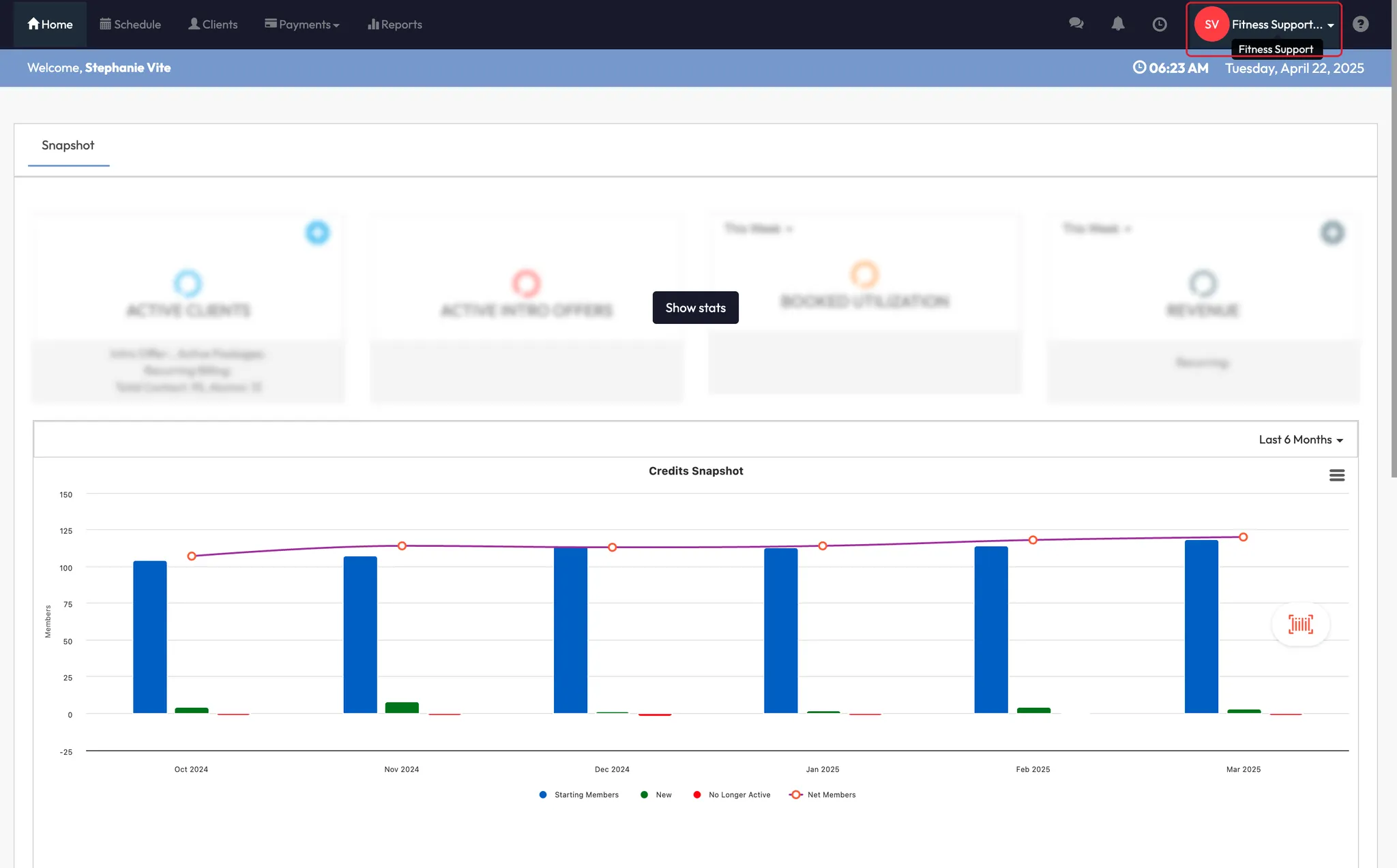
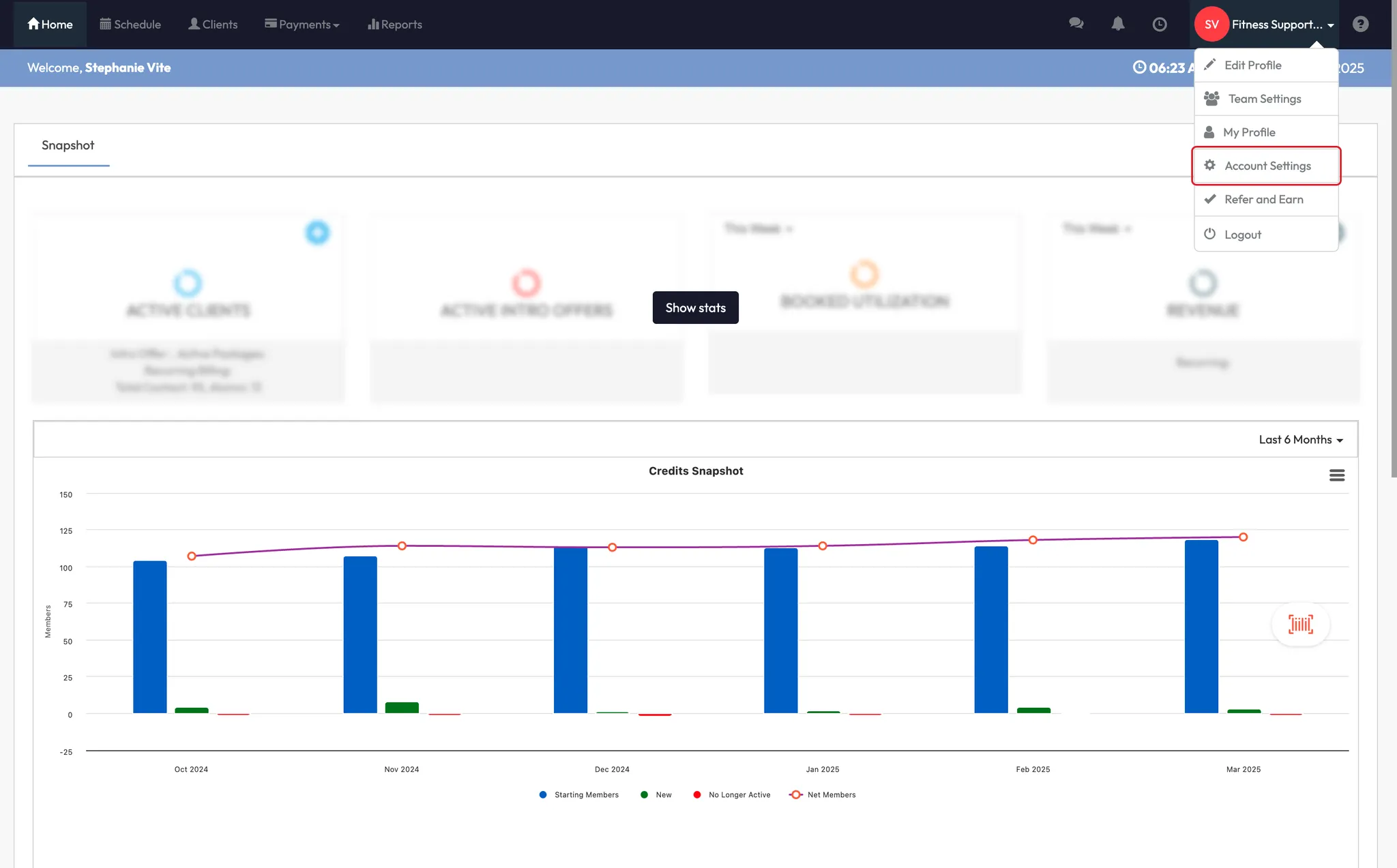
- Click your Location Name at the top right
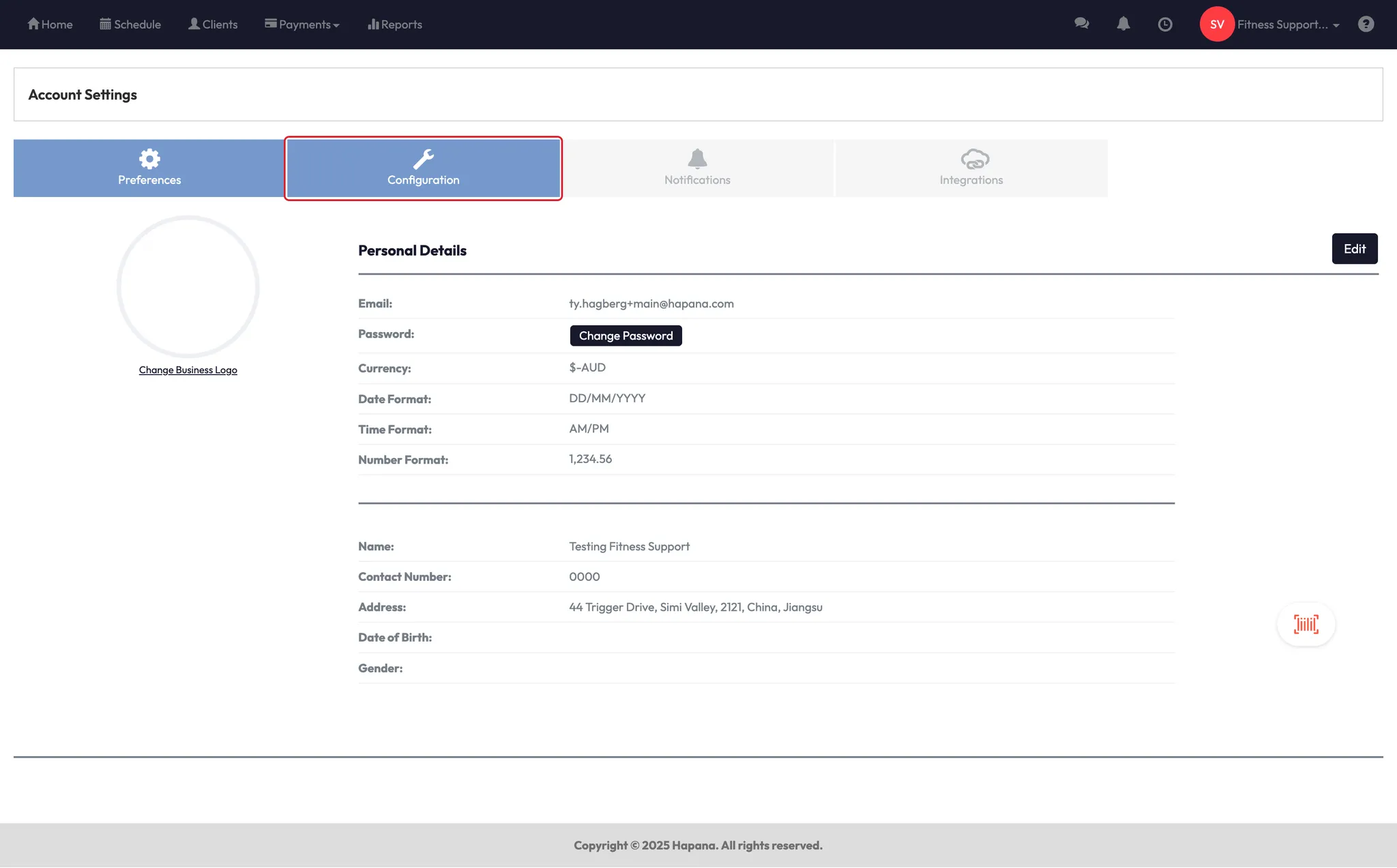
- Go to Account Settings > Configuration
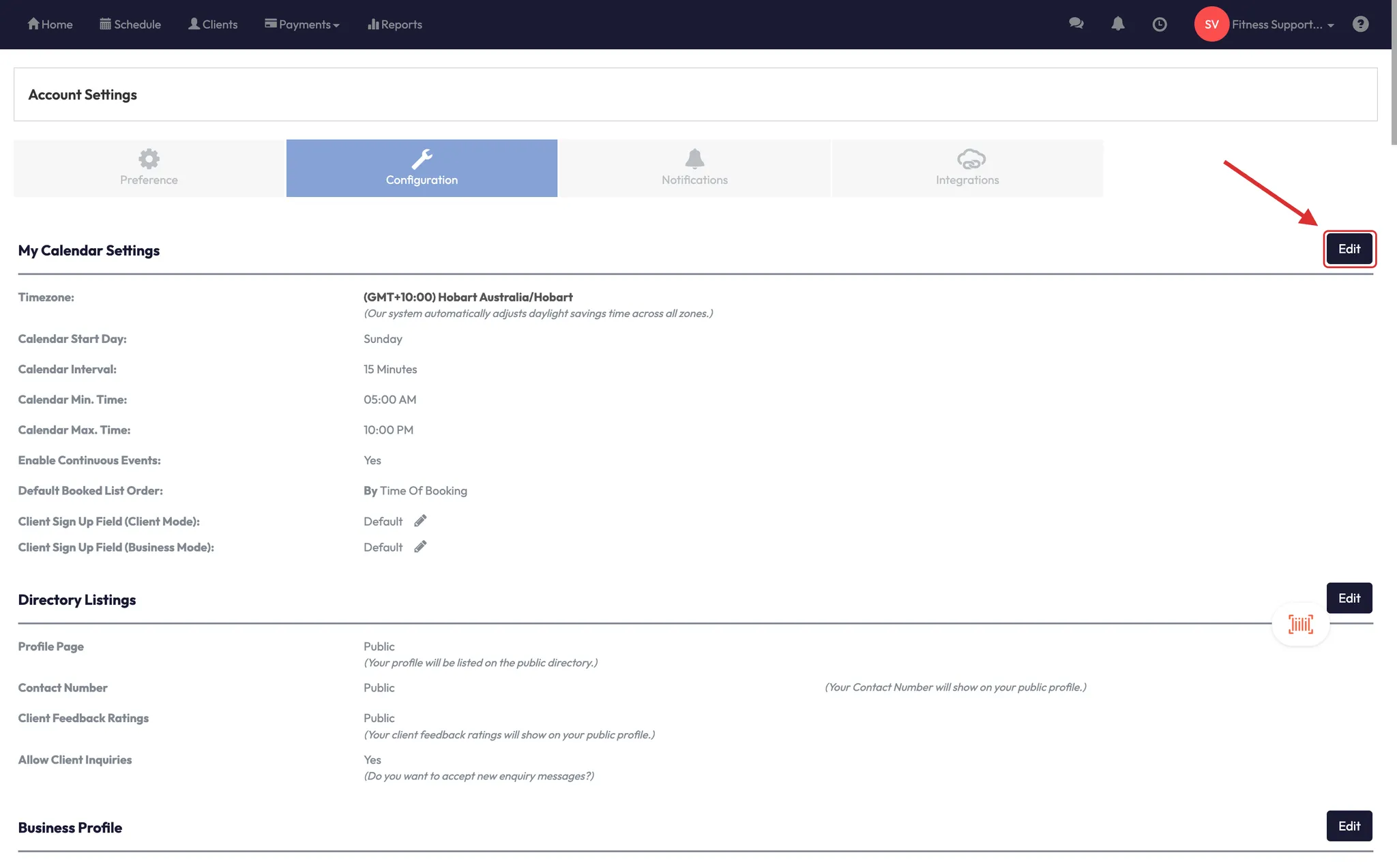
- Click Edit My Calendar Settings
Step 2: Open sign-up field settings
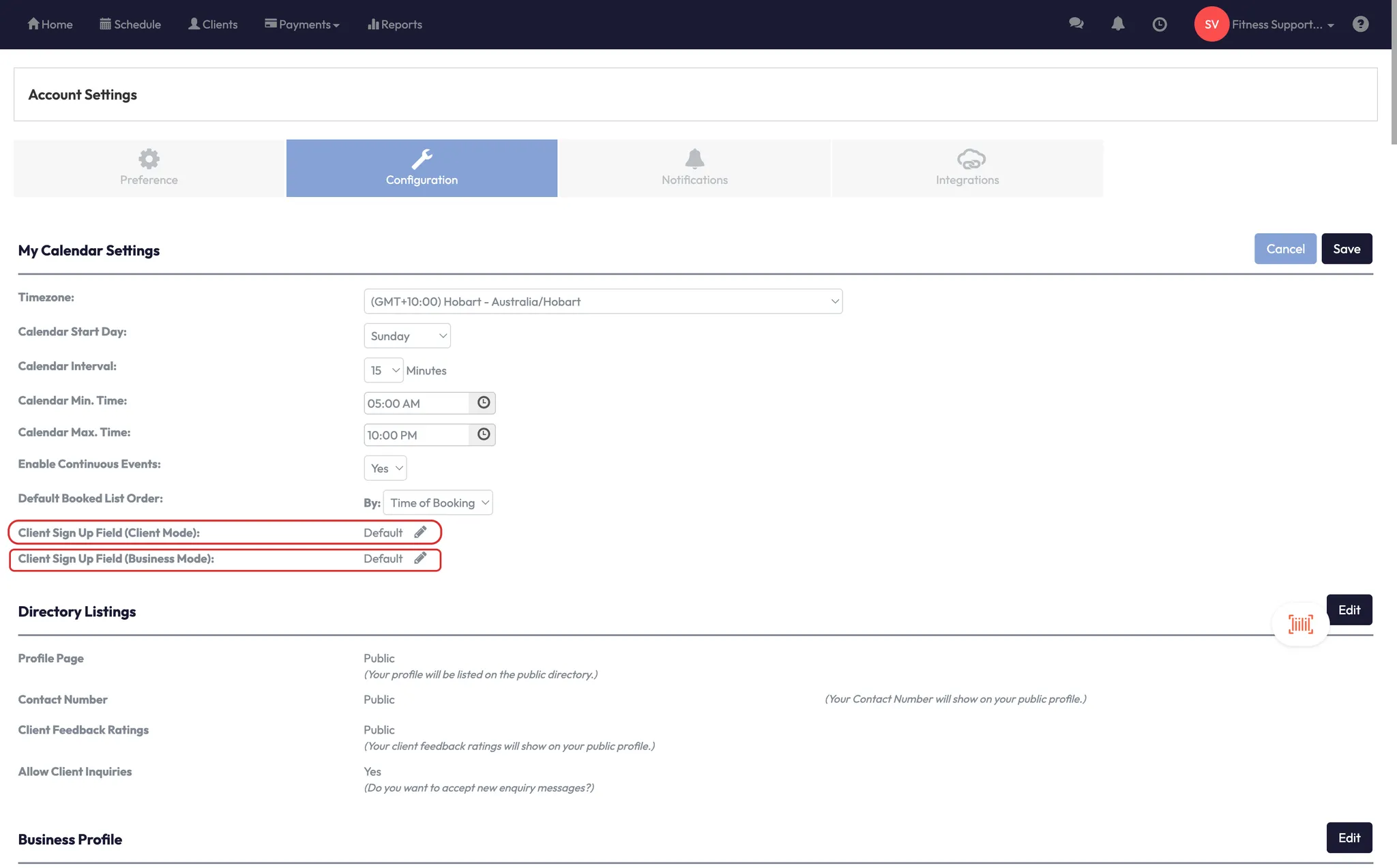
- Look for two pencil icons next to:
- Client Sign-Up Field (Client Mode)
- Client Sign-Up Field (Business Mode)
Step 3: Set up Client Mode fields
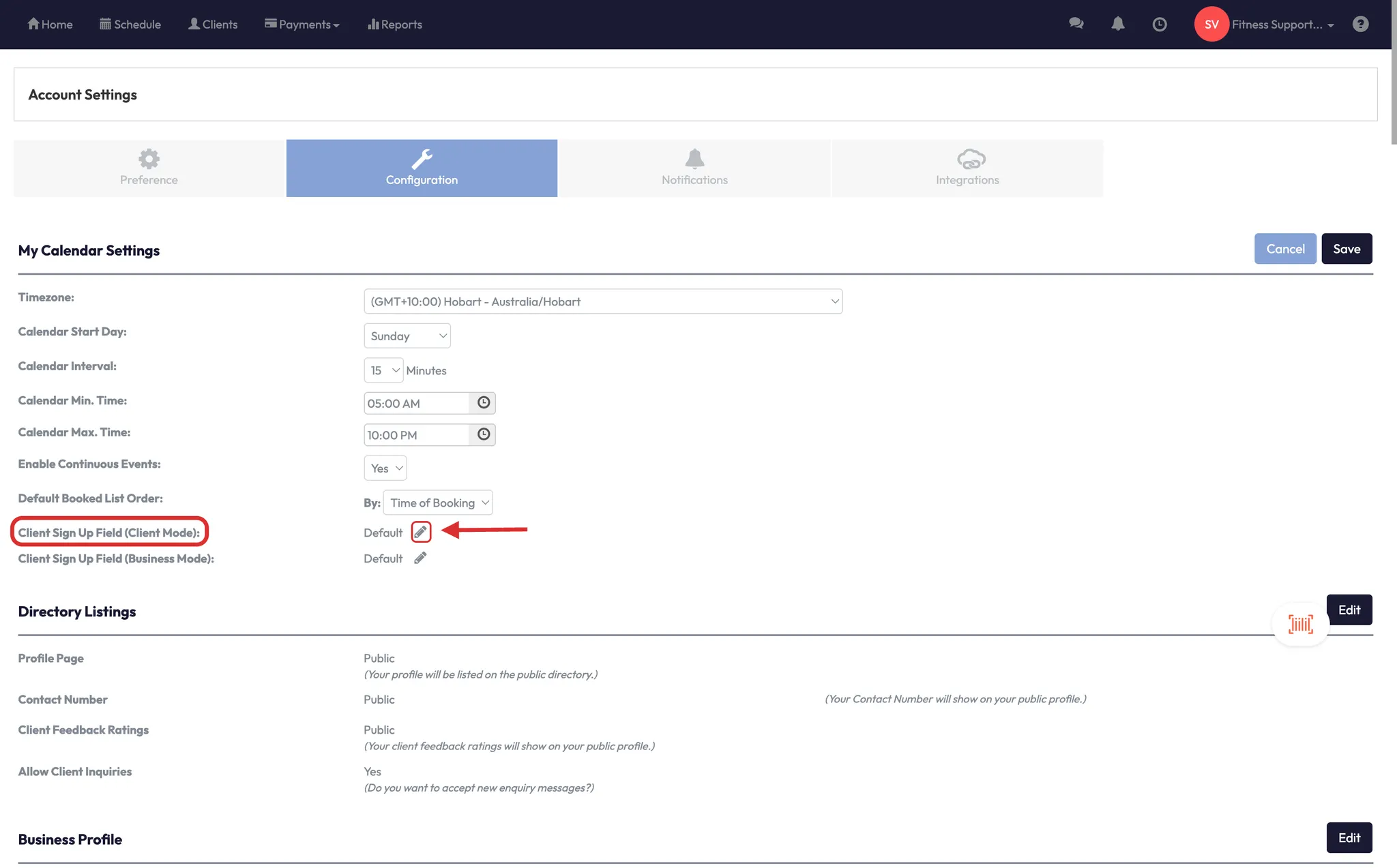
- Click the pencil next to Client Mode
- This is the sign-up form clients will complete on their own (via app or website)
- You’ll see sections like:
- Primary profile info
- Emergency contacts
- Custom properties
- Policies
- Forms
- Toggle each field on/off, and set as Required or Optional
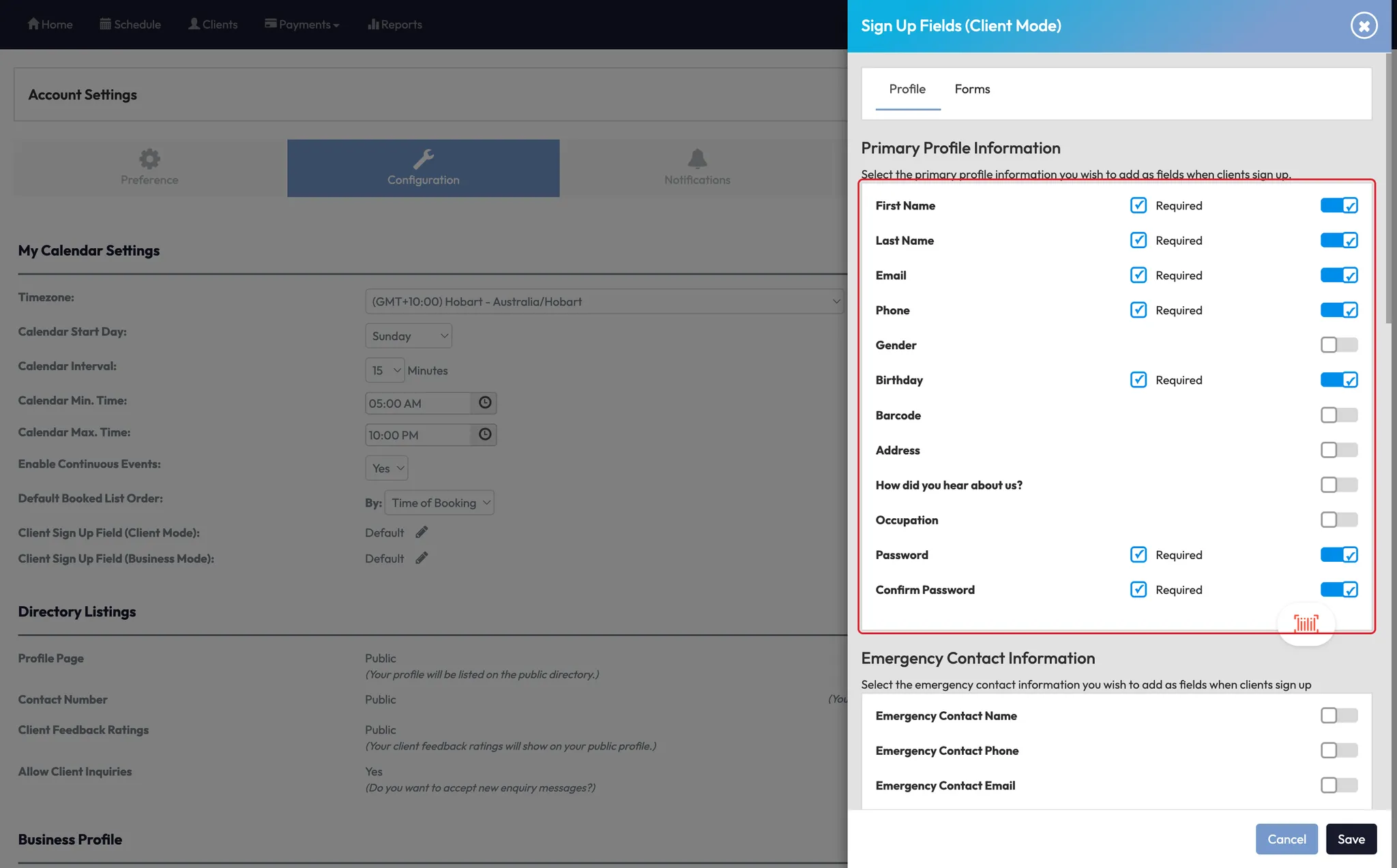
💡 Use this mode to collect everything you want the client to provide for your records or compliance.
Step 4: Set up Business Mode fields
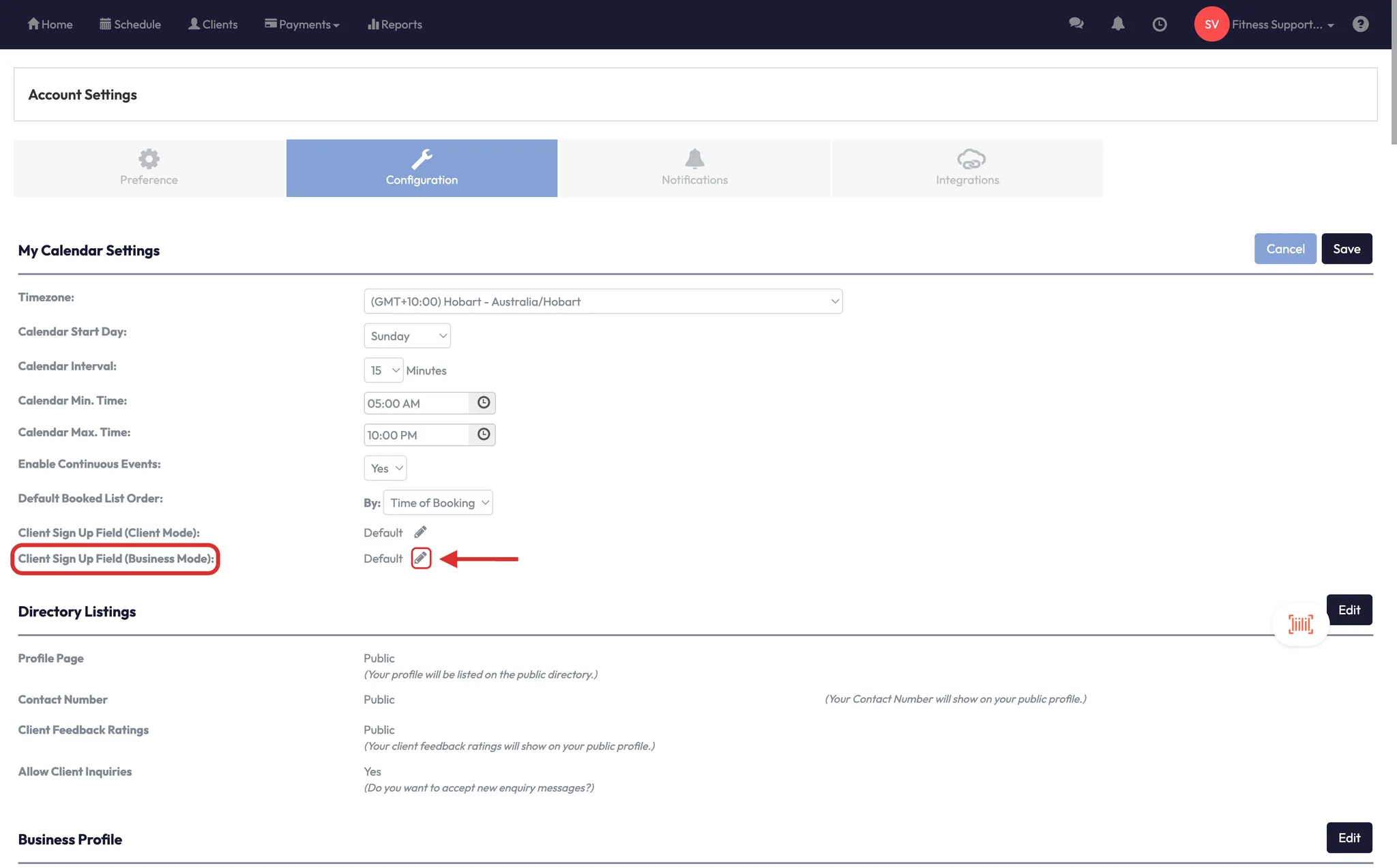
- Click the pencil next to Business Mode
- This is what your front desk sees when creating a client profile
- Only include the essential fields here — aim for speed and simplicity
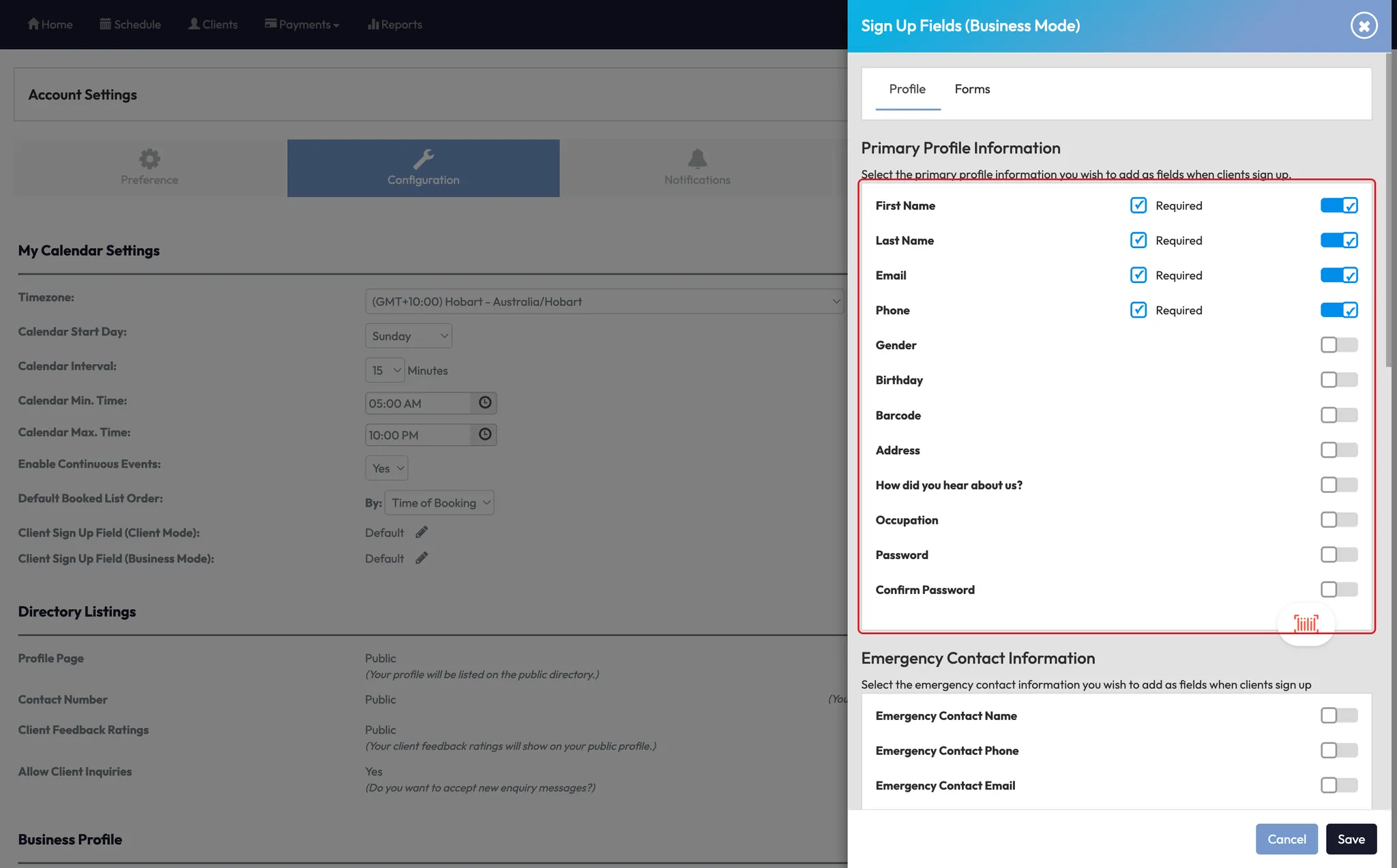
⚠️ Keep it short: Clients will be prompted to complete any remaining required info from Client Mode when they first log in.
Expected outcome
You’ll have two customized sign-up flows:
- Business Mode for staff to quickly create clients in person
- Client Mode for full profile creation when clients sign up on their own
FAQs
Q: Will clients be forced to complete Client Mode if staff have already created their profiles?
A: Yes, during their first login, they’ll be asked to complete any required fields from Client Mode.
Q: Can I collect waivers and forms during sign-up?
A: Absolutely. You can link them under the Policies and Forms sections in both modes.
Q: What happens if a field is optional?
A: Clients or staff can skip it, but you’ll still be able to view or edit that data later.
Still need help?
Reach out to our support team via support@hapana.com