
Overview
SOAP notes (Subjective, Objective, Assessment, Plan) are commonly used for clinical-style session tracking — especially in 1:1 training or therapy settings. In CORE, you can enable and manage SOAP notes for your team, so notes are securely linked to each client’s profile and session.
🎥 Watch the walkthrough:
Or preview it below:
Prerequisites
Before you begin:
- SOAP notes must be enabled in your Account Settings > Configurations
- Your staff members must have permission to view and edit SOAP notes under their Team Access Group
- SOAP notes are only available for 1:1 private sessions (not group classes)
Step-by-step instructions
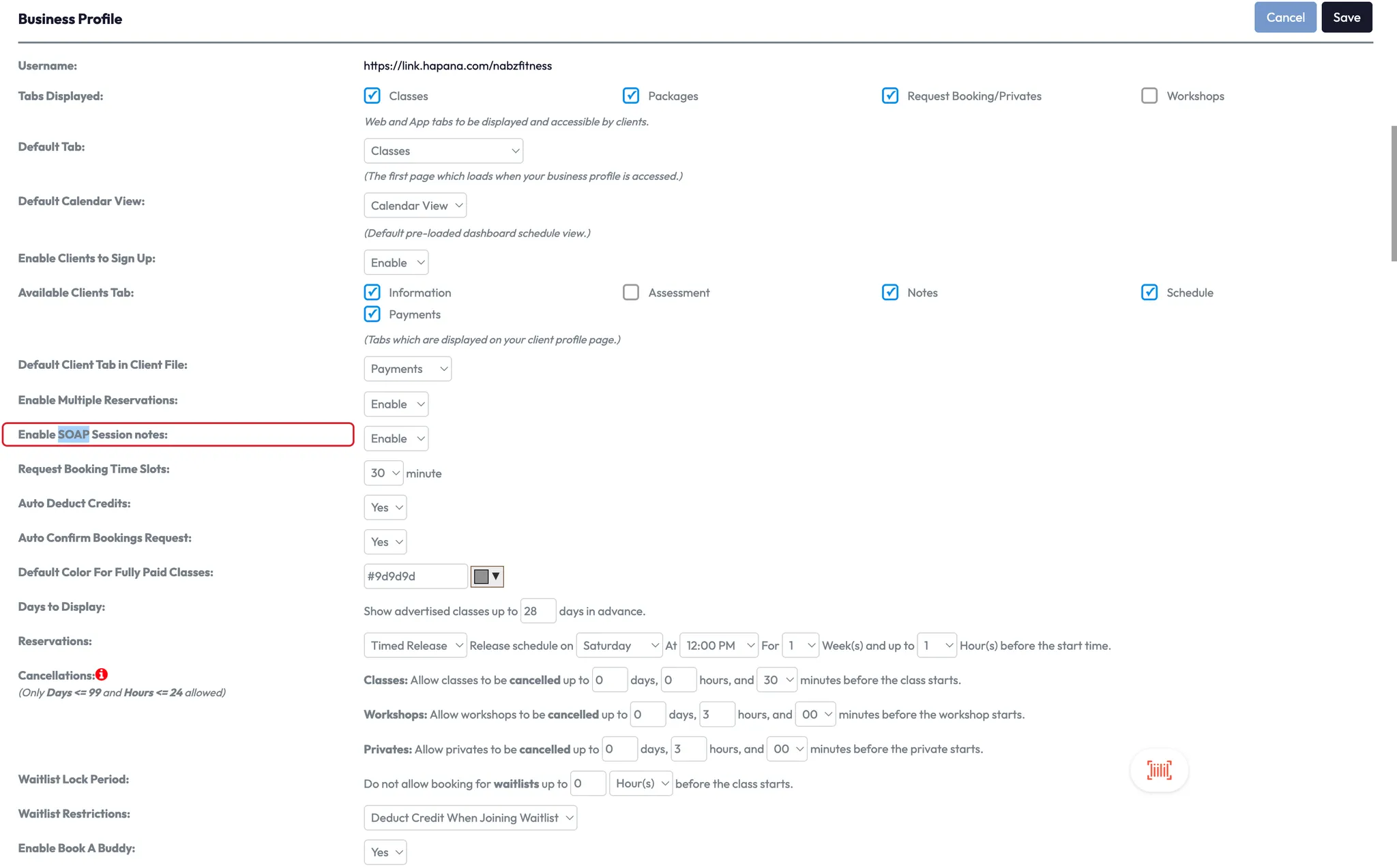
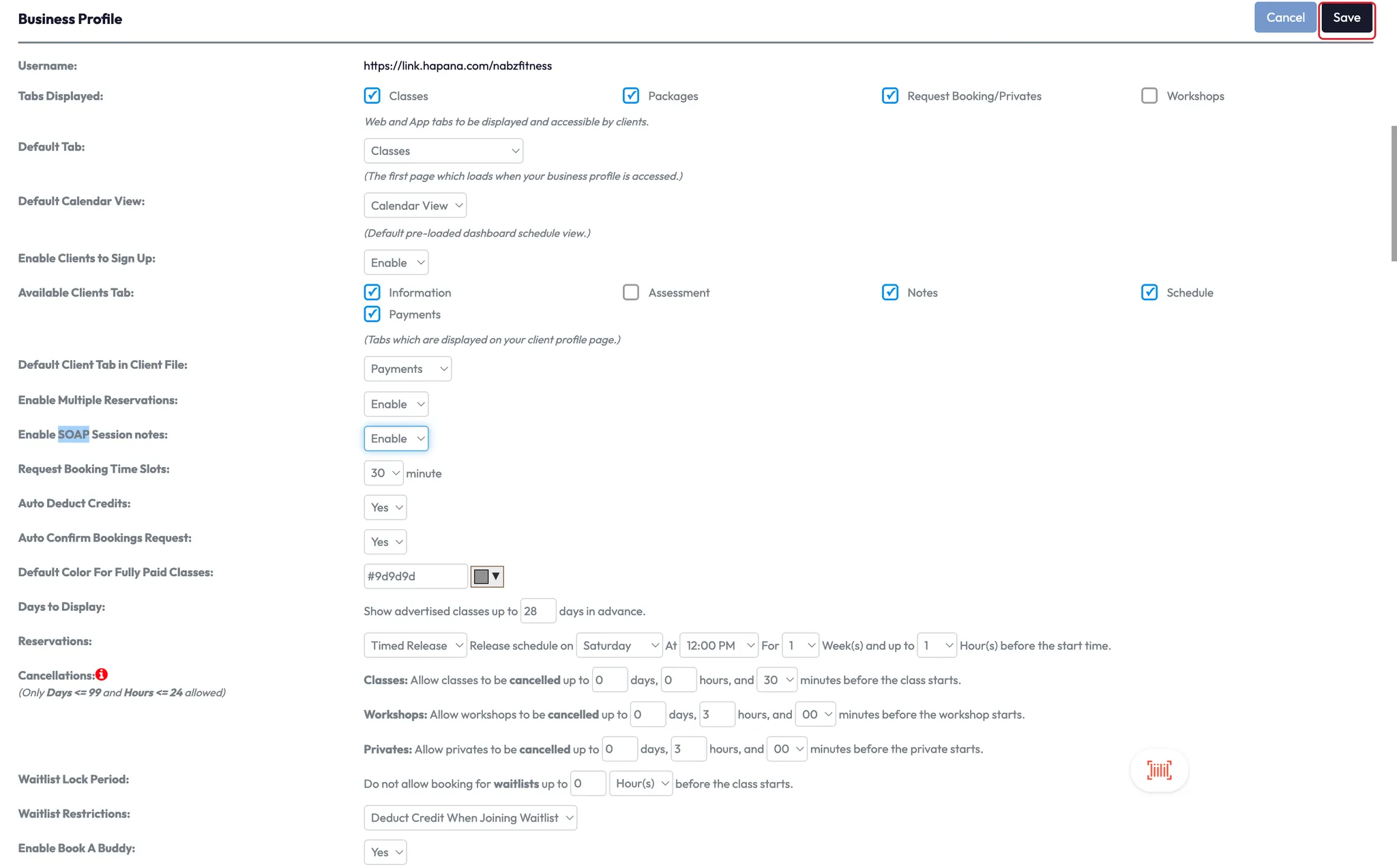
Step 1: Enable SOAP notes in account settings
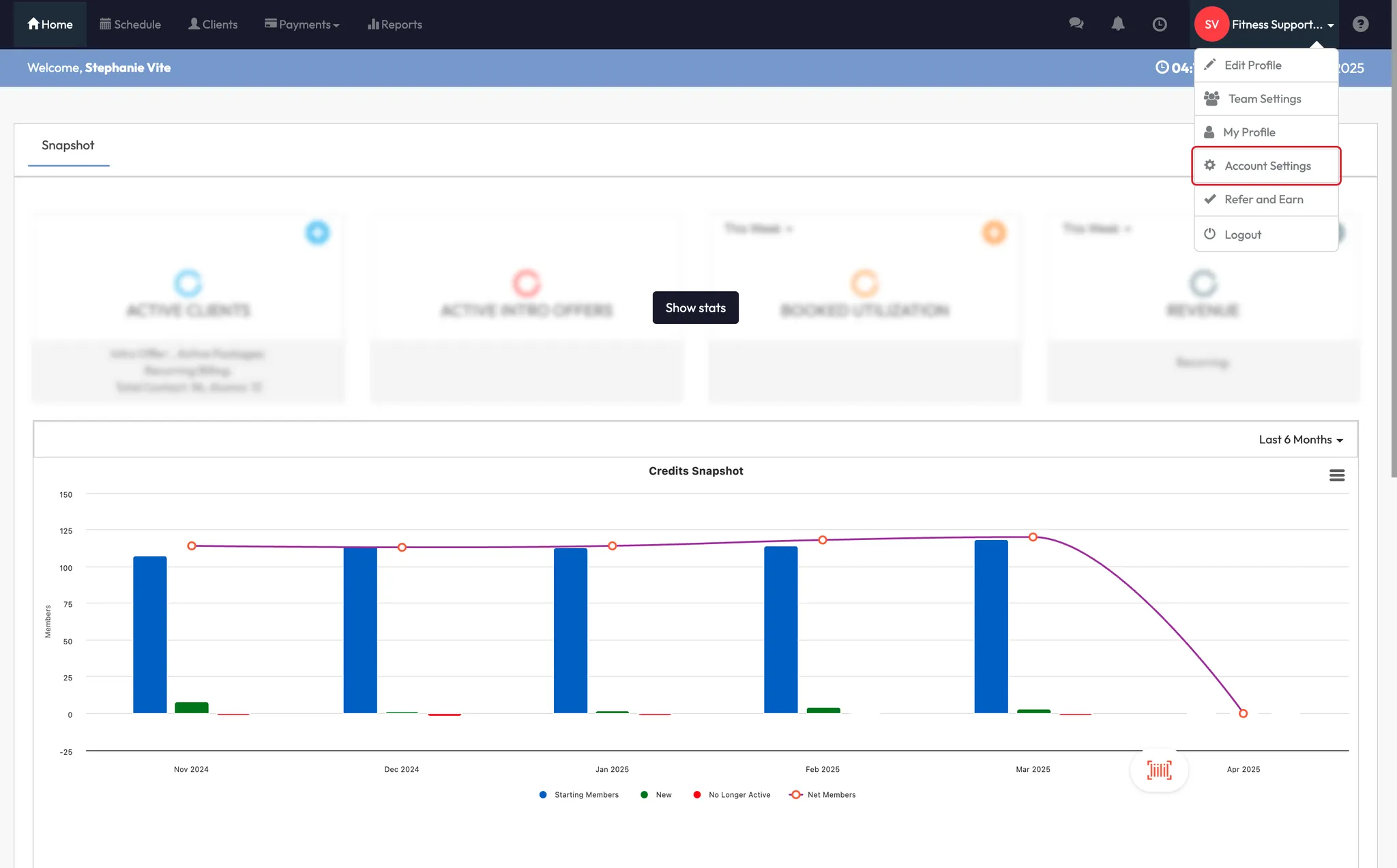
- Click your Location Name
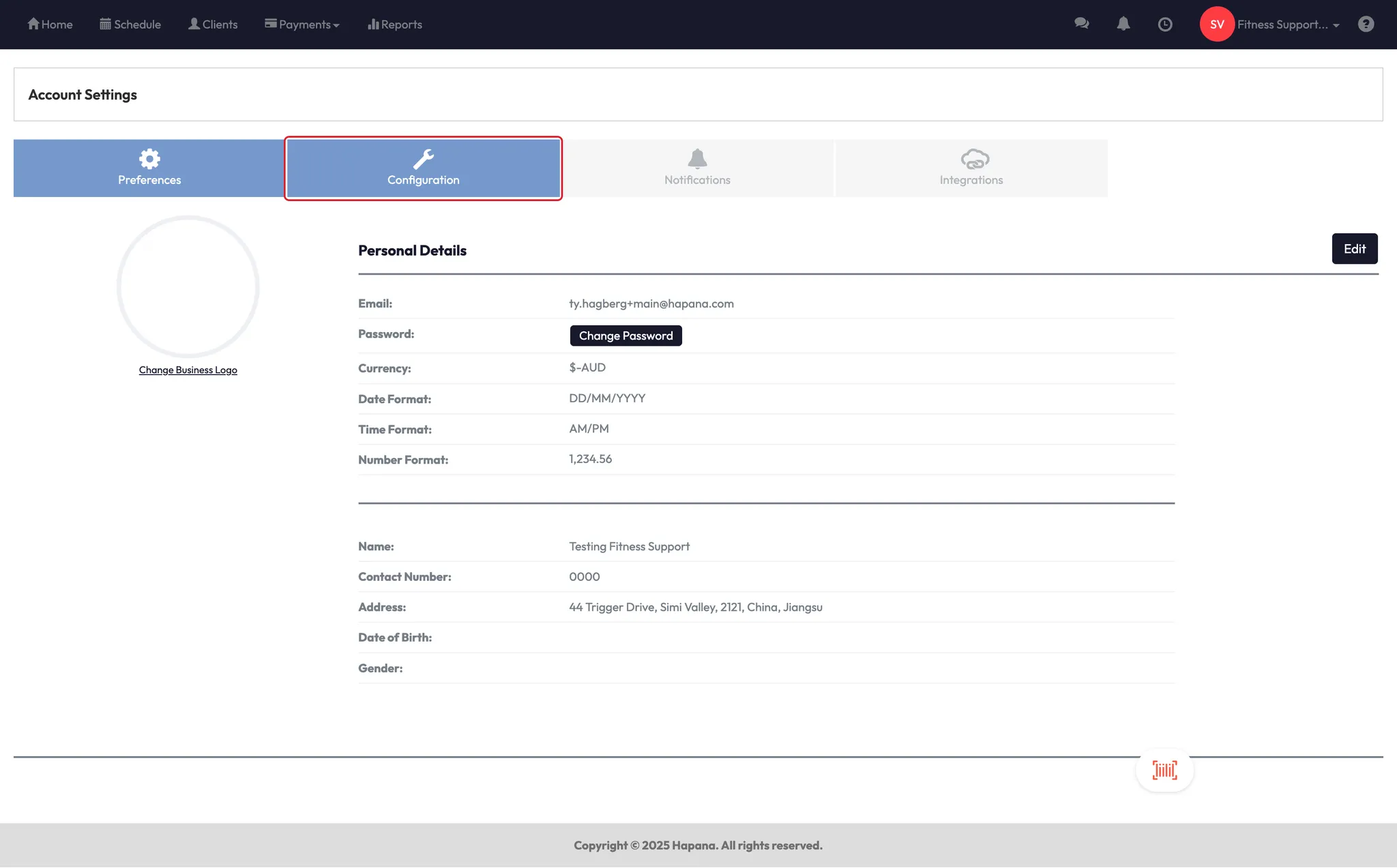
- Go to Account Settings > Configurations
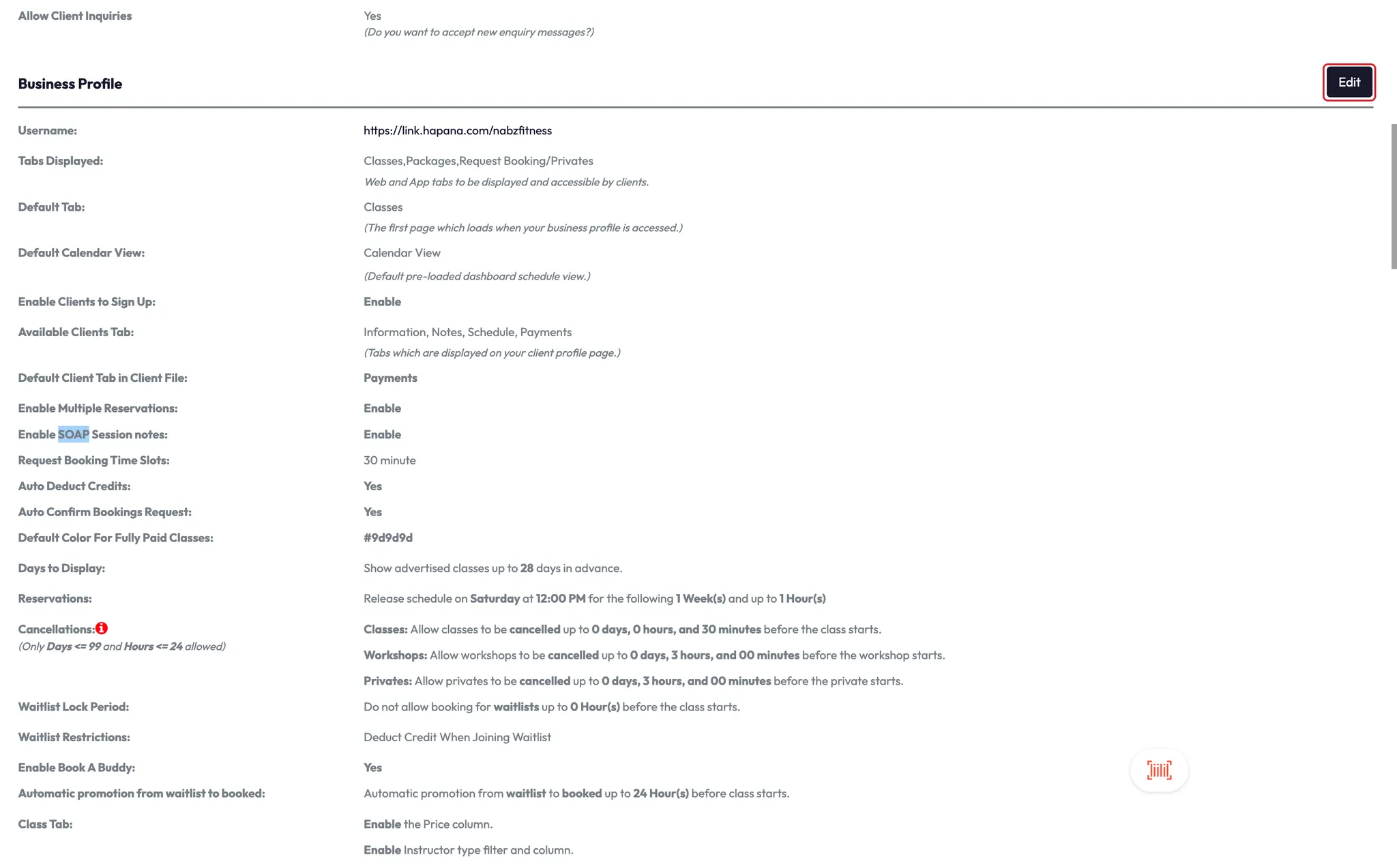
- Scroll to Enable SOAP notes
- Click Edit and toggle the setting to Yes
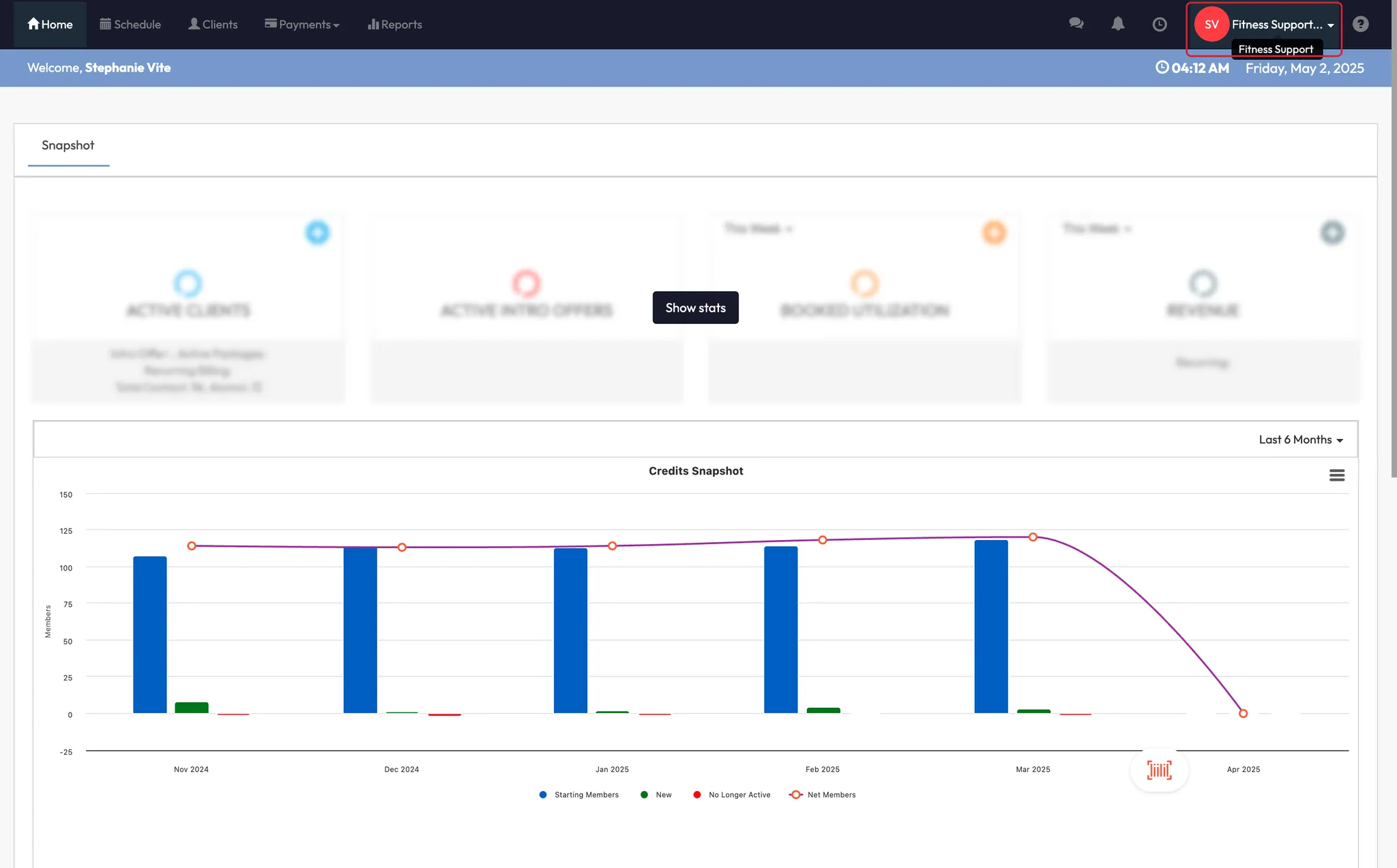
Step 2: Grant access via team settings
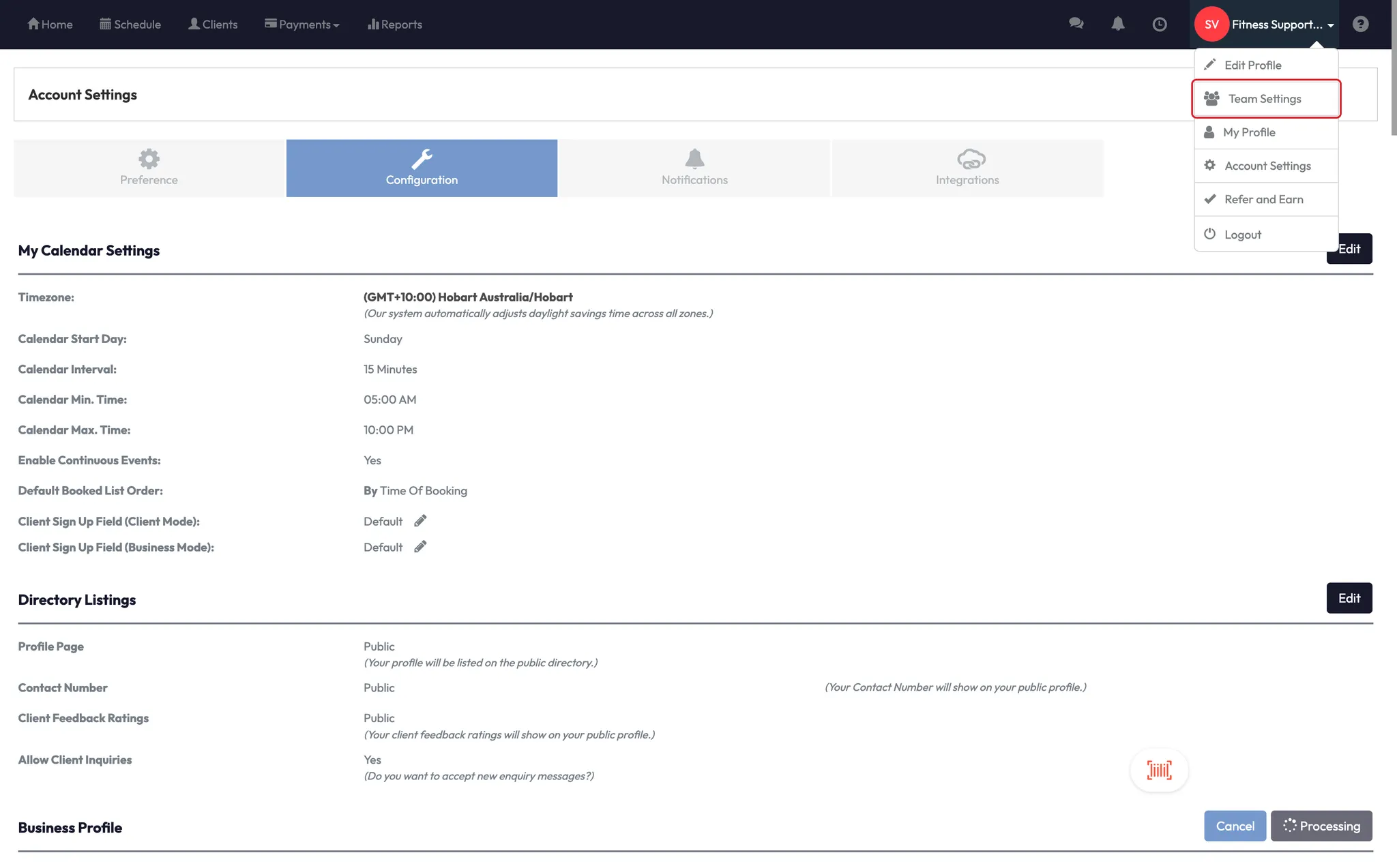
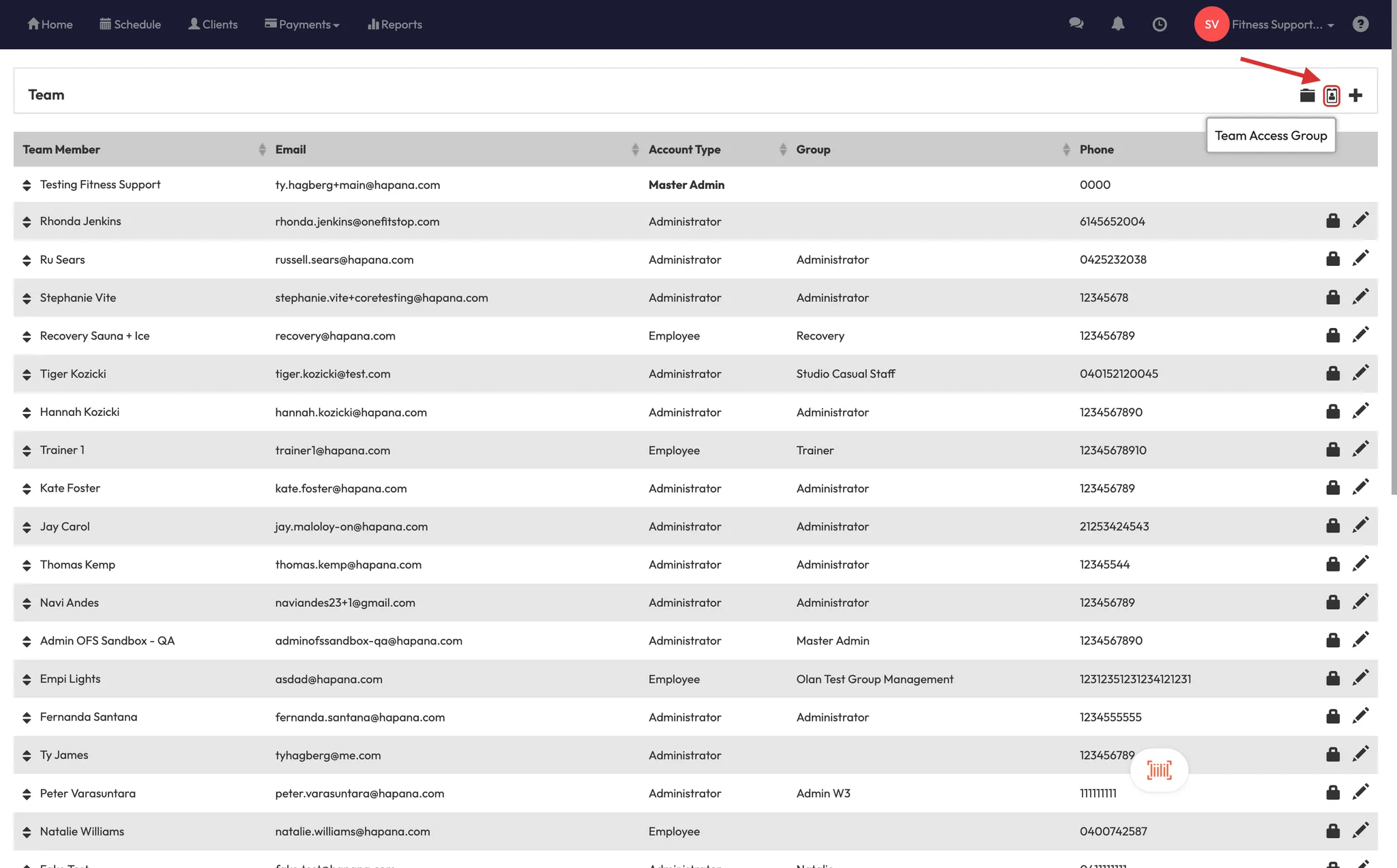
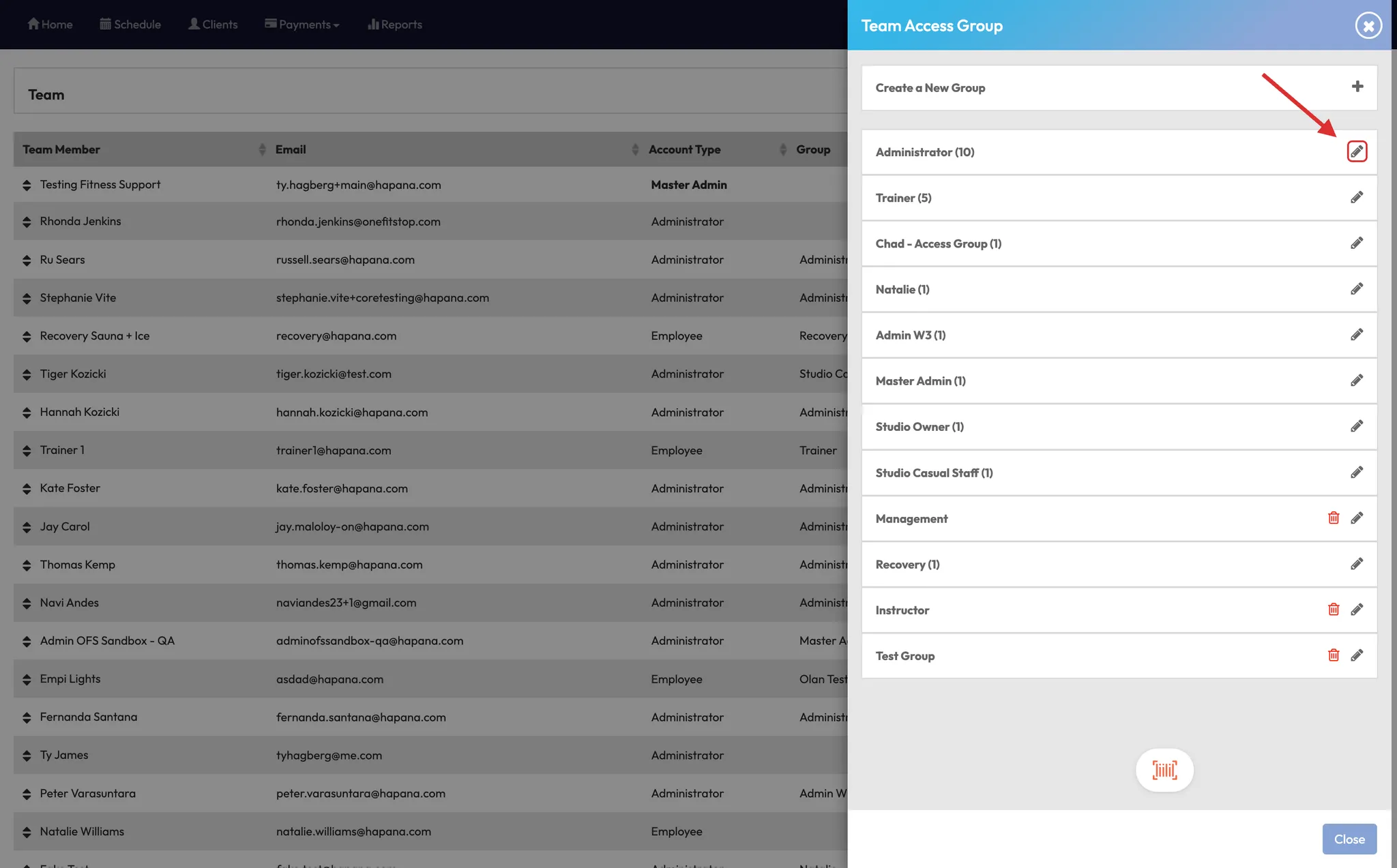
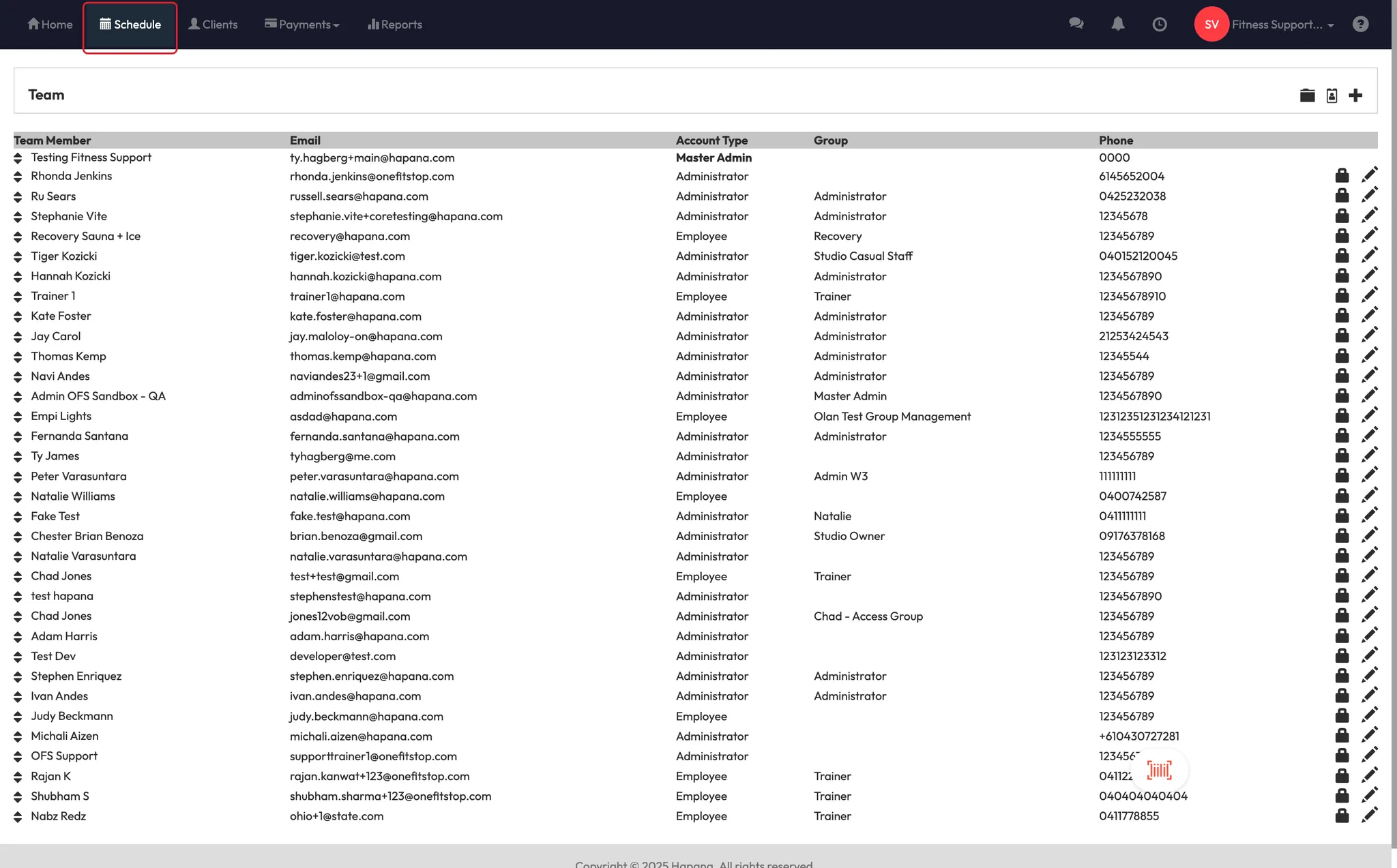
- Go to Team Settings
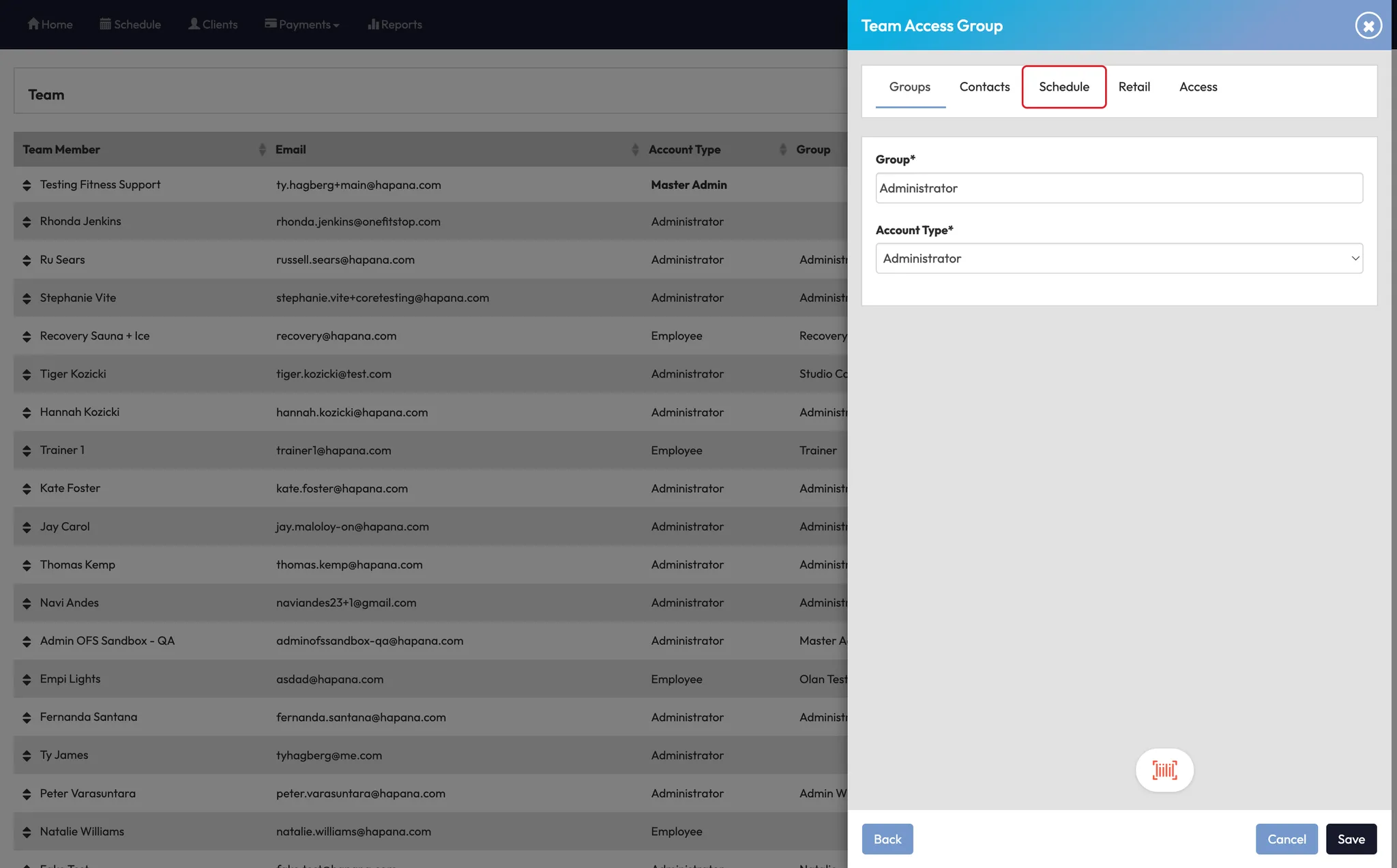
- Select the appropriate Team Access Group
- Click Edit, then scroll to the Schedule section
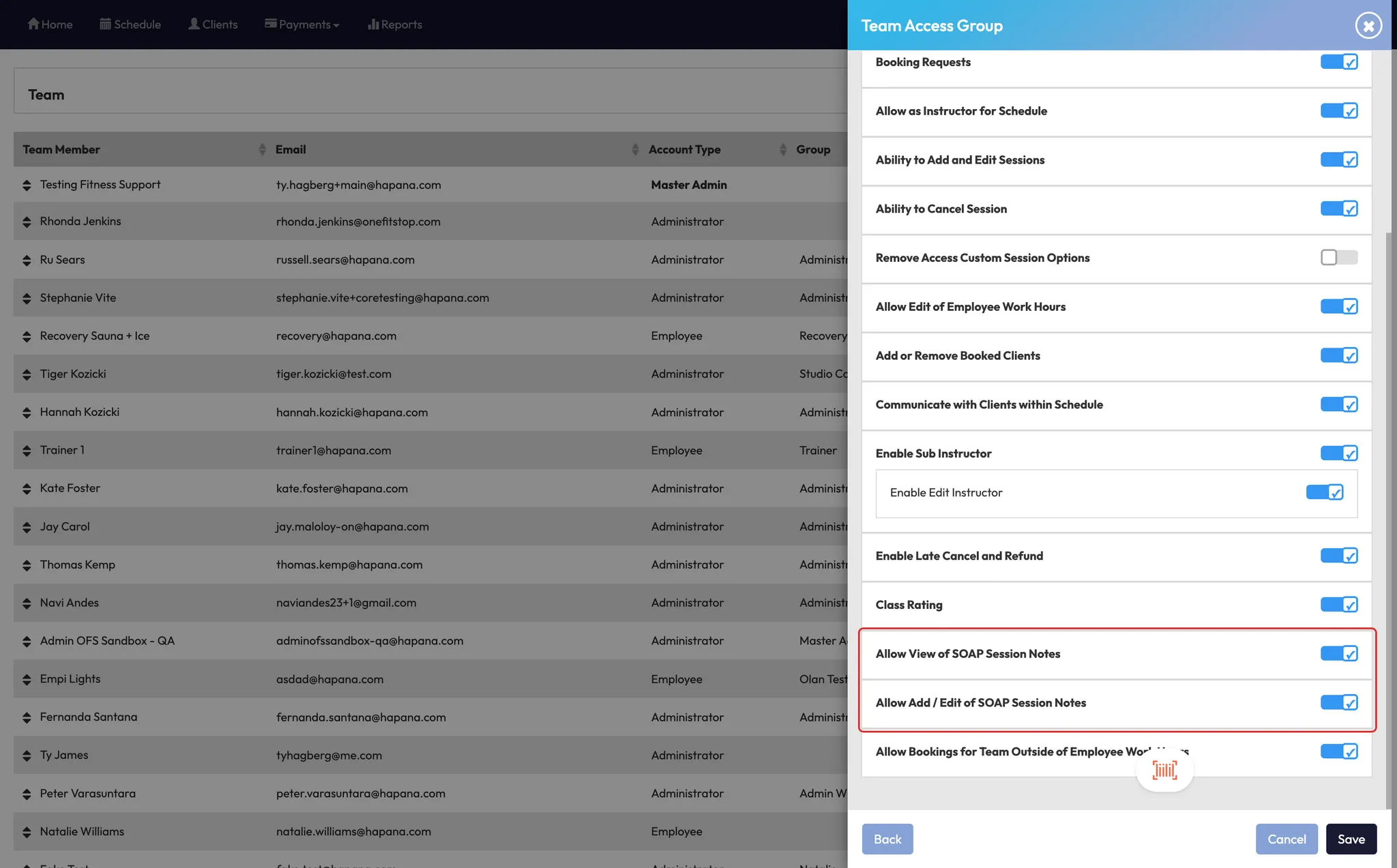
- Enable:
- Allow view of SOAP notes sessions
- Allow edit of SOAP notes sessions
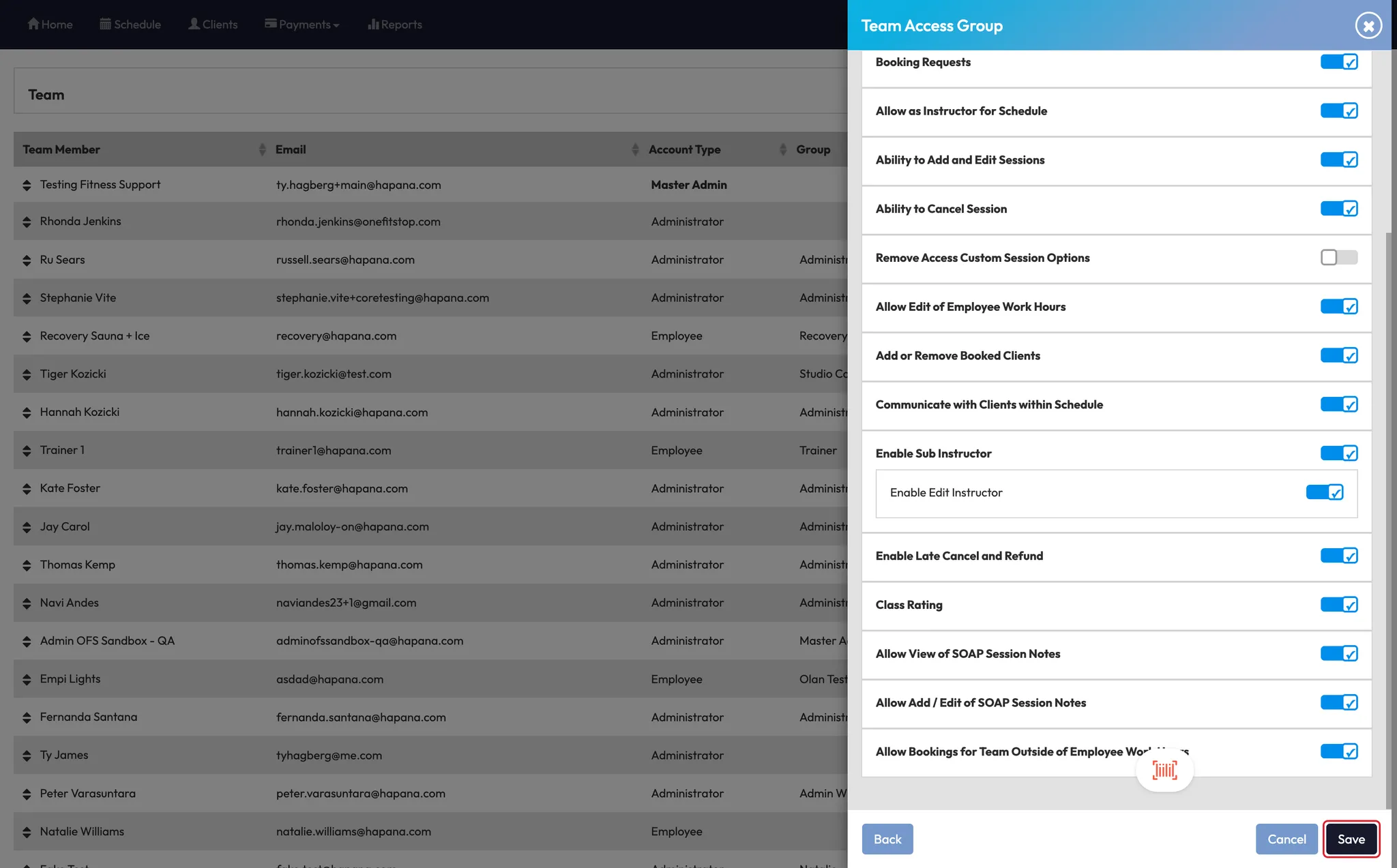
- Save changes
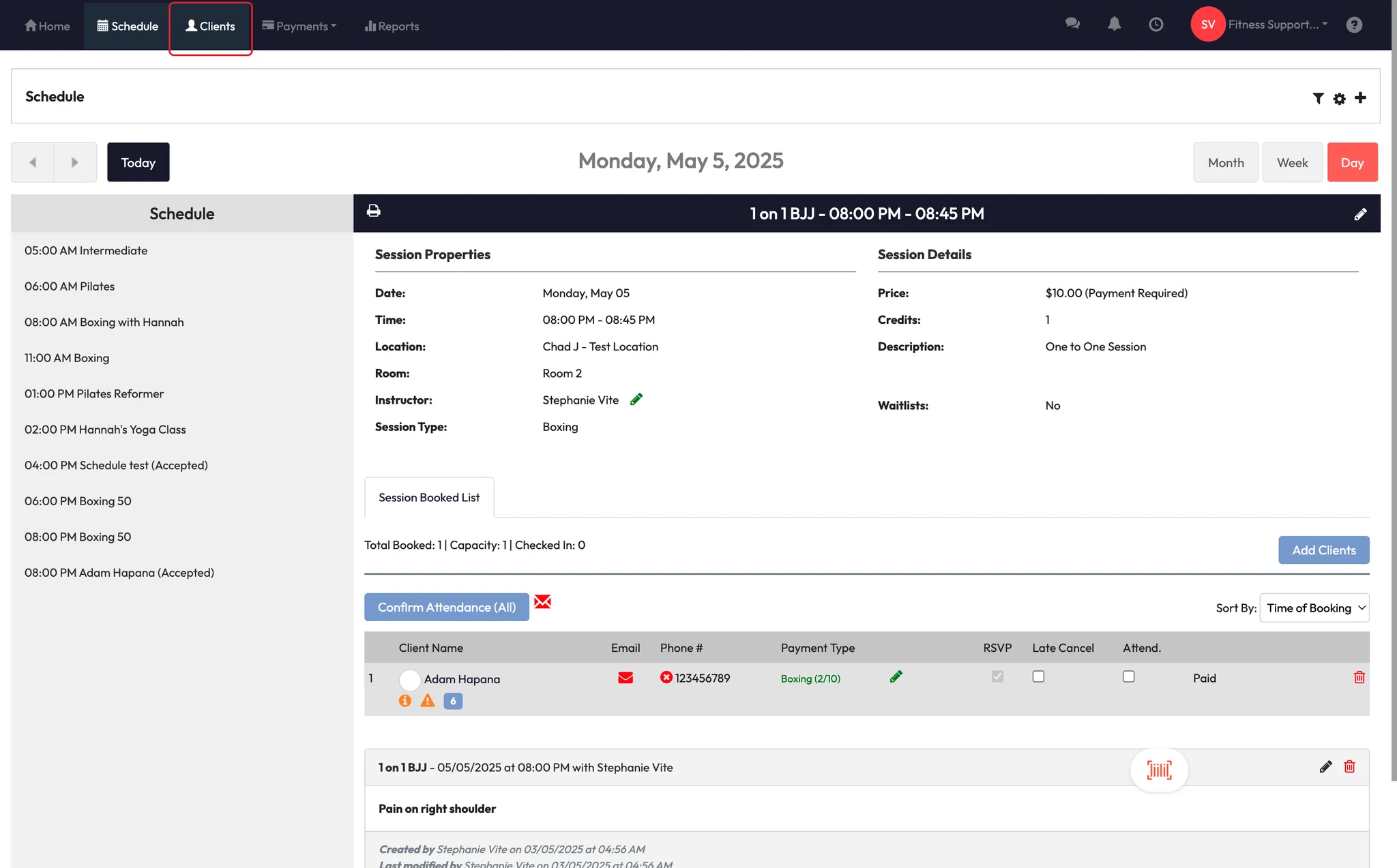
Step 3: Add a SOAP note during a session
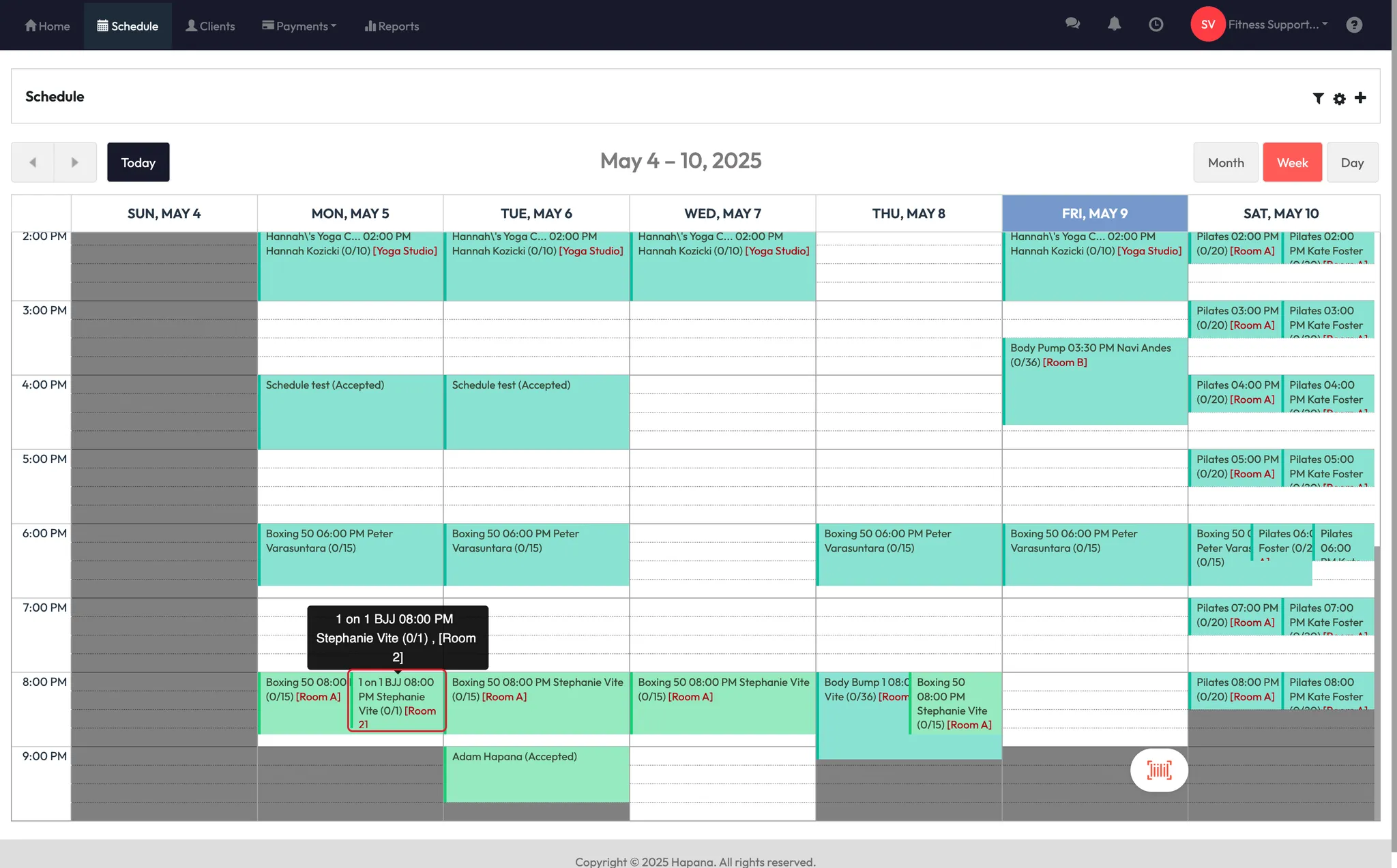
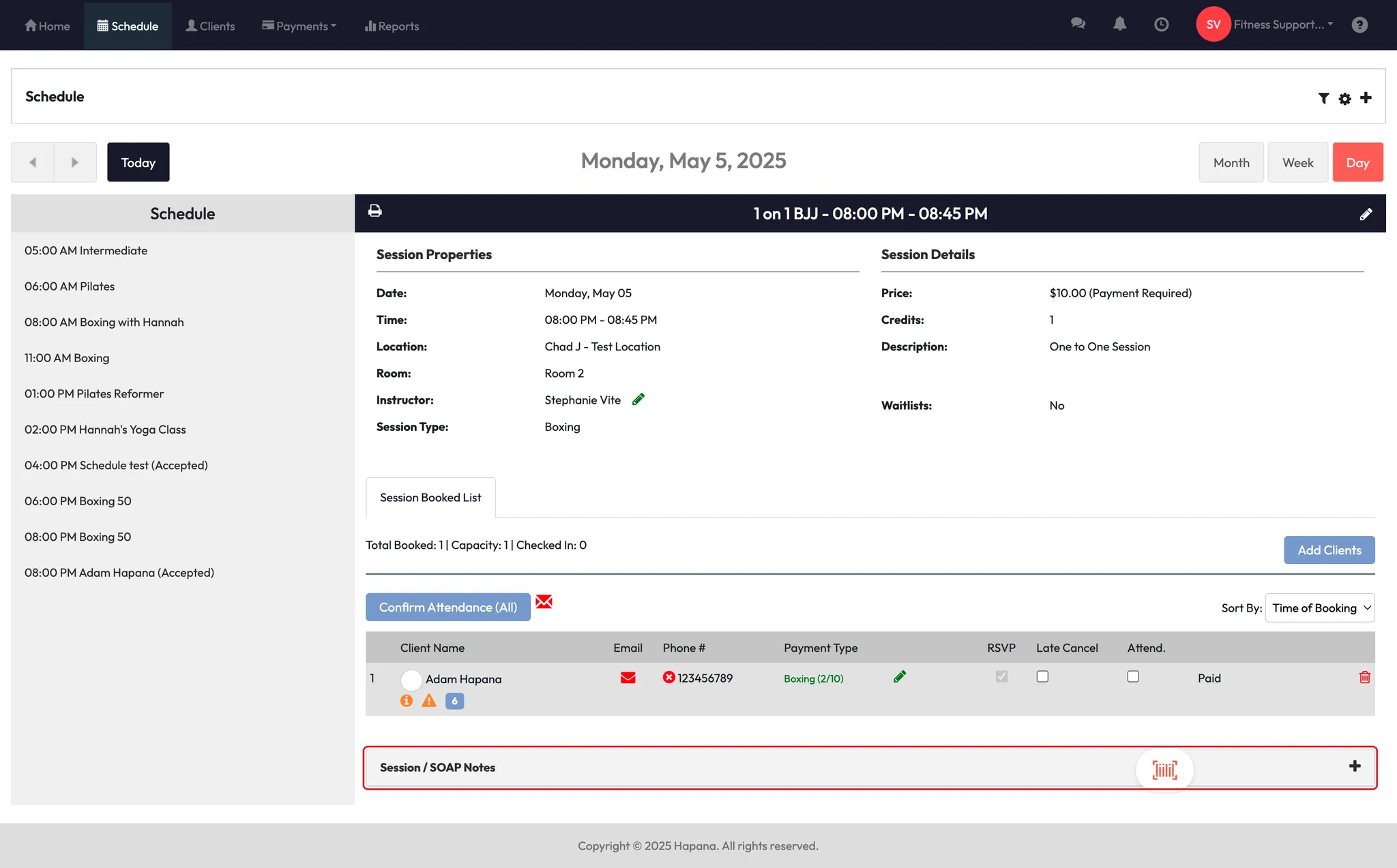
- Go to the Schedule (Calendar View)
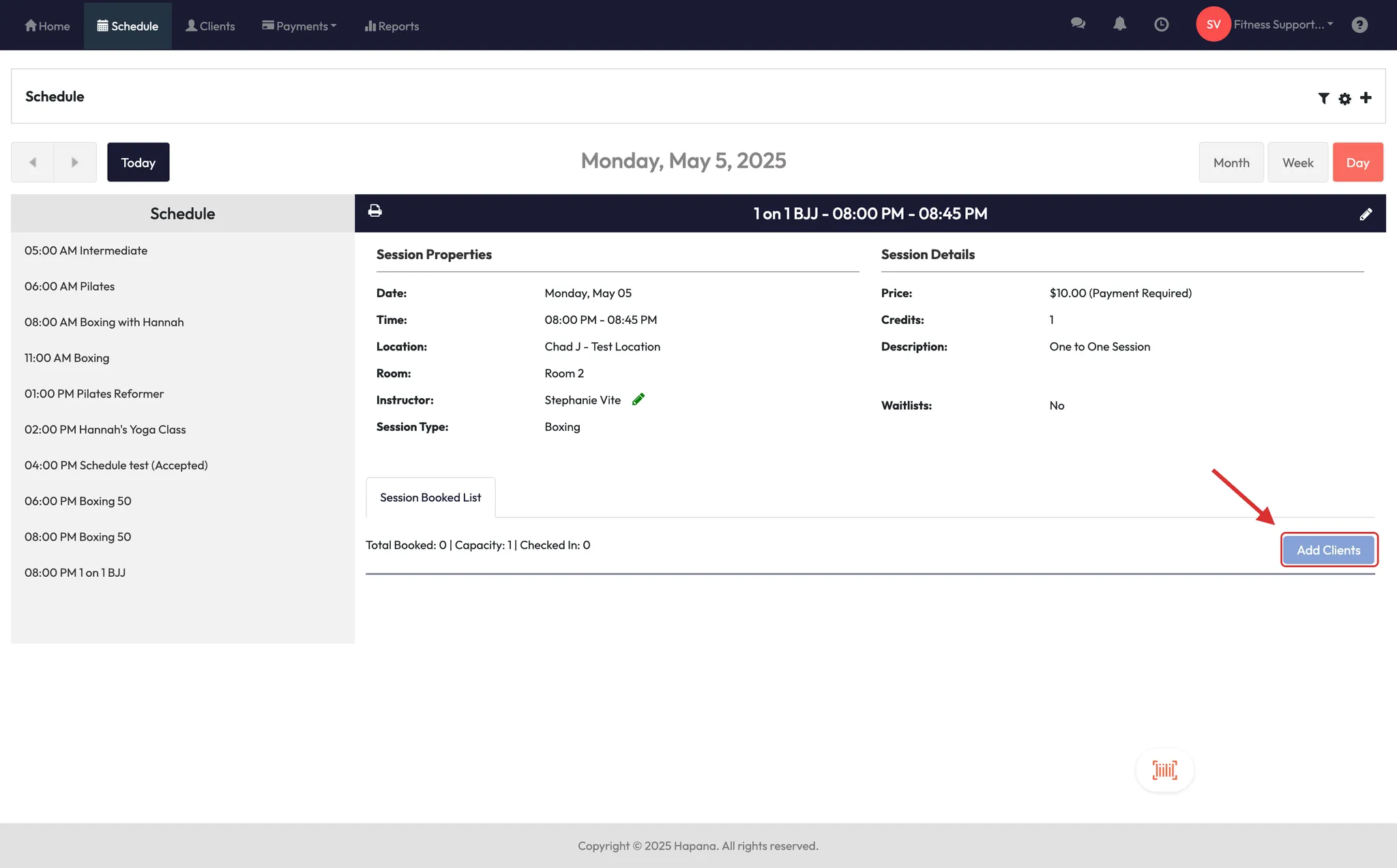
- Click on a 1:1 private session
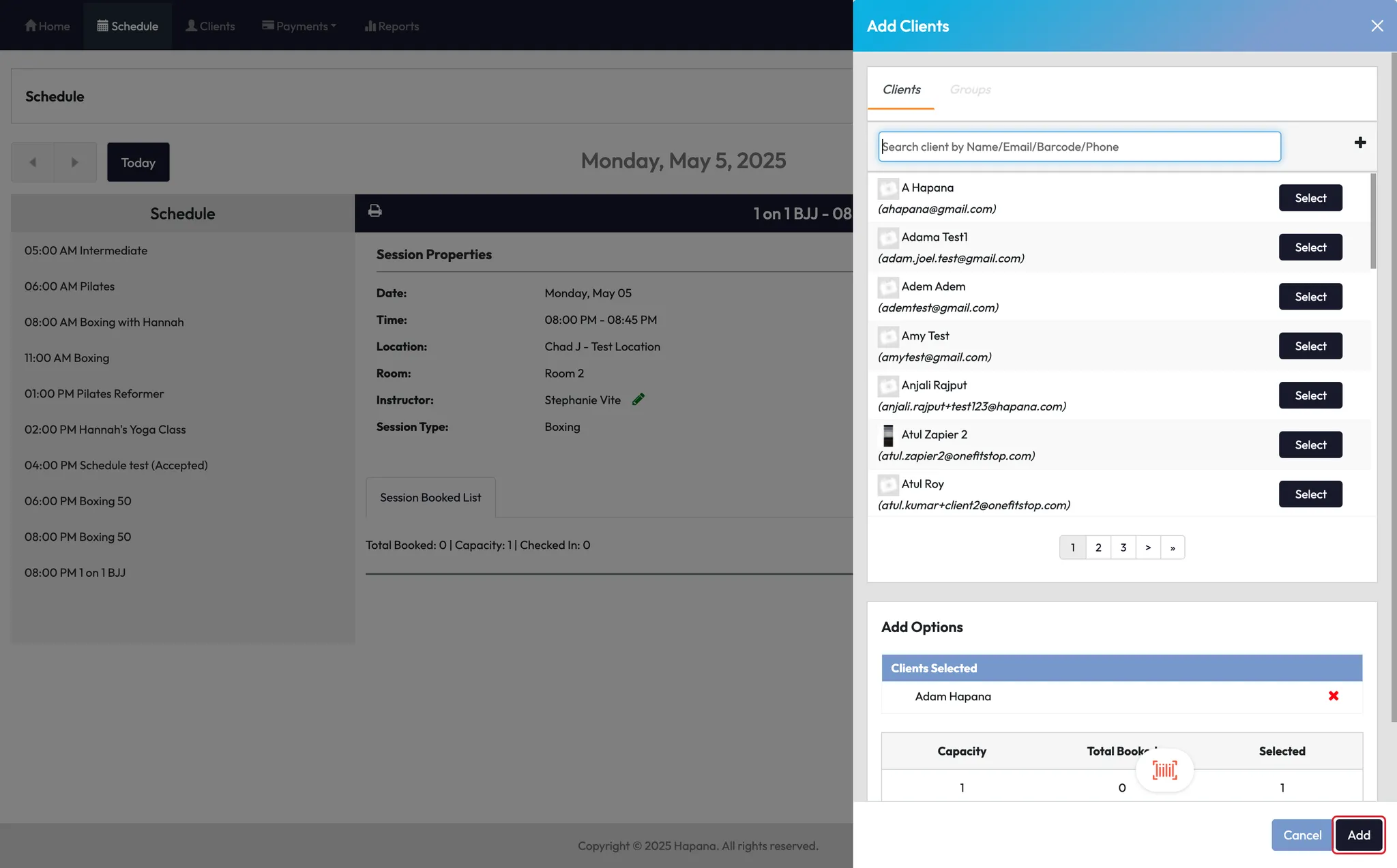
- Add a client to the session if one is not already assigned
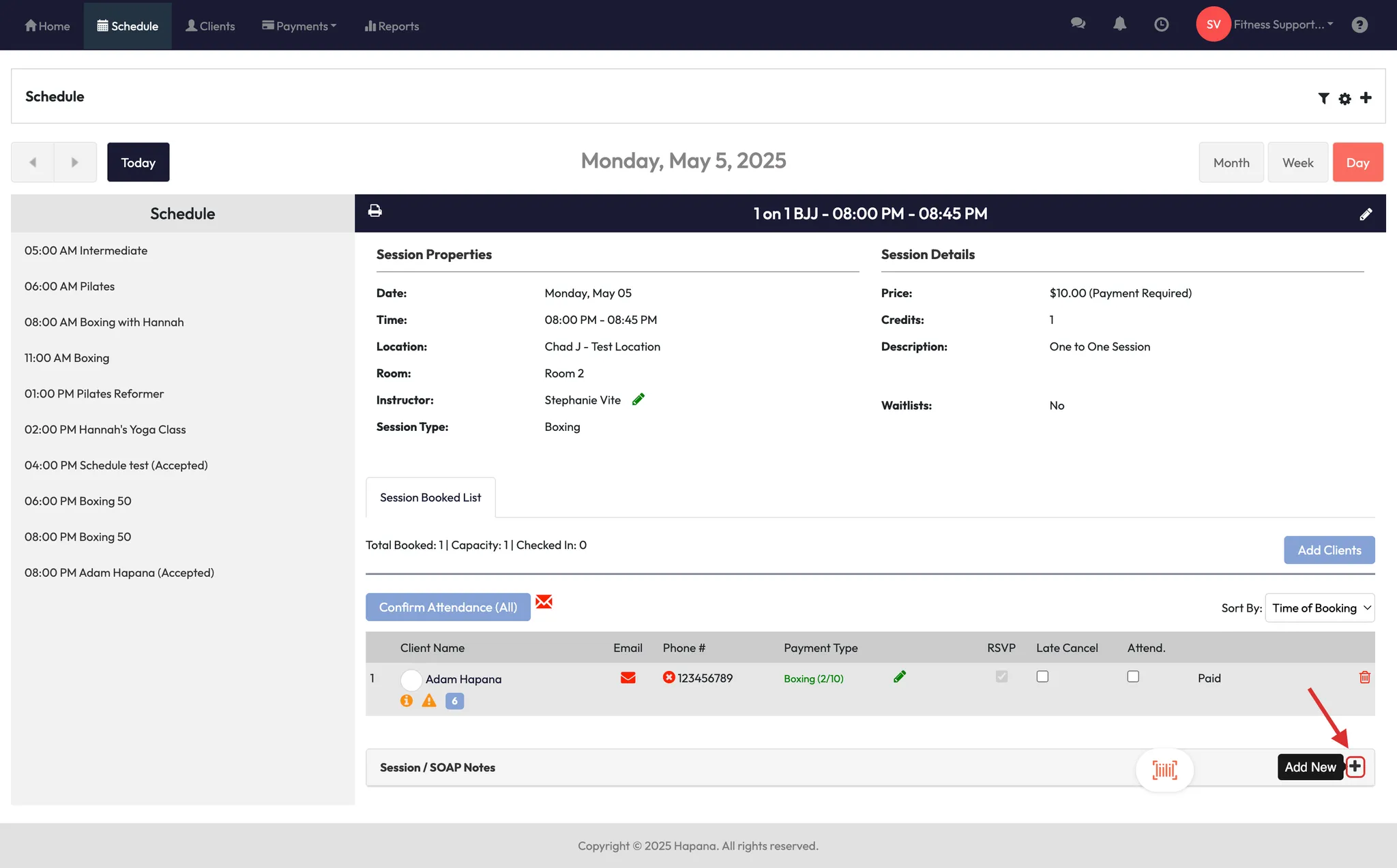
- Click the plus (+) icon in the session view
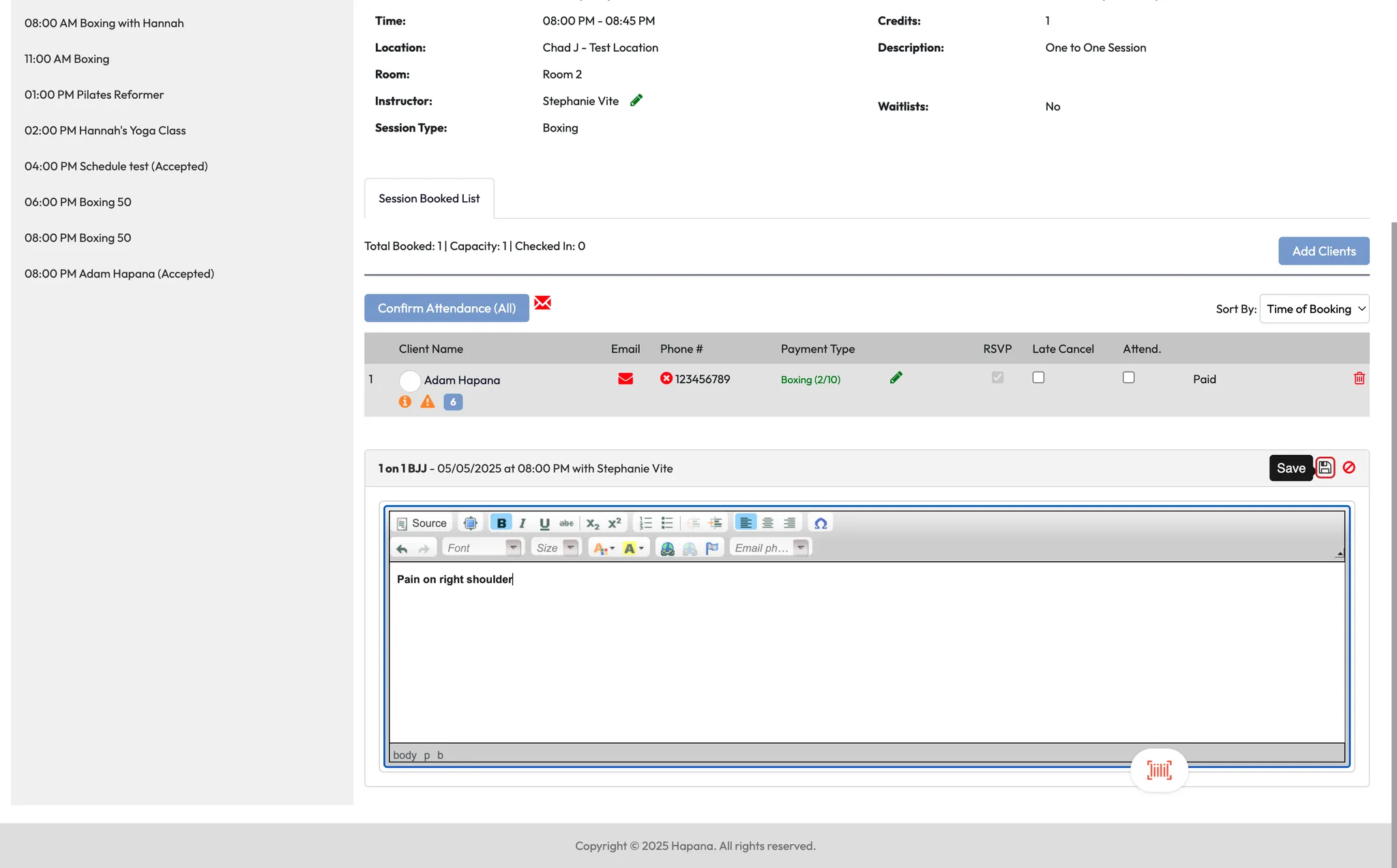
- Type your SOAP note into the text field
- Click Save
⚠️ Notes can only be added to private one-on-one sessions
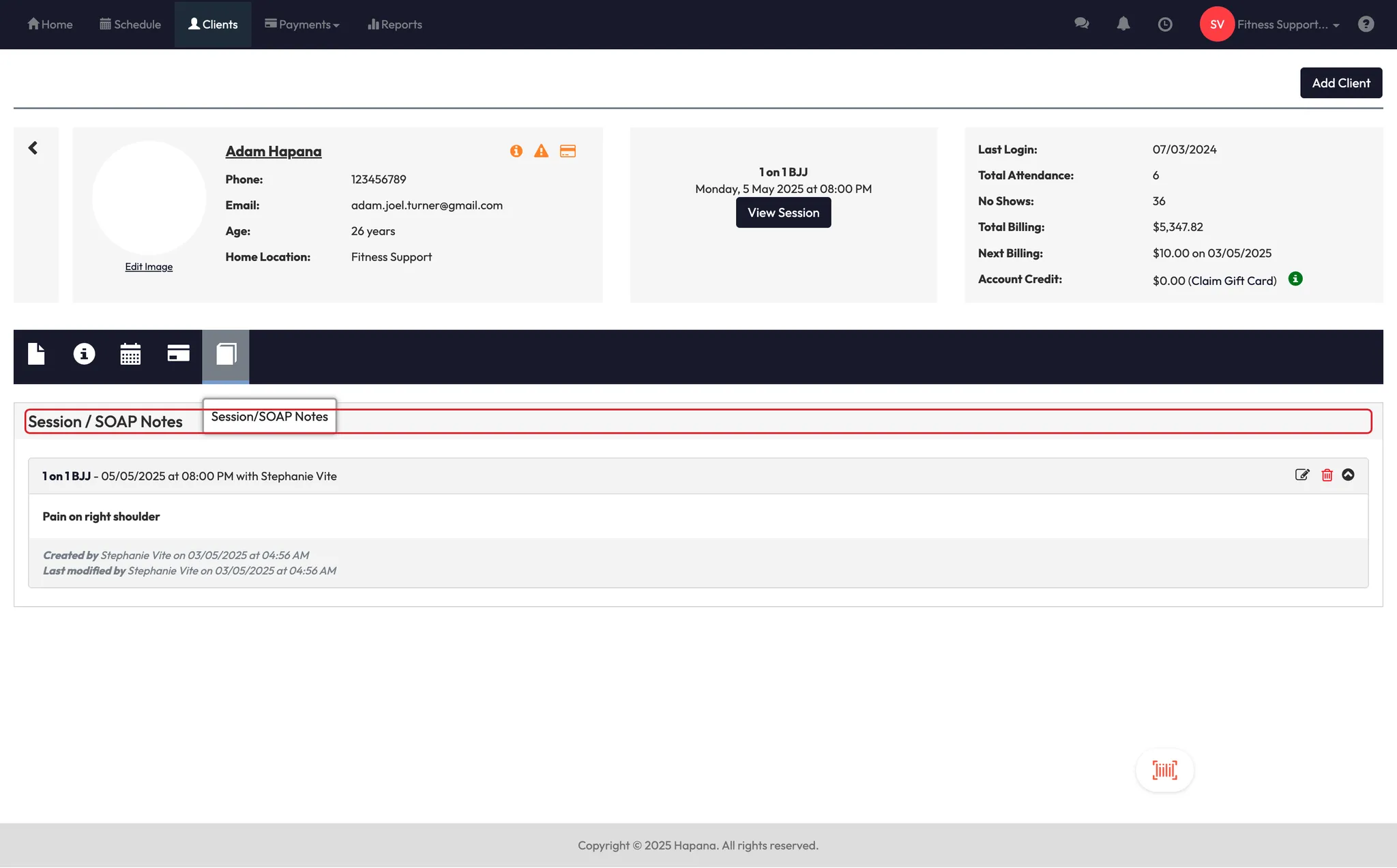
Step 4: View and manage SOAP notes
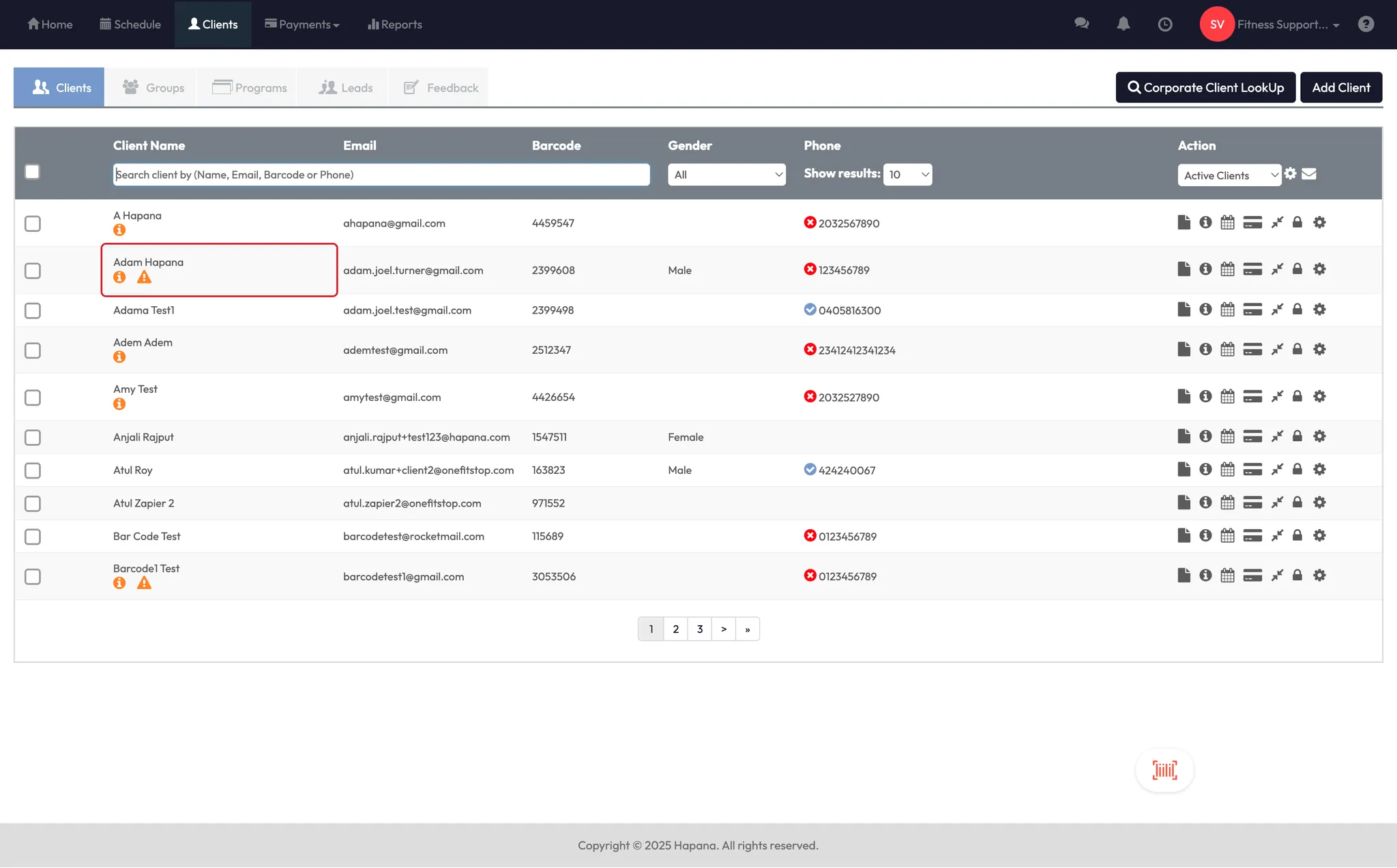
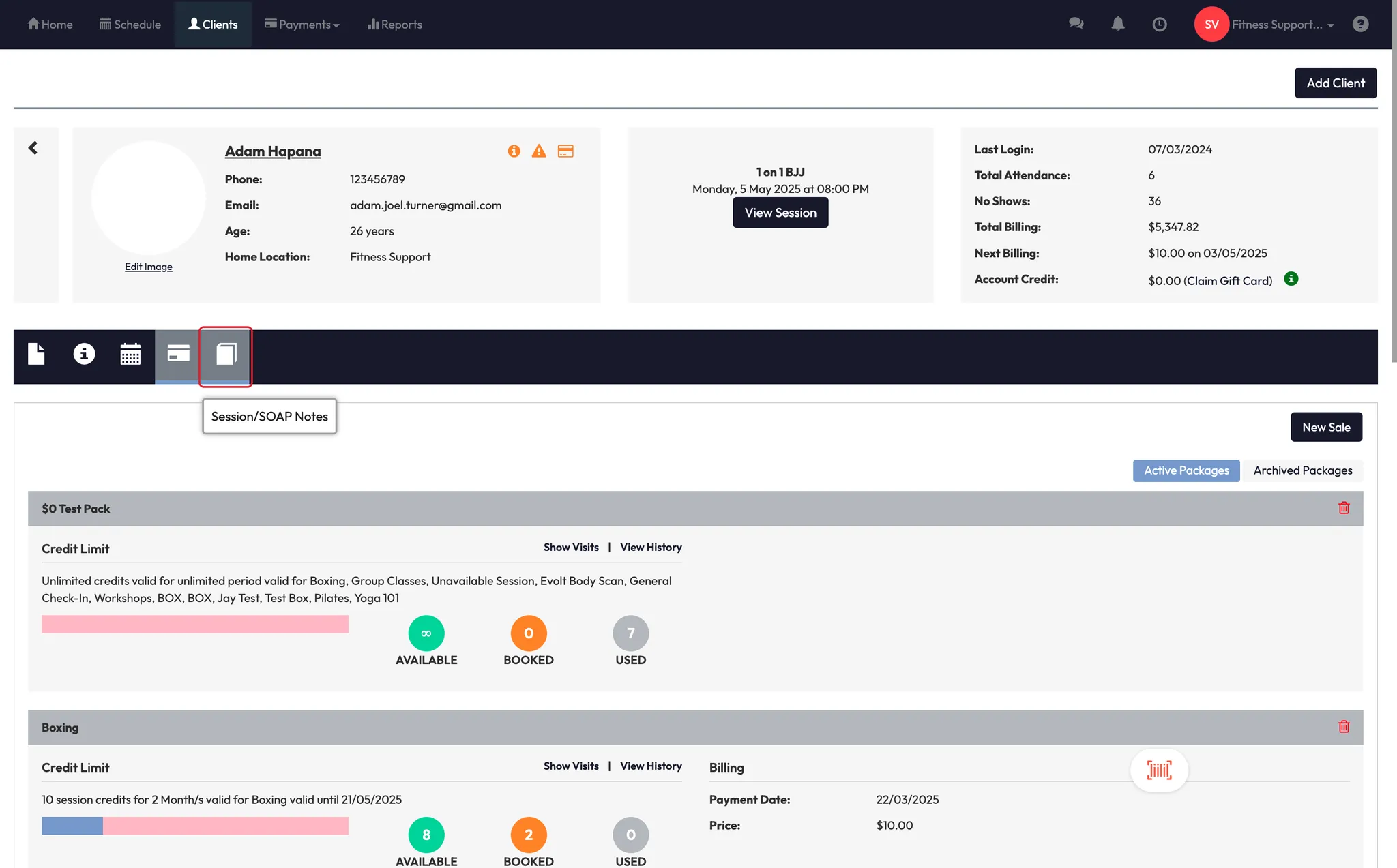
- Go to the client’s profile
- Scroll to the SOAP notes section
- You can:
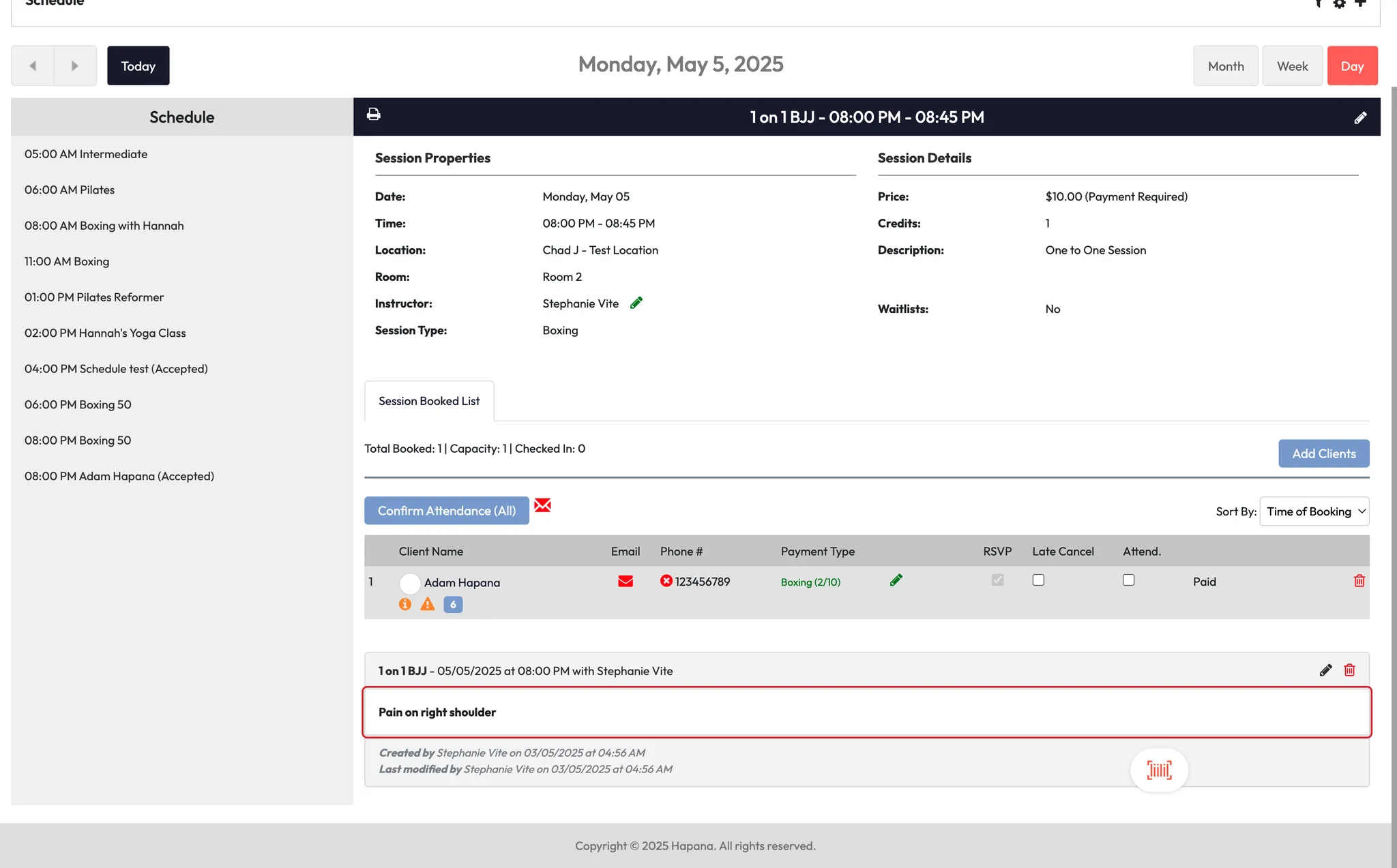
- View timestamped notes
- Click Edit to modify a note
- Click Delete to remove it
✅ All edits are time-stamped for accountability and tracking.
Expected outcome
SOAP notes will now be visible and editable for any one-on-one sessions that your enabled staff are assigned to. These notes stay linked to the client’s profile and session history for easy reference.
FAQs
Q: Can I use SOAP notes for group classes?
A: No — SOAP notes are only available for private, one-on-one sessions.
Q: Can multiple staff members edit the same note?
A: Any staff with edit permission in their access group can modify the note.
Q: Will clients see SOAP notes?
A: No — SOAP notes are visible only to staff inside CORE.
Still need help?
Reach out to our support team via support@hapana.com