
Overview
Contactless check-in lets your clients scan a QR code at your studio to check into their session — no app navigation or front desk touchpoint needed. You can also attach check-in questions or policies to ensure all required info is gathered before class.
🎥 Watch the walkthrough:
Or preview it below:
Prerequisites
Before you begin:
- Ensure you have admin access to your studio profile settings
- Confirm a deep link has been created to activate the QR check-in
- Know where you want to place your QR code (front desk, door, etc.)
Step-by-step instructions
Step 1: Enable contactless check-in
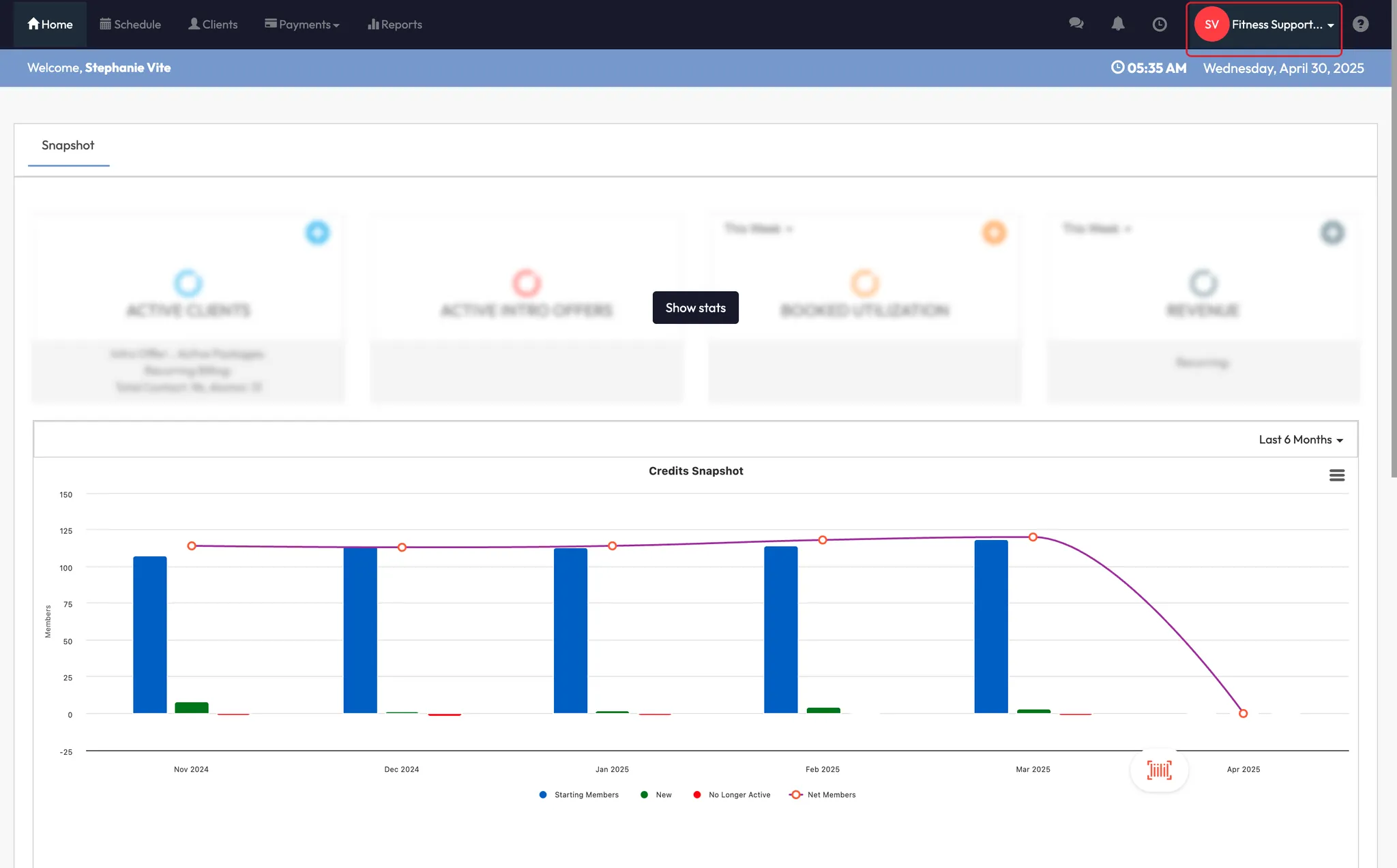
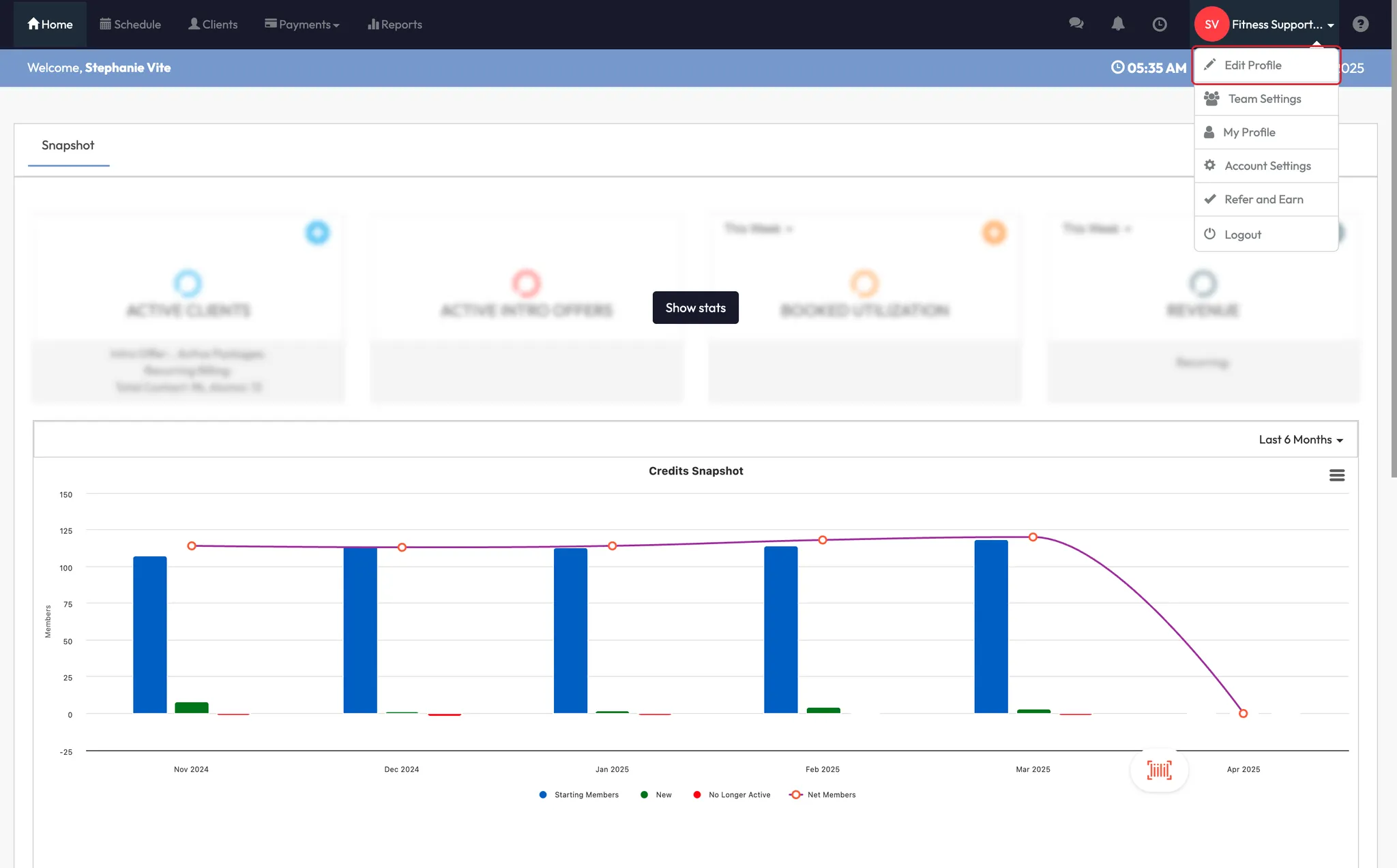
- Click your Studio Name in the top-right corner
- Select Edit Profile
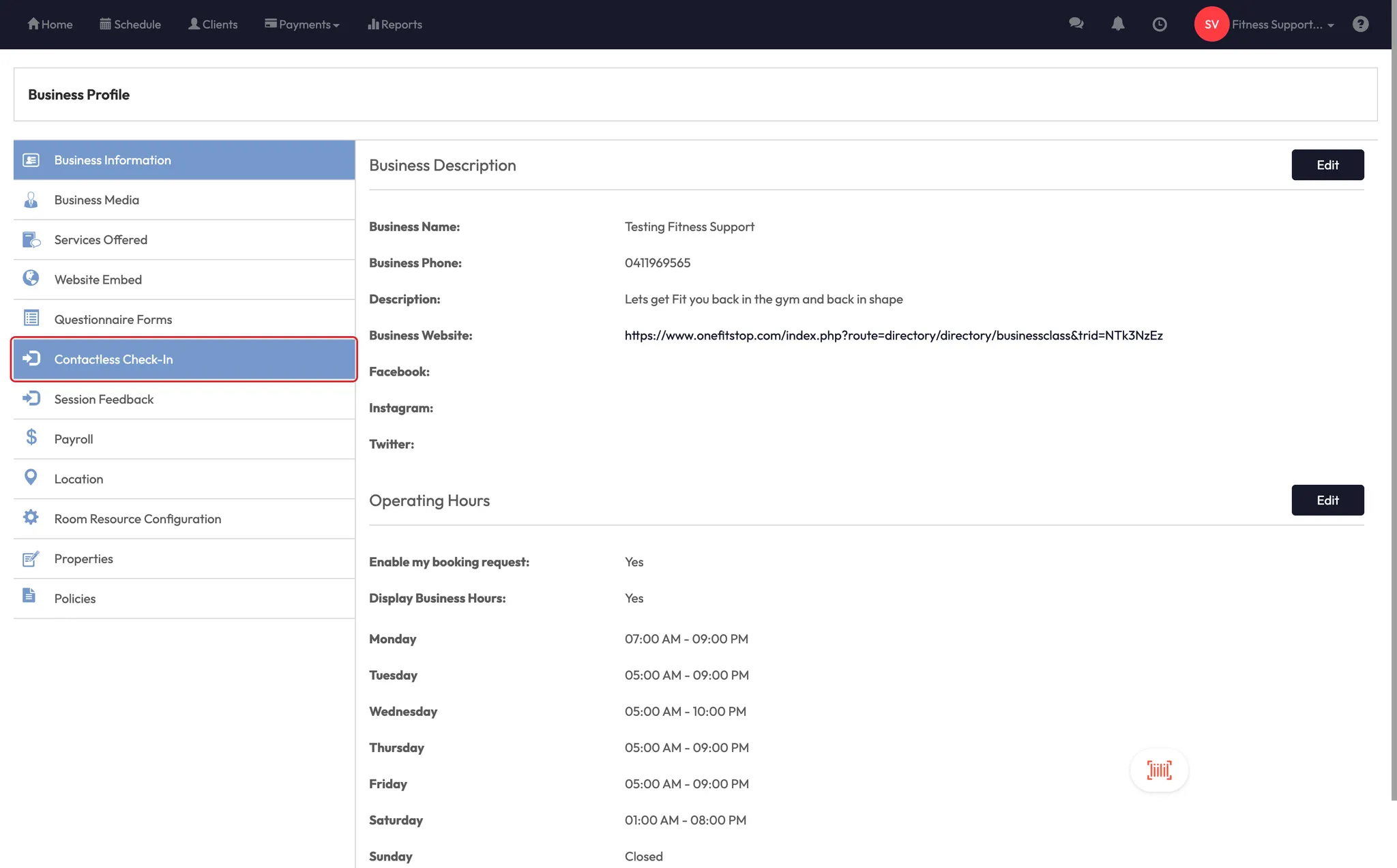
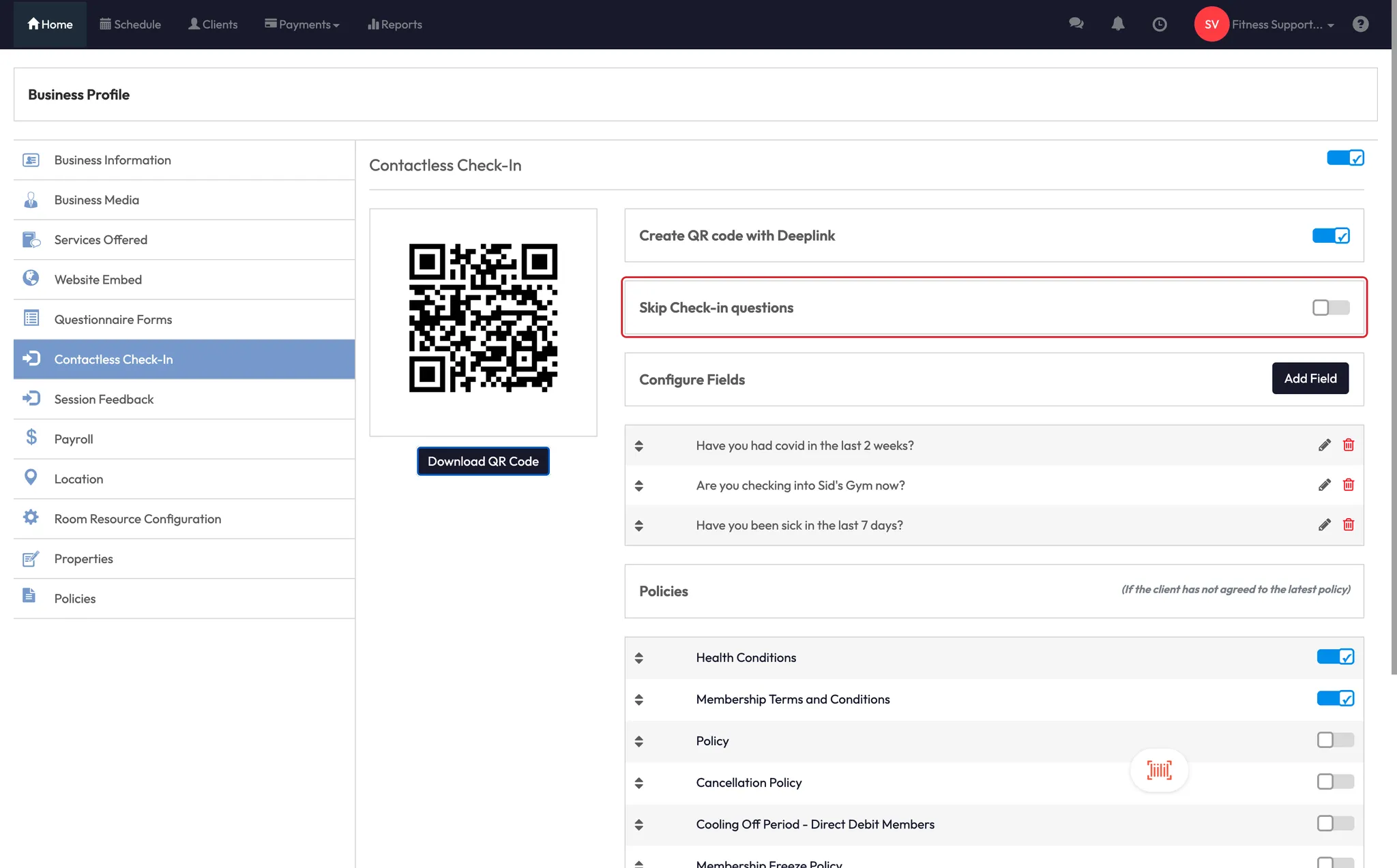
- Click on Contactless Check-In
Step 2: Download and place the QR code
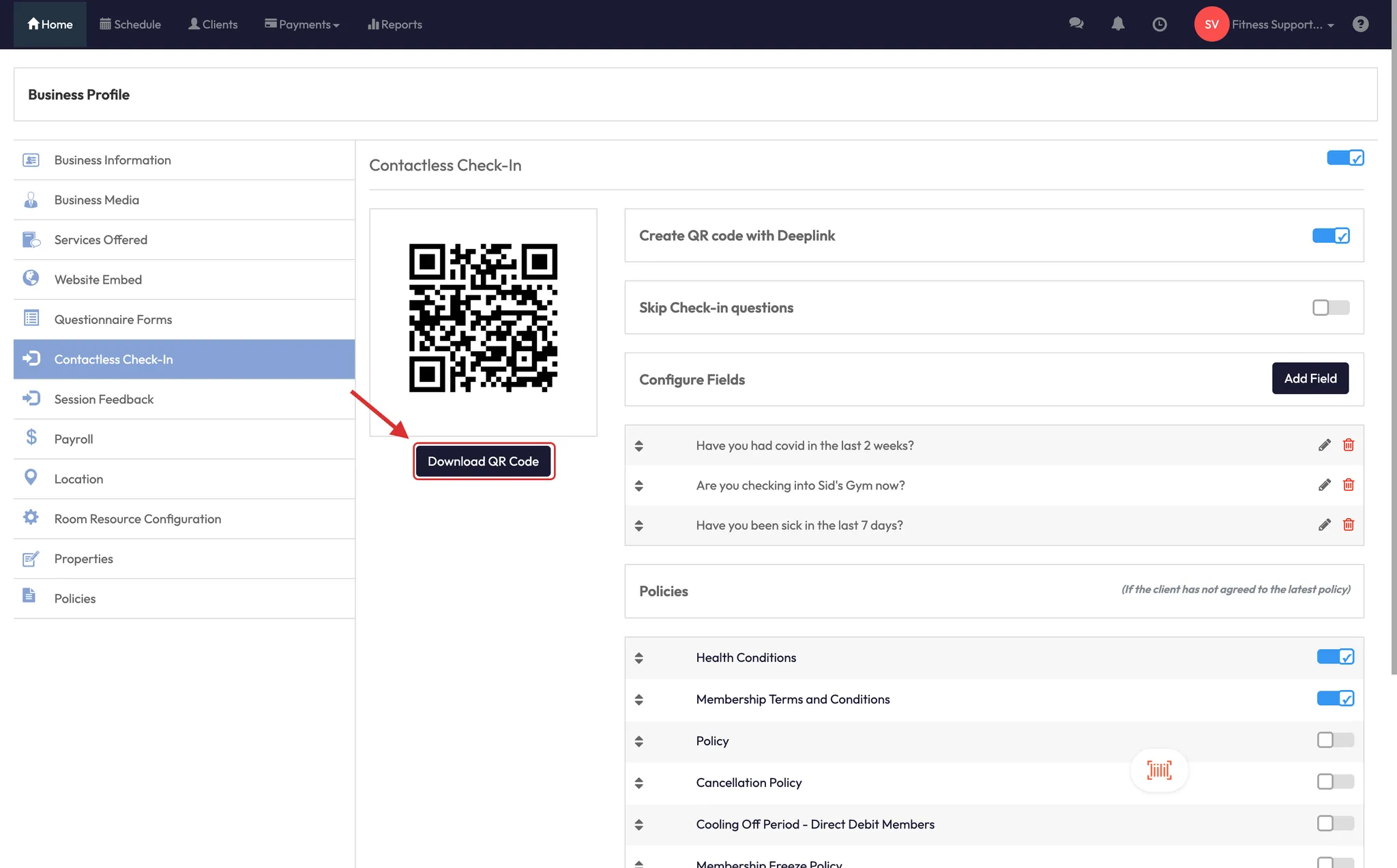
- After toggling it on, a QR code will be available for download
- Print and display the QR code at:
- Front desk
- Studio door
- Check-in station or signage
📱 Clients can scan this with their phone’s camera to instantly check into their class.
Step 3: Set up check-in preferences
Once enabled, you’ll also see these optional settings:
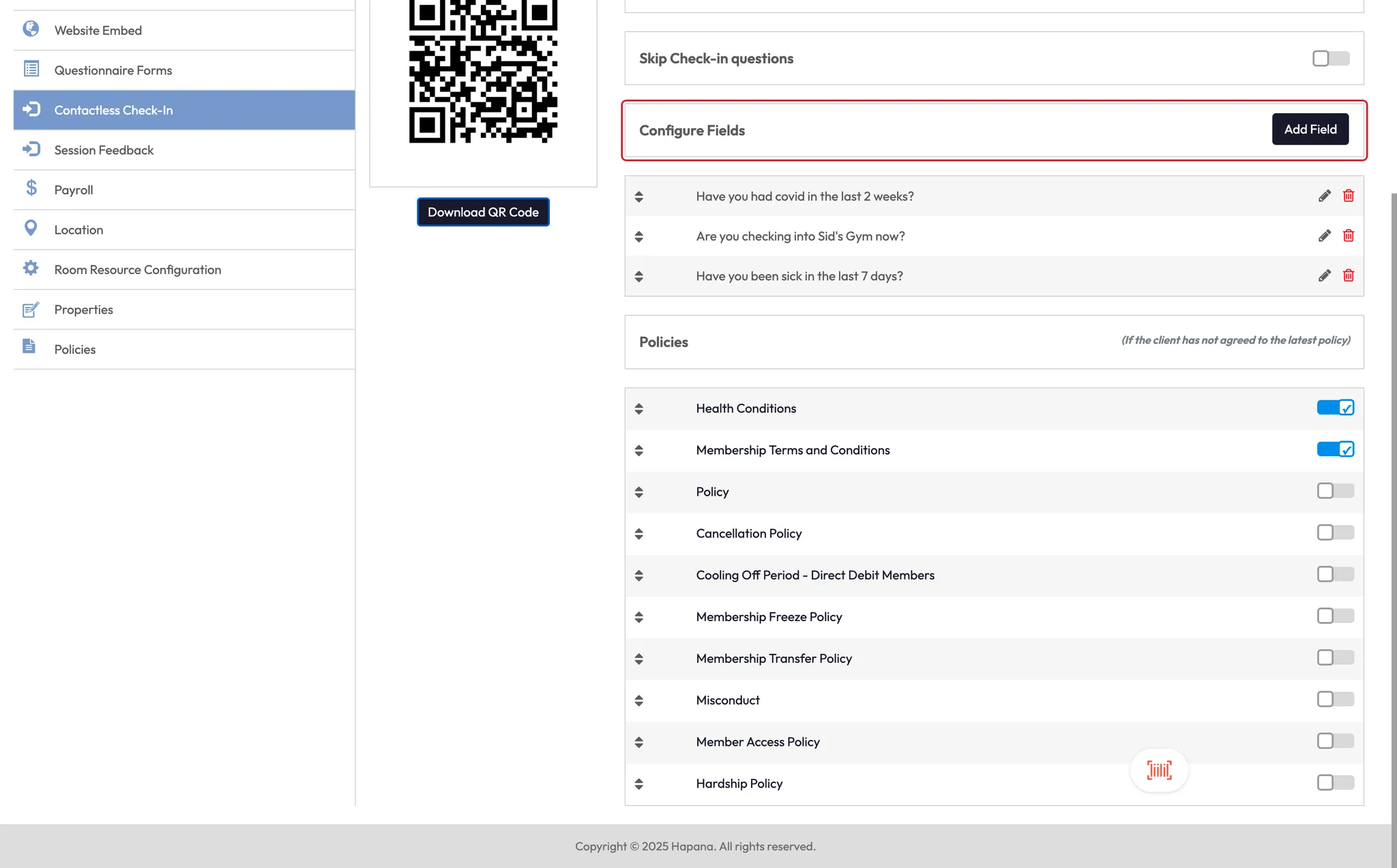
- Check-in questions: Ask screening or pre-class questions
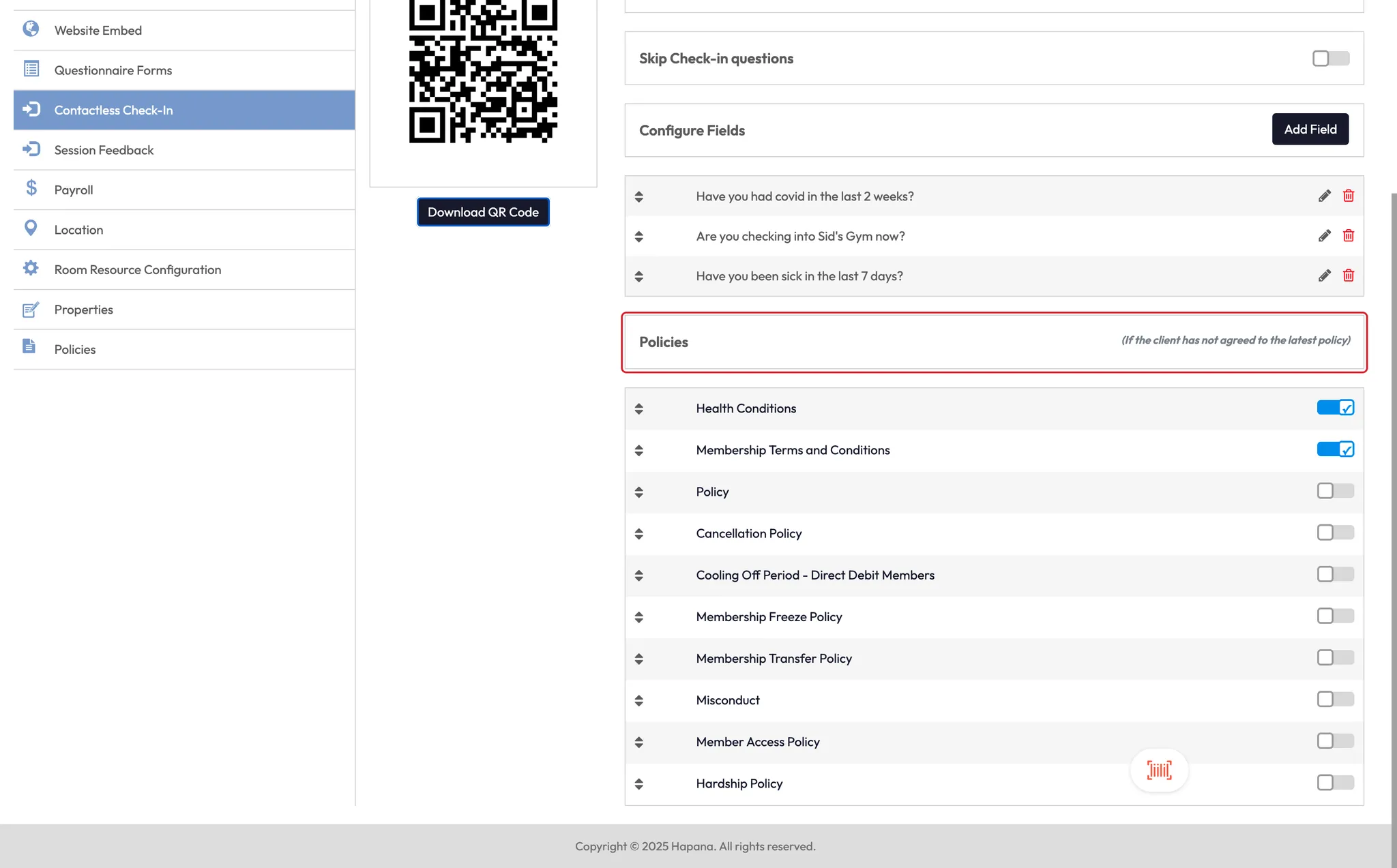
- Liability release toggle: Attach your waiver or terms
- Cancellation policy confirmation: Require acknowledgment on check-in
✅ These settings help you gather consent or info without needing a staff interaction.
Expected outcome
Clients will be able to check in using the QR code — no kiosk or manual check-in required. You’ll still capture attendance and any attached policies or responses.
FAQs
Q: What happens if the deep link isn’t created?
A: The QR code won’t function properly. Contact support to ensure the deep link is configured.
Q: Can clients check in without the app?
A: Yes — they just need to scan the QR code with their phone’s camera.
Q: Where can I find the QR code again later?
A: You can revisit your Edit Profile > Business Profile to redownload it anytime.
Still need help?
Reach out to our support team via support@hapana.com