
CORE | Set Up Gift Cards
Overview
Setting up branded gift cards in CORE lets you offer flexible promos, boost referrals, and make gifting easy year-round — especially around holidays like Black Friday, Christmas, or Mother’s Day.
🎥 Watch the walkthrough:
Or preview it below:
https://www.loom.com/share/7054a1c6bd4a4479ba8ec19d6e5dfcd5
Prerequisites
- Admin access to CORE
- A gift card image file ready (JPEG or PNG)
- Payment settings configured
Step-by-step instructions
Step 1: Navigate to the Gift Cards section
- Log in to your CORE admin account.
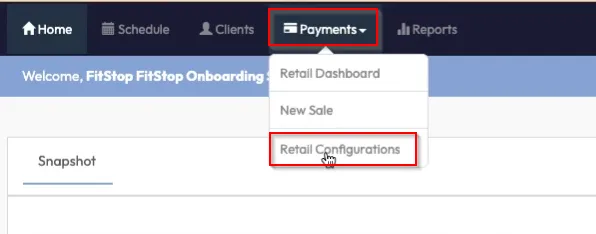
- Click the Payments tab.
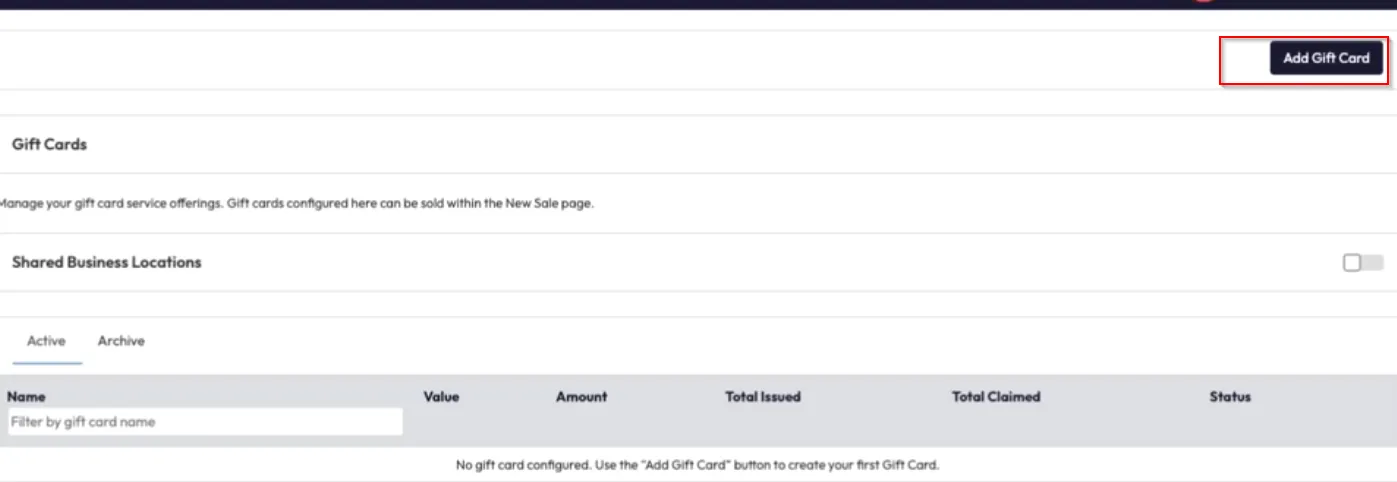
- Go to Retail Configurations > Gift Cards.
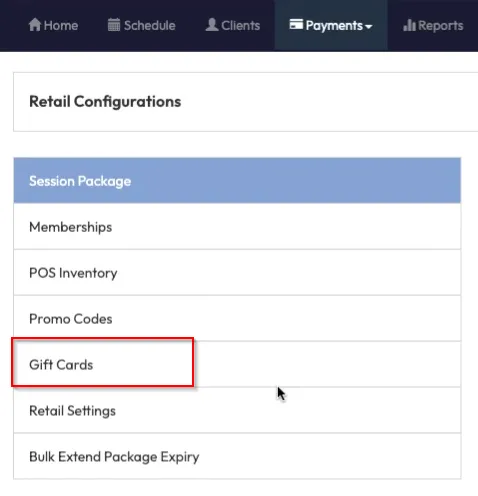
Tip: You must upload at least one design before you can create a gift card.
Step 2: Upload a gift card design
- Scroll to the bottom and click Upload Card Design.
- Choose and upload your image.
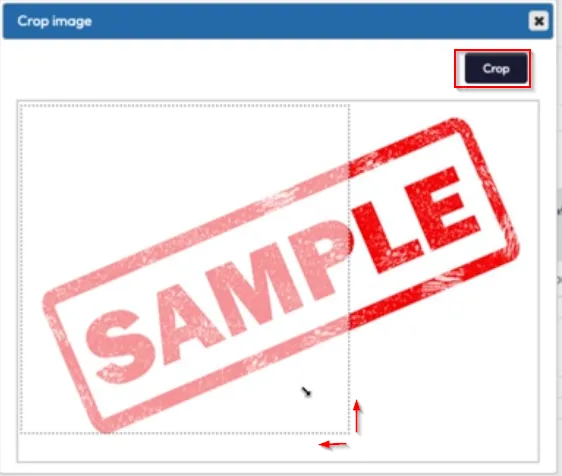
- Crop and save as needed.
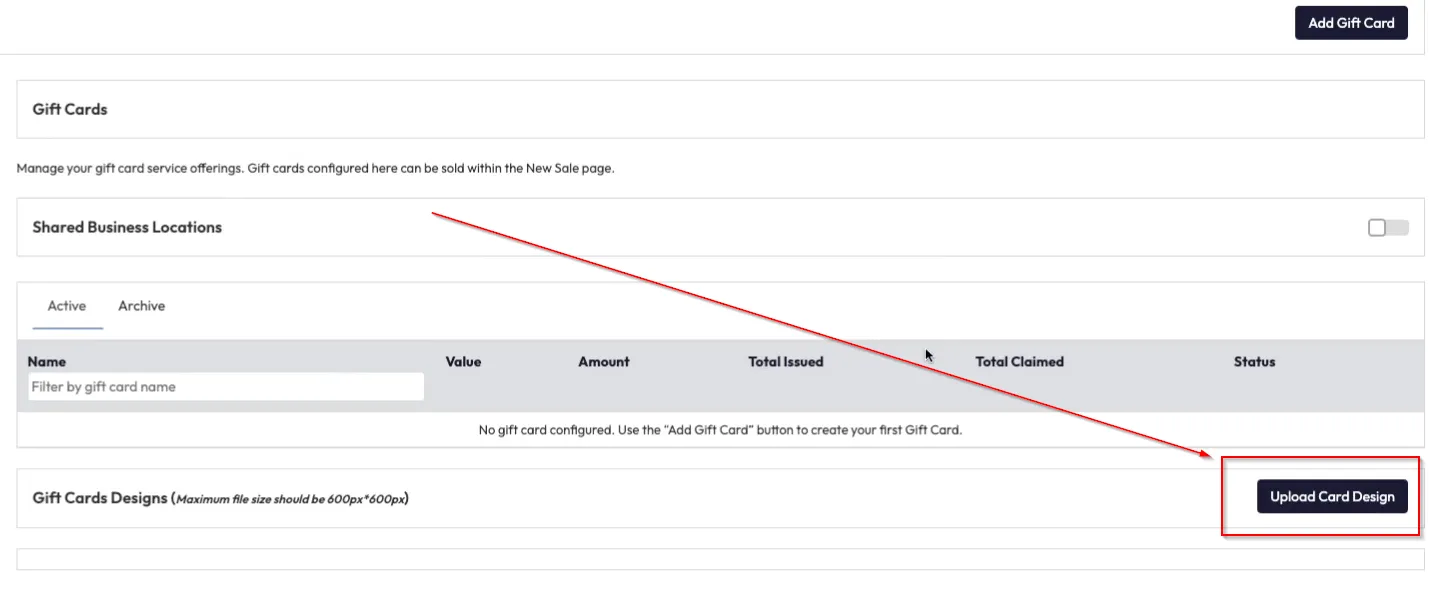
Tip: You can upload multiple designs and select one per gift card.
Step 3: Create your gift card
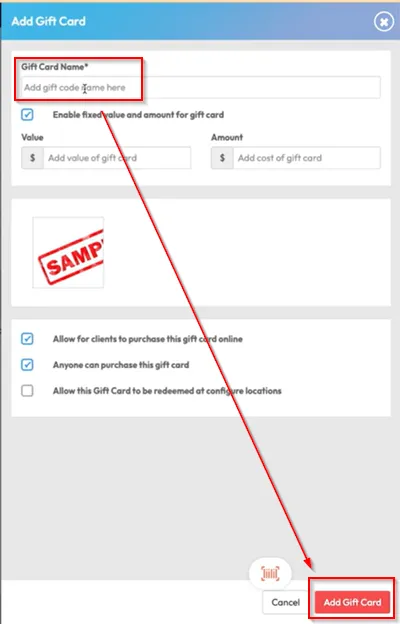
- Click Add Gift Card.
- Enter the Gift Card Name — this is what customers will see.
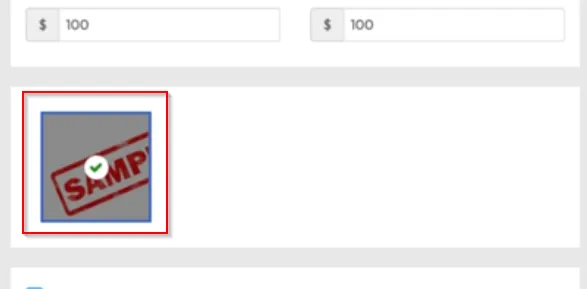
- Select your uploaded Gift Card Design.
Step 4: Set value and pricing
- Toggle Enable Fixed Value ON to set a specific value.
- Enter the Value (what the gift card is worth) and the Cost (what customers pay).
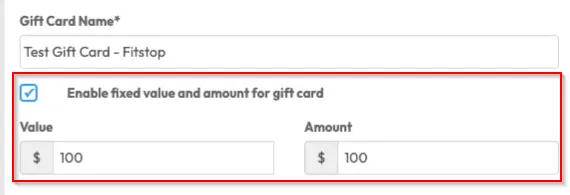
Tip: You can run promos like "$100 value for $80" by adjusting these fields.
Step 5: Configure settings
- Toggle Allow Purchase Online ON to enable website/app purchases.
- Toggle Anyone Can Purchase ON to make it public:
- OFF = only select members can buy.
- Toggle Allow Redeem at Configured Locations if your brand has multiple studios.
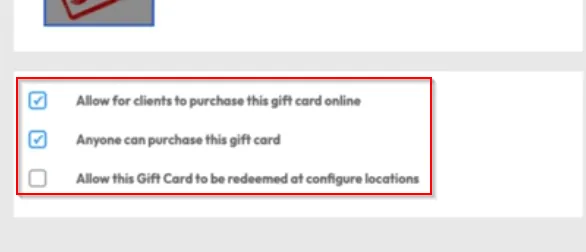
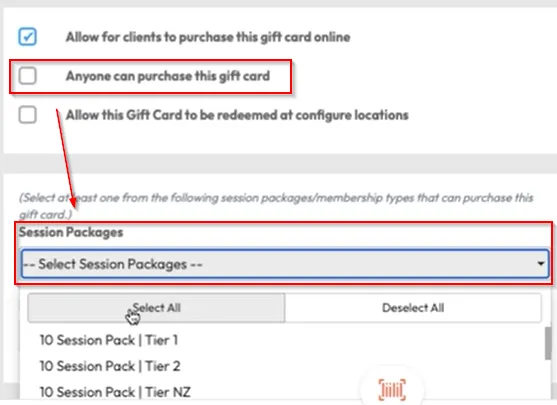
Tip: Leaving "Anyone Can Purchase" ON makes gift cards available to non-members too.
Step 6: Save and manage your gift cards
- Click Add Gift Card to save.
- You’ll now see:
- Value and cost
- Issued and claimed count
- Status (Active or Archived)
To disable a gift card:
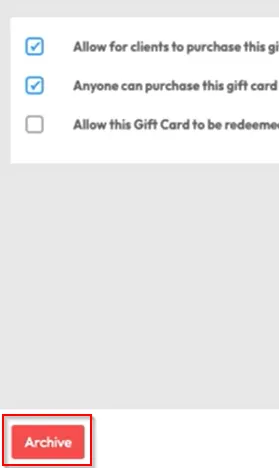
- Click the Edit icon.
- Click Archive to hide it from sale but allow redemption.
- View archived cards under the Archived tab.

Expected outcome
Your gift card will be available online and in-studio with the correct design, value, and settings — ready to sell and redeem!
FAQs
Q: Can I use more than one gift card design?
A: Yes! Upload multiple designs and choose which one to apply per card.
Q: Will archived gift cards still work?
A: Yes — archived cards can still be redeemed but won’t show for new purchases.
Q: Can non-members buy gift cards?
A: Yes, if "Anyone Can Purchase" is turned ON.
Still need help?
Reach out to our support team via support@hapana.com