
Overview
Need to review who’s opted in or out of emails and SMS updates? This guide shows you how to generate a client report in Hapana Core that includes their current communication preferences—perfect for outreach planning and compliance checks.
Prerequisites
- You must have access to your Hapana Core Account.
- You need permission to view and generate reports.
Step 1: Log in to Your Hapana Core Account
- Go to core.hapana.com/login.
- Enter your login credentials and sign in.
Step 2: Open the Reports Section
- Click Reports in the top navigation bar.
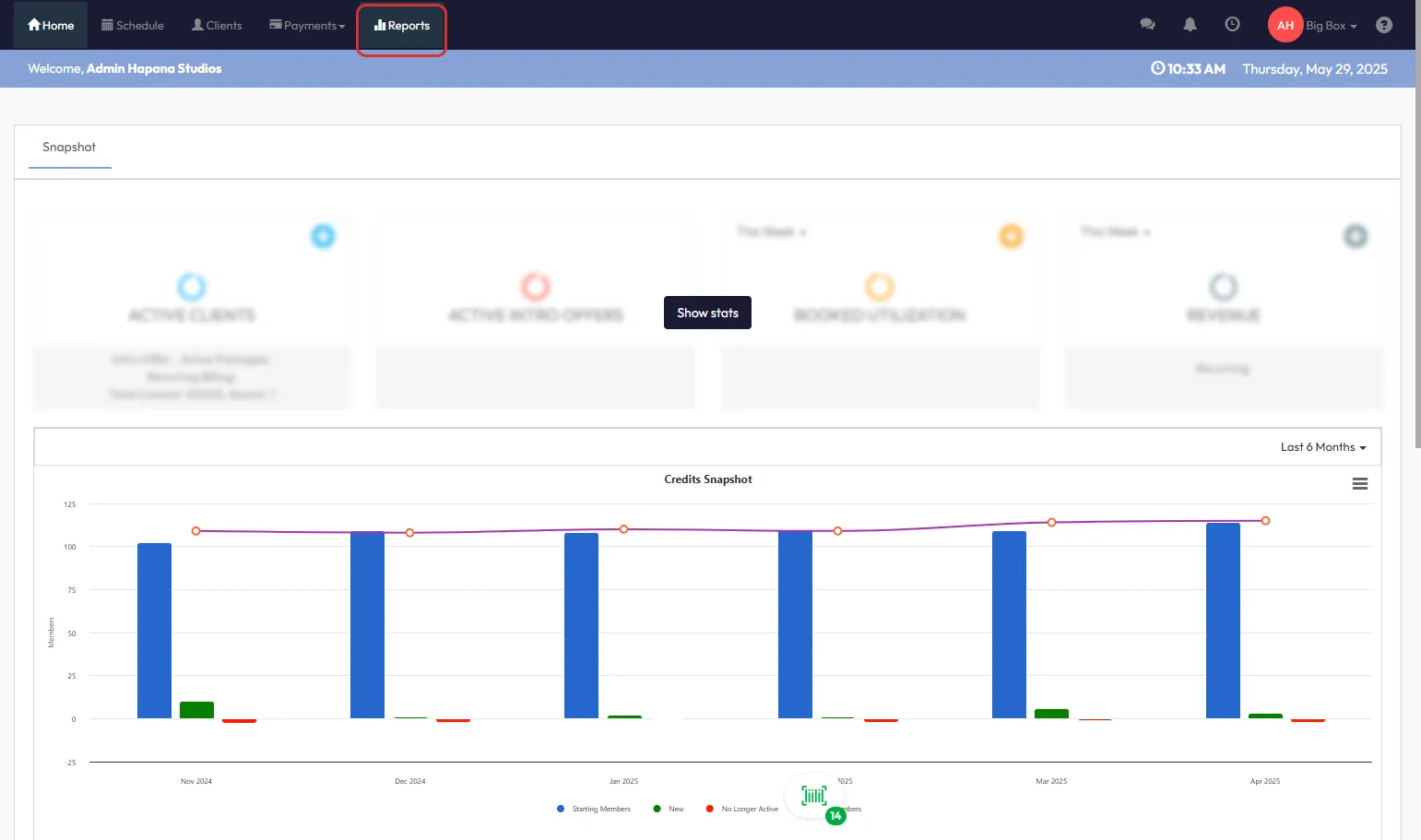
Step 3: Choose a Report Category
- In the Report Categories dropdown, select Clients & Attendance.
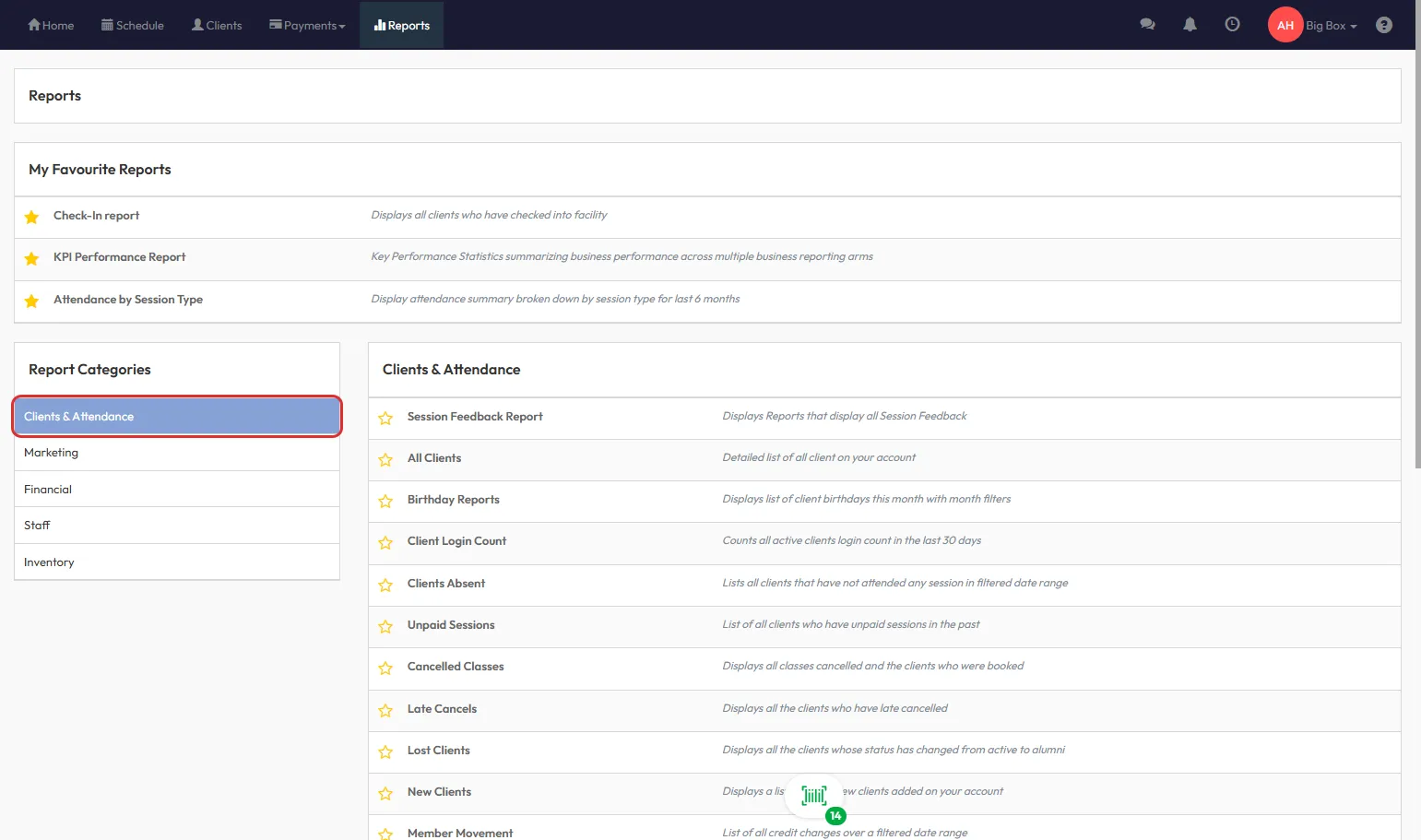
Step 4: Select the All Clients Report
- Under Clients & Attendance, click on All Clients to open a full client list.
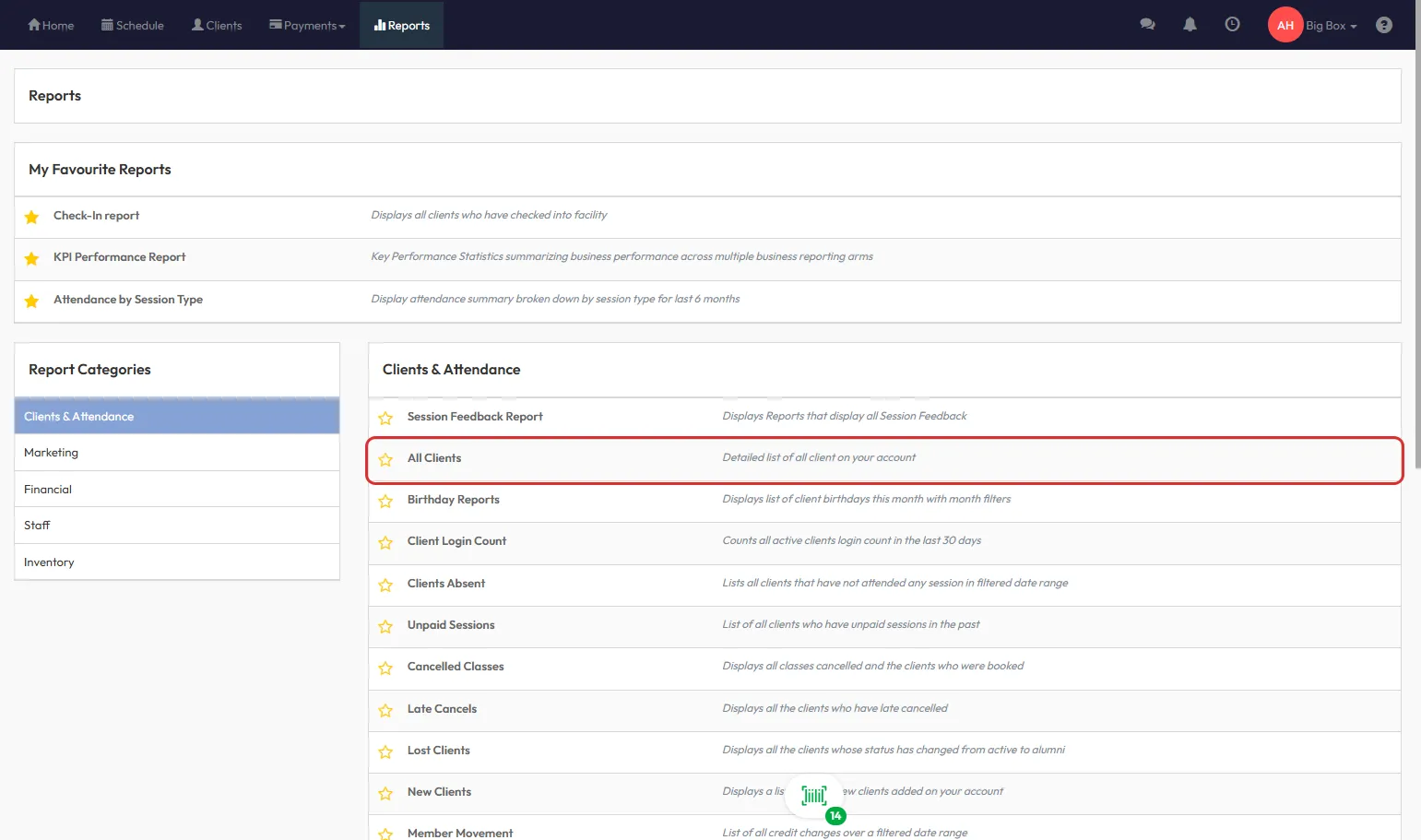
Step 5: Edit the Report Settings
- Click the Edit Report Settings button near the top right of the screen.

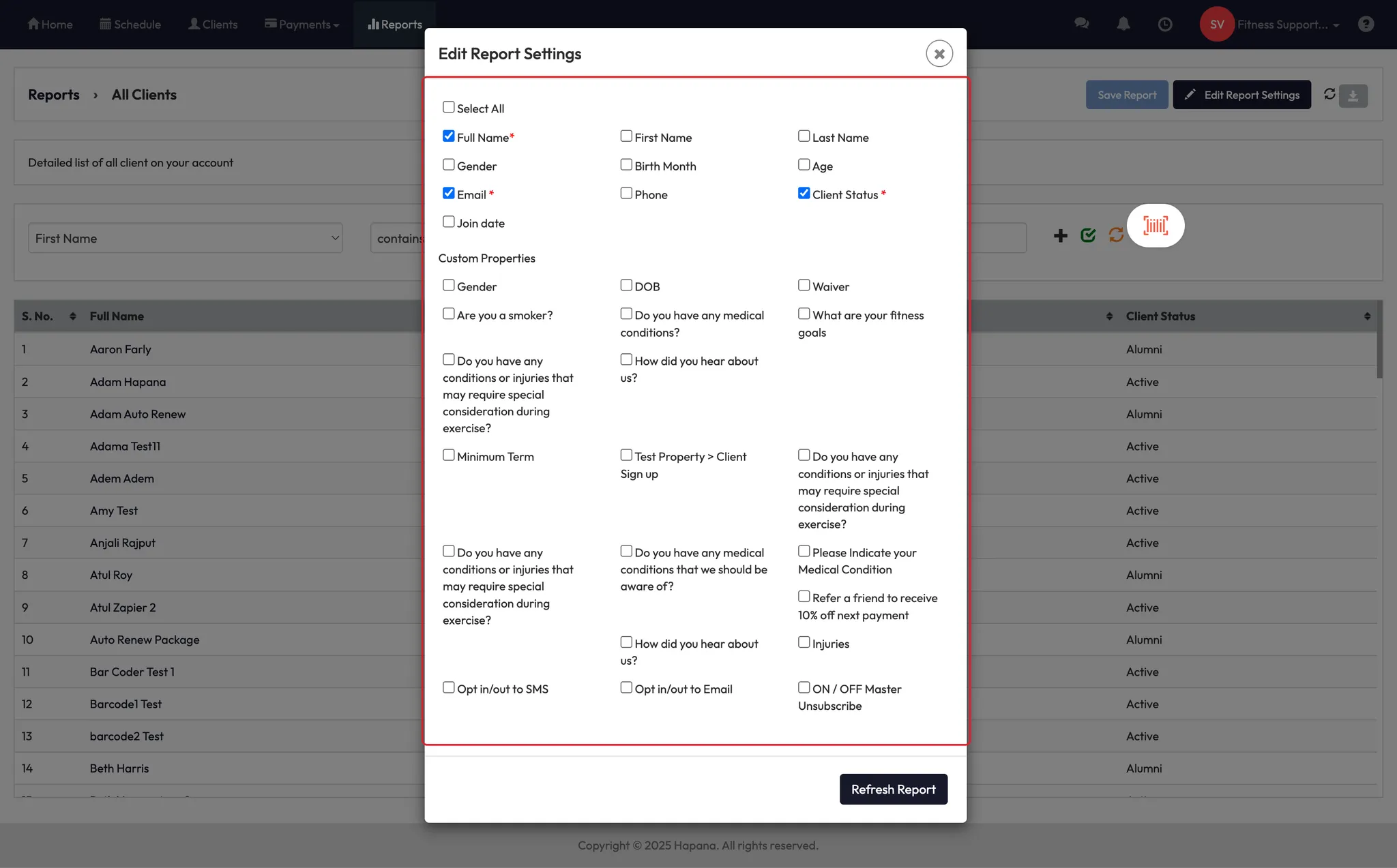
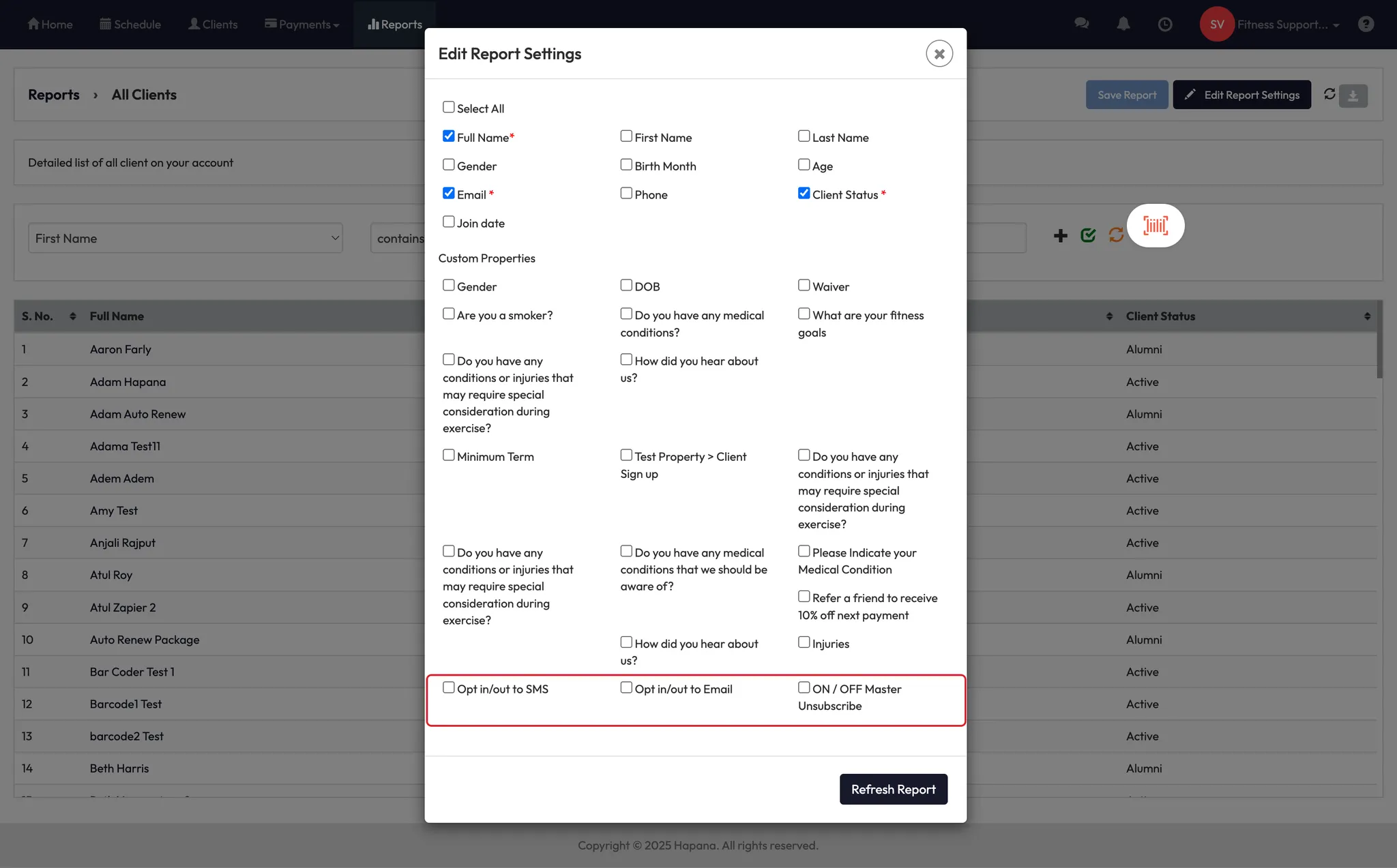
Step 6: Add Communication Columns
- In the pop-up, check the following boxes under Custom Properties:
- Opt in/out to SMS
- Opt in/out to Email
- ON / OFF Master Unsubscribe
Tip: You can also add other fields like gender, join date, and phone number if helpful.
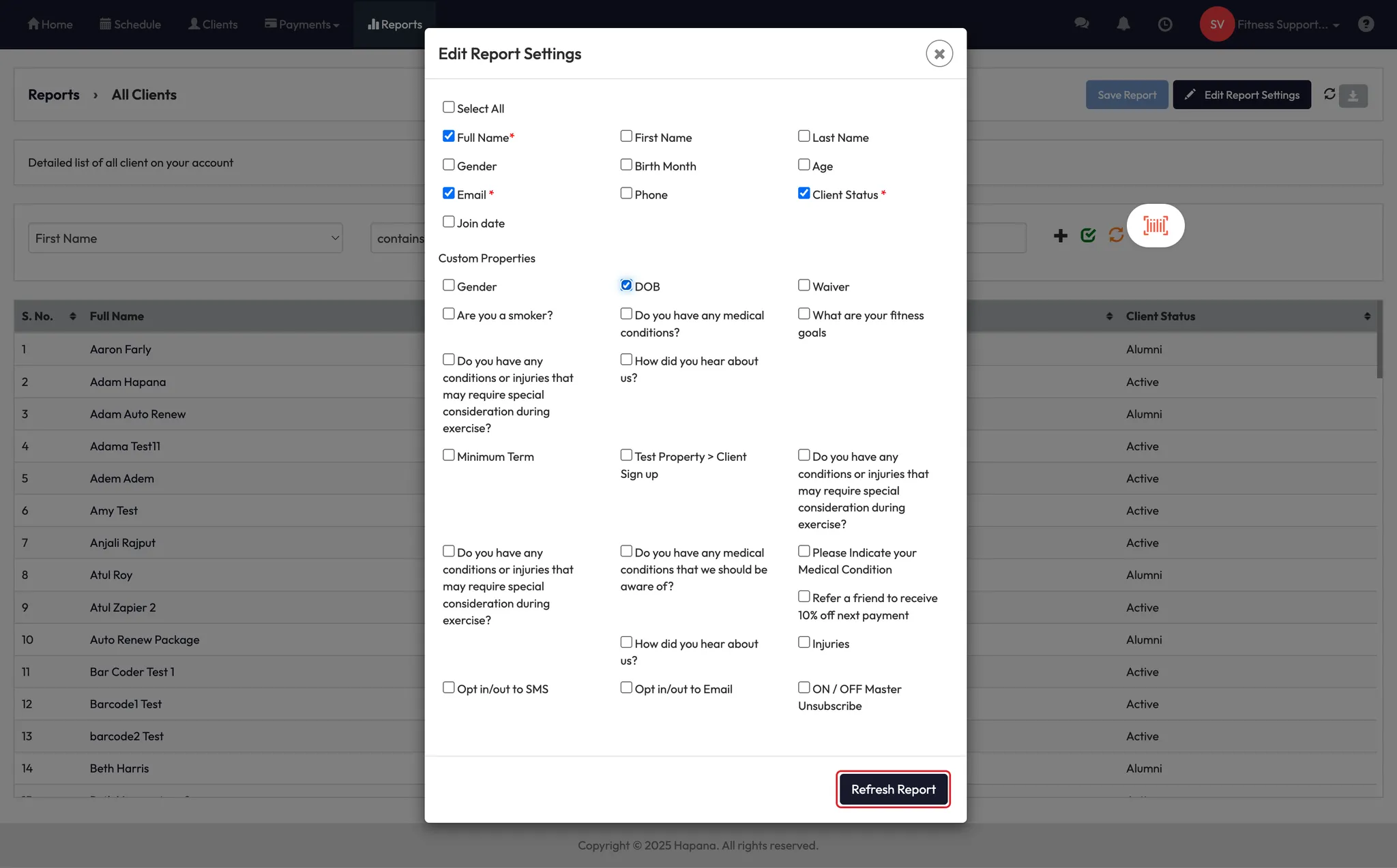
Step 7: Refresh the Report
- Click Refresh Report to apply your selected columns to the live report view.
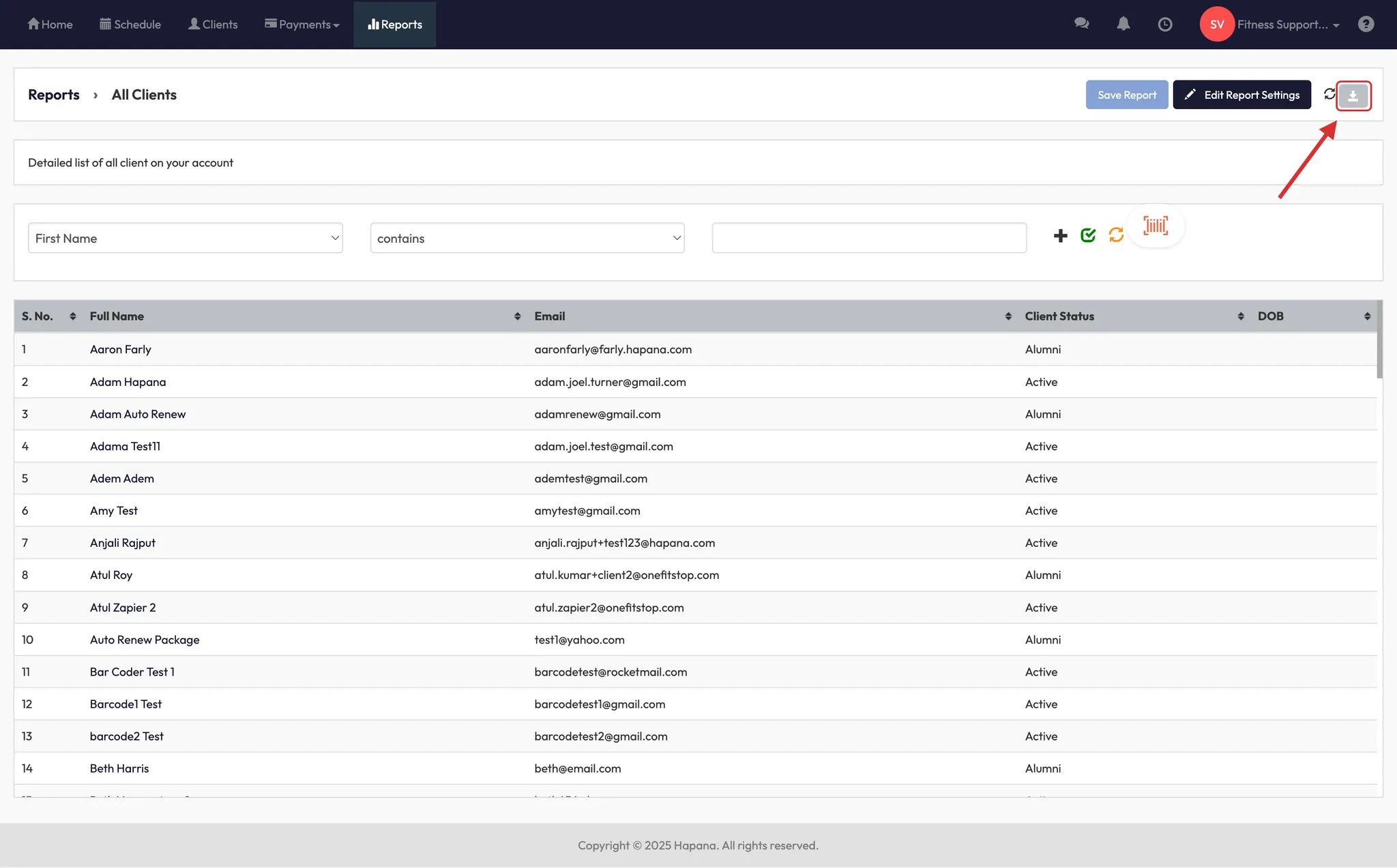
Step 8: View or Download the Report
- The updated table will populate below with the selected communication settings.
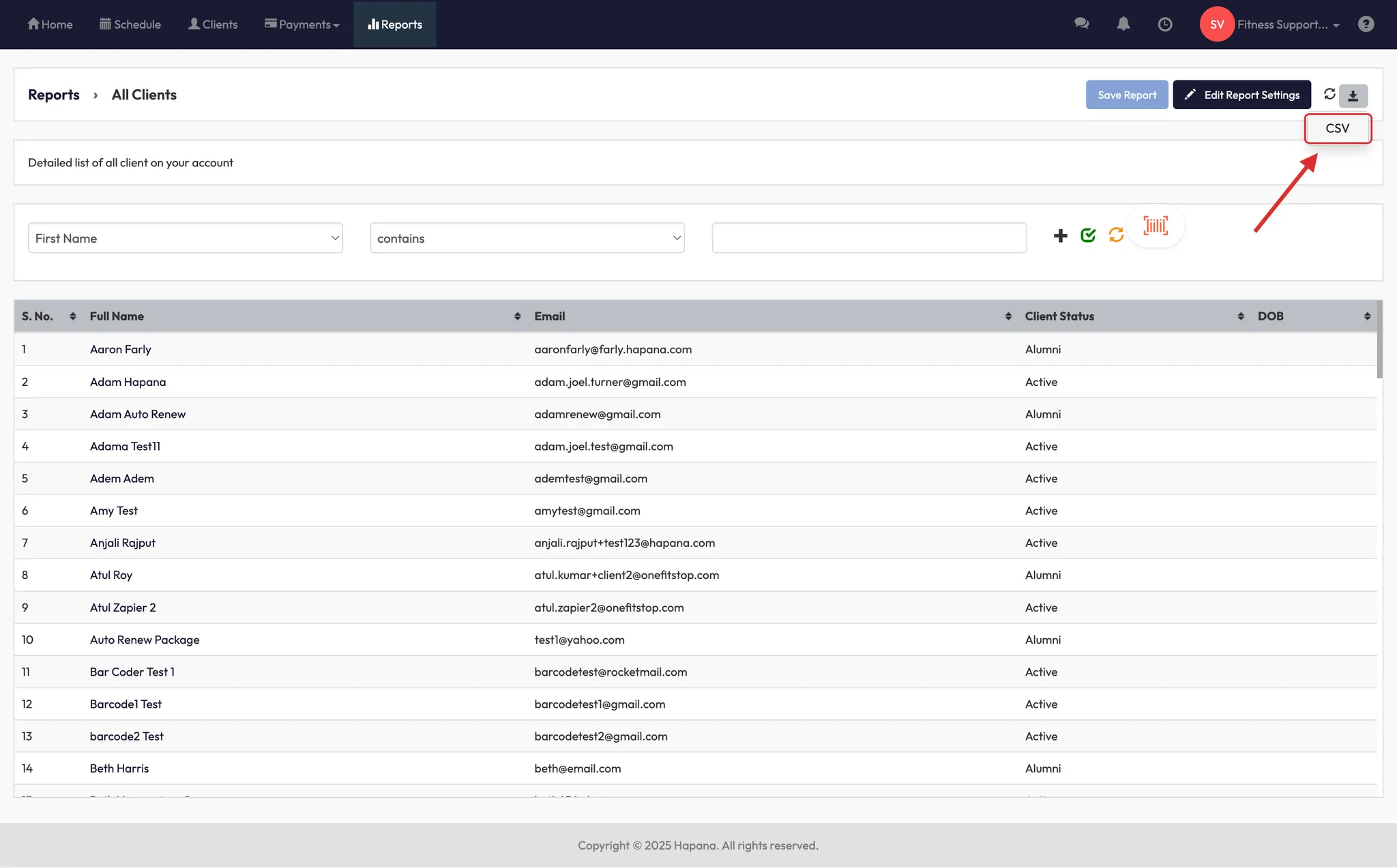
- Click the Download icon next to Edit Report Settings to save a copy as a CSV.
Expected Outcome
You’ll have a live or downloadable report showing each client’s opt-in/opt-out status for SMS, email, and unsubscribed preferences.
Frequently Asked Questions
Q: Can I save this report layout for later use?
Yes. After refreshing, click Save Report to store your column preferences.
Q: How often is this data updated?
Communication preferences reflect real-time updates from the client’s profile settings.
Q: What does “Master Unsubscribe” include?
It removes the client from all communications except for critical account alerts and receipts.
Need help? Reach out to our support team via support@hapana.com.