
Overview
This article explains how to set up a sale where one client pays on behalf of another using the ‘Pay By’ relation feature in Core. This is useful when a parent, employer, or another linked relation needs to manage payments for someone else's memberships, packages, or products.
Prerequisites
-
You must be logged in to your Hapana Core account: https://core.hapana.com/login
-
The client making the payment must already be linked as a Relation to the recipient’s account.
Tip: See related article “CORE | Link a Relation to a Client Account” below if this hasn’t been set up yet.
Step 1: Log in and access the Payments section
- Log in to your Hapana Core account.
- From the top menu, click Payments.
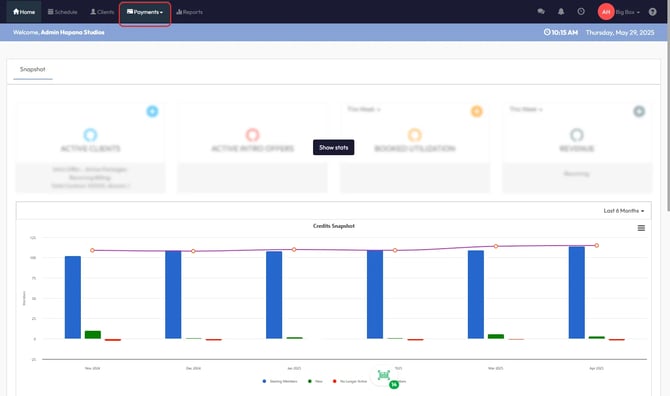
Step 2: Start a new sale
- Hover over Payments, then click New Sale from the dropdown.
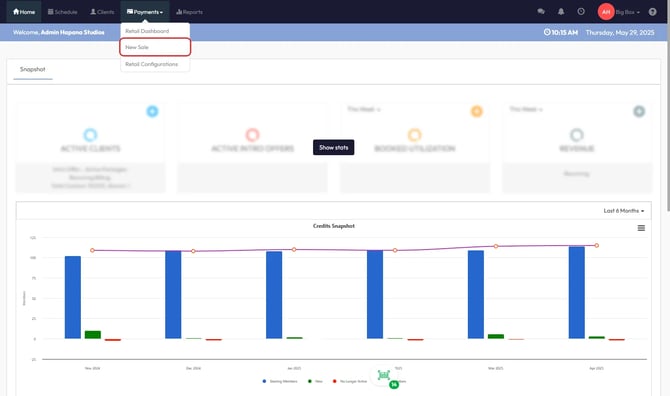
Step 3: Choose a product or service
-
Select the desired item (e.g. Session Package, Membership, Product, or Single Payment).
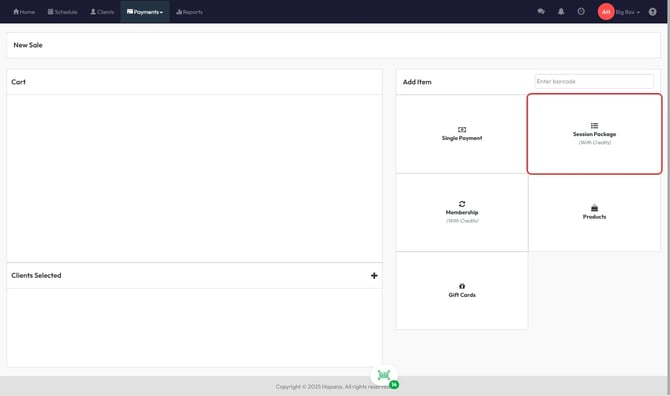
-
Click Add to Cart next to the item you want to sell.
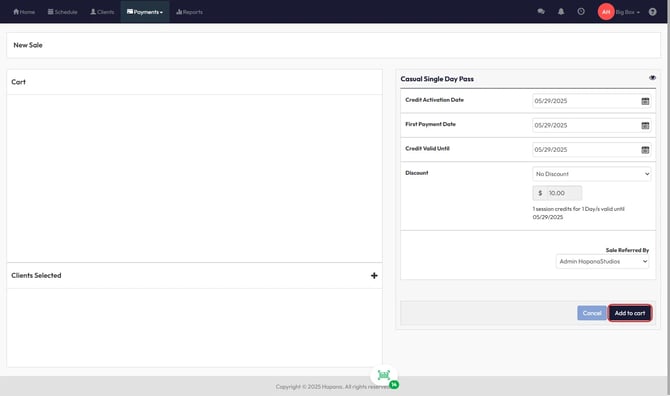
Step 4: Assign the sale to a client
-
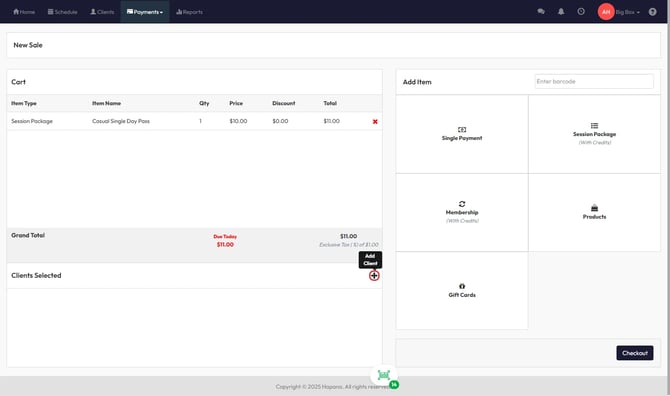
Under the cart, click the Add Client (+) icon.
-
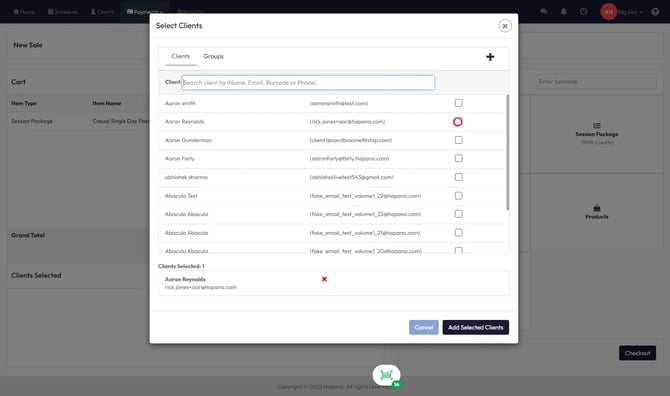
Use the search bar to find the correct client (the one receiving the credit or item).
-
Select them by ticking the checkbox next to their name.
-
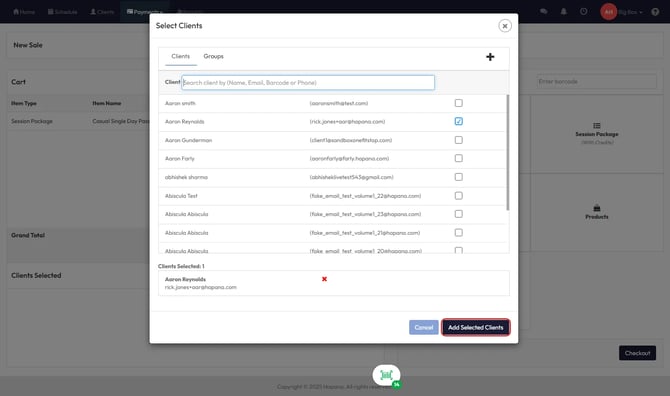
Click Add Selected Clients.
Step 5: Choose who will pay
-
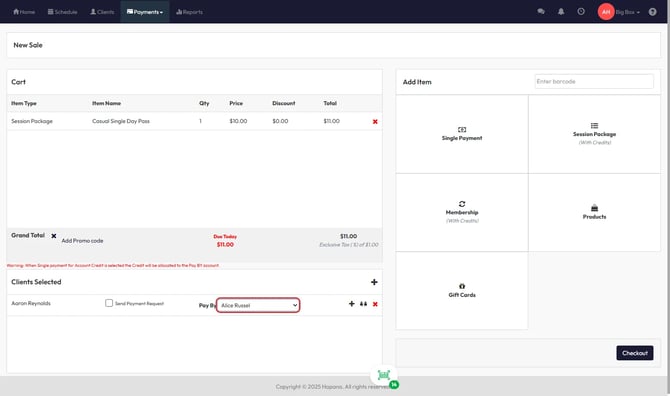
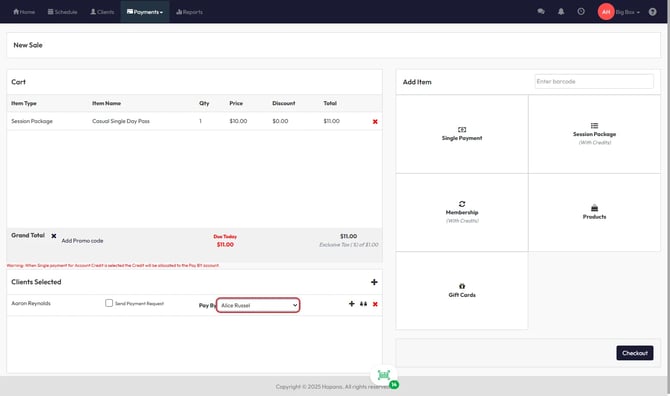
Under Clients Selected, locate the Pay By dropdown.
-
Select the relation (payer) from the list of linked clients.
Tip: You will only see options if the selected client has existing linked relations.
Step 6: Complete the sale
-
Click Checkout.
-
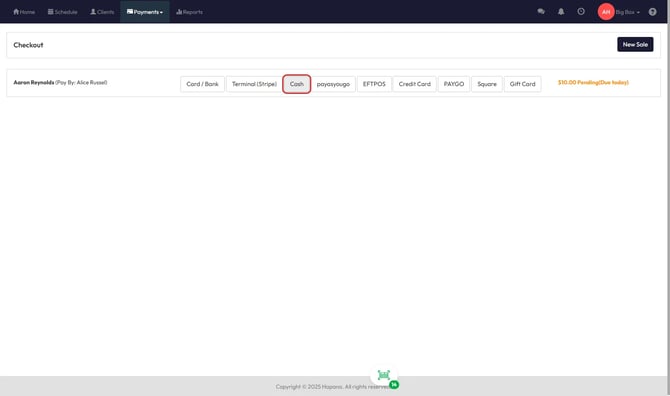
Choose the Method of Payment (e.g. Card/Bank, Cash, EFTPOS, Terminal).
-
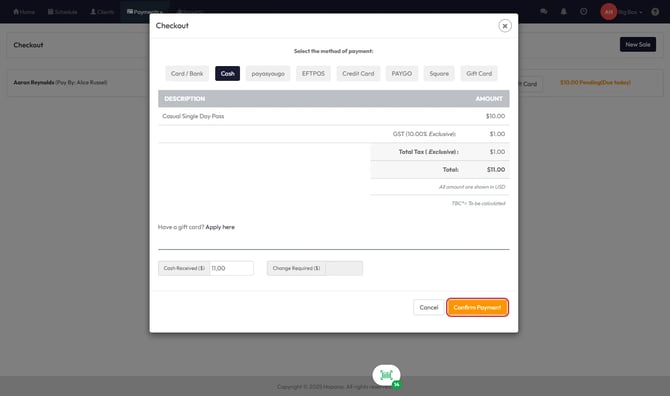
Click Confirm Payment to finalize the sale.
Expected Outcome
The selected item (e.g. package, membership) is added to the recipient's account, and payment is charged to the linked relation’s account.
FAQs
Q: Can I set up Pay By sales for group purchases?
A: Not at this time. 'Pay By' must be assigned per individual sale.
Q: Why can’t I see anyone in the Pay By dropdown?
A: Make sure the selected client has at least one Relation linked to their profile.
Q: Can a Relation pay for multiple clients?
A: Yes, a Relation can be linked to multiple accounts and used in multiple 'Pay By' transactions.
Need Help? Reach out to our support team via support@hapana.com.