
Overview
This article explains how to use the Bulk Edit Future Transactions tool in CORE. This tool allows you to either cancel or modify scheduled payments in bulk for a group of clients — often used when studios are closed for renovations, public holidays, or needing to adjust payment timing or amounts.
🎥 Watch the walkthrough:
Or preview it below:
Prerequisites
- Admin access to CORE
- Understanding of your billing cycles (weekly, fortnightly, etc.)
- List of dates and client groups to apply changes to
Step-by-step instructions
Step 1: Access the bulk edit tool
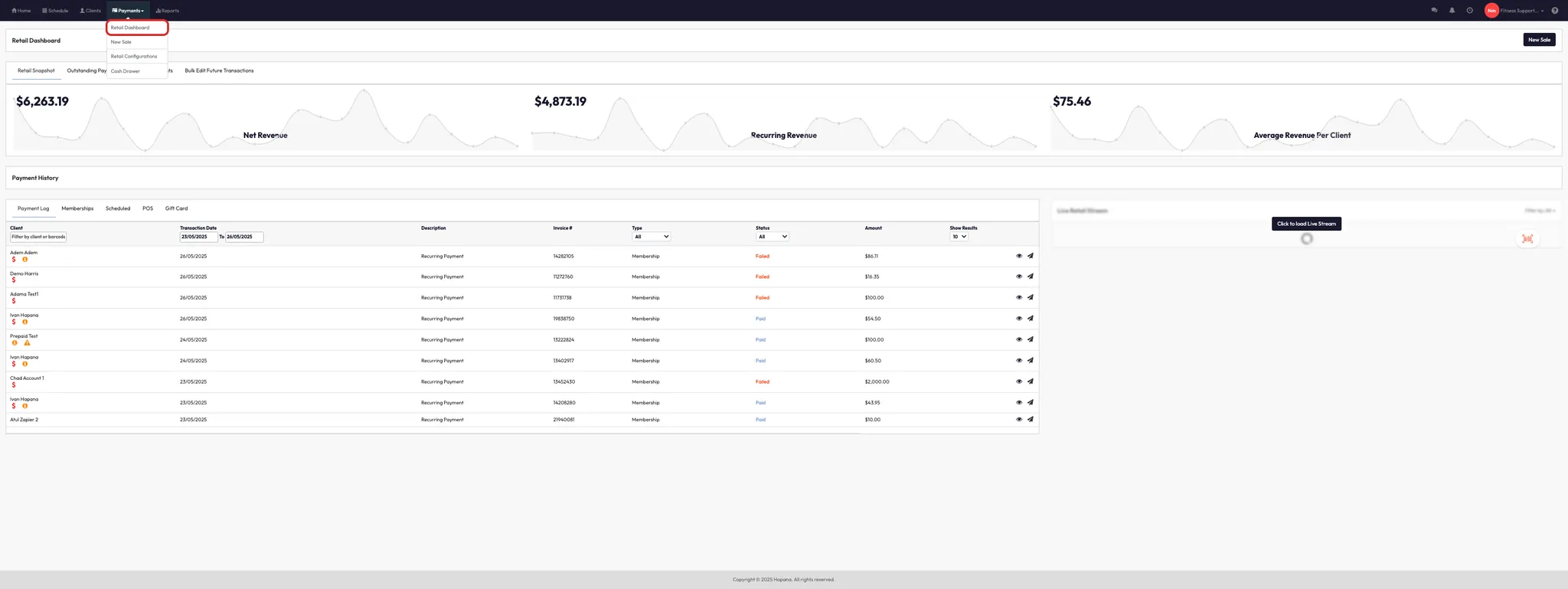
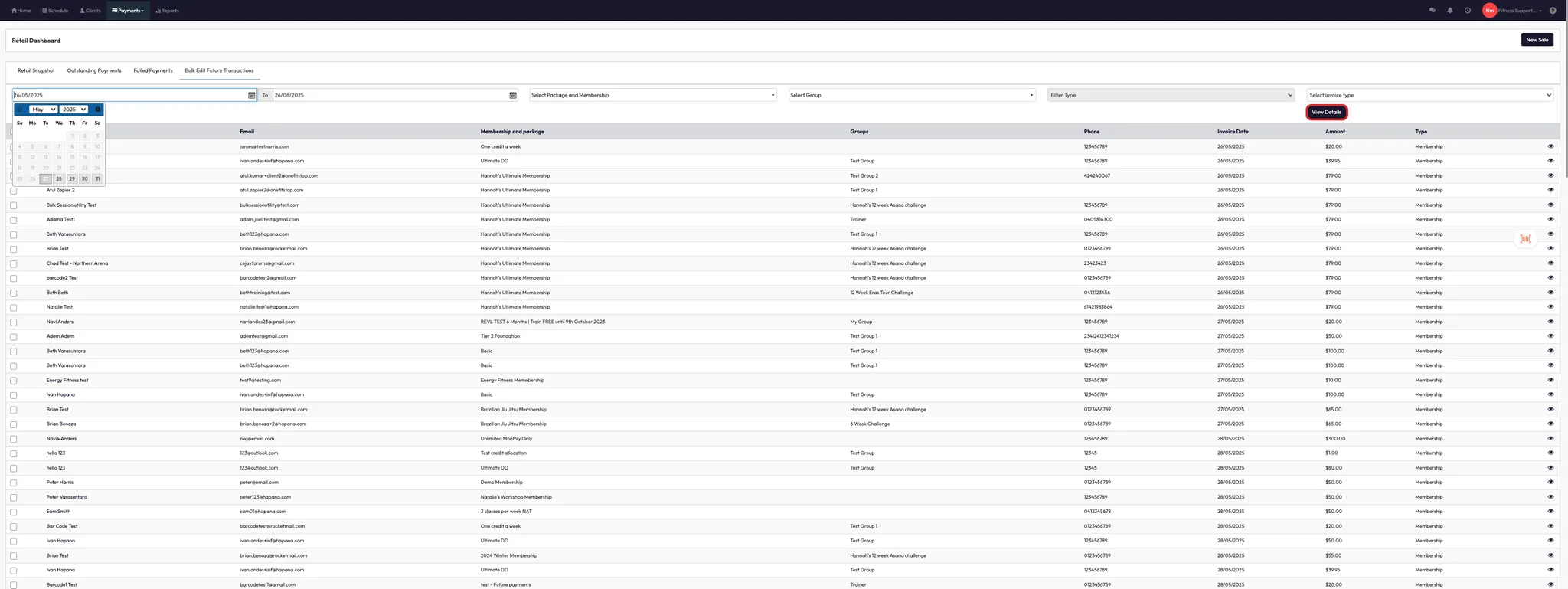
- Go to Payments > Retail Dashboard.
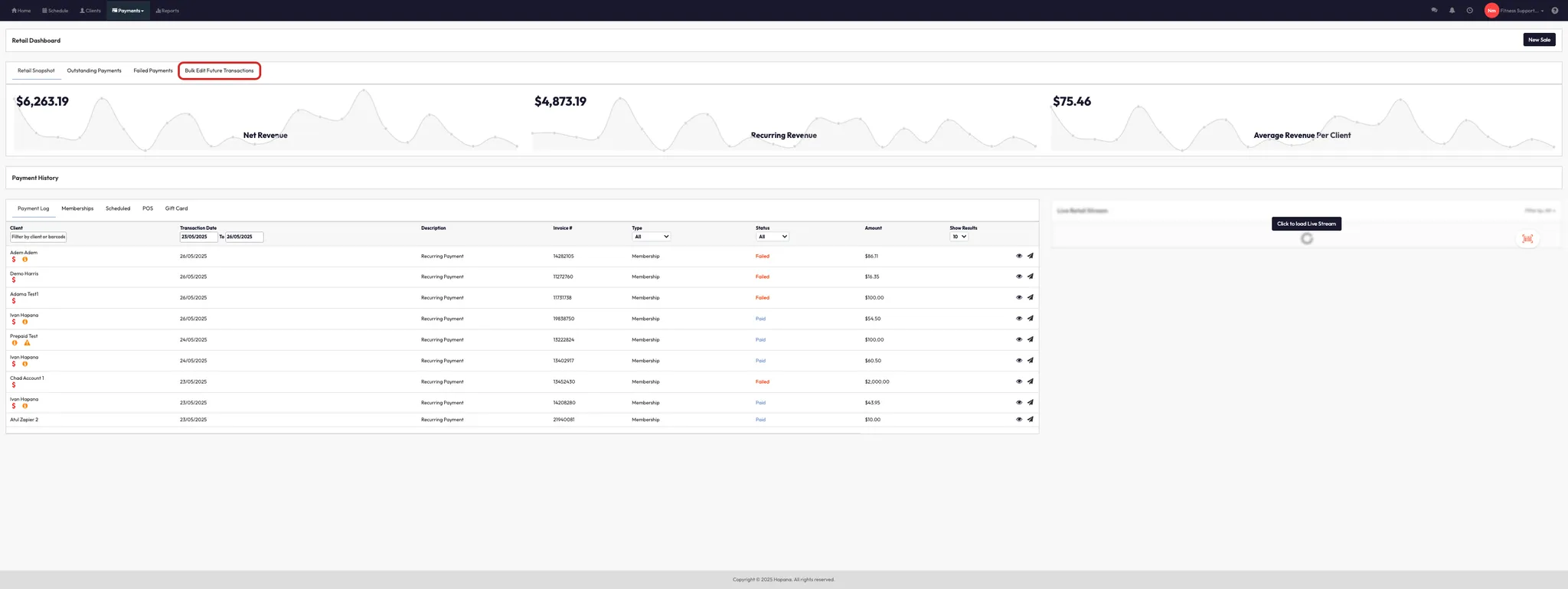
- Click Bulk Edit Future Transactions.
Step 2: Set your date range and filters
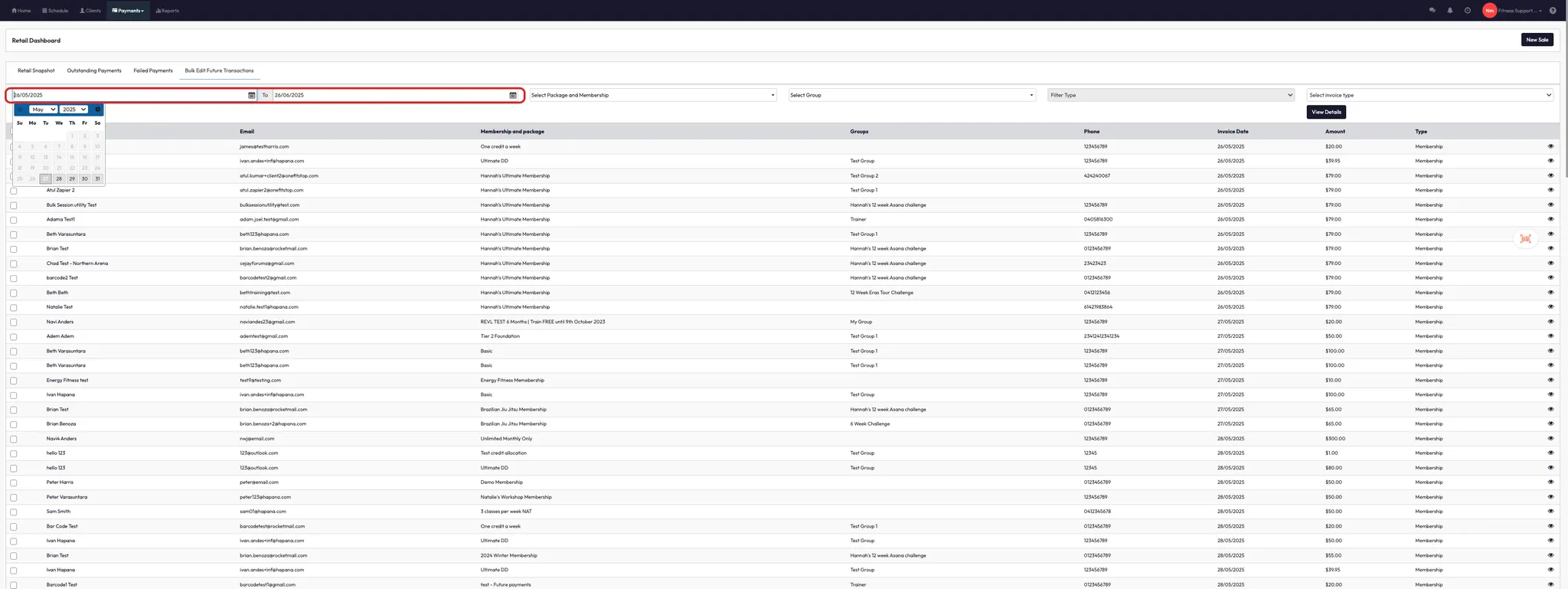
- Select the From Date (e.g. 10th).
- Select the To Date (e.g. 24th).
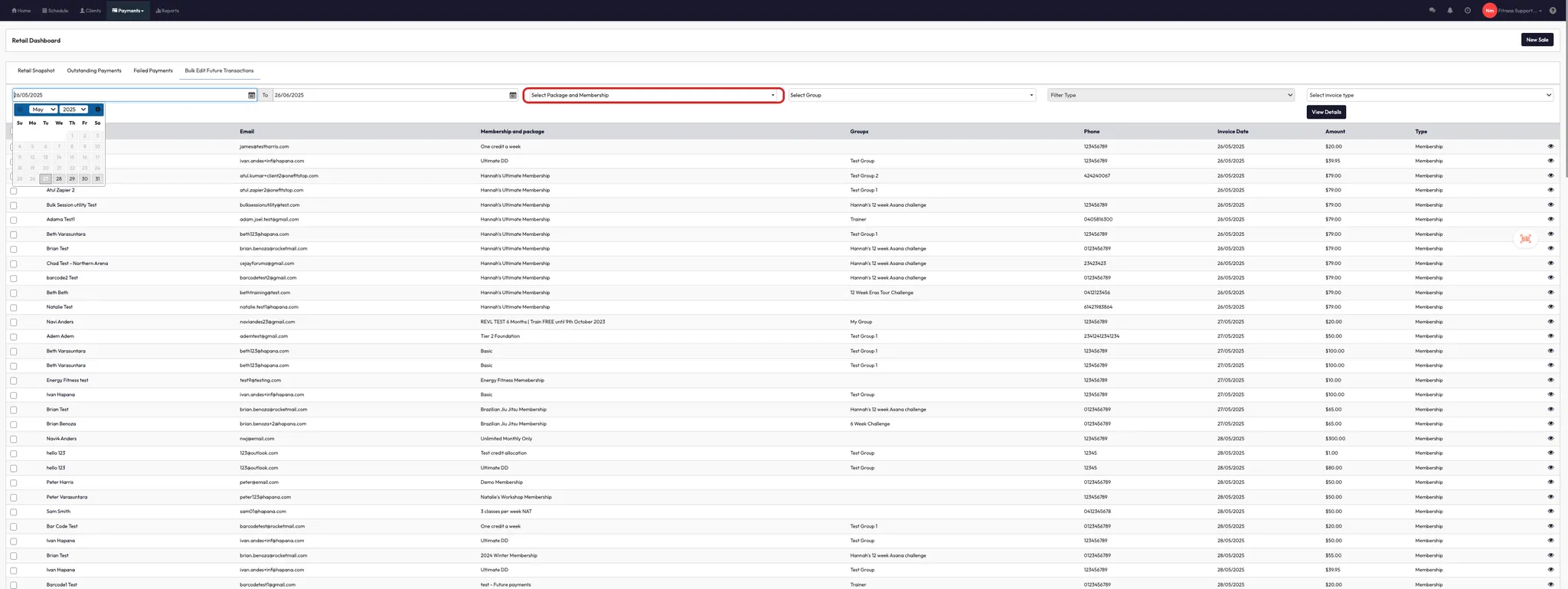
- Choose what to filter:
- All Packs and Memberships (default)
- Or by specific Group (optional)
Tip: This range determines which scheduled transactions will be modified.
Step 3: View and select transactions
- Click View Details.
- Select All Records (important: some may not be selected by default).
- Scroll to the bottom of the list to confirm all relevant records are selected.
Step 4: Choose your action
You have two options:
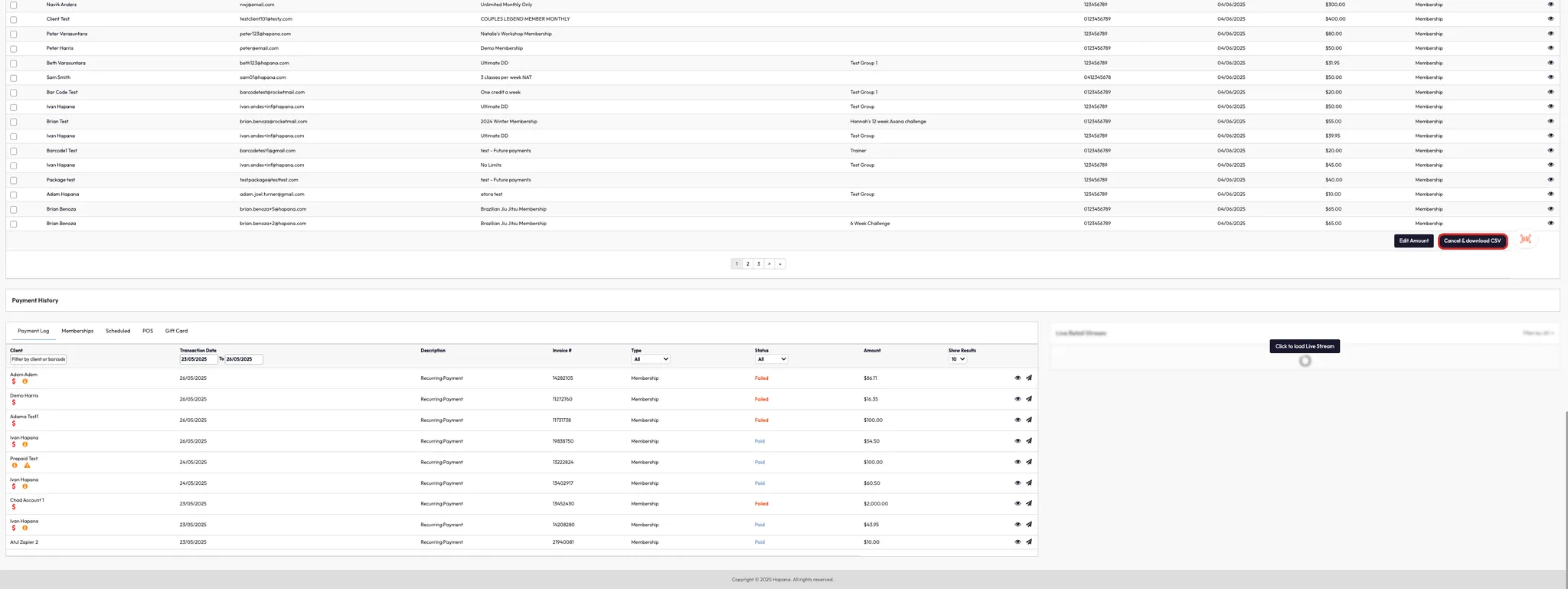
Option 1: Cancel future payments
- Click Cancel Transactions.
- All payments between the selected dates will be voided.
- Clients will resume billing from the end date (e.g. from the 24th onward
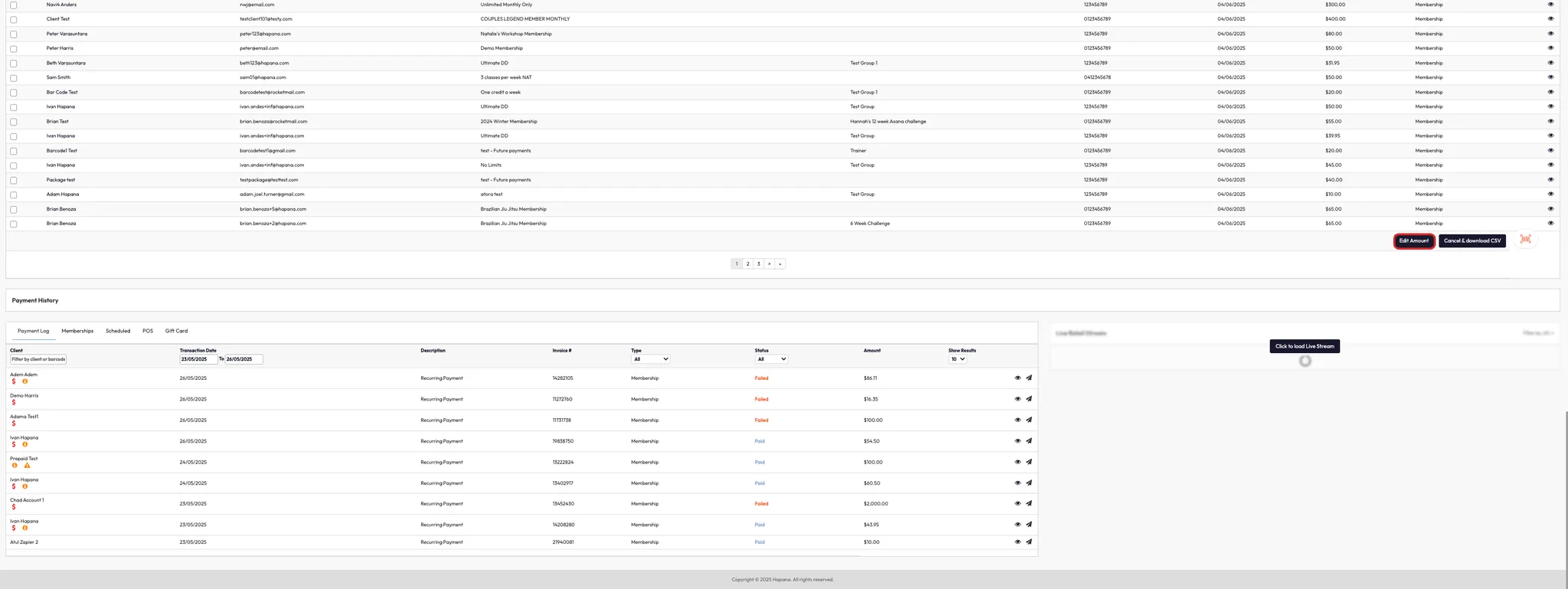
Option 2: Edit payment amounts
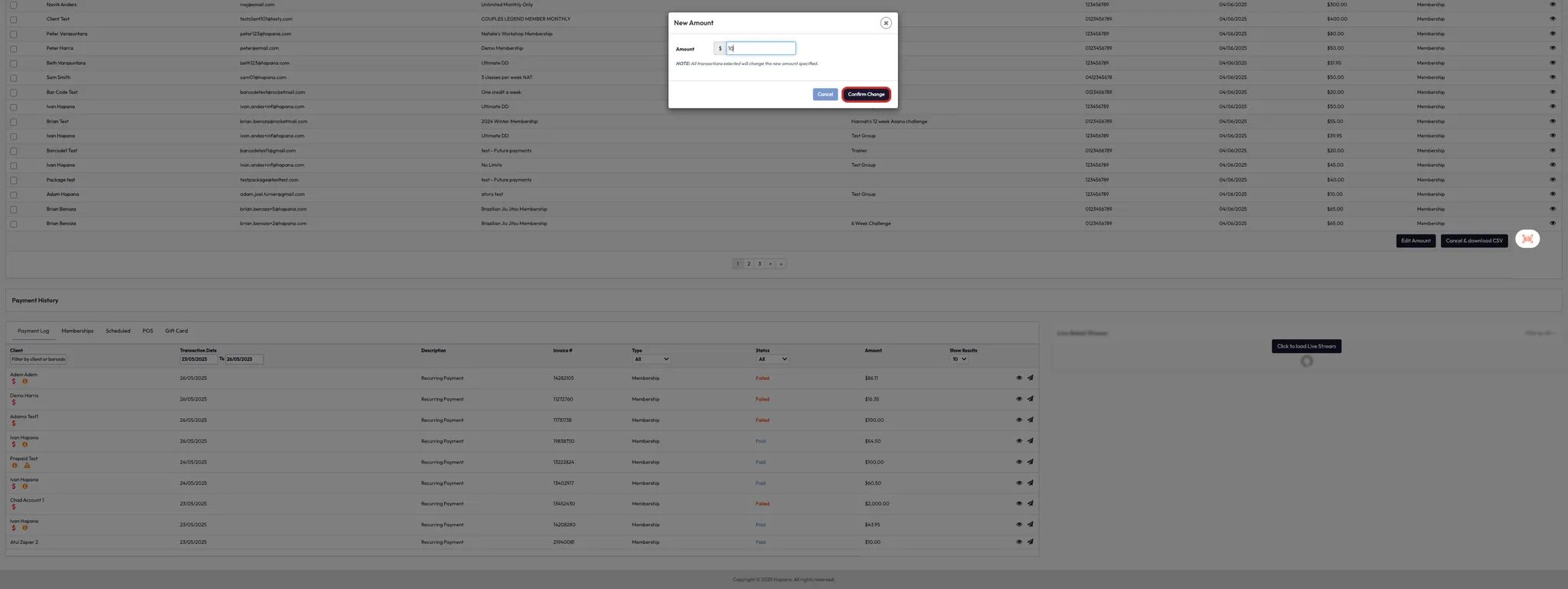
- Click Edit Amount.
- Enter the new value (e.g. $5 for partial payments).
- This replaces the original amount for all selected transactions.
Tip: If you’re adjusting weekly vs. fortnightly billing, do each billing type separately to avoid overlapping payment schedules.
Expected outcome
Clients will have their future payments either cancelled or modified for the selected date range. You can download a CSV for your records if needed.
FAQs
Q: Will clients be notified of these changes?
A: No automatic notifications are sent — communicate with clients directly if needed.
Q: Can I reverse a cancellation?
A: No — once cancelled, the transactions are removed. You’d need to recreate them manually.
Q: Can I download a list of the affected clients?
A: Yes — there’s an option to Download CSV before confirming changes.
Still need help?
Reach out to our support team via support@hapana.com