
Overview
This article explains how to set up a Holiday Destination Fee in CORE. This fee is charged to clients who attend a class at a studio that is not their home location — often used by locations in high-demand travel destinations during holidays.
🎥 Watch the walkthrough:
Or preview it below:
Prerequisites
- Admin access to CORE
- Your studio supports shared location access
- Tax settings are configured
Step-by-step instructions
Step 1: Access retail settings
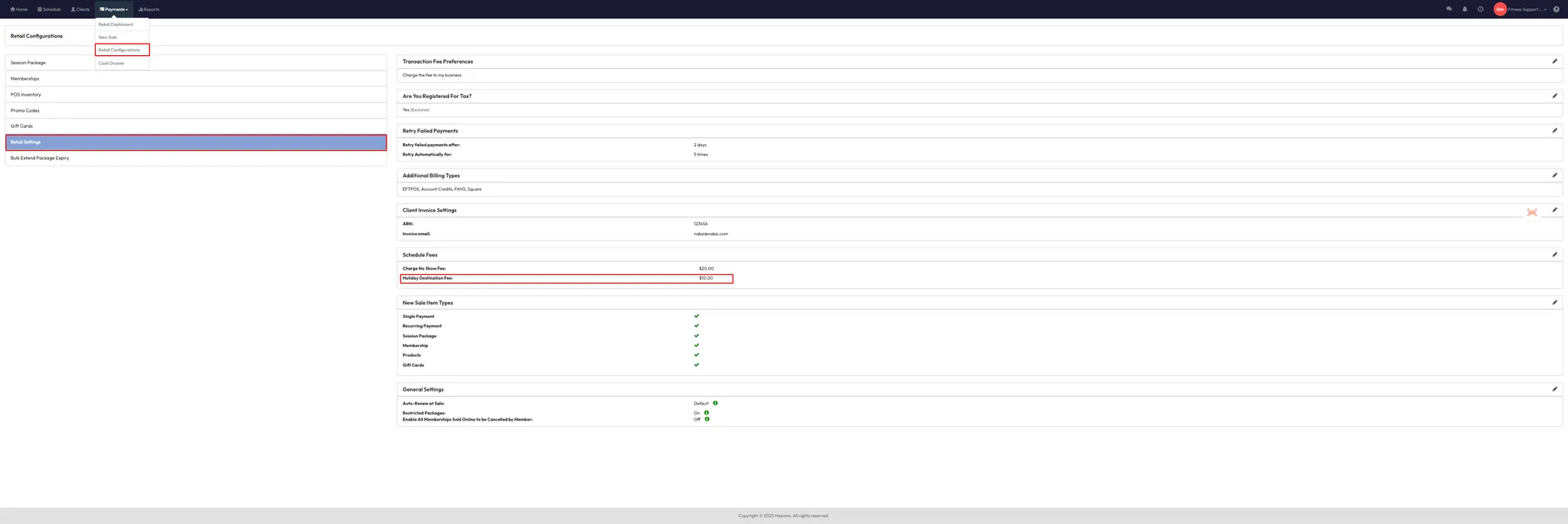
- Go to Payments > Retail Configurations.
- Click on Retail Settings in the left-hand menu.
- Scroll down to the Schedule Fees section.
Step 2: Configure the Holiday Destination Fee
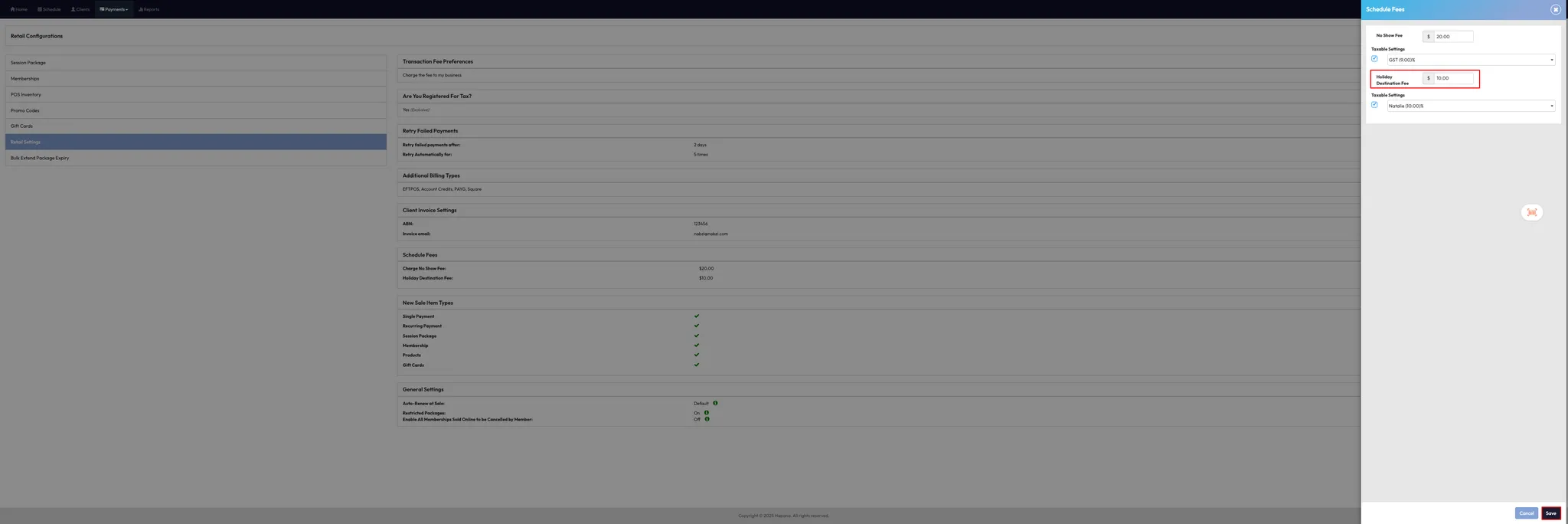
- Click the Pencil Icon next to Schedule Fees.
- Find the Holiday Destination Fee field.
- Enter the fee amount (e.g. $10, $15, or $20).
- Select the Tax Setting as needed.
- Click Save.
Tip: This fee is typically used by studios in high-traffic tourist areas (e.g. coastal destinations or resort towns).
Step 3: How the fee works
- When a non-home location client books or attends a class at your studio, a red icon ($) appears next to their name.
- Hover over the icon — it will display Holiday Destination Fee.
- Click the icon to open the checkout screen.
- Process the charge by selecting a payment method and clicking Pay Securely.
Tip: This functions similarly to a no-show fee, but is based on location rather than attendance.
Expected outcome
Clients attending your studio from outside their home location will be flagged at class check-in, allowing you to collect a Holiday Destination Fee to support instructor and operational costs.
FAQs
Q: Can the fee be charged automatically?
A: No — staff must manually process the charge once the class is completed.
Q: Will the fee appear for local/home clients?
A: No — only clients whose home location differs from the studio where the class occurs.
Q: Can I set different fees per location?
A: Not currently — the fee is global across the brand unless otherwise requested in a custom setup.
Still need help?
Reach out to our support team via support@hapana.com