
Overview
This article explains the difference between Edit or Future Sessions and Edit Only This Session in CORE. Understanding these options helps you manage recurring vs. single sessions and ensure the correct outcome when updating or removing classes.
🎥 Watch the walkthrough:
Or preview it below:
Prerequisites
- Active sessions or recurring schedule set up
- Admin or scheduling access in CORE
Step-by-step instructions
Step 1: Access session editing options
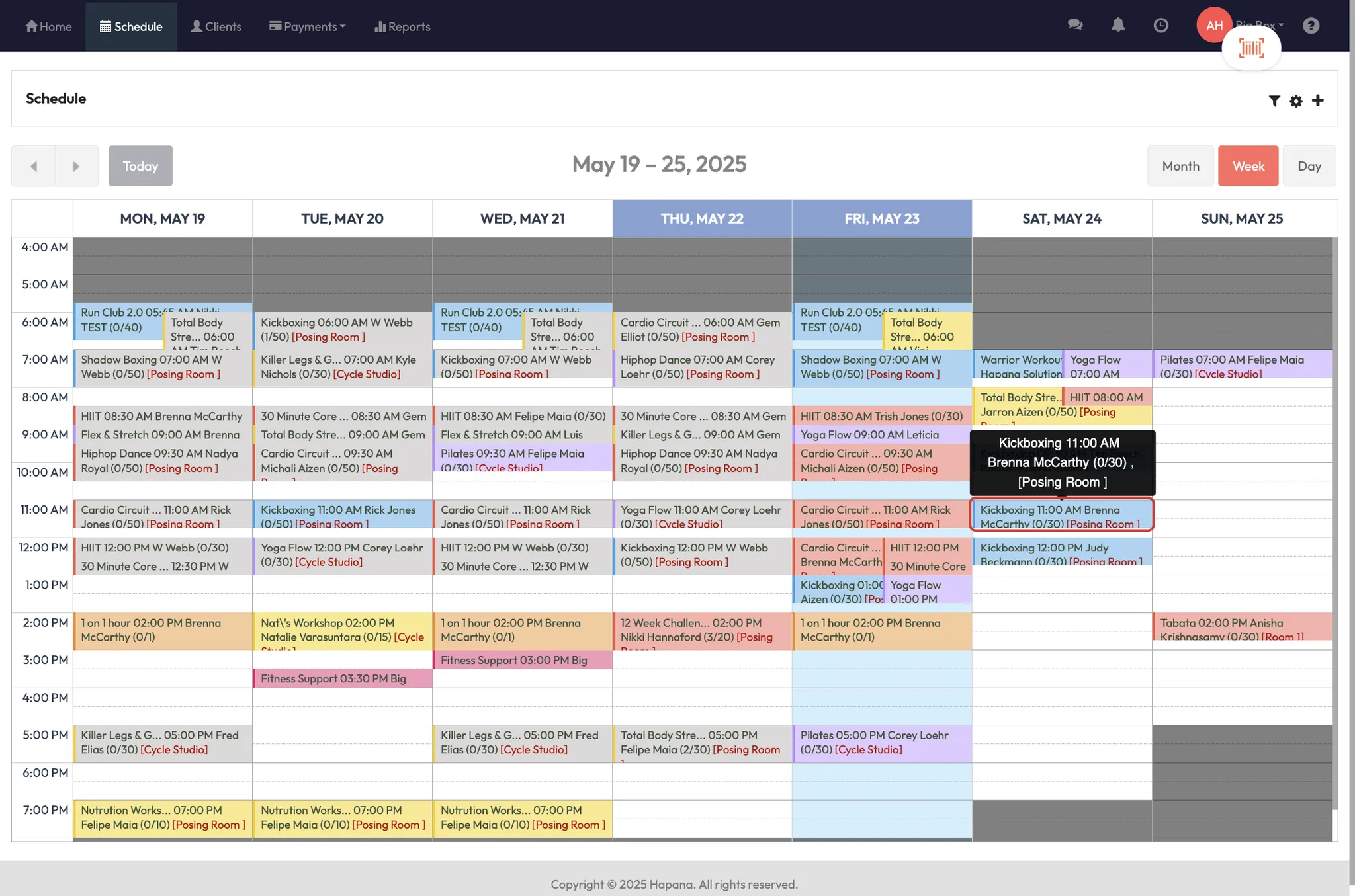
- Go to Schedule
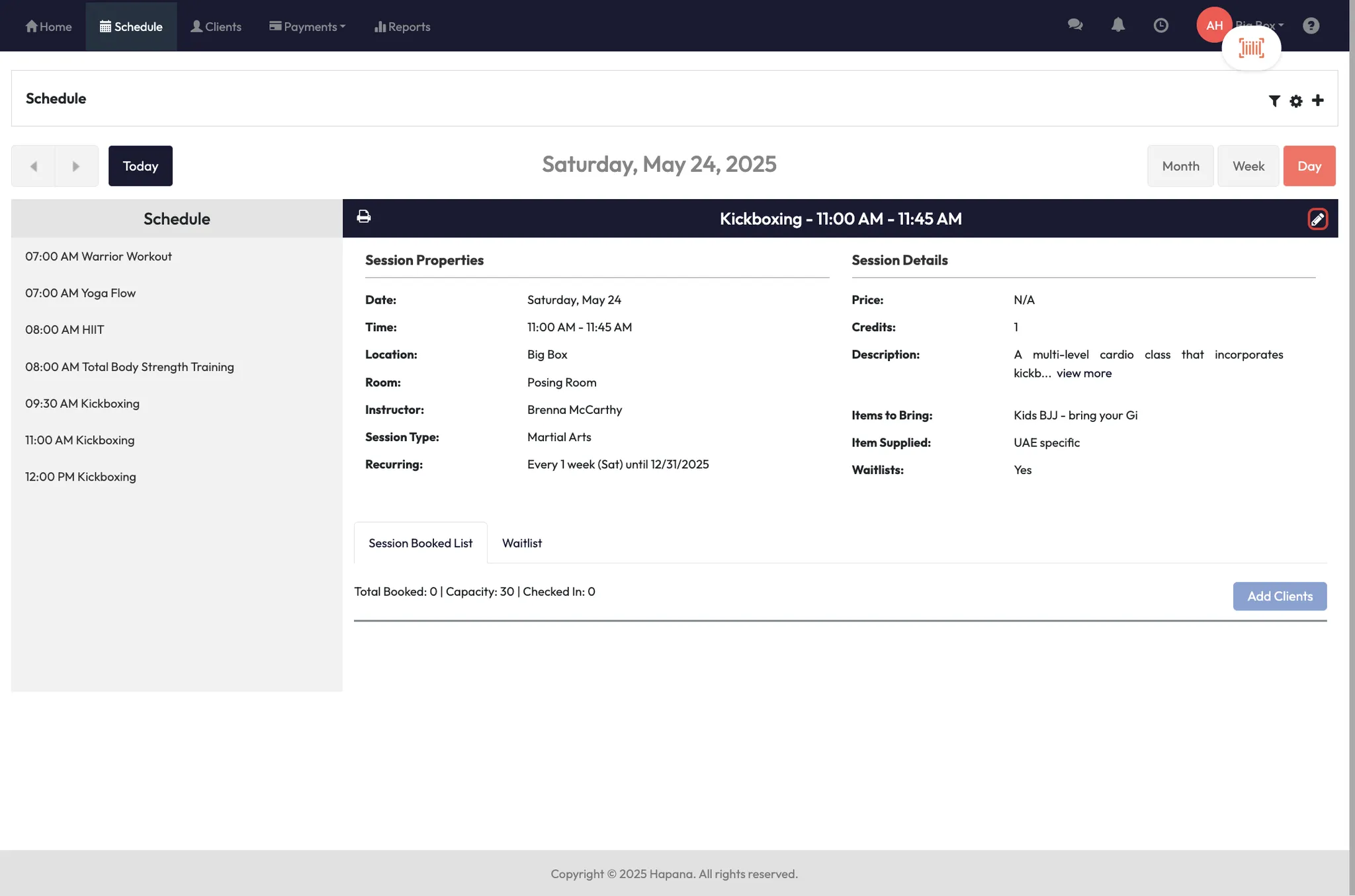
- Click on a scheduled class (e.g. Pilates)
- Click the Pencil Icon to open editing options
- Choose between:
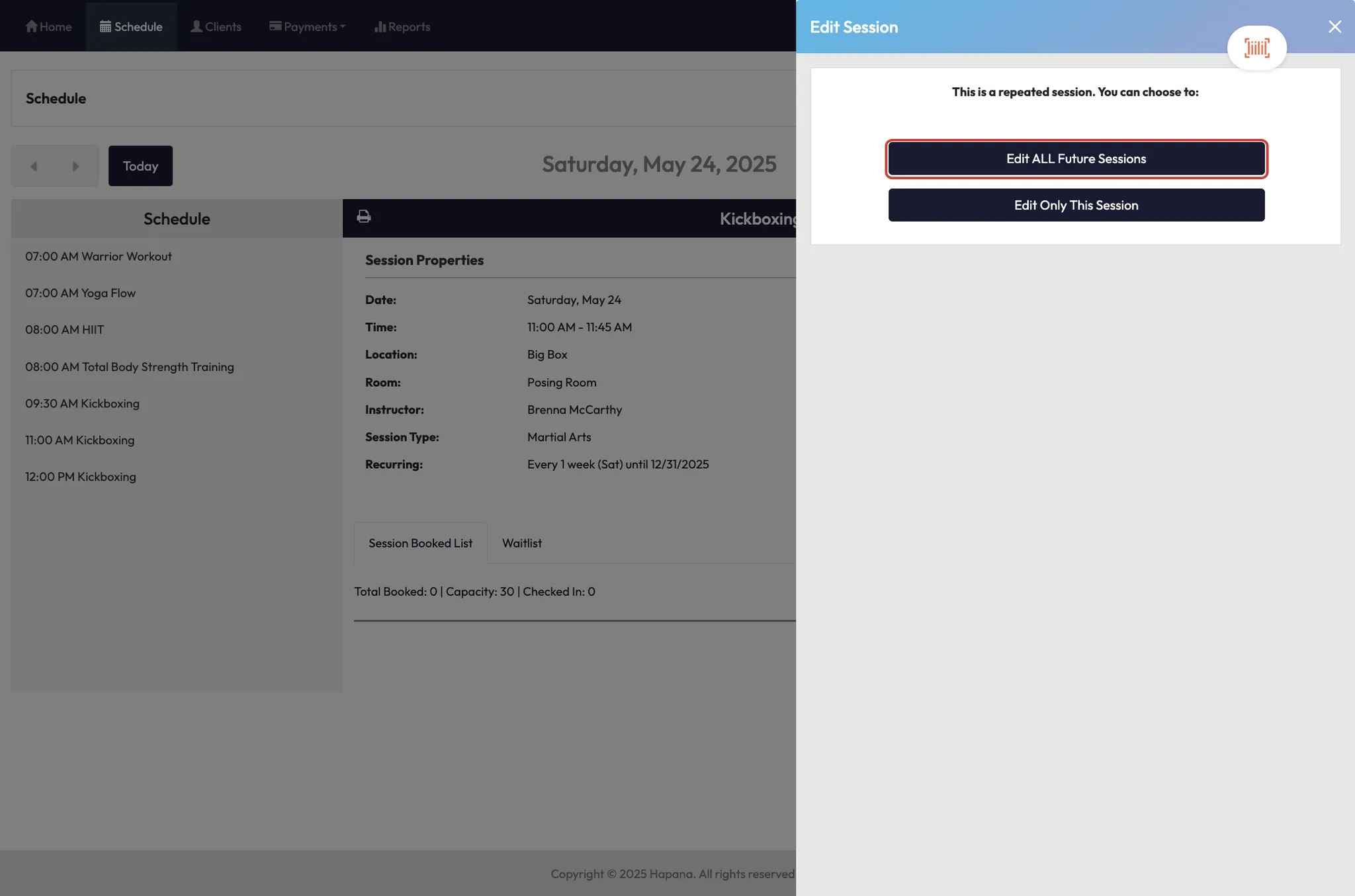
- Edit ALL Future Sessions (for recurring series)
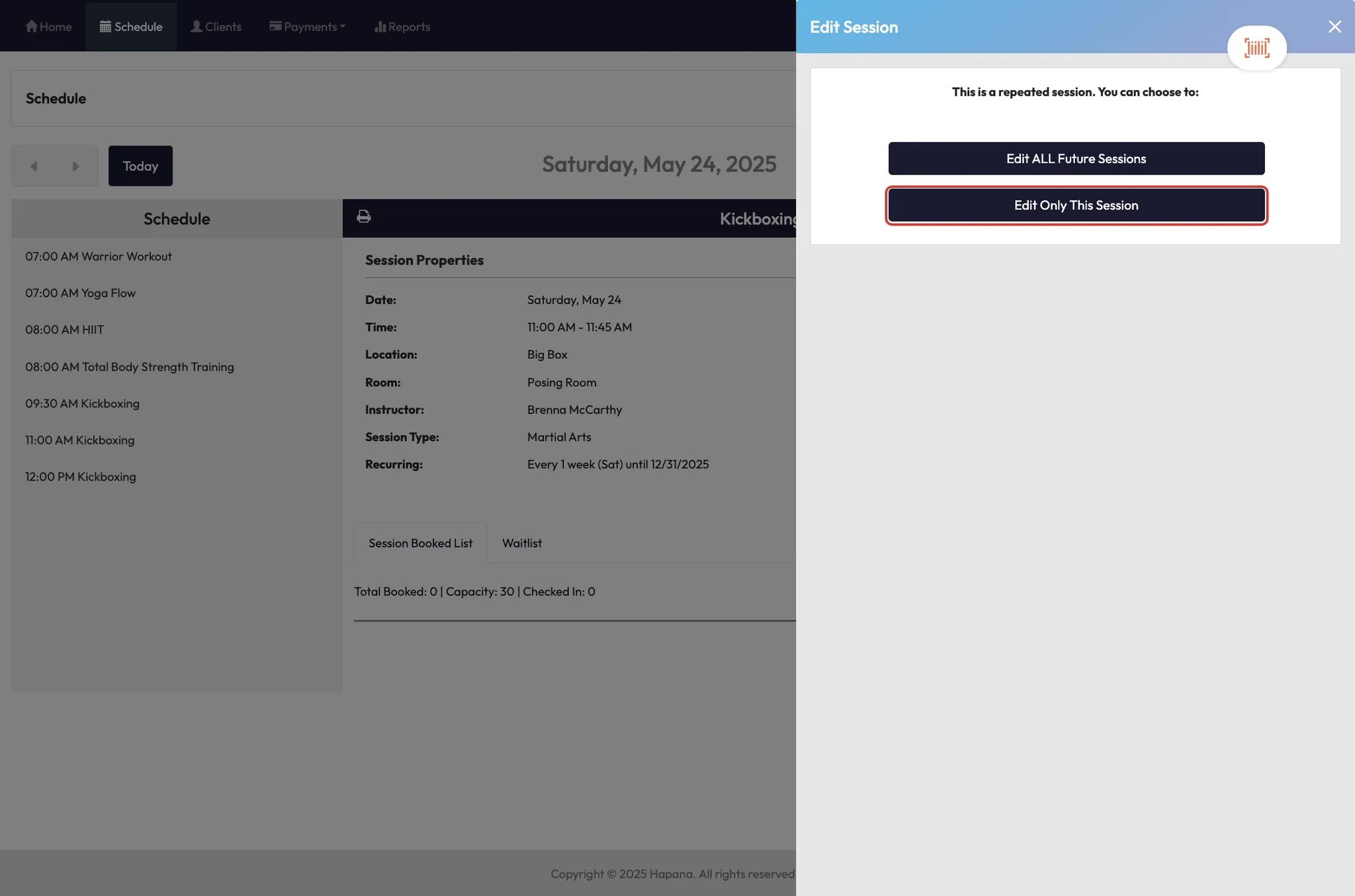
- Edit Only This Session (for a one-time change)
Step 2: What each option allows
Edit ALL Future Sessions
- Changes affect the selected session and all future occurrences
- Only the Delete option is shown
- Best for updating or removing recurring series
Edit Only This Session
- Changes affect just this one session
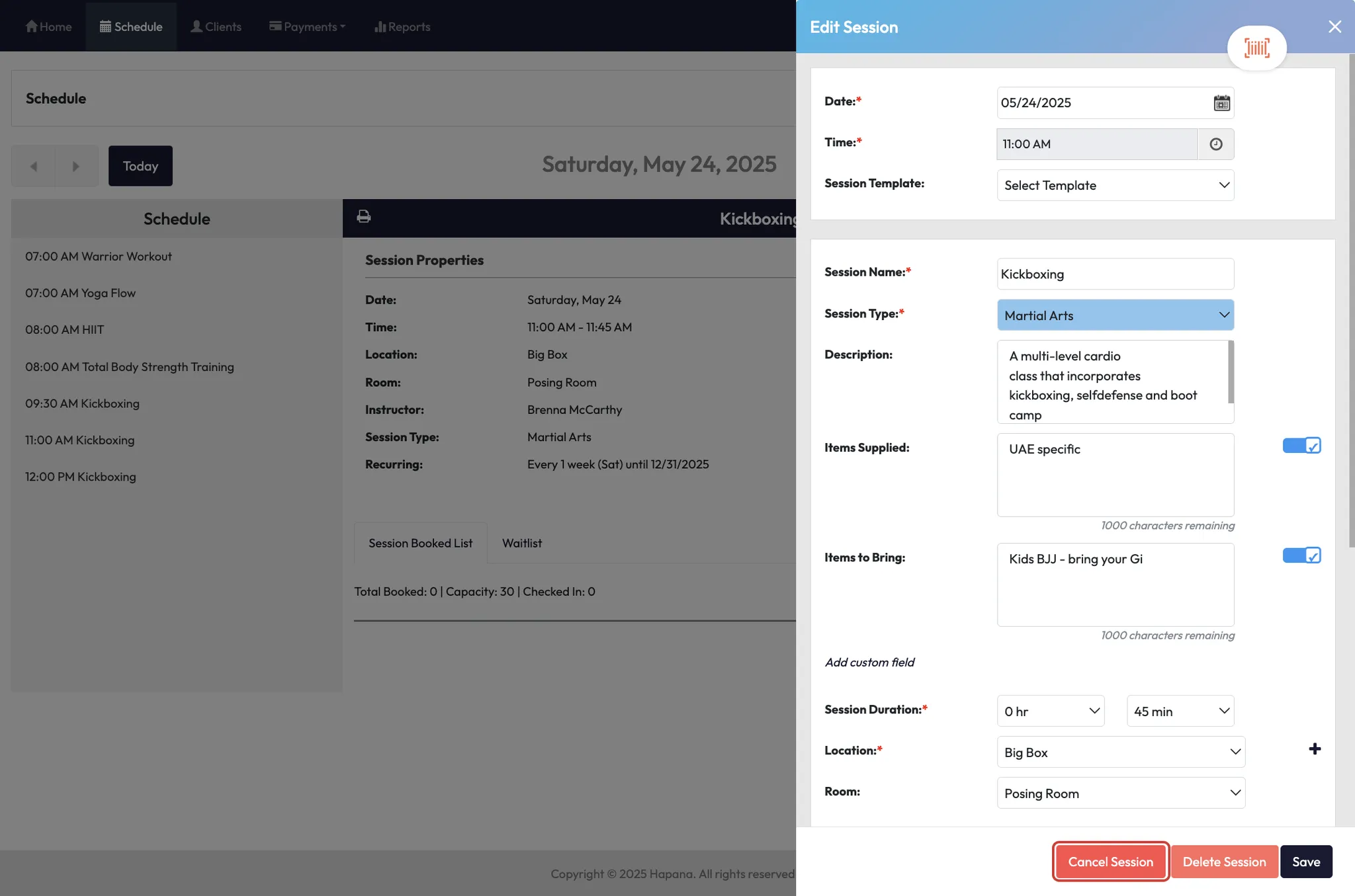
- Options shown: Cancel or Delete
- Ideal for one-off closures, reschedules, or public holidays
Tip: If you're unsure, choose “Edit Only This Session” to avoid affecting your full series.
Step 3: Cancel vs. Delete a session
- Cancel: Session remains on the schedule (marked as cancelled)
- Delete: Session is removed entirely from the schedule
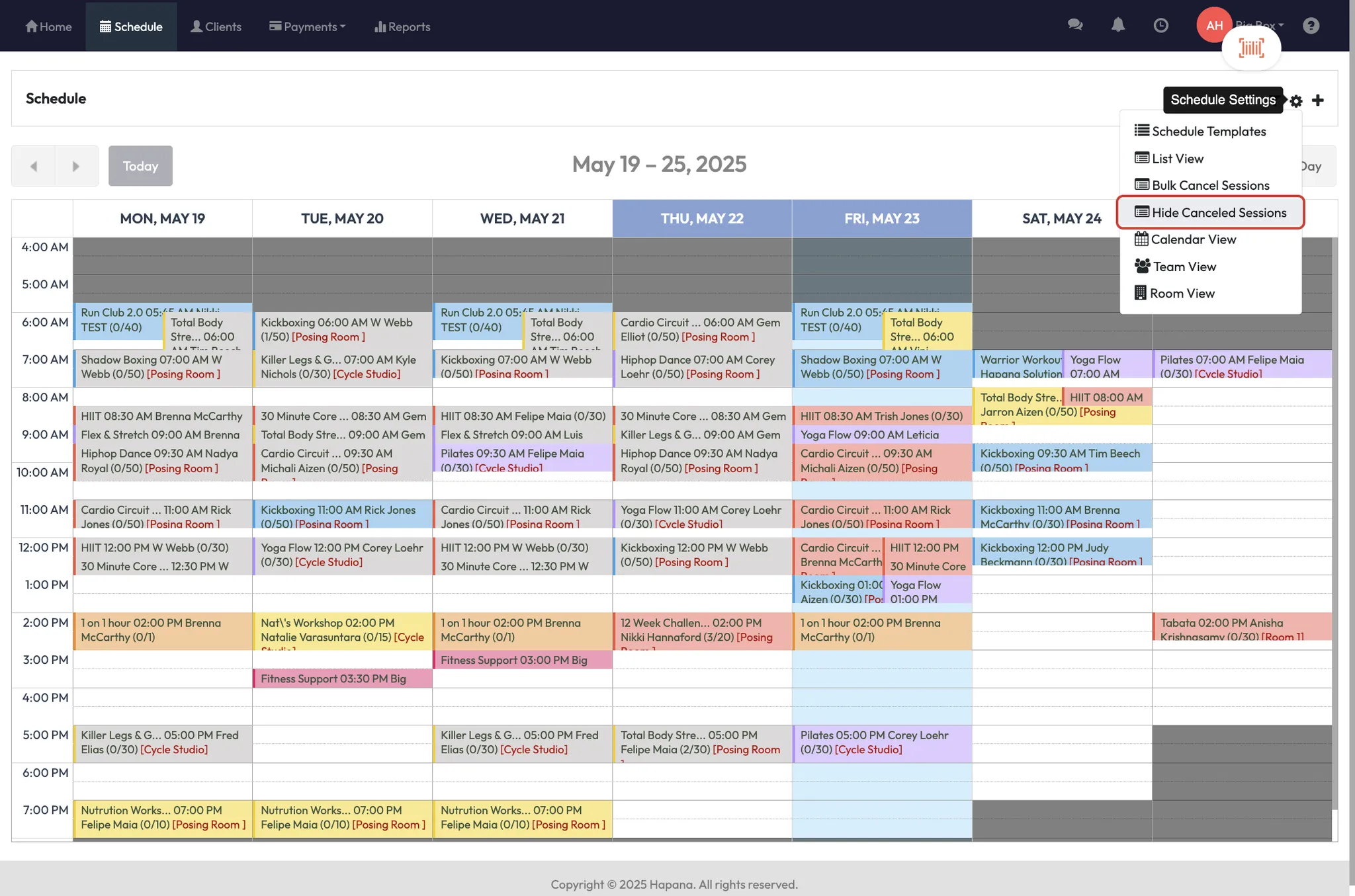
Tip: To remove cancelled sessions from client view, use Hide Cancelled Sessions under the cog icon in the Schedule tab.
Expected outcome
You’ll confidently choose whether to update one class or all future sessions, and whether to remove or cancel individual sessions from the calendar.
FAQs
Q: Why can I only see 'Delete' but not 'Cancel'?
A: You’ve selected Edit or Future Sessions — switch to Edit Only This Session to access Cancel.
Q: Will cancelling a session notify members?
A: Yes — if notifications are enabled for schedule changes, clients will be alerted.
Q: Can I reverse a cancellation?
A: No — you must recreate the session manually.
Still need help?
Reach out to our support team via support@hapana.com