
Overview
Need to cancel multiple classes in one go? Instead of doing it manually one by one, use the bulk cancel tool to save time and stay in control. This guide walks you through cancelling several sessions at once — and how to hide them so clients don’t see them on the app or web.
🎥 Watch the walkthrough:
Or preview it below:
Prerequisites
Before you begin:
- Make sure you have admin access to the schedule
- Know which sessions (and date range) you want to cancel
- Be ready to download a CSV record of the cancelled sessions if needed
Step-by-step instructions
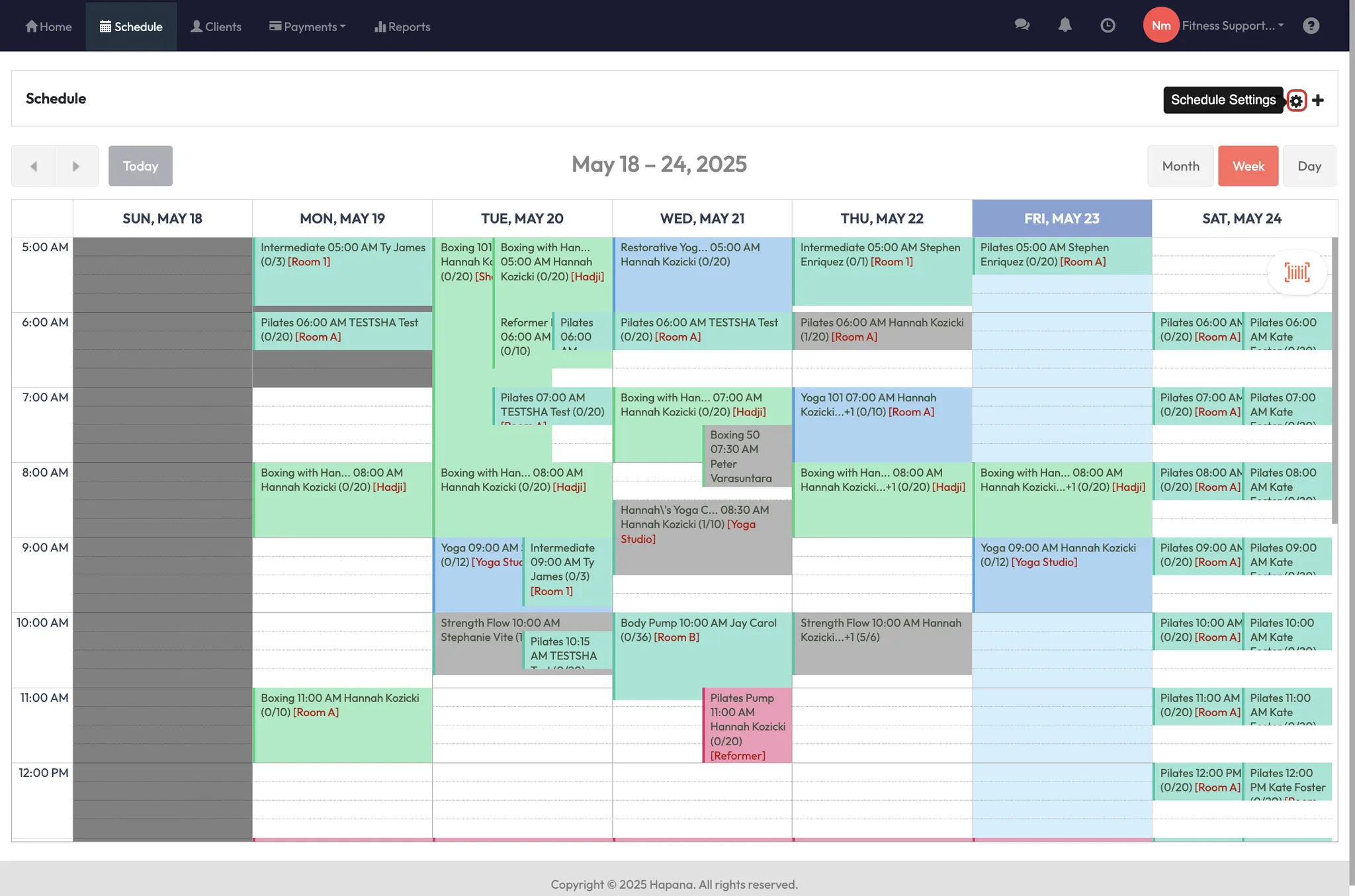
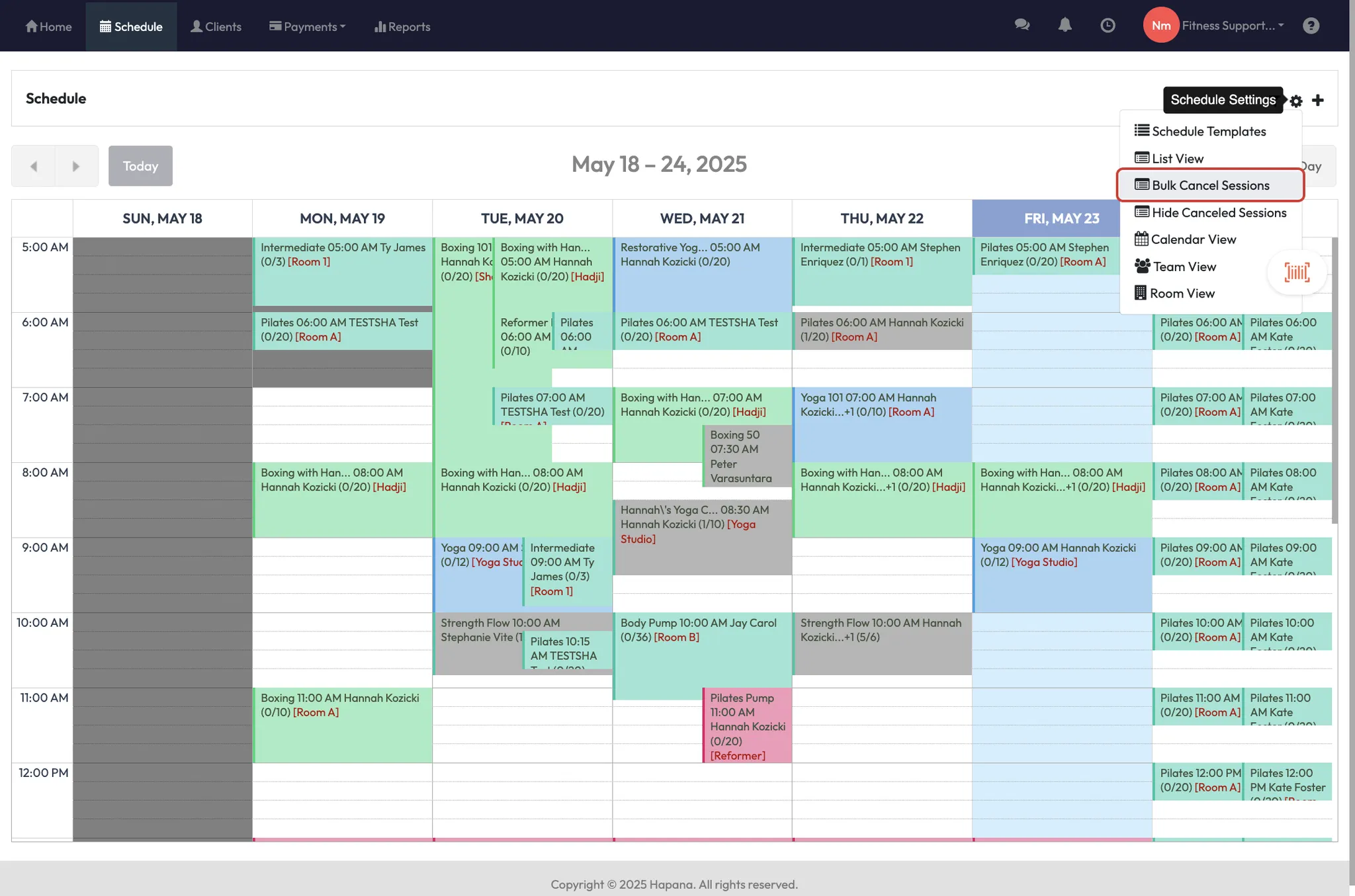
Step 1: Open the bulk cancel tool
- Go to your Schedule
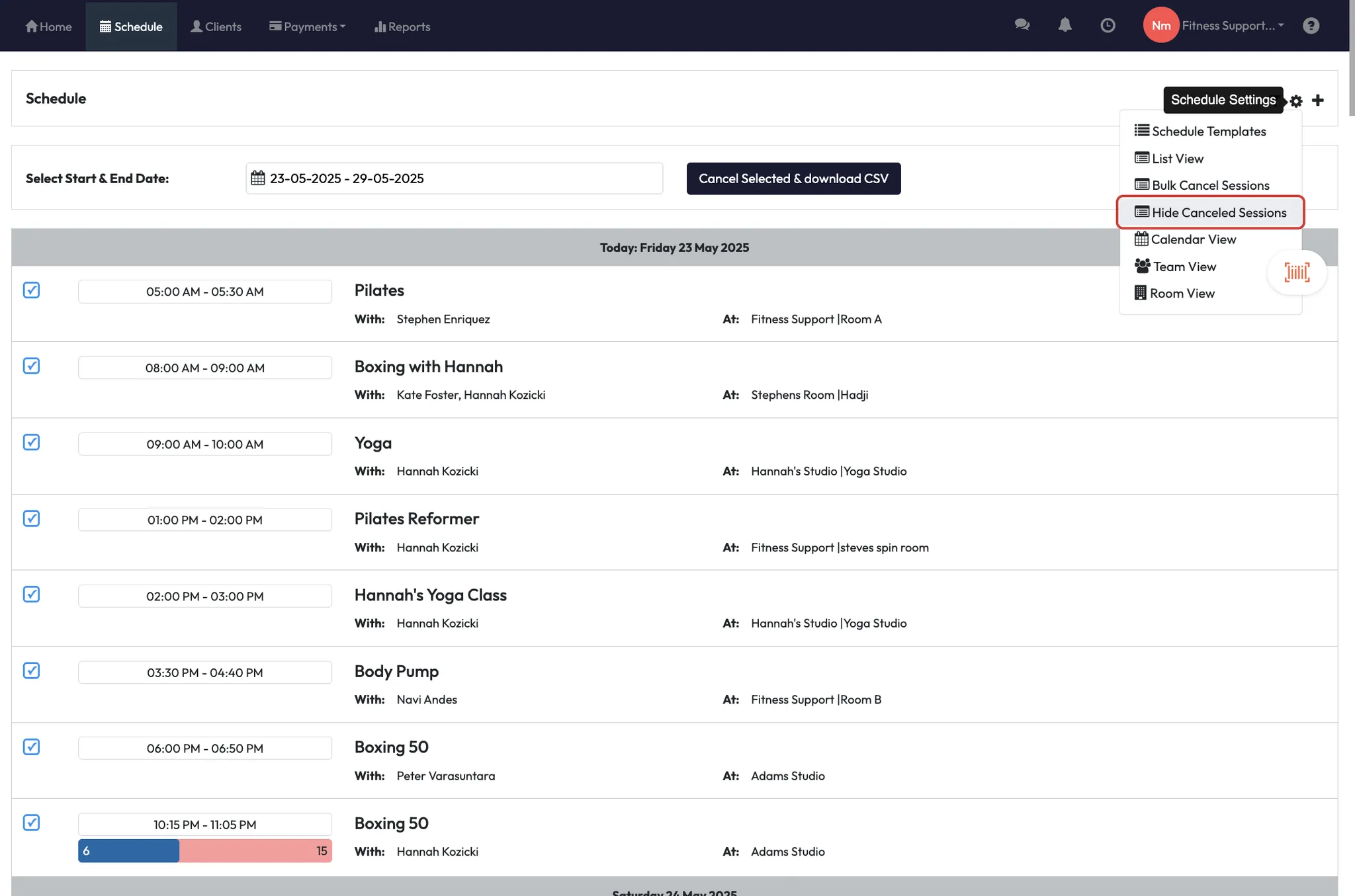
- Click the cogwheel icon
- Select Bulk cancel sessions
Step 2: Select your date range
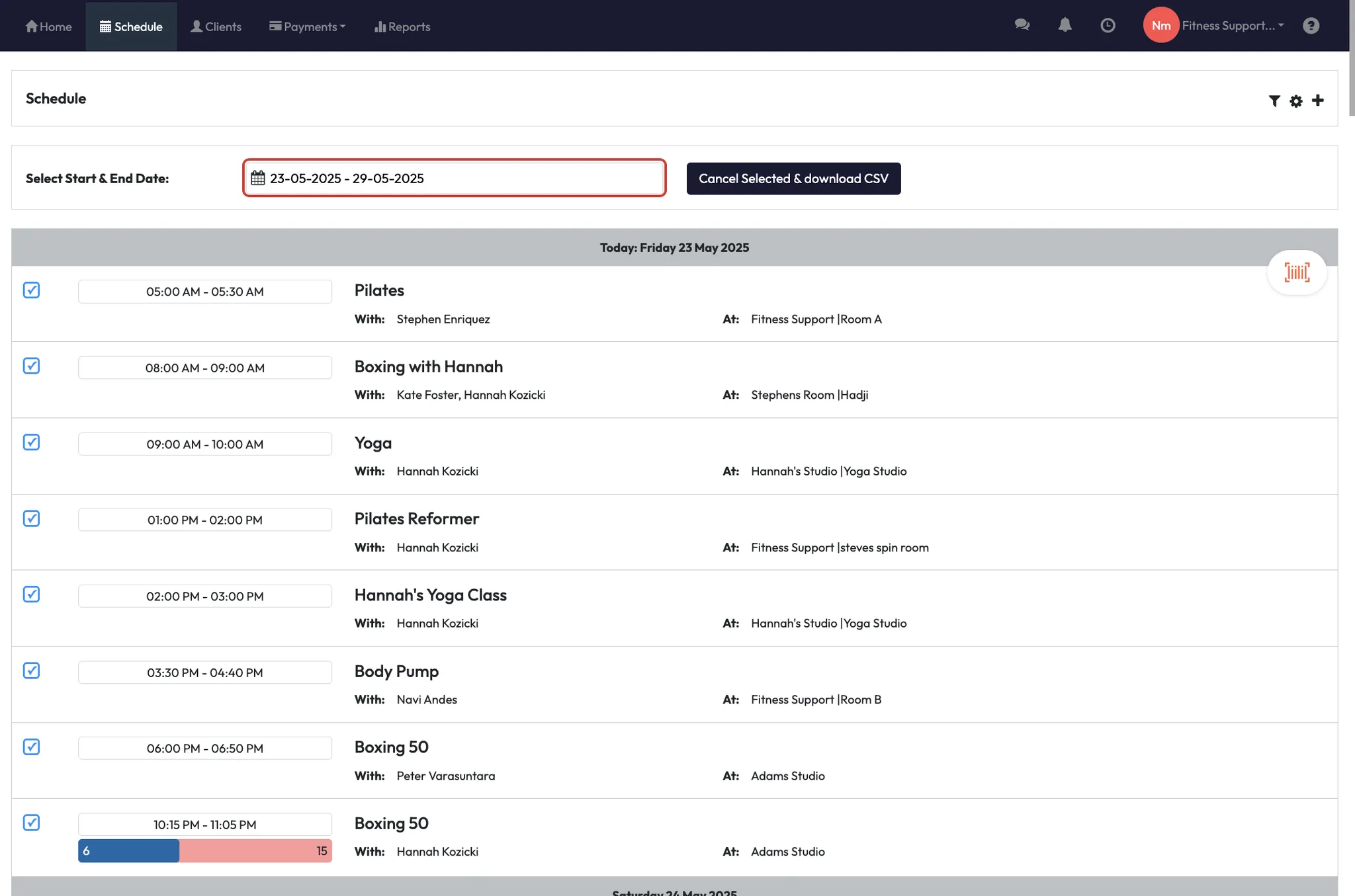
- Use the calendar to pick a custom date range or shortcut (e.g. next 7 days)
- Click Apply
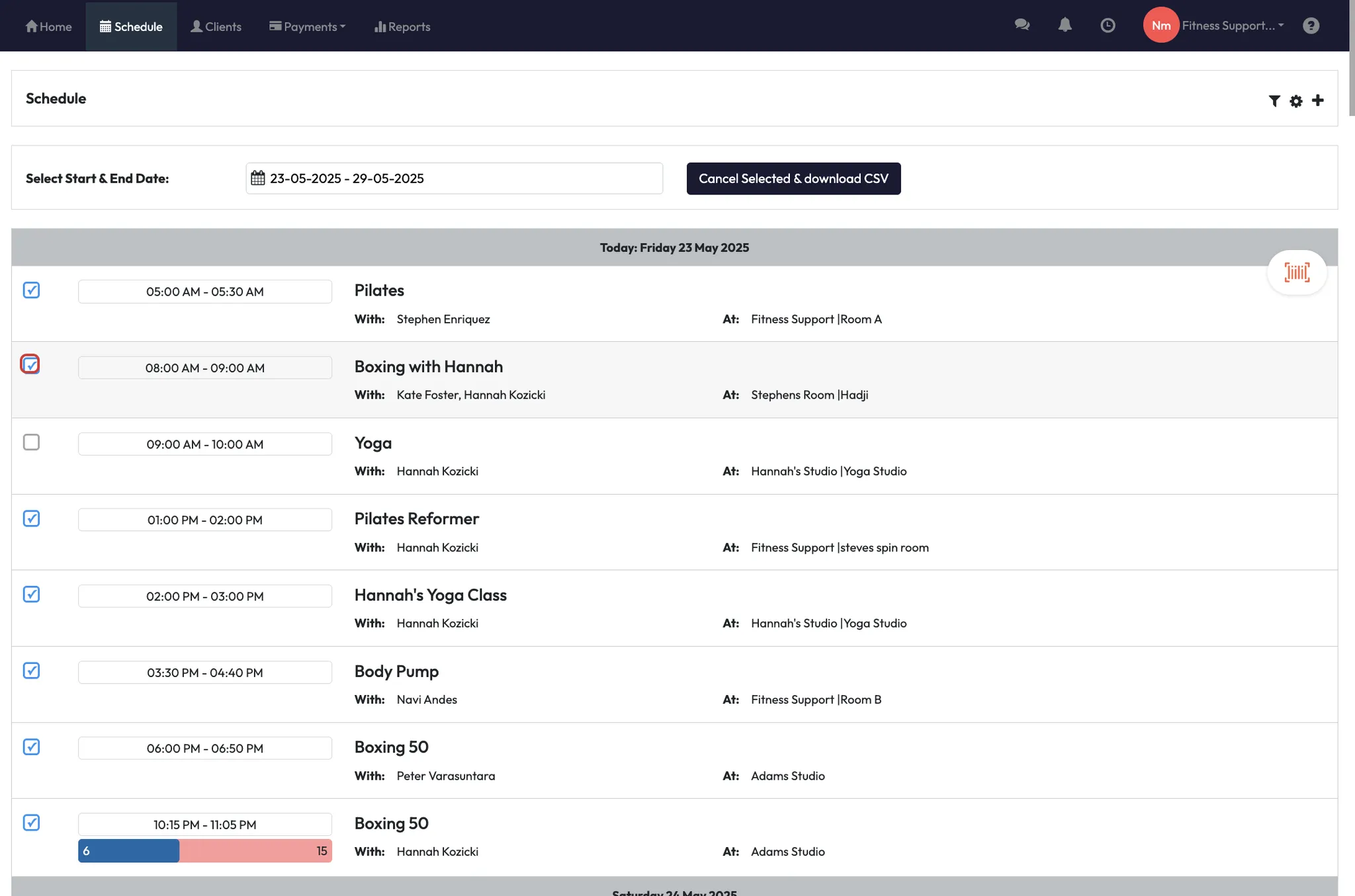
Step 3: Review and untick any sessions you want to keep
-
All sessions in the selected date range will be ticked by default
-
Untick any classes you don’t want to cancel
Tip: Take your time — once cancelled, there's no undo button
Step 4: Cancel the selected sessions
- Click Cancel selected and download as CSV
- A download will begin with a record of what’s being cancelled
- Confirm the cancellation when prompted
Tip: Use the CSV as a log for internal tracking or reporting
Step 5: Hide cancelled sessions from your schedule
- Go back to the cogwheel icon
- Click Hide cancelled sessions
- Filter by date if needed, then click Apply
- Tick the cancelled sessions and click Confirm
Tip: Hiding cancelled sessions keeps your app and schedule view clean for clients
Expected outcome
You’ll cancel multiple sessions in one go and keep your schedule looking tidy by hiding cancelled classes from the client view.
FAQs
Q: Can I undo a bulk cancel?
A: No — once you cancel sessions, they can’t be restored. Always double-check before confirming.
Q: Do clients get notified when I cancel in bulk?
A: That depends on your communication trigger settings. You can check those in your email/SMS configurations.
Q: Can I use this for just one class?
A: Yes — just select a narrow date range and untick everything except the session you want to cancel.
Still need help?
Reach out to our support team via support@hapana.com