
Overview
Your schedule is the heart of your day-to-day operations. From viewing upcoming classes to managing instructors, adding clients, and switching layouts, the schedule view is designed to help you run everything smoothly. This article covers what each option does, and how to make the most of it.
🎥 Watch the walkthrough:
Or preview it below:
Prerequisites
Before you begin:
- Be logged in with access to Schedule
- Know which class types, instructors, or rooms you want to view
- Have class templates set up with colours and types assigned
Step-by-step overview
Step 1: Choose your schedule layout
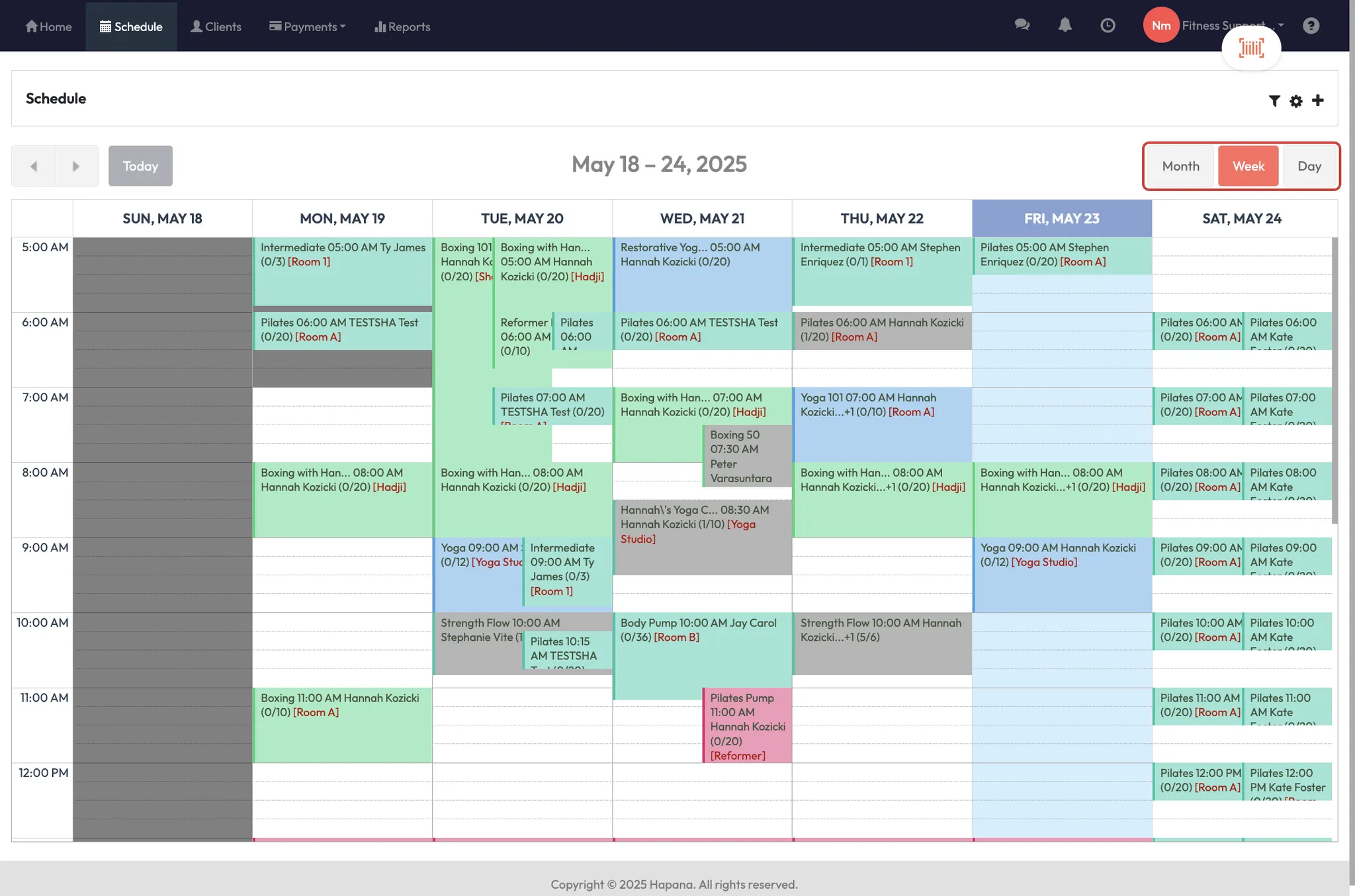
You can switch between four views depending on what you need:
- Week view (default): See your full week at a glance
- Day view: Focus on one day at a time
- Month view: See everything booked across the full month
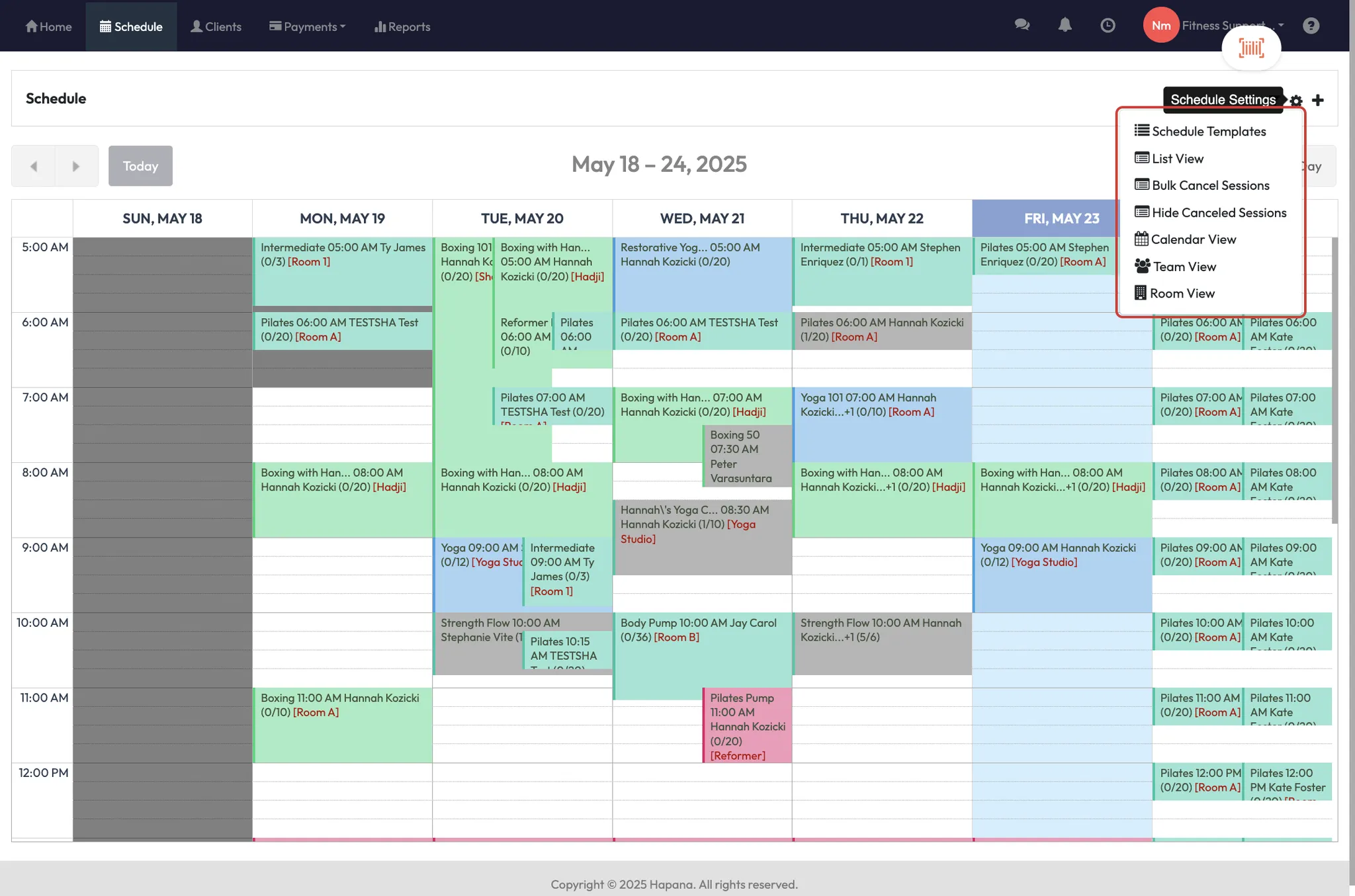
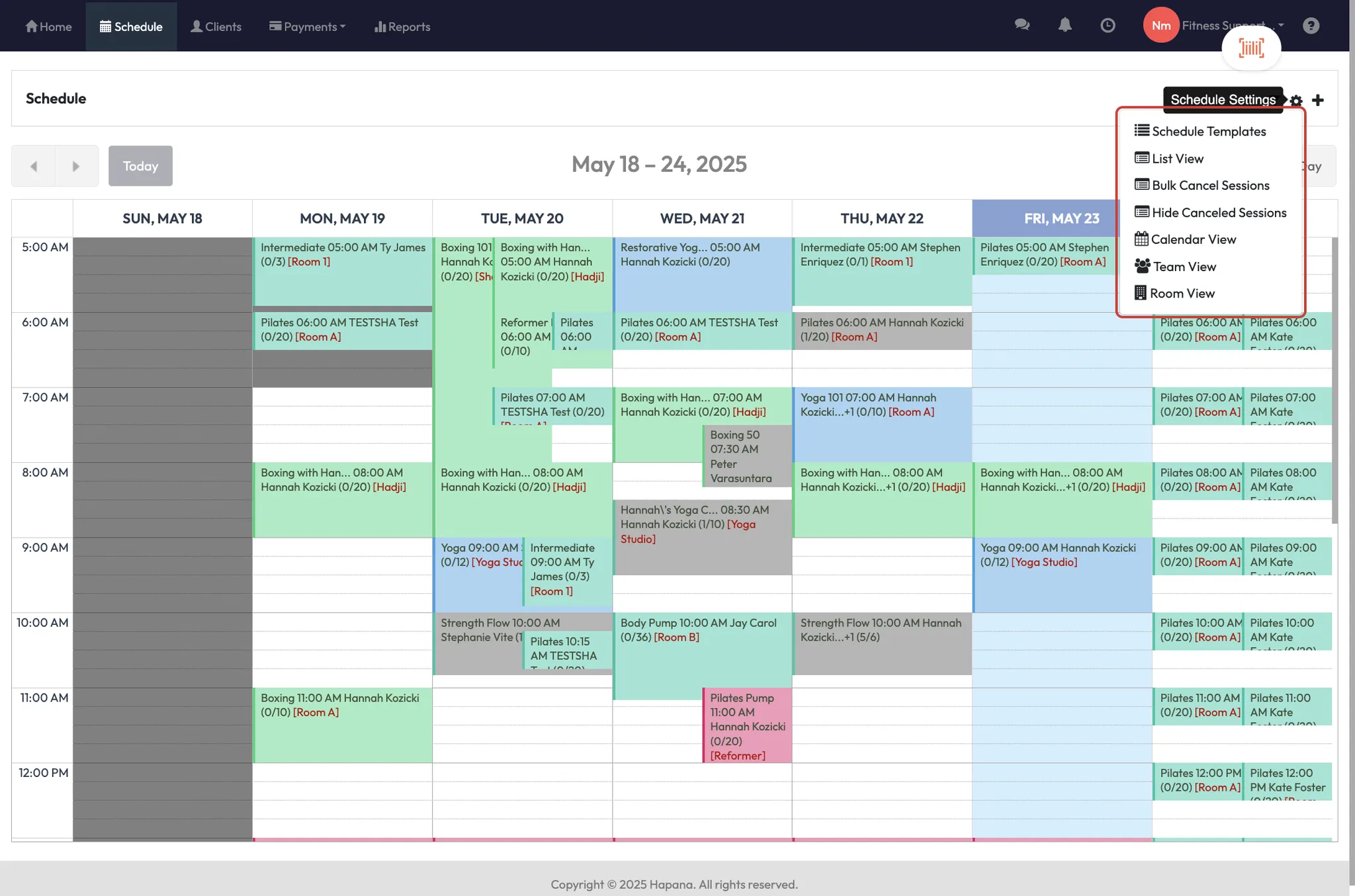
- List, Team, and Room views:
- List: Great for bulk editing classes
- Team: See what sessions your trainers are running
- Room: Visualise what’s happening in each studio space
Tip: Colours in the calendar are defined by session types in your scheduled templates.
Step 2: Manage individual sessions
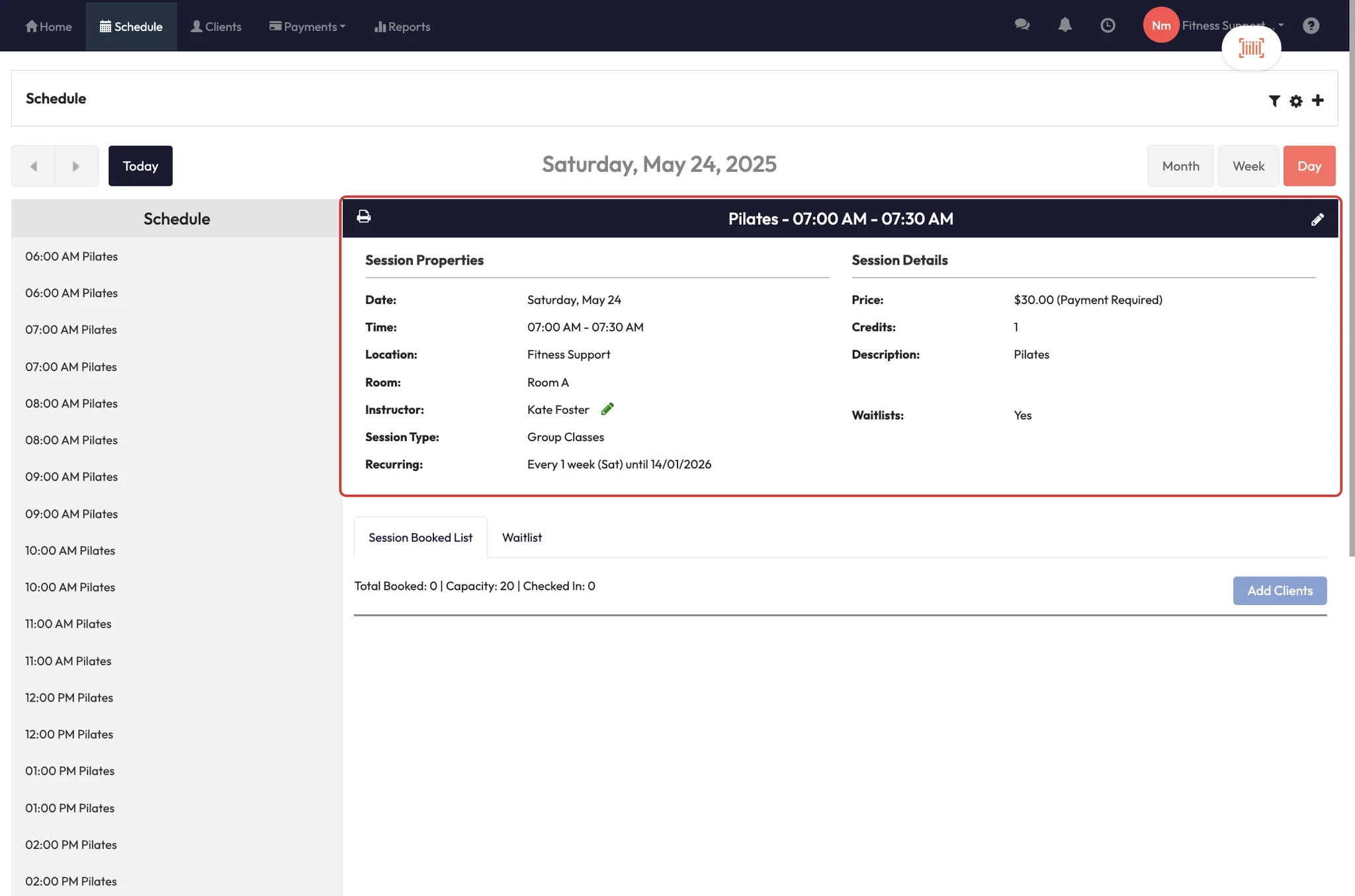
Click on any class to see its details:
- Start/end time
- Instructor
- Room/location
- Clients booked in
- Options to:
- Edit the class
- Assign a substitute instructor
- Add more instructors
- Email clients directly from the session view
- View alerts (orange triangle), attendance count, or click into a client’s profile
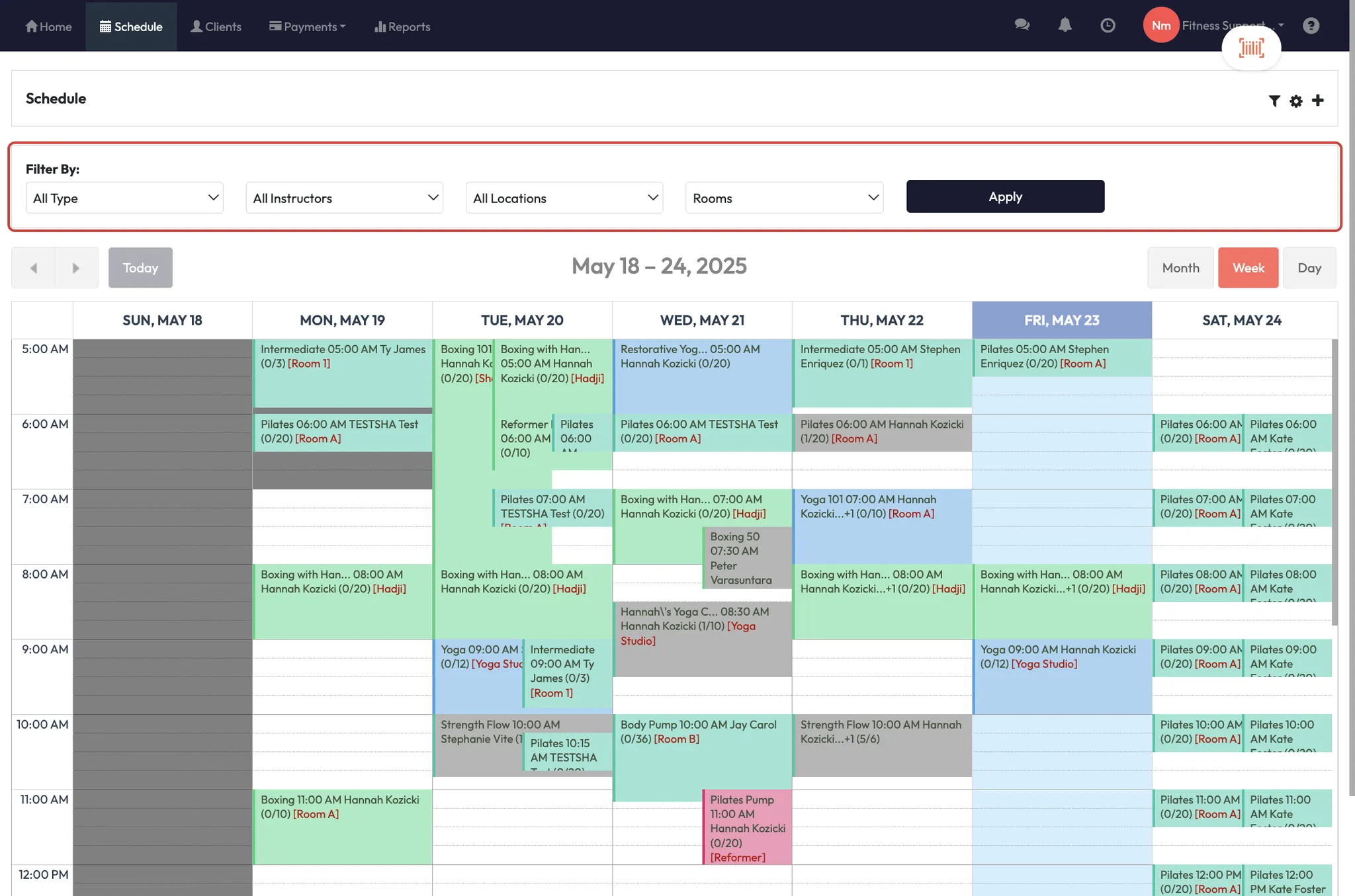
Step 3: Use the filter options
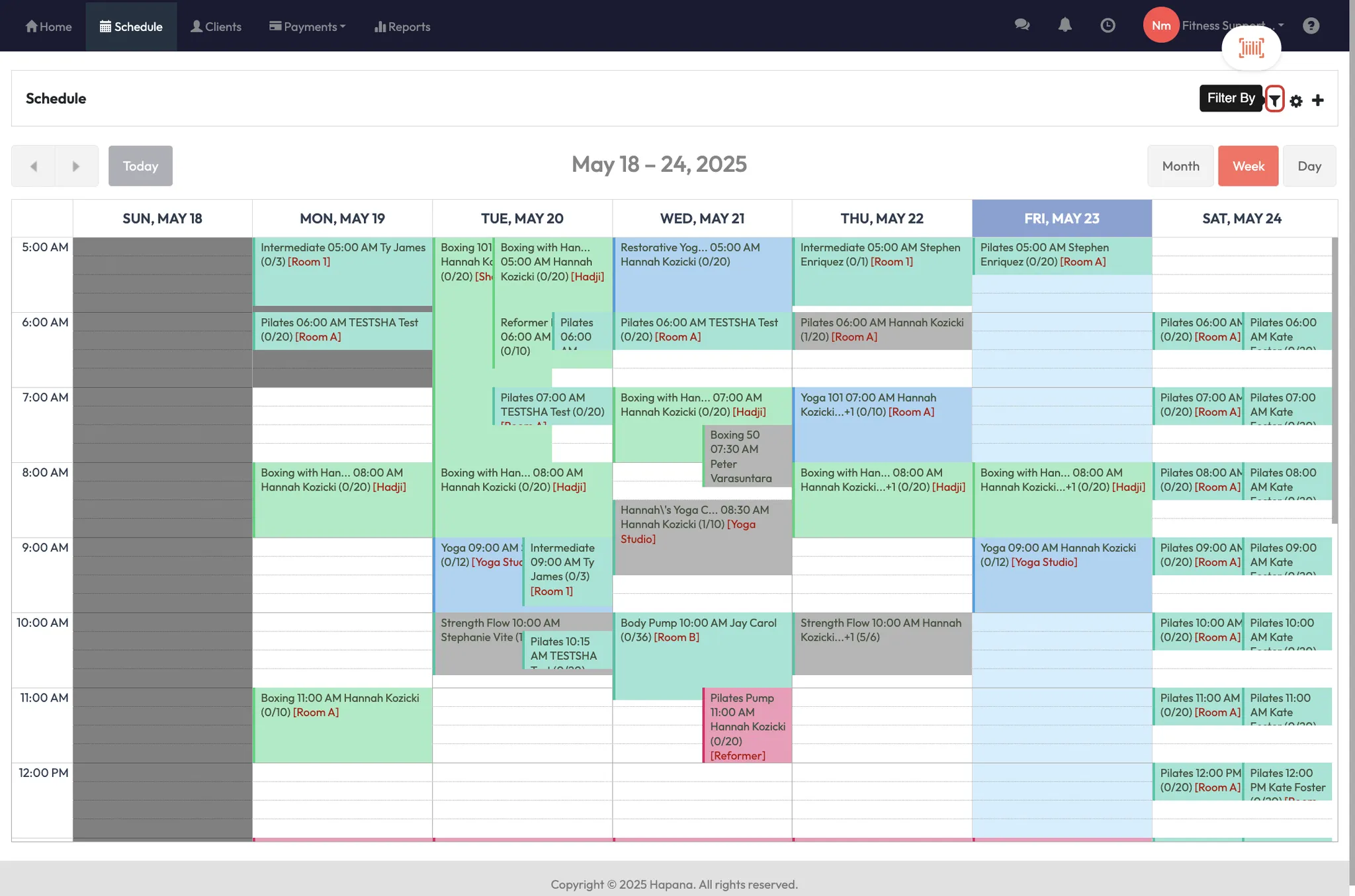
Click the filter icon to narrow your view by:
- Class type (template name)
- Instructor
- Room or location
You can reset filters by selecting “All” and clicking Apply again.
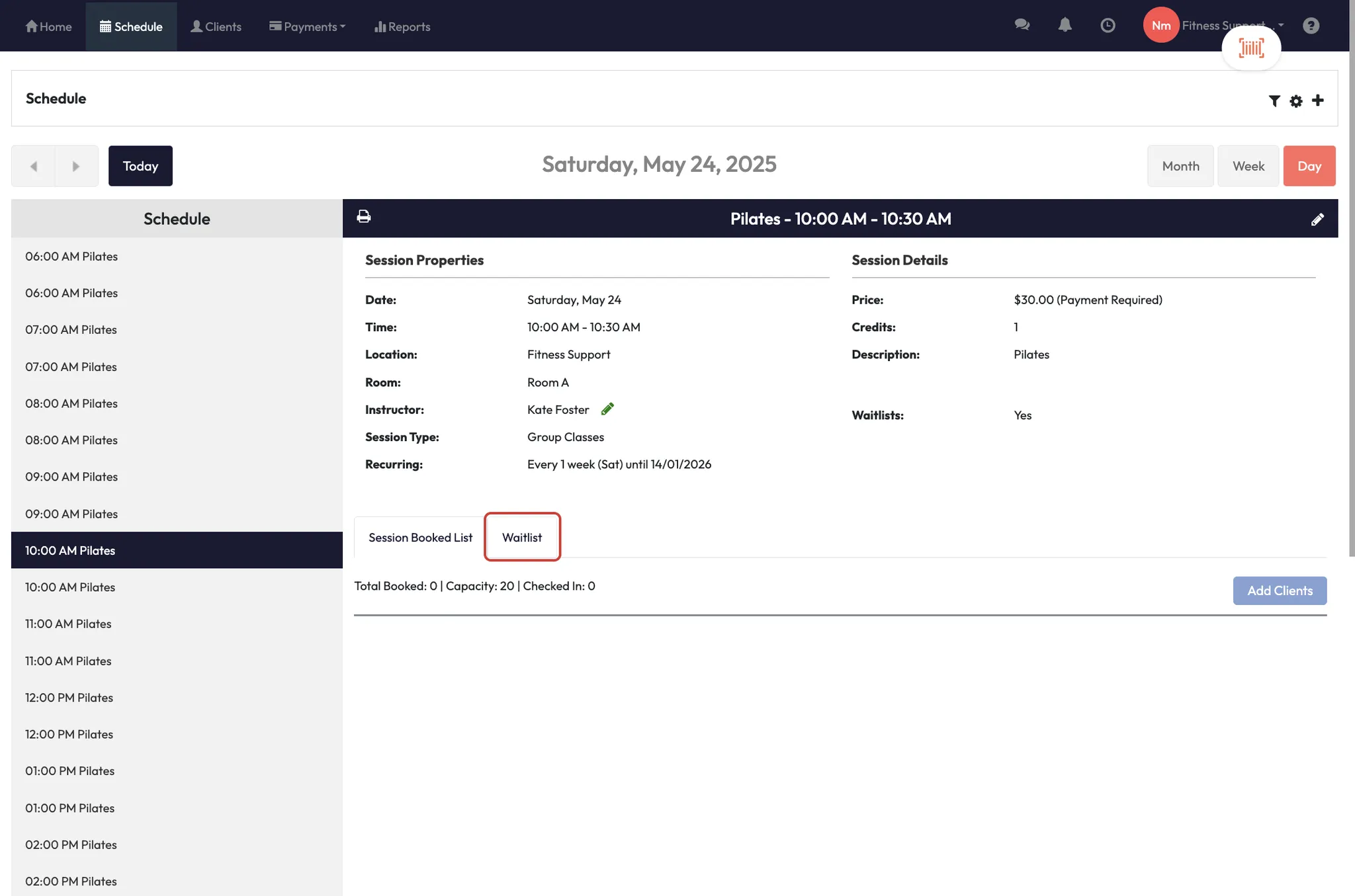
Step 4: Manage waitlists and attendance
In any session, scroll to the bottom to see:
- Clients on the waitlist
- Option to add to the class (even over capacity)
- Tools to:
- Mark attendance
- Mark as a late cancellation
- Remove the client
- Add new clients directly to the class or waitlist
Tip: Use the message icon to email everyone on the list or waitlist at once.
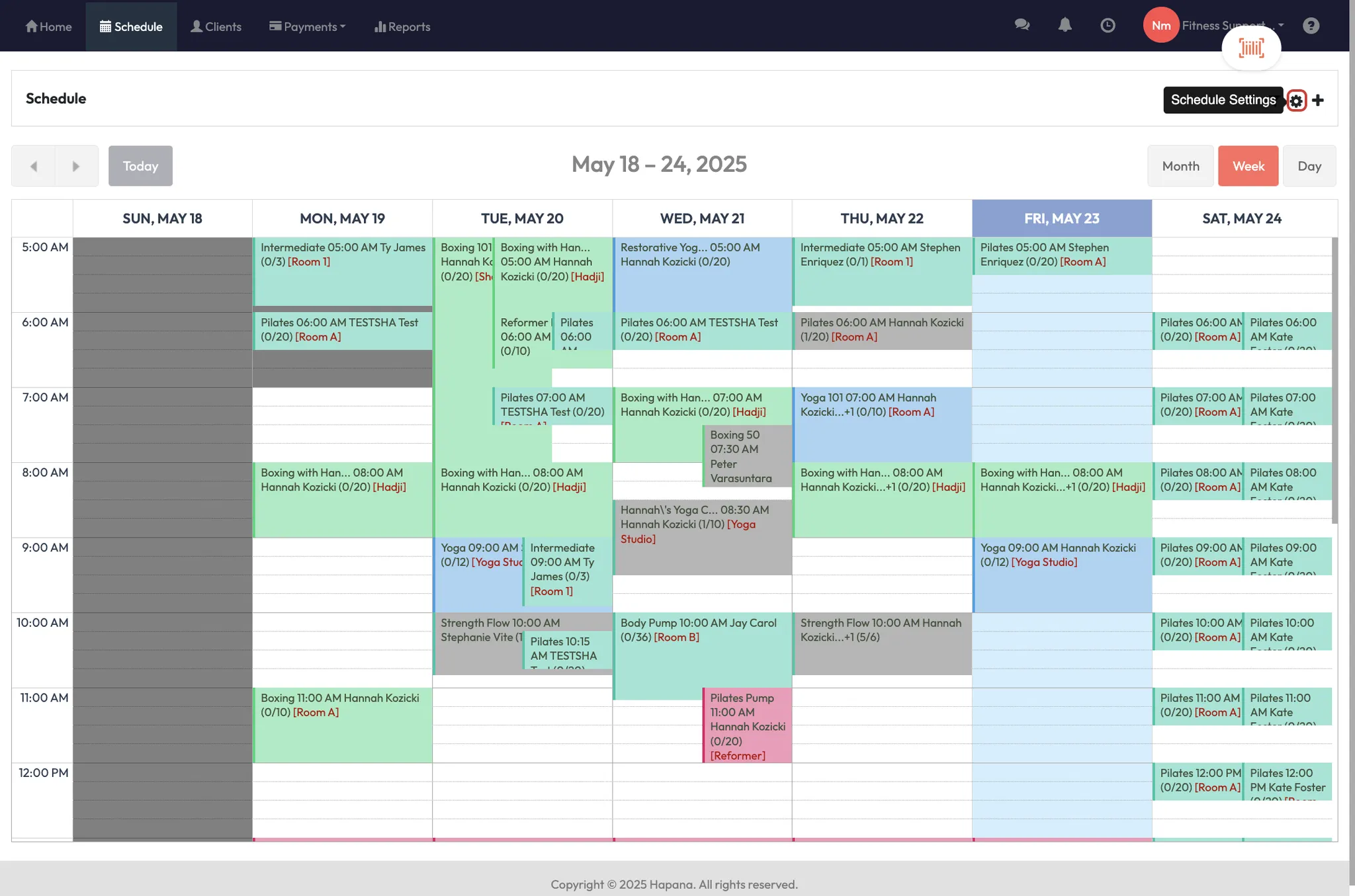
Step 5: Use extra scheduling tools
- + button: Click anywhere on the calendar to create a new session
- Bulk cancel: Cancel multiple classes in one go
- Hide cancelled sessions: Clean up your view so clients don’t see them
Expected outcome
You’ll be able to navigate your schedule with ease — switching between views, managing sessions, handling client lists, and sending quick comms when needed.
FAQs
Q: Can I assign more than one instructor to a session?
A: Yes — you can assign substitutes or add additional instructors directly in the class view.
Q: What does the yellow triangle next to a client mean?
A: That icon indicates there's an alert on the client’s profile (e.g. medical notes or attendance warnings).
Q: Will cancelled sessions stay visible?
A: Not unless you hide them — use the Hide cancelled sessions tool under the cogwheel.
Still need help?
Reach out to our support team via support@hapana.com