
Overview
The Client Login Count Report helps you understand how engaged your clients are by showing how often they log into your system. You’ll see each client’s login frequency, status (active or alumni), and contact information. Reviewing this report makes it easy to spot highly engaged clients, identify those who may need encouragement, and shape retention strategies.
Access the Client Login Count Report
1. Navigate to Reports
-
Log in to Core
-
Click Reports from the Navigation bar
-
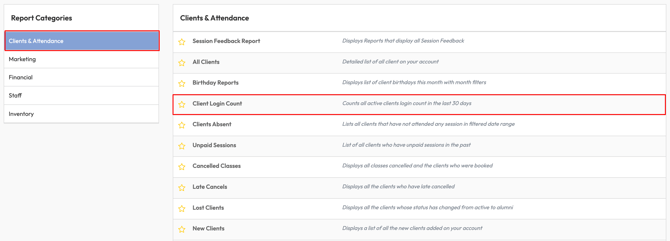
Within the Clients & Attendance Report Category, select Client Login Count Report
2. Apply a Date Range
-
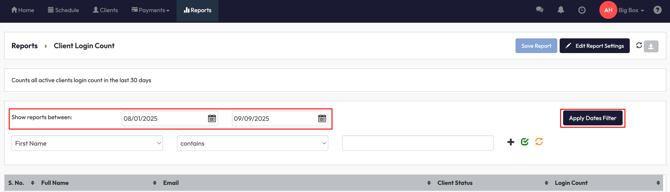
Use the Show reports between date fields to set your desired date range
-
Click Apply Dates Filter to refresh results
3. Use Client Filters
-
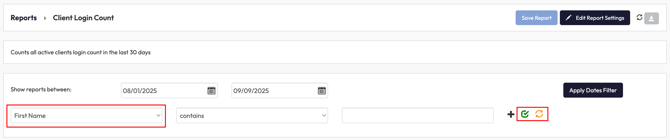
Select a filter from the dropdown (e.g., First Name, Last Name, Email, Phone, Gender, Age, Birth Month, or Client Status).
-
Enter your filter criteria.
-
Click the green checkmark to apply or the orange refresh icon to clear.
4. Review Report Columns
The report automatically displays:
-
Full Name - Client’s complete name.
-
Email - Client’s contact email.
-
Client Status - Active or Alumni.
-
Login Count - Number of times the client logged in during the selected date range.
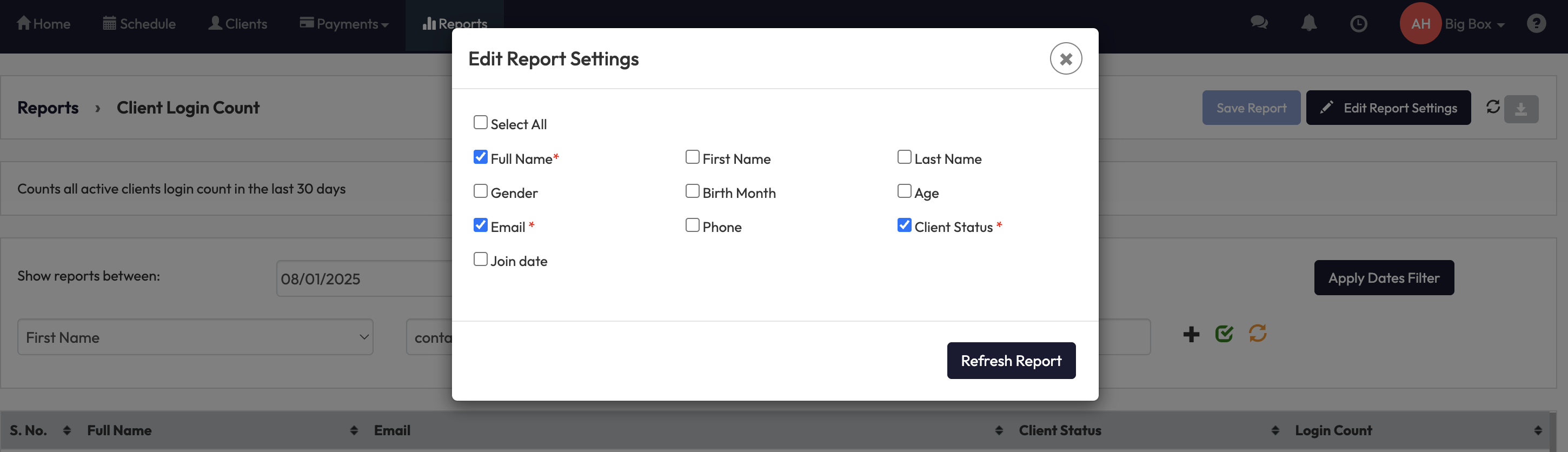
Optional fields you can add (via Edit Report Settings to adjust columns or format):
-
First Name / Last Name
-
Gender
-
Birth Month
-
Age
-
Phone
-
Join Date
5. Save or Adjust the Report
-
Click Save Report to keep your chosen filters and column layout.
-
Select Edit Report Settings to adjust columns or format.
-
Use the Download button to export results.
Expected Outcome
By running this report, you’ll gain:
-
Clear insight into client login activity.
-
Ability to identify your most engaged members.
-
Early warnings for clients who may need re-engagement.
FAQ
Q: Can I export the login count report?
A: Yes. Use the download button in the top right.
Q: What does “Client Status” mean?
A: It shows whether the client is currently active or listed as alumni.
Q: Why don’t I see some clients in the report?
A: Only clients with login activity in the selected date range appear.
Need more help? Reach out to our support team via support@hapana.com.