
Overview
The Lost Clients Report shows you all clients whose status has changed from Active to Alumni (or “lost”) within a selected date range. These clients are typically marked lost due to cancellations, non-payment, or voluntarily ending their membership.
The report helps you track client attrition patterns and understand when clients leave your business. Use this data to analyze retention trends, identify potential issues in your service delivery, and develop strategies to reduce client churn.
Access the Lost Clients Report
1. Navigate to Reports
- Log in to Core
-
Click Reports from the Navigation bar
-
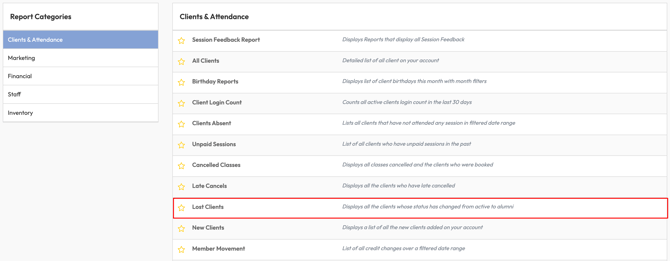
Within the Clients & Attendance Report Category, select Lost Clients report
2. Apply Date Filters
-
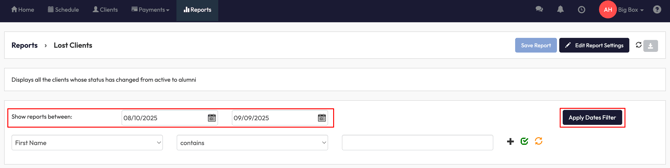
Use the Show reports between date fields to set your date range.
-
Click Apply Dates Filter to view results.
3. Use Client or Location Filters
-
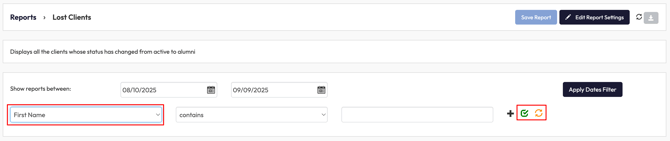
From the dropdown, choose a filter such as First Name, Last Name, Email, Phone, Gender, Age, or Location.
-
Enter your filter value.
-
Apply the filter with the green checkmark or reset with the orange refresh icon.
4. Review Report Columns
The report automatically displays:
-
Full Name - Client’s complete name.
-
Date Lost - The date they were moved to Alumni status.
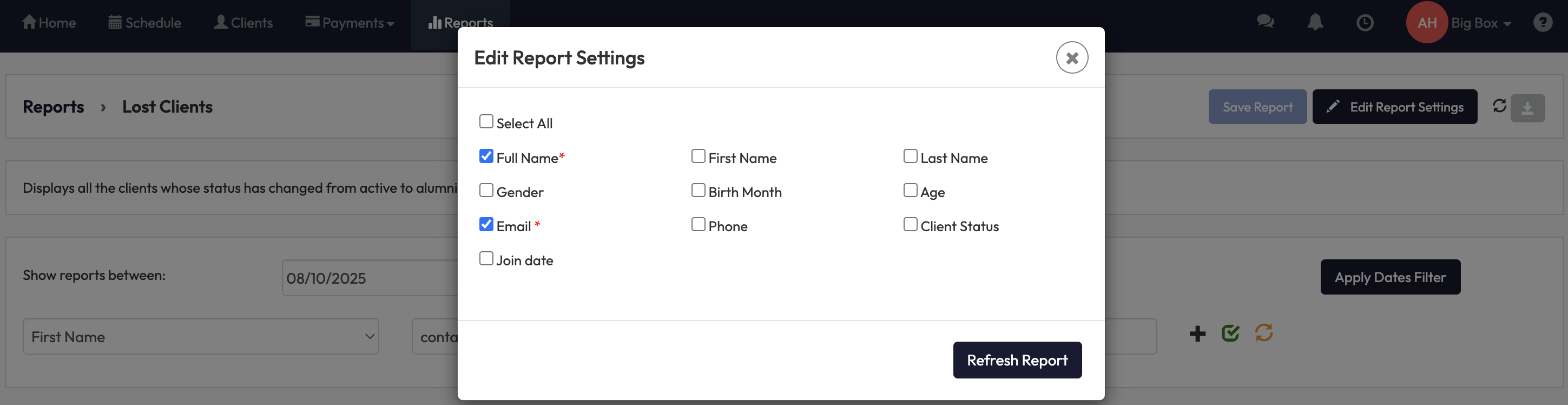
Optional fields you can add:
-
First Name / Last Name
-
Email
-
Phone
-
Gender
-
Birth Month
-
Age
-
Client Status
-
Join Date
5. Save, Edit, or Export the Report
-
Click Save Report to save your filter and layout setup.
-
Use Edit Report Settings to add or remove columns.
-
Select the Download button to export results.
Expected Outcome
After running this report, you’ll:
-
Have a list of clients who recently became alumni.
-
Understand when clients are leaving your business.
-
Gain insights to inform retention and re-engagement strategies.
FAQ
Q: Can I see why a client was marked lost?
A: No, the report only shows when the client’s status changed. To see reasons, check notes or membership history in the client profile.
Q: Does the report show all alumni clients?
A: No, it only shows clients who became alumni within the selected date range.
Q: Can I export the report?
A: Yes. Use the download button to export results to a file.
Need more help? Reach out to our support team via support@hapana.com.