
Overview
The New Clients Report shows all clients who have joined your business within a selected date range (defaulting to the last 30 days). It provides details such as join dates, first payment information, and package details, helping you track growth, evaluate marketing campaigns, and understand your new client profile.
Use this data to monitor business growth trends, evaluate marketing campaigns, and understand your new client profile.
Access the New Clients Report
1. Navigate to Reports
- Log in to Core
-
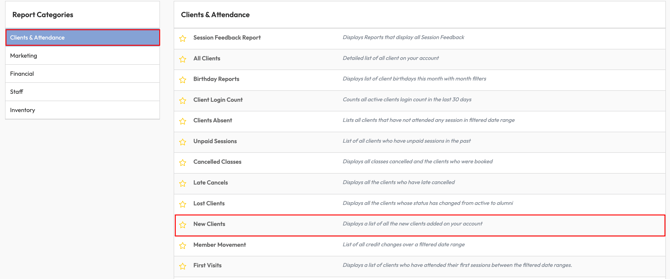
Click Reports from the Navigation bar
-
Within the Clients & Attendance Report Category, select New Clients report
2. Apply Date Filters
-
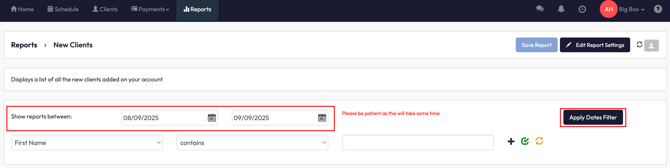
In Show reports between, enter your start and end dates
-
Click Apply Dates Filter
3. Use Client or Package Filters
-
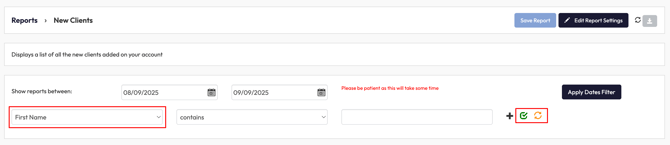
Select a filter from the dropdown (e.g., First Name, Last Name, Email, Phone, Gender, Age, Package Name, First Payment Date, or Location).
-
Enter the value you want to filter by.
-
Click the green checkmark to apply or the orange refresh icon to reset.
4. Review Report Columns
The report displays:
-
Full Name - Client’s complete name.
-
Email - Client’s email address.
-
Phone - Client’s phone number.
-
Home Location - Business location assigned to the client.
-
Join Date - When the client joined.
-
Client Status - Active or other.
-
Package Name - First package purchased.
-
First Payment Date / Description / Amount - Details of their first transaction.
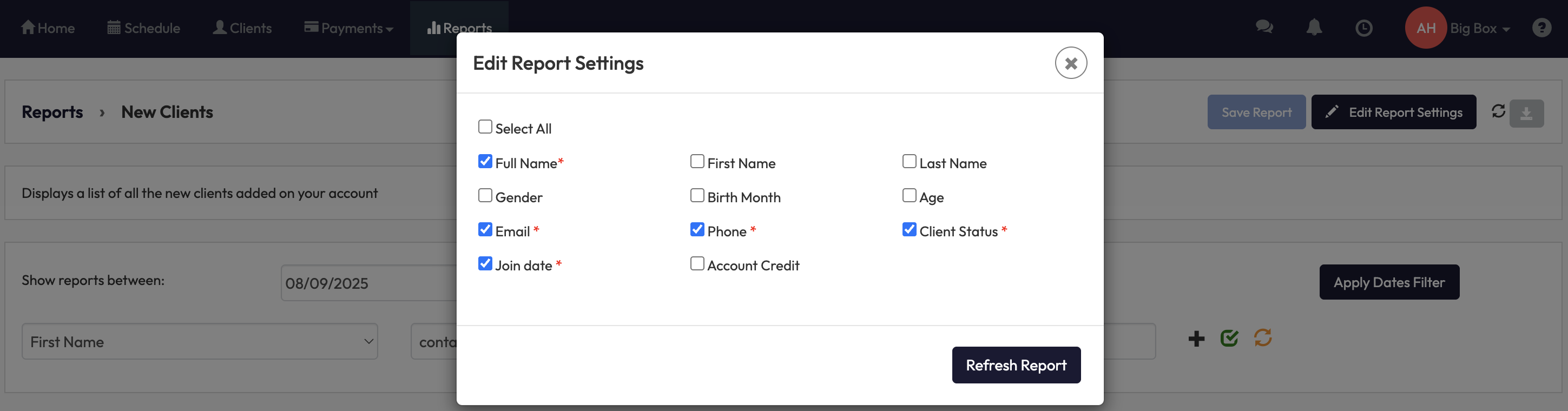
Optional fields you can add:
-
First Name / Last Name
-
Gender
-
Birth Month
-
Age
-
Account Credit
5. Save, Edit, or Export the Report
-
Click Save Report to keep your preferred filters and layout.
-
Select Edit Report Settings to add/remove fields.
-
Use the Download button to export results for sharing or offline analysis.
Expected Outcome
After running this report, you’ll:
-
See all clients who joined within your selected time period.
-
Track business growth and client acquisition patterns.
-
Review new client payment and package information.
FAQ
Q: Can I filter by the package a new client purchased?
A: Yes. Use the Package Name filter to see clients by package type.
Q: Does the report include all clients?
A: No, only those whose Join Date falls within the date range you set.
Q: Can I export this report?
A: Yes. Use the download button in the top right corner.
Need more help? Reach out to our support team via support@hapana.com.