
Overview
The Daily Schedule Report gives you a full snapshot of all sessions, classes, and workshops scheduled for a selected date (defaulting to today). It includes session details such as time, duration, instructor, session size, attendance, no-shows, and cancellations.
This report helps you:
-
Monitor daily operations.
-
Track session performance and attendance.
-
Manage capacity and scheduling efficiency.
-
Spot client engagement trends on a day-to-day basis.
Access the Daily Schedule Report
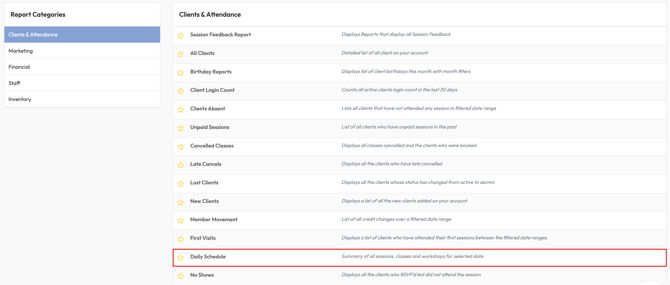
1. Navigate to Reports
-
Log in to Core
-
Click Reports from the Navigation bar
-
Within the Clients & Attendance Report Category, select Daily Schedule Report
2. Apply Date Filters
-
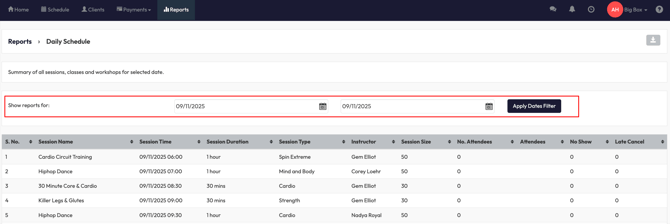
In Show reports for, select the date (or date range) you want to review.
-
Click Apply Dates Filter.
4. Review Report Columns
The report displays:
-
Session Name - Name of the class or workshop.
-
Session Time - Date and start time.
-
Session Duration - How long the session runs.
-
Session Type - Category (e.g., Cardio, Strength, Personal Training).
-
Instructor - Assigned instructor(s).
-
Session Size - Maximum capacity.
-
No. Attendees - Number of attendees.
-
Attendees List - Which clients attended.
-
No Show - Number of absent clients.
-
Late Cancel - Number of late cancellations.
5. Save, Edit, or Export the Report
-
Click Save Report to store your filter and layout settings.
-
Select the Download button to export results for sharing or analysis.
Expected Outcome
By running this report, you’ll:
-
See a complete picture of all sessions scheduled for the day.
-
Track attendance, no-shows, and cancellations in real time.
-
Identify capacity and engagement trends to optimize scheduling.
FAQ
Q: Can I export the Daily Schedule Report?
A: Yes. Use the Download button to export a copy for offline use or sharing with staff.
Q: Does this report show client names?
A: Yes, the Attendees List column displays the names of clients who attended.
Q: Can I see multiple days at once?
A: Yes. Use the date range filter to view multiple days in a single report.
Need more help? Reach out to our support team via support@hapana.com.