
You can enable sound alerts for Check-In to provide audio feedback when members check in. This helps front desk teams respond quickly to successful check-ins or issues without relying only on visual indicators. It’s especially useful in busy environments where staff may miss on-screen cues.
The Check-In sounds are available for both:
- Check-In Widget
- Check-In barcode URL
🎥 Watch the walkthrough:
Or preview it below:
Prerequisites
-
Access to Core > Account Settings with permission to edit Business Profile configurations.
-
Speakers or headphones connected to the front desk computer.
-
Supported browser: Chrome, Firefox, or Safari.
Steps to Enable Check-In Sound Alerts
1. Navigate to Business Profile Settings
-
In Core, go to Account Settings.
-
Select Configurations > Business Profile > Edit.
2. Enable Sound Alerts
-
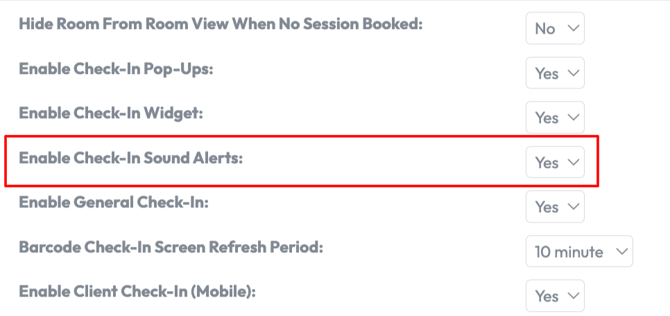
Find the setting Enable Check-in Sound Alerts.
-
Switch the toggle it YES.
-
Click Save to apply changes.
Tip: The default state is OFF, so you’ll need to turn it on the first time.
3. Use the Check-In Module
-
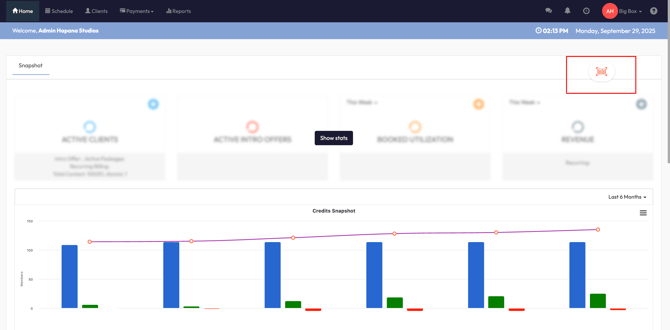
Open the Check-In widget. (Click the floating barcode icon as seen in the image below)
2. When a member checks in, you’ll hear a sound based on the result:
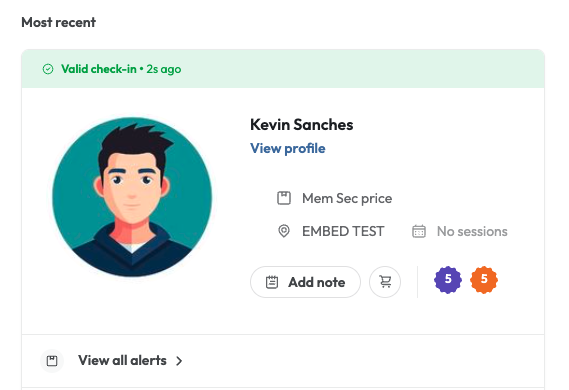
- Green check-in: successful check in
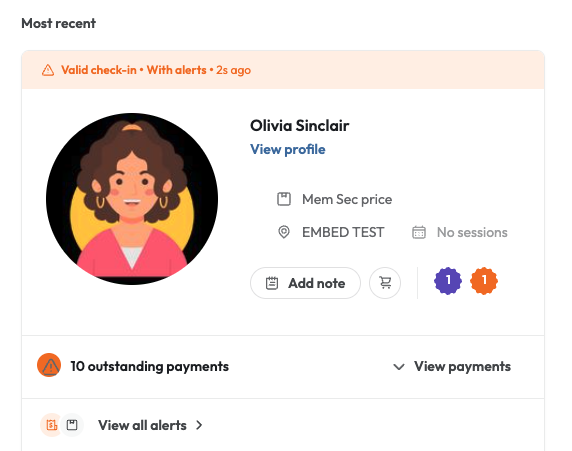
- Orange check-in: successful check in with client payment alerts (for example outstanding payments)
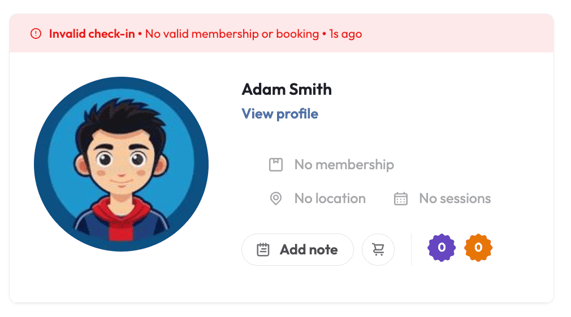
- Red check-in: denied access (for example the client does not have valid package or membership)
3. If another check-in happens before the first sound finishes, the new sound will play immediately.
Green: Successful Check In
Orange: Successful Check In with client payment alerts
Red: Unsuccessful Check In/ Denied Access
Expected Outcome
When sound alerts are enabled, your front desk team will hear clear audio cues for every member check-in. This improves responsiveness and ensures smoother member service during peak times.
FAQ
Q: What happens if multiple check-ins happen quickly?
A: The system stops the current sound and plays the new one immediately, so you always hear the latest result.
Q: Do sound alerts work if the Check-In window is minimized?
A: Yes, as long as the Check-In module is running, sounds will play even in the background.
Q: Can I turn this on for one location but not another?
A: Yes. The setting is location-specific, so multi-location businesses can choose where to enable sound alerts.
Q: What do the different check-in sounds mean?
A: Green: Successful check-in / Orange: Successful check-in with a payment alert (e.g. outstanding balance) / Red: Access denied (e.g. no valid membership or package)
Need more help? Reach out to our support team via support@hapana.com.