
Overview
This guide will walk you through how to bulk update payment rates for client memberships in Hapana Core. Bulk updating payment rates is a time-saver when changes apply to multiple future payments, keeping your billing consistent without manually editing each transaction.
Prerequisites
- Access to your Hapana Core account
- Client memberships already set up with scheduled payments
Step 1: Log In to Hapana Core
- Navigate to core.hapana.com/login.
- Enter your credentials and log in.
Tip: Save the login page as a bookmark for quicker access!
Step 2: Navigate to Clients
- Click Clients in the top navigation menu.
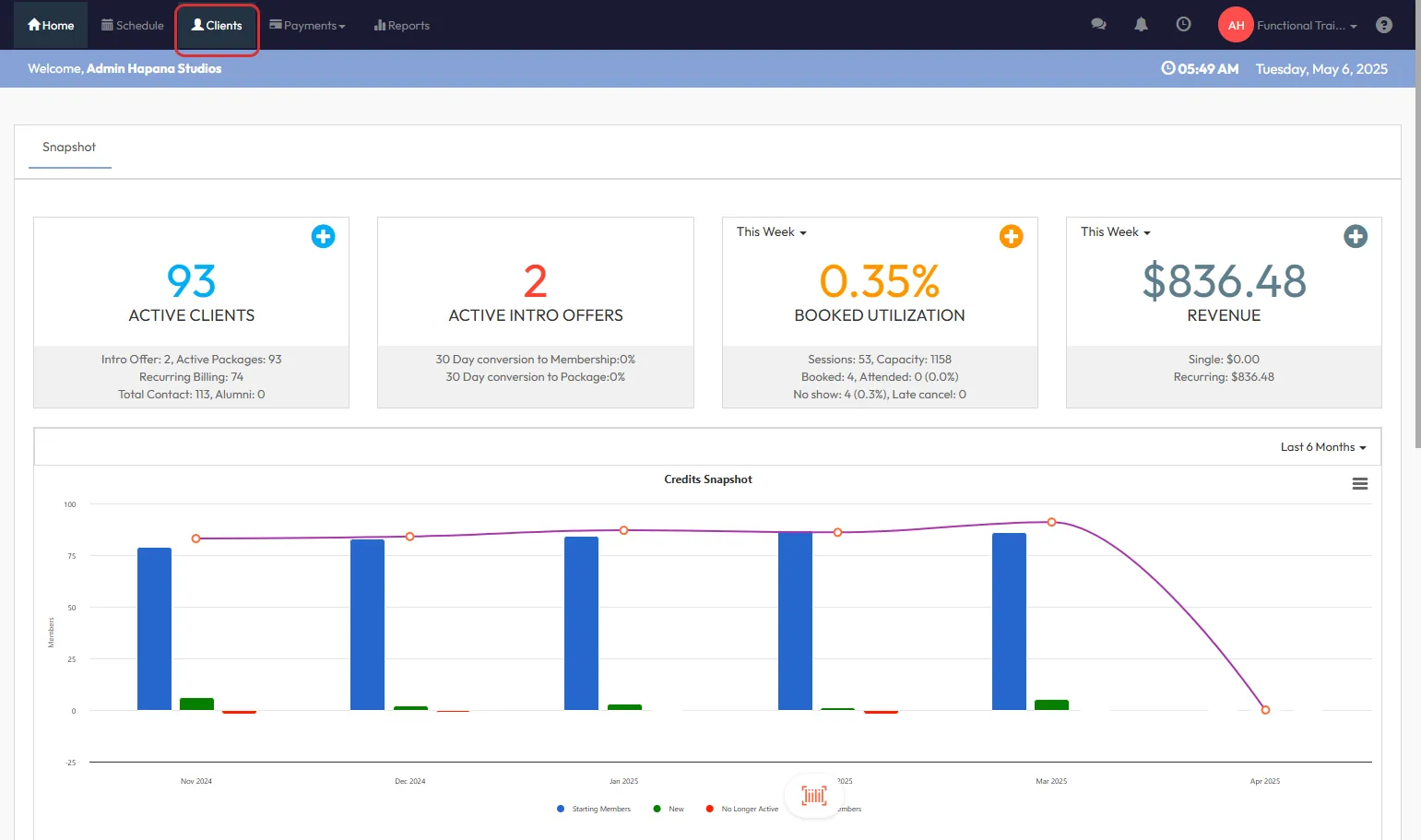
Step 3: Search for the Desired Client
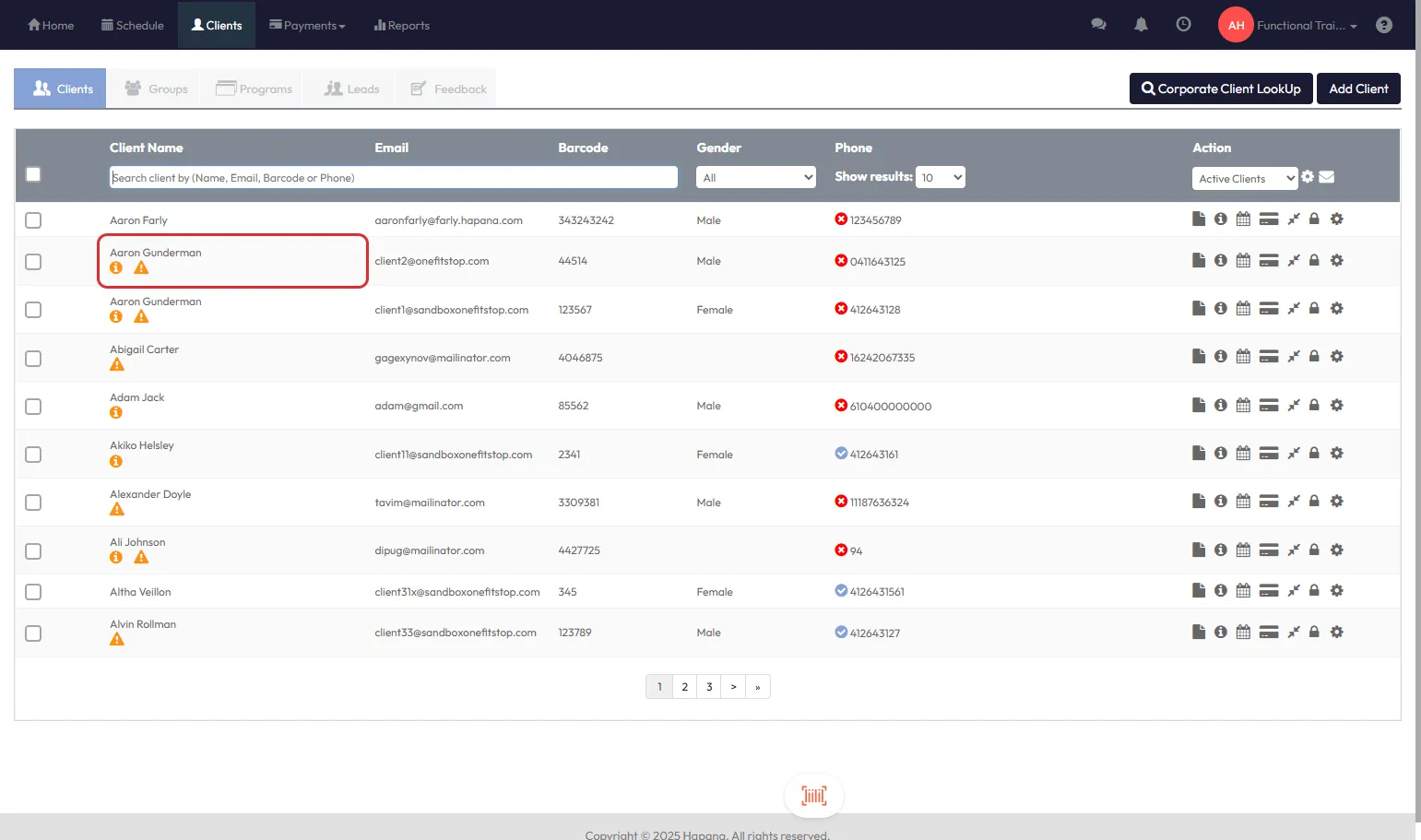
- Use the search bar to find the client by Name, Email Address, or Phone Number.
Step 4: Open the Client Profile
- Click the Client's Name to open their profile page.
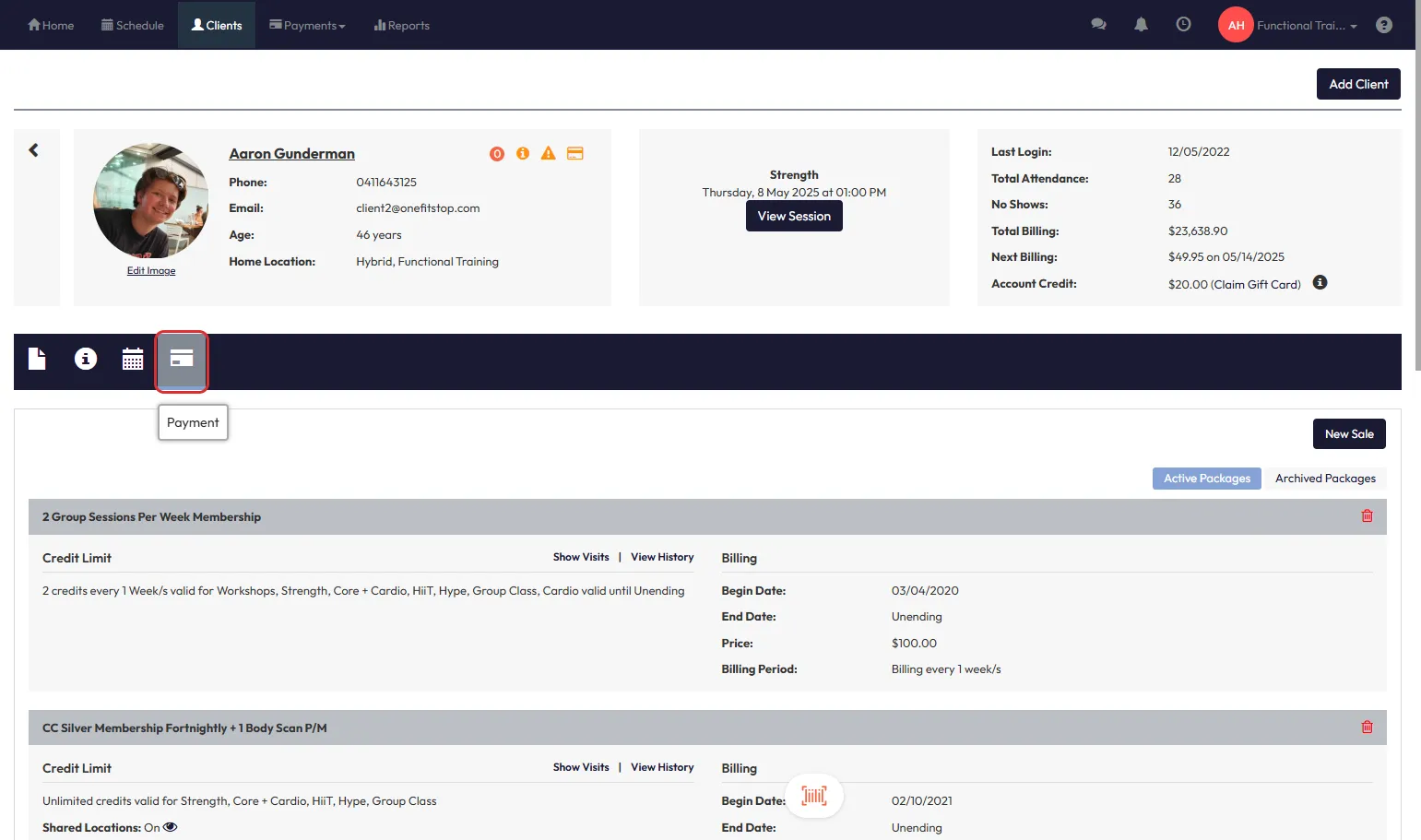
Step 5: Navigate to the Memberships Tab
- Within the client profile, click the Payment tab.
- Then go to the Memberships tab.
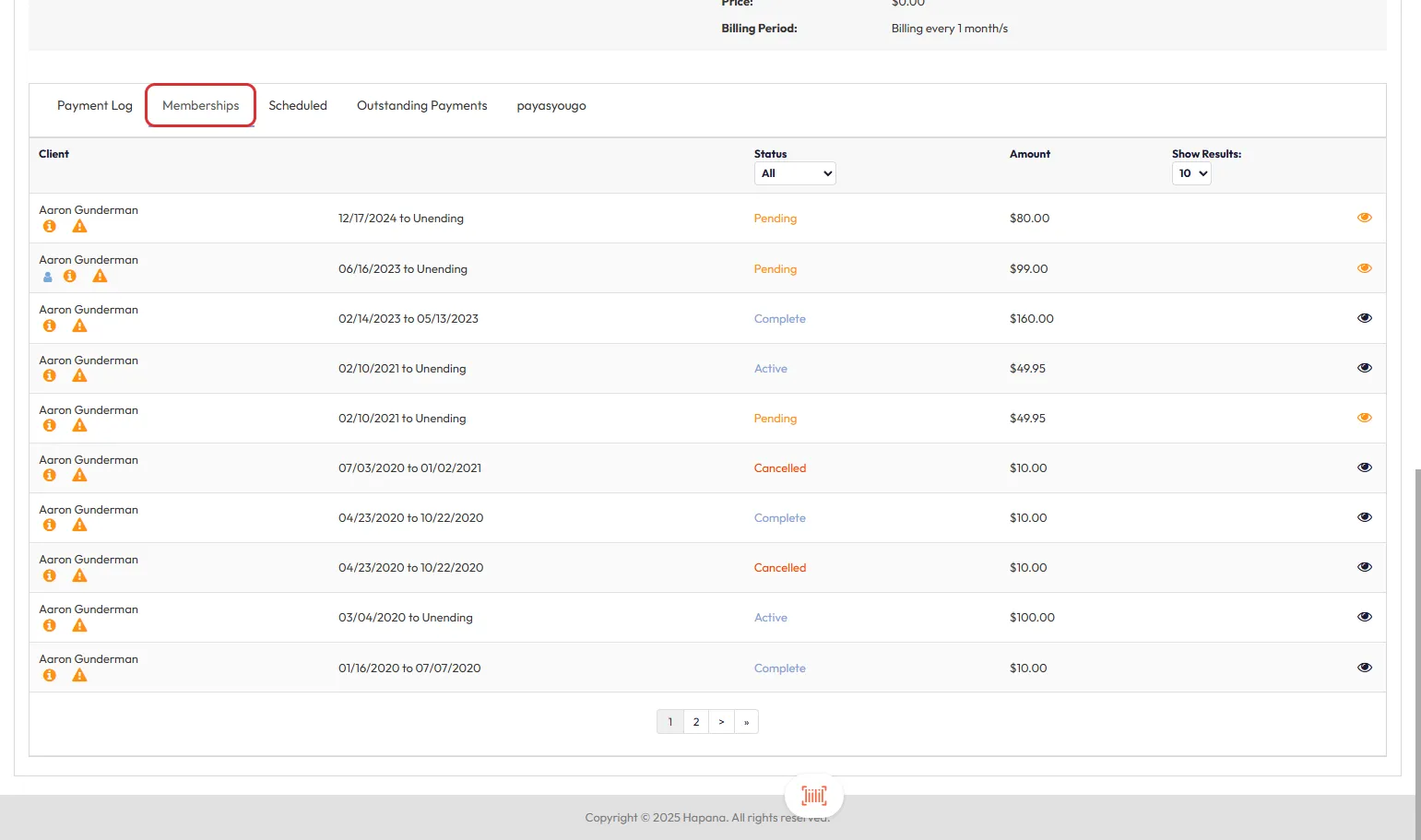
Step 6: View Membership Details
- Click the Eye Icon to the right of the relevant membership.
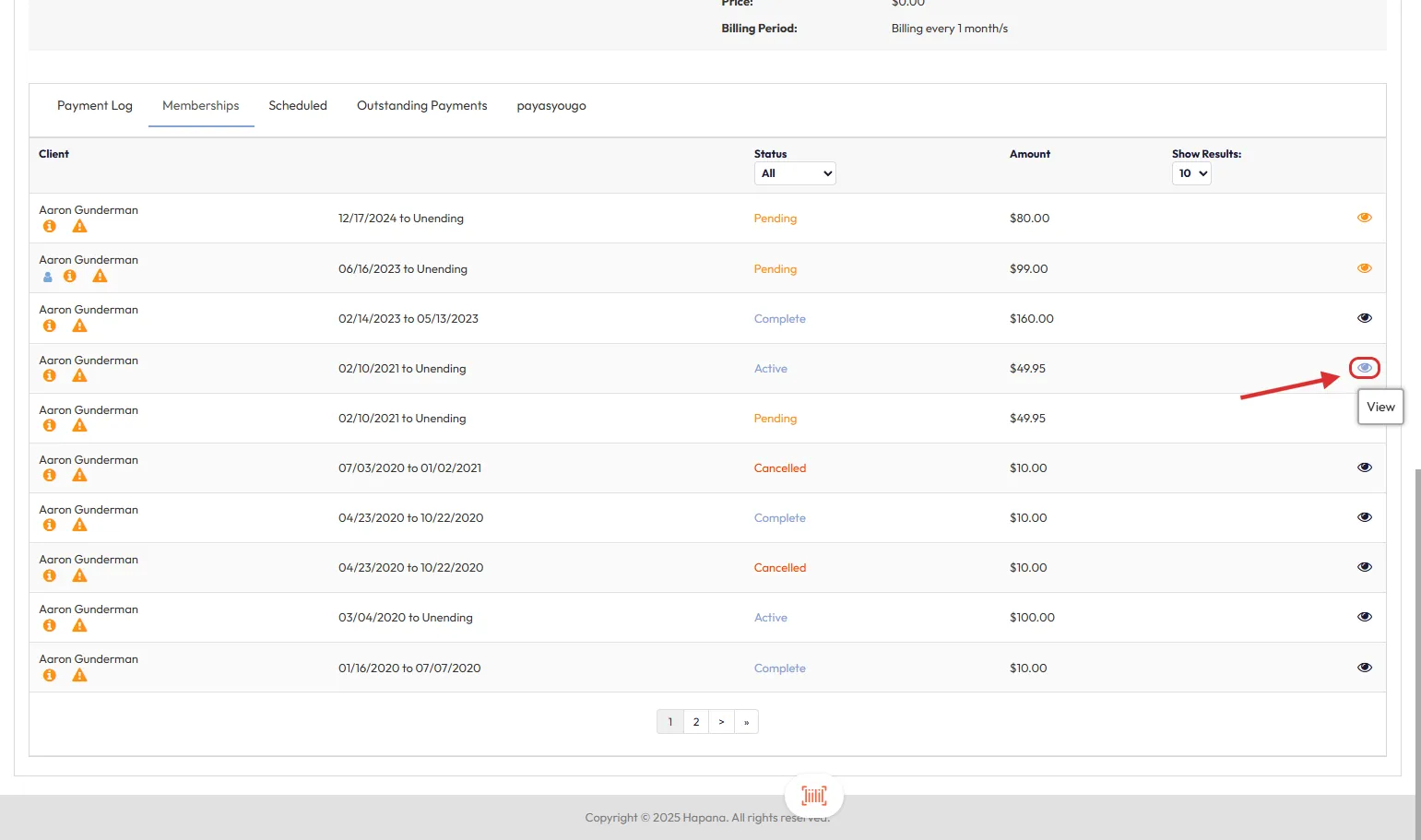
Step 7: Select Future Scheduled Payments
- Use the Checkbox at the top to select all future scheduled payments.
- Alternatively, manually select individual payments if you only want to update specific ones.
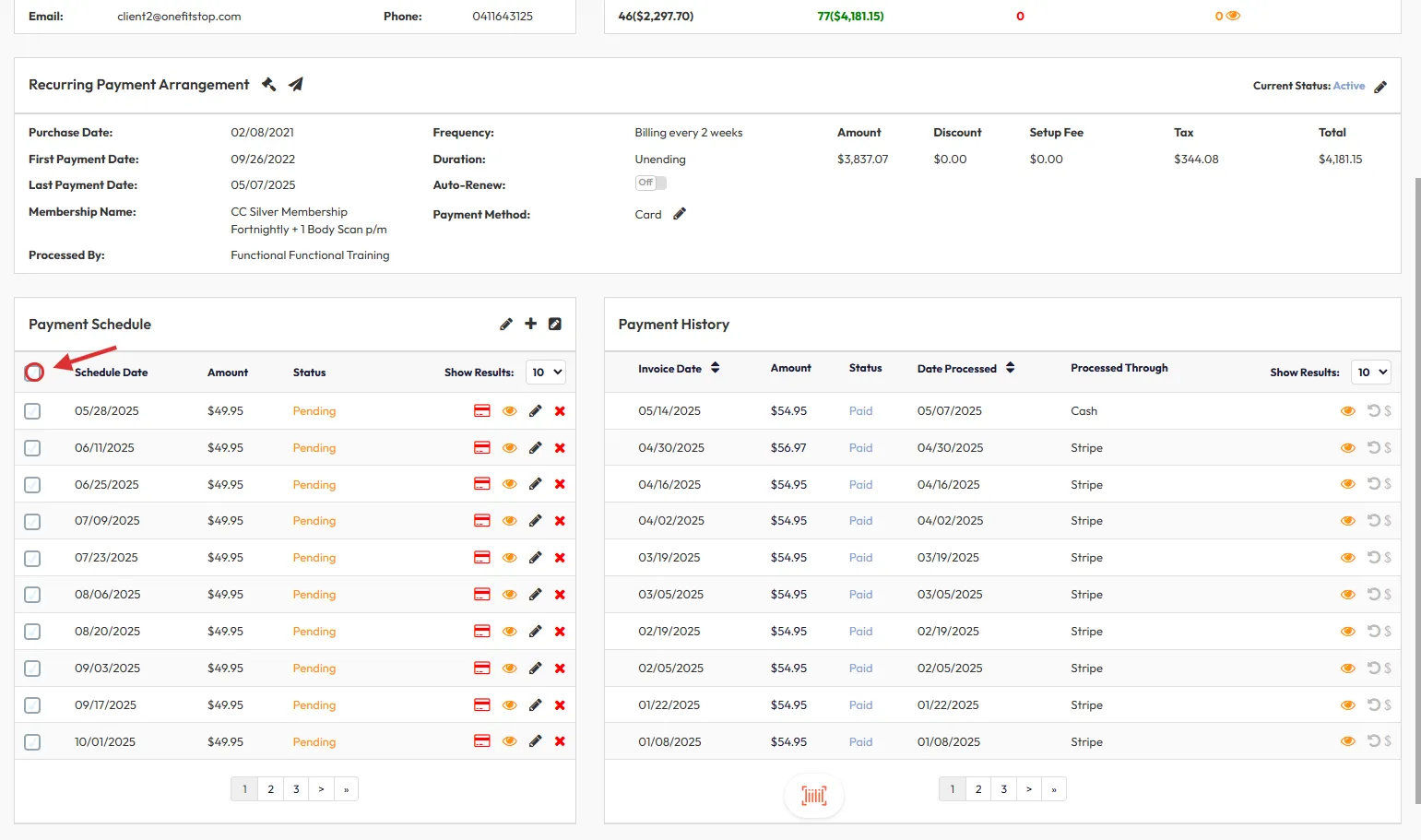
Tip: Bulk selecting saves time when multiple adjustments are needed.
Step 8: Edit Payment Rate
- Click the Pencil Icon labeled Edit Payment Rate.
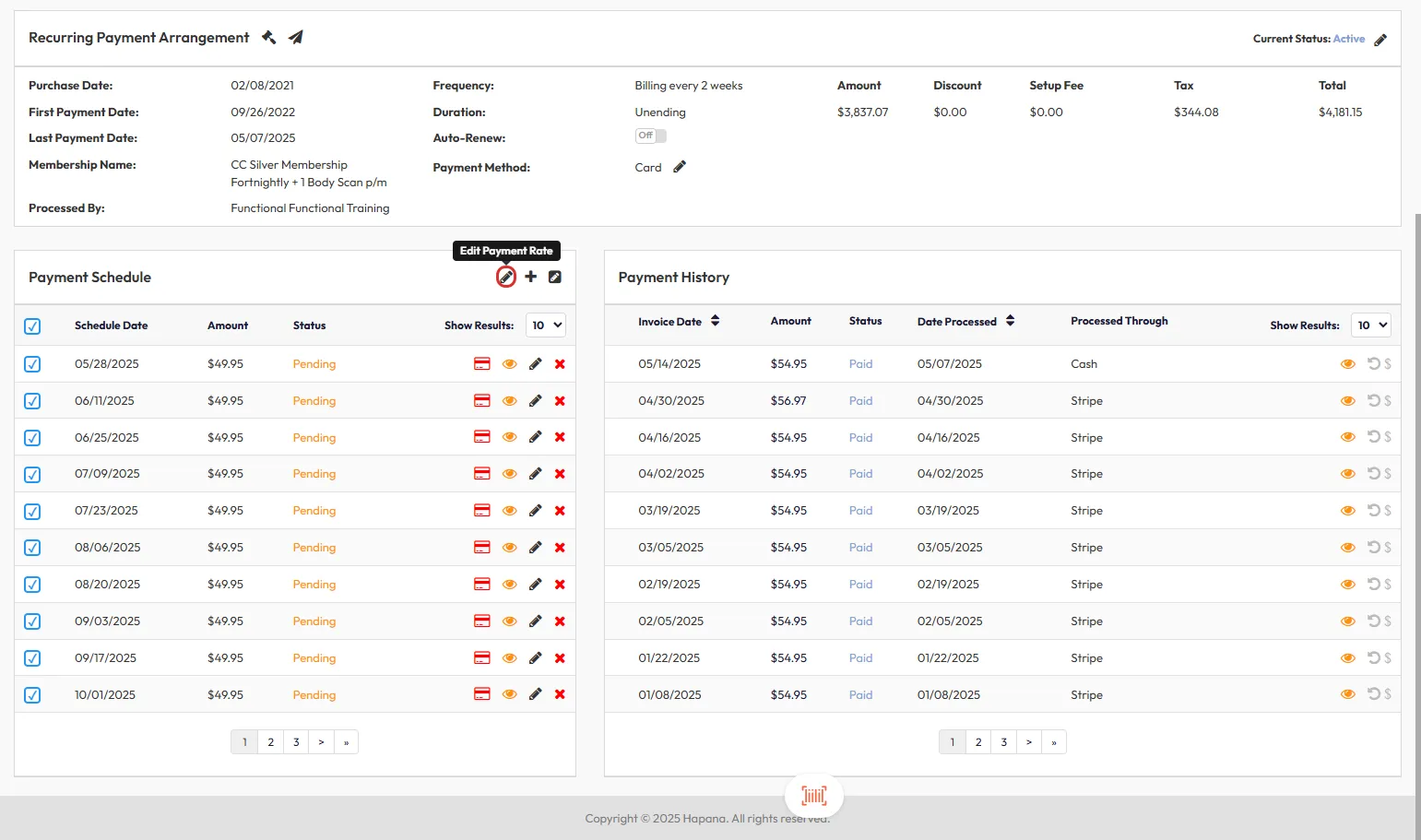
Step 9: Enter the New Rate
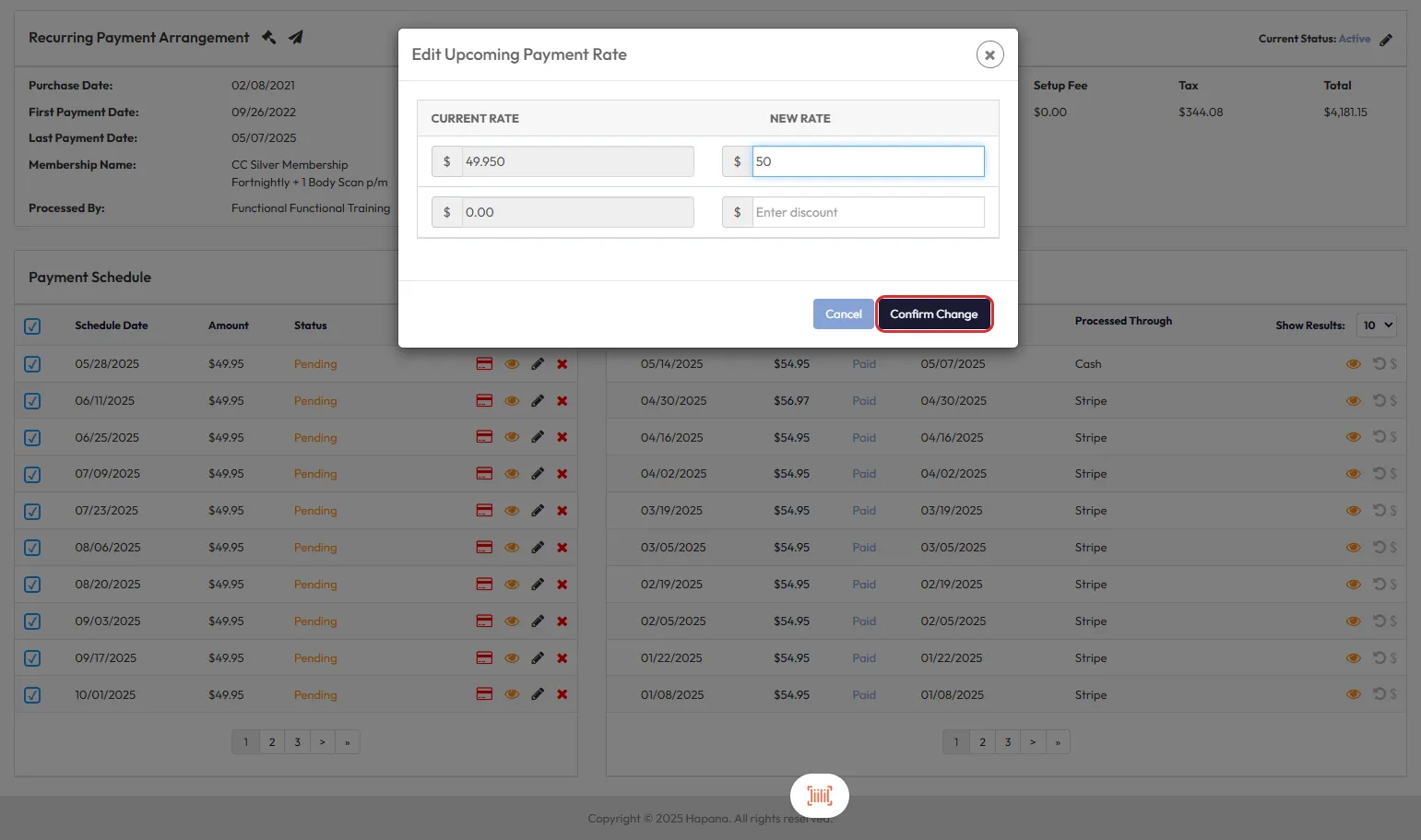
- In the "Edit Upcoming Payment Rate" window, enter the new numerical value in the New Rate field.
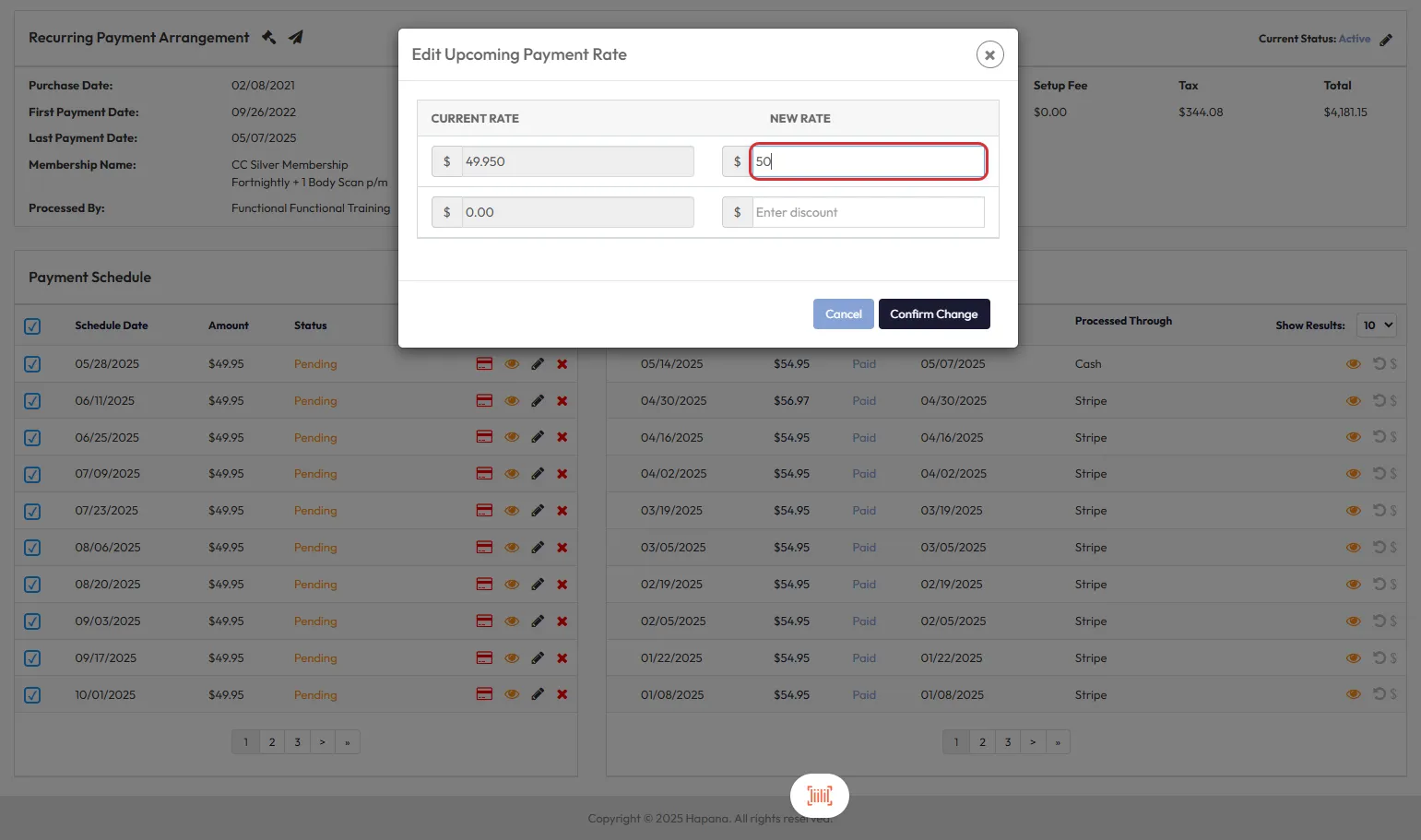
Step 10: Confirm Changes
- Click Confirm Change to apply your update.
Step 11: Final Confirmation
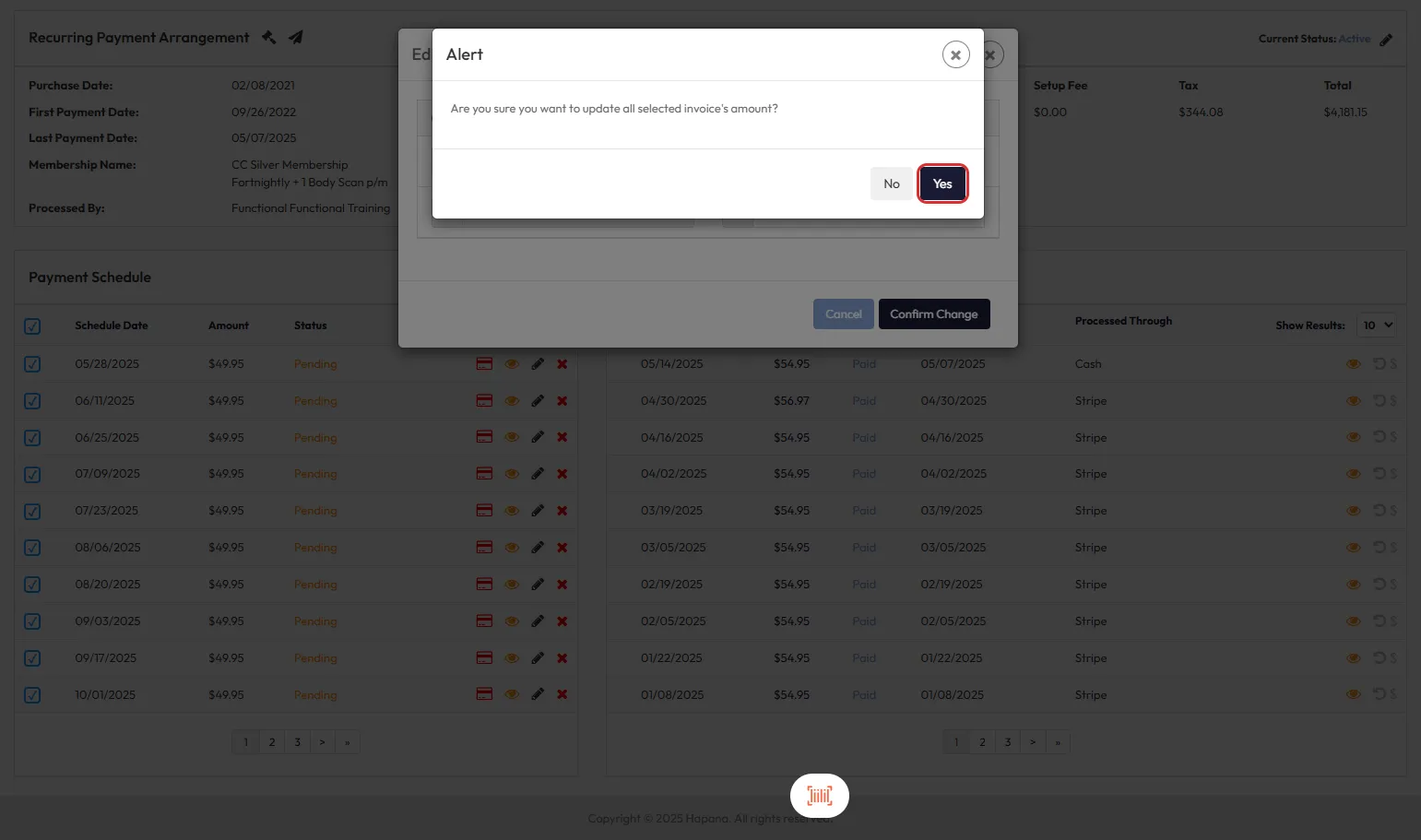
- Select Yes when prompted to confirm updating the selected invoices' amounts.
Expected Outcome
The selected scheduled payments will now reflect the new payment rate moving forward, ensuring client billing is accurate and consistent.
FAQs
Q1: Can I edit only one payment instead of all future payments?
Yes! You can manually select only the payment(s) you want to adjust.
Q2: What if I entered the wrong new rate?
Repeat the same process and enter the correct rate to update it again.
Q3: Will this affect past payments?
No. Changes apply only to future scheduled payments.
For any additional help, reach out to our support team via support@hapana.com.