
Overview
Clients sometimes need to update personal information, like correcting a misspelled name. With the Hapana branded app, clients can easily update their own profile details—including their first and last name—quickly and securely, right from their mobile device.
This guide walks you through the steps to edit and save a client's name directly from their app profile.
Prerequisites
- Access to the Hapana branded app (client must be logged in)
- The client's account must already exist and be linked to the correct location
- The app must be updated to the latest version
Step-by-Step Instructions
Step 1: Open the branded app and select the More menu
From the bottom navigation bar, tap More.
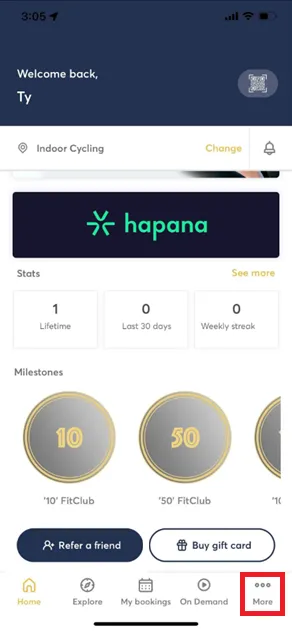
Tip: The More menu is usually represented by three horizontal lines or a "More" label depending on your app theme.
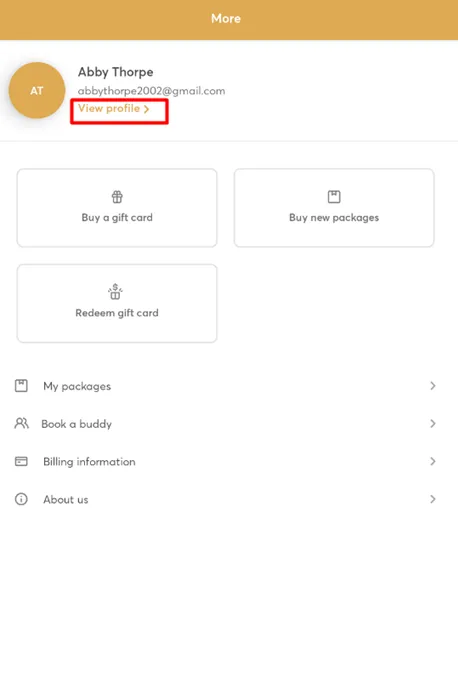
Step 2: Select View Profile
Under the client's email address, tap View Profile.
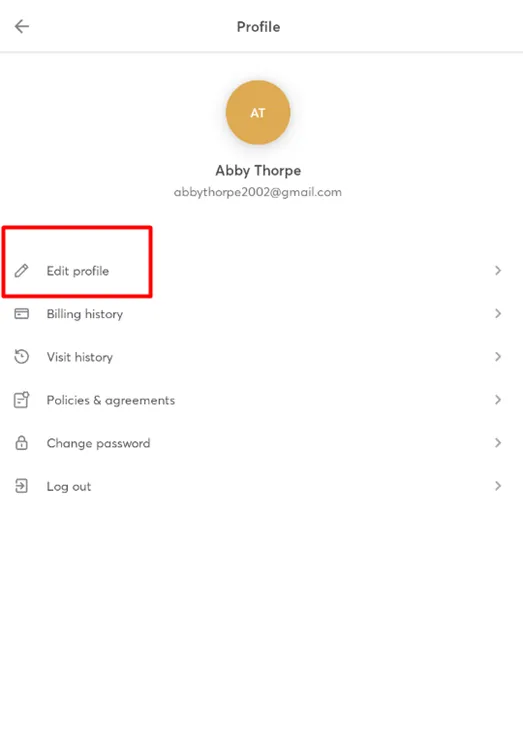
Step 3: Tap Edit Profile
On the profile screen, select the Edit Profile button.
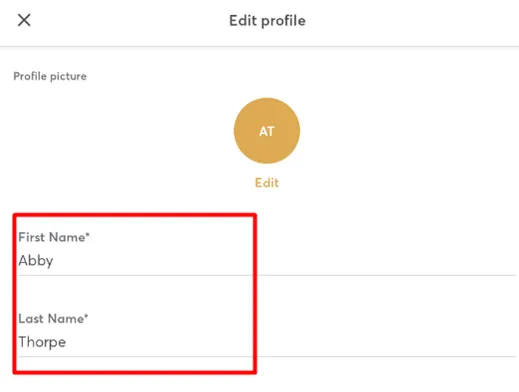
Step 4: Update the client’s name
Make any necessary edits to the First Name and/or Last Name fields.
Step 5: Save your changes
After making the updates, tap Save to apply the changes.
Tip: Remind clients to double-check spelling before hitting Save to avoid any future login or billing issues.
Expected Outcome
The client’s updated name will immediately reflect in their profile and will be synced across the Hapana platform wherever their client record appears.
FAQs
Q: Will this change update the client’s name in the Core platform too?
Yes, changes made in the app sync back to Core automatically.
Q: Can clients edit other information like phone number or email address?
Yes, depending on the fields enabled for editing in your app configuration.
Q: What happens if the client closes the app before saving?
No changes will be made unless the Save button is tapped.
Need help? Reach out to our support team via support@hapana.com